space.vars.OIM. This user should not perform any other action from Zephyr Enterprise’s user interface. This user is referred to as an 'Integration User' in the documentation.
* For this integration user to perform operations in Zephyr Enterprise, various permissions are required, as outlined in the [Required Permissions](#required-permissions) section.
## System Configuration
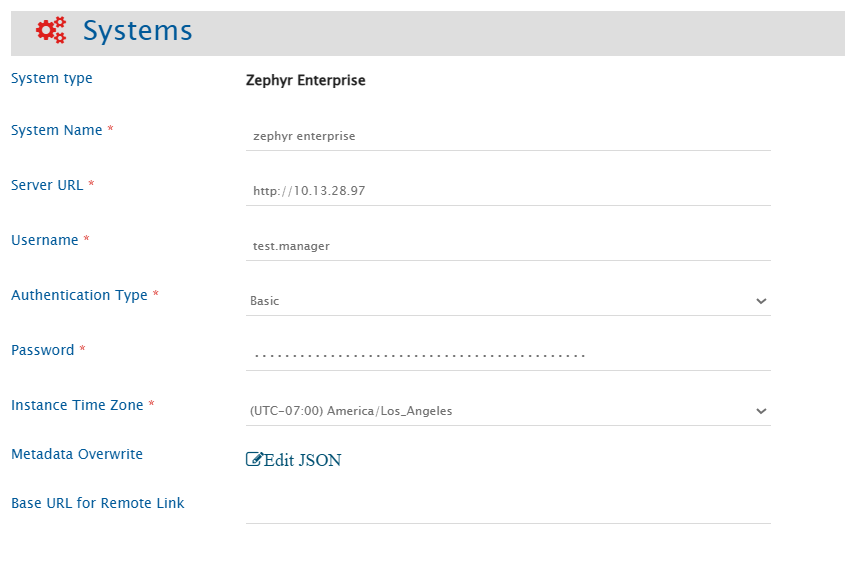
Before you continue with the integration, you must first configure the Zephyr Enterprise system in space.vars.OIM.
Refer to [System Configuration](/integrate/configure-integrations/system-configuration.md) for a steps on how to configure the system. Refer to the screenshot below:
space.vars.OIM. This user must not be used for any operations from Zephyr Enterprise’s user interface and must have the required permission to access the data as per space.vars.OIM product documentation |
| **Authentication Type** | Always | Provide the authentication type to connect to the Zephyr Enterprise instance. Supported options are Basic and API Token. |
| **Password** | Only when Authentication Type is Basic | Provide the password for the user given in the "Username" field. |
| **API Token** | Only when Authentication Type is API Token | Provide the API token generated in Zephyr Enterprise for the user given in the Username field. Refer to [Generate API Token](#generate-api-token) in the Appendix for details. |
| **Instance Time Zone** | Always | Provide the time zone of the host machine where Zephyr Enterprise application is installed. |
| **Metadata Overwrite** | Always | Enable or disable the usage of private API. Refer to the [Understanding Metadata JSON Input](#understanding-metadata-json-input) section for details on format and JSON structure. |
| **Base URL for Remote Link** | Always | Provide a different instance URL of the Zephyr Enterprise instance. This URL will be used for generating the Remote Link.
Note: If "Base URL for Remote Link" is empty, it will use default instance URL to generate remote link if configured on integration.
space.vars.OIM downloads attachments from Zephyr Enterprise using the private API. This behavior is enabled even if the **Metadata Overwrite** field is left empty or an empty JSON object (`{}`) is provided.
To disable private API usage for attachment downloads, explicitly set the `disableReadAttachments` flag to `true` in the JSON:
```json
{
"entities": [
{
"internalName": "testcase",
"systemSpecific": {
"disableReadAttachments": true
}
}
]
}
```
## Mapping Configuration
Map the fields between Zephyr Enterprise and the other system to be integrated to ensure that data between both systems synchronizes correctly.
Refer to [Mapping Configuration](/integrate/configure-integrations/mapping-configuration.md) for steps on configuring field mappings.
### Folder Entity Field Configuration
* Zephyr enterprise does not allow characters more than 1024 in **Description field.** To avoid synchronization failures, that the mapped value can be truncated to 1024 characters during field mapping.
### Cycle Entity Field Configuration
* Release is mandatory to create cycle so make sure OH\_Release field is mapped
* Zephyr enterprise does not allow characters more than 1024 in **Build and Environment field.** To avoid synchronization failures, that the mapped value can be truncated to 1024 characters during field mapping.
### Phase Entity Field Configuration
* Due to API limitations, **Description field must not exceed 1024 characters.** If mapped, truncate the value to 1024 characters using advanced XSLT to prevent processing failures.
* **Phase creation and updates depend on Release and Cycle context:**
* **OH\_Release** is used to check or create the release.
* **OH\_Cycle** is used to check or create the cycle within the release.
* The following date validations are enforced:
* Phase Start Date ≥ Cycle Start Date (`OH_CycleStartDate`)
* Phase End Date ≤ Cycle End Date (`OH_CycleEndDate`)
* Cycle Start Date ≥ Release Start Date (`OH_ReleaseStartDate`)
* Cycle End Date ≤ Release End Date (`OH_ReleaseEndDate`) *(if provided)*
### Tags Field Configuration
* In Zephyr Enterprise, **tags cannot contain spaces**. Any space character is treated as a delimiter, meaning it splits a single value into multiple tags.
**For Example:** If the API value is `"tag1 tag2"`, Zephyr Enterprise interprets this as two separate tags: `tag1` and `tag2`.
* When Zephyr Enterprise is the **target system**, and the source system (e.g., tag or label fields) allows spaces within a single value, those spaces must be handled during transformation. Specifically, spaces should be replaced with a supported delimiter such as an underscore (`_`) to preserve the intended single tag.
**For Example:**
* Source system value: `"Test Case"`
* Without transformation → Stored in Zephyr Enterprise as: `Test`, `Case`
* With transformation → Stored as: `Test_Case`
* If customization is implemented using **advanced XSLT**, ensure that the same transformation logic is also applied in the **reverse direction** (from Zephyr Enterprise back to the source system), especially when the field mapping is bidirectional.
### Test Step Field Configuration
* For mapping additional fields for test steps like 'Comments', advance XSLT will be modified. Add the following sample xslt in default xslt to map additional fields:
Example,\
Here, field name should be the internal name of comments field in Zephyr Enterprise and the content of this field needs to be included in given field name tag
```xml
space.vars.OIM supports criteria and target lookups for the entity types Test Case and test Execution.
* Zephyr Enterprise Query format will be same as the **ZQL (Zephyr Query Language)**.
* Please refer [this](https://support.smartbear.com/zephyr-enterprise/docs/en/zephyr-enterprise/zephyr-user-guide/search.html) link To learn how to form a query in ZQL format.
**Criteria samples**
| **Field Type** | **Criteria Description** | **Criteria snippet** |
| ----------------------- | --------------------------------------------------------------------------------- | ---------------------------------- |
| **Lookup** | Synchronize all entities having priority set to 'P1' | priority = "P1" |
| **Date** | Synchronize all entities created after certain date | createdOn > "01-31-2025 00:00" |
| **Text** | Synchronize all entities with Name Demo entity | Name \~ "Demo" |
| **Text** and **Lookup** | Synchronize all entities with Name Demo entity **and** priority set to 'P3' | name \~ "Demo" and priority = "P3" |
| **Text** or **Lookup** | Synchronize all entities with Name Demo entity **or** status set to 'IN-PROGRESS' | name \~ "Demo" or priority = "P3" |
## Known Behavior
* Requirements and Defects links on Test Case and Test Execution are not supported in space.vars.OIM.
* **Release, Folder, and Cycle names are case-insensitive** in Zephyr Enterprise. Hence, while performing check-and-create operations for these entities, entities with names differing only by case are treated as the same entity and will not be created again. **Example:**
* If a Release named `Release_1` already exists in Zephyr Enterprise, and the incoming data contains `release_1` or `RELEASE_1`, the existing release will be identified and **updated**, rather than creating a new release.
* **Folder path handling using `OH_Folder_Path`:**
* The separator for folder hierarchy is `/` (forward slash).
* Example:
* `"Parent/Child"` → *Child* is created under *Parent*
* `"Folder1/Folder2/Folder3"` → hierarchical structure is created accordingly
* If the Release or Cycle already exists:
* Start and End dates are **updated based on incoming values**
* Once a **Release End Date is set, it cannot be modified again**. This is an API-level restriction in Zephyr Enterprise.
## Limitations
* **History-based synchronization is not supported** due to API limitations.
* For Zephyr Enterprise as the target system,
* If the attachment file name contains this file name characters (%,:) or non-ascii characters like (样,品,テ,ス,ト,フ,ァ,イ,ル,★,✓,♛,Ω), then the file will not be added in Zephyr Enterprise. Consequently, the user will encounter a Processing Failure. To avoid this Processing Failure, it is recommended to use the valid file naming conventions.
* Additionally, if the user still wants to synchronize attachments having this file name characters, then the user needs to add advance mapping for attachments to replace special characters with any of the supported characters. Refer [Attachment naming convention related errors](/help-center-index/troubleshooting-index/errors-index/common-error-solutions/attachment-naming-convention-related-errors.md)
* **The following actions requires an additional update on the entity to be synchronized**:
* Bulk updates
* Cloning of test cases
* Adding or removing a test step
* Adding or removing attachments or external links
* Updating only test step results
**Reason:**\
In Zephyr Enterprise, these operations do not update the entity’s modified timestamp. Since space.vars.OIM relies on this timestamp to detect changes, such updates are not picked up during synchronization unless an additional update is performed on the entity.
* **Test step result limitations:**
* Only **add operation is supported** for:
* Attachments
* External links
* Update and delete operations are **not supported** at step result level in space.vars.OIM.
* **Phase Limitations:**
* Once a phase is synced in Zephyr, its associated Cycle cannot be updated through synchronization due to API limitations
### Required Permissions
In Zephyr Enterprise, users are assigned roles, and those roles define their permissions. The integration user requires two roles to be configured and assigned:
1. **An Administration Apps role** — grants access to system-level settings.
2. **A Project Apps role** — grants read and write access to Test Planning, Test Repository, and Test Execution.
The user must also be assigned to the configured project with the configured **Project Apps** role.
**Step 1 — Configure the Administration Apps Role**
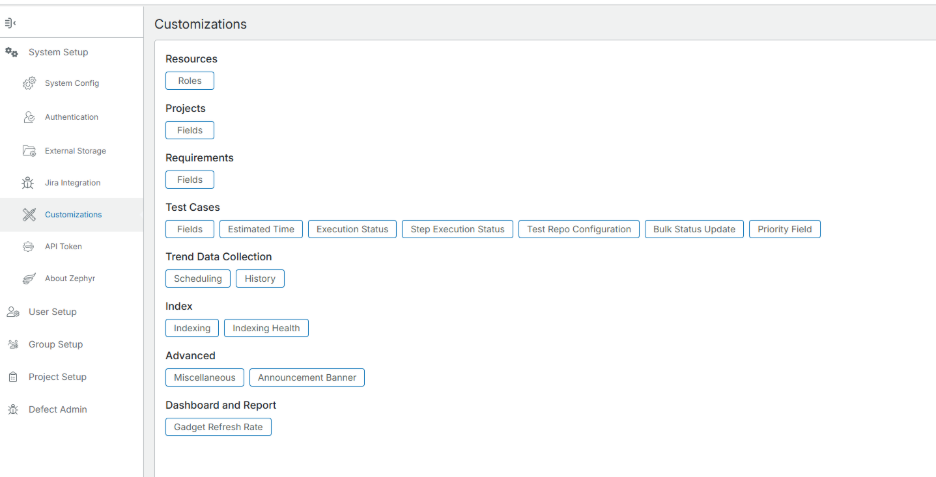
1. Navigate to the **Administration** section in Zephyr Enterprise.
2. Open **Customizations → Roles**.