> For the complete documentation index, see [llms.txt](https://docs.opshub.com/llms.txt). Markdown versions of documentation pages are available by appending `.md` to page URLs; this page is available as [Markdown](https://docs.opshub.com/upcoming-release/connectors/aras.md).
# Aras Innovator
## Prerequisites
### User Privileges
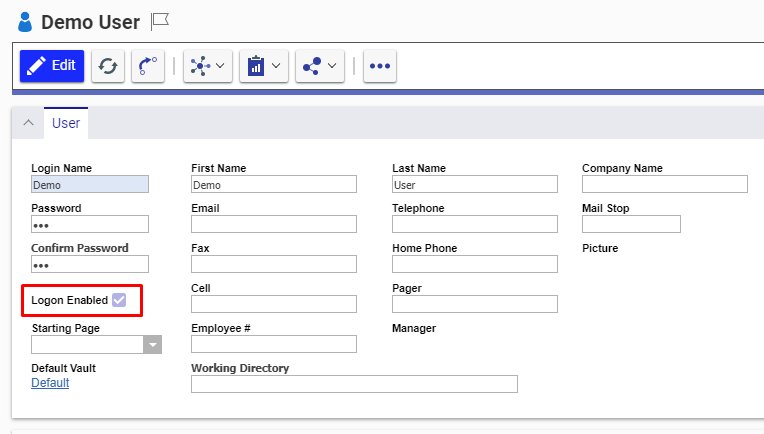
* Create a user in Aras Innovator that is dedicated for space.vars.OIM. The user shouldn't perform any other action from Aras Innovator user interface. Refer to [Add User in Aras Innovator](#add-users) section to learn how to add a new user in Aras Innovator.
* The user identity of the user dedicated for space.vars.OIM must have the following permissions for the 'item type' to be integrated:
| **Permission Types** | **Justification** | **Needed When** | **How To** |
| --------------------------- | -------------------------------------------------------------------------------------------------------------------------------------------------------------------------------------------------------------- | ----------------------------------------------------------------------------------------------------------------------------------------------------------------------------------------------------------------------------------------------------------------------------------------------------------------------------------------------------------------------------------------------------------------- | --------------------------------------------------------------------------------------------------------------------------------------------------------------------------------------------------------------------- |
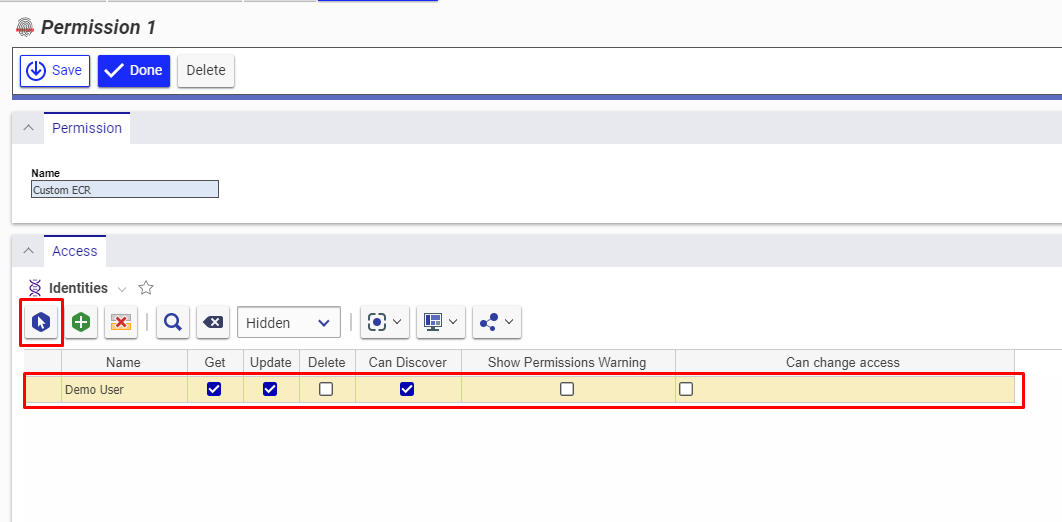
| Get | To get values of each field for particular item of 'item type' to be integrated | Aras Innovator is source system,target system or both. | To learn how to provide user with the Get permission, refer to [Give Necessary Permissions to User for Itemtype](#give-necessary-permissions-to-user-for-itemtype) section. |
| Can Discover | To get the list of items present for a given itemtype. | Aras Innovator is source system,target system or both. | To learn how to provide user with the Can Discover permission, refer to [Give Necessary Permissions to User for Itemtype](#give-necessary-permissions-to-user-for-itemtype) section. |
| Update | To update an item. | Aras Innovator is target system. Also,when Aras Innovator is source system and Update Permission is required for Remote Id or Remote Link configuration in Integration .Please check '''Tracking Id and Link of Entities Across Systems''' section on [Integration Configuration](/upcoming-release/integrate/configure-integrations/integration-configuration.md) page to learn about Remote Id and Remote Link. | To learn how to provide user with the Update permission, refer to [Give Necessary Permissions to User for Itemtype](#give-necessary-permissions-to-user-for-itemtype) section. |
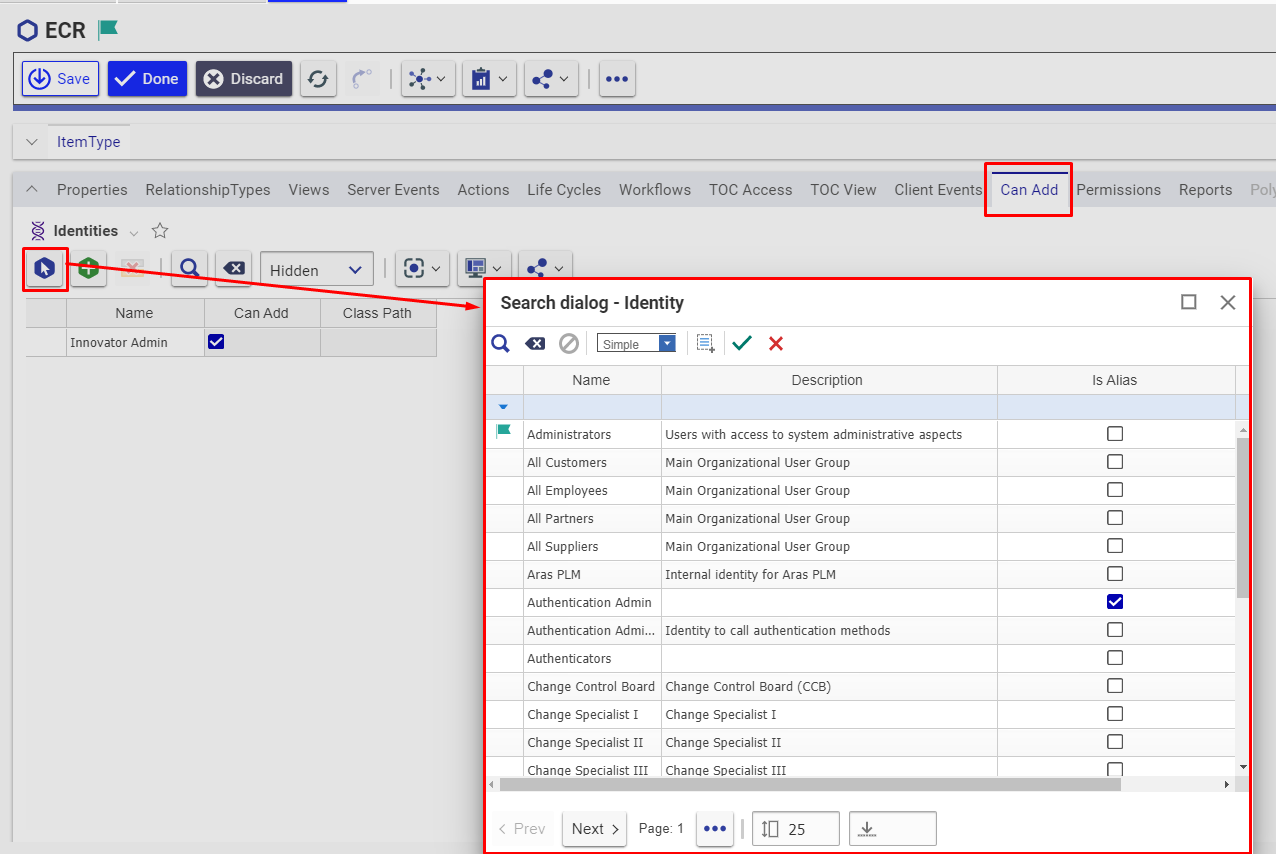
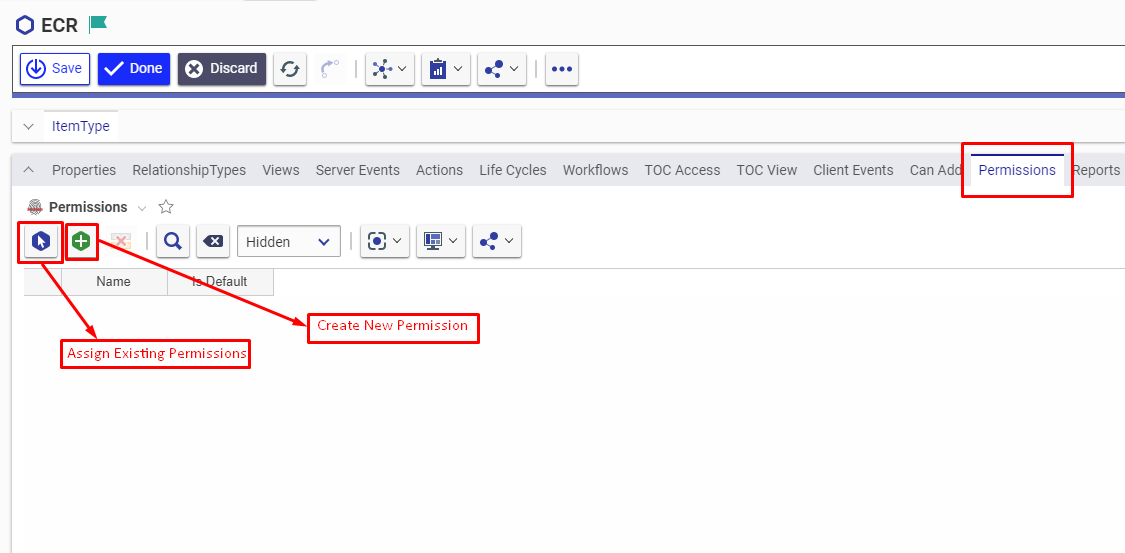
| Can Add | To create an item: The user is allowed to create record from the Aras Innovator System (through the UI and API both) only when the user's identity is allowed in the "Can Add" tab | Aras Innovator is target system. | To learn how to assign "Can Add" permission to user's identity on particular itemtype, refer to [Allow Can Add permission to User](#assign-identity-on-item-type) section. |
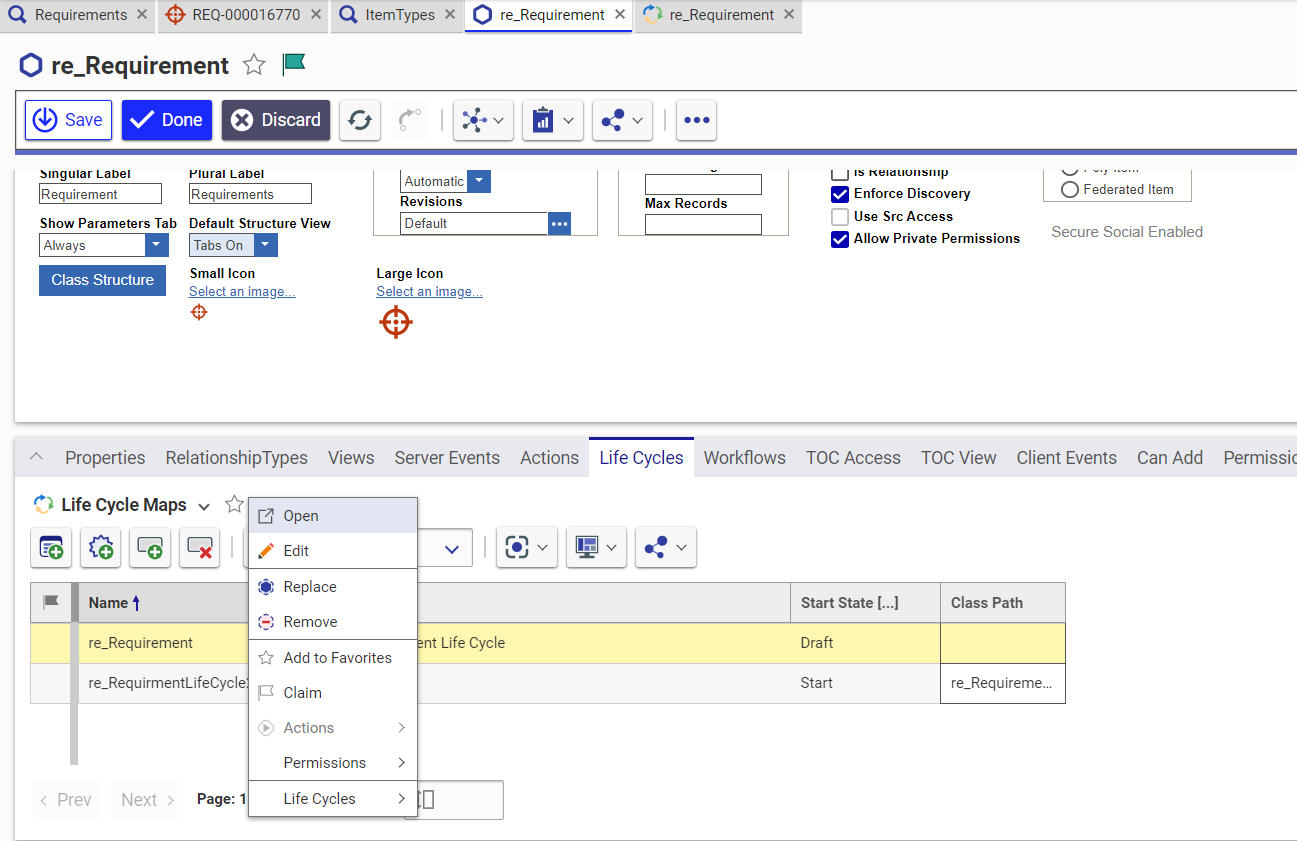
| Life Cycle State Transition | To update the state during transition, the role in Life Cycle transition needs to be set as '''Administrators''' for the Integration User \[configured in the space.vars.OIM]. | When Aras is the target system. | To learn how to provide user with the Lifecycle State Transition permission, refer to [Assign Life Cycle Transition Permission for Item Type](#assign-life-cycle-state-transition-permissions-for-item-type) section. |
### Versionable Item Type
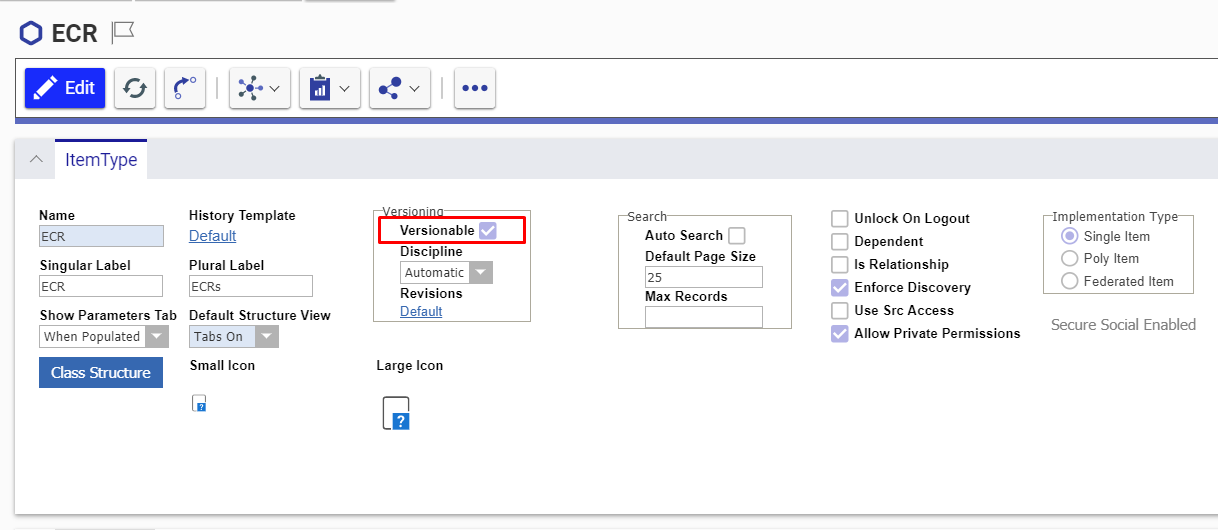
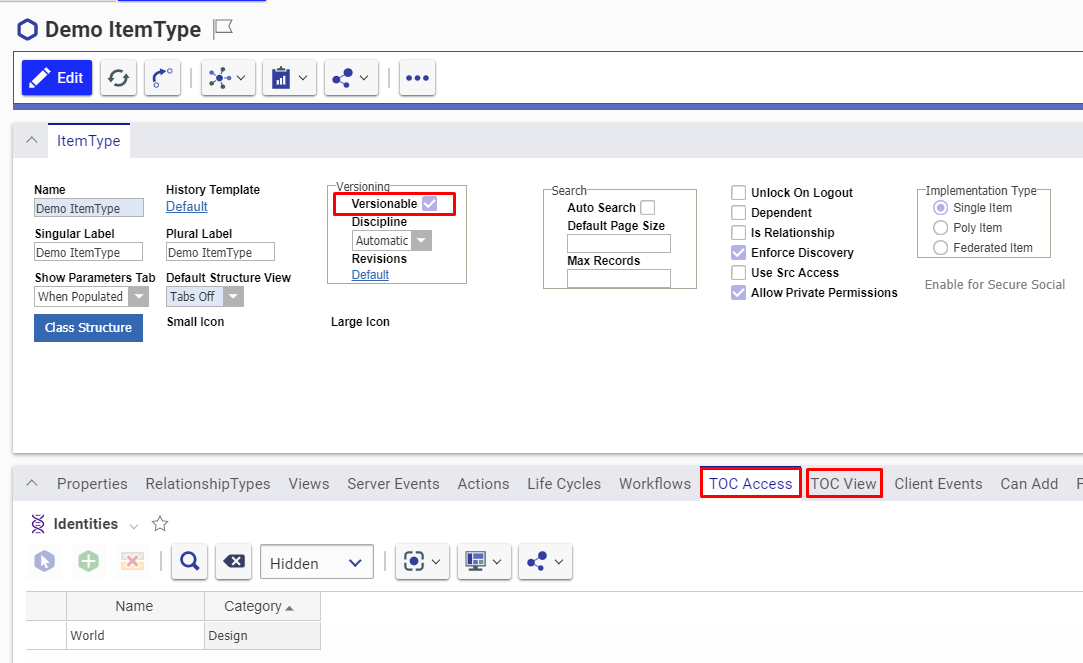
* For any Item Type in Aras Innovator, the versions/history for the item gets generated only when the item is versionable. Hence for space.vars.OIM to synchronize the items with their revisions, they need to be versionable.
* In case they are not versionable, space.vars.OIM will synchronize the item as per the current state of that item, available at the time of synchronization. Follow [Make Item Type Versionable](#make-item-type-versionable) in the Appendix section to learn how to make item types versionable.
### Hosting Opshub Aras Service
space.vars.OIM requires this service to communicate with Aras Innovator server. It acts as a communication layer between Aras Innovator and space.vars.OIM.
#### System Prerequisites
* Configure space.vars.OIM Aras Service on a machine that has .NET Framework version 4.7.2 or a higher version installed.
* Please refer to the following [link](https://docs.microsoft.com/en-us/dotnet/framework/get-started/system-requirements) for information on software and hardware requirements for installing .NET Framework 4.7.2.
#### Installation Steps
Follow the steps for installation given below:
1. Locate the path `\Other_Resources\Resources`
2. Extract the `OpsHubArasService.zip` package
3. Check the availability of port 9494 as OpsHubArasService will be using port 9494. Refer to section [Check Availability of Port](/upcoming-release/connectors/aras.md#how-to-check-availability-for-port-9494-for-aras-service) to learn how to check if particular port is available. Refer section [How to change the port of service](/upcoming-release/connectors/aras.md#how-to-change-the-port-of-service) to learn how to change the default port of service.
4. Open the command prompt with Administrator Privileges and navigate to the folder extracted in Step -2, where the user can find `registerArasService.bat`
5. Now, execute `"registerArasService.bat"`
6. Once the command is executed, go to Windows Services and look for a service with the name `'OpsHubArasService'`.
* Please start the service in case the service has not started yet.
7. Test the web service by opening the URL in browser: `http://:<9494>/ArasService`, for example: `http://localhost:9494/ArasService`
## System Configuration
Before the user continues with the integration, he/she must first configure Aras Innovator System. Refer to [System Configuration](/upcoming-release/integrate/configure-integrations/system-configuration.md) to learn step-by-step process to configure a system. See the screenshot given below for reference:

space.vars.OIM. Please ensure that user has the necessary permissions. Refer to [User privileges](#user-privileges) for permissions required by user identity. |
| **User Password** | Provide password of user dedicated for space.vars.OIM - use plain text if FIPS is disabled, or MD5-hashed if FIPS is enabled. |
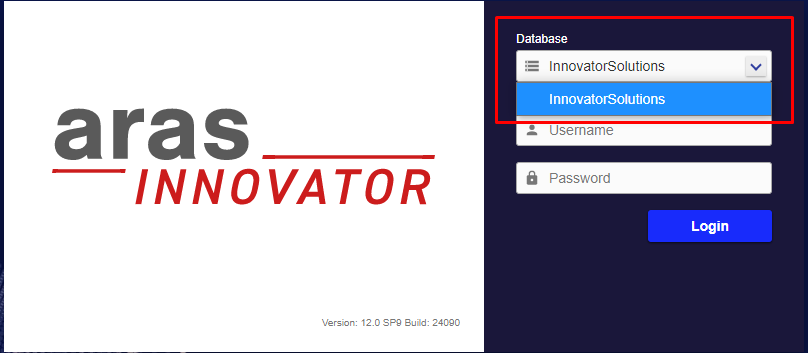
| **Database name** | Provide Aras Innovator Database name to which the connection needs to be done. Refer to [Get Database Name](#get-database-name) in the Appendix section to learn how to get Database name. |
| **Web Service URL** | Provide URL for the hosted OpsHubArasService. Refer to [Hosting opshub Aras service](#hosting-opshub-aras-service) to learn how to host space.vars.OIM Aras Webservice. |
| **Metadata Details** | Override default entity properties using metadata configuration.. Refer to [Understanding JSON Input](#understanding-json-input) to learn how to specify the metadata details. |
* If the system is deployed on HTTPS and a self-signed certificate is used, then the user should import the SSL Certificate to be able to access the system from space.vars.OIM. Check [Import SSL Certificates](/upcoming-release/getting-started/installation/ssl-certificate-configuration.md) to learn how to import SSL certificate.
#### Understanding JSON Input
* The entity metadata details can be provided at the time of system configuration in the field 'Metadata details' \[in the form of JSON] in the below-mentioned use case:
* Use Case:
* This configuration is required when:
* An item type is used as a reference field in field mapping for synchronization, and
* The referenced entity’s display name is configured using a field other than the default **name** field.
* Configuration Requirement:
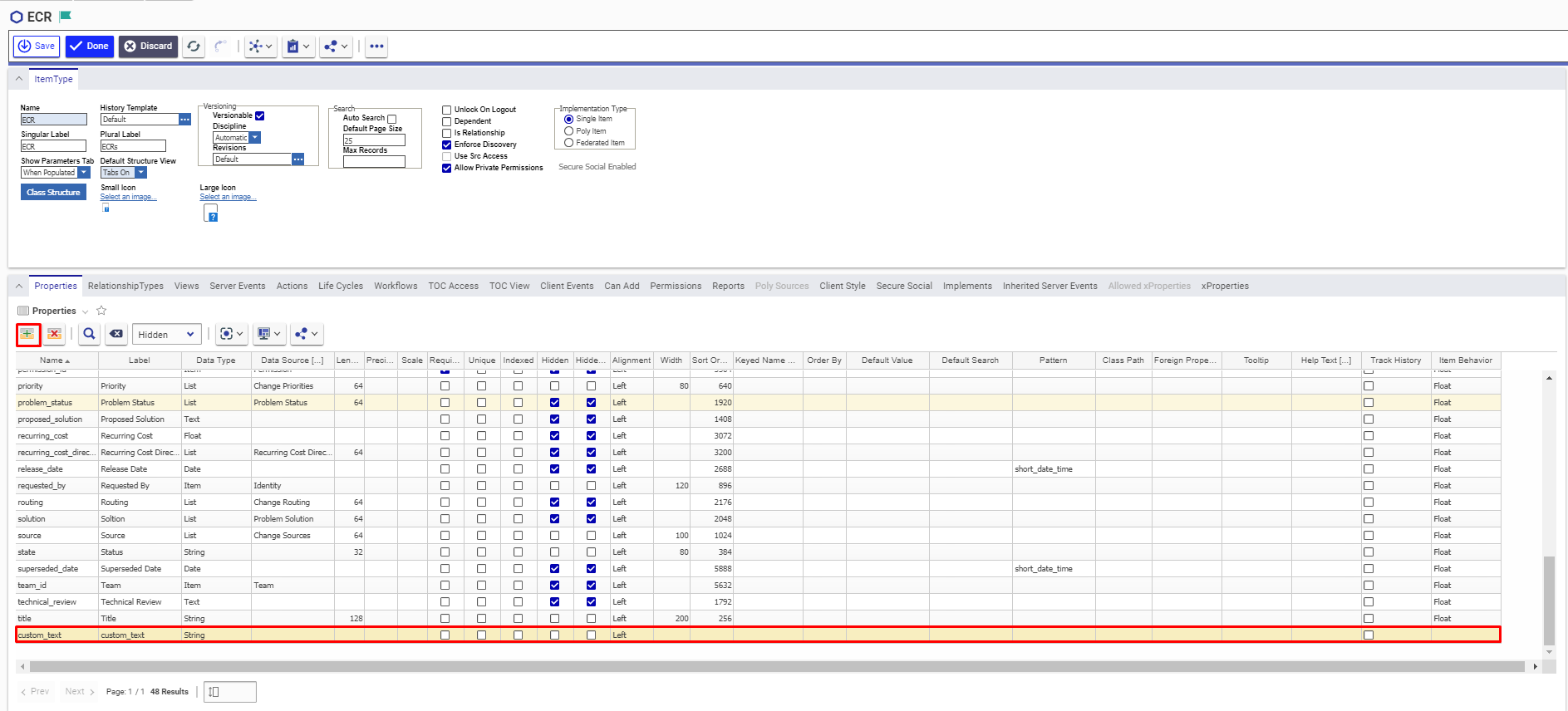
* In Aras, the primary display field of an entity can be customized. Refer to [Create custom property](#create-custom-property) section for getting the internal-name of the primary display field.
* If the display field differs from the default name, it must be specified in the JSON under: **PrimaryNameField**
* If not configured, the integration will assume **name** as the default display field.
* Reason:
* The primary display field is not exposed through the API, so the integration cannot automatically determine which field is used for display.
* Example:
* A Requirement item type contains a reference field (e.g., PartReference) pointing to Part.
* This field is included in synchronization.
* By default:
* Part uses name as its display field → this value is used in sync.
* If the display field is customized:
* The correct field must be defined in PrimaryNameField.
* This ensures accurate synchronization of the reference value.
> **Note**: The value for PrimaryNameField must be the internal field name. Separate configurations can be defined for different item types.
```json
{
"Part": {
"PrimaryNameField": "name"
},
"Product": {
"PrimaryNameField": "title"
}
}
```
## Mapping Configuration
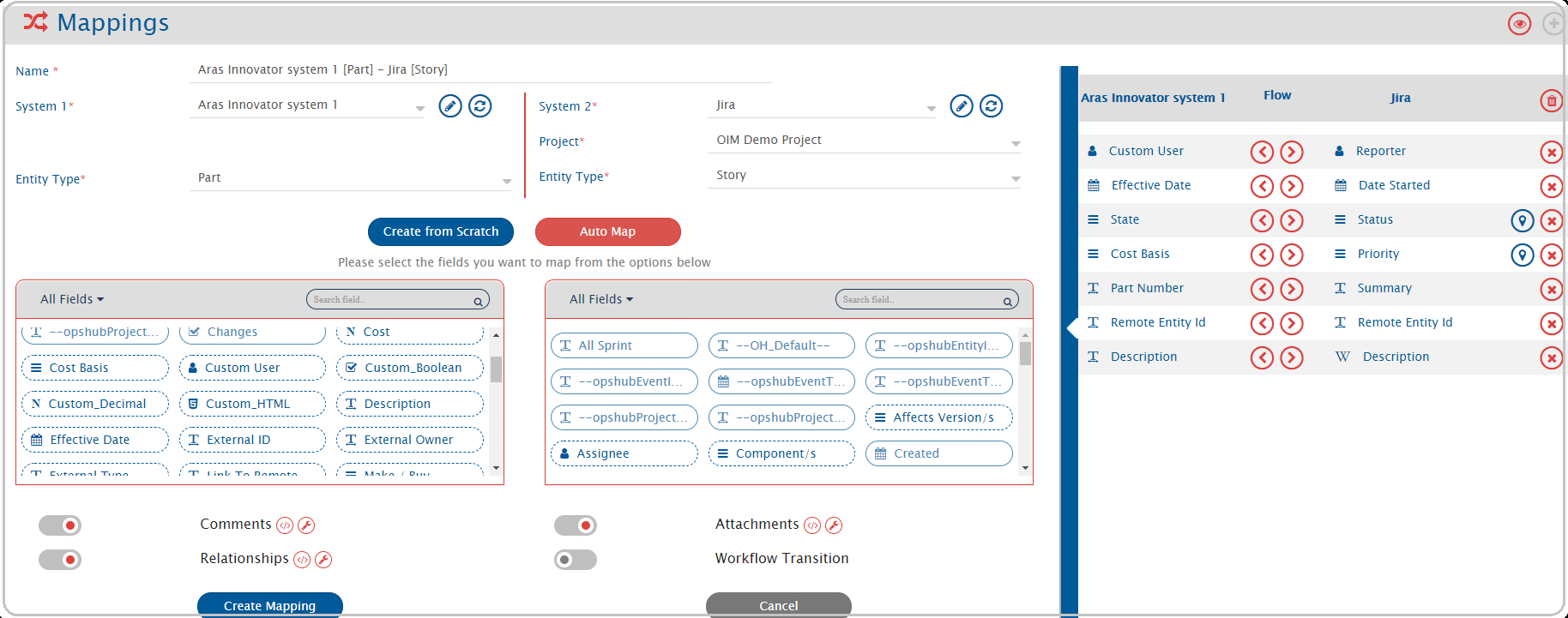
Map the fields between Aras Innovator and the other system to be integrated to ensure that the data between both the systems synchronize correctly. Check [Mapping Configuration](/upcoming-release/integrate/configure-integrations/mapping-configuration.md) to learn the step-by-step process to configure mapping between the systems.
### Version Control of Aras Innovator Items (OH\_Version)
Aras Innovator creates a new generation (version) of a versionable item every time the item is edited. As space.vars.OIM edits the item for every change it synchronizes, every synchronization adds a generation to the item's version history in Aras Innovator. Map the **OH\_Version** field if the versions in Aras Innovator are to be controlled.
#### About the OH\_Version Field
* **OH\_Version** is available in the list of target fields for every item type.
* It is a **boolean** field and it is **not mandatory** to map it. If it is not mapped, the items are versioned exactly the way they are versioned today, so the existing integrations are not impacted in any manner.
* It is not an actual property of the item type in Aras Innovator, and no value is stored against it in Aras Innovator. Its value only decides whether the write performed by space.vars.OIM creates a new generation of the item, or updates the current generation of the item.
* The item type has to be versionable for this field to have any effect. Refer to [Versionable Item Type](#versionable-item-type) section.
| **Value resolved for OH\_Version** | **Behaviour in Aras Innovator** |
| -------------------------------------------- | -------------------------------------------------------------------------------------------------------------------------------------------------------------------- |
| Field is not mapped | A new generation of the item is created. This is the default behaviour. |
| `true` | A new generation of the item is created. |
| Blank, i.e. the mapping resolves to no value | A new generation of the item is created. |
| `false` or `0` | The change is written to the current generation of the item. The item is updated, i.e. its 'Modified On' and 'Modified By' change, but no new generation is created. |
* The value is resolved once per entity per synchronization, and the same value is applied to every write that space.vars.OIM performs for that entity in that synchronization, including the relationships and the attachments processed along with it.
#### Operations for Which OH\_Version is Considered
| **Operation performed by** space.vars.OIM | **Is the item edited, i.e. can a new generation be created?** | **Is OH\_Version considered?** |
| ------------------------------------------------------------------------- | ------------------------------------------------------------------- | --------------------------------------------------------------------------------------------------------------------------------------------------------------------------------------------------------------- |
| Create an entity | The item is created with generation 1 | Not applicable. A create always results in generation 1. |
| Update field values | Yes | Yes |
| Add or remove a relationship | Yes | Yes. Refer to [Version Control for Reverse Relationship Types](#version-control-for-reverse-relationship-types) in the Known Behaviors section for the relationship types that are stored on the linked entity. |
| Add an attachment | Yes | Yes |
| Delete an attachment | No. Only the relationship between the item and the file is deleted. | Not applicable |
| Add a comment | No | Not applicable |
| Change the state, i.e. Life Cycle transition | No. The item is promoted, it is not edited. | Not applicable |
#### When to Use the OH\_Version Field
* To keep the version history of the item in Aras Innovator meaningful, i.e. a generation is created only when a user changes the item in Aras Innovator, and not every time space.vars.OIM synchronizes a change into it.
* To avoid multiple generations for a single change of the source entity. A change that updates the fields and also adds relationships or attachments is written to Aras Innovator as more than one edit, and each edit creates a generation.
* To keep the rule for versioning with the user, as it differs from one organization to another. The value can be a constant, or it can be computed for every entity using [Advanced XSLT](/upcoming-release/integrate/configure-integrations/mapping-configuration.md#view-edit-xslt-configurations-options), for example, 'do not create a version if the item was last changed by space.vars.OIM itself'.
#### Configure the OH\_Version Field in the Mapping
**Map a constant value**
Use this when the versioning behaviour is the same for all the entities synchronized by the integration.
1. Open the mapping with Aras Innovator as the target system.
2. Select **OH\_Version** from the list of the target fields and keep the source field as **--NONE--**.
3. Configure **false** as the value of this field using [Default Value Mapping](/upcoming-release/integrate/configure-integrations/mapping-configuration.md#default-value-mapping), so that the changes are always written to the current generation of the item.
4. Save the mapping.
**Compute the value using Advanced XSLT**
Use this when the decision has to be taken for each entity, for example, when only the changes made by the users in Aras Innovator are to be versioned.
1. Select **OH\_Version** from the list of the target fields and keep the source field as **--NONE--**.
2. Click  for this field and configure the Advanced XSLT for it. Refer to [View/Edit XSLT Configurations options](/upcoming-release/integrate/configure-integrations/mapping-configuration.md#view-edit-xslt-configurations-options) and [Advance Mapping Utility](/upcoming-release/integrate/configure-integrations/mapping-configuration/advance-mapping-utility.md) for the utilities which can be used in the script.
3. The script has to return `false` when the change is to be written to the current generation of the item, and `true` when the item is to be versioned.
4. Save the mapping.
**Sample script**
The following script writes the change to the current generation of the item when the item was last modified by the user configured in the Aras Innovator system in space.vars.OIM, and lets Aras Innovator create a new generation when a user has changed the item since the last synchronization.
```xml
false
true
true
false
true
```
Replace the value of `ohIntegrationUser` with the user configured in the Aras Innovator system in space.vars.OIM.
**Points to consider while writing the script**
* A blank value means 'create a version'. If the script should decide 'do not create a version' by default, return `false` explicitly using `xsl:otherwise`, instead of leaving the output empty.
* On a create event, the entity does not exist in Aras Innovator yet, so any condition which reads the target item returns a blank value. Handle the create event explicitly, the way it is handled in the sample script.
## Integration Configuration
Set polling time as the time after which the user wants to synchronize data between Aras Innovator and the other system to be integrated. Also, define parameters and conditions, for integration, if any. Check [Integration Configuration](https://github.com/OpsHubProduct/OpsHub-Documentation/tree/DevSpace/docs/integrate/integration-configruation.md) to learn the step-by-step process to configure integration between two systems.
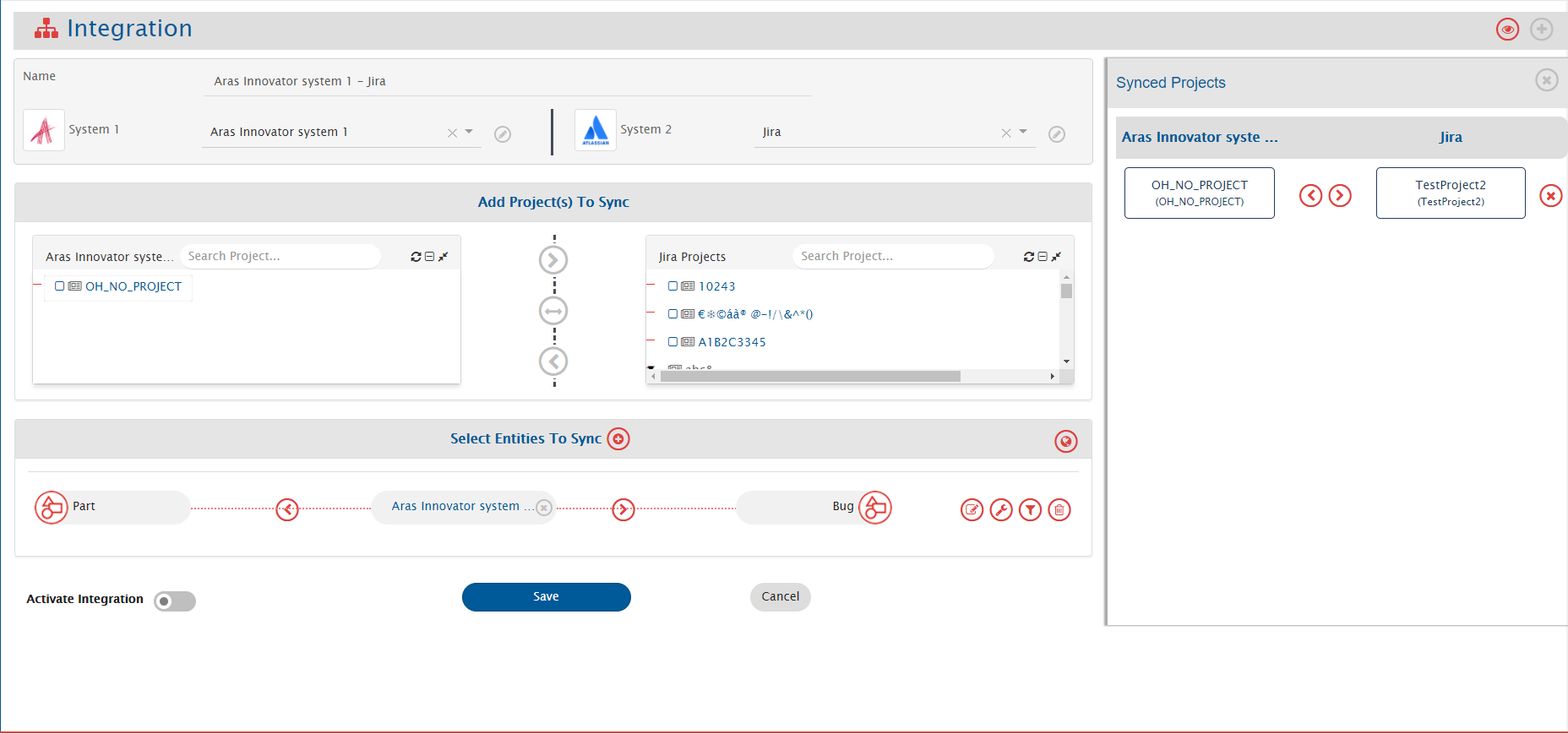
space.vars.OIM will use entity's Internal Id as Remote Id to be synchronized to the other end system.
* To show the 'Display Id' as Remote Id, it is required to add the Item Number field in Aras. Refer to [Add Item Number Field](#set-item-number-for-custom-entity) for more details.
**Reference Field Lookup Behavior**
* For reference fields, if the referenced entity uses a field other than the standard name field, configure the correct field in Metadata details (JSON) using PrimaryNameField.
### Version Control in Bidirectional Integrations
* When **OH\_Version** is mapped to `false` without any condition, every change synchronized by space.vars.OIM is written to the current generation of the item. As no new generation is created, the values which the item had before that write are not retained in any generation of the item.
* Hence, in a bidirectional setup, if a user changes the item in Aras Innovator and that change is not yet polled by the integration in which Aras Innovator is the source system, the next write from space.vars.OIM updates the same generation of the item, and the user's change is not available as a separate generation to be picked up from the version history.
* In such a setup, it is recommended to configure any one of the following:
* Map **OH\_Version** with a condition, so that the item is versioned when it is changed by a user and the current generation is updated only when the last change on the item was written by space.vars.OIM. Refer to the sample script in [Configure the OH\_Version Field in the Mapping](#configure-the-oh_version-field-in-the-mapping) section.
* Run the integration, in which Aras Innovator is the source system, in the **Current State** mode. In this mode, space.vars.OIM compares the current state of the item with the state which it had synchronized earlier, instead of reading the changes from the version history. Hence, the changes made by the users are synchronized even when they are written in the same generation. Refer to [Sync Only Current State](/upcoming-release/integrate/configure-integrations/integration-configuration.md#sync-only-current-state).
### Version Control for Reverse Relationship Types
* For most of the relationship types in Aras Innovator, the relationship is stored on the entity which is being synchronized. While adding or removing such a relationship, that entity is edited, and hence the value resolved for **OH\_Version** decides whether a new generation of that entity is created.
* Some relationship types are stored on the linked entity instead, and Aras Innovator shows them on the entity being synchronized through a relationship view. For such relationship types, the item which is actually edited while adding or removing the relationship is the **linked entity**. Hence, it is the linked entity for which a new generation is created, and not the entity being synchronized.
* For such relationship types, space.vars.OIM applies the same **OH\_Version** value, which is resolved for the entity being synchronized, to the write performed on the linked entity as well. So, when the resolved value is `false`, the relationship is added to or removed from the current generation of the linked entity, and the linked entity is not versioned either.
* The mapping provides one value per synchronization. So, while writing a conditional script, consider that the condition is evaluated for the entity being synchronized, and the same result is applied to the linked entity, whose state in Aras Innovator can be different.
## Known Limitations
* Only English alphabets(A-Z,a-z), numeric digits(0-9) and special characters (Example:- :,<,?,>,],\[,!,@ etc.) are supported for Criteria Configuration.
* Attachment as a field is not supported.
* "No Related" Relationship Type is not supported.
* For Aras Innovator as Target System, if the attachment filename contains Windows special characters (/,,",:,\*,?,<,>), then file will not be added in Aras Innovator. As a result, the user will encounter a processing failure. This is because Aras Innovator does not support Windows special characters in filename. Please check [Synchronise file with Windows special characters](/upcoming-release/help-center-index/troubleshooting-index/errors-index/aras-error-solutions/oh-aras-1502.md) to find how to synchronise attachment with Windows special characters in filename.
* The **OH\_Version** field is not considered for the values which space.vars.OIM writes back into the Aras Innovator item apart from the synchronized data, i.e. Remote Id, Remote Link, sync status and criteria information. Such writes always create a new generation of the item. Configure these fields only when the additional generations are acceptable. Refer to the [Tracking Id and Link of Entities Across Systems](/upcoming-release/integrate/configure-integrations/integration-configuration.md#tracking-id-and-link-of-entities-across-systems) section on the Integration Configuration page.
### Limitations to be Resolved in Upcoming Releases of space.vars.OIM
* To synchronise File as Attachment to Itemtype being synchronised, there should be unique relationship type between Itemtype and File.
* Comments with attachments are not supported.
* Synchronisation of Inline image in a Formatted text field is only **supported** for **External Files of Image type**. Inline image synchronisation in Formatted text fields is **not supported** for **Aras Innovator's Internal Images**.
* For the events in which the source system reports a change in the relationships or the attachments without a corresponding revision of the entity, the mapped fields, including **OH\_Version**, are not evaluated. Hence, Aras Innovator creates a new generation of the item for such changes.
## Appendix
### Add Users
1. Login to the Aras Innovator with user having Administrator Privileges (by default root/admin user has Administrator Privileges).
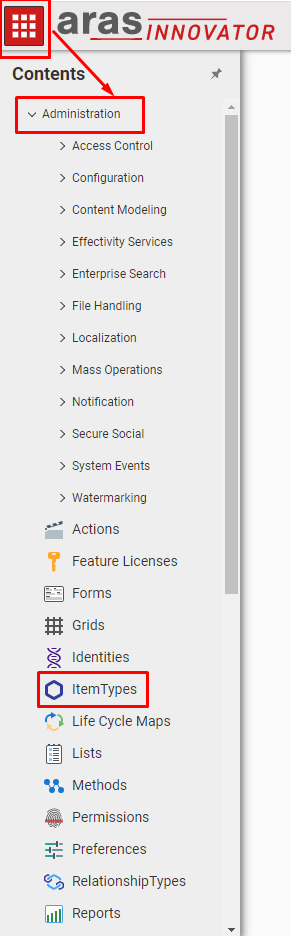
2. Navigate to **Administration → Users → Create New User**. Refer to [Check Administration Tab](#check-administration-tab) to learn where to find Administration tab.
3. Provide necessary details for fields like Login Name, Password, First Name and so on
4. Check the **Logon Enabled** box so that user can login from the UI