> For the complete documentation index, see [llms.txt](https://docs.opshub.com/llms.txt). Markdown versions of documentation pages are available by appending `.md` to page URLs; this page is available as [Markdown](https://docs.opshub.com/upcoming-release/connectors/tricentis-tosca.md).
# Tricentis Tosca
## Prerequisites
### Adjust Base Workspace Path on Tosca Server
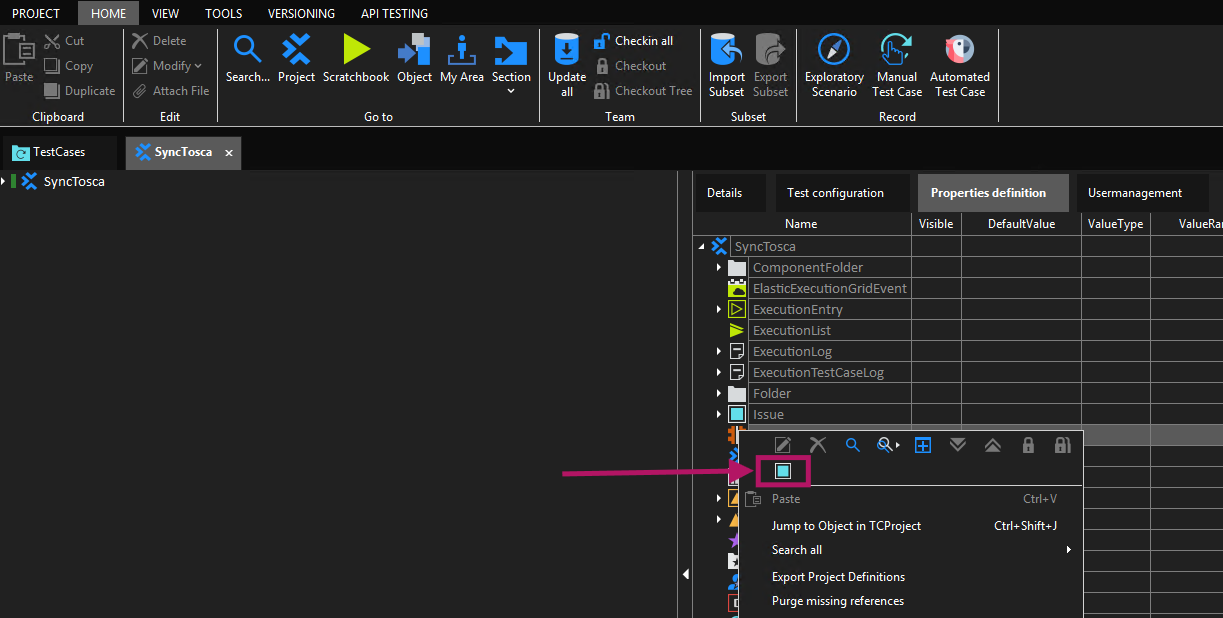
* For Integrating Tosca, it is necessary to modify the default workspace path configuration for accessing Tosca Rest APIs.
* By Default, the workspace base path can be empty or not ending with "\\".
* For retriving the workspace, the variable "WorkspaceBasePath" should not be empty and must end with "\\" with the path.
* On how to adjust workspace base path, refer to the steps mentioned in the [How to adjust workspace base path](#how-to-adjust-workspace-base-path) section.
### User Permissions
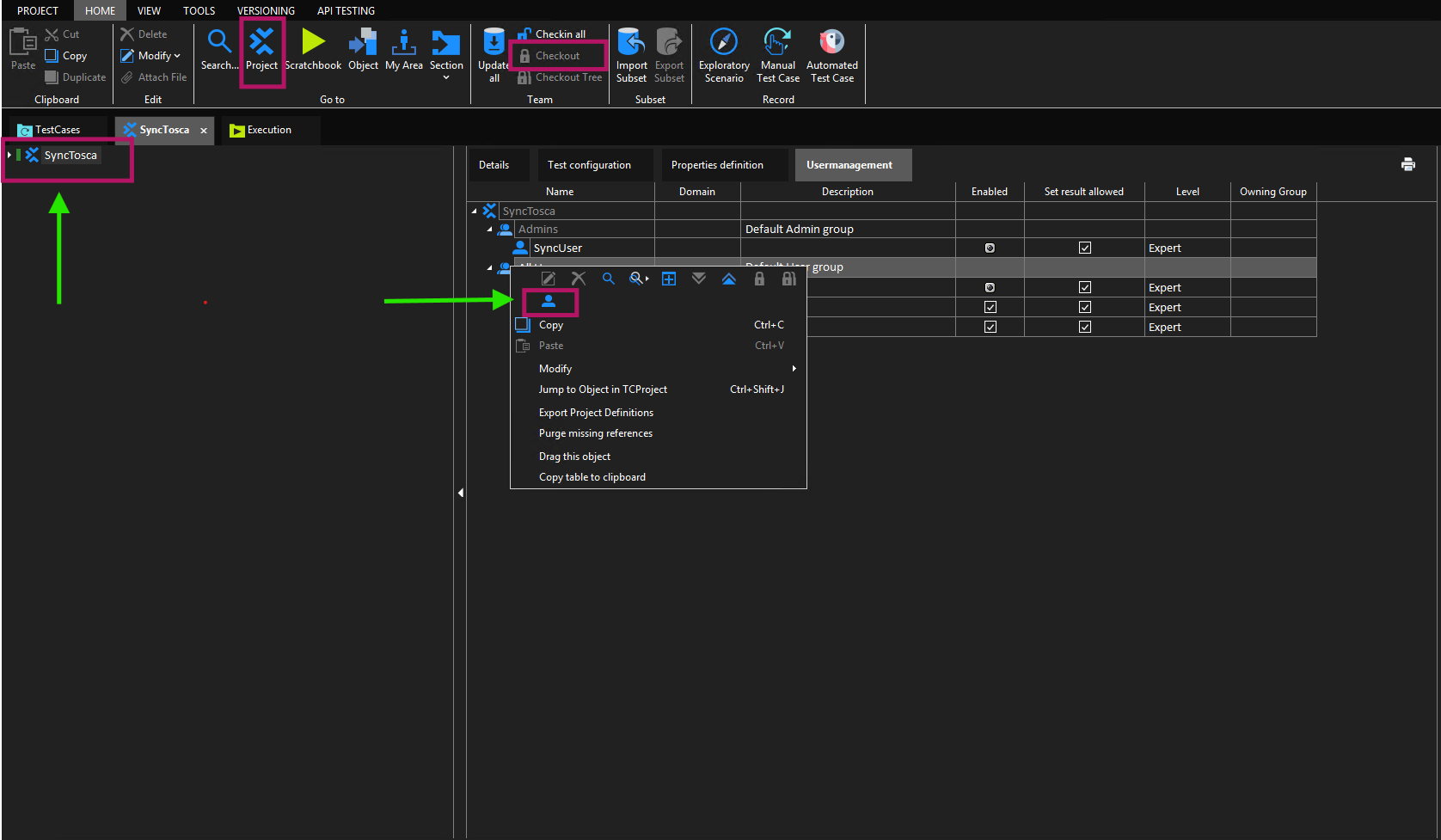
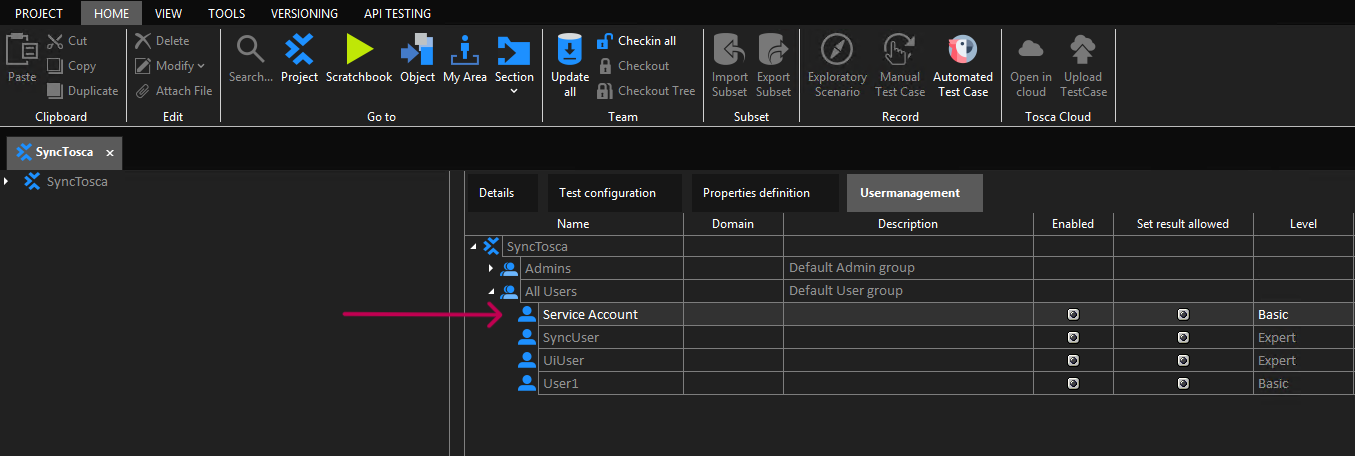
* Basic-level access must be granted to the service account for synchronization as shown in the screenshot below.
*
* To know how to add a user, refer to [Add Users](#add-users) section in Appendix.
### Custom Field
space.vars.OIM requires one special field to be defined on the entity that is being synchronized to Tosca. It must be set up so that space.vars.OIM can track the integration status of each item:
| **Property Name** | **Type** |
| ----------------- | -------- |
| OH\_Last\_Update | String |
For more details on adding custom fields, refer to [Create Custom Property](#create-custom-property) section in Appendix.
### Dedicated Workspace
* To synchronize data from a specific Tosca workspace, the user needs to create a cloned workspace of the original one for integration through space.vars.OIM.
* Ensure that both the original and cloned workspaces point to the same repository.
* For more details on creating/cloning a workspace, refer to [Create or Clone Workspace](#create-or-clone-workspace) section in Appendix.
### Configuring the Timeout Setting
Based on our observations of the timeout behavior from the Tosca server, we recommend adjusting the timeout value to prevent server errors. To configure the timeout value, please follow the steps below:
1. Go to the `%tosca_server_home%\Gateway` directory.
2. Create a backup of the `ocelot.json` file.
3. Open the `ocelot.json` file for editing.
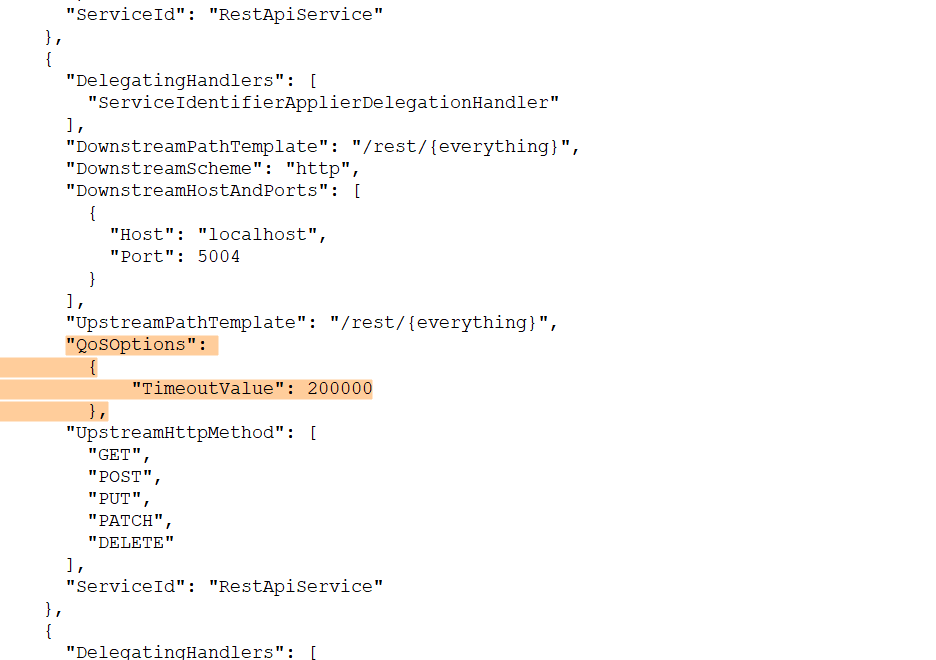
4. Locate the line with `"UpstreamPathTemplate": "/rest/{everything}"`.
5. Append the following JSON snippet immediately after this line:
```json
{
"QoSOptions": {
"TimeoutValue": 200000
}
}
```
6. Save and close the `ocelot.json` file.
7. After the changes it should look like as shown in the screenshot below.
8. Restart both the **Tricentis.GatewayService** and **Tricentis.Tosca.RestApiService** for the changes to take effect.
### PAT and Client Credentials Authentication in Tosca
In addition to **Basic Authentication**, the Tosca connector supports **alternate authentication mechanisms** when Tosca is configured with a **Tosca Server Repository (TSR)**.
#### Supported Authentication Types
The following authentication types are supported **only when using Tosca Server Repository (TSR)**:
#### 1. Personal Access Token (PAT)
* Tosca allows authentication using a **Personal Access Token (PAT)** generated from Tosca Server.
* PAT-based authentication is supported **only for Tosca Server repositories**.
* File-based and database-based repositories (Oracle, MSSQL, PostgreSQL, etc.) **do not support** PAT authentication.
#### 2. Client Credentials (Client ID and Client Secret)
* Tosca supports **OAuth-style Client Credentials authentication** when connected to Tosca Server Repository.
* Similar to PAT, this authentication method is supported **only for Tosca Server Repository**.
#### Authentication Constraints
* **Basic Authentication is not supported when using Tosca Server Repository (TSR).**
* When TSR is configured, authentication must be performed using one of the following methods:
* **Personal Access Token (PAT)**
* **Client Credentials (Client ID and Client Secret)**
#### Recommended Configuration Approach
To support multiple authentication mechanisms effectively:
* It is recommended to **create separate Tosca system configurations** for each authentication type.
* Each Tosca system should be configured with:
* A single authentication mechanism (Basic, PAT, or Client Credentials)
## System Configuration
Before you start with the integration configuration, you must first configure Tosca.
Refer to [System Configuration](/upcoming-release/integrate/configure-integrations/system-configuration.md) page to learn the steps to configure a system.
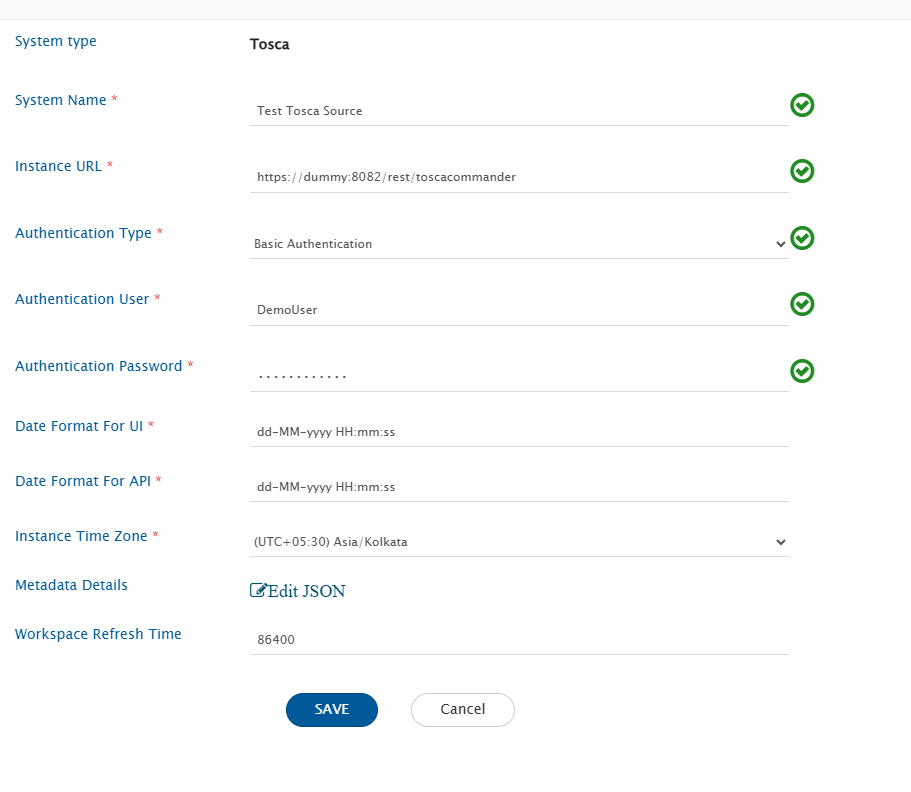
Refer to the following screenshot below with **Authentication Type** as Basic Authentication:
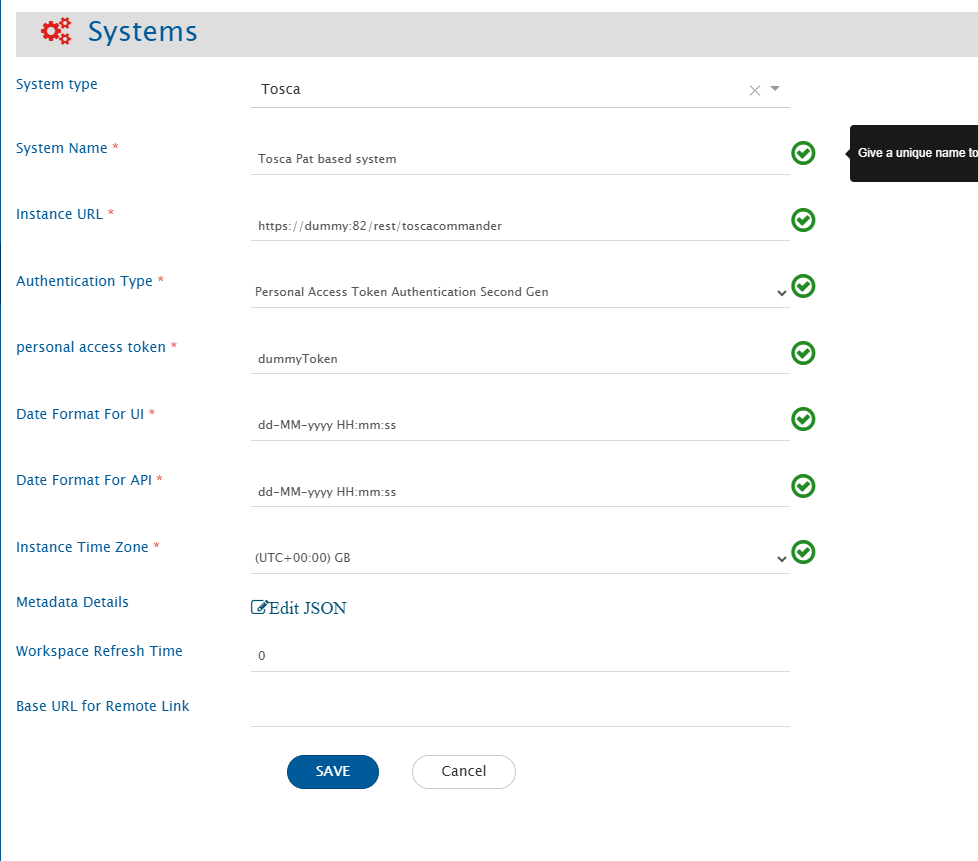
Refer to the following screenshot below with **Authentication Type** as Personal Access Token Authentication:
Refer to the following screenshot below with **Authentication Type** as Client Credentials Authentication:
| **Field Name** | **When is the field visible** | **Description** |
| -------------------------- | ------------------------------------------------------------- | -------------------------------------------------------------------------------------------------------------------------------------------------------------------------------------------------------------------------------------------------------------------------------------------------- |
| **System Name** | Always | Provide a unique name to Tosca system |
| **Instance URL** | Always | Provide URL for Tosca instance. Example: /rest/toscacommander |
| **Authentication Type** | Always | Select the authentication type you would like to use for communicating with Tosca API (Supported Authentication types : Basic Authentication, Basic Authentication With Client Credentials, or Personal Access Token Authentication) |
| **Username** | Authentication type is Basic authentication | Provide username of the dedicated user for space.vars.OIM. Ensure that the dedicated user has the necessary permissions |
| **Password** | Authentication type is Basic authentication | Provide password of the dedicated user for space.vars.OIM |
| **client id** | Authentication type is Client credential based authentication | Provide client ID of the dedicated user for space.vars.OIM |
| **client secret** | Authentication type is Client credential based authentication | Provide client secret of the dedicated user for space.vars.OIM |
| **personal access token** | Authentication type is PAT based authentication | Provide personal access token of the dedicated user for space.vars.OIM |
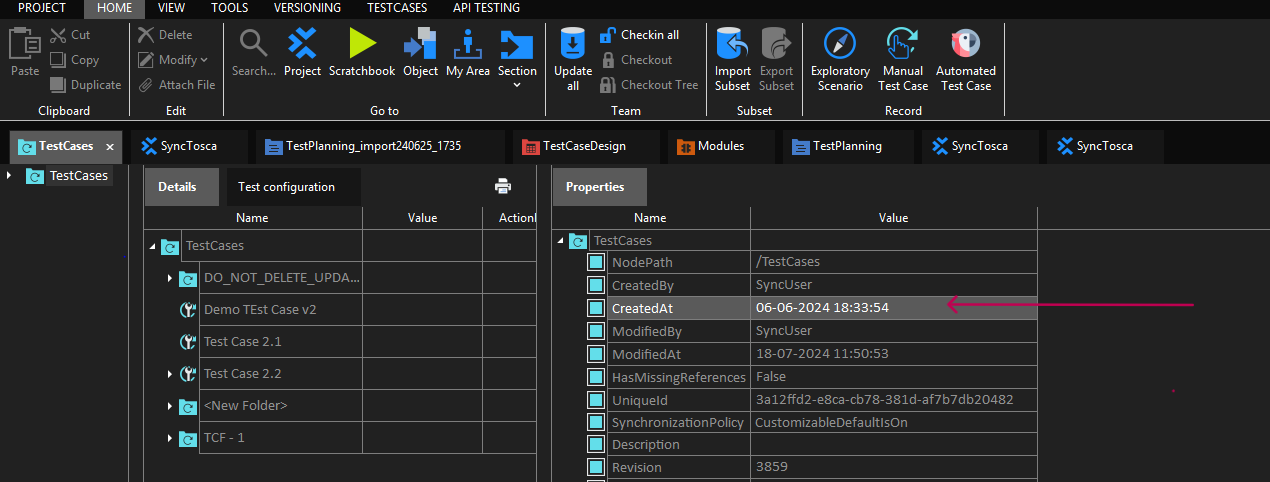
| **Date Format For API** | Always | Provide the date format of Tosca instance in which date appears in API response for CreatedAt And ModifiedAt Fields (Refer to [Select Date Format For API](#select-date-format-for-api) section in Appendix for more information) |
| **Date Format For UI** | Always | Provide date format of Tosca instance in which the date appears in CreatedAt And ModifiedAt Fields (Refer to [Select Date Format For UI](#select-date-format-for-ui) section in Appendix for more information) |
| **Instance Time Zone** | Always | Provide time zone of Tosca instance |
| **Metadata Details** | Always | This data is pre-populated in JSON format based on system metadata (entity type, field names, etc.). You can edit entity types based on your Tosca instance's details for system metadata. Refer to [Understanding JSON Input](#understanding-json-input) section for format and JSON form details |
| **Workspace Refresh Time** | Always | Enter the time in seconds for the workspace refresh interval. space.vars.OIM will update the cloned workspace according to this interval. |
### Understanding JSON Input
* The entity metadata details can be provided at the time of system configuration in the field 'Metadata details' in JSON format in the below mentioned example:
```json
{
"projects": [
{
"entities": [
{
"internalName": "TCComponentFolder",
"displayName": "TCComponentFolder",
"readMechanism": "NON_HISTORY",
"hasReadSupport": true,
"hasWriteSupport": true,
"fields": {}
},
{
"internalName": "XModule",
"displayName": "XModule",
"readMechanism": "NON_HISTORY",
"hasReadSupport": true,
"hasWriteSupport": true,
"fields": {}
}
],
"internalName": "Automation_Source_2"
}
]
}
```
## Mapping Configuration
Map the fields between Tosca and the other system to be integrated to ensure that the data between both the systems synchronize correctly. Refer to [Mapping Configuration](/upcoming-release/integrate/configure-integrations/mapping-configuration.md) page to learn the step-by-step process to configure mapping between the systems.