> For the complete documentation index, see [llms.txt](https://docs.opshub.com/llms.txt). Markdown versions of documentation pages are available by appending `.md` to page URLs; this page is available as [Markdown](https://docs.opshub.com/upcoming-release/getting-started/logging-in.md).
# Logging In
Let's see how you can get started with space.vars.OIM.
## Windows
* On Logging in page: Once the installation is complete, space.vars.OIM will be started automatically if you are doing installation on windows machine and you will be re-directed to the Getting started page in the default web browser. If the space.vars.OIM is not started, you can start it manually as described [here](/upcoming-release/getting-started/start-or-stop-service.md).
* For launching the application, click on the link **Launch** space.vars.OIM. It will redirect to the login page.
* Log in with the following credentials:
* username: admin
* password: password
## Linux
* For Linux, once the installation is done, enter the URL as in browser.
* Log in as username **admin** and password **password**.
* If you have configured space.vars.OIM for HTTPS, then enter the URL as in browser.
## Set a New Password on First Login
* When a newly created user logs in for the first time, or when the default **admin** user logs in after installation, you will be prompted to update your password and will be automatically redirected to the password update screen.
* Please update your password in accordance with the defined password policy. For more details about password policy, refer to [Default Password Policy](/upcoming-release/manage/administrator/login-server-management.md#password-policy-configuration).
* This step is enforced to enhance the security of space.vars.OIM user accounts, as default passwords may be vulnerable to unauthorized access. Setting a strong, unique password ensures that only the intended user can access the account.
* Once the password is successfully updated, you will be redirected back to the Login page, where you can log in using your updated credentials.
## Forgot Password
If you have forgotten your password, space.vars.OIM provides a secure way to reset it.
* On the Login page, click the **Forgot Password** link in the login form, as shown below.
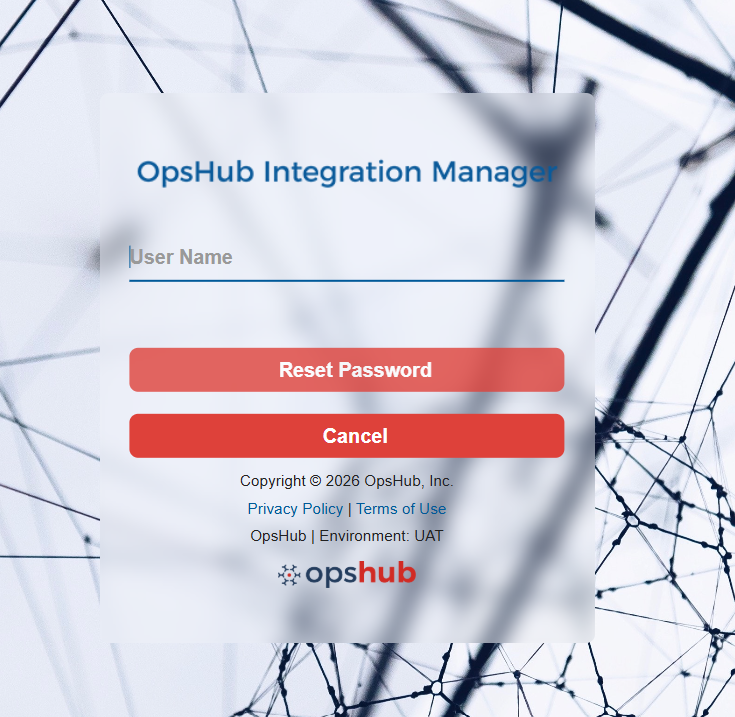
* You will be redirected to the Forgot Password page. Enter your **username** associated with your account and click on **Reset Password** to proceed.
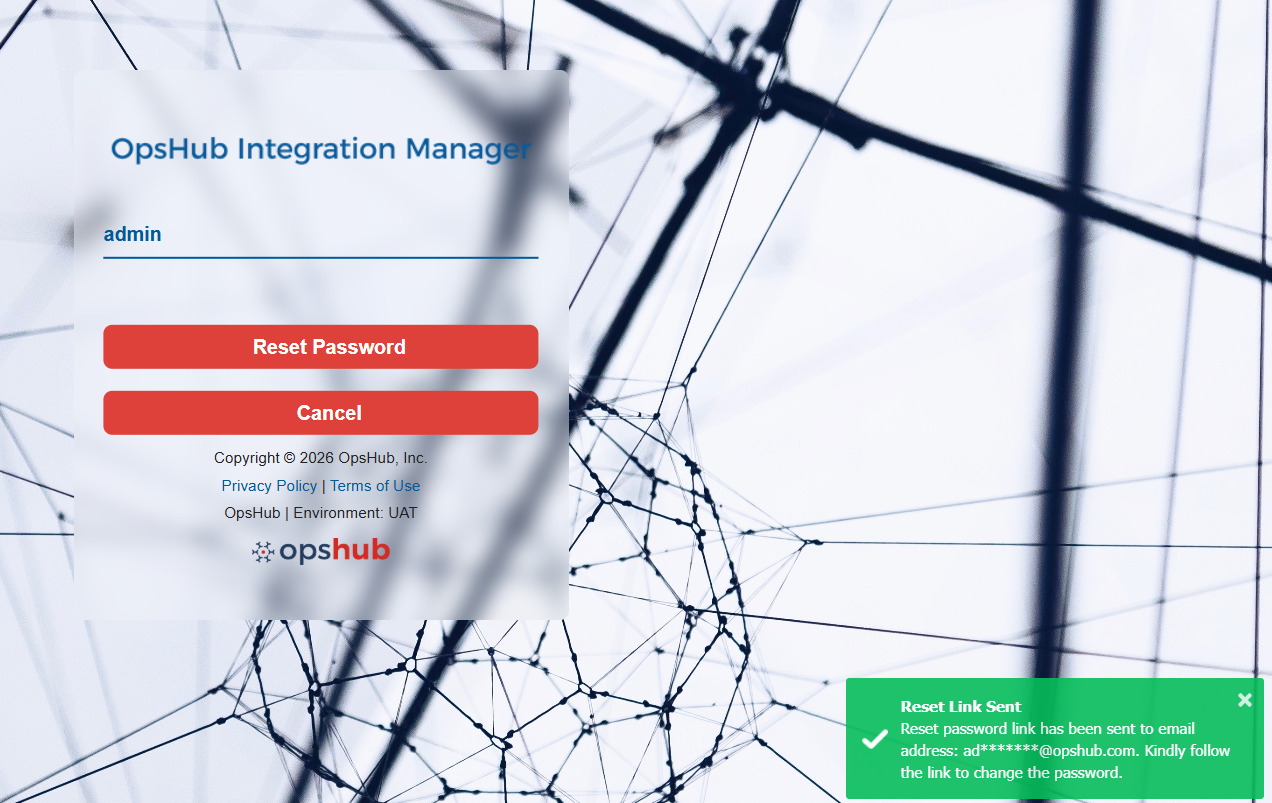
Upon clicking **Reset Password**, a reset link will be sent to the registered email address associated with the provided username.
* If OpsHub system is configured with SMTP system, the email is sent using the **Sender Email-id** configured in the SMTP system. For more details about SMTP system, refer to [SMTP Configuration](/upcoming-release/help-center-index/troubleshooting-index/configure-post-failure-notification.md#smtp-configuration).
* If OpsHub system is not configured with SMTP system or the configuration is invalid, the email is sent using the default space.vars.OIM user.
* Open your registered email inbox, locate the password reset email, and click on the **Reset Password** link provided. This will redirect you to the Reset Password page.
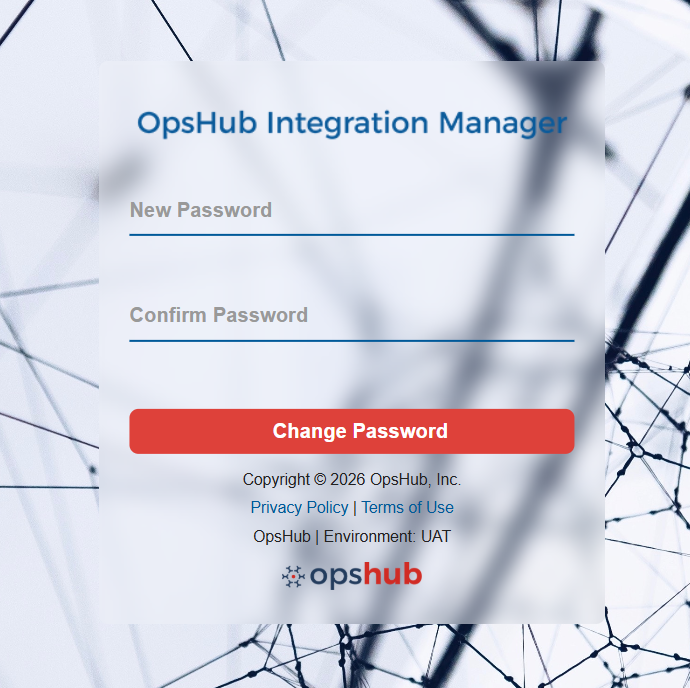
* Enter a new password, confirm it and click on **Change Password** to save your new password. Ensure that it adheres to the default password policy configured in the system. To know more, refer to [Default Password Policy](/upcoming-release/manage/administrator/login-server-management.md#password-policy-configuration).
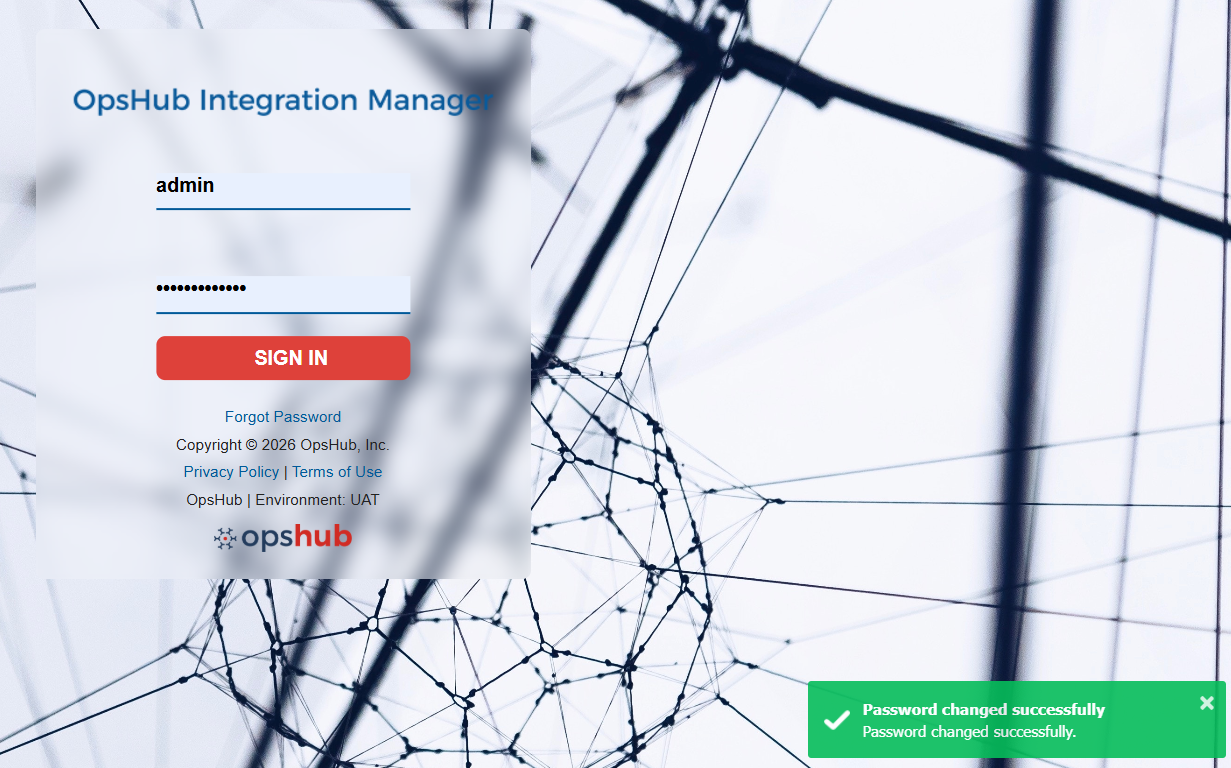
* Once the password is successfully reset, you will be redirected back to the Login page, where you can log in using your updated credentials.
Once you have logged in the application, you are ready to start integration configuration. Click [Overview of Integration](/upcoming-release/integrate/overview-of-integration.md) to understand how to start using space.vars.OIM for integration.
---
# Agent Instructions
This documentation is published with GitBook. GitBook is the documentation platform designed so that both humans and AI agents can read, navigate, and reason over technical content effectively. Learn more at gitbook.com.
## Querying This Documentation
If you need additional information that is not directly available in this page, you can query the documentation by asking a question.
Perform an HTTP GET request on the following URL with the `ask` and `goal` query parameters:
```
GET https://docs.opshub.com/upcoming-release/getting-started/logging-in.md?ask=&goal=
```
`ask` is the immediate question: it should be specific, self-contained, and written in natural language.
`goal` is what the user is ultimately trying to achieve, the reason they need the answer. Sharing it helps GitBook give you a better, more relevant answer. A goal is most helpful when it describes the outcome the user wants rather than restating the question. For example, with `ask=how do I create an API token`, a goal like `automate deployments from our CI pipeline` lets GitBook tailor the answer to that use case.
The response will contain a direct answer to the question and relevant excerpts and sources from the documentation.
Use this mechanism when the answer is not explicitly present in the current page, you need clarification or additional context, or you want to retrieve related documentation sections.