> For the complete documentation index, see [llms.txt](https://docs.opshub.com/llms.txt). Markdown versions of documentation pages are available by appending `.md` to page URLs; this page is available as [Markdown](https://docs.opshub.com/upcoming-release/help-center-index/troubleshooting-index/integration-sync-report.md).
# Integration Sync Report
## Overview
Integration Sync Report provides the information for each entity synchronized by space.vars.OIM. The report gives insight into which entity from which project in the source system has synchronized to which project in the target system. The report also shows source entities ids and target entities ids. You can also navigate to the failed event of a particular entity from this report. Each integration has a separate Integration Sync Report.
The Global Sync Report provides a comprehensive view of all synced entities across integrations and folders. It allows users to monitor, filter, and analyze synchronization data in one place. Users can apply filters to narrow down results or reset them to view the complete global dataset. Access to data is restricted based on user permissions
## How to navigate to the Integration Sync Reports
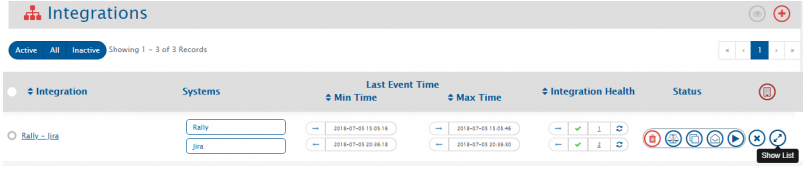
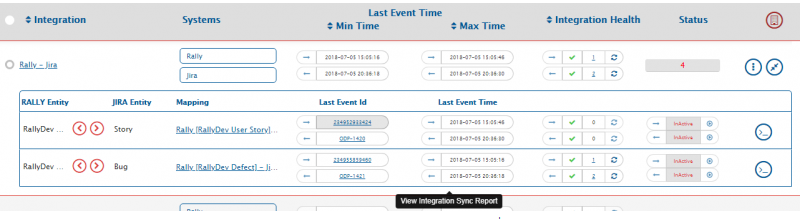
To view the report for any integration, go to an integration, click the **Show List** button. From the list, click **Last Event ID** or **Last Event Time** button.
## Reading an Integration Sync Report
The integration sync report is divided into two panes:
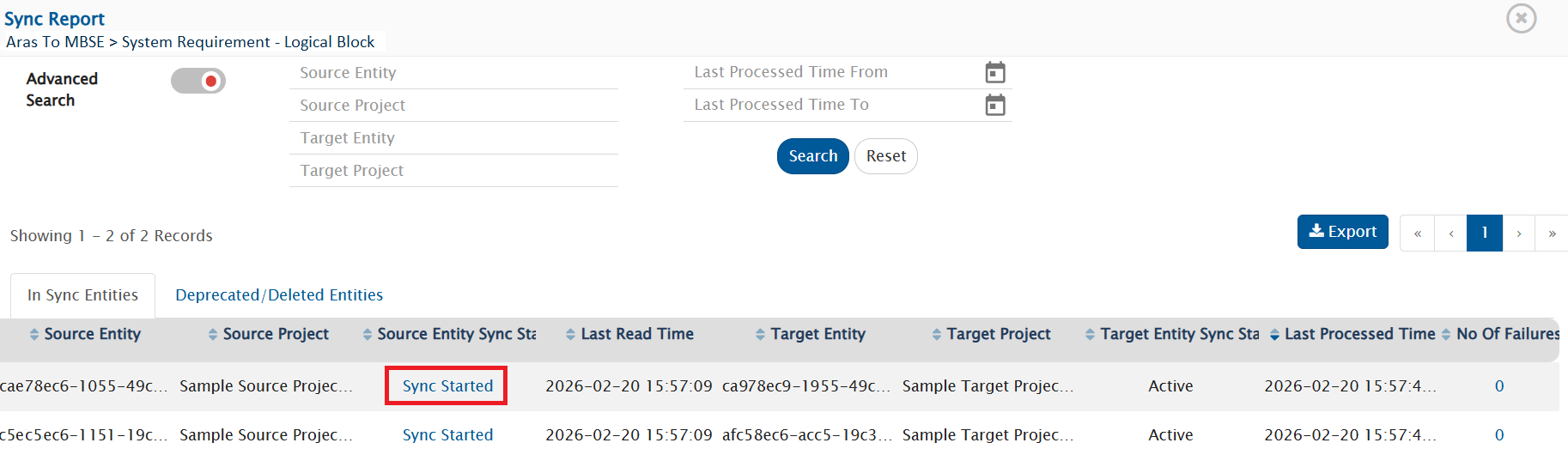
1. **In Sync Entities** : Report of the entities which are synchronized under the create/update events
2. **Deprecated/Deleted Entities** : Report of the entities which are synchronized under the Delete events.
The Integration Sync Report includes:
* **Integration:** This column shows the integration name of the synced entity.
* **Source Entity Id:** This column shows the entity id of the source system
* **Source Project Name:** This column shows the name of the project from which entity gets polled by space.vars.OIM
* **Source Entity Sync State:** This column shows the [state](#state) of the entity in the source system
* **Last Updated in Source:** This column shows the last updated time for the given entity in the source system
* **Target Entity Id:** This column shows the entity id of the target system in which entity gets created by space.vars.OIM
* **Target Project Name:** This column shows the project name of the target system in which entity gets created by space.vars.OIM
* **Target Entity Sync State:** This column shows the [state](#state) of the entity in the target system
* **Last Processed Time:** This column show the time when entity was last processed by space.vars.OIM
* **No. of Failures:** This column shows the number of failed events for a given entity. By clicking on the number, you will be navigated to failed events for that entity.
## Filtering an Integration Sync Report
You can filter data from an Integration Sync Report by using the following parameters:
* **Filter On Folder:** Search all the synced entities which belongs to current folder's integrations.
* **Select Integrations:** The dropdown allows users to select one or more integrations to search for synchronized entities associated with the selected integrations.By default, the integration from which the user is redirected will be preselected. Users can select multiple integrations across different folders as needed.
* **Source Entity Id:** Search the entity by providing Source Entity Id
* **Source Project Name:** Search the records with the source project name specified in the field
* **Target Project Name:** Search the records with the target project as specified in the field
* **Last Processed Time:** Search the entities with the Last Processed time between the range specified in the **Last Processed Time From** and **Last Processes Time To** fields
* **Target Entity Id:** Search the entity by providing the Target Entity Id
* **Source Entity Sync State:** Search the records with the source entity sync [state](#state) specified in the field
* **Target Entity Sync State:** Search the records with the target entity sync [state](#state) specified in the field
Enter the details in the field that you want to use for filtering the data. Then, click the **Search** button.
* If you turn on the filter on folder, below is the example.
## How to View Global Sync Report
* To access the Global Sync Report, ensure that all filters, including the integration selection, are cleared.
* Use the Reset option to efficiently remove all applied filters and display the complete dataset.
* The report displays only the data for which the user has been granted appropriate access permissions.
* Users can apply filters to view and analyze synchronized entities across various integrations and folders as required.
## Export Functionality
* The report can be exported by clicking the Export button, which provides options to download the data in Excel or PDF format.
* The exported file includes all currently displayed data across all pages, based on the selected export format.
## Some Key Points to Note
* Project column remains empty for the system that doesn't have the concept of projects. If the system has the concept of projects and the project column is empty, it means the entity has not yet synchronized to the target system.
* In case of selecting multiple integration, maximum 50 integrations can be selected at a time.
* In case of exporting synced entity data, Maximum 65000 details can be exported at a time.
* In case of migration or up-gradation the value of the column **Last Processed Time** for already synced entity is the time at which migration runs and **Project** remains empty.
* In case of integration, if any entity has failure(s) on **Create event**, then **Last Updated in `` System, `` Entity Id and `` Project** columns remain empty for that record.
## Glossary
### State
* Represents the current synchronization status of the entity for the configured integration in space.vars.OIM.
* The possible values are as follows:
#### 1. General State
1. **Active:** The entity is available and accessible to space.vars.OIM.
#### 2. When *Source Delete Synchronization* Is Enabled
The following states are applicable when deletion or archival changes in the source system are synchronized to the target system for an integration where [Source Delete Synchronization](/upcoming-release/integrate/advanced-sync-scenario/source-delete-synchronization.md) is configured.
1. **Not Accessible:** The entity is no longer accessible to space.vars.OIM.
2. **Not Applicable:** The entity is not eligible for synchronization due to its type and/or project change, as no integration configuration matches the updated type and/or project.
3. **Archived:** The entity has been archived in the source system.
4. **Deleted by Sync:** The entity has been logically/soft deleted in the target system by space.vars.OIM as part of source delete synchronization.
5. **Archived by Sync:** The entity has been archived in the target system by space.vars.OIM as part of source delete synchronization.
#### 3. When *Entity Type and/or Project Change Synchronization* Occurs
The following states are applicable when entity type and/or project changes in the source system are synchronized to the target system. For more details, refer to ["Entity Type" and/or "Project" Change Synchronization](/upcoming-release/integrate/advanced-sync-scenario/entity-move-synchronization.md).
**Conversion States**
1. **Type Converted:** The entity's type has been changed in either the source or the target system.
2. **Project Converted:** The entity has been moved to a different project in either the source or the target system.
3. **Type and Project Converted:** Both the entity type and the project have been changed.
**Deprecation States**
4. **Deprecated due to Type Conversion:** The entity has been marked as deprecated in the target system because the type of the corresponding source entity was changed in the source system.
5. **Deprecated due to Project Conversion:** The entity has been marked as deprecated in the target system because the project of the corresponding source entity was changed in the source system.
6. **Deprecated due to Type and Project Conversion:** The entity has been marked as deprecated in the target system because both the type and project of the corresponding source entity were changed in the source system.
#### 4. Applicable When Batch Writing Is Supported in the Target System
These states are applicable only for integrations with systems for which space.vars.OIM supports batch writing.
1. **Sync Queued:** The source changes are scheduled in a synchronization queue for batch writing. space.vars.OIM first collects all changes read by the integrations configured within the same group before applying them to the target system. At this stage, the changes are waiting in the queue and have not yet been written.
2. **Sync Started:** The processing of the queued changes has started. space.vars.OIM evaluates the queued updates one by one to determine the changes to be applied to the target system. Once all processing is completed, the consolidated updates are written to the target system.
> *Note:* To view queued changes for batch processing, refer to [Viewing Queued Entities for Synchronization](#viewing-queued-entities-for-synchronization).
### Viewing Queued Entities for Synchronization
space.vars.OIM temporarily stores changes queued for batch writing in its database to ensure consistency and reliable processing.
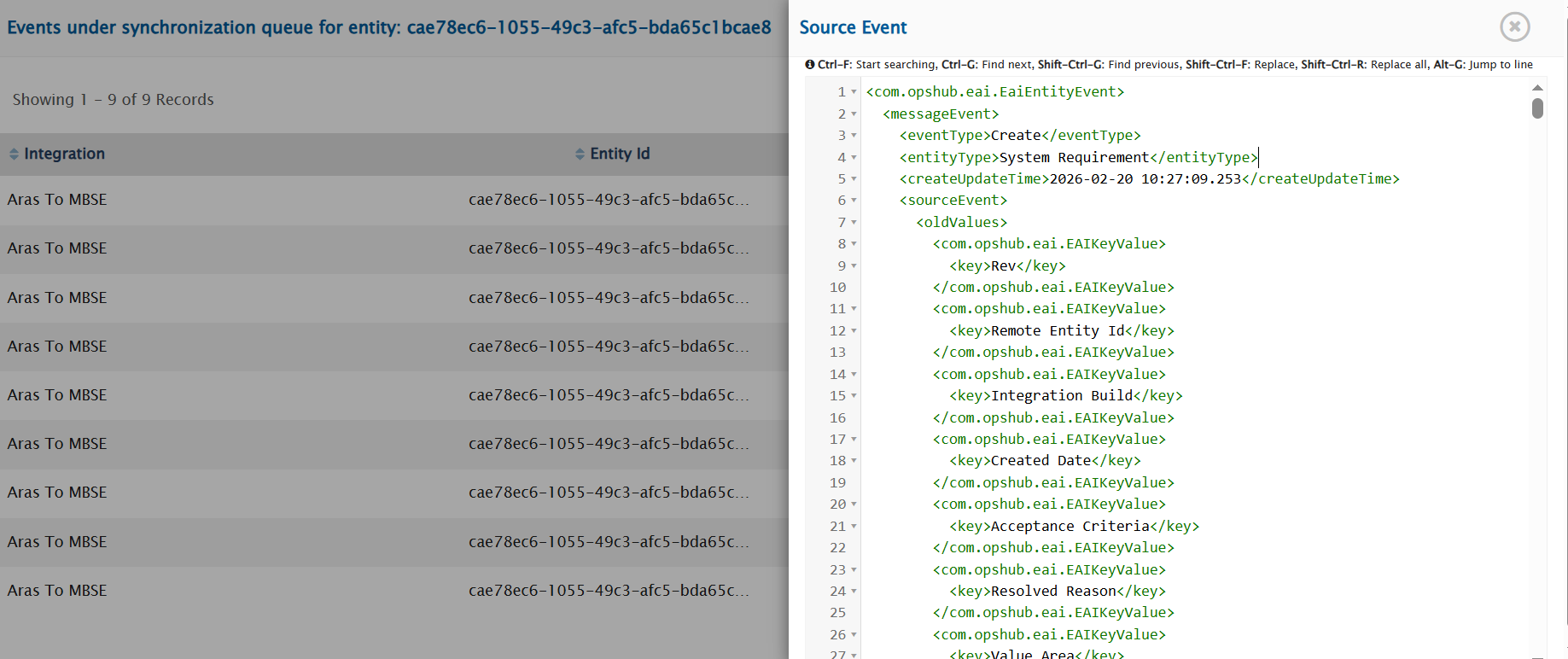
Entities whose data is in the synchronization queue will have the **Sync Queued** or **Sync Started** state. Otherwise, they will have the **Active** state, which indicates that synchronization has either been completed for that entity or that no pending changes remain in the synchronization queue.
Follow the steps below to view them:
1. Open the **Sync Report** for the integration where the changes are under synchronization.
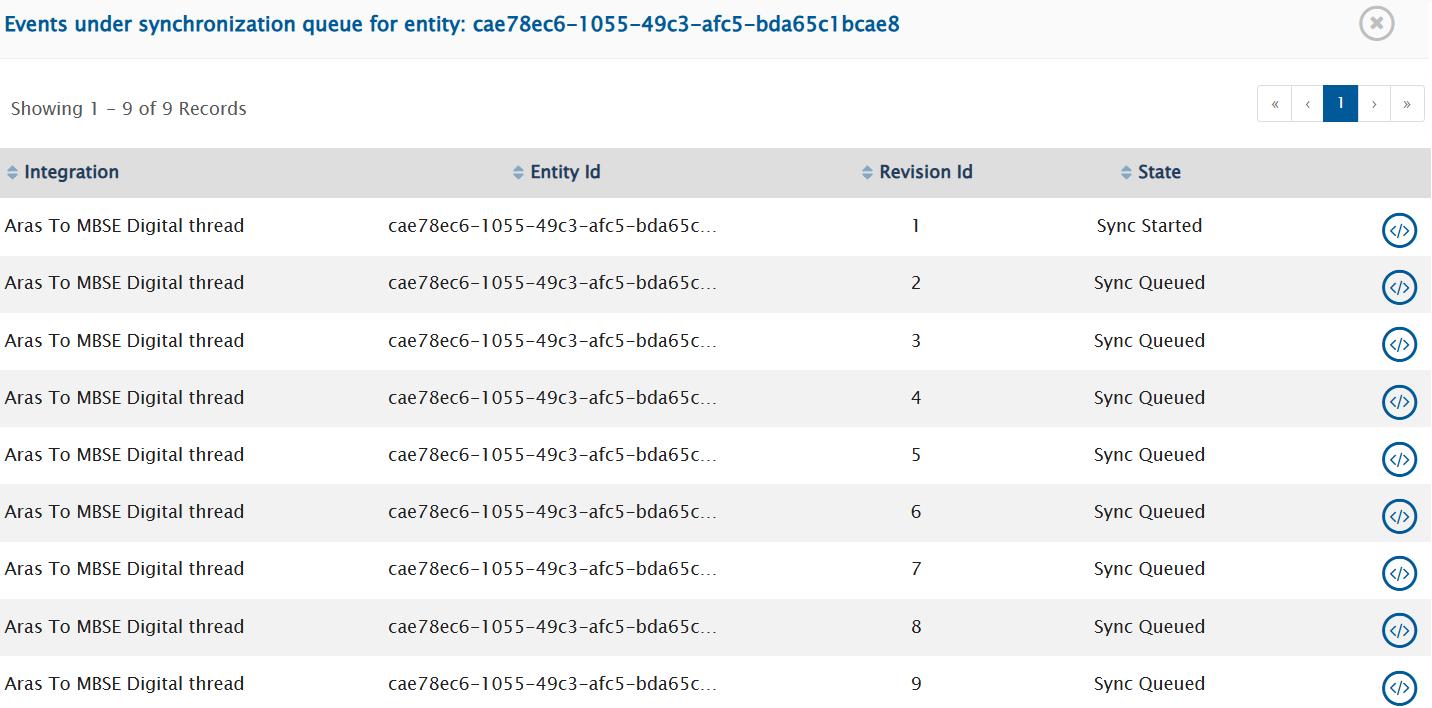
2. Click on the **"Sync Queued"** or **"Sync Started"** status.
3. The pop-up lists all changes currently queued for synchronization for the selected entity as follows:
4. Click on  to view the details of the changes.
---
# Agent Instructions
This documentation is published with GitBook. GitBook is the documentation platform designed so that both humans and AI agents can read, navigate, and reason over technical content effectively. Learn more at gitbook.com.
## Querying This Documentation
If you need additional information that is not directly available in this page, you can query the documentation by asking a question.
Perform an HTTP GET request on the following URL with the `ask` and `goal` query parameters:
```
GET https://docs.opshub.com/upcoming-release/help-center-index/troubleshooting-index/integration-sync-report.md?ask=&goal=
```
`ask` is the immediate question: it should be specific, self-contained, and written in natural language.
`goal` is what the user is ultimately trying to achieve, the reason they need the answer. Sharing it helps GitBook give you a better, more relevant answer. A goal is most helpful when it describes the outcome the user wants rather than restating the question. For example, with `ask=how do I create an API token`, a goal like `automate deployments from our CI pipeline` lets GitBook tailor the answer to that use case.
The response will contain a direct answer to the question and relevant excerpts and sources from the documentation.
Use this mechanism when the answer is not explicitly present in the current page, you need clarification or additional context, or you want to retrieve related documentation sections.