# Taking Application Backup

## How to Take Backup

Steps to take backup of the application:

1. Inactivate all the integrations if any active.
2. Stop the OpsHub server, if it is running.
3. Take database backup (refer to the [Database Backup](#database-backup) section).
4. Take application backup (refer to the [Application Backup](#application-backup) section).

## Application Backup

Steps for taking the application backup:

* Navigate to the parent directory of OpsHub installation directory (given at the time of installation).
* Copy the application installation directory.
* Paste above copied directory to the place where you want to keep backup.\
  For Example: OpsHub is installed at path `C:\Program Files\OpsHub` then copy OpsHub directory from `C:\Program Files`.

## Database Backup

### HSQL Database Backup

* In case of HSQL, only application backup is enough to take back up of the database as well.

### MS SQL Database Backup

* Open your Microsoft SQL Server Management Studio, whichever you prefer, Standard or Express edition.
* Using your Database Username and Password, simply login to your MS SQL server database.
* **Select the database >> Right-click >> Tasks >> Back Up**:

<div align="center"><img src="https://3729341606-files.gitbook.io/~/files/v0/b/gitbook-x-prod.appspot.com/o/spaces%2F1yI7gLypIVjJdBgxy9pM%2Fuploads%2Fgit-blob-4d50720bac2a69cbbe52cfd882176406e3d73cdf%2FBackup_Image_1.png?alt=media" alt="" width="800"></div>

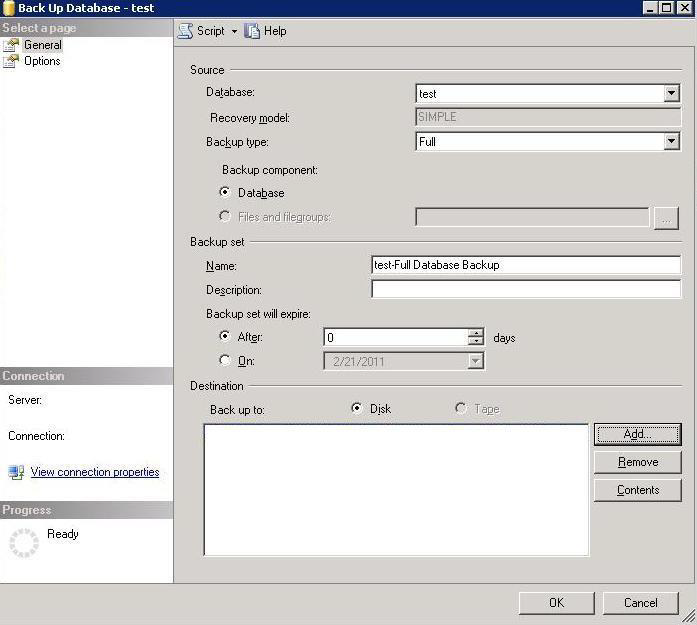
* Once you click on the **Backup** the following Backup Database window will appear:

<div align="center"><img src="https://3729341606-files.gitbook.io/~/files/v0/b/gitbook-x-prod.appspot.com/o/spaces%2F1yI7gLypIVjJdBgxy9pM%2Fuploads%2Fgit-blob-146cbe1af2de353fde6cc4028d229c48da0f9754%2FBackup_Image_2.png?alt=media" alt="" width="800"></div>

: Select the following options:

1. Backup type: Full
2. Under Destination, Backup to: Disk
3. Click the OK button.

* Select the destination folder for the backup file, and enter the "File name" with `.bak` extension. Your Backup is ready now.

### MySQL Database Backup

\[Note: Take backup of the both databases `opshub` and `reportsdb` which were provided while creating the database. If the database was manually created, the name would differ in that case.]

* Open Command Prompt and navigate to the `bin` directory of the MySQL server.
* Run the `mysqldump.exe` program with the following arguments:

```
mysqldump.exe -u [username] -p -h [hostname] [database_name] > C:\[filename].sql
```

(Note: Replace `[]` and anything inside `[]` using user's actual credentials.)

* On clicking the enter button, it will ask for a password. Please provide the password.

### Oracle Database Backup

* Open Command Prompt with Administrator privileges.
* Navigate to the directory where Oracle is installed. For example:

```
C:\Program Files\Oracle
```

* Enter Command :

```
sqlplus
```

* It will ask for username and password. Please provide it.
* Run the following command:

```
$exp [Username]/[Password] OWNER=([opshub_schema],[reports_schema]) FILE="[Path where you want to dump]"
```

(For example: `$exp USERID=system/root OWNER=(opshub,reportsdb) File="C:\dumpFinal.dmp"`)

> **Note**: For detailed information, you can refer to official Oracle documentation. Refer: [11g](https://docs.oracle.com/cd/E11882_01/backup.112/e10642/rcmbckba.htm#BRADV8003) or [12c](https://docs.oracle.com/database/121/BRADV/rcmbckba.htm#BRADV8003) according to installed Oracle version.

### PostgreSQL Database Backup

* Navigate to the directory where PostgreSQL is installed.\
  Example:

```
cd C:\Program Files\PostgreSQL\16\bin
```

* Run the following command using cmd with admin mode and enter the password of PostgreSQL when prompted:

```
pg_dump -U your_username -h your_host -d your_database > `<Path where you want to dump>`
```

Example:

```
pg_dump -U postgres -h localhost -d opshub > C:\opshub_backup.sql
```

## How to Restore

Steps to restore the application:

* Restore Database (refer to the Database Restore section).
* Restore Application (refer to the Application Restore section).

## Application Restore

Steps to restore the application:

* Copy the directory you have kept as a backup.
* Navigate to the directory in which you want to restore the application.
* If directory with the same name which you are going to restore, exists in current directory then delete it first.
* Paste copied directory in step 1 to current directory.

## Database Restore

### HSQL Database Restore

* In case of HSQL, only application restore is enough to take restoration of the database as well.

### MS SQL Database Restore

* Open your Microsoft SQL Server Management Studio Express and connect to your database. Using your Database Username and Password, simply login to your MSSQL server database.
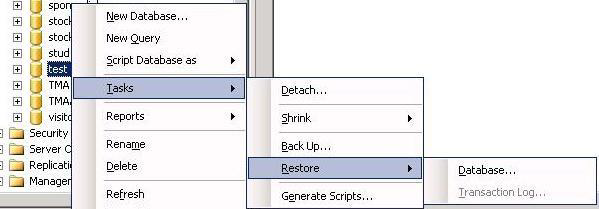
* **Select the database >> Right-click >> Tasks >> Restore >> Database.**

<div align="center"><img src="https://3729341606-files.gitbook.io/~/files/v0/b/gitbook-x-prod.appspot.com/o/spaces%2F1yI7gLypIVjJdBgxy9pM%2Fuploads%2Fgit-blob-4882906f696e56fdfa2571d25ce2e176988d1a4f%2FBackup_Image_3.png?alt=media" alt="" width="800"></div>

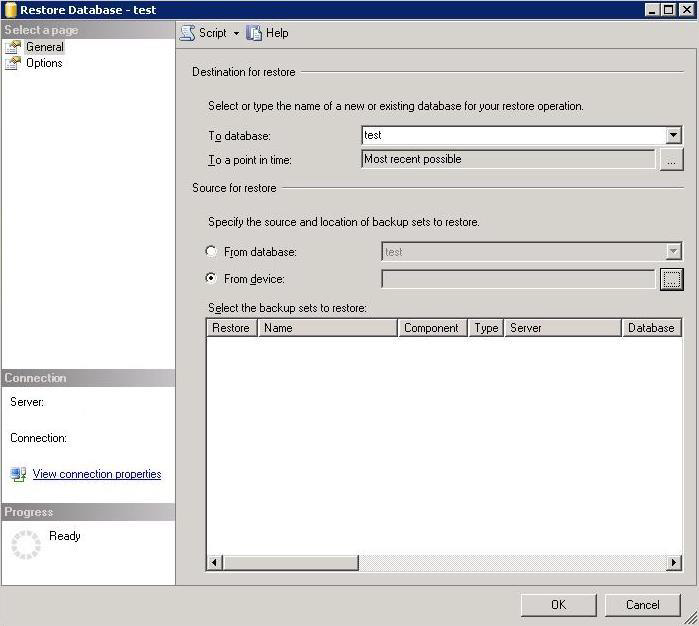
* The following "**Restore Database**" window will appear. Select "From device" mentioned under the "Source for restore" and click the button in front of that to specify the file location.

<div align="center"><img src="https://3729341606-files.gitbook.io/~/files/v0/b/gitbook-x-prod.appspot.com/o/spaces%2F1yI7gLypIVjJdBgxy9pM%2Fuploads%2Fgit-blob-a15d4e94711eb6fc7f0aa537d154c43857316dd7%2FBackup_Image_4.png?alt=media" alt="" width="800"></div>

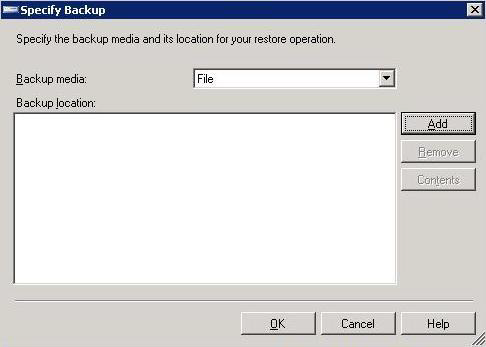
* Select the option "Backup media as File" and click the **Add** button to add the backup file location.

<div align="center"><img src="https://3729341606-files.gitbook.io/~/files/v0/b/gitbook-x-prod.appspot.com/o/spaces%2F1yI7gLypIVjJdBgxy9pM%2Fuploads%2Fgit-blob-ece6c0d394cb34cbd4916ee0799b5cbe28cf9960%2FBackup_Image_5.png?alt=media" alt="" width="800"></div>

* Select the backup file you wish to restore and click the OK button.

### MySQL Database Restore

\[Note: Restore both databases `opshub` and `reportsdb` which were provided while creating the database. If the database was manually created, the name would differ in that case.]

* Drop and create the database with same privileges. For this, refer to [manually creation of MySQL database](https://docs.opshub.com/upcoming-release/getting-started/installation#queries-for-mysql-database).\
  \[Note: Use database and schema name as same as you used previously.]
* Open Command Prompt and navigate to the `bin` directory of the MySQL server.
* Run the `mysql.exe` program with the following arguments:

```
mysql.exe -u [username] -p -h [hostname] [database_name] < C:\[filename].sql
```

(Note: Replace `[]` and anything inside `[]` using user's actual credentials.)

* On clicking the enter button, it will ask for a password. Please provide the password.

### Oracle Database Restore

* Drop and create schema with same privileges which you gave previously at the installation time. For this, refer to [manually creation of Oracle database](https://docs.opshub.com/upcoming-release/getting-started/installation#queries-for-oracle-database).
* Open Command Prompt with Administrator privileges. Right click on cmd.exe and select "Run as Administrator".
* Navigate to the directory where Oracle is installed. For example:

```
C:\Program Files\Oracle
```

* Enter Command :

```
sqlplus
```

* It will ask for username and password. Please provide it.
* Run the following command:

```
$imp USERID=[username]/[password] FULL=Y File="[File Path along with filename]"
```

(For example: `$imp USERID=system/root Full=Y File="C:\dumpFinal.dmp"`)

**Note** For detailed information, you can refer to official Oracle documentation. Refer: [11g](https://docs.oracle.com/cd/E11882_01/backup.112/e10642/rcmintro.htm#BRADV89341) or [12c](https://docs.oracle.com/database/121/BRADV/rcmintro.htm#BRADV89341) according to installed Oracle version.

### PostgreSQL Database

* Navigate to the directory where PostgreSQL is installed.\
  Example:

```
cd C:\Program Files\PostgreSQL\16\bin
```

* Run the following commands using cmd with admin mode and enter the password of PostgreSQL when prompted:
* Drop the existing database:

```
psql -U postgres -h localhost -c "DROP DATABASE your_database;"
```

* Create a new database with the same name:

```
createdb -U postgres -h localhost -e your_database
```

* For restoring database:

```
psql -U your_username -h your_host -d your_database < `<Path from where you want to restore the dump>`
```

Example:

```
psql -U postgres -h localhost -d opshub < C:/opshub_backup.sql
```


---

# Agent Instructions: Querying This Documentation

If you need additional information that is not directly available in this page, you can query the documentation dynamically by asking a question.

Perform an HTTP GET request on the current page URL with the `ask` query parameter:

```
GET https://docs.opshub.com/upcoming-release/manage/upgrade-index/taking-application-backup.md?ask=<question>
```

The question should be specific, self-contained, and written in natural language.
The response will contain a direct answer to the question and relevant excerpts and sources from the documentation.

Use this mechanism when the answer is not explicitly present in the current page, you need clarification or additional context, or you want to retrieve related documentation sections.