# OpenText ALM Quality Center

## Pre-requisites

### User privileges

* Create one user for Micro Focus ALM/QC, dedicated to <code class="expression">space.vars.SITENAME</code>. This user should not do any other operations from the Micro Focus ALM/QC's user interface. For creating user, please refer [Add User to Project](https://admhelp.microfocus.com/alm/en/12.60/online_help/Content/Admin/cust_users_add_to_proj.htm).
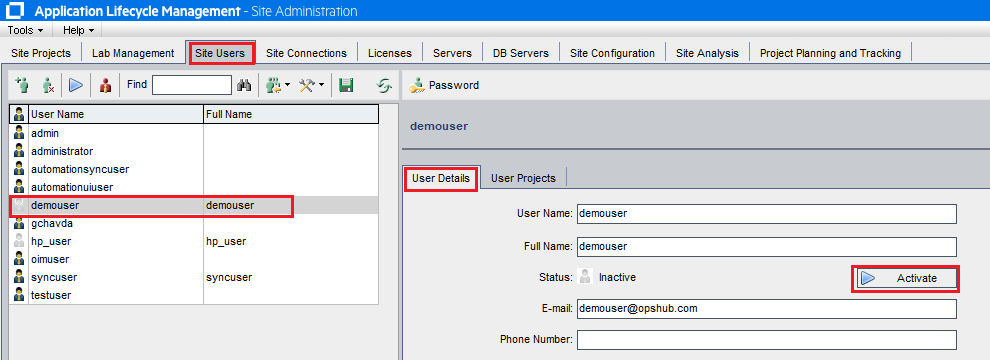
* Micro Focus ALM/QC user must be an **Active site user** in Micro Focus ALM/QC. If the user is deactive user in Micro Focus ALM/QC, then activate the user. For help on how to activate the user, please refer [Activate the User](#Activate-the-User-as-a-Site-User) in Appendix.
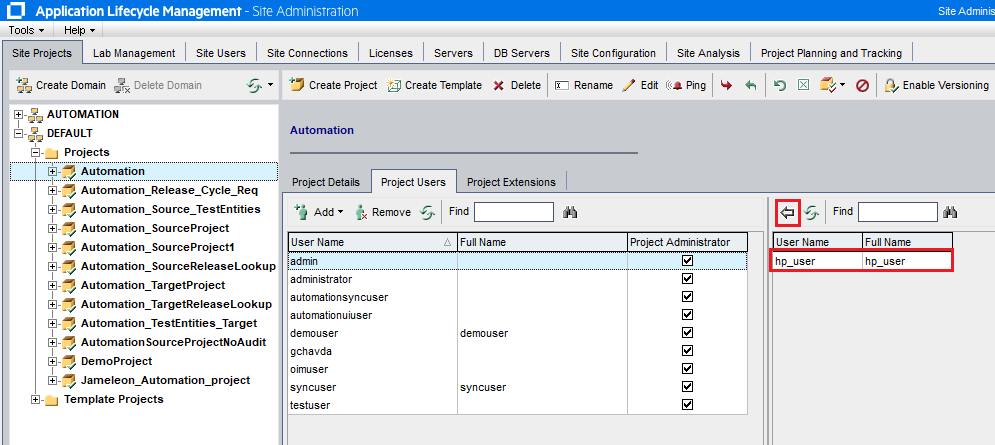
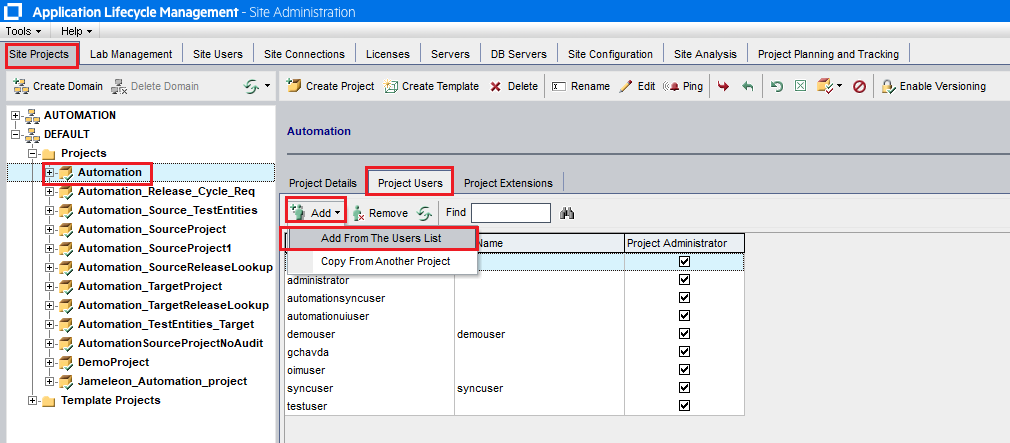
* To use a particular project in Micro Focus ALM/QC, the user must be present as a **Project User** for that project. For help on how to add a project user in the project, please refer [Add project user in project](#Add-project-user-in-project) in Appendix.
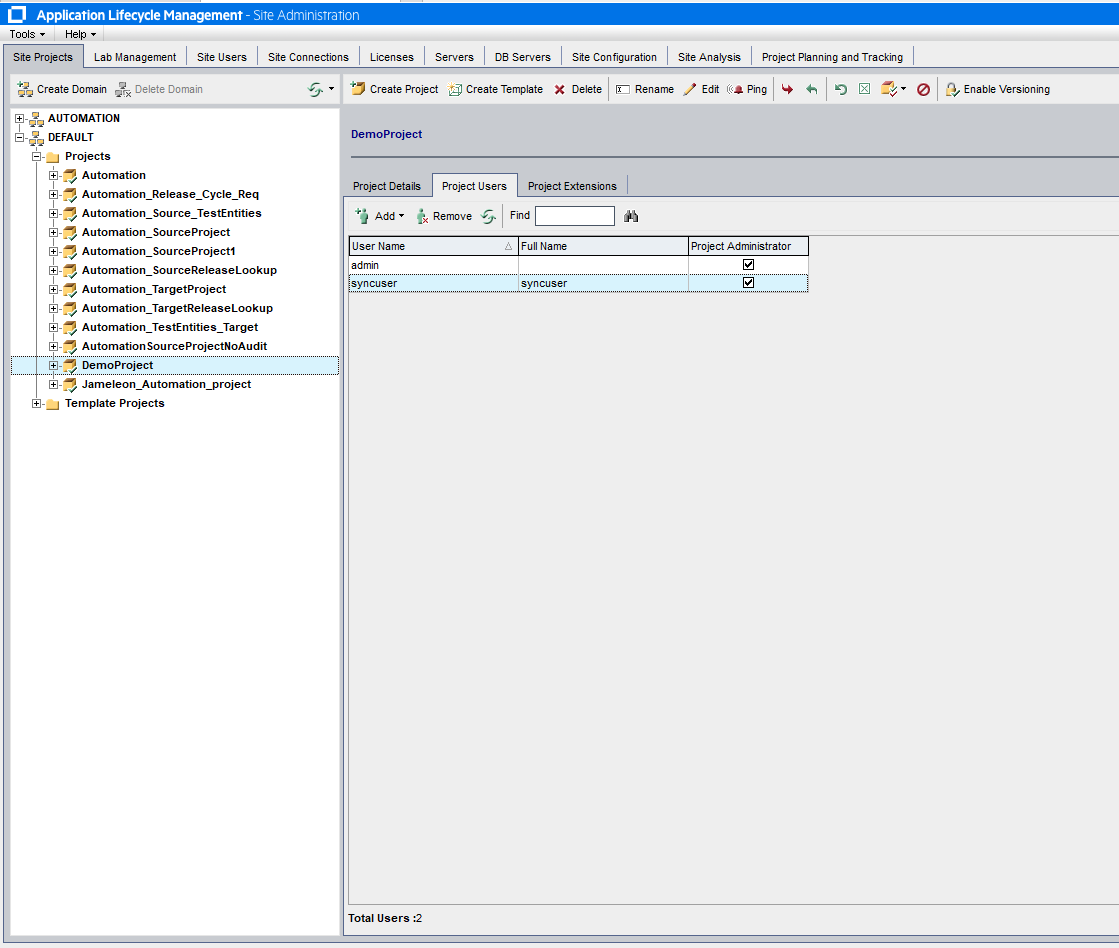
* Micro Focus ALM/QC user must have **Project Administrator** rights on the Project that is to be synchronized. For help on how to set the access rights on project, please refer [Add Permissions To Project](#Add-permissions-to-project) in Appendix.

> **Note**: In case your Micro Focus ALM/QC is configured with SSO, then the above mentioned User privileges and permissions are sufficient.

### Database prerequisites

* For Micro Focus ALM/QC Quality Center 10 and 11, supported database types are: MS SQL Server and Oracle.

### System prerequisites

* For OpenText ALM Quality Center version 24.x:
  * Add the site parameter **ENABLE\_GET\_LOGOUT\_METHOD** and its value to **Y**. To perform this action, go to `http://IP:PORT/qcbin/webadmin/#/configuration` and click on **Add New Parameter**.
    * Reason: Logout user API will not work without this site parameter.

![](https://818964384-files.gitbook.io/~/files/v0/b/gitbook-x-prod.appspot.com/o/spaces%2FK5eA7qMDBFu0HHHMDehi%2Fuploads%2Fgit-blob-0321ed18e9cca8e0d7dd08a270a4b8e8e908e417%2FHPAML_QC_addSiteParam.png?alt=media)

### Proxy configuration

For certain Micro Focus ALM/QC versions, proxy configuration is required only for specific types of data synchronization, such as:

* For version 10.0, 11.0, and 11.5: Required only when design steps or requirement traceability need to be synchronized.
* For version 12.0: Required only when design steps need to be synchronized.

**Required for all versions:**

* To synchronize test set execution.
* To synchronize attachments in cycle entity.
* To read actual values of parameters for different test configurations in test entity.

| **CPU**                          | Core duo 1.6 Ghz (or higher) or equivalent compatible processor                                                                                                                                                                                                                          |
| -------------------------------- | ---------------------------------------------------------------------------------------------------------------------------------------------------------------------------------------------------------------------------------------------------------------------------------------- |
| **Memory (RAM)**                 | 4 GB (recommended)                                                                                                                                                                                                                                                                       |
| **Operating system (Tested On)** | Windows 7, Windows 10, Windows Server 2008, Windows Server 2012, Windows Server 2016, Windows Server 2019                                                                                                                                                                                |
| **Software**                     | <p>\* Visual C++ 2005 SP1 ATL Security Update Redistributable<br>\* Microsoft .NET Framework 4.5 (SP1)<br>\* IIS 7.0 with ASP.NET configured<br>\* Micro Focus ALM/QC Connectivity Add-in (Download from: <code>http\://\<Micro Focus ALM/QC host>:\<port>/qcbin/addins.html</code>)</p> |

> **Note**: For Test Set Execution Request integration, the OpsHub ALM/QC Proxy must be configured on a machine on which UFT has been installed.\
> Click here for [Proxy Configuration steps](#Proxy-Configuration-steps).

### Configurations required to copy QTP script

Following additional configurations are required to copy QTP script:

* **Quick Test Professional** and appropriate **QuickTest Professional Add-In** must be installed on the machine on which OpsHub ALM/QC proxy is configured. To download QuickTest Professional Add-In, please follow [this link](https://hpln.hp.com/page/quicktest-professional-add).

### Enable history of fields to be mapped

* It is recommended to enable history at least on those fields that are going to be mapped in the integration for <code class="expression">space.vars.SITENAME</code> and on **Modified** field to ascertain whether any modifications are made on a particular field. Click [Enable history of fields to be mapped](#How-to-enable-history-of-fields-to-be-mapped) to learn the steps.
* If Micro Focus ALM/QC is the target system, then integration recovery will not work if the history has not been enabled. The integration recovery can, in fact, create duplicate entities in Micro Focus ALM/QC. Integration will throw error before performing create/update if history has not been enabled on any mapped field.
* If Micro Focus ALM/QC is the source system and history has not been enabled, then integration needs to be configured in **Current State Sync** mode only. You can learn about **Current State Sync** mode from [here](https://docs.opshub.com/v7.215/integrate/configure-integrations/integration-configuration#sync-only-current-state).

### Associate a custom field with the Requirement

* For the **Requirement** entity, if user wants to use a custom field in mapping, then the custom field must be associated with all the Requirement Types that will be used in the mapping.
* Click [How to associate a custom field with Requirement](#How-to-associate-a-custom-field-with-Requirement) to know the steps.

## System Configuration

Before you continue to the integration, you must first configure Micro Focus ALM/QC.\
Click [System Configuration](https://docs.opshub.com/v7.215/integrate/configure-integrations/system-configuration) to learn the step-by-step process to configure a system.\
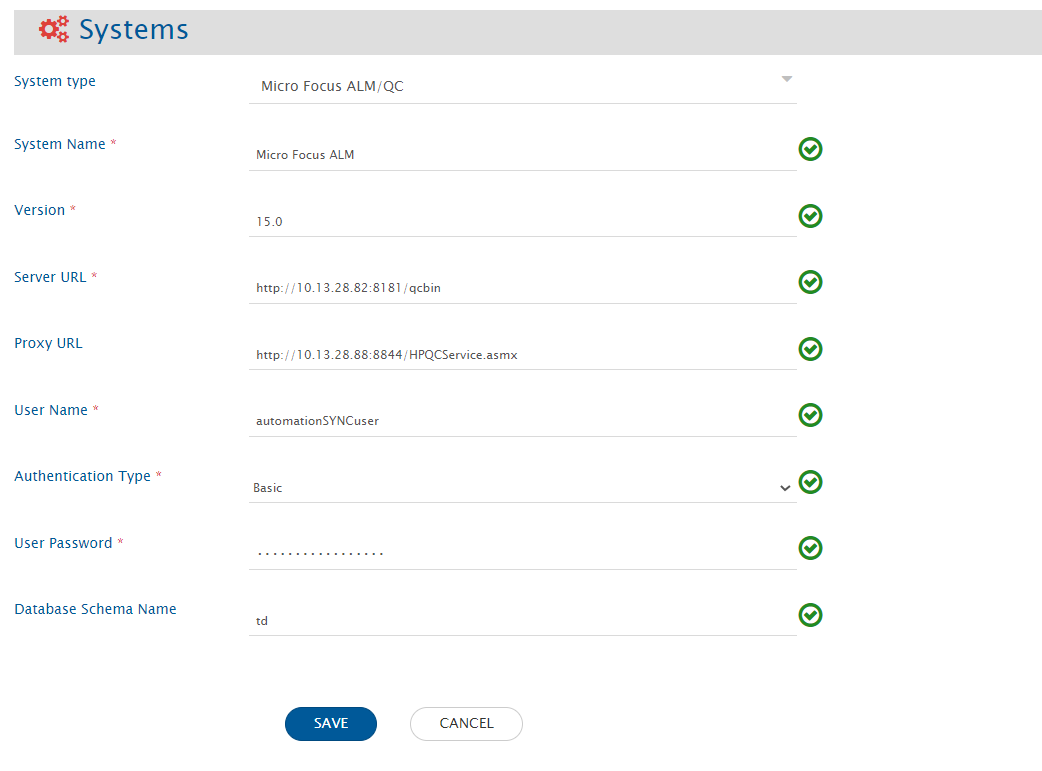
Refer the screenshot given below for reference.
<div align="center"><img src="https://818964384-files.gitbook.io/~/files/v0/b/gitbook-x-prod.appspot.com/o/spaces%2FK5eA7qMDBFu0HHHMDehi%2Fuploads%2Fgit-blob-be3e751c44917c764118d6a874a71492e6c69a7d%2FHPALM_Image_2F1aa.png?alt=media" alt=""></div>

| **Micro Focus ALM/QC System Form Details** |                                              |                                                                                                                                                                                                                                                                                                                                                                           |
| ------------------------------------------ | -------------------------------------------- | ------------------------------------------------------------------------------------------------------------------------------------------------------------------------------------------------------------------------------------------------------------------------------------------------------------------------------------------------------------------------- |
| **Field Name**                             | **When Field is Visible on the System Form** | **Description**                                                                                                                                                                                                                                                                                                                                                           |
| System Name                                | Always                                       | Provide Micro Focus ALM/QC System Name.                                                                                                                                                                                                                                                                                                                                   |
| Version                                    | Always                                       | Put the version for the Micro Focus ALM/QC.                                                                                                                                                                                                                                                                                                                               |
| Server URL                                 | Always                                       | Provide server URL of the Micro Focus ALM/QC instance. This URL will be used for connecting to Micro Focus ALM/QC API. Format: `http://<host name>:<port no>/qcbin` Example: `http://myopshub:1234/qcbin`.                                                                                                                                                                |
| OpsHub ALM/QC Web Service proxy URL        | Always                                       | Proxy configuration is required only for specific types of data synchronization. For more details navigate to [proxy configuration](#Proxy-configuration). Format for URL: `http://<host name>:<port no>/HPQCService.asmx`.                                                                                                                                               |
| User Name                                  | Always                                       | Provide a dedicated user (enter User Name in this field) for API communication with your Micro Focus ALM/QC instance. This user should have the required privileges to use the Micro Focus ALM/QC API.                                                                                                                                                                    |
| Password                                   | Authentication Type is Basic                 | Provide the password for the user given in "User Name" field.                                                                                                                                                                                                                                                                                                             |
| Client ID                                  | Authentication Type is API key               | Provide 'Client ID' of dedicated user (provided above) for API communication with your ALM/QC instance. This user should have the required privileges to use the Micro Focus ALM/QC API. Refer [Create API Key](https://admhelp.microfocus.com/alm/en/15.5-15.5.1/online_help/Content/Admin/api_keys_task.htm) to learn about how to create Client ID and API key secret. |
| API Key Secret                             | Authentication Type is API key               | Provide the 'API key secret' for the Client ID provided above. Refer [Create API Key](https://admhelp.microfocus.com/alm/en/15.5-15.5.1/online_help/Content/Admin/api_keys_task.htm) to learn about how to create Client ID and API key secret.                                                                                                                           |
| Database Schema Name                       | Always                                       | For certain Micro Focus ALM/QC versions, Database Schema Name is required only for specific types of data synchronization, such as: For version 11.0 and 11.5: Required only when requirement-traceability or design-steps needs to be synchronized. For version 12.0: Required only when design steps need to be synchronized.                                           |
| Case Sensitive                             | Always                                       | Set the case sensitive to specify whether Micro Focus ALM/QC User Name is case sensitive or not.                                                                                                                                                                                                                                                                          |

## Mapping Configuration

Map the fields between Micro Focus ALM/QC and the other system to be integrated to ensure that the data between both the systems synchronizes correctly.

Click [Mapping Configuration](https://docs.opshub.com/v7.215/integrate/configure-integrations/mapping-configuration) to learn the step-by-step process to configure mapping between the systems.

### Mapping Checkpoints for Micro Focus ALM/QC as the source system

* When Micro Focus ALM/QC is the source system, to get the full path of the folder in a field of Test Plan Folder or Release Folder entity, the following XSLT can be used:

```xml
<xsl:value-of select="utils:getEntityFieldValue($workflowId,$sourceSystemId,SourceXML/opshubProjectKey,SourceXML/opshubEntityId,'folder_path')"/>
```

### Mapping Checkpoints for Micro Focus ALM/QC as the target system

* **Req Full Path** field needs to be mapped for requirement entity to synchronize requirement under a specific requirement folder. When this field is mapped and incoming requirement path that is mapped with the target Micro Focus ALM/QC field does not exist in Micro Focus ALM/QC, then we can create the same hierarchy in Micro Focus ALM/QC as a requirement folder tree by mapping one more extra boolean field. This field is **Req Folder Auto Create** with default value `true`.
* **Release Full Path** is a mandatory field while mapping Release entity as target. Release entity will be created under the path provided here.
* **Test Configurations** is dependent on the Test entity. To sync Test Configurations, it is necessary to map link type **Test** and link entity type as **tests** in Relationship section. As it is mandatory, it also requires providing the default link settings for this relationship. Please refer to [Default Link Settings](https://docs.opshub.com/v7.215/integrate/configure-integrations/mapping-configuration/default-link-settings) to learn about default link usage and mapping configuration in general.
* Synchronization for data-related fields for Test Configurations entity is not supported. Data-related fields are Data Object, Data State, and Data Filtering.
  * When Micro Focus ALM/QC is target, the **Data State** field is mandatory to synchronize Test Configuration entity despite it being unsupported with data. So, set this field value using default value in mapping with numeric value 0, 1, or 2 as per the **Test Type**. For example, if test type of test configuration is **MANUAL**, then set numeric zero.

#### Mandatory Links

* For Cycle type of entities, Release is a mandatory relationship linkage as Cycle can only be created inside the Release.

> **Note**: Configure the default link only if Releases are not being synchronized to the OpenText ALM Quality Center or if you want to sync all Cycles under a single parent release, due to the limitation in the end system where the release link cannot be modified after Cycle creation.

### Mapping Target Release and Target Cycle fields

When Micro Focus ALM/QC is the target system, the following points need to be taken care of if the entity we are synchronizing has **Target Release** and **Target Cycle** as fields. Both the fields can be mapped with any multi-valued or single-valued text fields.

**For Target Release field:**\
When the 'Target Release' field is on the target side, create a new Release entity if the incoming release entity does not exist. If the entity exists, use the existing one. In such cases, the following XSLT can be used:

```xml
<Target-space-Release xmlns:xsl="http://www.w3.org/1999/XSL/Transform" xmlns:hputils="http://com.opshub.eai.qualitycenter.adapter.HPQCAdapterUtility">
  <xsl:variable name="project" select="'<<project>>'"/>
  <xsl:variable name="system-name" select="'HP TestDirector For Quality Center'"/>
  <xsl:variable name="start-date" select="'<<start-date>>'"/>
  <xsl:variable name="end-date" select="'<<end-date>>'"/>
  <xsl:variable name="source-data" select="SourceXML/updatedFields/Property/<<source-field>>"/>
  <xsl:for-each select="$source-data">
    <xsl:variable name="release-path-with-release-name" select="."/>
    <xsl:if test="$release-path-with-release-name != ''">
      <xsl:variable name="release-name" select="hputils:getCheckAndCreateReleaseName($workflowId, $system-name, $project, $release-path-with-release-name, $start-date , $end-date)"/>
      <xsl:variable name="release-path" select="hputils:getReleaseOrCyclePathFromFullPath($workflowId, $system-name, $project, $release-path-with-release-name)"/>
      <op_list>
        <xsl:element name="name">
          <xsl:value-of select="$release-name"/>
        </xsl:element>
        <xsl:element name="release-path">
          <xsl:value-of select="$release-path"/>
        </xsl:element>
      </op_list>
    </xsl:if>
  </xsl:for-each>
</Target-space-Release>
```

Above XSLT will check for Release entity in the `<<project>>`. If it is not present, then a new Release entity will be created. **Placeholders in the above XSLT**

* `<<project>>` is the project where you want to check for or create the Release entity. The value can be given as `DOMAIN::PROJECT`.
* `<<start-date>>` and `<<end-date>>` are the values for Start Date and End Date fields of the Release entity if a new Release entity needs to be created.
* `<<source-field>>` is the source system field's internal name.

If the source field is a string and single-valued, a separator can be used to separate multiple Releases. For example, if `,` is used as a separator, replace the line:

```xml
<xsl:variable name="source-data" select="SourceXML/updatedFields/Property/<<source-field>>"/>
```

with the following line:

```xml
<xsl:variable name="source-data" select="tokenize(SourceXML/updatedFields/Property/<<source-field>>,',')"/>
```

There is no need to create a new Release entity if a release entity already exists. In such a case, the following XSLT can be used:

```xml
<Target-space-Release xmlns:xsl="http://www.w3.org/1999/XSL/Transform" xmlns:hputils="http://com.opshub.eai.qualitycenter.adapter.HPQCAdapterUtility">
 <xsl:variable name="project" select="'<<project>>'"/>
 <xsl:variable name="system-name" select="'HP TestDirector For Quality Center'"/>
 <xsl:variable name="source-data" select="SourceXML/updatedFields/Property/<<source-field>>"/>
 <xsl:for-each select="$source-data">
   <xsl:variable name="release-path-with-release-name" select="."/>
   <xsl:if test="$release-path-with-release-name != ''">
     <op_list>
       <xsl:element name="name">
         <xsl:value-of select="hputils:getReleaseOrCycleNameFromPath($release-path-with-release-name)"/>
       </xsl:element>
       <xsl:element name="release-path">
         <xsl:value-of select="hputils:getReleaseOrCyclePathFromFullPath($workflowId, $system-name, $project, $release-path-with-release-name)"/>
       </xsl:element>
     </op_list>
   </xsl:if>
 </xsl:for-each>
</Target-space-Release>
```

#### For Target Cycle field

When the `Target Cycle` field is on the target side, similar XSLT as for Target Release can be used with minor modifications. Create a new Cycle entity if a cycle entity does not exist. In such a case, the following XSLT can be used:

```xml
<Target-space-Cycle xmlns:xsl="http://www.w3.org/1999/XSL/Transform" xmlns:hputils="http://com.opshub.eai.qualitycenter.adapter.HPQCAdapterUtility">
  <xsl:variable name="project" select="'<<project>>'"/>
  <xsl:variable name="system-name" select="'HP TestDirector For Quality Center'"/>
  <xsl:variable name="start-date" select="'<<start-date>>'"/>
  <xsl:variable name="end-date" select="'<<end-date>>'"/>
  <xsl:variable name="source-data" select="SourceXML/updatedFields/Property/<<source-field>>"/>
  <xsl:for-each select="$source-data">
    <xsl:variable name="cycle-path-with-cycle-name" select="."/>
    <xsl:if test="$cycle-path-with-cycle-name != ''">
      <xsl:variable name="cycle-path" select="hputils:getReleaseOrCyclePathFromFullPath($workflowId, $system-name, $project, $cycle-path-with-cycle-name)"/>
      <xsl:variable name="cycle-name" select="hputils:getCheckAndCreateCycleName($workflowId, $system-name, $project, $cycle-path-with-cycle-name, $start-date , $end-date)"/>
      <op_list>
        <xsl:element name="name">
          <xsl:value-of select="$cycle-name"/>
        </xsl:element>
        <xsl:element name="cycle-path">
          <xsl:value-of select="$cycle-path"/>
        </xsl:element>
      </op_list>
    </xsl:if>
  </xsl:for-each>
</Target-space-Cycle>
```

There is no need to create a new Cycle entity if a cycle entity already exists. In such cases, the following XSLT can be used:

```xml
<Target-space-Cycle xmlns:xsl="http://www.w3.org/1999/XSL/Transform" xmlns:hputils="http://com.opshub.eai.qualitycenter.adapter.HPQCAdapterUtility">
  <xsl:variable name="project" select="'<<project>>'"/>
  <xsl:variable name="system-name" select="'HP TestDirector For Quality Center'"/>
  <xsl:variable name="source-data" select="SourceXML/updatedFields/Property/<<source-field>>"/>
  <xsl:for-each select="$source-data">
    <xsl:variable name="cycle-path-with-cycle-name" select="."/>
    <xsl:if test="$cycle-path-with-cycle-name != ''">
      <op_list>
        <xsl:element name="name">
          <xsl:value-of select="hputils:getReleaseOrCycleNameFromPath($cycle-path-with-cycle-name)"/>
        </xsl:element>
        <xsl:element name="cycle-path">
          <xsl:value-of select="hputils:getReleaseOrCyclePathFromFullPath($workflowId, $system-name, $project, $cycle-path-with-cycle-name)"/>
        </xsl:element>
      </op_list>
    </xsl:if>
  </xsl:for-each>
</Target-space-Cycle>
```

> **Note**: The Release and Cycle's full paths mentioned in the methods used in advanced mapping above should have backward slash (`\`) as the separator.

### Synchronize Responsible Tester field of Test Instance

* Test Instance is a relationship/link between `Test Set`, `Test`, and `Test Configurations` entities.
* <code class="expression">space.vars.SITENAME</code> supports above relationship synchronization using the following link type(s):
  * `TEST_INSTANCE`
    * Map this linkage to synchronize association between Test Set and Test entities.
  * `TEST_INSTANCE(Configuration)`
    * Map this linkage to synchronize association between Test Set and Test Configurations entities.
* To synchronize the Responsible Tester field of the above Test Instance linkage(s), advanced XSLT needs to be written in the relationship mapping of <code class="expression">space.vars.SITENAME</code>.
* In the advanced mapping, the Responsible Tester field will be referred to as `owner`.

> **Note**: The advanced mapping can be customized as per the target system.

#### Default mapping of link relationship:

```xml
<xsl:for-each select="linkProps/Property">
  <xsl:for-each select="*">
    <xsl:element name="{name(.)}">
      <xsl:value-of select="."/>
    </xsl:element>
  </xsl:for-each>
</xsl:for-each>
```

The above mapping can be changed to the below mentioned advanced mapping to synchronize the Responsible Tester.

```xml
 <xsl:for-each select="linkProps/Property">
  <xsl:for-each select="*">
   <xsl:element name="{name(.)}">
    <xsl:choose>
     <xsl:when test="name(.)='owner'">
      <xsl:value-of select="userName"/>
     </xsl:when>
     <xsl:otherwise>
      <xsl:value-of select="."/>
     </xsl:otherwise>
    </xsl:choose>
   </xsl:element>
  </xsl:for-each>
 </xsl:for-each>
```

## Integration Configuration

Set a time to synchronize data between Micro Focus ALM/QC and the other system to be integrated. Also, define parameters and conditions, if any, for integration.

Click [Integration Configuration](https://docs.opshub.com/v7.215/integrate/configure-integrations/integration-configuration) to learn the step-by-step process to configure integration between two systems.

### Criteria Configuration

If you want to specify conditions for synchronizing an entity between Micro Focus ALM/QC and the other system to be integrated, you can use the Criteria Configuration feature.

Go to the **Criteria Configuration** section on the [Integration Configuration](https://docs.opshub.com/v7.215/integrate/configure-integrations/integration-configuration) page to learn in detail about Criteria Configuration.

**Configure**\
To configure criteria in Micro Focus ALM/QC, integration needs to be created with Micro Focus ALM/QC as the source system.

**Query**\
Query in Micro Focus ALM/QC is the valid SQL (version 10.0) / REST (version 11.x, 12.x) query that can contain any column property name (internal name of fields) available in Micro Focus ALM/QC.

#### Sample Queries

* **Micro Focus ALM/QC 10:**\
  `BG_PRIORITY='1-Low'` (Steps given above are applicable for version 10.0 only)
* **Micro Focus ALM/QC 11.x / 12.x:**
  * `priority[1-Low];status[Open]` (REST-based queries do not allow `or` condition)
  * `creation-time[>2017-11-02]`
  * Search for custom field `User_02` with value `80`. The front-end name of `User_02` is `Remote Id`:\
    `user-02[=80]`

Criteria with value containing `"` is not supported in Integration Configuration.

Learn [How to find out internal name/key in versions](#how-to-find-out-internal-namekey-in-version).

### Supported Target Lookup Queries

* Search for custom field `User_02`. The front-end name of `User_02` is **Remote Id**.
* Query format is:\
  `user-02[=@RemoteID@]`\
  where **RemoteID** is a field of the source.
* For query format based on different Micro Focus ALM/QC versions, please refer [Criteria Configuration](#criteria-configuration) on this page.

## known Behaviour

* Micro Focus ALM/QC 11 allows creating entities even when mandatory fields are not specified.
* Micro Focus ALM/QC 10 truncates data of custom fields if the data size is greater than field length.
* The usage of Micro Focus ALM/QC comments is based on certain assumptions. Click [Micro Focus ALM/QC Comments](#micro-focus-alm-qc-comments) to learn more.
* In Micro Focus ALM/QC, the details of the user who has updated the entity is known through history. Hence, the **OH\_UpdatedBy** field information can be synchronized only if the information related to history is present at the time of synchronization for a given entity.
  * For checking if the history is present or not for an entity, refer to [Check if entity has history](#check-if-entity-has-history).
  * **OH\_UpdatedBy**: This is a field provided by <code class="expression">space.vars.SITENAME</code> for synchronization of the user details who updated the given entity.
* **User field synchronization**: For Micro Focus ALM/QC version ≥ 15.0, the user email address detail can be accessed only by site administrator users. Therefore, to synchronize the User field, one of the following must be done:
  * The sync user must be a site administrator for user field sync to work on email (with default mapping).
  * If sync user can't be given site administrator rights, then user field sync will work if the **Usernames are the same** in both the end systems with default mapping. If the Usernames are not the same, the user can do advanced mapping to achieve one-to-one mapping on username.
* For cycle entity, attachments will be synchronized only when there will be an update on any other history-enabled field.
* A **Root** folder is available for every project by default in Micro Focus ALM for Test Set Folder entity. Hence, when Micro Focus ALM is the target system and synchronizes the Test Set Folder entity, the test set folders will be created inside the **Root** folder.
  * If you want to create the Test Set Folder under any other Test Set Folder, you can achieve that using the parent/child [Relationship Configuration](https://docs.opshub.com/v7.215/integrate/configure-integrations/mapping-configuration#relationships).
* When Micro Focus ALM is the target system (Test Set Folder entity), if the Test Set Folder being synchronized has the same name as an already present Test Set Folder (at the same level), then you will receive a processing failure message, [OH-Micro\_Focus\_ALM/QC-012656](https://docs.opshub.com/v7.215/help-center-index/troubleshooting-index/errors-index/microfocus-error-solutions/oh-microfocus-012656).
  * **Reason:** Micro Focus ALM doesn't allow a Test Set Folder with the same name under a parent.
* While getting baseline name for an entity, if <code class="expression">space.vars.SITENAME</code> encounters an error like `Item does not exist`, the synchronization of the Baseline field will be skipped for that entity. However, this information will be added to the logs.
* The Test Set Folder and Test Plan Folder entities do not have history. Hence, they can be synchronized in **current state only**.
* **Design steps and Parameters sync:**
  * For versioned projects, Design steps and Parameters will be synced along with the history.
  * For non-versioned projects, they will sync with the current state only.
  * In the below-mentioned scenarios, discrepancies may be observed in the sync of Design steps and Parameter values:
    * If a versioned project is changed to a non-versioned project in Micro Focus ALM, discrepancies may be observed in the Design Steps and Parameters sync.
    * For versioned projects, when a Test entity with unchecked design steps is executed: In that case, the Test Run entity will be generated with incorrect test version and unchecked design steps.
    * When a parameter of a Design Step with uppercase letters is created directly by placing it in between `<<<` and `>>>`, then a parameter gets generated with lowercase by Micro Focus ALM itself. It can result in discrepancies while syncing the parameters to the end systems having a parameter-name with case sensitivity.

      * However, the above case sensitivity issue can be handled with the following snippet:

      **Snippet to handle case sensitivity issue:**

      ```xml
      <xsl:element name="description">
        <xsl:value-of select="string:toLowerCase(utils:replace(utils:replace(utils:convertHTMLToPlainText(Property/Description),'#OH_START_PARAM#','[~'),'#OH_END_PARAM#',']'))"/>
      </xsl:element>
      ```
* **Release Folder:**
  * In bidirectional integration, to sync the root folder, the user needs to configure the target lookup between the source's root entity and the target's root entity to avoid a hierarchy mismatch.
  * In case there is no need to sync the root folder, the user can configure criteria to avoid the sync. For example, if the root folder id of HPQC Release folder is `1`, the sample query would be: `id[<>1]`

### Known Limitations

* For Cycle entities, the link to the Release cannot be modified after creation.

## Appendix

### Activate the User as a Site User

* Log in to Micro Focus ALM/QC Site Administration.
* Click **Site Users**.
* Expand the domain and click the User to whom you want to make an **Active Site User**.
* Click **User Details**.
* Click **Activate**.
<div align="center"><img src="https://818964384-files.gitbook.io/~/files/v0/b/gitbook-x-prod.appspot.com/o/spaces%2FK5eA7qMDBFu0HHHMDehi%2Fuploads%2Fgit-blob-aa6c1990b89f09f1645d7d473f9f7808ba1b5e4f%2FHpqc_activate_users.png?alt=media" alt="Activate User"></div>

***

### Add project user in project

* Log in to Micro Focus ALM/QC Site Administration.
* Click **Site Projects**.
* Expand the domain and click the Project for which you need to add user.
* Click **Project users**.
* Click **Add**.
* Click **Add from the Users list**.

<div align="center"><img src="https://818964384-files.gitbook.io/~/files/v0/b/gitbook-x-prod.appspot.com/o/spaces%2FK5eA7qMDBFu0HHHMDehi%2Fuploads%2Fgit-blob-b26526ca196307c0bbbec948141f5f90510d3989%2FHpqc_add_user_1.png?alt=media" alt="Add Project User Step 1"></div>

* Select the user that you want to add.
* Click **Add selected User**.

<div align="center"><img src="https://818964384-files.gitbook.io/~/files/v0/b/gitbook-x-prod.appspot.com/o/spaces%2FK5eA7qMDBFu0HHHMDehi%2Fuploads%2Fgit-blob-7bdc20ddd7f156989901f010e04d20651c048bab%2FHpqc_add_user_2.png?alt=media" alt="Add Project User Step 2"></div>

\---

### Add permissions to project

* Log in to Micro Focus ALM/QC Site Administration.
* Click **Site Projects**.
* Expand the domain and click the Project for which you need to set permission.
* Click **Project users**.
* Mark **Project Administrator** to the user for which permission required to set.

<div align="center"><img src="https://818964384-files.gitbook.io/~/files/v0/b/gitbook-x-prod.appspot.com/o/spaces%2FK5eA7qMDBFu0HHHMDehi%2Fuploads%2Fgit-blob-2f3508e70b47d350d2939a418efba6747cf26b08%2FHPALM_Image_3a2.png?alt=media" alt="Add Permissions"></div>

\---

### How to associate a custom field with Requirement

To associate a custom field with Requirement type, follow the steps:

* Log in to Micro Focus ALM/QC for the project specified in the integration.
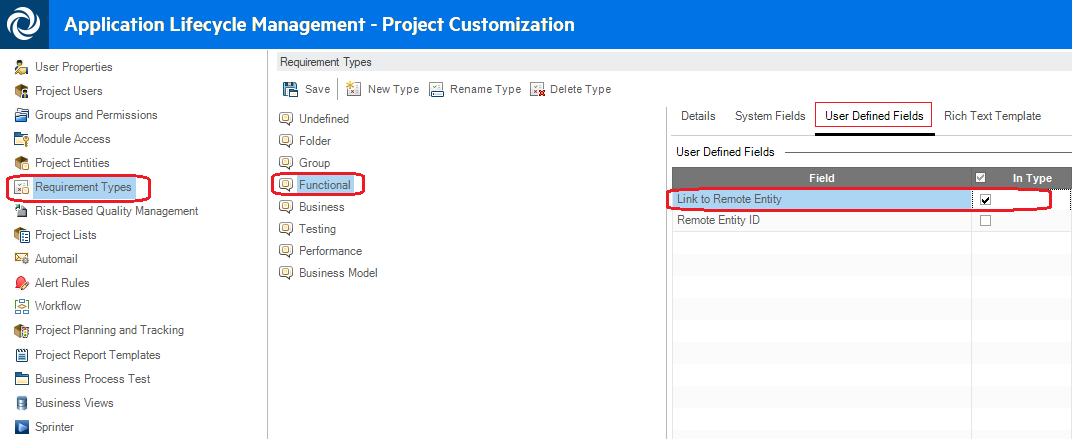
* Go to **Tools → Customize → Requirement Types**.
* Select the specific requirement type that you have mapped in the integration. If no specific type is selected, follow the steps for all requirement types.
* Click **User Defined Fields**.
* Select the user-defined field that you have used in the mapping.
* Mark enable **InType** for that particular custom field.

Example: if a user has configured an integration between the Functional Type of Requirement of Micro Focus ALM/QC and any entity of the target system, and in the mapping, a user has used custom field Link to Remote Entity. Then to associate the custom field Link to Remote Entity with the Functional Type of requirement. Please refer below image.

<div align="center"><img src="https://818964384-files.gitbook.io/~/files/v0/b/gitbook-x-prod.appspot.com/o/spaces%2FK5eA7qMDBFu0HHHMDehi%2Fuploads%2Fgit-blob-8920bdef50fb5da3f0d53e614599ad21f5a2291a%2FHp_Associate_field.png?alt=media" alt="Associate Field"></div>

* For example, if a user has configured an integration between any type of Requirement type of Micro Focus ALM/QC and any entity of the target system, and in the mapping, user has used custom field Link to Remote Entity. Then the user needs to associate the custom field Link to Remote Entity with all the type of requirement type.

***

### How to find out internal name/key in versions

#### How to find out internal name/key in version 10.0

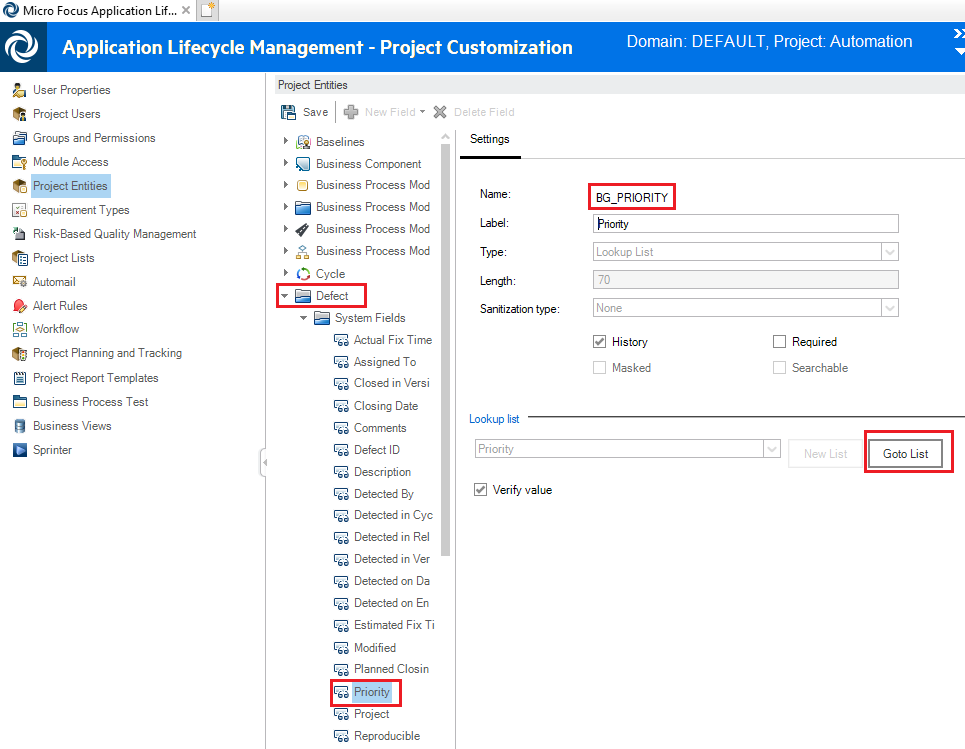
To know the internal field name, refer to Tools->Customize->Project Entities and here:

* Expand entity type that is selected in integration, for example 'Defect'.
* Select attribute for which internal name needs to be found.
* On the right pane, it will appear labelled as 'Name'.
* If it is an enumerated attribute, set of values can be found by clicking the Go to List button.

<div align="center"><img src="https://818964384-files.gitbook.io/~/files/v0/b/gitbook-x-prod.appspot.com/o/spaces%2FK5eA7qMDBFu0HHHMDehi%2Fuploads%2Fgit-blob-37f1045737eded63547e728c482422f9473d02fa%2FHPALM_Image_5a3.png?alt=media" alt="Internal Name Version 10"></div>

#### How to find out internal name/key in version 11.x/12.x

* Go to: [http://hostname:port/qcbin/rest/domains/\\\[DOMAIN\]/projects/\\\[PROJECT\]/\\\[requirements/defects/tests\]/{Existing](https://docs.opshub.com/v7.215/connectors/http:/hostname:port/qcbin/rest/domains/\\\[DOMAIN]/projects/\\\[PROJECT]/\\\[requirements/defects/tests]/{Existing) requirement/defect/test id}?login-form-required=y. (For example - to know the internal name of a specific field in the defect entity in project1 of domain1 for a Micro Focus ALM instance running on port 1234 of myopshub.com, go to: <http://myopshub.com:1234/qcbin/rest/domains/domain1/projects/project1/defects/12?login-form-required=y>)
* Provide username and password if you have not logged in before.
* Following should be the output for the URL:

```xml
<Field Name="status"> 
  <Value>Not Covered</Value> 
</Field>
```

* Value of Name attribute will be the key for criteria configuration.

> **Note**: For Micro Focus ALM/QC version 11 or higher, you might need to keep the value in **" "** if it contains space (It is recommended to use the values as shown in Micro Focus ALM/QC UI filter).\
> For example, `user-01['"OpsHub & Inc"']`

> **Note**: To find the internal name/key, when Micro Focus ALM is running on HTTPS, go to:\
> `https://hostname:port/qcbin/rest/domains/[DOMAIN]/projects/[PROJECT]/[requirements/defects/tests]/{Existing requirement/defect/test id}?login-form-required=y`\
> (The port number can be skipped if it is 443.)

***

### Proxy Configuration steps

* Before performing the following steps, ensure the server satisfies the prerequisites for [proxy configuration](#proxy-configuration).
* Navigate to `<OpsHub_Installation_Directory>\Other_Resources\Resources`.
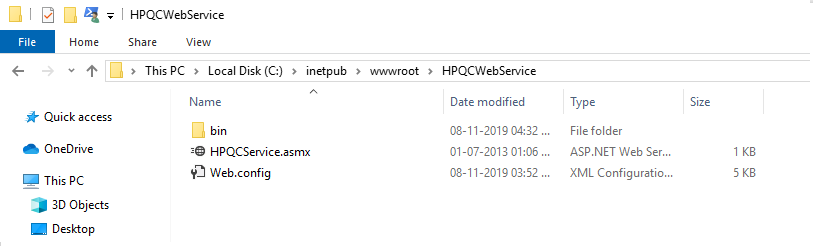
* Extract OpsHub\_ALMQC\_WebService.zip from the above-mentioned directory to IIS directory (C:\Inetpub\wwwroot). This will create the HPQCWebService directory inside the IIS directory (e.g. C:\Inetpub\wwwroot\HPQCWebService).

> **Note**: After extracting the service, The 'HPQCWebService' directory must contain the content of the extracted zip file (i.e. The 'bin' directory, 'HPQCService.asmx' file and 'Web.config' file) as its immediate children.

<div align="center"><img src="https://818964384-files.gitbook.io/~/files/v0/b/gitbook-x-prod.appspot.com/o/spaces%2FK5eA7qMDBFu0HHHMDehi%2Fuploads%2Fgit-blob-ae378747db981fce6ba3e2aab0b49725f792db81%2FHPALM_Image_Root_Path.png?alt=media" alt="Web Service Folder Structure"></div>

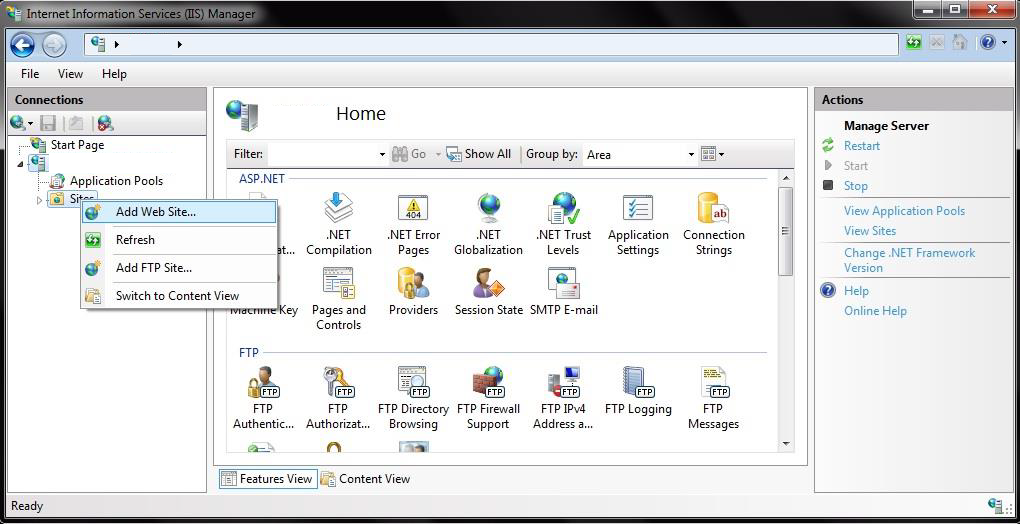
* Open Internet Information Service (IIS) Manager, expand server, and right click Sites and then select Add Web Site. This opens Add Web Site dialog.

<div align="center"><img src="https://818964384-files.gitbook.io/~/files/v0/b/gitbook-x-prod.appspot.com/o/spaces%2FK5eA7qMDBFu0HHHMDehi%2Fuploads%2Fgit-blob-1f8d54137aaf2242dbb3829cd2c66d4445f99c29%2FHPALM_Image_1a.png?alt=media" alt="Add Web Site"></div>

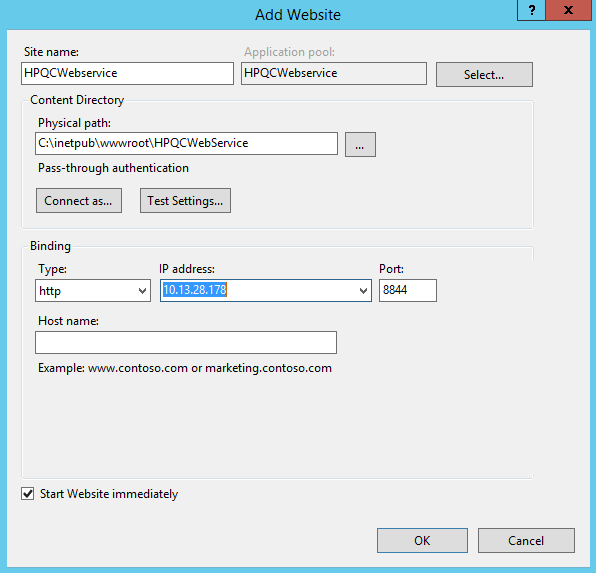
\*Set Physical path to the extracted directory (C:\Inetpub\wwwroot\HPQCWebService). Set Site name. Set port on which this proxy will serve requests. For example, if you want to create the website with the name HPQCWebservice, which will be bound with the 8844 port of IP address 10.13.28.178, then refer to the configuration shown in the image below.

<div align="center"><img src="https://818964384-files.gitbook.io/~/files/v0/b/gitbook-x-prod.appspot.com/o/spaces%2FK5eA7qMDBFu0HHHMDehi%2Fuploads%2Fgit-blob-9afc0bf596f83ed6e5294fefe7bdb16e017cdfd8%2FHpqc_add_website.png?alt=media" alt="Website Configuration"></div>

> **Note**: If you will not bind the website with an IP address (E.g. if you select All Unassigned in the IP address field), then the website will be bound to the localhost.

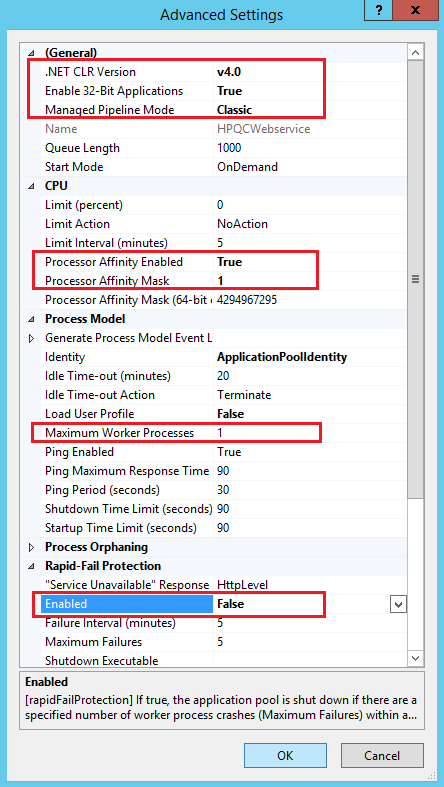
* This will create an Application Pool with the same name given as Site name. In the Connections pane, expand the server name, and then click Application Pools . Navigate to the application pool that is used for OpsHub ALM/QC Web Service application. In the Actions pane, click Advanced Settings. In the Advanced Settings dialog box, set the following values for properties in given sections

| Section                   | Properties                                                                                          |
| ------------------------- | --------------------------------------------------------------------------------------------------- |
| **General**               | <p>.NET CLR Version: v4.0<br>Enable 32-Bit Applications: True<br>Managed Pipeline Mode: Classic</p> |
| **CPU**                   | <p>Processor Affinity Enabled: True<br>Processor Affinity Mask: 1</p>                               |
| **Process Model**         | Maximum Worker Processes: 1                                                                         |
| **Rapid-Fail Protection** | Enabled: False                                                                                      |

> **Note**: Enable 32-Bit Applications is required only when the Proxy Host machine is 64-Bit.

* For the reference, please refer below screenshot of Advanced Settings.
<div align="center"><img src="https://818964384-files.gitbook.io/~/files/v0/b/gitbook-x-prod.appspot.com/o/spaces%2FK5eA7qMDBFu0HHHMDehi%2Fuploads%2Fgit-blob-e7fa54ed143eb6a49626db1b7bbadbab9aff94f5%2FHpqc_ws_application_pool.png?alt=media" alt="Advanced Settings Screenshot"></div>

* Open `%systemroot%\Microsoft.NET\Framework\v4.0.30319\CONFIG\machine.config` in Notepad. Replace `<processModel>` under `<system.web>`:

```xml
<processModel 
enable="true" 
autoConfig="false" 
maxWorkerThreads="1" 
minWorkerThreads="1" 
/>
```

> **Note**: In the path mentioned above the `v4.0.30319` part may differ depending on the version of .NET framework installed.

* Open `web.config` from OpsHub ALM/QC Web Service application in Notepad and change the following properties: set the value of `"value"` attribute of `<param name="File">` element under `<configuration><log4net><appender>` with a valid path to a logger file that has appropriate write permission for logging.\
  Example:

```xml
<configuration>
  <log4net>
    <appender name="LogFileAppender" type="log4net.Appender.FileAppender">
      <param name="File" value="C:\logs\OpsHubProxyLog.txt" />
    </appender>
  </log4net>
</configuration>
```

* Set the following date formats in **Region and Language**:
  * Short date: M/d/yyyy
  * Long date: dddd, MMMM dd, yyyy
  * Short time: h:mm tt
  * Long time: h:mm:ss tt
* Restart IIS.
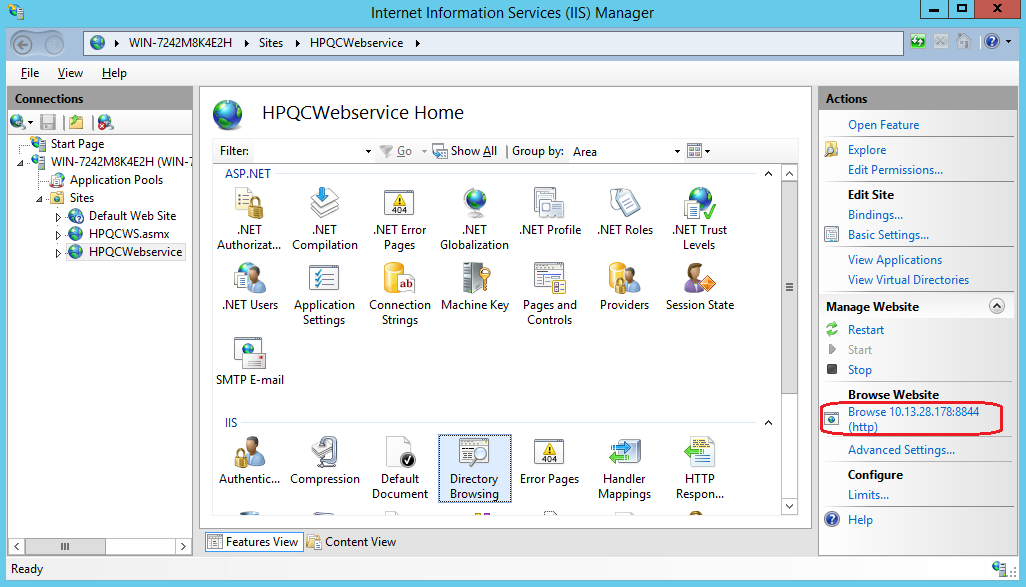
* With the above configuration, the OpsHub ALM/QC web service will be deployed successfully. To check whether the web service is deployed properly or not, click **Browse Website** from the Actions pane in the IIS Manager.

<div align="center"><img src="https://818964384-files.gitbook.io/~/files/v0/b/gitbook-x-prod.appspot.com/o/spaces%2FK5eA7qMDBFu0HHHMDehi%2Fuploads%2Fgit-blob-e96ea62322aa7ed7e97995adcfcf773d2d84b4fc%2FHpqc_check_deploy_ws.png?alt=media" alt="Check Web Service Deployment"></div>

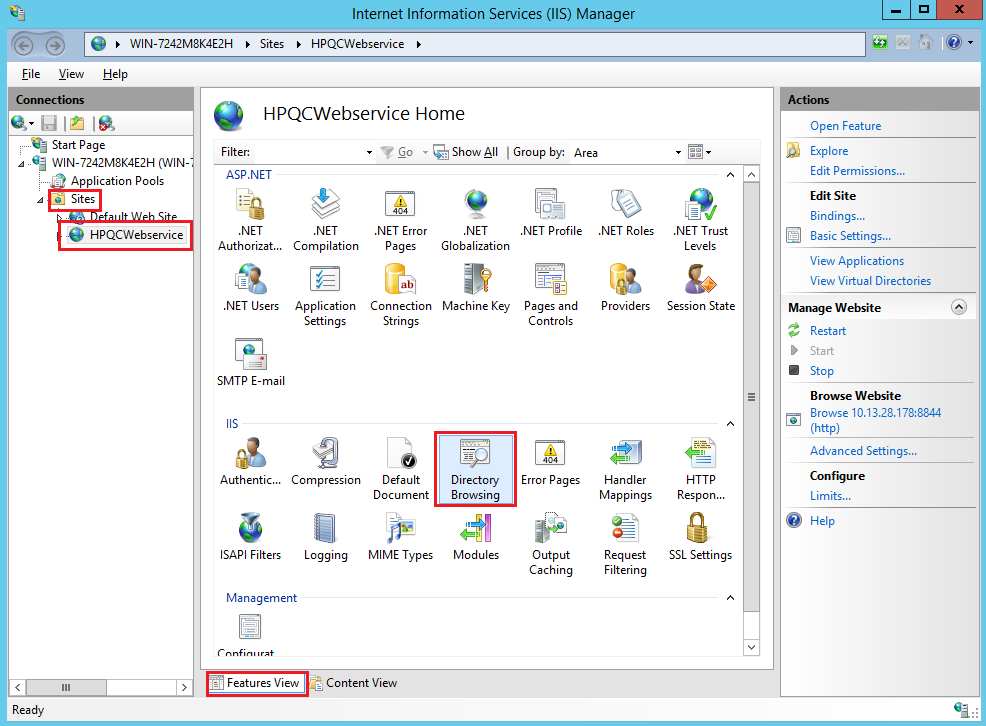
* Please make sure that the Directory Browsing is enabled for the added website. For example, when you have added the website HPQCWebservice, then to enable Directory Browsing for the website HPQCWebservice, go to Sites -> HPQCWebservice -> Feature View -> Directory Browsing -> enable

<div align="center"><img src="https://818964384-files.gitbook.io/~/files/v0/b/gitbook-x-prod.appspot.com/o/spaces%2FK5eA7qMDBFu0HHHMDehi%2Fuploads%2Fgit-blob-156d65eaedf3bd4a3aa6f509bfcd933144125631%2FHpqc_dir_browsing.png?alt=media" alt="Enable Directory Browsing"></div>

* To refer to the deployed web service, use http\://\<Host name\IP address>:/HPQCService.asmx link (IP address and the port number will have the same value as mentioned for the website configuration in the IIS Manager). For example, <http://10.13.28.178:8844/HPQCService.asmx>

> **Note**: The proxy can be deployed with the default application pool .NET v4.5 Classic. To deploy proxy with the default application pool, above-mentioned changes must be done in this application pool as well. For example, after you have added the website HPQCWebservice, then to change the application pool for the website HPQCWebservice, go to: Sites -> HPQCWebservice -> Basic Settings -> Select ->Application Pool -> .NET v4.5 Classic

***

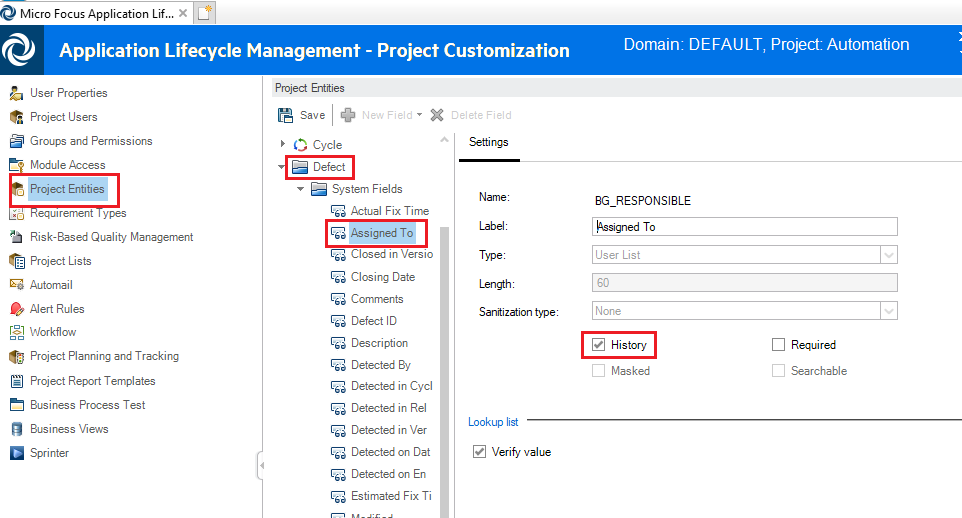
### How to enable history of fields to be mapped

* Log in to Micro Focus ALM/QC.
* Go to **Tools → Customize → Project Entities**.
* Expand the entity type for which the integration is configured, e.g., 'Defect'.
* Expand **System Fields** and **Custom Fields** folders.
* Search for the attribute that is mapped for the integration.
* Click the attribute → a checkbox labeled **History** will appear on the right pane.
* Enable/disable **History** for the selected attribute based on your requirement.

<div align="center"><img src="https://818964384-files.gitbook.io/~/files/v0/b/gitbook-x-prod.appspot.com/o/spaces%2FK5eA7qMDBFu0HHHMDehi%2Fuploads%2Fgit-blob-78814208177ccbdaa93b2addec044d8b67de4f6c%2FHPALM_Image_6b2.png?alt=media" alt="Enable Field History"></div>

***

### Micro Focus ALM QC comments

Micro Focus ALM/QC comments work on the following underlying assumptions:

* Comment once added will not be deleted and can only be accumulated. However, if you delete the previously added comment, it will synchronize other comments of all the revisions on the target system as a single comment.
* Comment once added will not be modified. Updating the previously added comment will result into synchronization of comment value of all the revisions on the target system.
* The reason behind above assumptions being the manner in which comments in Micro Focus ALM/QC are compared between successive revisions. Comments in Micro Focus ALM/QC are compared based on the assumption that the new value of comment starts with the old value of comment, this being the only way by which difference in content of successive comments can be ascertained, above best practices should be followed to avoid duplicity.
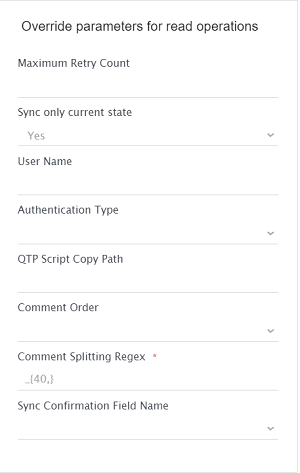
* If the Current State Sync is enabled in the integration, then we will fetch the comments from the current state values only. In this case, one field Comment Splitting Regex introduced at the advanced integration configuration level. To split the comments, the user needs to provide the regex.
* If the History Sync is enabled in the integration, the comment history should be enabled in the Micro Focus ALM/QC. In this case, one field Comment Splitting Regex introduced at the advanced integration configuration level. To split the comments, the user needs to provide the regex.
* Comment Splitting Regex, value is not given by the user, then the default regex will be used. default regex is \_{40,}. If you have overriden the ActionCanExecute script with action BugAddDevCommentsAction1 in Micro Focus ALM/QC, then need to provide correct regex.
  * Regex Example, if the user wants to split the comments having N >= '*', then the regex input can be "*{N,}"

<div align="center"><img src="https://818964384-files.gitbook.io/~/files/v0/b/gitbook-x-prod.appspot.com/o/spaces%2FK5eA7qMDBFu0HHHMDehi%2Fuploads%2Fgit-blob-0bc278e914b8bbe06107331d707f42deab8ea3a2%2FComment_Splitting_Regex_Field_With_Value.png?alt=media" alt="Comment Splitting Regex"></div>

***

### Check if entity has history

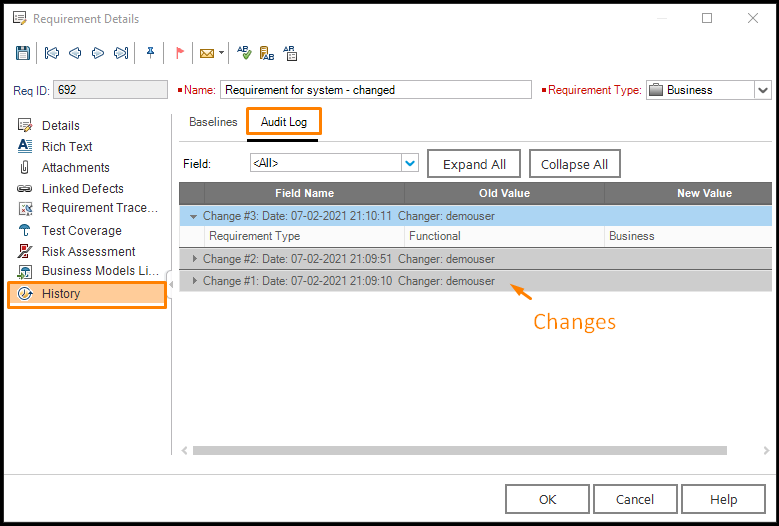
For finding if a Micro Focus entity has history or not, follow the steps below:

* Open the entity you want to check → **History** tab
* Go to the 'History' tab

<div align="center"><img src="https://818964384-files.gitbook.io/~/files/v0/b/gitbook-x-prod.appspot.com/o/spaces%2FK5eA7qMDBFu0HHHMDehi%2Fuploads%2Fgit-blob-68cf28e9af308e34b54643a110a3c297fc8ff5d4%2FMfhistv1.png?alt=media" alt="History Tab"></div>

* Go to **Audit Log** tab → check for changes.
* Go to the 'Audit Log' tab and check for changes;
* If history is not present for an entity, then there will not be any changes present in the 'Audit Log'.