# SSL Certificate Configuration
space.vars.SITENAME will automatically import the certificate if you create or edit a system.\
If the certificate does not import automatically during project or entity selection, you may see error messages like:
* `Peer is not authenticated`
* `Peer's identity has not been verified`
* `Handshake failure` or `Handshake exception`
If the certificate is not imported, follow the steps below.
***
## Download HTTPS Certificate
To access systems deployed on HTTPS from space.vars.SITENAME, download the HTTPS certificate on the machine where OIM is deployed.
## Mozilla Firefox
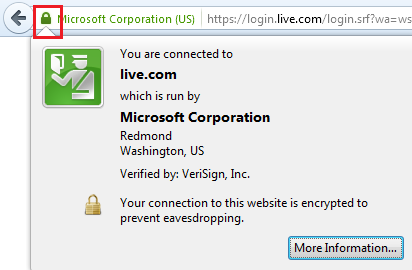
1. Open the system URL in Firefox using HTTPS protocol.
2. Click the lock icon on the upper-left side of the address bar.
3. Click **"More Information"** in the pop-up.
4. In the new window, click **"View Certificate"**.
5. Go to the **"Details"** tab.
6. Click the **"Export"** button.
7. Save the certificate on your local drive.
**Note**: If a certificate hierarchy is present, all certificates must be exported.
***
## Internet Explorer
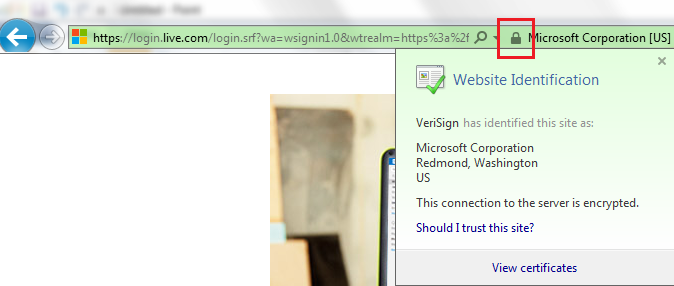
1. Open the system URL in Internet Explorer using HTTPS.
2. Click the lock icon on the right side of the address bar.
3. A pop-up will show **"Website Identification"**.
4. Click **"View Certificates"**.
5. Go to the **"Details"** tab and click **"Copy to File"**.
6. A wizard for copying certificates will appear.
7. Select the **DER encoded binary** option and click **Next**.
8. Click **Browse**, provide a filename, and save it to a local drive.
**Note**: Export all certificates in the chain if a hierarchy is present.
***
## Google Chrome
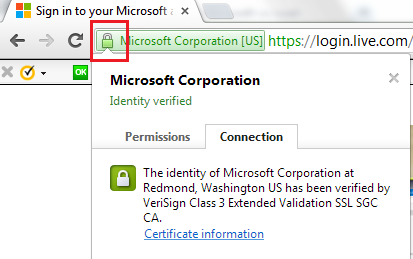
1. Open the system URL in Chrome using HTTPS protocol.
2. Click the lock icon on the upper-left of the address bar.
3. A pop-up will state **"Identity Verified"**.
4. Go to the **"Connection"** tab and click **"Certificate Information"**.
5. In the **"Details"** tab, click **"Copy to File"**.
6. A certificate export wizard will appear.
7. Select the **DER encoded binary** option and click **Next**.
8. Click **Browse**, set a filename, and save to a local drive.
**Note**: Export all certificates in the hierarchy if present.
***
## Import SSL Certificate through Console
Follow the steps below to import the downloaded certificate into space.vars.SITENAME:
1. Open **Command Prompt** with Administrator privileges (right-click `cmd.exe` → **Run as Administrator**).
2. Navigate to the folder:\
`<>\AppData\OpsHubData`
3. Run the following command:
```sh
keytool -importcert -alias <> -keystore <> -file "Certificate_Location\Certificate filename.extension"
```
**Example**:
```sh
keytool -importcert -alias httpscertifcate -keystore "C:\Program Files\OpsHub\AppData\OpsHubData\cacerts" -file "C:\Users\Administrator\Desktop\certificate.crt"
```
4. When prompted, enter the keystore password.\
**Note**: The default keystore password is `changeit`.
5. Type `yes` when asked: **Trust this certificate?**
6. Restart the OpsHub Server.
***
**Important Notes**:
* If any hierarchy is present in the certificate, all certificates must be imported.
* If multiple end system certificates are configured in space.vars.SITENAME and these certificates have different private key passwords, use the [**Certificate Password Encryptor Utility**](https://docs.opshub.com/v7.215/manage/advanced-utilities/certificate-private-key-password-encryptor-utility) to encrypt and store the passwords.
* This utility creates a `cacert_config.properties` file containing all alias names and their encrypted passwords.
* You can use this file to load the certificates from the keystore in space.vars.SITENAME.