# How to add new schedule for integration?
## Description
While configuring an integration, schedule can be associated in advance configuration. For more information on how to 'Associate Schedule', refer [Integration Configuration - Associate Schedule](https://docs.opshub.com/v7.215/integrate/configure-integrations/integration-configuration#associate-schedule).
Now if I want to create a custom schedule and associate it to integration then how can I do this? For example, I want to create a schedule of '2 hours' so that every 2 hours integration reads data from the source system and synchronizes it to the target system. At present, the option to set 2 hours of schedule is not available in space.vars.SITENAME by default.
## Solution
You can create a custom schedule by following the steps below:
* Login to `/OpsHubWS`
* For http deployment URL can be `http://localhost:8989/OpsHubWS`
* For https deployment URL can be `https://localhost:8443/OpsHubWS`
**Note:** If you are accessing space.vars.SITENAME from a different machine, then change the localhost to the IP address or hostname of the machine where space.vars.SITENAME is installed.
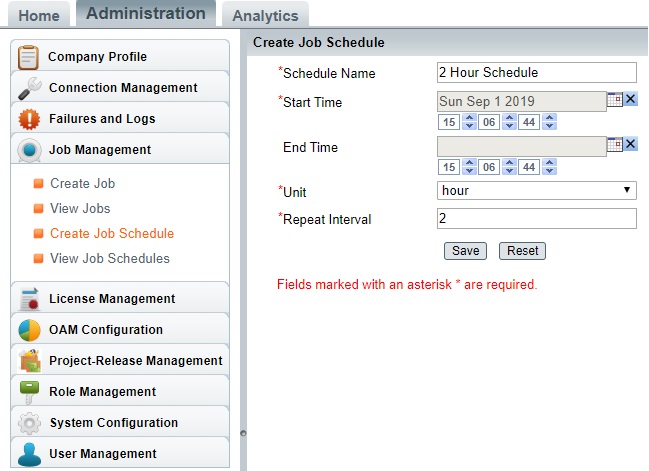
* Go to **Administration → Create Job Schedule**
* Fill up the details as per your custom schedule need. Given below is the example of a 2-hours schedule setup.
* Fill the required details and then save it. Once you save this, then this new schedule will be available in the integration under schedule association option.
* Login to space.vars.SITENAME through `/OIM`
* For http deployment URL can be `http://localhost:8989/OIM`
* For https deployment URL can be `https://localhost:8443/OIM`
**Note:** If you are accessing space.vars.SITENAME from a different machine, then change the localhost to the IP address or hostname of the machine where space.vars.SITENAME is installed.
* Now, refer [Integration Configuration - Associate Schedule](https://docs.opshub.com/v7.215/integrate/configure-integrations/integration-configuration#associate-schedule) documentation to associate your newly created schedule to the integration. Now, choose your custom schedule to set to the integration.