# Rules Management

## View Rules

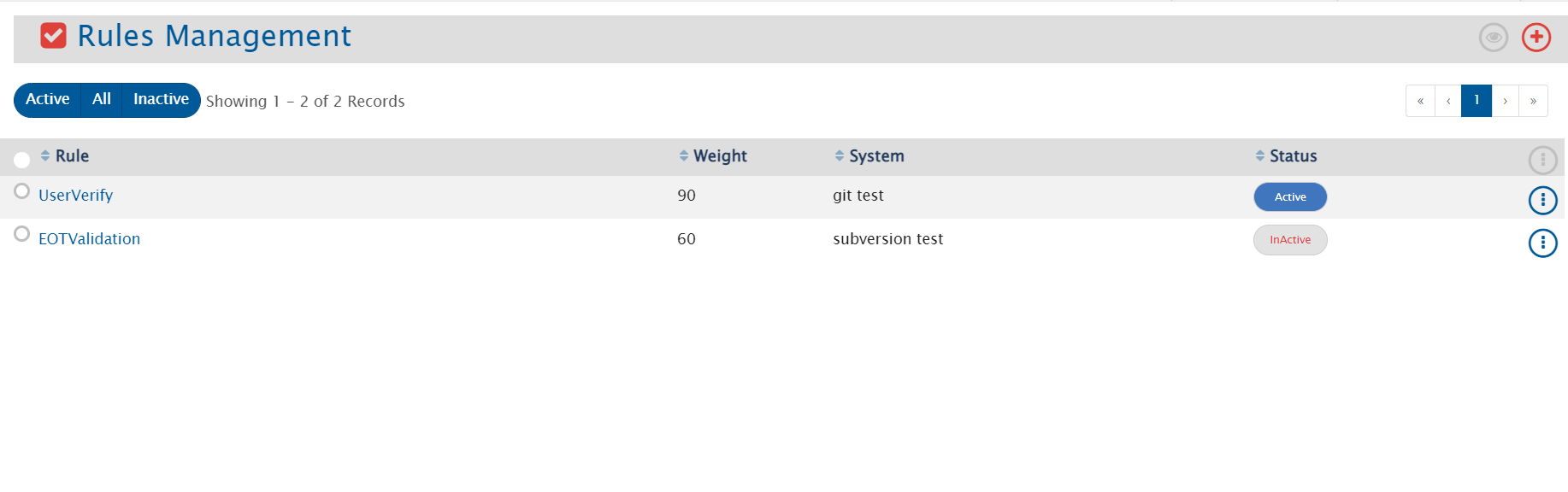
To view Rules, go to Administration > Rules Management. This would lead to a page that lists multiple rules that are already configured for different systems integrated using <code class="expression">space.vars.SITENAME</code>.

<div align="center"><img src="https://818964384-files.gitbook.io/~/files/v0/b/gitbook-x-prod.appspot.com/o/spaces%2FK5eA7qMDBFu0HHHMDehi%2Fuploads%2Fgit-blob-6b80ea776038f072e48df5fa2e09de513ee47fd0%2FRules_Management.png?alt=media" alt="" width="1000"></div>

### Filters

* **Filter by rule name**: Search configured rules using the search available in the header navigation bar
* **Filter by rule state**: Click on the Active, All, or Inactive button to filter by the status

### Actions

* **View rule's xml**: Click the rule's name to view the rule's xml
* **Export rules**: Roll over the vertical ellipses icon ![](https://818964384-files.gitbook.io/~/files/v0/b/gitbook-x-prod.appspot.com/o/spaces%2FK5eA7qMDBFu0HHHMDehi%2Fuploads%2Fgit-blob-87b21c6b688606d234abc8af744be63df60ac275%2Ffa_vertical_ellipses1a.png?alt=media) against the rule that you want to export and then select *Export rule*
* **Activate/Inactivate rules**: Select the *Status* button against the rule for which you want to toggle the status. The status will change from *Active* to *Inactive* or from *Inactive* to *Active*
* **Actions over multiple rules**: Select multiple rules and then roll over the cursor to point to the vertical ellipses icon ![](https://818964384-files.gitbook.io/~/files/v0/b/gitbook-x-prod.appspot.com/o/spaces%2FK5eA7qMDBFu0HHHMDehi%2Fuploads%2Fgit-blob-87b21c6b688606d234abc8af744be63df60ac275%2Ffa_vertical_ellipses1a.png?alt=media) on the table header to see the operations that you could perform on multiple selected rules.

***

## Upload Rule

To upload a new rule, follow the steps given below:

* Click on **"Administration"**
* Click on ![](https://818964384-files.gitbook.io/~/files/v0/b/gitbook-x-prod.appspot.com/o/spaces%2FK5eA7qMDBFu0HHHMDehi%2Fuploads%2Fgit-blob-73ed377d82f61e90e8c74c5a712b24fe15665bcb%2FRules_Management_icon.png?alt=media) given on the left panel. You can see the list of rules that are already uploaded
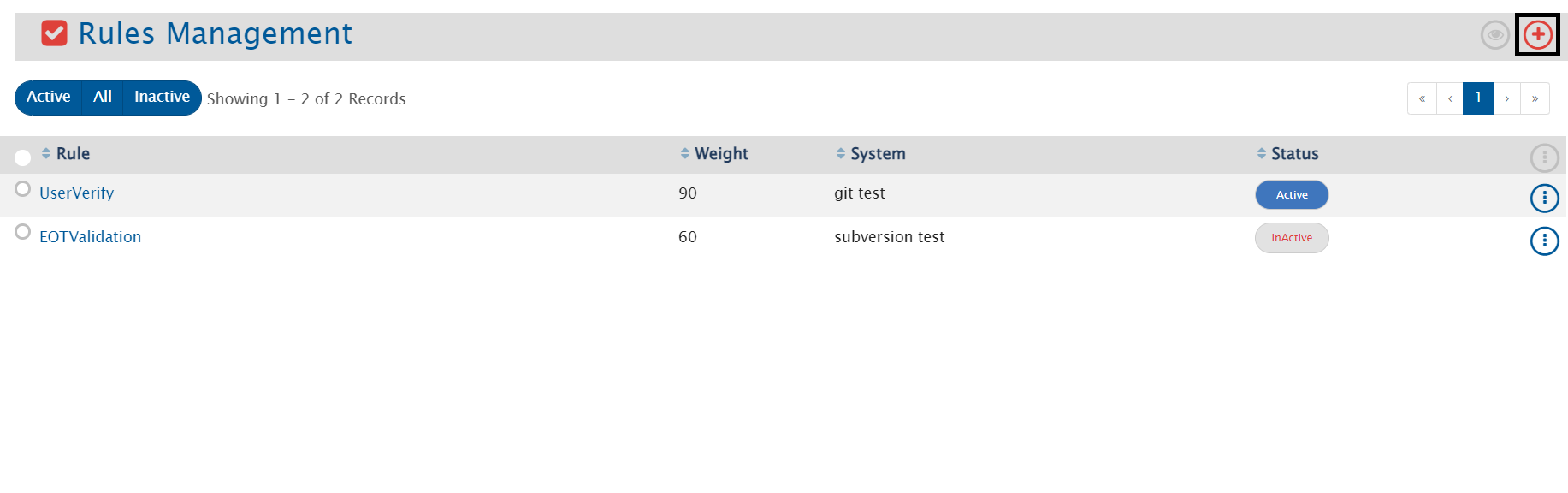
* To upload a new rule, click on ![](https://818964384-files.gitbook.io/~/files/v0/b/gitbook-x-prod.appspot.com/o/spaces%2FK5eA7qMDBFu0HHHMDehi%2Fuploads%2Fgit-blob-4261be90a03c13abd654431656f0d1eeb1921919%2FPlus.png?alt=media) given on the top right corner of the screen

<div align="center"><img src="https://818964384-files.gitbook.io/~/files/v0/b/gitbook-x-prod.appspot.com/o/spaces%2FK5eA7qMDBFu0HHHMDehi%2Fuploads%2Fgit-blob-98e0559906617a97bdae53801be77bae34f4d0c2%2FRules_Management_Upload.png?alt=media" alt="" width="1000"></div>

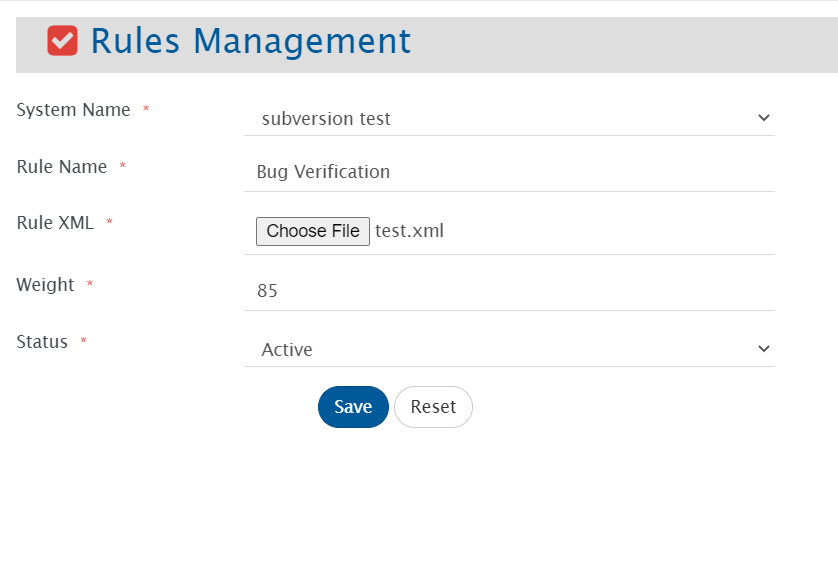
* The Upload form will open. Fill the following details in the form:
  * **System Name**: It gives option to select the system from all the SCM systems mentioned in the dropdown
  * **Rule Name**: It represents the name of the rule which will be uploaded
  * **Rule XML**: Upload the XML file using the *Choose File* option
  * **Weight**: It defines the priority of rule. Higher the weight, higher will be the priority given to the rule
  * **Status**: It represents whether the rule is active or inactive

<div align="center"><img src="https://818964384-files.gitbook.io/~/files/v0/b/gitbook-x-prod.appspot.com/o/spaces%2FK5eA7qMDBFu0HHHMDehi%2Fuploads%2Fgit-blob-1eee8a17fc05b3f3dd4075e8de7d145ed0428ba0%2FRules_Management_UploadForm.png?alt=media" alt="" width="1000"></div>

* Click on **Save**
* Click on **Reset** to fill the form again

***

## Edit Rule

* To edit a rule, follow the steps given below:
  * Click on **"Administration"**
  * Click on ![](https://818964384-files.gitbook.io/~/files/v0/b/gitbook-x-prod.appspot.com/o/spaces%2FK5eA7qMDBFu0HHHMDehi%2Fuploads%2Fgit-blob-73ed377d82f61e90e8c74c5a712b24fe15665bcb%2FRules_Management_icon.png?alt=media) given on the left panel. You can see the list of rules that are already uploaded
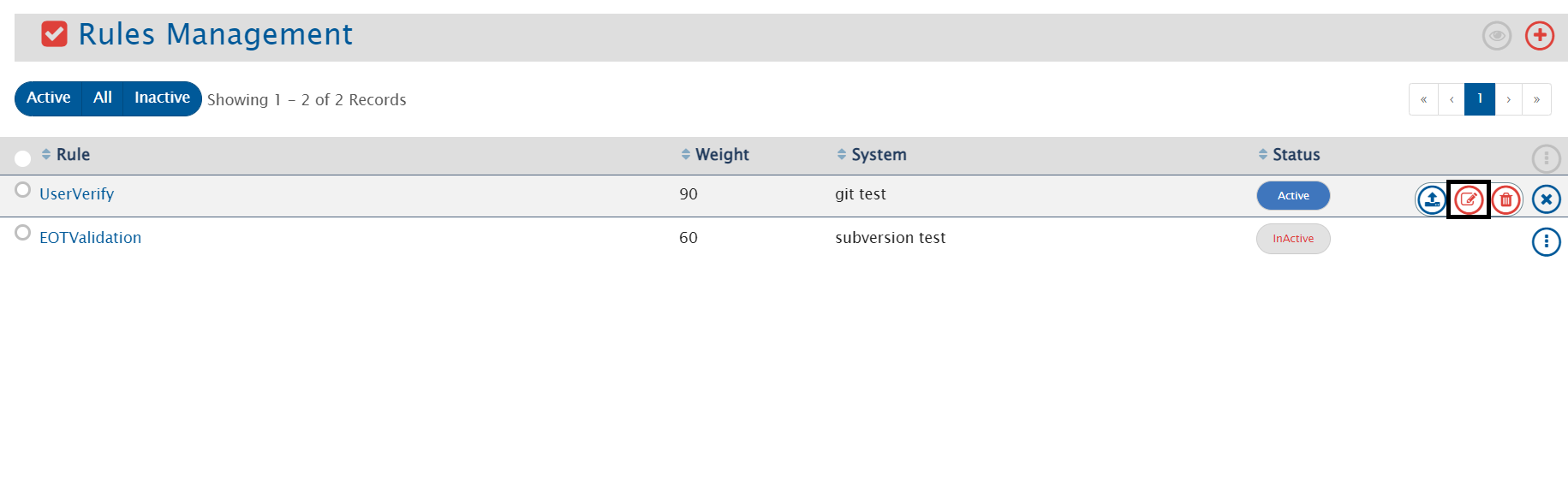
  * To edit a rule, roll over the vertical ellipses icon ![Ellipses](https://818964384-files.gitbook.io/~/files/v0/b/gitbook-x-prod.appspot.com/o/spaces%2FK5eA7qMDBFu0HHHMDehi%2Fuploads%2Fgit-blob-87b21c6b688606d234abc8af744be63df60ac275%2Ffa_vertical_ellipses1a.png?alt=media) against the rule that you want to edit
  * Click on&#x20;

<div align="center"><img src="https://818964384-files.gitbook.io/~/files/v0/b/gitbook-x-prod.appspot.com/o/spaces%2FK5eA7qMDBFu0HHHMDehi%2Fuploads%2Fgit-blob-c0d6a40a2d6ae48529518386adc8c5734820c9cc%2FRules_Management_Edit.png?alt=media" alt="" width="2200"></div>

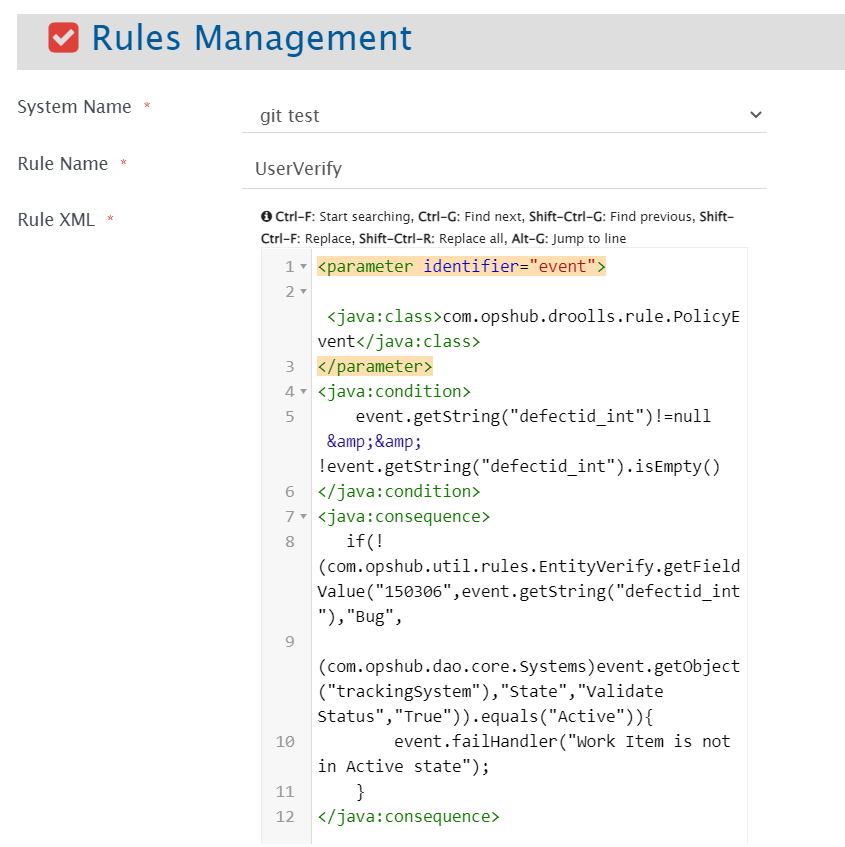
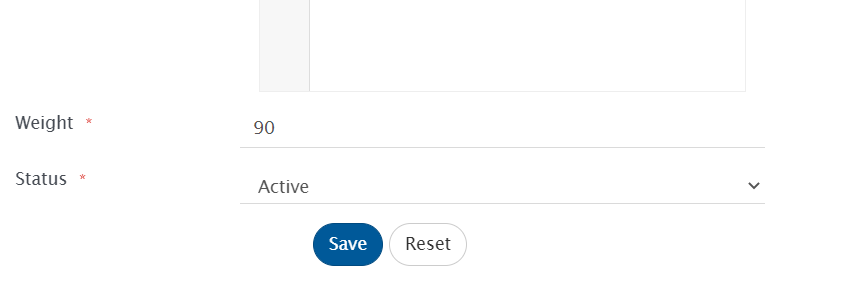
* The Edit form will open. Edit the details in the form. Refer to the image below:

<div align="center"><img src="https://818964384-files.gitbook.io/~/files/v0/b/gitbook-x-prod.appspot.com/o/spaces%2FK5eA7qMDBFu0HHHMDehi%2Fuploads%2Fgit-blob-b2d06a21a7a166552235f389a1411cc32a839472%2FRules_Management_EditForm1.png?alt=media" alt="" width="900"></div>

<div align="center"><img src="https://818964384-files.gitbook.io/~/files/v0/b/gitbook-x-prod.appspot.com/o/spaces%2FK5eA7qMDBFu0HHHMDehi%2Fuploads%2Fgit-blob-096bfd23dda1cac0ec70720d3e05757bf2a3733d%2FRules_Management_EditForm2.png?alt=media" alt="" width="900"></div>

* Click on **"Save"**
* Click on **"Reset"** to set the previously saved value

***

## Delete Rule

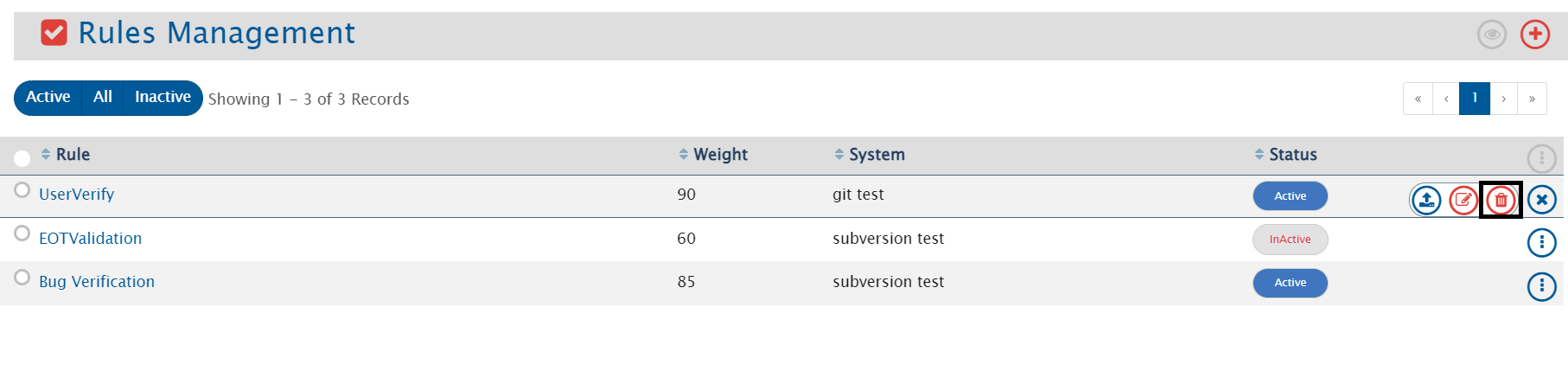
* To delete the rule which is active, first you need to inactivate the rule
* To delete a rule, roll over the vertical ellipses icon ![](https://818964384-files.gitbook.io/~/files/v0/b/gitbook-x-prod.appspot.com/o/spaces%2FK5eA7qMDBFu0HHHMDehi%2Fuploads%2Fgit-blob-87b21c6b688606d234abc8af744be63df60ac275%2Ffa_vertical_ellipses1a.png?alt=media) against the rule that you want to delete
* Click on&#x20;

<div align="center"><img src="https://818964384-files.gitbook.io/~/files/v0/b/gitbook-x-prod.appspot.com/o/spaces%2FK5eA7qMDBFu0HHHMDehi%2Fuploads%2Fgit-blob-735651bec4f2e943518a2fc264528a64f5484c2a%2FRules_Management_Delete.png?alt=media" alt="" width="1000"></div>

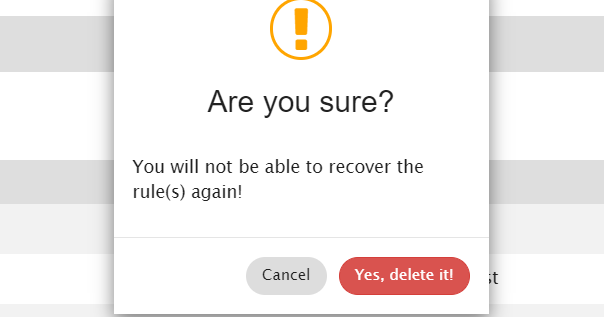
* You will not be able to recover the rule once you delete it

<div align="center"><img src="https://818964384-files.gitbook.io/~/files/v0/b/gitbook-x-prod.appspot.com/o/spaces%2FK5eA7qMDBFu0HHHMDehi%2Fuploads%2Fgit-blob-24db6992a9c395406c7e2c61f98ed6f9d4dff62a%2FRules_Management_DeletePopup.png?alt=media" alt="" width="600"></div>

* Click on **"Yes, delete it"** to delete the rule
* Click on **"Cancel"** to cancel the process