# Count the users involved in synchronization
## Overview
* If user wants to know the count of users being synchronized through space.vars.SITENAME, the 'UserCountUtility' utility can be used. This utility can count the following details of users whose data was synchronized from the first day of space.vars.SITENAME setup (or a specific date) till date.
* Unique Users across all systems configured
* Total Users across all systems configured
* Total Users count per system
* Detailed list for each of the users as per their availability in the systems configured
* The utility **UserCountUtility.zip** is by default bundled with space.vars.SITENAME installation and can be found at space.vars.SITENAME's /Other\_Resources/Resources/UserCountUtility.zip.
* The utility can be executed only from the machine where space.vars.SITENAME is installed.
* The utility folder contains following files:
* input.properties: To provide the input details required to run the utility.
* UserCountUtility.bat: To run the utility if space.vars.SITENAME is installed on Windows machine.
* UserCountUtility.sh: To run the utility if space.vars.SITENAME is installed on Linux machine.
## Input
The following inputs are to be provided in input.properties file:
* **Installation\_Path**
* Provide the installation path of space.vars.SITENAME. For example, if space.vars.SITENAME is installed at `C:/Program Files/OpsHub`, then provide path as `C:/Program Files/OpsHub`.
* **Count\_Users\_From\_Date**
* It is useful when the user wants the utility to count the users from a specific date. This is an optional input and the date should be in the format, `YYYY-MM-DD`. If left blank, utility will count all users. For example, if the user wants the utility to count users from 1 Jan. 2021, then the user can specify the date as `2021-01-01`. In that case, this utility will count the users from 1 Jan. 2021 till date.
Below is an example of input.properties file:
## Steps to run Utility
Following are the steps to run the utility:
* Go to space.vars.SITENAME's `/Other_Resources/Resources`.
* Unzip `UserCountUtility.zip`.
* Update the `input.properties` file as stated [here](#input).
* If your space.vars.SITENAME is installed on Windows machine, then refer to the steps given below:
* Open Command Prompt
* Navigate to space.vars.SITENAME `/Other_Resources/Resources` path
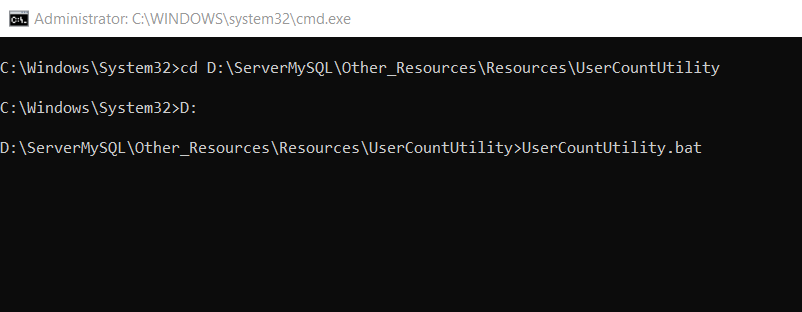
* Execute the bat using command `UserCountUtility.bat` as shown below:
{% if "OpsHub Integration Manager" === space.vars.SITENAME %}
* If your space.vars.SITENAME is installed on Linux machine, then refer to the steps given below:
* Open Shell Script
* Navigate to space.vars.SITENAME's `/Other_Resources/Resources` path
* Execute the bat using command `sh UserCountUtility.sh` as shown below:
{% endif %}
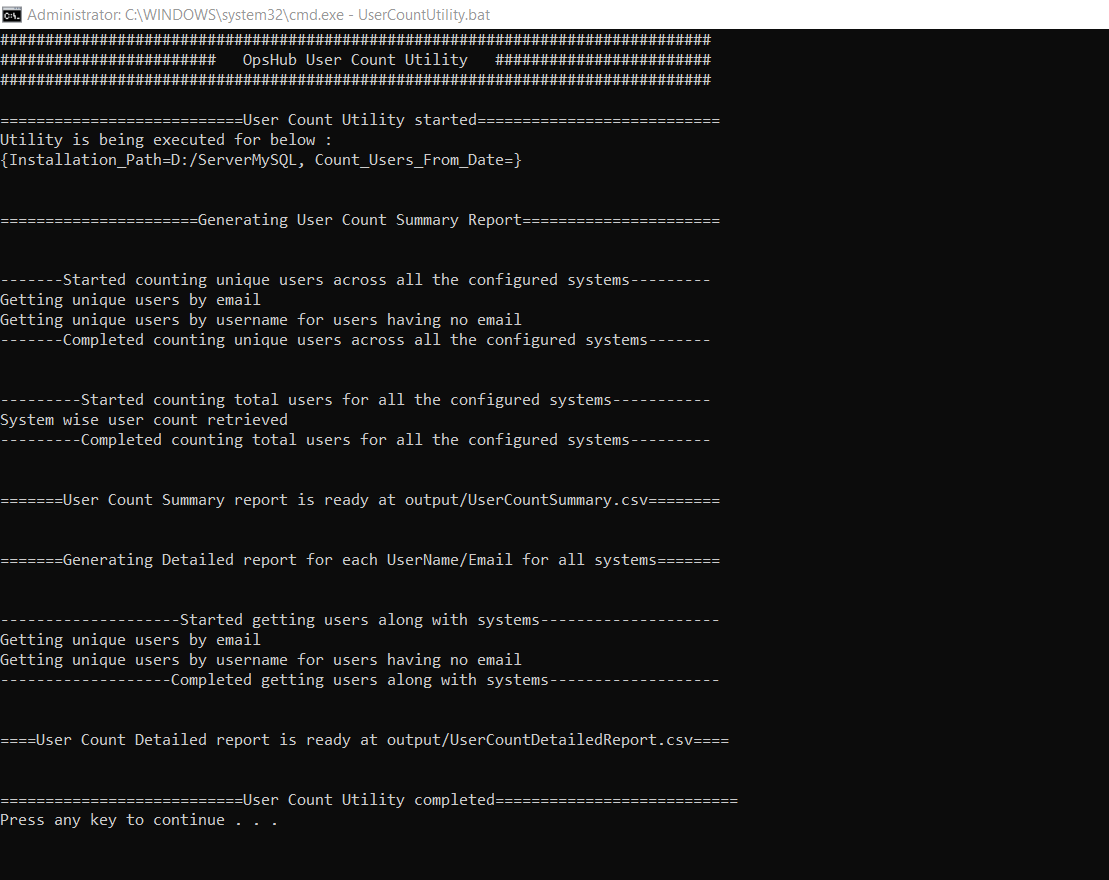
Once the execution is completed, the user will see the output similar to the details given in the screenshot (an example of execution on Windows machine) below:
## Output
Once the utility execution starts, it creates a folder `output` which contains below files for the user count reports and utility execution logs:
1. **UserCountSummary.csv**: It contains count of unique users across all systems configured, total users count across all systems configured and total users count per system. For more information, refer to [UserCountSummary](#usercountsummarycsv) section.
2. **UserCountDetailedReport.csv**: It contains detailed list for each users as per their availability in the systems configured. For more information, refer to [UserCountDetailedReport](#usercountdetailedreportcsv) section.
3. **logs.log**: It contains the details of the utility execution.
### UserCountSummary.csv
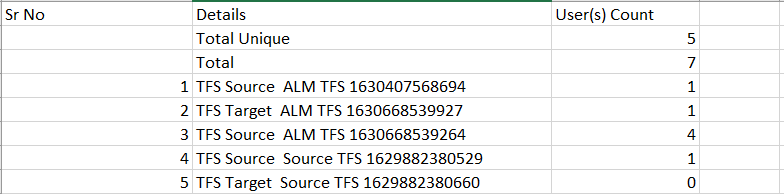
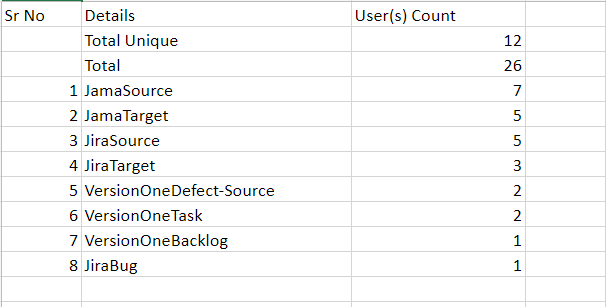
This file contains the following details:
* **Total Unique**
* It represents the number of unique users present in the synchronization done so far across all the systems configured. For example, if the user is present in
. There is a user (with email: `demouser@test.com`) who is present in both
, then, the user will be considered unique. For the users with no specified emails, in that case, their usernames will be considered unique.
* **Total**
* It represents the total number of users in all the systems.
* **Distribution of users per system**
* It has the list of systems and the number of users synchronized by space.vars.SITENAME.
{% if "OpsHub Migrator for Microsoft Azure DevOps" === space.vars.SITENAME %}
{% endif %}
{% if "OpsHub Integration Manager" === space.vars.SITENAME %}
{% endif %}
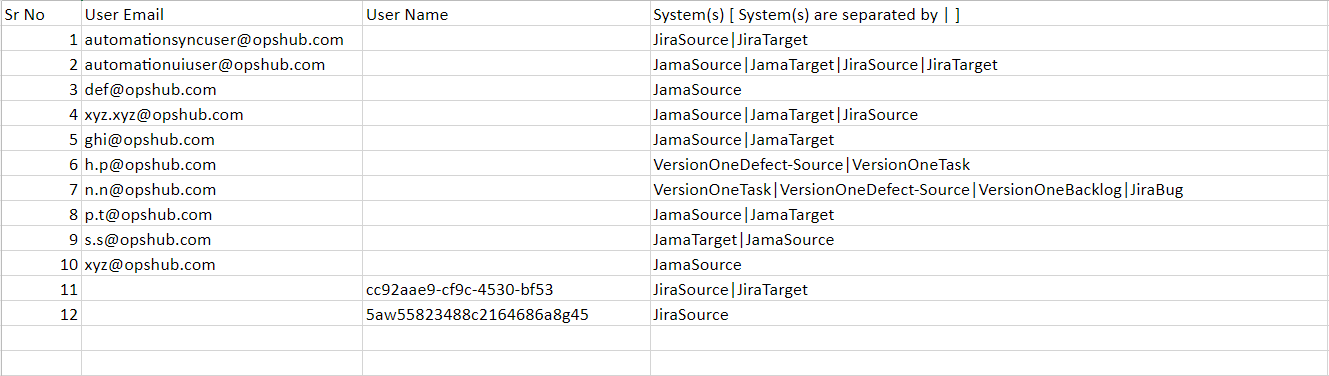
### UserCountDetailedReport.csv
* It has a detailed report on the users found during synchronization.
* It has the user details (User Email or User Name as per the details found during synchronization). Additionally, a corresponding list of systems is present in which the users' details are found.
{% if "OpsHub Migrator for Microsoft Azure DevOps" === space.vars.SITENAME %}
{% endif %}
{% if "OpsHub Integration Manager" === space.vars.SITENAME %}
{% endif %}