# Changing MSSQL Server Host

{% if "OpsHub Migrator for Microsoft Azure DevOps" === space.vars.SITENAME %}
\* Close OM4ADO application before execution of the utility.
{% endif %}

{% if "OpsHub Integration Manager" === space.vars.SITENAME %}

* Stop OpsHub Server Service before execution of the utility.
  {% endif %}

* Go to <code class="expression">space.vars.SITENAME</code>'s `<Installation Folder>/Other_Resources/Resources`

* Unzip `HostChange.zip`

{% if "OpsHub Integration Manager" === space.vars.SITENAME %}

* Open Command Prompt with administrator privileges and go to <code class="expression">space.vars.SITENAME</code>'s directory `<Installation Folder or OpsHub>/Other_Resources/Resources/HostChange` using command **`cd <Installation Folder or OpsHub>/Other_Resources/Resources/HostChange`**
  {% endif %}

\* Run \`HostChange.bat\` for Windows system.

{% if "OpsHub Integration Manager" === space.vars.SITENAME %}

* In case of linux system, run `HostChange.sh`
  {% endif %}

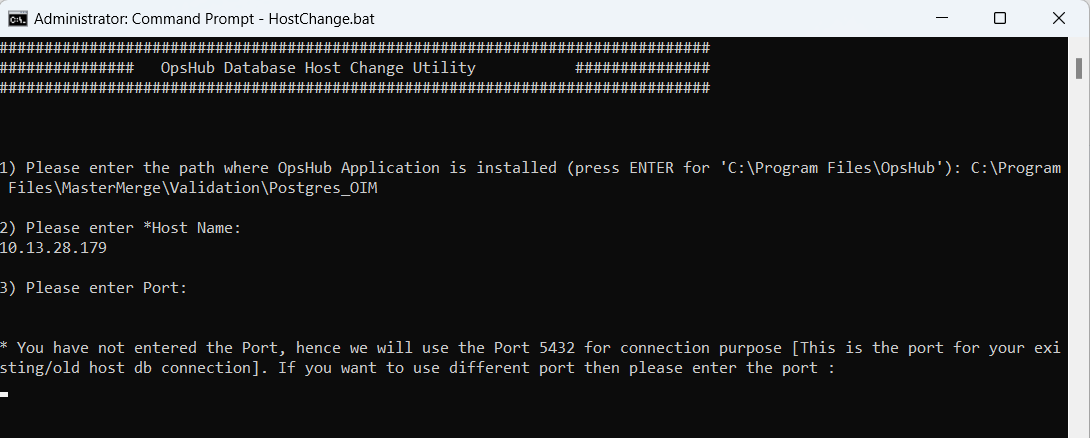
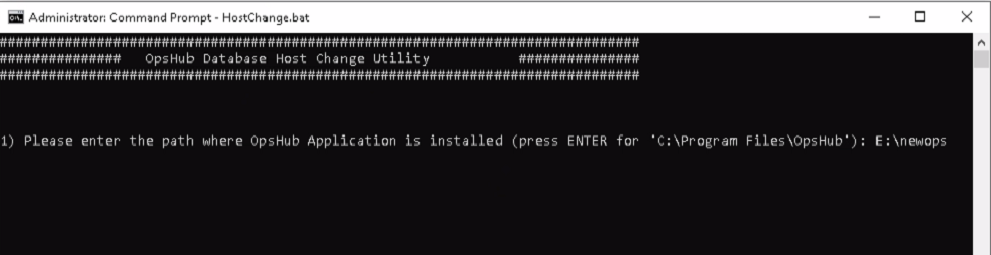
* Enter the path for <code class="expression">space.vars.SITENAME</code>'s Installation Directory

<div align="center"><img src="https://818964384-files.gitbook.io/~/files/v0/b/gitbook-x-prod.appspot.com/o/spaces%2FK5eA7qMDBFu0HHHMDehi%2Fuploads%2Fgit-blob-8008099d17079ef268d73eb21c7fb367a95863e8%2Finitial.png?alt=media" alt=""></div>

### HostChange with MYSQL

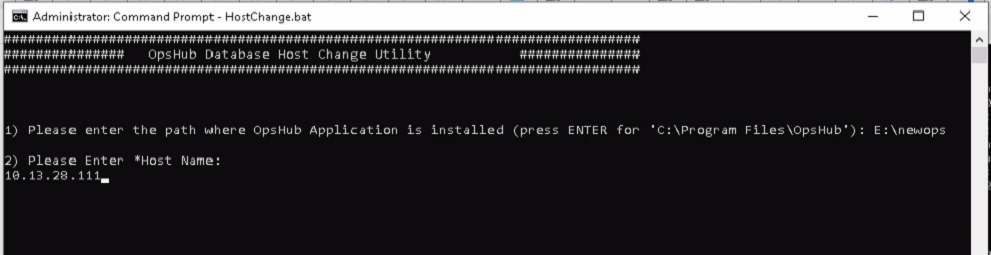
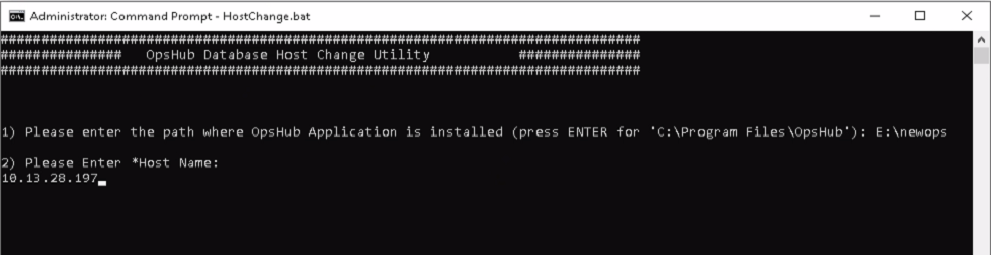
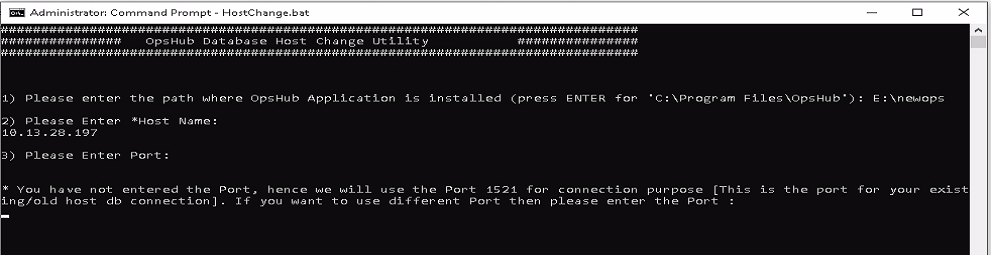
* Enter the new Host Name for MYSQL:

<div align="center"><img src="https://818964384-files.gitbook.io/~/files/v0/b/gitbook-x-prod.appspot.com/o/spaces%2FK5eA7qMDBFu0HHHMDehi%2Fuploads%2Fgit-blob-e6499d78e5ebe5e749e993fa2648a0f92d6b861d%2FMysql1.png?alt=media" alt=""></div>

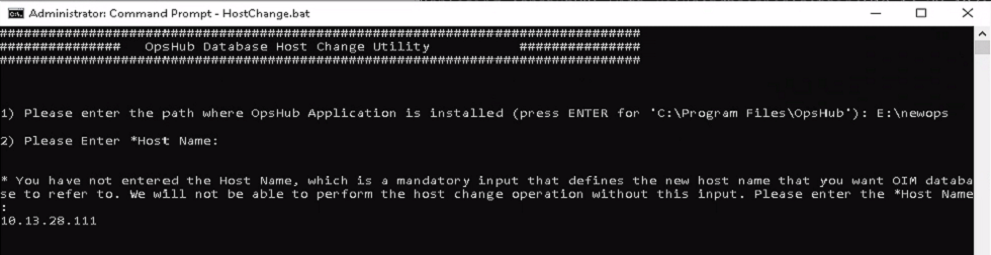
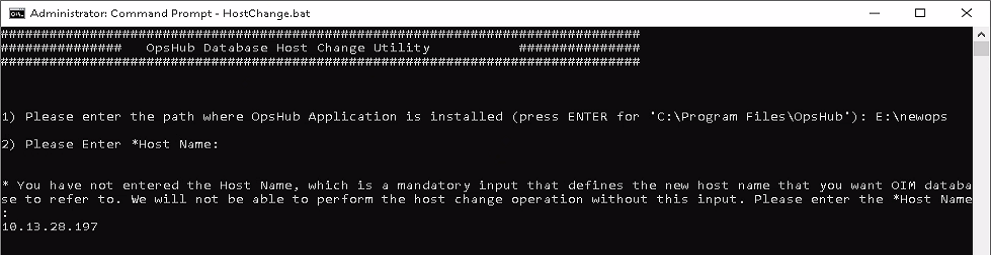
* If the Host Name input is not entered in the above step, then user will get the notification mentioned in the screen shot below. As the Host Name is a mandatory input that defines the new Host Name you want <code class="expression">space.vars.SITENAME</code> database to refer to:

<div align="center"><img src="https://818964384-files.gitbook.io/~/files/v0/b/gitbook-x-prod.appspot.com/o/spaces%2FK5eA7qMDBFu0HHHMDehi%2Fuploads%2Fgit-blob-81f8731b96c972395a8129724f34db0f5903326d%2FMysql2.png?alt=media" alt=""></div>

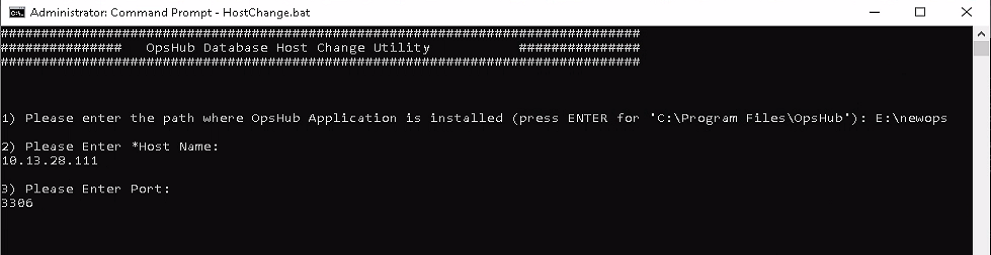
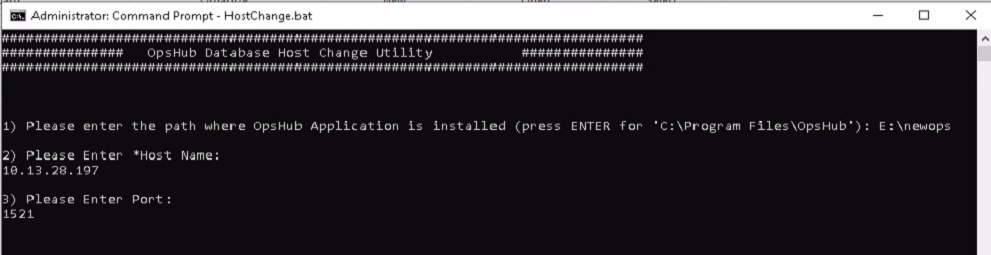
* Enter the Port for MYSQL:

<div align="center"><img src="https://818964384-files.gitbook.io/~/files/v0/b/gitbook-x-prod.appspot.com/o/spaces%2FK5eA7qMDBFu0HHHMDehi%2Fuploads%2Fgit-blob-9d960d32290faa224eb756bf3cc96b73027aa322%2FMysql3.png?alt=media" alt=""></div>

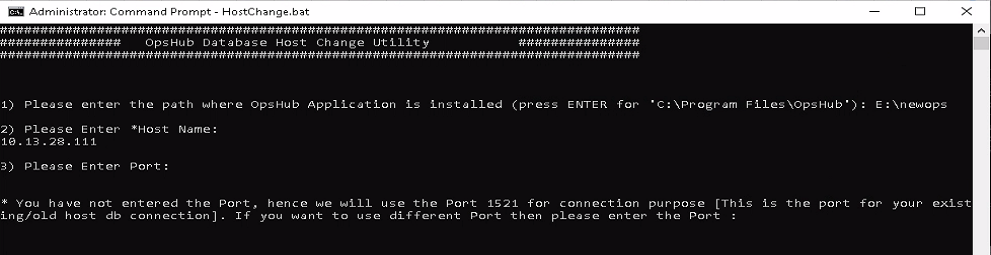
* If the Port input is not entered in the above step, then utility will use the existing Port \[entered at a time of <code class="expression">space.vars.SITENAME</code> installation]. If that is not the case, then enter the Port here:

<div align="center"><img src="https://818964384-files.gitbook.io/~/files/v0/b/gitbook-x-prod.appspot.com/o/spaces%2FK5eA7qMDBFu0HHHMDehi%2Fuploads%2Fgit-blob-4888a963027e7d055fb6467a9ff3e2b37e85232c%2FMysql4.png?alt=media" alt=""></div>

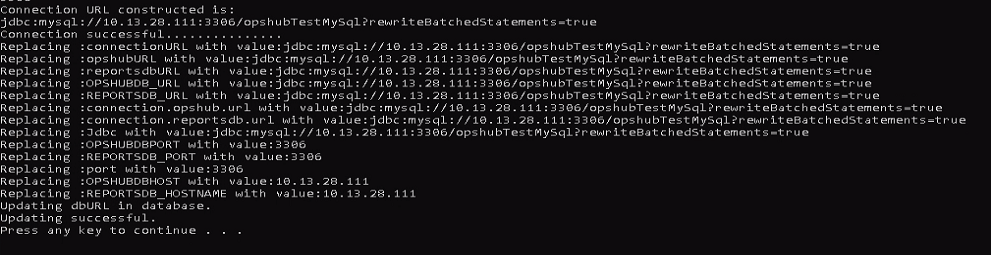
* Utility will check the connection with new Host Name:

<div align="center"><img src="https://818964384-files.gitbook.io/~/files/v0/b/gitbook-x-prod.appspot.com/o/spaces%2FK5eA7qMDBFu0HHHMDehi%2Fuploads%2Fgit-blob-b261e92827898ea12eb95ae8997be0cc4ccad155%2FMysql5.png?alt=media" alt=""></div>

### HostChange with ORACLE

* Enter the new Host Name for ORACLE:

<div align="center"><img src="https://818964384-files.gitbook.io/~/files/v0/b/gitbook-x-prod.appspot.com/o/spaces%2FK5eA7qMDBFu0HHHMDehi%2Fuploads%2Fgit-blob-dd9eba9af1feb28190276aca84296e1bdab742f8%2FOracle21.png?alt=media" alt=""></div>

* If the Host Name input is not entered in the above step, then user will get the notification mentioned in the screen shot below. As the Host Name is a mandatory input that defines the new Host Name you want <code class="expression">space.vars.SITENAME</code> database to refer to:

<div align="center"><img src="https://818964384-files.gitbook.io/~/files/v0/b/gitbook-x-prod.appspot.com/o/spaces%2FK5eA7qMDBFu0HHHMDehi%2Fuploads%2Fgit-blob-78b98528f34e8ffad3a041fc088cbd6dbd57a49d%2FOracle22.png?alt=media" alt=""></div>

* Enter the Port for ORACLE:

<div align="center"><img src="https://818964384-files.gitbook.io/~/files/v0/b/gitbook-x-prod.appspot.com/o/spaces%2FK5eA7qMDBFu0HHHMDehi%2Fuploads%2Fgit-blob-972912cd872dc575955fa6fa39cc681e939f30a8%2FOracle33.png?alt=media" alt=""></div>

* If the Port input is not entered in the above step, then utility will use the existing Port \[entered at the time of <code class="expression">space.vars.SITENAME</code> installation]. If that is not the case, then enter the Port here:

<div align="center"><img src="https://818964384-files.gitbook.io/~/files/v0/b/gitbook-x-prod.appspot.com/o/spaces%2FK5eA7qMDBFu0HHHMDehi%2Fuploads%2Fgit-blob-dd5eeb680de94aaf83d36defd4b5ae980291d1ae%2FOracle44.png?alt=media" alt=""></div>

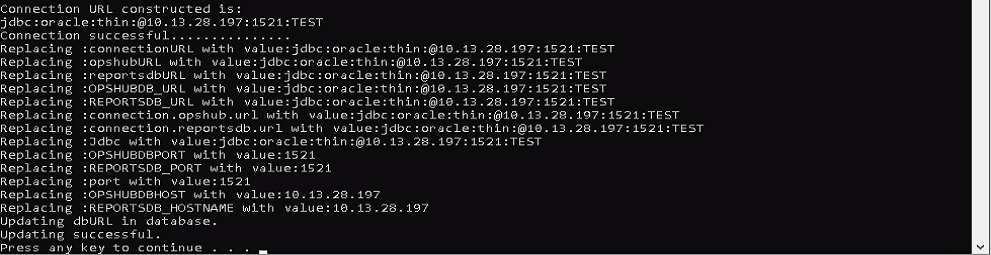
* Utility will check the connection with new Host Name:

<div align="center"><img src="https://818964384-files.gitbook.io/~/files/v0/b/gitbook-x-prod.appspot.com/o/spaces%2FK5eA7qMDBFu0HHHMDehi%2Fuploads%2Fgit-blob-1c193f1a937cce0f2055914a8cc35e56daa5196f%2FOracle55.png?alt=media" alt=""></div>

### HostChange with MSSQL Server

* **Note**: If <code class="expression">space.vars.SITENAME</code> is installed with Windows Authentication mode, then before running the utility, the user needs to make sure that the user who is logged into the Windows \[where the <code class="expression">space.vars.SITENAME</code> is installed] also logs into the new host's MSSQL instance with the same credentials.
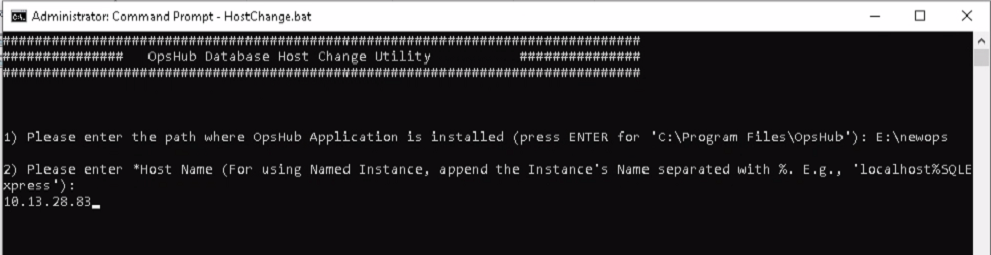
* Enter the new Host Name for MSSQL Server:

<div align="center"><img src="https://818964384-files.gitbook.io/~/files/v0/b/gitbook-x-prod.appspot.com/o/spaces%2FK5eA7qMDBFu0HHHMDehi%2Fuploads%2Fgit-blob-317a25afc663a07fadf552ff877c091965a7a76e%2FMssqlSer1.png?alt=media" alt=""></div>

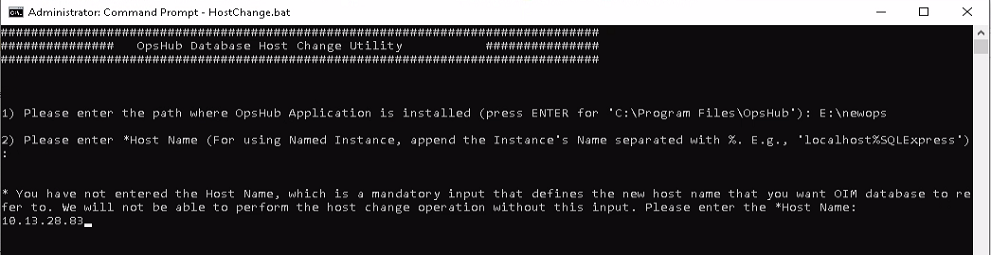
* If the Host Name input is not entered in the above step, then user will get the notification mentioned in the screen shot below. As the Host Name is a mandatory input that defines the new Host Name you want <code class="expression">space.vars.SITENAME</code> database to refer to:

<div align="center"><img src="https://818964384-files.gitbook.io/~/files/v0/b/gitbook-x-prod.appspot.com/o/spaces%2FK5eA7qMDBFu0HHHMDehi%2Fuploads%2Fgit-blob-29f48eed7de6bb11897bc17dd6c03754255cd6cd%2FMssqlSer2.png?alt=media" alt=""></div>

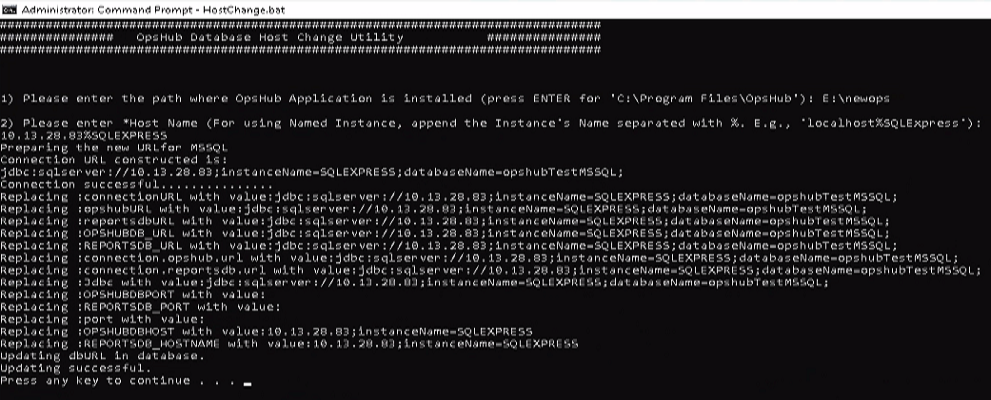
* If the new Host Name is a named instance, then there is no input required for the Port. Hence, after entering the Host Name, utility will check the connection with the new Host:

<div align="center"><img src="https://818964384-files.gitbook.io/~/files/v0/b/gitbook-x-prod.appspot.com/o/spaces%2FK5eA7qMDBFu0HHHMDehi%2Fuploads%2Fgit-blob-4fb172695010bd9ddd94b35e7b580f297ac35596%2FMssqlSer3.png?alt=media" alt=""></div>

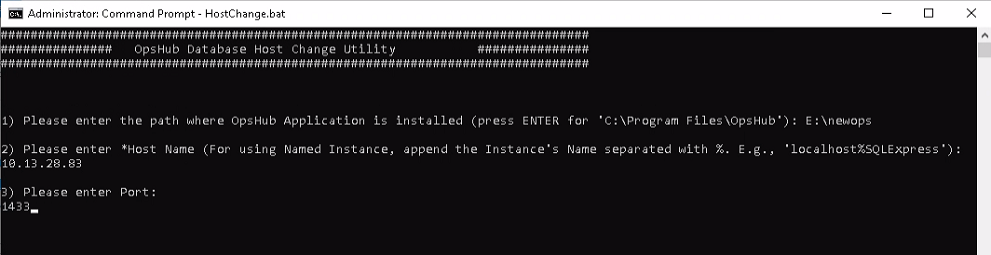
* If the new Host Name is a non-named instance, then enter the Port for MSSQL:

<div align="center"><img src="https://818964384-files.gitbook.io/~/files/v0/b/gitbook-x-prod.appspot.com/o/spaces%2FK5eA7qMDBFu0HHHMDehi%2Fuploads%2Fgit-blob-088bb7bd53a9837c9dd15e08bf20eefc0552aa90%2FMssqlSer4.png?alt=media" alt=""></div>

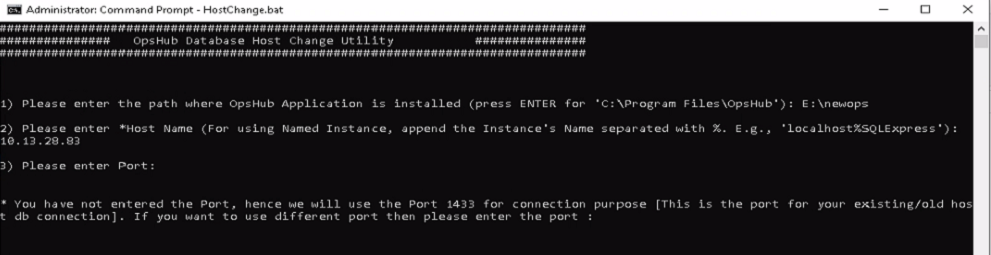
* If the Port input is not entered in the above step, then utility will use the existing Port \[entered at the time of <code class="expression">space.vars.SITENAME</code> installation]. If that is not the case, then enter the Port here:

<div align="center"><img src="https://818964384-files.gitbook.io/~/files/v0/b/gitbook-x-prod.appspot.com/o/spaces%2FK5eA7qMDBFu0HHHMDehi%2Fuploads%2Fgit-blob-240396305564a860034aa91b106a2cf39fee6fd3%2FMssqlSer5.png?alt=media" alt=""></div>

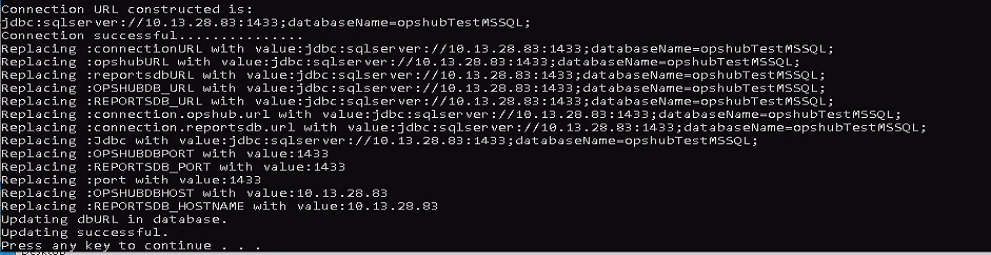
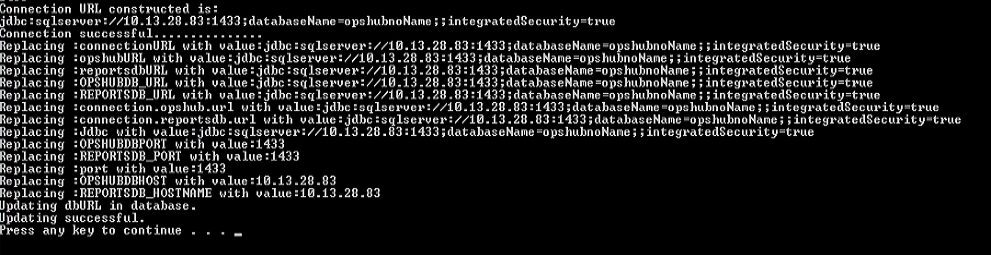
* Utility will check the connection with new Host Name \[In the case of SQL Authentication]:

<div align="center"><img src="https://818964384-files.gitbook.io/~/files/v0/b/gitbook-x-prod.appspot.com/o/spaces%2FK5eA7qMDBFu0HHHMDehi%2Fuploads%2Fgit-blob-5b18f14e50756ed4d0e78233b36fb22154769fe6%2FMssqlSer6.png?alt=media" alt=""></div>

* Utility will check the connection with new Host Name \[In the case of Windows Authentication]:

<div align="center"><img src="https://818964384-files.gitbook.io/~/files/v0/b/gitbook-x-prod.appspot.com/o/spaces%2FK5eA7qMDBFu0HHHMDehi%2Fuploads%2Fgit-blob-7ae6a01c6f25caf68dde82f3bb560b284988a1cf%2FMssqlSer7.png?alt=media" alt=""></div>

### HostChange with PostgreSQL

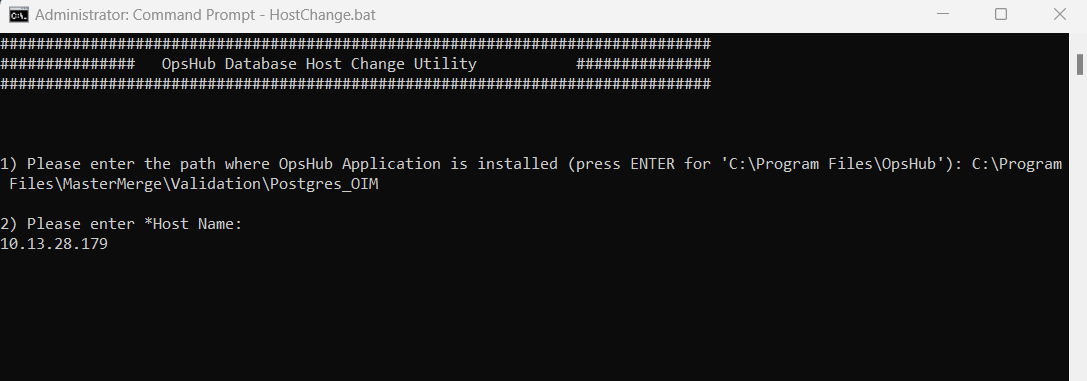
* Enter the new Host Name for PostgreSQL:

<div align="center"><img src="https://818964384-files.gitbook.io/~/files/v0/b/gitbook-x-prod.appspot.com/o/spaces%2FK5eA7qMDBFu0HHHMDehi%2Fuploads%2Fgit-blob-ce0ba12a775ac0061d36cb518fb94e37382d9cf9%2Fpostgresql1.png?alt=media" alt=""></div>

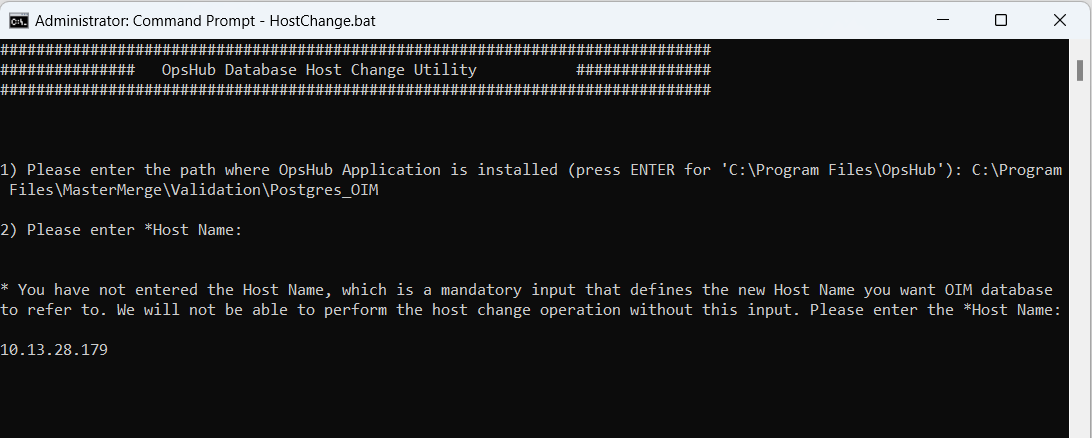
* If the Host Name input is not entered in the above step, then user will get the notification mentioned in the screenshot below. The Host Name is a mandatory input that defines the new Host Name user wants <code class="expression">space.vars.SITENAME</code> database to refer to:

<div align="center"><img src="https://818964384-files.gitbook.io/~/files/v0/b/gitbook-x-prod.appspot.com/o/spaces%2FK5eA7qMDBFu0HHHMDehi%2Fuploads%2Fgit-blob-354fd434ab654fdc50cda12c795de1894bcc20b0%2Fpostgresql2.png?alt=media" alt=""></div>

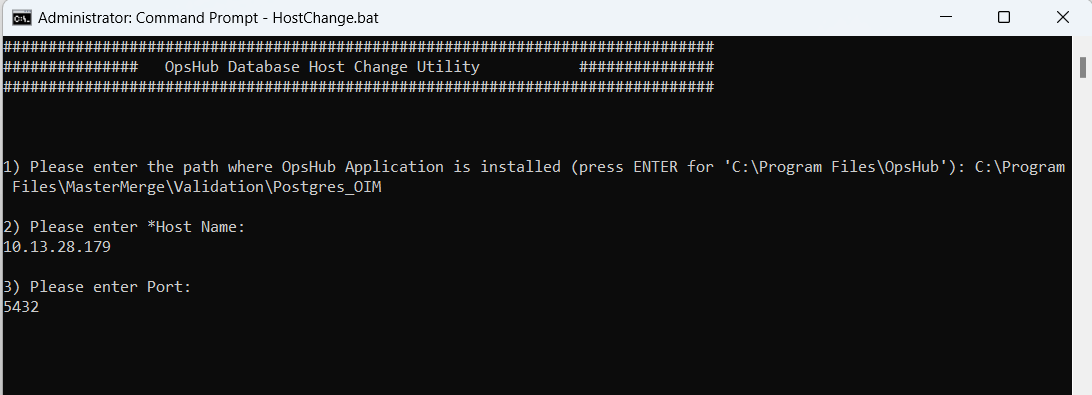
* Enter the Port for PostgreSQL:

<div align="center"><img src="https://818964384-files.gitbook.io/~/files/v0/b/gitbook-x-prod.appspot.com/o/spaces%2FK5eA7qMDBFu0HHHMDehi%2Fuploads%2Fgit-blob-7fd156bcb2826c516757c4bd04f385ba931f3053%2Fpostgresql3.png?alt=media" alt=""></div>

* If the Port's input is not entered in the above step, then the utility will use the existing Port \[entered at the time of <code class="expression">space.vars.SITENAME</code> installation]. If that is not the case, enter the Port as shown in the screenshot below:

<div align="center"><img src="https://818964384-files.gitbook.io/~/files/v0/b/gitbook-x-prod.appspot.com/o/spaces%2FK5eA7qMDBFu0HHHMDehi%2Fuploads%2Fgit-blob-51d24502c97f29eca9cf40a03e3f05af04d20a1b%2Fpostgresql4.png?alt=media" alt=""></div>

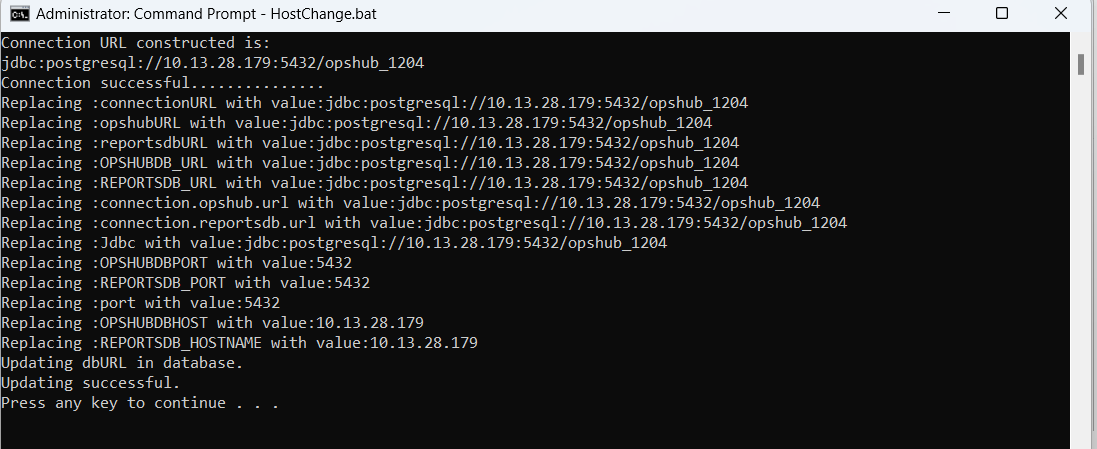
* Utility will check the connection with the new Host Name:
<div align="center"><img src="https://818964384-files.gitbook.io/~/files/v0/b/gitbook-x-prod.appspot.com/o/spaces%2FK5eA7qMDBFu0HHHMDehi%2Fuploads%2Fgit-blob-3d893deefcc61890a3327ac69051a43d272ccaff%2Fpostgresql5.png?alt=media" alt=""></div>