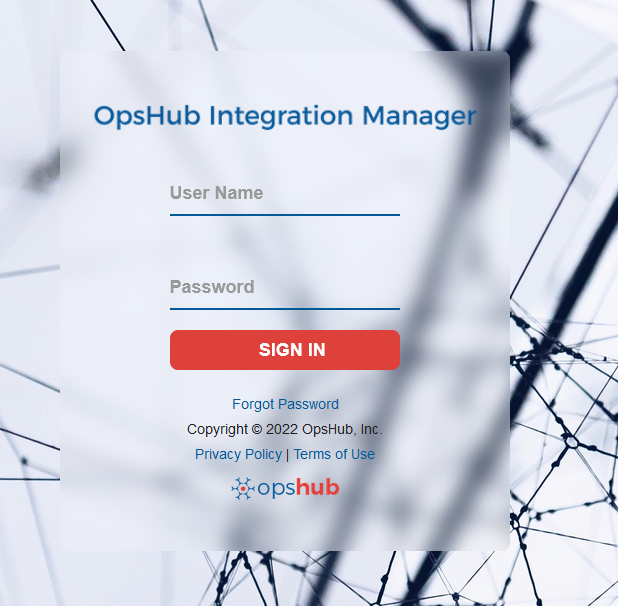
# Logging In
Let's see how you can get started with space.vars.SITENAME.
## Windows
* On Logging in page: Once the installation is complete, space.vars.SITENAME will be started automatically if you are doing installation on windows machine and you will be re-directed to the Getting started page in the default web browser. If the space.vars.SITENAME is not started, you can start it manually as described [here](https://docs.opshub.com/v7.216/getting-started/start-or-stop-service).
* For launching the application, click on the link **Launch** space.vars.SITENAME. It will redirect to the login page.
* Log in with the following credentials:
* username: admin
* password: password
These are default credentials. You can change them after you log in.
## Linux
* For Linux, once the installation is done, enter the URL as in browser.
* Log in as username **admin** and password **password**. These are default username and password. You can change them from profile once you log in.
* If you have configured space.vars.SITENAME for HTTPS, then enter the URL as in browser.
Once you have logged in the application, you are ready to start integration configuration. Click [Overview of Integration](https://docs.opshub.com/v7.216/integrate/overview-of-integration) to understand how to start using space.vars.SITENAME for integration.