# An excessive number of EA connections causes slowness in the system and high RAM usage
### Description
* Too many open connections observed when OpsHubEAWindowsService is running as console application and OpsHubEAWindowsService is forced closed using cancel button.
* Observations:
* High RAM consumption
* Slowness in the system because of too many EA connections remaining open.
### Cause
* This happens when the OpsHubEAWindowsService is being launched via console application and it has been forcibly closed using the cancel button.
### Solution
* Stop the OpsHubEAWindowsService (Recommend to close by pressing enter key).
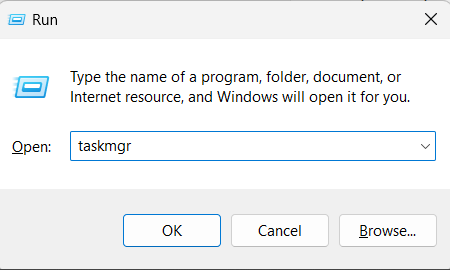
* Press Windows + R to open the Run Dialog.
* Type 'taskmgr' and click OK to open Task Manager.
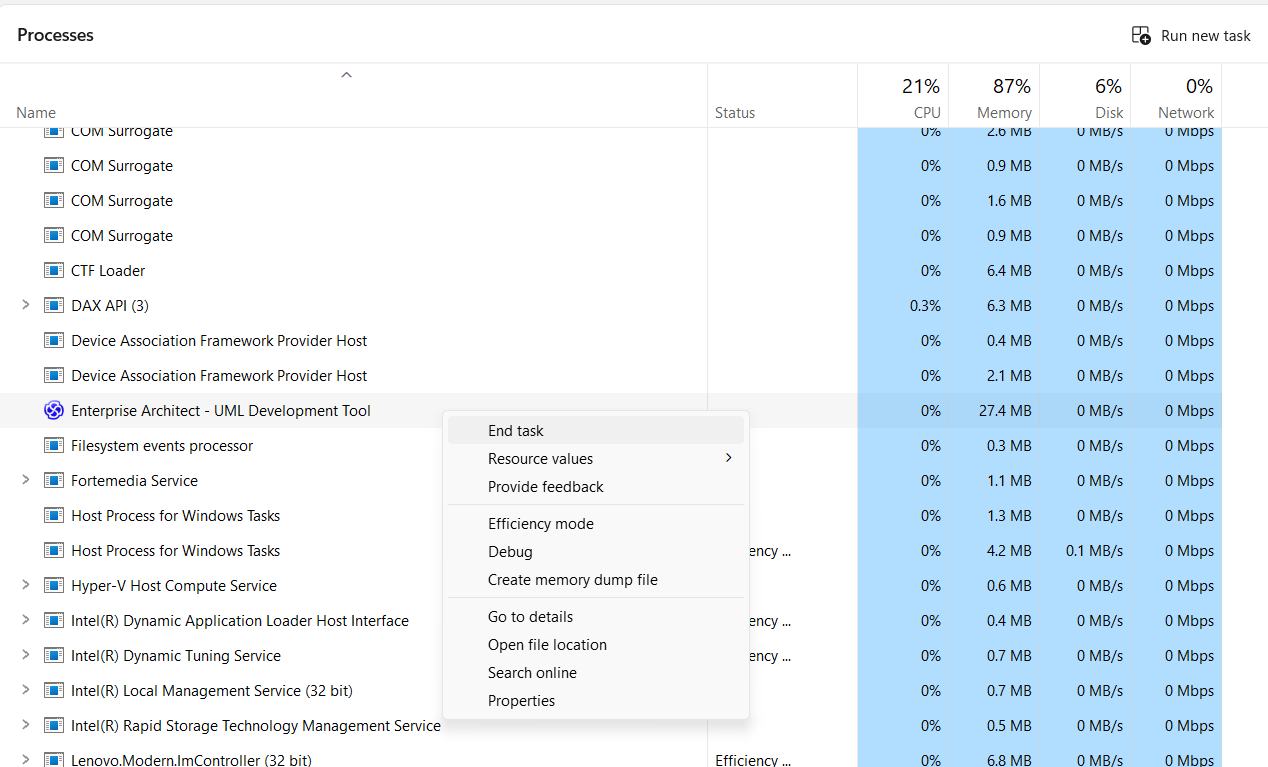
* In the 'Background processes' section locate 'Enterprise Architect - UML Development Tool' processes.
* Right click on each process and select 'End task' to terminate it and release the resource.
> **Note**: To release all the connections properly when closing OpsHubEAWindowsService, we recommend to close OpsHubEAWindowsService using Enter key. Refer to [Setting up OpsHubEAWindowsService](https://docs.opshub.com/v7.216/connectors/enterprise-architect#setting-up-opshubeawindowsservice)