# Proxy Settings
You need to configure proxy settings to be able to access the external resources from the machine which is behind a proxy server or when space.vars.SITENAME is behind a proxy server.
## How to Configure Proxy Settings
Watch the following video to learn how to configure proxy settings:
> **Note:** This video has no audio.
{% embed url="" %}
1. Navigate to the top right corner of the screen and click **Administration** as shown in the screenshot below:
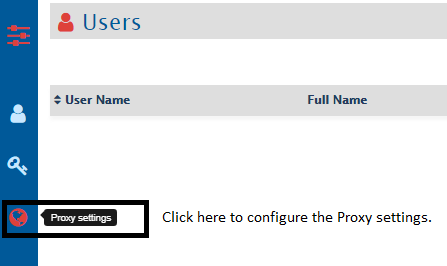
2. Now, click the third icon on the left menu as shown in the screenshot below:
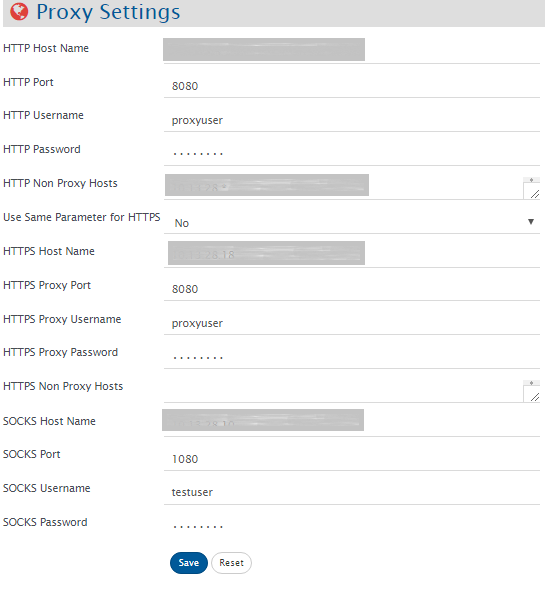
The proxy settings form opens as shown in the screenshot below:
3. Fill the relevant details in the form:
**HTTP settings**
* For HTTP you can fill the following details:
* Provide the **HTTP Host Name** if proxy is configured on HTTP
* Provide **HTTP Port** on which HTTP proxy is configured (by default it will use port 80)
* Provide **HTTP Username** to connect to proxy if username is configured for above proxy
* Provide **HTTP Password** if password is configured for above proxy
* For **HTTP Non Proxy Hosts**, provide host(s) that should be connected directly without using HTTP proxy and separate the names with "|"
* Some examples are: `10.13.27.1|10.13.27.200|jira.aws.com|localhost`
**HTTPS settings**
* Select **Use Same Parameter** for HTTPS as **Yes**, if both HTTP and HTTPS are configured on same proxy server – otherwise, select **No** and provide the credentials to connect to HTTPS proxy
* Provide the **HTTPS Host Name** if proxy is configured on HTTPS
* Provide **HTTPS Port** on which HTTPS proxy is configured (by default it will use port 443)
* Provide **HTTPS Username** to connect to proxy if username is configured for above proxy
* Provide **HTTPS Password** if password is configured for above proxy
* For **HTTP Non Proxy Hosts**, provide host(s) that should be connected directly without using HTTPS proxy and separate the names with "|"
**SOCKS settings**
* For SOCKS, you can fill the following details:
* In **SOCKS Host Name**, provide host name of the SOCKS Proxy
* In **SOCKS Port**, provide the port where proxy is installed; if, by default, it is kept empty, set port 1080 with the given host name
* Provide **SOCKS Username** to connect to the proxy
* Provide **SOCKS Password** for the given user name
4. Save the configuration and check the connection by trying to create mapping.