# Scheduler

All the users in <code class="expression">space.vars.SITENAME</code>, who have a 'Professional' or 'Ultimate' license , will have access to 'Job Schedules' \[which are associated with the integrations].

## Create Schedules

To create a new schedule, follow the steps given below:

* Click on **"Administration"**
* Click on ![](https://3739347370-files.gitbook.io/~/files/v0/b/gitbook-x-prod.appspot.com/o/spaces%2F1a8GpUm2lq3lKbytaYjt%2Fuploads%2Fgit-blob-0eb9c9916c338284178cff2c4063cdfd79adb140%2FCustom_Scheduler.png?alt=media) given on the left panel. You can see the list of schedules that are already created
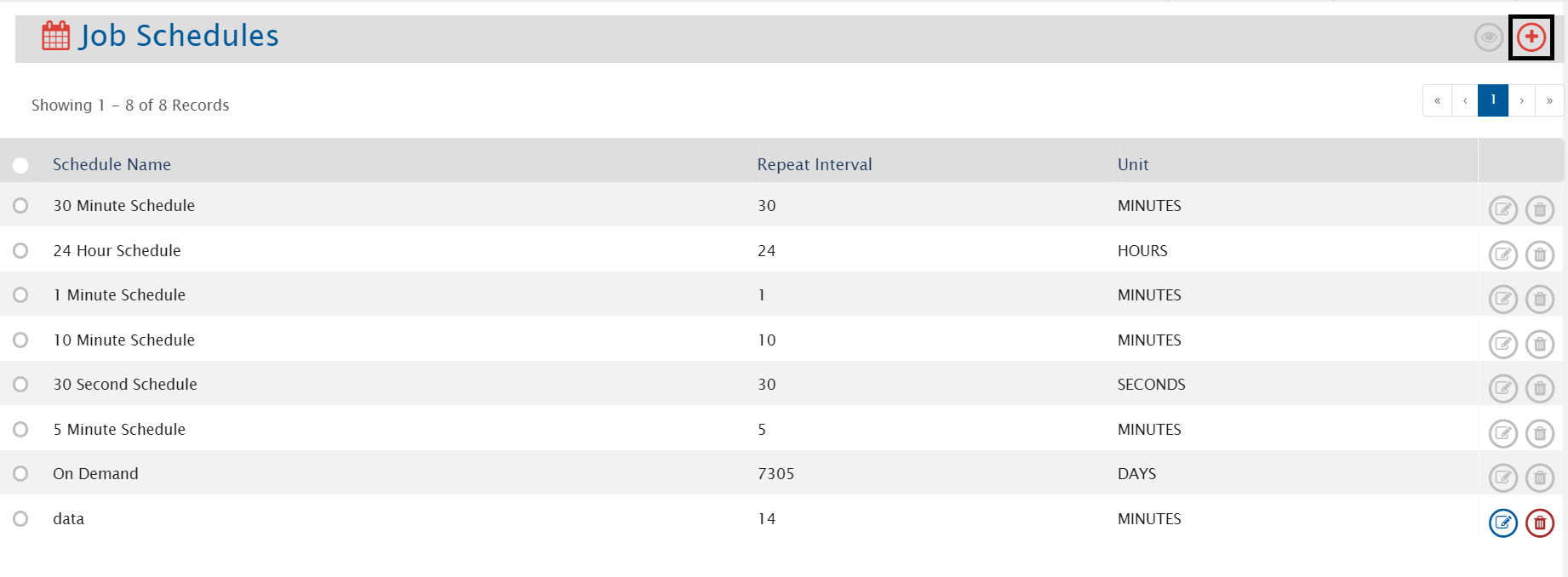
* To create a new schedule, click on ![](https://3739347370-files.gitbook.io/~/files/v0/b/gitbook-x-prod.appspot.com/o/spaces%2F1a8GpUm2lq3lKbytaYjt%2Fuploads%2Fgit-blob-4261be90a03c13abd654431656f0d1eeb1921919%2FPlus.png?alt=media) given on the top right corner of the screen

<div align="center"><img src="https://3739347370-files.gitbook.io/~/files/v0/b/gitbook-x-prod.appspot.com/o/spaces%2F1a8GpUm2lq3lKbytaYjt%2Fuploads%2Fgit-blob-e824ec2fd4205a9237f93726f75742962f13ef30%2FCustom_Scheduler_Create.png?alt=media" alt="" width="1000"></div>

* The Create Schedule screen will open. Fill the following details:
  * **Schedule Name**: Give the name of the schedule which you will create.
  * **Schedule Type**: Select the type of schedule which you want to create:
    * **Fix Schedule**: Integration will check for updates in end system at specified schedule.
    * **Interval Repetition**: Integration will check for the updates in end system at selected interval.
  * **Frequency**: Select the time duration at which the integration wil check for updates.

| **Schedule Type**       | **Frequency** | **Fields**      | **Description**                                                                                                                                                                                          |
| ----------------------- | ------------- | --------------- | -------------------------------------------------------------------------------------------------------------------------------------------------------------------------------------------------------- |
| **Interval Repetition** | All           | Repeat Interval | It represents the unit of interval, i.e., MINUTES, HOURS, WEEKS, DAYS, SECONDS (If you select '5' as repeat interval and 'MINUTES' as unit, then integration will check for the updates every 5 minutes) |
| **Fix scheduler**       | All           | Start Time      | It represents the date and time from which the scheduler will start checking for updates in the end system.                                                                                              |
|                         |               | End Time        | It represents the date and time until the scheduler keeps checking for updates in the end system.                                                                                                        |
|                         |               | Time            | It represents the time at which the integration needs to check for updates in end system. Maximum 5 time slots can be given.                                                                             |
|                         | Monthly       | Day             | It represents the day at which the integration will check for the updates in the end system.                                                                                                             |
|                         |               | Week of Month   | It represents the week at which the integration needs to check for the updates in the end system.                                                                                                        |
|                         | Weekly        | Day(s)          | It represents the day(s) at which the integration needs to check for the updates.                                                                                                                        |

* Click on **"Save"**.

## Edit Schedule

* System generated schedules can't be edited
* To edit the schedule which is associated with active integration, first you need to inactivate the integration and then you can edit
* To edit a schedule, follow the steps given below:
  * Click on **"Administration"**
  * Click on ![](https://3739347370-files.gitbook.io/~/files/v0/b/gitbook-x-prod.appspot.com/o/spaces%2F1a8GpUm2lq3lKbytaYjt%2Fuploads%2Fgit-blob-0eb9c9916c338284178cff2c4063cdfd79adb140%2FCustom_Scheduler.png?alt=media) given on the left panel. You can see the list of schedules that are already created
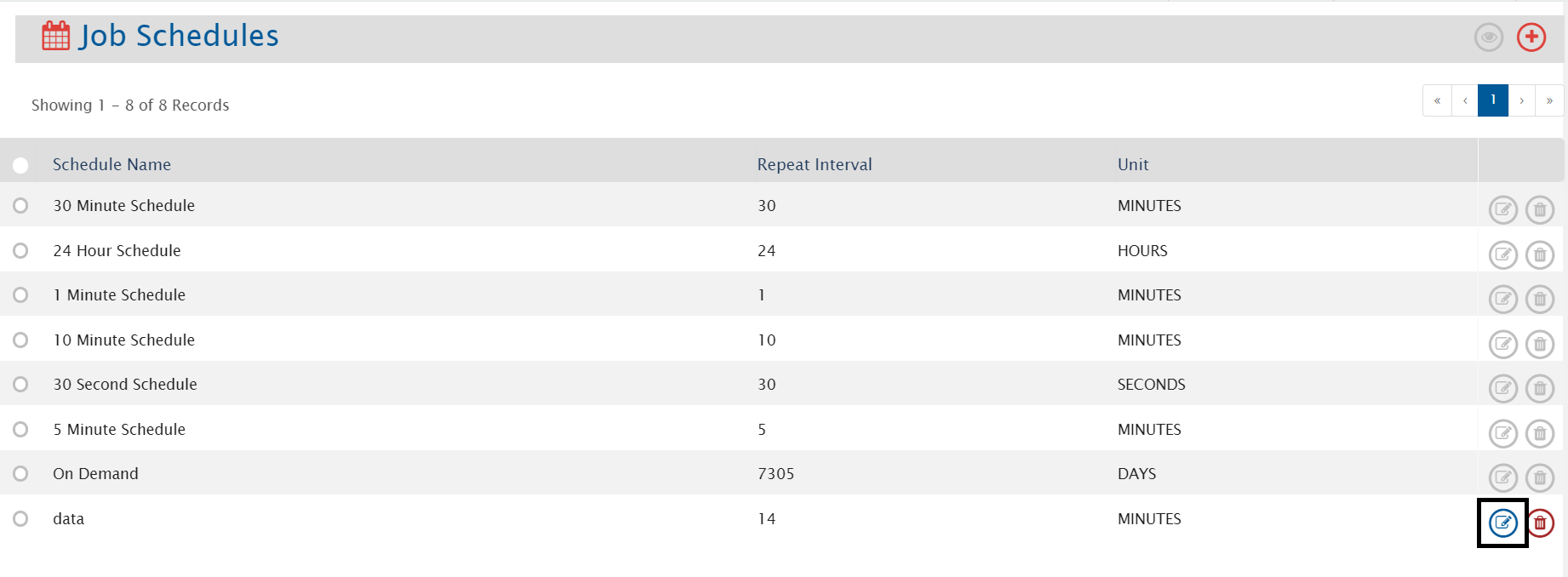
  * To edit a schedule, click on ![](https://3739347370-files.gitbook.io/~/files/v0/b/gitbook-x-prod.appspot.com/o/spaces%2F1a8GpUm2lq3lKbytaYjt%2Fuploads%2Fgit-blob-0dc478231e1401f72667a71507f425dfdbb78660%2FCustom_Scheduler_EditIcon.png?alt=media) at the end of the corresponding schedule that you want to edit

<div align="center"><img src="https://3739347370-files.gitbook.io/~/files/v0/b/gitbook-x-prod.appspot.com/o/spaces%2F1a8GpUm2lq3lKbytaYjt%2Fuploads%2Fgit-blob-da181fbd93c6873cfc6c7e28bb7f1e1f112f121c%2FCustom_Scheduler_Edit.png?alt=media" alt="" width="2000"></div>

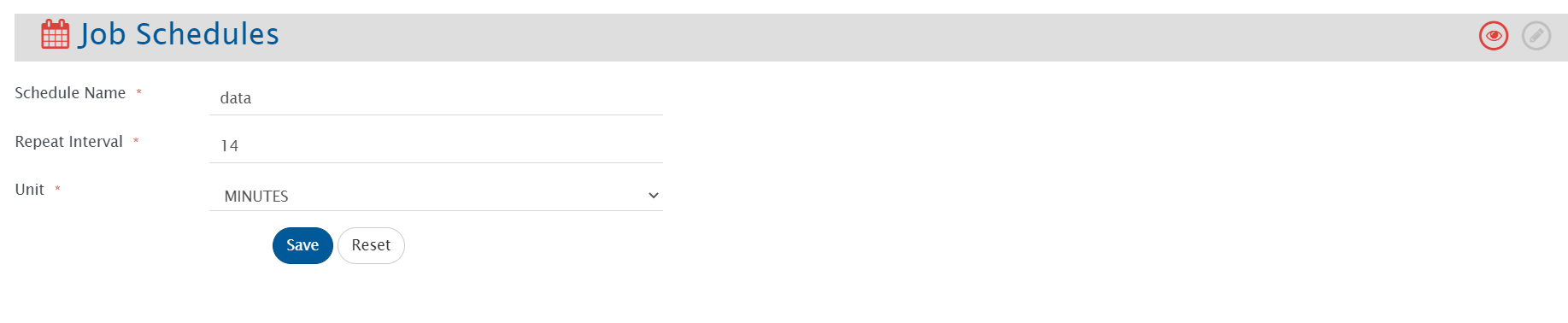
* The Edit Schedule form will open. Edit the details in the form. Refer to the image below:

<div align="center"><img src="https://3739347370-files.gitbook.io/~/files/v0/b/gitbook-x-prod.appspot.com/o/spaces%2F1a8GpUm2lq3lKbytaYjt%2Fuploads%2Fgit-blob-772604d94f89aa934a601fc04a260296c9e155db%2FCustom_Scheduler_Form.png?alt=media" alt="" width="900"></div>

* Click on **"Save"**
* Click on **"Reset"** to set the previous saved value

## Delete Schedule

* System generated schedules can't be deleted
* To delete the schedule which is associated with any integration, first you need to remove this schedule from the integration and then you can delete
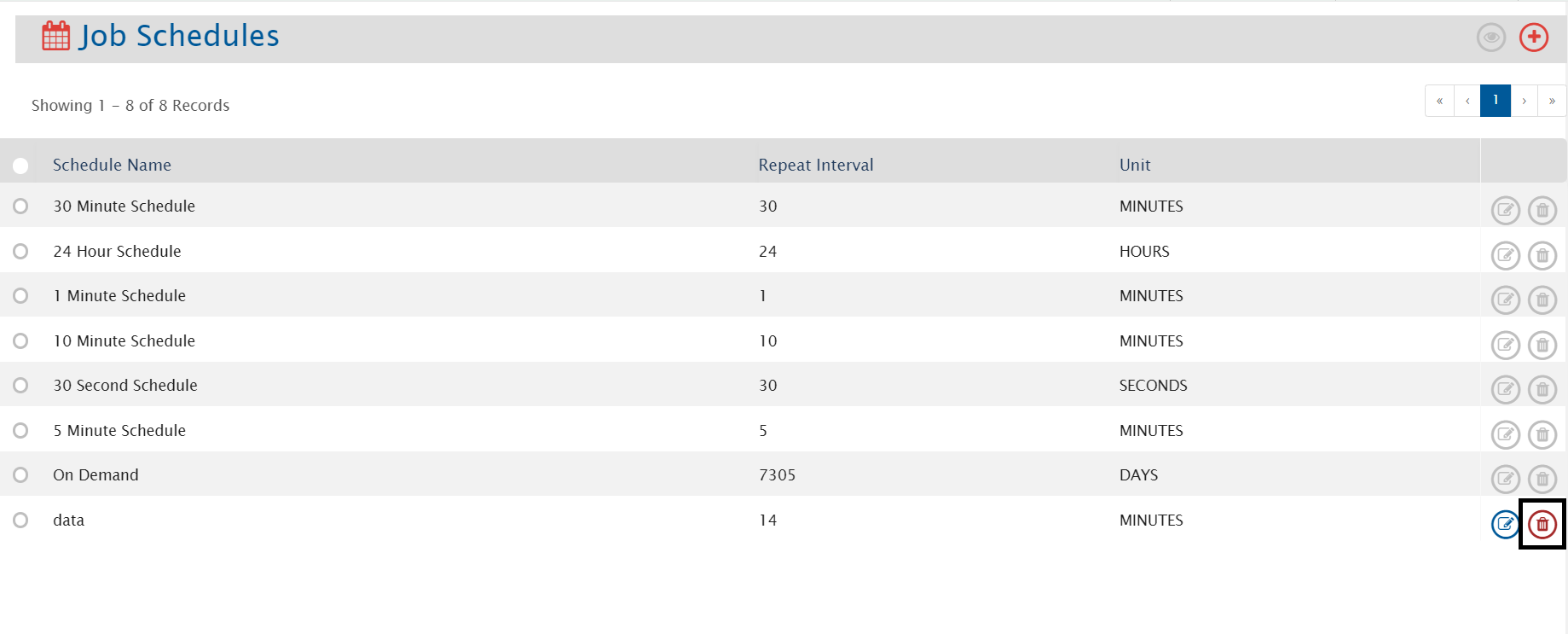
* To delete a schedule, click on ![](https://3739347370-files.gitbook.io/~/files/v0/b/gitbook-x-prod.appspot.com/o/spaces%2F1a8GpUm2lq3lKbytaYjt%2Fuploads%2Fgit-blob-b9c1dba8302894d3b6ec9670871b0b42e688da67%2FCustom_Scheduler_DeleteIcon.png?alt=media) at the end of a corresponding schedule that you want to delete

<div align="center"><img src="https://3739347370-files.gitbook.io/~/files/v0/b/gitbook-x-prod.appspot.com/o/spaces%2F1a8GpUm2lq3lKbytaYjt%2Fuploads%2Fgit-blob-3bdb03801a337755ae41882dbdd87be8165cdeda%2FCustom_Scheduler_Delete.png?alt=media" alt="" width="900"></div>

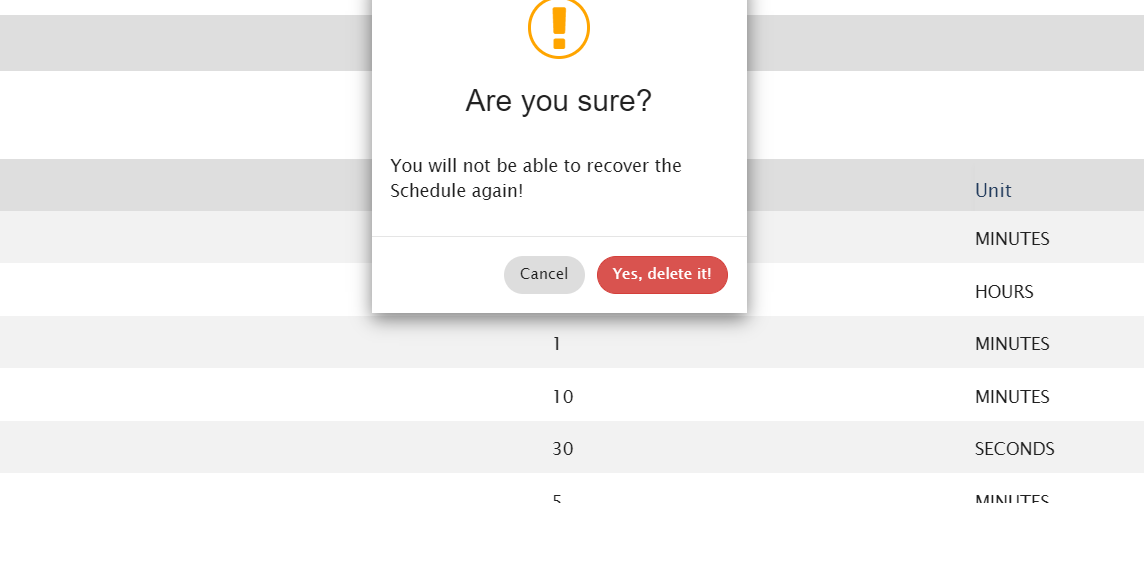
* You will not be able to restore the schedule once you delete it

<div align="center"><img src="https://3739347370-files.gitbook.io/~/files/v0/b/gitbook-x-prod.appspot.com/o/spaces%2F1a8GpUm2lq3lKbytaYjt%2Fuploads%2Fgit-blob-7c09df4a5ab4bfcf91911293b03c92f8a04be55c%2FCustom_Scheduler_DeletePopup.png?alt=media" alt="" width="800"></div>

* Click on **"Yes, delete it"** to delete the schedule
* Click on **"Cancel"** to cancel the process