# Switching to Windows authentication

Please go through the section [Installation Prerequisites](https://docs.opshub.com/v7.216/getting-started/prerequisites#windows) for Windows Authentication mode before executing steps given below.

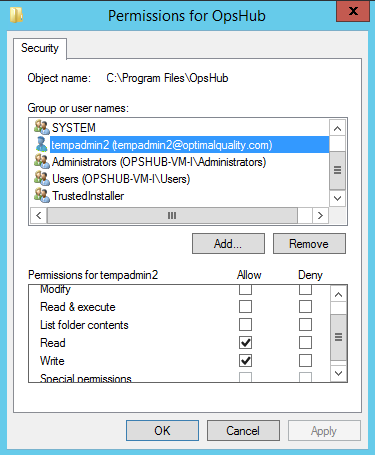
Please ensure the Windows user (who is used in MS SQL Windows Authentication) has **Read** and **Write** privileges before executing `databaseManagementUtlity`. You can grant the **Read** and **Write** privileges by executing the steps given below.

* Open properties window of <code class="expression">space.vars.SITENAME</code> installation folder (directory in which you have installed <code class="expression">space.vars.SITENAME</code> i.e. `c:\Program Files\OpsHub`), it will show you the dialogue box shown below.
* Select the user (to whom you want to grant privileges) from the Security tab and check Read and Write checkbox.
* Click OK after checking the Read and Write checkbox.
<div align="center"><img src="https://3739347370-files.gitbook.io/~/files/v0/b/gitbook-x-prod.appspot.com/o/spaces%2F1a8GpUm2lq3lKbytaYjt%2Fuploads%2Fgit-blob-5f6db87e09f422405567235e76371443065eb588%2FSwitching_Image_1.png?alt=media" alt="" width="600"></div>

If the database is on MSSQL SQL Authentication mode and you need to switch to Windows Authentication mode, then follow the steps given below:

* Go to `<Installation Folder>/Other_Resources/Resources`.
* Unzip `OpsHub Database Management utility.zip`.
* Run `DatabaseManagementUtility.bat` for Windows system.
* In case of Linux system, run `DatabaseManagementUtility.sh`.
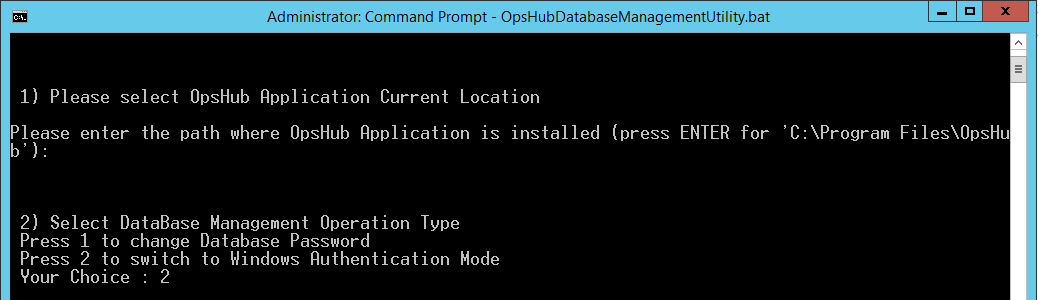
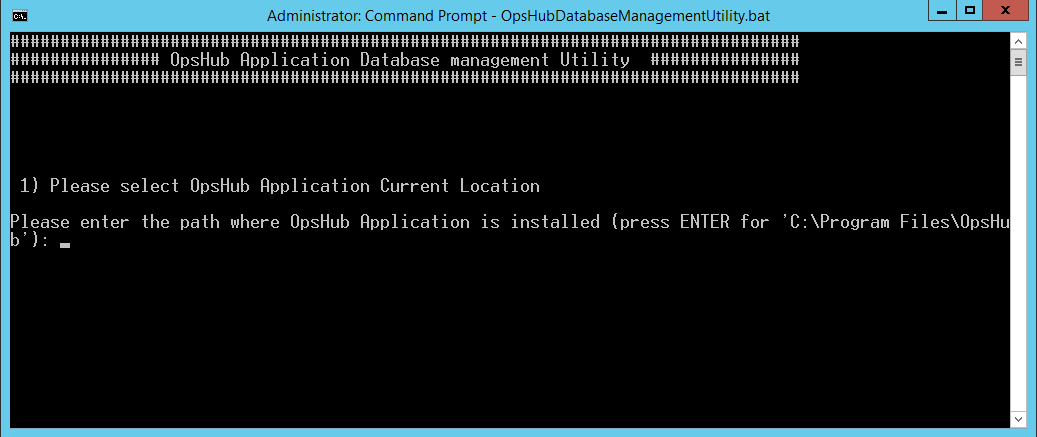
* Enter path for the installation directory.

<div align="center"><img src="https://3739347370-files.gitbook.io/~/files/v0/b/gitbook-x-prod.appspot.com/o/spaces%2F1a8GpUm2lq3lKbytaYjt%2Fuploads%2Fgit-blob-82b41c5de4c21b7f34f165f4f7233f7a045c9b64%2FSwitching_Image_2.png?alt=media" alt="" width="1000"></div>

* Press `2` to switch to Windows authentication mode.

<div align="center"><img src="https://3739347370-files.gitbook.io/~/files/v0/b/gitbook-x-prod.appspot.com/o/spaces%2F1a8GpUm2lq3lKbytaYjt%2Fuploads%2Fgit-blob-74f611da0ce2f3f94a876ae8f92e367758246ea1%2FSwitching_Image_3.png?alt=media" alt="" width="1000"></div>

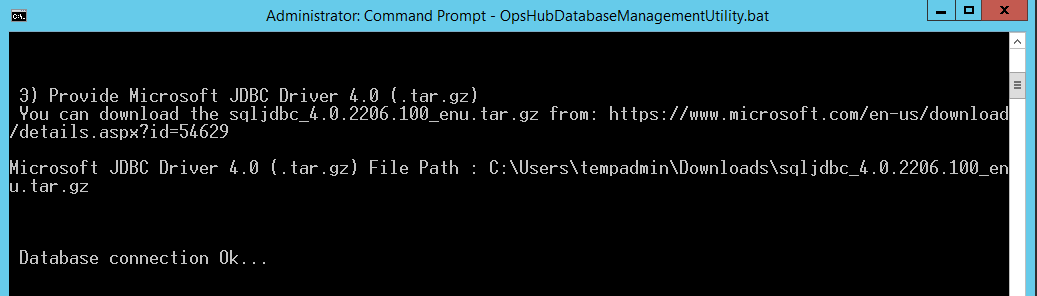
* Provide Microsoft JDBC Driver 4.0 (`tar.gz`) File Path.

<div align="center"><img src="https://3739347370-files.gitbook.io/~/files/v0/b/gitbook-x-prod.appspot.com/o/spaces%2F1a8GpUm2lq3lKbytaYjt%2Fuploads%2Fgit-blob-3177b51a27dd5d28ef1b0fdd079d372538859fb9%2FSwitching_Image_4.png?alt=media" alt="" width="1000"></div>

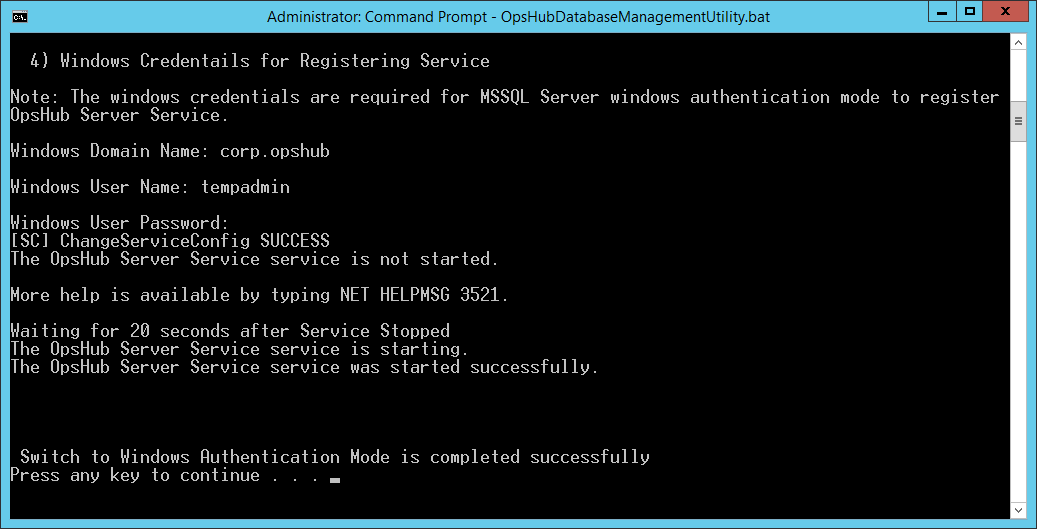
* Provide Windows Service Credentials.

<div align="center"><img src="https://3739347370-files.gitbook.io/~/files/v0/b/gitbook-x-prod.appspot.com/o/spaces%2F1a8GpUm2lq3lKbytaYjt%2Fuploads%2Fgit-blob-ab40af6fbe957effcea5c331d6953b2b82830c43%2FSwitching_Image_5.png?alt=media" alt="" width="1000"></div>

> **Note:**\
> If Windows credentials are not added correctly during switching, the OpsHub Server service will not be started.\
> To avoid such an occurrence, the user will have to manually set the service log-on credentials for OpsHub Server Service in case wrong Windows credentials are added at the time of switching.

## Follow the below mentioned steps to set the credentials in the OpsHub Server Services:

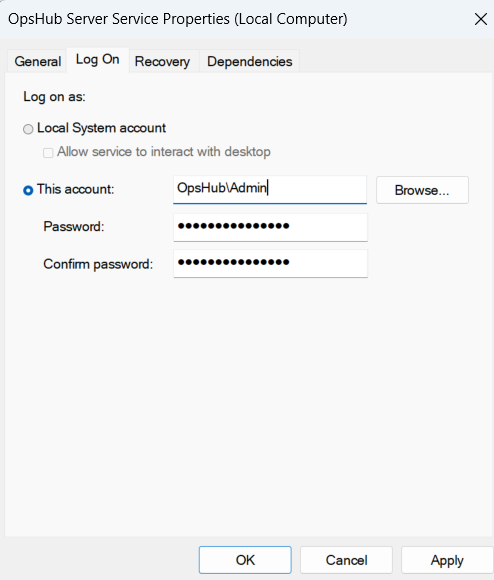
1. Open the services application and search for `OpsHub Server Service`.
2. Right-click on the service, select **Properties** and go to the **Log On** Tab.
3. Enter Windows credentials in **This account**.

> If the user is registered with a domain, the username format will be "{username}@{domain}" or "{domain}{username}". Otherwise, the username format will be ".\username".

<div align="center"><img src="https://3739347370-files.gitbook.io/~/files/v0/b/gitbook-x-prod.appspot.com/o/spaces%2F1a8GpUm2lq3lKbytaYjt%2Fuploads%2Fgit-blob-e127e23866734d42fd036e2ee2f9349651809a5d%2FOpsHubServerService.png?alt=media" alt="" width="600"></div>