# Taking Application Backup

## How to Take Backup

Steps to take backup of the application:

1. Inactivate all the integrations if any active.
2. Stop the OpsHub server, if it is running.
3. Take database backup (refer to the [Database Backup](#database-backup) section).
4. Take application backup (refer to the [Application Backup](#application-backup) section).

## Application Backup

Steps for taking the application backup:

* Navigate to the parent directory of OpsHub installation directory (given at the time of installation).
* Copy the application installation directory.
* Paste above copied directory to the place where you want to keep backup.\
  For Example: OpsHub is installed at path `C:\Program Files\OpsHub` then copy OpsHub directory from `C:\Program Files`.

## Database Backup

### HSQL Database Backup

* In case of HSQL, only application backup is enough to take back up of the database as well.

### MS SQL Database Backup

* Open your Microsoft SQL Server Management Studio, whichever you prefer, Standard or Express edition.
* Using your Database Username and Password, simply login to your MS SQL server database.
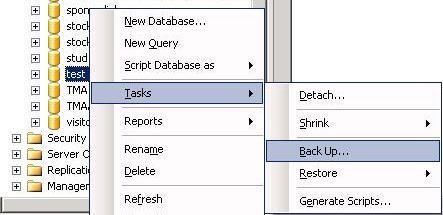
* **Select the database >> Right-click >> Tasks >> Back Up**:
<div align="center"><img src="https://3739347370-files.gitbook.io/~/files/v0/b/gitbook-x-prod.appspot.com/o/spaces%2F1a8GpUm2lq3lKbytaYjt%2Fuploads%2Fgit-blob-4d50720bac2a69cbbe52cfd882176406e3d73cdf%2FBackup_Image_1.png?alt=media" alt="" width="800"></div>

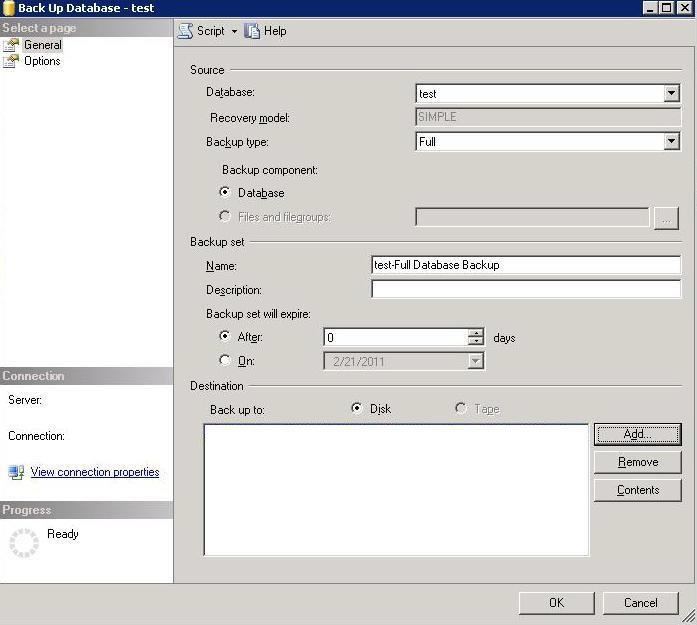
* Once you click on the **Backup** the following Backup Database window will appear:

<div align="center"><img src="https://3739347370-files.gitbook.io/~/files/v0/b/gitbook-x-prod.appspot.com/o/spaces%2F1a8GpUm2lq3lKbytaYjt%2Fuploads%2Fgit-blob-146cbe1af2de353fde6cc4028d229c48da0f9754%2FBackup_Image_2.png?alt=media" alt="" width="800"></div>

: Select the following options:

1. Backup type: Full
2. Under Destination, Backup to: Disk
3. Click the OK button.

* Select the destination folder for the backup file, and enter the "File name" with `.bak` extension. Your Backup is ready now.

### MySQL Database Backup

\[Note: Take backup of the both databases `opshub` and `reportsdb` which were provided while creating the database. If the database was manually created, the name would differ in that case.]

* Open Command Prompt and navigate to the `bin` directory of the MySQL server.
* Run the `mysqldump.exe` program with the following arguments:

```
mysqldump.exe -u [username] -p -h [hostname] [database_name] > C:\[filename].sql
```

(Note: Replace `[]` and anything inside `[]` using user's actual credentials.)

* On clicking the enter button, it will ask for a password. Please provide the password.

### Oracle Database Backup

* Open Command Prompt with Administrator privileges.
* Navigate to the directory where Oracle is installed. For example:

```
C:\Program Files\Oracle
```

* Enter Command :

```
sqlplus
```

* It will ask for username and password. Please provide it.
* Run the following command:

```
$exp [Username]/[Password] OWNER=([opshub_schema],[reports_schema]) FILE="[Path where you want to dump]"
```

(For example: `$exp USERID=system/root OWNER=(opshub,reportsdb) File="C:\dumpFinal.dmp"`)

> **Note**: For detailed information, you can refer to official Oracle documentation. Refer: [11g](https://docs.oracle.com/cd/E11882_01/backup.112/e10642/rcmbckba.htm#BRADV8003) or [12c](https://docs.oracle.com/database/121/BRADV/rcmbckba.htm#BRADV8003) according to installed Oracle version.

### PostgreSQL Database Backup

* Navigate to the directory where PostgreSQL is installed.\
  Example:

```
cd C:\Program Files\PostgreSQL\16\bin
```

* Run the following command using cmd with admin mode and enter the password of PostgreSQL when prompted:

```
pg_dump -U your_username -h your_host -d your_database > `<Path where you want to dump>`
```

Example:

```
pg_dump -U postgres -h localhost -d opshub > C:\opshub_backup.sql
```

## How to Restore

Steps to restore the application:

* Restore Database (refer to the Database Restore section).
* Restore Application (refer to the Application Restore section).

## Application Restore

Steps to restore the application:

* Copy the directory you have kept as a backup.
* Navigate to the directory in which you want to restore the application.
* If directory with the same name which you are going to restore, exists in current directory then delete it first.
* Paste copied directory in step 1 to current directory.

## Database Restore

### HSQL Database Restore

* In case of HSQL, only application restore is enough to take restoration of the database as well.

### MS SQL Database Restore

* Open your Microsoft SQL Server Management Studio Express and connect to your database. Using your Database Username and Password, simply login to your MSSQL server database.
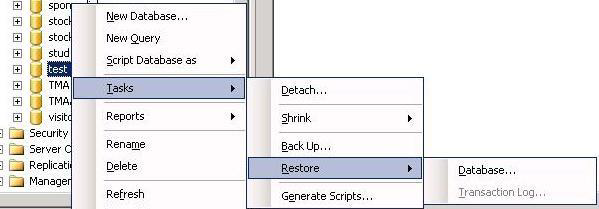
* **Select the database >> Right-click >> Tasks >> Restore >> Database.**

<div align="center"><img src="https://3739347370-files.gitbook.io/~/files/v0/b/gitbook-x-prod.appspot.com/o/spaces%2F1a8GpUm2lq3lKbytaYjt%2Fuploads%2Fgit-blob-4882906f696e56fdfa2571d25ce2e176988d1a4f%2FBackup_Image_3.png?alt=media" alt="" width="800"></div>

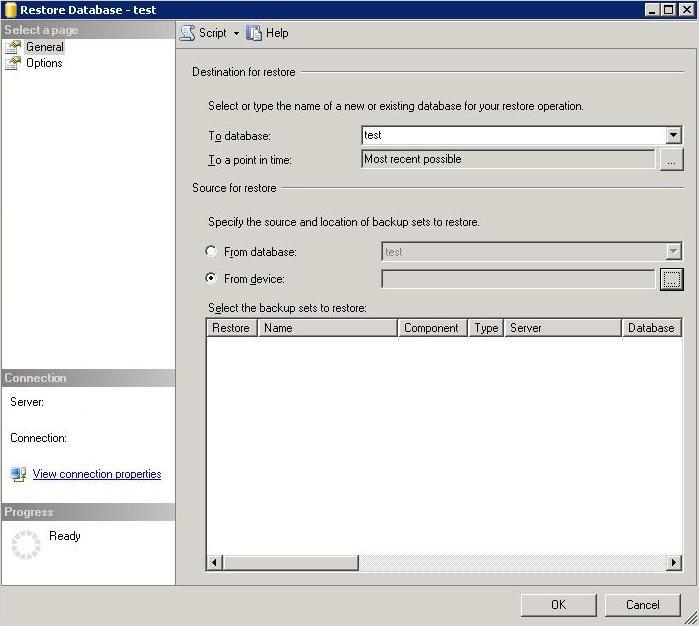
* The following "**Restore Database**" window will appear. Select "From device" mentioned under the "Source for restore" and click the button in front of that to specify the file location.

<div align="center"><img src="https://3739347370-files.gitbook.io/~/files/v0/b/gitbook-x-prod.appspot.com/o/spaces%2F1a8GpUm2lq3lKbytaYjt%2Fuploads%2Fgit-blob-a15d4e94711eb6fc7f0aa537d154c43857316dd7%2FBackup_Image_4.png?alt=media" alt="" width="800"></div>

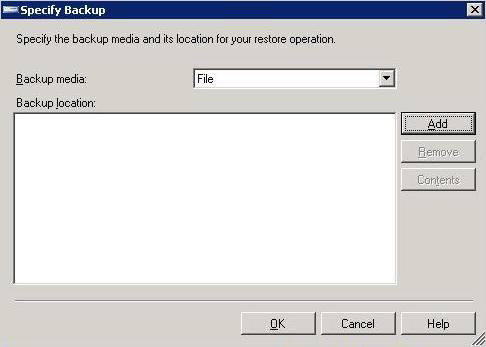
* Select the option "Backup media as File" and click the **Add** button to add the backup file location.

<div align="center"><img src="https://3739347370-files.gitbook.io/~/files/v0/b/gitbook-x-prod.appspot.com/o/spaces%2F1a8GpUm2lq3lKbytaYjt%2Fuploads%2Fgit-blob-ece6c0d394cb34cbd4916ee0799b5cbe28cf9960%2FBackup_Image_5.png?alt=media" alt="" width="800"></div>

* Select the backup file you wish to restore and click the OK button.

### MySQL Database Restore

\[Note: Restore both databases `opshub` and `reportsdb` which were provided while creating the database. If the database was manually created, the name would differ in that case.]

* Drop and create the database with same privileges. For this, refer to [manually creation of MySQL database](https://docs.opshub.com/v7.216/getting-started/installation#queries-for-mysql-database).\
  \[Note: Use database and schema name as same as you used previously.]
* Open Command Prompt and navigate to the `bin` directory of the MySQL server.
* Run the `mysql.exe` program with the following arguments:

```
mysql.exe -u [username] -p -h [hostname] [database_name] < C:\[filename].sql
```

(Note: Replace `[]` and anything inside `[]` using user's actual credentials.)

* On clicking the enter button, it will ask for a password. Please provide the password.

### Oracle Database Restore

* Drop and create schema with same privileges which you gave previously at the installation time. For this, refer to [manually creation of Oracle database](https://docs.opshub.com/v7.216/getting-started/installation#queries-for-oracle-database).
* Open Command Prompt with Administrator privileges. Right click on cmd.exe and select "Run as Administrator".
* Navigate to the directory where Oracle is installed. For example:

```
C:\Program Files\Oracle
```

* Enter Command :

```
sqlplus
```

* It will ask for username and password. Please provide it.
* Run the following command:

```
$imp USERID=[username]/[password] FULL=Y File="[File Path along with filename]"
```

(For example: `$imp USERID=system/root Full=Y File="C:\dumpFinal.dmp"`)

**Note** For detailed information, you can refer to official Oracle documentation. Refer: [11g](https://docs.oracle.com/cd/E11882_01/backup.112/e10642/rcmintro.htm#BRADV89341) or [12c](https://docs.oracle.com/database/121/BRADV/rcmintro.htm#BRADV89341) according to installed Oracle version.

### PostgreSQL Database

* Navigate to the directory where PostgreSQL is installed.\
  Example:

```
cd C:\Program Files\PostgreSQL\16\bin
```

* Run the following commands using cmd with admin mode and enter the password of PostgreSQL when prompted:
* Drop the existing database:

```
psql -U postgres -h localhost -c "DROP DATABASE your_database;"
```

* Create a new database with the same name:

```
createdb -U postgres -h localhost -e your_database
```

* For restoring database:

```
psql -U your_username -h your_host -d your_database < `<Path from where you want to restore the dump>`
```

Example:

```
psql -U postgres -h localhost -d opshub < C:/opshub_backup.sql
```