> For the complete documentation index, see [llms.txt](https://docs.opshub.com/llms.txt). Markdown versions of documentation pages are available by appending `.md` to page URLs; this page is available as [Markdown](https://docs.opshub.com/v7.237/connectors/polarion.md).

# Polarion

## Prerequisites

### System Prerequisites

* **API Enablement**:
  * Polarion's REST API must be enabled in the `polarion.properties` file by setting the following property:
    * `com.siemens.polarion.rest.enabled=true`
  * You can find this file in Polarion installed directory at:
    * `@POLARION_INSTALLATION_PATH@\polarion\configuration`
  * Refer [Polarion API Reference](https://docs.sw.siemens.com/en-US/doc/230235217/PL20241023686685479.polarion_help_sc.xid2134849/xid2137943) for more details.
* **Library Setup for Polarion Connectivity:**

  To connect <code class="expression">space.vars.OIM</code> with Polarion, a required library needs to be added in <code class="expression">space.vars.OIM</code>'s installation folder.

  **Why this is needed:**

  The Polarion web service client used by <code class="expression">space.vars.OIM</code> depends on Apache Axis. Without this library, the connection will not work.

  **Steps:**

  1. Download the required file
     * Download the **axis-1.3.jar** file from the Apache Axis 1.3 package available on Maven Repository.
     * Download link: [axis-1.3.jar](https://mvnrepository.com/artifact/axis/axis/1.3).
  2. Copy the file to the correct location
     * Place the downloaded file in the following folder: `<opshub_installation_directory>\OpsHubServer\bundle_config\POLARION_LIB`

### User Privileges

* Create a user in Polarion that is dedicated for <code class="expression">space.vars.OIM</code>. This user shouldn't perform any other action from Polarion's user interface.
* Following are the user privileges required:

1. The user must have access to the default SVN repository:
   * To grant user access to the default repository, refer [Grant Permission To Access Repository](#grant-permission-to-access-repository).
2. The user must have the role of '**project\_admin**' in the project which they are going to configure in <code class="expression">space.vars.OIM</code>.
   * To assign this role, refer [Assign Role To User](#assign-role-to-user).
3. The user must have the following minimal permissions:

| Access Level       | READ Permissions   | WRITE Permissions                                                                                                    |
| ------------------ | ------------------ | -------------------------------------------------------------------------------------------------------------------- |
| Projects           | Permission to VIEW | Permission to VIEW                                                                                                   |
| REST API Endpoints | Permission to GET  | <p>Permission to GET<br>Permission to PATCH<br>Permission to POST<br>Permission to DELETE (For attachments only)</p> |

* To check if the user has above permissions, refer to section [Check API Permissions Required](#check-api-permissions-required)

## System Configuration

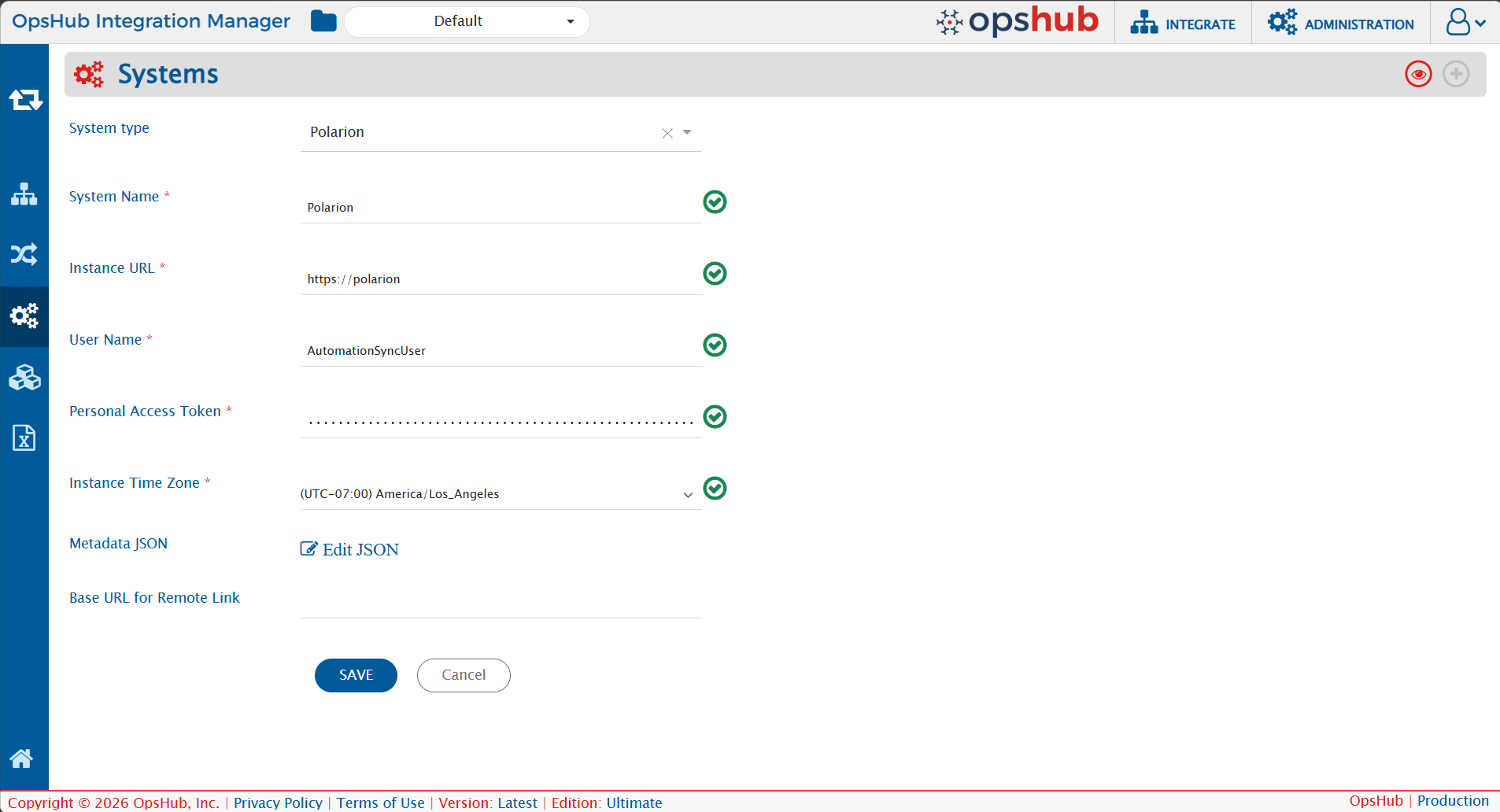
Before you continue with the integration, you must first configure the Polarion system in <code class="expression">space.vars.OIM</code>.

Refer to [System Configuration](/v7.237/integrate/configure-integrations/system-configuration.md) for steps on how to configure the system. Refer to the screenshot below:
<div align="center"><img src="https://1696196078-files.gitbook.io/~/files/v0/b/gitbook-x-prod.appspot.com/o/spaces%2FIlmfpTMZ5viBRY3AAuR5%2Fuploads%2Fgit-blob-927a8c66dd4a27d56b3b4186ee5627bf87834962%2FPolarionSystemConfig.png?alt=media" alt="" width="1000"></div>

### Polarion System Form Details

| Field Name                   | When is the field visible | Description                                                                                                                                                                                                                                                                                                                                                                                                                                                                                                                                       |
| ---------------------------- | ------------------------- | ------------------------------------------------------------------------------------------------------------------------------------------------------------------------------------------------------------------------------------------------------------------------------------------------------------------------------------------------------------------------------------------------------------------------------------------------------------------------------------------------------------------------------------------------- |
| **System Name**              | Always                    | Provide a unique name for the Polarion system.                                                                                                                                                                                                                                                                                                                                                                                                                                                                                                    |
| **Instance URL**             | Always                    | <p>Provide the Server URL of the Polarion instance.<br>Format: <code>http\://\[host name]:\[port no]</code> or <code>http\://\[your\_domain\_name]</code>.<br>Example: <code><http://10.13.27.200:8080></code>.</p>                                                                                                                                                                                                                                                                                                                               |
| **User Name**                | Always                    | Provide the username of the dedicated user for Polarion API communication.                                                                                                                                                                                                                                                                                                                                                                                                                                                                        |
| **Personal Access Token**    | Always                    | <p>Provide the <strong>Personal Access Token</strong> for the user specified in the "User Name" field.<br>Refer to <a href="#get-api-token">Access API Token</a> section for details.</p>                                                                                                                                                                                                                                                                                                                                                         |
| **Instance Time Zone**       | Always                    | Provide the time zone of the host machine where Polarion is installed.                                                                                                                                                                                                                                                                                                                                                                                                                                                                            |
| **Metadata JSON**            | Always                    | <p>Provide link metadata for Polarion workitem type in JSON format. For more details refer to <a href="#link-metadata-configuration">Link Metadata Configuration</a>.<br>This same field is also used to declare custom fields for the <strong>Plan</strong> entity (refer to <a href="#plan-field-configuration">Plan Field Configuration</a>) and to override the data type of <strong>Rich Text</strong> custom fields on a <strong>Test Run</strong> (refer to <a href="#test-run-field-configuration">Test Run Field Configuration</a>).</p> |
| **Base URL for Remote Link** | Always                    | <p>Provide a different instance URL of the Polarion instance. This URL will be used for generating the Remote Link.<br>Note: If "Base URL for Remote Link" is empty, it will use default <strong>Instance URL</strong> to generate remote link if configured on integration.</p>                                                                                                                                                                                                                                                                  |

## Mapping Configuration

Map the fields between Polarion and the other system to be integrated to ensure that the data between both systems synchronizes correctly.

Refer to [Mapping Configuration](/v7.237/integrate/configure-integrations/mapping-configuration.md) for steps on configuring field mappings.

<div align="center"><img src="https://1696196078-files.gitbook.io/~/files/v0/b/gitbook-x-prod.appspot.com/o/spaces%2FIlmfpTMZ5viBRY3AAuR5%2Fuploads%2Fgit-blob-96ee481158a760286fd9e03fc66a5c21ca26a95a%2FPolarionMappingCreation.png?alt=media" alt=""></div>

### Test Step Field Configuration

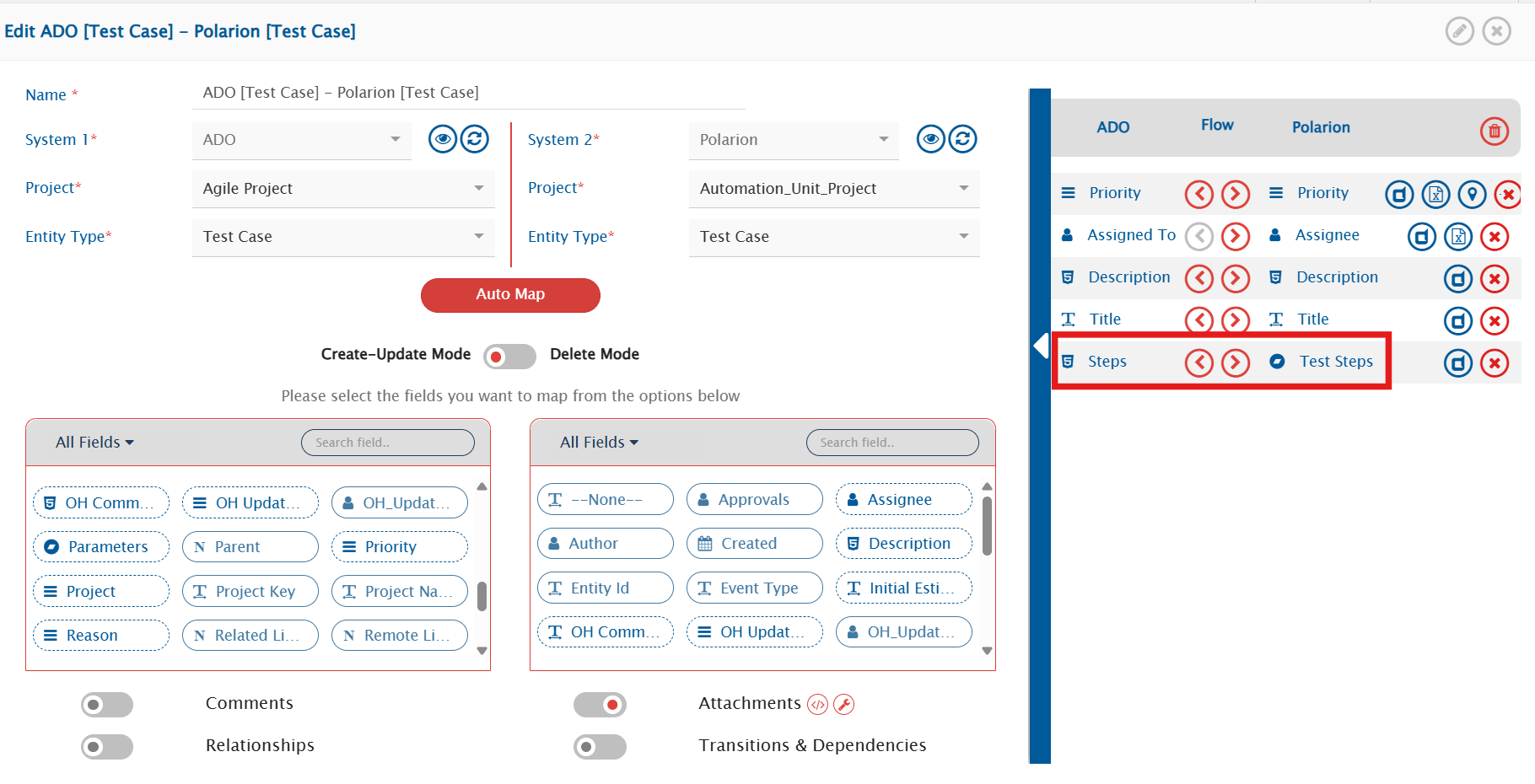
* To synchronize Test Steps in Polarion, map the "Test Steps" field in <code class="expression">space.vars.OIM</code> as shown in image below.

<div align="center"><img src="https://1696196078-files.gitbook.io/~/files/v0/b/gitbook-x-prod.appspot.com/o/spaces%2FIlmfpTMZ5viBRY3AAuR5%2Fuploads%2Fgit-blob-b9e4ea9c6d6e48917dd8ce434ff2d668fd444df8%2FPolarionMappingConfigTestStep.png?alt=media" alt=""></div>

#### Known Behaviors in Test Step Sync

1. **When custom columns are added in Polarion Test Steps**
   * Polarion supports both **standard** and **custom** columns in Test Step fields.
   * To populate a custom column fields during synchronization, use **advanced mapping** in <code class="expression">space.vars.OIM</code>.
   * For example, if your custom column has an internal ID *customColumnId*, you can access it under *additionalFields*.
   * Values stored in *additionalFields* can also be reused in other mappings (e.g., **description, expected result, or other supported fields**), helping you avoid duplicate mapping logic.
   * Example XSLT:

     ```xml
     <testSteps op_type="TestSteps">
          <xsl:for-each xmlns:xsl="http://www.w3.org/1999/XSL/Transform" select="SourceXML/updatedFields/Property/testSteps/com.opshub.eai.TestStep">
              <com.opshub.eai.TestStep>
                  <order>
                      <xsl:value-of select="order"/>
                  </order>
                  <associationId>
                      <xsl:value-of select="associationId"/>
                  </associationId>
                  <id>
                      <xsl:value-of select="id"/>
                  </id>
                  <step>
                      <xsl:value-of select="step"/>
                  </step>
                  <expected>
                      <xsl:value-of select="expected"/>
                  </expected>
                  <description>
                      <xsl:value-of select="additionalFields/customColumnId"/>
                  </description>
                  <additionalFields>
                      <customColumnId>
                          <xsl:value-of select="step"/>
                      </customColumnId>
                  </additionalFields>
              </com.opshub.eai.TestStep>
          </xsl:for-each>
     </testSteps>
     ```
2. **When standard columns are renamed in Polarion Test Steps**
   * If the internal names of standard Test Step columns (e.g., Step, Step Description, Expected Result) are changed:
     1. During synchronization, these standard fields will **remain empty**, by default, **sync will not populate these fields to/from Polarion**.
     2. The data intended for these fields will instead be stored under **additionalFields**.
   * How to handle this:
     1. Use **advanced mapping** to extract the required values from *additionalFields*.
     2. Map them explicitly back to the desired fields (e.g., Step, Description, Expected Result) as needed.

### Plan Field Configuration

Polarion does not provide any API to list the custom fields configured on a **Plan**. Because of this, if you want to synchronize a Plan custom field, you must declare it yourself in the **Metadata JSON** field on the Polarion system form.

#### Understanding Metadata JSON Input for Plan Custom Fields

This JSON is to be added in system form. Refer to section [System Form configuration](#Polarion-System-Form-Details) Add each Plan custom field as an entry under `entities` → `plan` → `fields` → `custom`:

```json
{
  "entities": [
    {
      "internalName": "plan",
      "fields": {
        "custom": [
          {
            "internalName": "customRichText",
            "displayName": "customRichText",
            "dataType": "html",
            "mandatory": false,
            "readOnly": false,
            "systemSpecific": {
              "systemNativeDataType": "richText"
            }
          },
          {
            "internalName": "customLookup",
            "displayName": "customLookup",
            "dataType": "lookup",
            "mandatory": false,
            "readOnly": false,
            "lookUpValues": {
              "windows": "MS Windows",
              "linux": "Linux",
              "osx": "Mac OS X",
              "other": "Other"
            }
          }
        ]
      }
    }
  ]
}
```

| Property                              | Description                                                                                                                                                                         |
| ------------------------------------- | ----------------------------------------------------------------------------------------------------------------------------------------------------------------------------------- |
| `internalName`                        | Internal name (id) of the custom field, exactly as configured in Polarion. Refer to [Get Custom Fields for Plan](#get-custom-fields-for-plan) to find this value.                   |
| `displayName`                         | Name shown for the field in <code class="expression">space.vars.OIM</code>'s mapping screen.                                                                                        |
| `dataType`                            | The field's type. Supported values: `text`, `numeric`, `boolean`, `date` , `date_string`, `lookup`, `html`, `wiki`, `user`, `link`, `reference`.                                    |
| `mandatory`                           | Set to `true` if the field is required in Polarion. Defaults to `false`.                                                                                                            |
| `readOnly`                            | Set to `true` if the field cannot be written to. Defaults to `false`.                                                                                                               |
| `systemSpecific.systemNativeDataType` | Only needed for rich text fields — set to `richText` so the value is sent to Polarion as HTML.                                                                                      |
| `lookUpValues`                        | Only needed when `dataType` is `lookup` — a list of `"<internal id>": "<display value>"` pairs, since Polarion does not expose an API to fetch a custom field's option list either. |

#### Template Field

The **Template** field of a Plan can only be set when the Plan is created — Polarion does not allow it to be changed afterwards. While mapping the Template field, set its **Sync When?** option to **Create** (not the default **Both**). Refer to [Sync When](/v7.237/integrate/configure-integrations/mapping-configuration.md#sync-when) for steps.

> **Note**: If **Sync When?** is left as **Both**, every update sync for that Plan will fail with a Polarion error.

### Test Run Field Configuration

Polarion custom fields configured on a **Test Run** are discovered automatically — you do not need to declare them in the Metadata JSON.

**Exception — Rich Text fields:** Polarion's API response reports a rich text (HTML) custom field the same way it reports a plain text custom field, so <code class="expression">space.vars.OIM</code> cannot tell the two apart on its own. If a Test Run custom field is Rich Text in Polarion, you must override its data type in the **Metadata JSON** field on the Polarion system form so it is synchronized as HTML instead of plain text.

#### Understanding Metadata JSON Input for Test Run Rich Text Fields

This JSON is to be added in system form. Refer to section [System Form configuration](#Polarion-System-Form-Details) Add an entry for the field under `entities` → `testRun` → `fields` → `custom`, with `dataType` set to `html`:

```json
{
  "entities": [
    {
      "internalName": "testRun",
      "fields": {
        "custom": [
          {
            "internalName": "customRichText",
            "dataType": "html",
            "systemSpecific": {
              "systemNativeDataType": "richText"
            }
          }
        ]
      }
    }
  ]
}
```

| Property                              | Description                                                                                                                                                                         |
| ------------------------------------- | ----------------------------------------------------------------------------------------------------------------------------------------------------------------------------------- |
| `internalName`                        | Internal name (id) of the Rich Text custom field, exactly as configured in Polarion. Refer to [Get Custom Fields for Test Run](#get-custom-fields-for-test-run) to find this value. |
| `dataType`                            | Set to `html` to override the field's discovered type.                                                                                                                              |
| `systemSpecific.systemNativeDataType` | Set to `richText` so the value is sent to Polarion as HTML.                                                                                                                         |

> **Note**: Only fields that are Rich Text in Polarion need to be listed here.

#### Template Field

The **Template** field of a Test Run can only be set when the Test Run is created — Polarion does not allow it to be updated later. While mapping the Template field, set its **Sync When?** option to **Create** (not the default **Both**). Refer to [Sync When](/v7.237/integrate/configure-integrations/mapping-configuration.md#sync-when) for steps.

> **Note**: If **Sync When** flag is configured as **Both**, every update sync for that Test Run will fail with a Polarion error.

## Integration Configuration

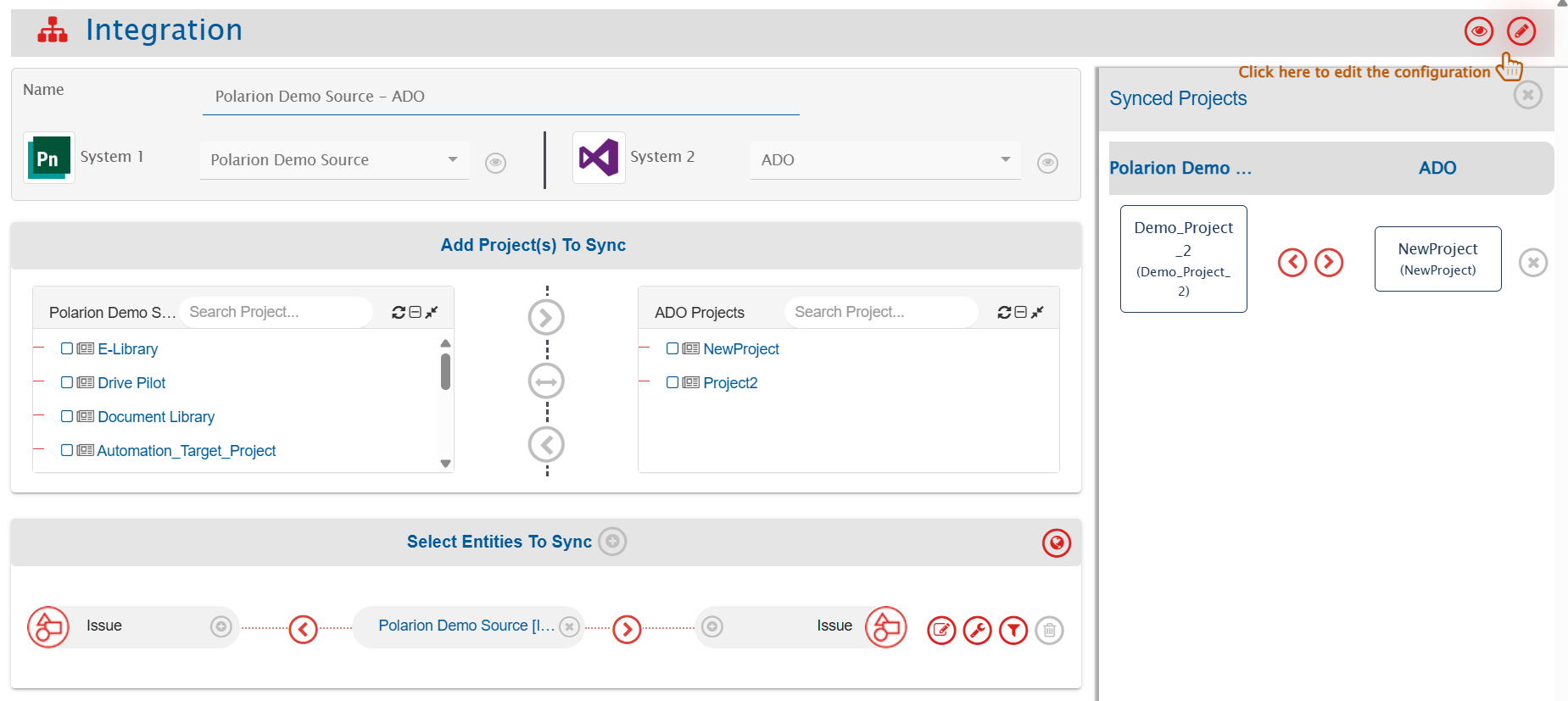
Set a time to synchronize data between Polarion and the other system. Define parameters and conditions, if any, for integration.

Refer to [Integration Configuration](/v7.237/integrate/configure-integrations/integration-configuration.md) for step-by-step instructions.
<div align="center"><img src="https://1696196078-files.gitbook.io/~/files/v0/b/gitbook-x-prod.appspot.com/o/spaces%2FIlmfpTMZ5viBRY3AAuR5%2Fuploads%2Fgit-blob-c7dcf81cac47aeb84a0ef0689487a070dc64b87a%2FPolarionIntegrationConfiguration.png?alt=media" alt=""></div>

### Criteria Configuration

If you want to specify conditions for synchronizing an entity between Polarion and the other system to be integrated, you can use the Criteria Configuration feature.

Navigate to [Criteria Configuration](/v7.237/integrate/configure-integrations/integration-configuration.md#criteria-configuration) to learn in detail about Criteria Configuration.

* To configure criteria in Polarion, integration needs to be created with Polarion as the source system. Set the **Query** as per Polarion's **Lucene query syntax**.
  * Refer to [Polarion API Reference](https://developer.siemens.com/polarion/basic-concepts.html#querying) for more details on query format.
* While adding the criteria, user needs to add the internal names of the fields on which the criteria has to be applied.
  * Refer to [Access Field Internal Name](#access-field-internal-name) section for details.
* Given below are the sample snippets of how the Polarion queries can be used as criteria query in <code class="expression">space.vars.OIM</code>:

#### Sample criteria:

| Field name   | Field internal name | Criteria description                                   | Criteria snippet                      |
| ------------ | ------------------- | ------------------------------------------------------ | ------------------------------------- |
| Title        | title               | Sync items with title containing "API"                 | (title:\*API\*)                       |
| Status       | status              | Sync items where status equals "Open"                  | (status:open)                         |
| Created Date | created             | Sync items created between 1 June 2025 to 30 June 2025 | (created:\[20250601 TO 20250630])     |
| Status       | status              | Sync items where status is not reviewed                | (NOT status:reviewed)                 |
| Severity     | severity            | Sync items where severity is either normal or blocker  | (severity:normal OR severity:blocker) |

### Target LookUp Configuration

* Provide query in Target Search Query field such that it is possible to search the entity in the Polarion as the target system. In the target search query field, you can provide a placeholder for the source system's field value in the '@'.
* To learn in detail about how to configure Target LookUp, refer to **Search in Target Before Sync** section on [Integration Configuration](/v7.237/integrate/configure-integrations/integration-configuration.md) page.
* Overall, Target LookUp Query is similar to [Criteria configuration](#criteria-configuration), except that the value part contains a field name with '@' instead of static value.
* While adding the query, user needs to add the internal names of the fields on which the query is to be applied.

#### Sample target lookup query:

| Field name     | Field internal name | Target Lookup use case                                                                      | Query snippet                   |
| -------------- | ------------------- | ------------------------------------------------------------------------------------------- | ------------------------------- |
| Target Item ID | targetItem          | Target Lookup on the item having the source entity's id in custom field called 'targetItem' | targetLookup:@oh\_internal\_id@ |

## Known Behaviors and Limitations

* History based synchronization is not supported due to API unavailability.
* **Comments**:
  * Replies to comments or edits in Polarion will be synced as separate comments by <code class="expression">space.vars.OIM</code>.
* **Project Groups**:
  * Project Groups are not visible in the Project mapping list due to API limitations; projects are listed individually.
* **Test Steps sync**:
  * If your test steps contain custom columns, or if standard columns have been renamed \[like Expected results renamed as Results], then advanced mapping needs to be performed in <code class="expression">space.vars.OIM</code> to sync those values. For more details, refer to this section [Known Behaviors in Test Step Sync](#known-behaviors-in-test-step-sync).
* **Links**
  * For link synchronization it is required to provide link metadata for Polarion entity types in JSON format in OpsHub Integration Manager.
    * Reason: API unavailability.
  * The Suspect and Revision properties of a link will not be explicitly synchronized due to API limitations as these properties are auto-populated by Polarion when links are added.
* **Plan**:
  * Attachments and comments are not supported for Plan, as Polarion does not provide them for this entity.
  * Custom fields on a Plan must be declared using the Metadata JSON field, since Polarion provides no API to fetch them. Refer to [Plan Field Configuration](#plan-field-configuration).
* **Test Run**:
  * Polarion reports a Rich Text custom field the same way it reports a plain text one, so a Rich Text custom field on a Test Run must be declared in the Metadata JSON field, otherwise it will be synchronized as plain text instead of HTML. Refer to [Test Run Field Configuration](#test-run-field-configuration).

## Appendix

### Grant Permission To Access Repository

To make sure the user (Example, ID = automationtest) has access to the SVN repository:

* Update the 'access' file located at `@POLARION_INSTALLATION_PATH@\data\svn`, add the following entries:

  ```ini
  # Append automationtest to existing lists
   [groups]
   user = ..., automationtest
   
   [/]
   automationtest = rw

   [repo:/]
   automationtest = rw

   [repo:/.polarion/access]
   automationtest = rw
  ```

### Assign Role To User

To assign user the role of 'project\_admin':

1. Log in to your Polarion account as admin.
2. Go to the 'Administration' section by clicking on the settings icon in the top left-hand corner of your screen. Refer to the screenshot below:
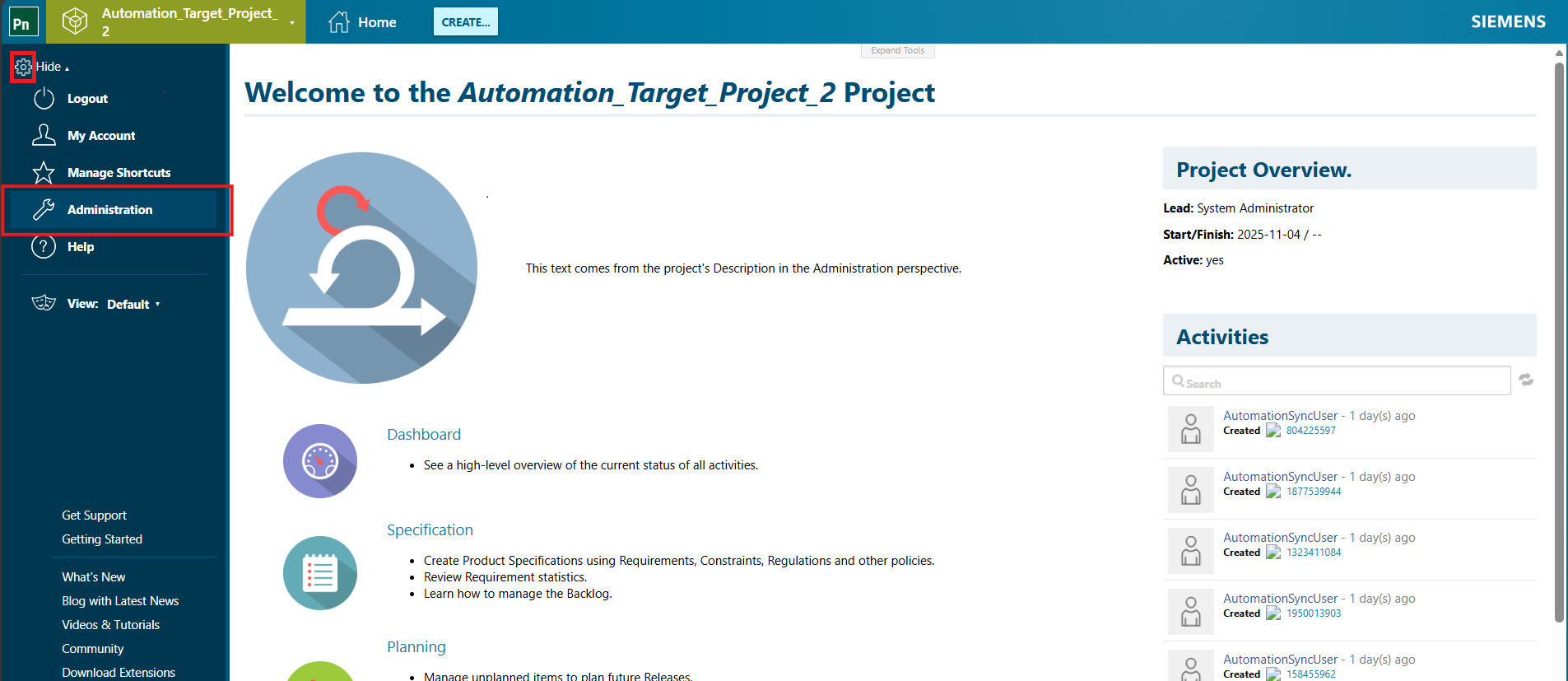
   <div align="center"><img src="https://1696196078-files.gitbook.io/~/files/v0/b/gitbook-x-prod.appspot.com/o/spaces%2FIlmfpTMZ5viBRY3AAuR5%2Fuploads%2Fgit-blob-b1595e2c38f7bc09fa7a263d4891d1b23fc3dec6%2FPolarionAppendix_FieldInternalName1.png?alt=media" alt="" width="936"></div>

   <br>
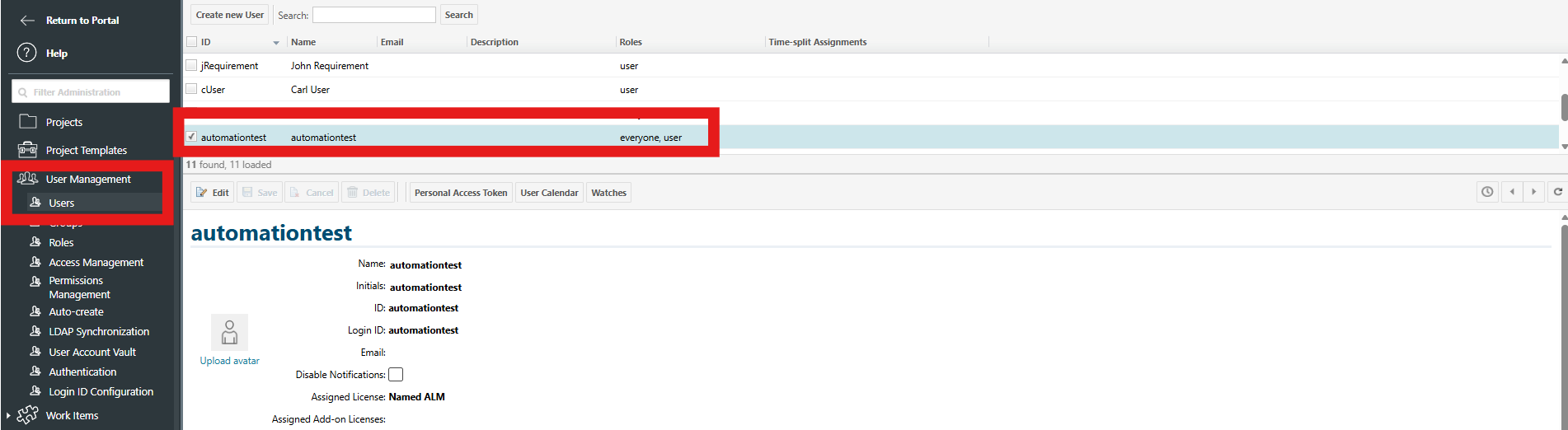
3. Click 'User Management' -> 'Users' in the left pane. Refer to the screenshot below:<br>

   <div align="center"><img src="https://1696196078-files.gitbook.io/~/files/v0/b/gitbook-x-prod.appspot.com/o/spaces%2FIlmfpTMZ5viBRY3AAuR5%2Fuploads%2Fgit-blob-55d63127eb16d0d21e116203bc5564069af9f581%2FPolarionAppendix_User1.png?alt=media" alt="" width="936"></div>

   <br>
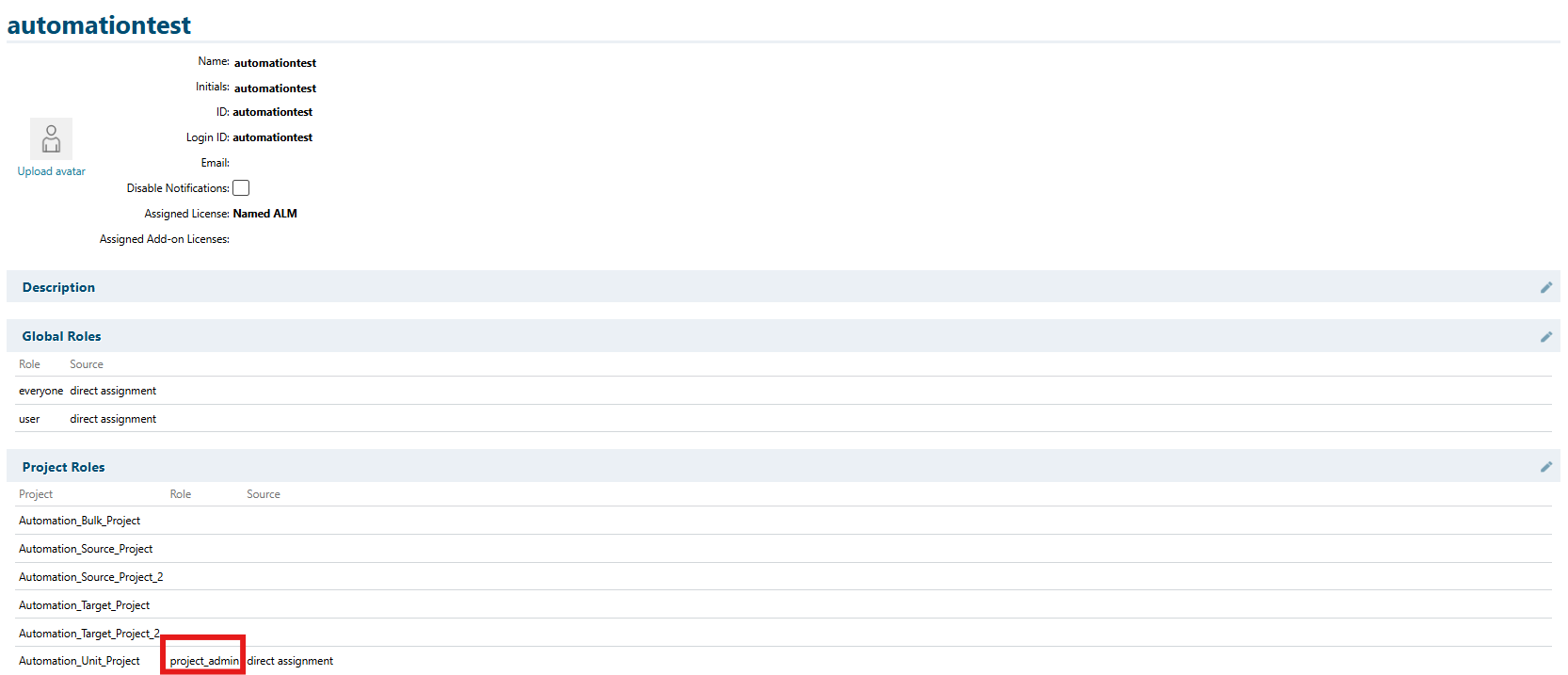
4. In 'Project Roles', give the user 'project\_admin' role. For example, refer to the screenshot below for Role assigned to the user in Project 'Automation\_Unit\_Project':<br>

   <div align="center"><img src="https://1696196078-files.gitbook.io/~/files/v0/b/gitbook-x-prod.appspot.com/o/spaces%2FIlmfpTMZ5viBRY3AAuR5%2Fuploads%2Fgit-blob-77a9d8065305f060fad01ec27f2fa41dff843ec3%2FPolarionAppendix_User2.png?alt=media" alt="" width="936"></div>

   <br>

### Check API Permissions Required

To give user the relevant permissions that allows synchronization of entities:

1. Log in to your Polarion account as admin.
2. Go to the 'Administration' section by clicking on the settings icon in the top left-hand corner of your screen. Refer to the screenshot below:
   <div align="center"><img src="https://1696196078-files.gitbook.io/~/files/v0/b/gitbook-x-prod.appspot.com/o/spaces%2FIlmfpTMZ5viBRY3AAuR5%2Fuploads%2Fgit-blob-b1595e2c38f7bc09fa7a263d4891d1b23fc3dec6%2FPolarionAppendix_FieldInternalName1.png?alt=media" alt="" width="936"></div>

   <br>
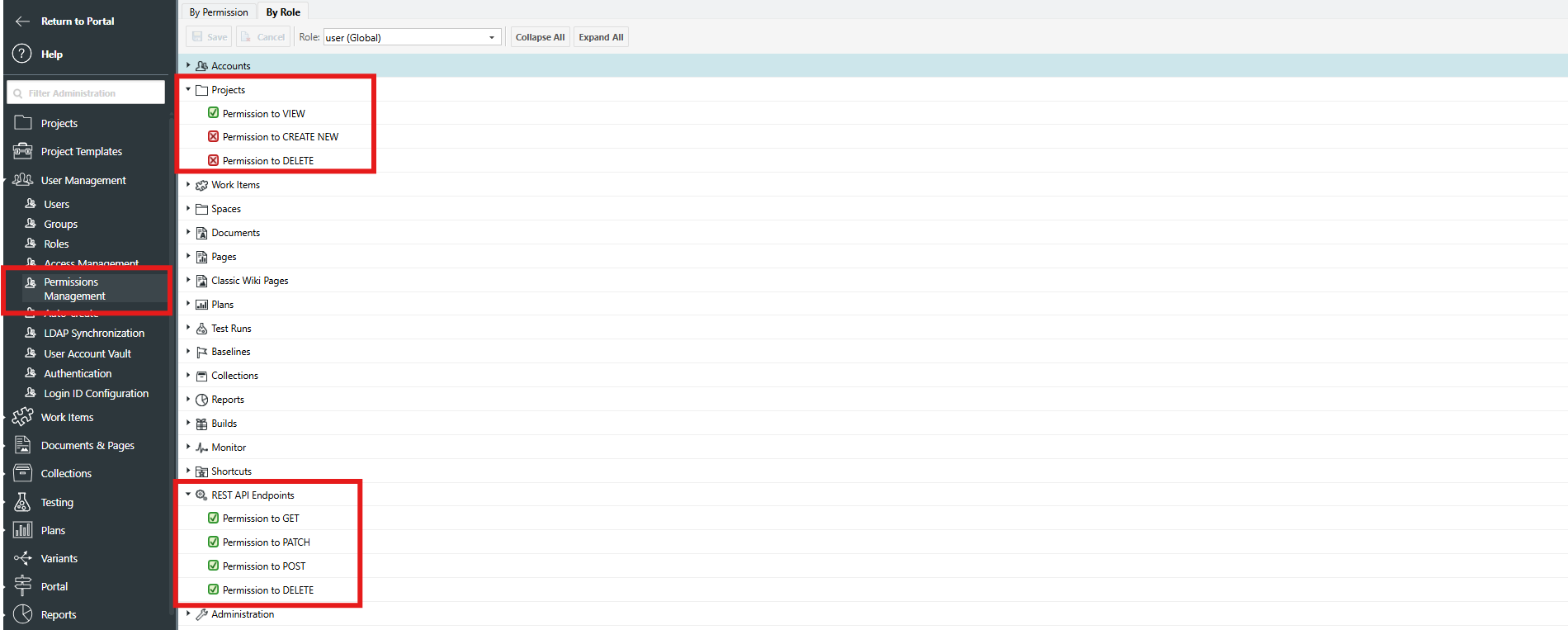
3. Now, go to 'User Management' -> 'Permissions Management' -> 'By Role'. Here, make sure the following permissions are checked.<br>

   <div align="center"><img src="https://1696196078-files.gitbook.io/~/files/v0/b/gitbook-x-prod.appspot.com/o/spaces%2FIlmfpTMZ5viBRY3AAuR5%2Fuploads%2Fgit-blob-a057839c43ff50f1e0042b750dae5ad54d741e39%2FPolarionAppendix_User3.png?alt=media" alt="" width="936"></div>

   <br>

### Get API Token

To get the API token for a user:

1. Log in to your Polarion account.
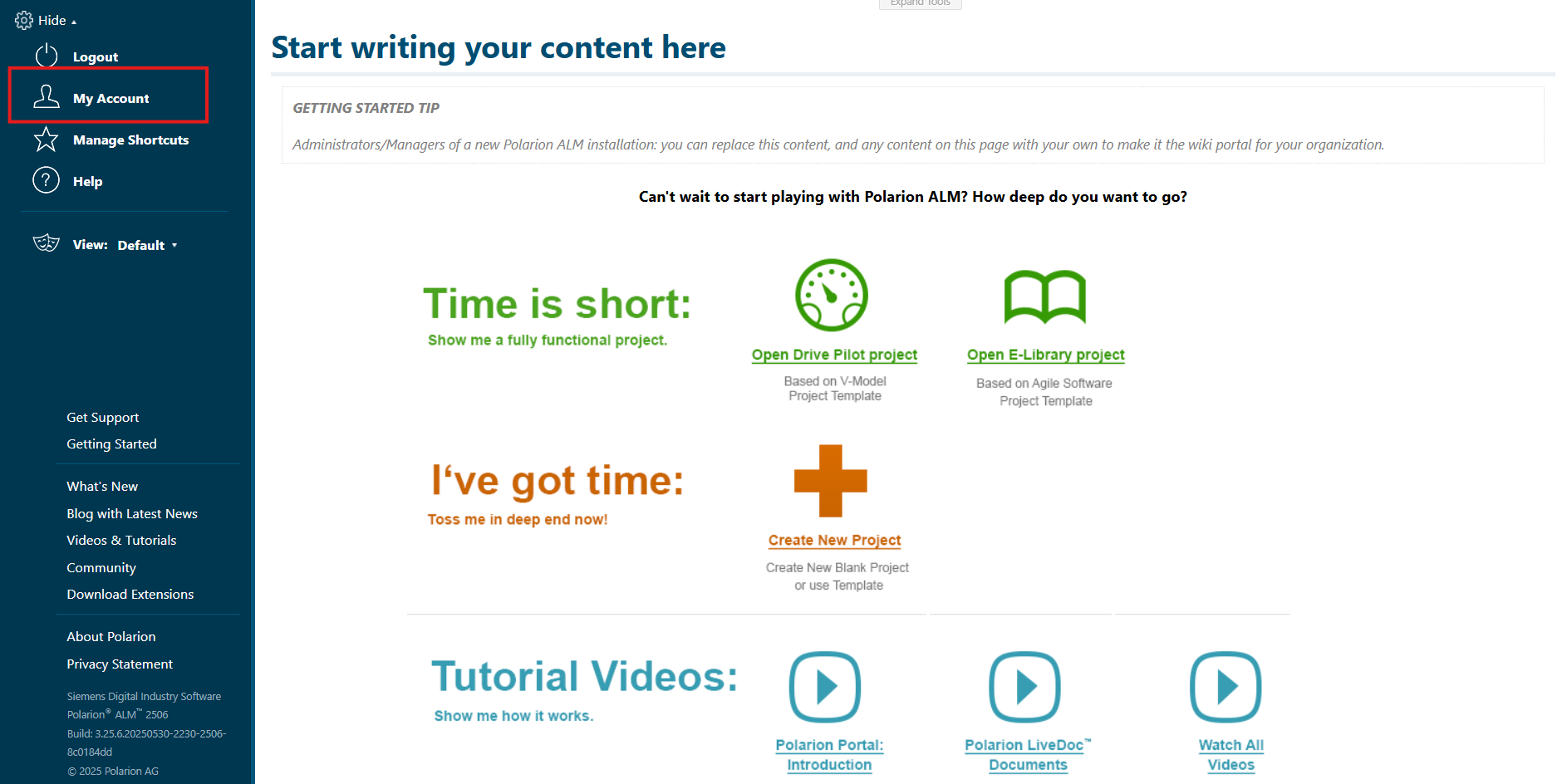
2. Go to the 'My Account' section by clicking on the settings icon in the top left-hand corner of your screen. Refer to the screenshot below:

   <div align="center"><img src="https://1696196078-files.gitbook.io/~/files/v0/b/gitbook-x-prod.appspot.com/o/spaces%2FIlmfpTMZ5viBRY3AAuR5%2Fuploads%2Fgit-blob-022065af0685b58892ccc4e1e179af6a6889c7ed%2FPolarionAppendix_Token1.png?alt=media" alt="" width="936"></div>

   <br>
3. Click 'Personal Access Token' in the top pane and copy the token value. Refer to the screenshot below:<br>

   <div align="center"><img src="https://1696196078-files.gitbook.io/~/files/v0/b/gitbook-x-prod.appspot.com/o/spaces%2FIlmfpTMZ5viBRY3AAuR5%2Fuploads%2Fgit-blob-0fc3a7b9886703658bf7ecf0caf462cfac6e4616%2FPolarionAppendix_Token2.png?alt=media" alt="" width="936"></div>
4. Provide the toke details. Refer to the screenshot below:<br>

   <div align="center"><img src="https://1696196078-files.gitbook.io/~/files/v0/b/gitbook-x-prod.appspot.com/o/spaces%2FIlmfpTMZ5viBRY3AAuR5%2Fuploads%2Fgit-blob-cb738b5941e48cfaa5ff99fdef23beb13b121c3d%2FPolarionAppendix_Token3.png?alt=media" alt="" width="936"></div>

Note:

* It is recommended to regenerate API token before it expires, to avoid unexpected processing failures in <code class="expression">space.vars.OIM</code>.

### Access Field Internal Name

To get the field internal names:

1. Log in to your Polarion account.
2. Go to the 'Administration' section by clicking on the settings icon in the top left-hand corner of your screen. Refer to the screenshot below:

   <div align="center"><img src="https://1696196078-files.gitbook.io/~/files/v0/b/gitbook-x-prod.appspot.com/o/spaces%2FIlmfpTMZ5viBRY3AAuR5%2Fuploads%2Fgit-blob-b1595e2c38f7bc09fa7a263d4891d1b23fc3dec6%2FPolarionAppendix_FieldInternalName1.png?alt=media" alt="" width="936"></div>

   <br>
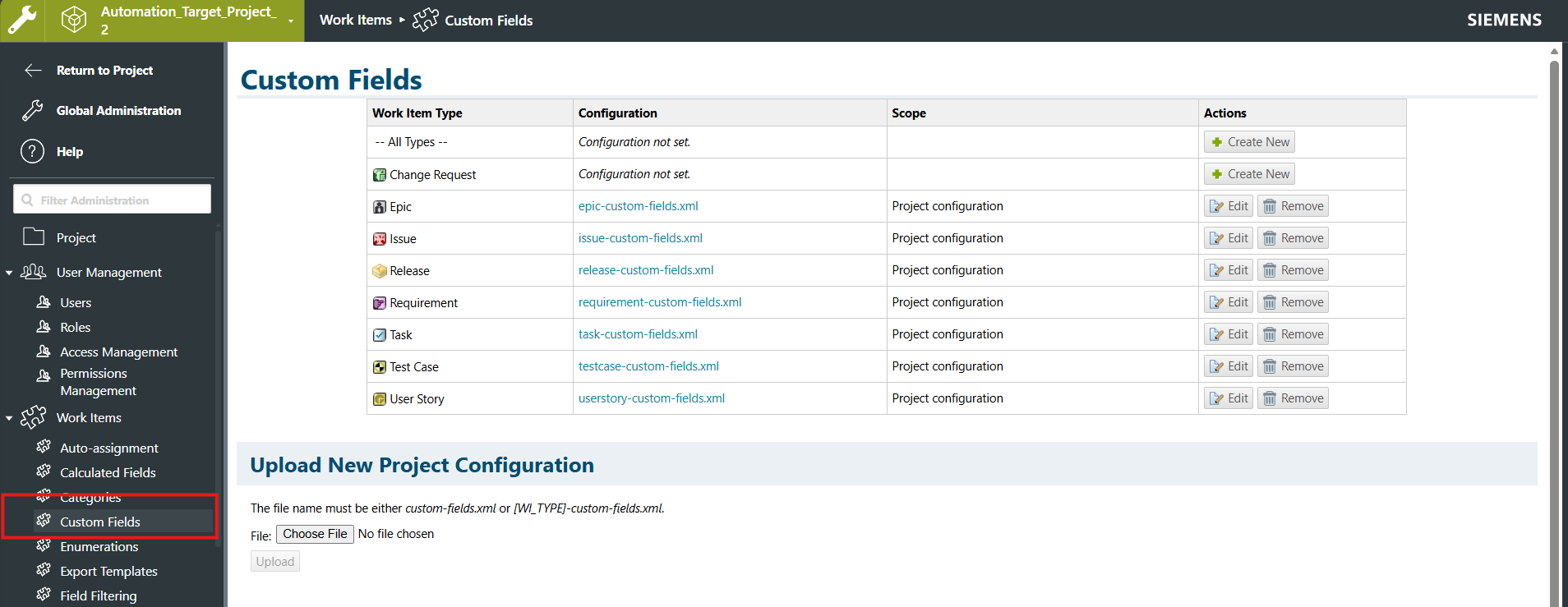
3. Click 'Work Items' -> 'Custom Fields' in the left pane. Refer to the screenshot below:<br>

   <div align="center"><img src="https://1696196078-files.gitbook.io/~/files/v0/b/gitbook-x-prod.appspot.com/o/spaces%2FIlmfpTMZ5viBRY3AAuR5%2Fuploads%2Fgit-blob-3b0c7267fe2180f8102c80dec2f26fd9e614dda4%2FPolarionAppendix_FieldInternalName2.png?alt=media" alt="" width="936"></div>
4. The column named 'ID' contains internal names of the field. Refer to the screenshot below:<br>

   <div align="center"><img src="https://1696196078-files.gitbook.io/~/files/v0/b/gitbook-x-prod.appspot.com/o/spaces%2FIlmfpTMZ5viBRY3AAuR5%2Fuploads%2Fgit-blob-ac8d961d0e623a2caee14d68f44454bfeef48e4b%2FPolarionAppendix_FieldInternalName3.png?alt=media" alt="" width="936"></div>

### Get Custom Fields for Plan

To get the internal names of Plan's custom fields:

1. Log in to your Polarion account.
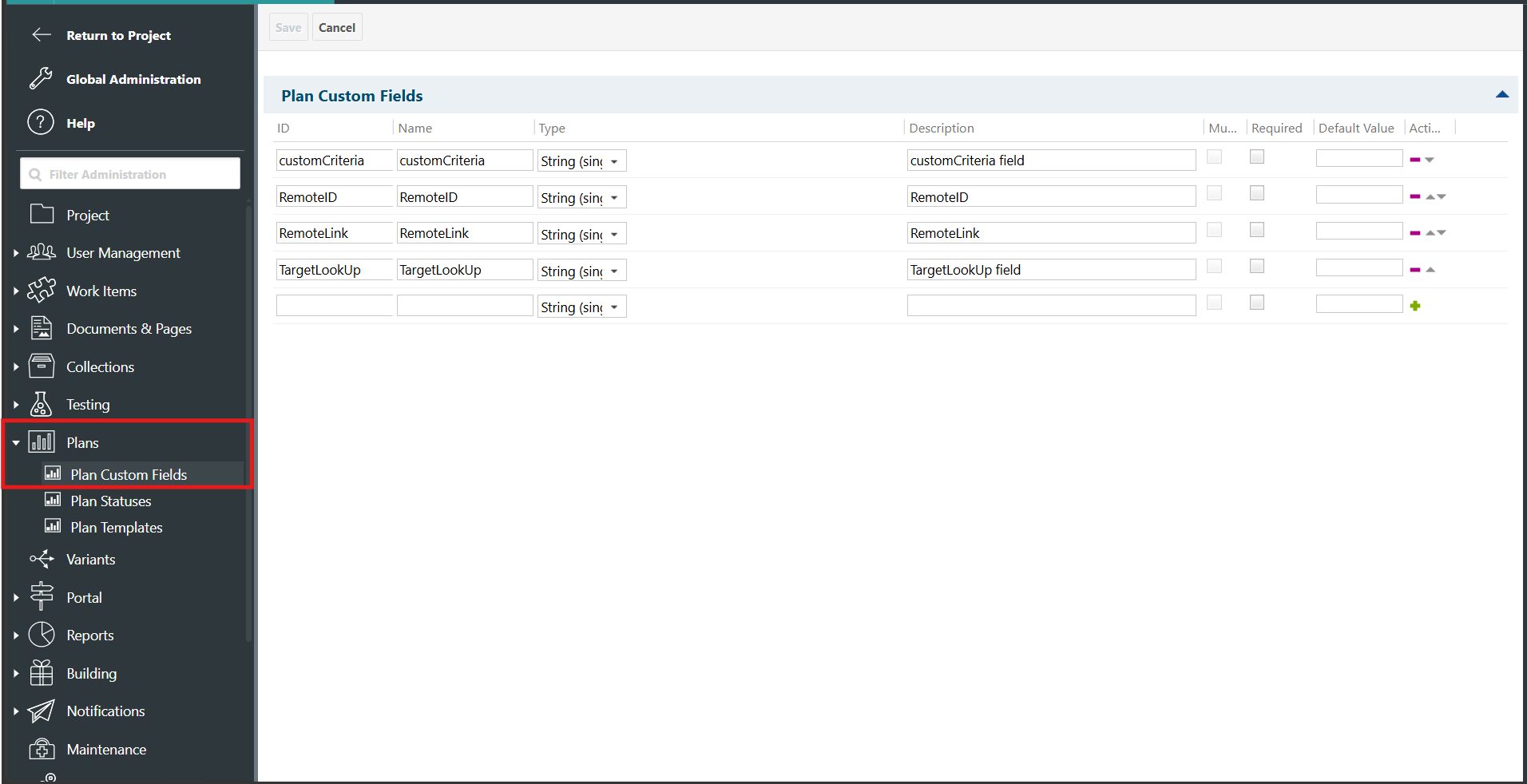
2. Go to the 'Administration' section by clicking on the settings icon in the top left-hand corner of your screen, then click 'Plans' -> 'Plan Custom Fields' in the left pane.
3. The column named 'ID' contains internal names of the field. Refer to the screenshot below:

   <div align="center"><img src="https://1696196078-files.gitbook.io/~/files/v0/b/gitbook-x-prod.appspot.com/o/spaces%2FIlmfpTMZ5viBRY3AAuR5%2Fuploads%2Fgit-blob-1ccbcb7a47637116eff68852c6de2f39af1bacc8%2FPolarion_Plan_Custom_Fields.png?alt=media" alt="" width="936"></div>

### Get Custom Fields for Test Run

To get the internal names of Test Run's custom fields:

1. Log in to your Polarion account.
2. Go to the 'Administration' section by clicking on the settings icon in the top left-hand corner of your screen, then click 'Testing' -> 'Test Run Custom Fields' in the left pane.
3. The column named 'ID' contains internal names of the field. Refer to the screenshot below:

   <div align="center"><img src="https://1696196078-files.gitbook.io/~/files/v0/b/gitbook-x-prod.appspot.com/o/spaces%2FIlmfpTMZ5viBRY3AAuR5%2Fuploads%2Fgit-blob-e9cca42a4647023d5e55ca5078cc48e97b647eb4%2FPolarion_Test_Run_Custom_Fields.png?alt=media" alt="" width="936"></div>

### Link Metadata Configuration

This section includes a sample Link Metadata JSON template used for configuring links in Polarion. Modify the template according to your requirements\
Link Metadata JSON Example:

```json
{
   "entities": [
      {
         "internalName": "task",
         "relationship": {
            "linkTypes": [
               {
                  "linkType": "has parent",
                  "linkTypeInternalName": "parent",
                  "linkTypeDirection": "FORWARD",
                  "reverseLinkType": "is parent of",
                  "supportedAsSource": true,
                  "supportedAsTarget": true,
                  "mandatory": false
               },
               {
                  "linkType": "is parent of",
                  "linkTypeInternalName": "parent",
                  "linkTypeDirection": "BACKWARD",
                  "reverseLinkType": "has parent",
                  "supportedAsSource": true,
                  "supportedAsTarget": true,
                  "mandatory": false
               }
            ]
         }
      },
      {
         "internalName": "epic",
         "relationship": {
            "linkTypes": [
               {
                  "linkType": "has parent",
                  "linkTypeInternalName": "parent",
                  "linkTypeDirection": "FORWARD",
                  "reverseLinkType": "is parent of",
                  "supportedAsSource": true,
                  "supportedAsTarget": true,
                  "mandatory": false
               },
               {
                  "linkType": "is parent of",
                  "linkTypeInternalName": "parent",
                  "linkTypeDirection": "BACKWARD",
                  "reverseLinkType": "has parent",
                  "supportedAsSource": true,
                  "supportedAsTarget": true,
                  "mandatory": false
               }
            ]
         }
      }
   ]
}
```

\
The following steps describe how to populate the Link JSON metadata values for 'linkType', 'linkTypeInternalName', 'linkTypeDirection' and other related link properties. Steps: 1. Log in to your Polarion account. 2. Navigate to the 'Administration' section by clicking on the settings icon in the top left-hand corner of the screen. Refer to the screenshot below:

<div align="center"><img src="https://1696196078-files.gitbook.io/~/files/v0/b/gitbook-x-prod.appspot.com/o/spaces%2FIlmfpTMZ5viBRY3AAuR5%2Fuploads%2Fgit-blob-b1595e2c38f7bc09fa7a263d4891d1b23fc3dec6%2FPolarionAppendix_FieldInternalName1.png?alt=media" alt="" width="936"></div>

\
3\. Navigate to 'Work Items' → 'Enumerations', open 'workitem-link-role-enum.xml', and select 'Edit'. Refer to the screenshot below for guidance.

<div align="center"><img src="https://1696196078-files.gitbook.io/~/files/v0/b/gitbook-x-prod.appspot.com/o/spaces%2FIlmfpTMZ5viBRY3AAuR5%2Fuploads%2Fgit-blob-4b0c05a718d579e641ae3fec807aa9511338443b%2FPolarionAppendix_Link_Names.png?alt=media" alt="" width="936"></div>

\
4\. Within the enumeration file: - The values listed under 'ID' represent the internal names of the links and should be mapped to the 'linkTypeInternalName' property in the JSON metadata. - The values under 'Name' and 'Opposite Name' correspond to the display names of the links and should be mapped to the 'linkType' property in the JSON metadata. - For entries under 'Name', the 'linkTypeDirection' property should be set to 'FORWARD', while for entries under 'Opposite Name', it should be set to 'BACKWARD'. - The values of 'supportedAsSource' and 'supportedAsTarget' must be set to 'true' because Polarion supports links in both directions. - The 'mandatory' property should be set to 'true' if the link is required, otherwise, it should be set to 'false'.

<div align="center"><img src="https://1696196078-files.gitbook.io/~/files/v0/b/gitbook-x-prod.appspot.com/o/spaces%2FIlmfpTMZ5viBRY3AAuR5%2Fuploads%2Fgit-blob-20c871da81b07d75c5c0bdf4a51fe063a033f80b%2FPolarionAppendix_LinkInternalName.png?alt=media" alt="" width="936"></div>

<br>


---

# Agent Instructions
This documentation is published with GitBook. GitBook is the documentation platform designed so that both humans and AI agents can read, navigate, and reason over technical content effectively. Learn more at gitbook.com.

## Querying This Documentation
If you need additional information that is not directly available in this page, you can query the documentation by asking a question.

Perform an HTTP GET request on the following URL with the `ask` and `goal` query parameters:

```
GET https://docs.opshub.com/v7.237/connectors/polarion.md?ask=<question>&goal=<user_goal>
```

`ask` is the immediate question: it should be specific, self-contained, and written in natural language.
`goal` is what the user is ultimately trying to achieve, the reason they need the answer. Sharing it helps GitBook give you a better, more relevant answer. A goal is most helpful when it describes the outcome the user wants rather than restating the question. For example, with `ask=how do I create an API token`, a goal like `automate deployments from our CI pipeline` lets GitBook tailor the answer to that use case.

The response will contain a direct answer to the question and relevant excerpts and sources from the documentation.

Use this mechanism when the answer is not explicitly present in the current page, you need clarification or additional context, or you want to retrieve related documentation sections.