> For the complete documentation index, see [llms.txt](https://docs.opshub.com/llms.txt). Markdown versions of documentation pages are available by appending `.md` to page URLs; this page is available as [Markdown](https://docs.opshub.com/getting-started/installation/ssl-certificate-configuration.md).
# SSL Certificate Configuration
space.vars.OIM will automatically import the certificate if you create or edit a system.\
If the certificate does not import automatically during project or entity selection, you may see error messages like:
* `Peer is not authenticated`
* `Peer's identity has not been verified`
* `Handshake failure` or `Handshake exception`
If the certificate is not imported, follow the steps below.
***
## Download HTTPS Certificate
To access systems deployed on HTTPS from space.vars.OIM, download the HTTPS certificate on the machine where OIM is deployed.
## Mozilla Firefox
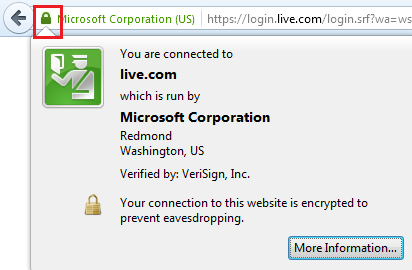
1. Open the system URL in Firefox using HTTPS protocol.
2. Click the lock icon on the upper-left side of the address bar.
3. Click **"More Information"** in the pop-up.
4. In the new window, click **"View Certificate"**.
5. Go to the **"Details"** tab.
6. Click the **"Export"** button.
7. Save the certificate on your local drive.
**Note**: If a certificate hierarchy is present, all certificates must be exported.
***
## Internet Explorer
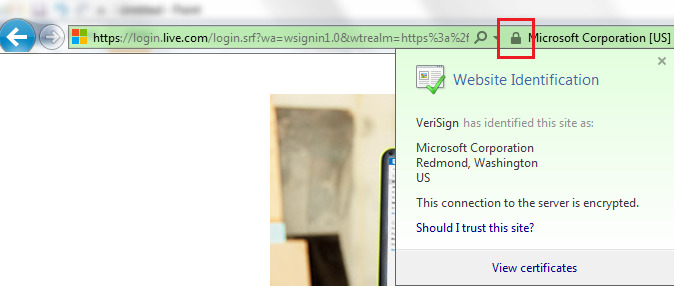
1. Open the system URL in Internet Explorer using HTTPS.
2. Click the lock icon on the right side of the address bar.
3. A pop-up will show **"Website Identification"**.
4. Click **"View Certificates"**.
5. Go to the **"Details"** tab and click **"Copy to File"**.
6. A wizard for copying certificates will appear.
7. Select the **DER encoded binary** option and click **Next**.
8. Click **Browse**, provide a filename, and save it to a local drive.
**Note**: Export all certificates in the chain if a hierarchy is present.
***
## Google Chrome
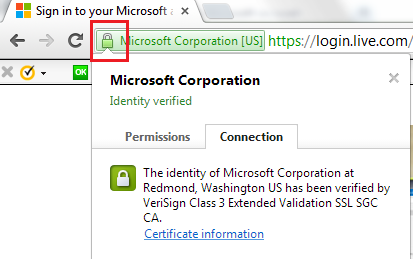
1. Open the system URL in Chrome using HTTPS protocol.
2. Click the lock icon on the upper-left of the address bar.
3. A pop-up will state **"Identity Verified"**.
4. Go to the **"Connection"** tab and click **"Certificate Information"**.
5. In the **"Details"** tab, click **"Copy to File"**.
6. A certificate export wizard will appear.
7. Select the **DER encoded binary** option and click **Next**.
8. Click **Browse**, set a filename, and save to a local drive.
**Note**: Export all certificates in the hierarchy if present.
***
## Import SSL Certificate through Console
Follow the steps below to import the downloaded certificate into space.vars.OIM:
1. Open **Command Prompt** with Administrator privileges (right-click `cmd.exe` → **Run as Administrator**).
2. Navigate to the folder:\
`<>\AppData\OpsHubData`
3. Run the following command:
```sh
keytool -importcert -alias <> -keystore <> -file "Certificate_Location\Certificate filename.extension"
```
**Example**:
```sh
keytool -importcert -alias httpscertifcate -keystore "C:\Program Files\OpsHub\AppData\OpsHubData\cacerts" -file "C:\Users\Administrator\Desktop\certificate.crt"
```
4. When prompted, enter the keystore password.\
**Note**: The default keystore password is `changeit`.
5. Type `yes` when asked: **Trust this certificate?**
6. Restart the OpsHub Server.
***
**Important Notes**:
* If any hierarchy is present in the certificate, all certificates must be imported.
* If multiple end system certificates are configured in space.vars.OIM and these certificates have different private key passwords, use the [**Certificate Password Encryptor Utility**](/manage/advanced-utilities/certificate-private-key-password-encryptor-utility.md) to encrypt and store the passwords.
* This utility creates a `cacert_config.properties` file containing all alias names and their encrypted passwords.
* You can use this file to load the certificates from the keystore in space.vars.OIM.
---
# Agent Instructions
This documentation is published with GitBook. GitBook is the documentation platform designed so that both humans and AI agents can read, navigate, and reason over technical content effectively. Learn more at gitbook.com.
## Querying This Documentation
If you need additional information that is not directly available in this page, you can query the documentation dynamically by asking a question.
Perform an HTTP GET request on the current page URL with the `ask` query parameter, and the optional `goal` query parameter:
```
GET https://docs.opshub.com/getting-started/installation/ssl-certificate-configuration.md?ask=&goal=
```
`ask` is the immediate question: it should be specific, self-contained, and written in natural language.
`goal` is optional and describes the broader end goal you are ultimately trying to accomplish on behalf of the user. GitBook uses it to tailor the answer towards what is most useful for that goal.
The response will contain a direct answer to the question and relevant excerpts and sources from the documentation.
Use this mechanism when the answer is not explicitly present in the current page, you need clarification or additional context, or you want to retrieve related documentation sections.