> For the complete documentation index, see [llms.txt](https://docs.opshub.com/llms.txt). Markdown versions of documentation pages are available by appending `.md` to page URLs; this page is available as [Markdown](https://docs.opshub.com/manage/administrator/log-viewer.md).
# Log Viewer
There are different logs maintained and stored under visitor.claims.unsigned.product**'s `\AppData\logs`** during the installation process and one log is maintained to track the ongoing processing in \space.vars.OIM.
| **Log File Name** | **Description** |
| ---------------------- | ------------------------------------------------------------------------------------------------------------------------ |
| DatabaseCreation.log | Log generated during Database Creation phase of Installation |
| Install.log | Log related to installation steps |
| OpsHubServer.log | Log generated while visitor.claims.unsigned.product Installation (like launching URL). |
| Service.log | Log generated while registering visitor.claims.unsigned.product Application as Service. |
| ConnectionModeConf.log | Log related to the Connection Mode Configuration. |
| OpsHub.log | visitor.claims.unsigned.product Application log file for all the migrations/integrations |
| OpsHubTFSService.log | Common log file for TFS API interaction |
| MCPServer.log | Logs related to MCP Server (Tool registerations, Tool Call requests, Tool Call responses) |
| Integrations | Folder contains the files for the logs of each migrations/integrations |
## Log Settings
System log helps to view logs for tracking backend activity in space.vars.OIM. Usually logs are useful when any failure or unusual behavior is detected in integration. System log can store logs in 5 different levels. Logs will capture information based on logging level set in System log.
To navigate to System log
* Click on Administration on top right corner.
* On Left panel click on Global log as shown below
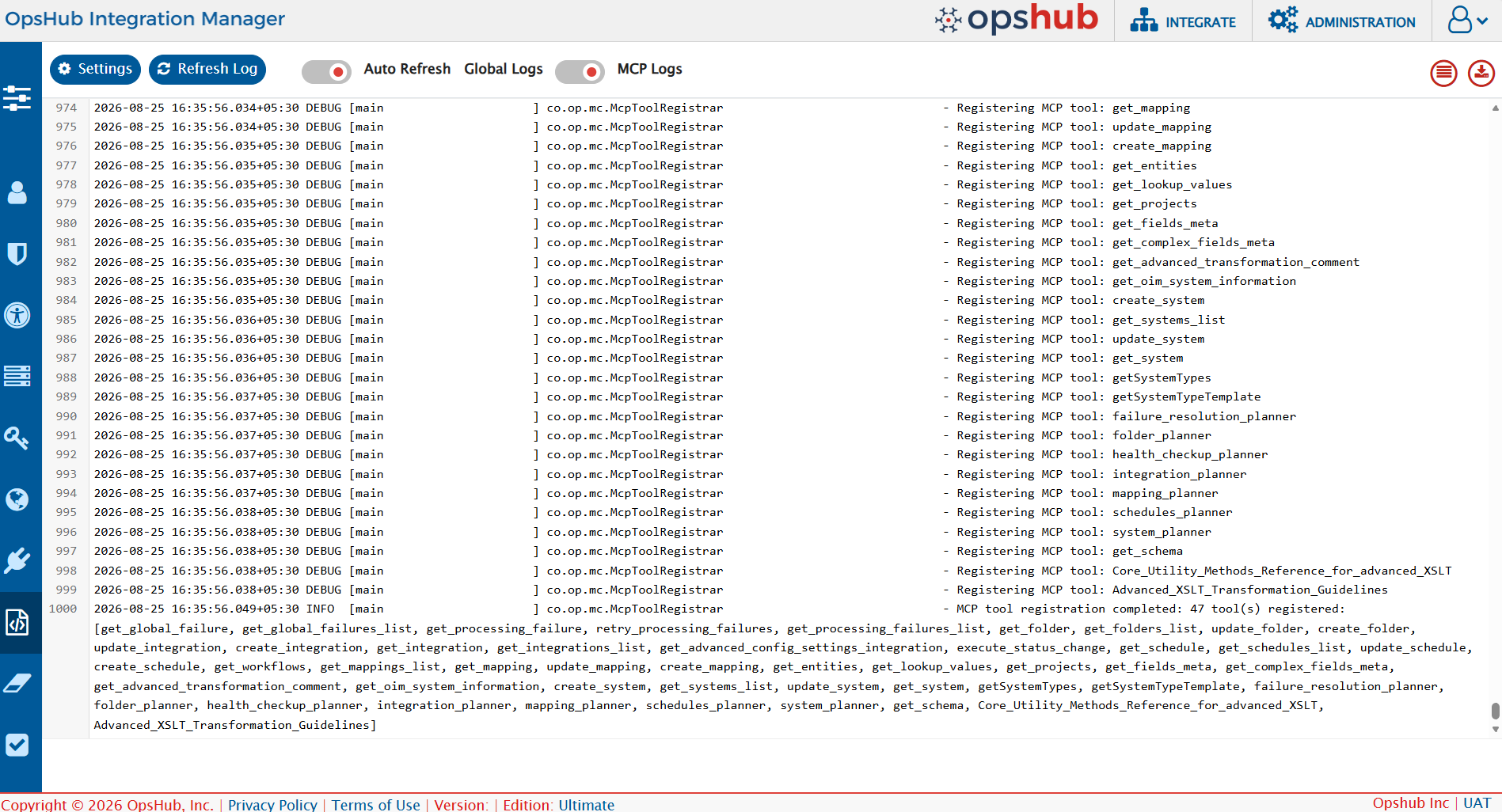
> **Note**: The Global Log screen also has an **MCP Logs** toggle to view MCP Server logs. Refer to [MCP Logs](#mcp-logs) below for details.
## Settings
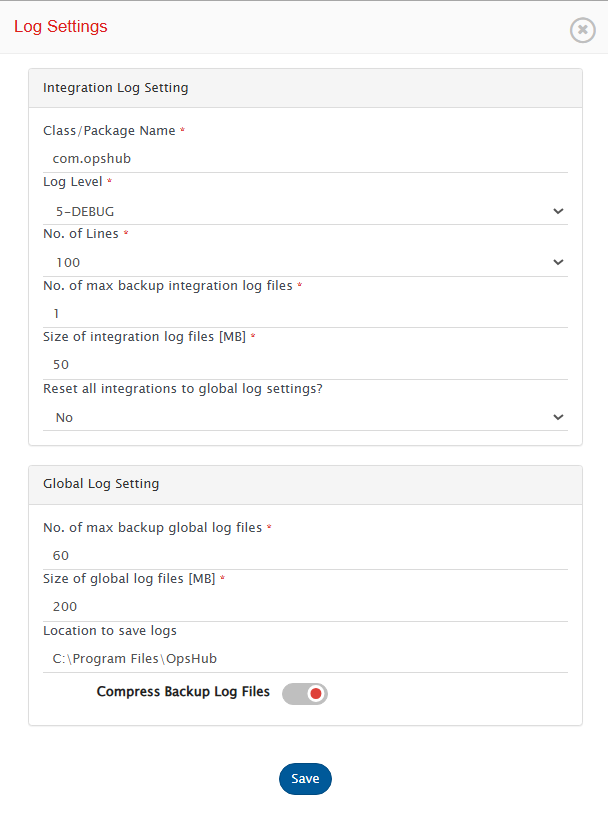
Click on Setting button on System log window to configure log settings as mentioned below
## Integration Log Setting
**Class/Package Name:** The name of the package or class for which logs need to be monitored. To monitor the logs within the 'com.opshub', package 'com.opshub' should be entered here.
**Log Level:** Represents the logging level which determines the amount of information recorded in the log files. By default, only Error logged in space.vars.OIM are logged in logs. The coverage of information increases in ascending order from logging level 1 to 6.
1-FATAL, 2-ERROR, 3-WARN, 4-INFO, 5-DEBUG, 6-TRACE
1-FATAL will log minimum amount of data, not sufficient for tracking integrations, while 6-TRACE will log maximum data, most useful for tracking integration but it also creates log sizes and creates multiple log files due to amount of information logged.
**No. of Lines:** Number of lines of logs to be displayed on the log viewer screen of the UI.
**No. of max backup log files:** Maximum number of backup files to store excluding the current log file used by the integration.
**Size of log file \[MB]:** Maximum size (in MB) that an integration log file can have before a new backup log file is created.
**Reset all integrations to global log settings?:** This option reverts all individual/custom log settings for each integration to the global/default log configuration defined at the system level. Any integration-specific overrides will be removed.
## Global Log Setting
**No. of max backup global log files:** Select the maximum number of backup files to store, excluding the current log file used by the UI logs.
**Location to save logs:** Location where log files should be saved, this should be configured if default directory where space.vars.OIM is installed do not have sufficient space to store log files. By default, logs are stored in default directory where space.vars.OIM is installed.
* If you change the default location to another location, all the older logs will be copied to the updated location, except for Tomcat Server logs. The new logs will be logged at the updated location.
**Size of global log files \[MB]:** Select the maximum size (in MB) that a UI log file can have before a backup log file is created.
**Compress Backup Log Files:** Enable the toggle button to store all the backup log files in **compressed(.zip)** format.
> **Note**: Following points should be considered:
* When the toggle button for 'Compress Backup Log Files' is enabled or disabled, ensure that no other application is using the backup files.
* When the toggle button for 'Compress Backup Log Files' is enabled or disabled, ensure to configure the values for 'No. of max backup global log files' and 'No. of max backup log files' appropriately.
## Refresh Log
**Refresh log** button on the top of window can be used to refresh logs once to display latest logged data.
**Auto Refresh Log** is a toggle button, it can be set on to automatically refresh logs in every few seconds (2-3 seconds).
## Export Logs
Click on Export logs button to export logs as zip file.
## Word Wrap
Click on Word Wrap to enable/disable the word wrapping behavior in the log viewer.
* Word wrap is enabled by default.
* When word wrap is enabled, long log entries are wrapped, making them easier to read without horizontal scrolling.
* When word wrap is disabled, log entries remain on a single line, preserving the visual alignment of timestamps and structure. However, horizontal scrolling may be needed.
## MCP Logs
To view MCP Server logs (tool registrations, tool call requests and responses), go to **Administration → Global Log** and switch on the **MCP Logs** toggle.
> **Note**: To view MCP logs, the user needs the same permission required for Global logs - **Server Management** admin permission with **Read** access. Super Administrator has this by default. If the current license does not include the MCP Server feature, the **MCP Logs** toggle is disabled.
The **Settings** and **Export Logs** options work the same way for MCP Logs as they do for Global logs - you can apply log settings and export/download MCP logs from the same screen.
---
# Agent Instructions
This documentation is published with GitBook. GitBook is the documentation platform designed so that both humans and AI agents can read, navigate, and reason over technical content effectively. Learn more at gitbook.com.
## Querying This Documentation
If you need additional information that is not directly available in this page, you can query the documentation dynamically by asking a question.
Perform an HTTP GET request on the current page URL with the `ask` query parameter, and the optional `goal` query parameter:
```
GET https://docs.opshub.com/manage/administrator/log-viewer.md?ask=&goal=
```
`ask` is the immediate question: it should be specific, self-contained, and written in natural language.
`goal` is optional and describes the broader end goal you are ultimately trying to accomplish on behalf of the user. GitBook uses it to tailor the answer towards what is most useful for that goal.
The response will contain a direct answer to the question and relevant excerpts and sources from the documentation.
Use this mechanism when the answer is not explicitly present in the current page, you need clarification or additional context, or you want to retrieve related documentation sections.
 > **Note**: The Global Log screen also has an **MCP Logs** toggle to view MCP Server logs. Refer to [MCP Logs](#mcp-logs) below for details.
## Settings
Click on Setting button on System log window to configure log settings as mentioned below
> **Note**: The Global Log screen also has an **MCP Logs** toggle to view MCP Server logs. Refer to [MCP Logs](#mcp-logs) below for details.
## Settings
Click on Setting button on System log window to configure log settings as mentioned below
 ## Integration Log Setting
**Class/Package Name:** The name of the package or class for which logs need to be monitored. To monitor the logs within the 'com.opshub', package 'com.opshub' should be entered here.
**Log Level:** Represents the logging level which determines the amount of information recorded in the log files. By default, only Error logged in
## Integration Log Setting
**Class/Package Name:** The name of the package or class for which logs need to be monitored. To monitor the logs within the 'com.opshub', package 'com.opshub' should be entered here.
**Log Level:** Represents the logging level which determines the amount of information recorded in the log files. By default, only Error logged in  **Refresh log** button on the top of window can be used to refresh logs once to display latest logged data.
 **Auto Refresh Log** is a toggle button, it can be set on to automatically refresh logs in every few seconds (2-3 seconds).
## Export Logs
**Auto Refresh Log** is a toggle button, it can be set on to automatically refresh logs in every few seconds (2-3 seconds).
## Export Logs
 Click on Export logs button to export logs as zip file.
## Word Wrap
Click on Export logs button to export logs as zip file.
## Word Wrap
 Click on Word Wrap to enable/disable the word wrapping behavior in the log viewer.
* Word wrap is enabled by default.
* When word wrap is enabled, long log entries are wrapped, making them easier to read without horizontal scrolling.
* When word wrap is disabled, log entries remain on a single line, preserving the visual alignment of timestamps and structure. However, horizontal scrolling may be needed.
## MCP Logs
To view MCP Server logs (tool registrations, tool call requests and responses), go to **Administration → Global Log** and switch on the **MCP Logs** toggle.
Click on Word Wrap to enable/disable the word wrapping behavior in the log viewer.
* Word wrap is enabled by default.
* When word wrap is enabled, long log entries are wrapped, making them easier to read without horizontal scrolling.
* When word wrap is disabled, log entries remain on a single line, preserving the visual alignment of timestamps and structure. However, horizontal scrolling may be needed.
## MCP Logs
To view MCP Server logs (tool registrations, tool call requests and responses), go to **Administration → Global Log** and switch on the **MCP Logs** toggle.
 > **Note**: To view MCP logs, the user needs the same permission required for Global logs - **Server Management** admin permission with **Read** access. Super Administrator has this by default. If the current license does not include the MCP Server feature, the **MCP Logs** toggle is disabled.
The **Settings** and **Export Logs** options work the same way for MCP Logs as they do for Global logs - you can apply log settings and export/download MCP logs from the same screen.
---
# Agent Instructions
This documentation is published with GitBook. GitBook is the documentation platform designed so that both humans and AI agents can read, navigate, and reason over technical content effectively. Learn more at gitbook.com.
## Querying This Documentation
If you need additional information that is not directly available in this page, you can query the documentation dynamically by asking a question.
Perform an HTTP GET request on the current page URL with the `ask` query parameter, and the optional `goal` query parameter:
```
GET https://docs.opshub.com/manage/administrator/log-viewer.md?ask=
> **Note**: To view MCP logs, the user needs the same permission required for Global logs - **Server Management** admin permission with **Read** access. Super Administrator has this by default. If the current license does not include the MCP Server feature, the **MCP Logs** toggle is disabled.
The **Settings** and **Export Logs** options work the same way for MCP Logs as they do for Global logs - you can apply log settings and export/download MCP logs from the same screen.
---
# Agent Instructions
This documentation is published with GitBook. GitBook is the documentation platform designed so that both humans and AI agents can read, navigate, and reason over technical content effectively. Learn more at gitbook.com.
## Querying This Documentation
If you need additional information that is not directly available in this page, you can query the documentation dynamically by asking a question.
Perform an HTTP GET request on the current page URL with the `ask` query parameter, and the optional `goal` query parameter:
```
GET https://docs.opshub.com/manage/administrator/log-viewer.md?ask=