> For the complete documentation index, see [llms.txt](https://docs.opshub.com/llms.txt). Markdown versions of documentation pages are available by appending `.md` to page URLs; this page is available as [Markdown](https://docs.opshub.com/upcoming-release/connectors/azure-devops.md).
# Azure DevOps Server/Services/Version Control
## Prerequisites
### Privileges for User
These are the common privileges for **user**. To know specific privileges required for user, refer to [User Privileges](https://github.com/OpsHubProduct/OpsHub-Documentation/tree/DevSpace/docs/.gitbook/includes/tfs-prerequisites.md#user-privileges).
* Add a user in Azure DevOps that is dedicated for visitor.claims.unsigned.product. This user shouldn't perform any other action from Azure DevOps user interface. Please make sure this user or Service Principal has a unique display name across the instance.
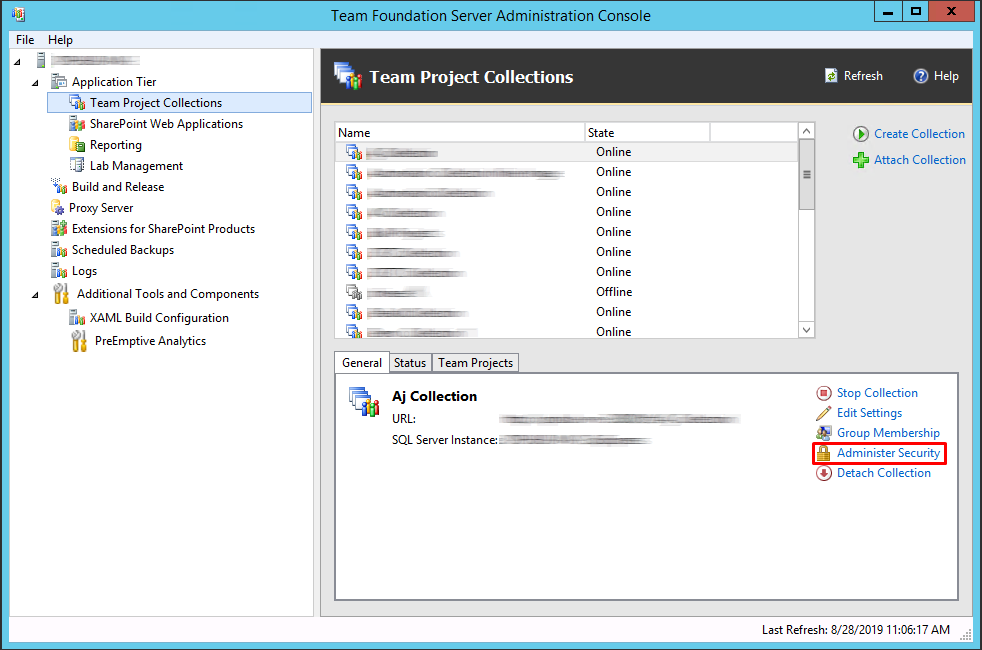
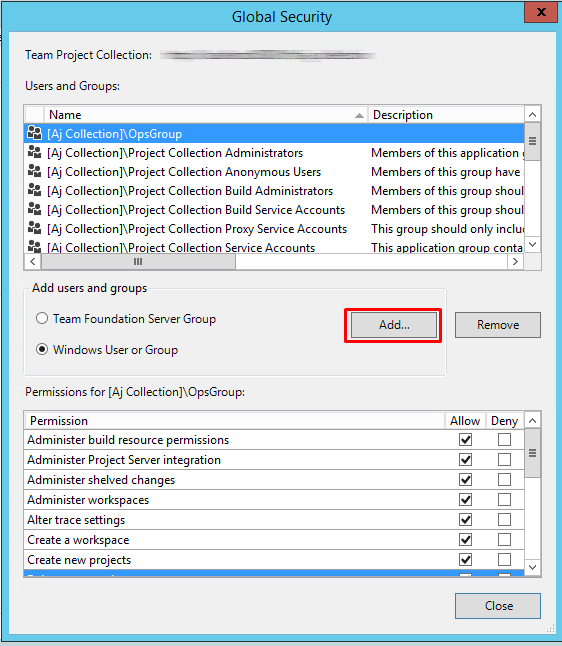
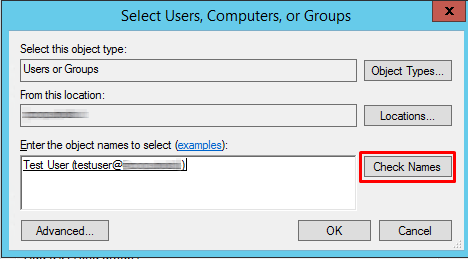
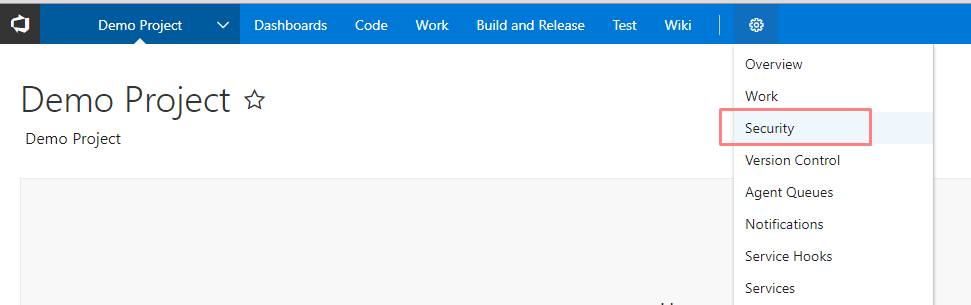
* User must be a member of **Project Administrators** group for work item entities and Build entity migration. For Meta entities like Group, User entities, integration user must be a member of **Project Collection Administrators** group or **Project Administrators** group. Refer section [How to Add User or Service Principal in group](/upcoming-release/connectors/azure-devops.md#how-to-add-user-or-service-principal-in-group).
> **Note**: If integration user is not a member of **Project Collection Administrators** group, collection level permissions will not be synchronized.
* **Bypass rules on work item updates** in Boards section of the permissions must be **Allow** to impersonate the comment author.
> If you are using Service Principal Authentication, the steps described above for user will be applicable for Service Principal Authentication. For more information refer to [Service Principal Privileges](https://github.com/OpsHubProduct/OpsHub-Documentation/tree/DevSpace/docs/.gitbook/includes/tfs-prerequisites.md#service-principal-privileges).
### User Privileges
* User can use **Basic** Authentication or **Personal Access Token** authentication method to communicate with API for Azure DevOps.
* In case of **Personal Access Token** authentication, please check [Personal Access Token Permission](https://github.com/OpsHubProduct/OpsHub-Documentation/tree/DevSpace/docs/.gitbook/includes/tfs-prerequisites.md#personal-access-token-minimum-required-permission) section for the required permission details. Personal Access Token is supported for Team foundation Server On-Premise (TFS instance with **HTTPS** installation only) with version 2017 and above and Azure DevOps.
* For On-Premises deployment, either Basic authentication or PAT authentication needs to be enabled on server. Please refer to [Internet Information Services(IIS) Configurations](https://github.com/OpsHubProduct/OpsHub-Documentation/tree/DevSpace/docs/.gitbook/includes/tfs-prerequisites.md#internet-information-services-iis-configurations) to learn more about enabling the Basic/PAT authentication in IIS.
* In case user want to synchronize User type fields of Azure DevOps with any other system with default visitor.claims.unsigned.product generated mapping, it is necsessary that all users have their preferred e-mail address set in Azure DevOps.
* The user for both the source and target systems requires a minimum access level of **Basic + Test Plans** to synchronize both query-based and requirement-based suites. Additionally, the user of the target system must also have at least **Basic** access to synchronize new tags. Refer to the [Access Level](https://docs.microsoft.com/en-us/azure/devops/organizations/security/access-levels?view=azure-devops) documentation to know more about this access level or subscription for the user. Otherwise, Test Suite synchronization will be resulted in to job error/sync failure as "You are not authorized to access this API. Please contact your project administrator".
* If your Azure DevOps is configured with SSO, then the above mentioned privileges and permissions are sufficient.
* If Bypass Rules is set to **Yes** in the system configuration, make sure the user or Service Principal has the **Bypass rules on work item updates permission** set to Allow at the project level in Azure DevOps.
#### Personal Access Token Minimum Required Permission
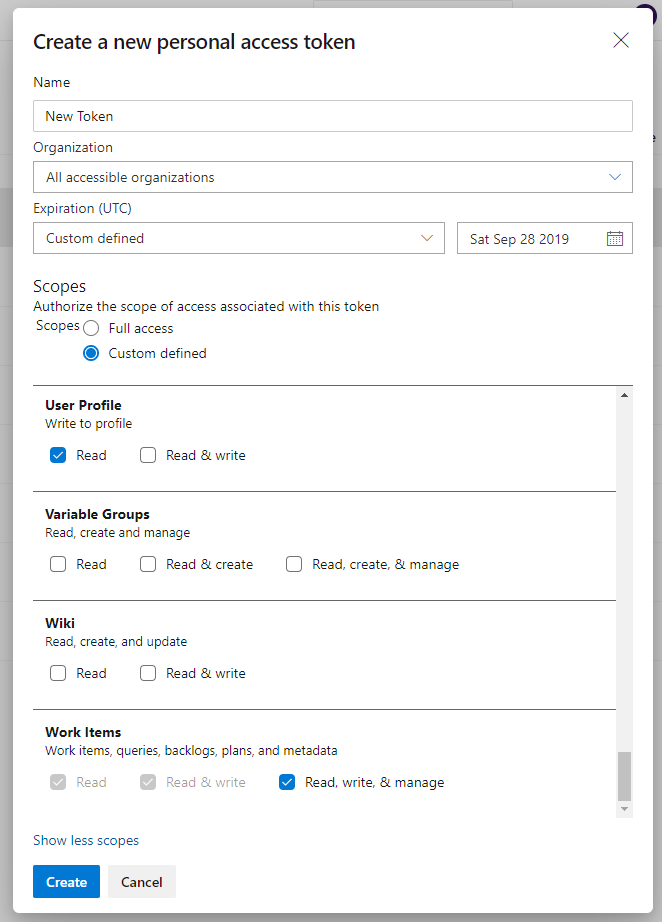
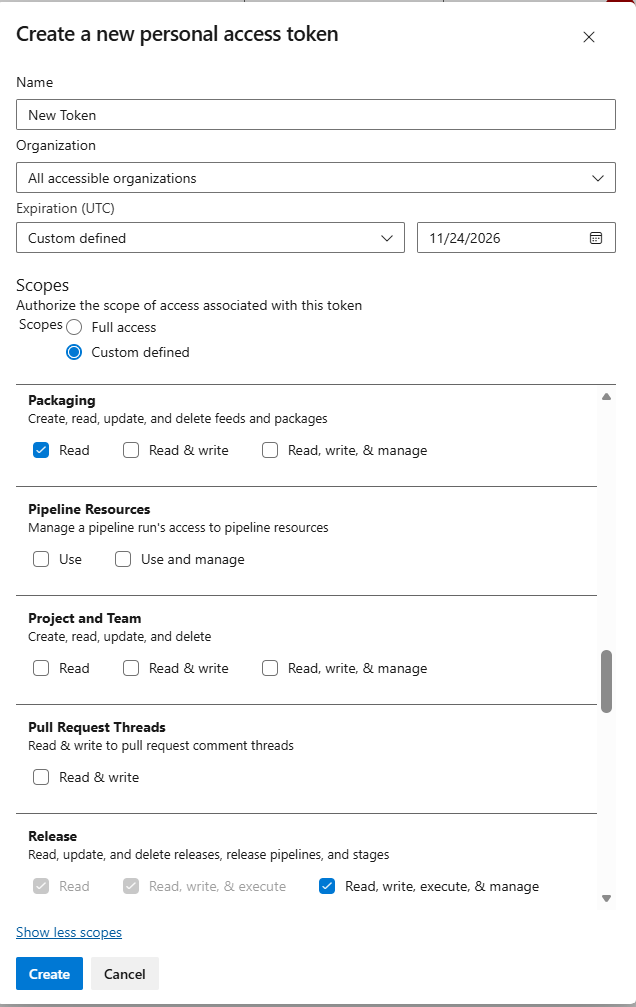
Refer [Create Personal Access Token](/upcoming-release/connectors/azure-devops.md#create-personal-access-token) section to learn about how to create Personal Access Token.
**For On-Cloud Deployment**
* For On-Cloud deployment, Personal Access Token should be created with **Full access** scope for entities such as Test Plan, Test Result, Test Suite, Test Run, Build, Team, User, Group & Permission. For other entities, user can create a Personal Access Token with **Full access** scope if possible, otherwise user can create Personal Access Token with **Custom defined** scope with essential permissions specified below.
**Least required permissions for all entity types (except Version Control and Git)**
| **Permission Types** | **Required Permission Values** |
| ----------------------------- | ------------------------------ |
| Identity | Read & Manage |
| Member Entitlement Management | Read & Write |
| Project and Team | Read, Write & Manage |
| Service Connections | Read, Write & Manage |
| Work Items | Read, Write & Manage |
| Graph | Read |
**Additional permissions for specific entities (except Version Control and Git)**
| **Entity Types** | **Permission Types** | **Required Permission Values** |
| ------------------------------------------ | -------------------- | ------------------------------ |
| Build | Build | Read |
| Test Case, Shared Parameters & Shared Step | Test Management | Read & Write |
| Dashboard & Widget | Tokens | Read & manage |
**Permissions required for Version Control and Git**
| **Permission Types** | **Required Permission Values** |
| -------------------- | ------------------------------ |
| Code | Full |
| Identity | Read & Manage |
| Project and Team | Read, Write & Manage |
| Security | Manage |
**Permissions required for Pipeline**
| **Permission Types** | **Required Permission Values** |
| -------------------- | ------------------------------ |
| Build | Read & Execute |
| Secure Files | Read |
| Task Groups | Read |
| Variable Groups | Read & Create |
| Agent Pools | Read |
> **Note**: In case build pipeline is created with TFSGit as source code, you will need to provide additional permission for Git (as specified in Additional permissions for specific entities) data while creating Personal access token.
**Permissions required for Release Pipeline**
| **Permission Types** | **Required Permission Values** |
| --------------------------- | ------------------------------ |
| Release | Read, Write, Execute, & Manage |
| Agent Pools | Read & Manage |
| Service Connections | Read, Query, & Manage |
| Variable Groups | Read & Create |
| Work Items (Query) | Read, Write, & Manage |
| Build | Read & Execute |
| Packaging (Azure Artifacts) | Read |
| Deployment Groups | Read & Manage |
| Secure Files | Read |
**For On-Premises Deployment**
* Personal Access Token should be created with **Full access** scope for all entities if user is using On-Premises deployed server.
### Service configuration
visitor.claims.unsigned.product requires this service to communicate with the Azure DevOps. It acts as a translation layer between Azure DevOps and visitor.claims.unsigned.product and must be configured for synchronization with Azure DevOps.
### Service pre-requisites
* Operating System (Tested On): Windows Server 2008 R2, Windows Server 2012, Windows Server 2012 R2, Windows Server 2016, Windows 7, Windows 8, Windows 8.1, Windows 10
* It is recommended to install Service on a machine having quad-core processor and minimum 4 GB RAM.
* Required disk space for the service depends upon the data size of the source control data. It is recommended to have disk space greater than the total data size of source control.
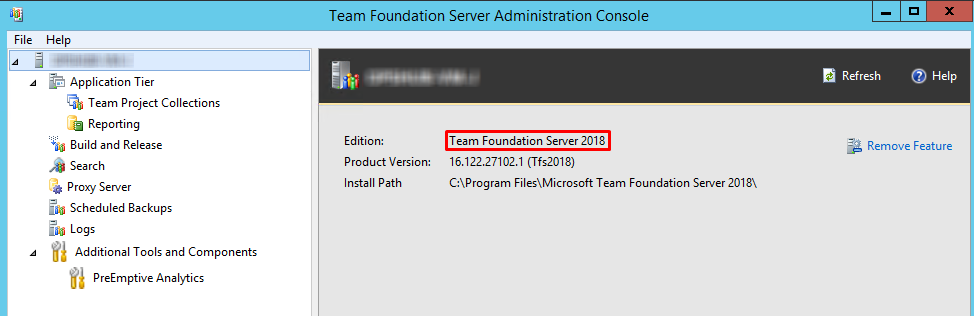
* It is recommended to install Service on different machine where Team Foundation Server is not installed.
* The visitor.claims.unsigned.product Service requires the machine to have .NET framework 4.7.2 or higher installed on it.
> **Note**: Refer to the table below to check which entity types require this pre-requisite. A check mark indicates a mandatory pre-requisite, while a cross mark indicates an optional one.
| **Entity Type** | **Azure DevOps Services** | **Azure DevOps Server (version >= 2020)** | **Azure DevOps Server (version < 2020)** |
| ------------------------------------------------------------------- | ------------------------- | ----------------------------------------- | ---------------------------------------- |
| **Work Items** | ❌ | ❌ | ✅ |
| **Test entities (Test Suite, Test Plan, Test Run and Test Result)** | ❌ | ❌ | ✅ |
| **Area and Iteration** | ❌ | ❌ | ✅ |
| **Group, Team and User** | ❌ | ✅ | ✅ |
| **Git Commit Information** | ❌ | ❌ | ✅ |
| **Pipeline** | ❌ | ❌ | ✅ |
| **Build** | ❌ | ❌ | ❌ |
| **Other entities** | ✅ | ✅ | ✅ |
Follow the steps given below for installation:
* Navigate to the path `\Other_Resources\Resources`.
* Extract the `OpsHubTFSService.zip` package.
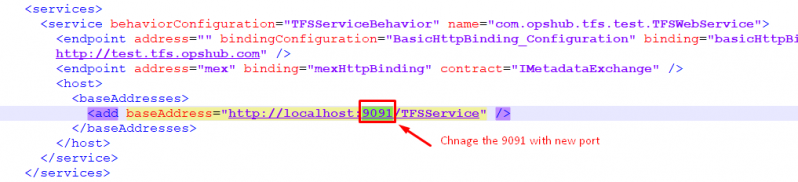
* Service will be installed on port **<9090>** by default. Please check the port available for service which you configure for the service (Default port is <9090>). Refer section [How to change the port of service](/upcoming-release/connectors/azure-devops.md#how-to-change-the-port-of-service) to learn how to change the default port of service.
* Open the command prompt as *Run As Administrator* and navigate to the extracted folder in which the `registerTFSWCFService.bat` is placed and execute `registerTFSWCFService.bat`.
* Once the command is executed, go to Windows Services, and look for a service with the name **OpsHubTFSService**. Check if the service has started or not. If it has not started, then start the service.
* Test the web service by opening this URL in browser: `http://:/TFSService`.\
E.g. `http://localhost:9090/TFSService`. For Troubleshooting, refer [Service Troubleshooting](/upcoming-release/connectors/azure-devops/service-troubleshooting.md) section.
In case the machine on which visitor.claims.unsigned.product installed is behind the proxy (network proxy), then perform the steps mentioned in the [Proxy settings](/upcoming-release/manage/administrator/proxy-setting.md) section.
It is also required to configure the proxy settings for visitor.claims.unsigned.product Service, refer to [Proxy settings](/upcoming-release/connectors/azure-devops.md#proxy-settings-for-the-service) in appendix section for the visitor.claims.unsigned.product Service to learn the configuration steps.
### Internet Information Services(IIS) Configurations
### For Team Foundation Server \[TFS On-Premise]
* **When TFS System is to be configured with 'Basic Authentication' in** visitor.claims.unsigned.product
* If TFS Server Version is >=2015, the IIS setting for **Basic Authentication** needs to **Enable**, for the steps to enable basic authentication on IIS, please refer [this](https://docs.microsoft.com/en-us/iis/configuration/system.webserver/security/authentication/basicauthentication#how-to)
* **Note**: If we use Basic Authentication and this option is **Disabled** in the IIS Manager, then you might receive a processing failure of 'Unauthorized Access'.
* **When TFS System is to be configured with Personal Access Token in** visitor.claims.unsigned.product
* The IIS setting for **Basic Authentication** needs to be kept **Disabled**.
* **Note**: If we use Personal Access Token and **Basic Authentication** option is **Enabled** in the IIS Manager, then you might receive a processing failure of 'Unauthorized Access'.
* Please refer [this](https://docs.microsoft.com/en-us/azure/devops/integrate/get-started/authentication/iis-basic-auth?view=azure-devops) link for more information
## System Configuration
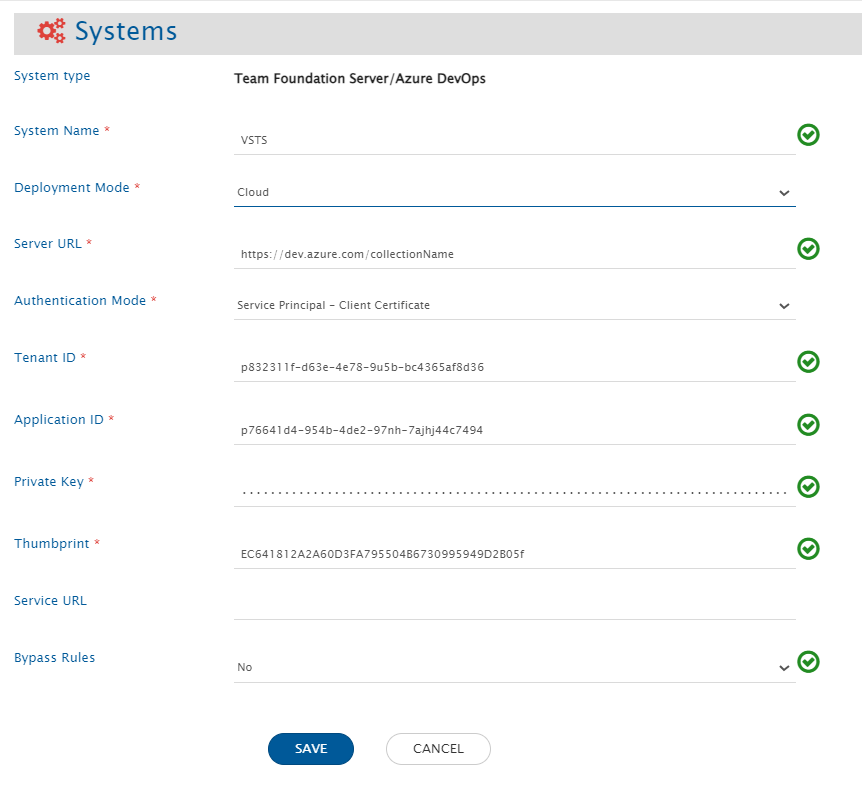
Before you continue to the integration, you must first configure Azure DevOps.
Click [System Configuration](/upcoming-release/integrate/configure-integrations/system-configuration.md) to learn the step-by-step process to configure a system.
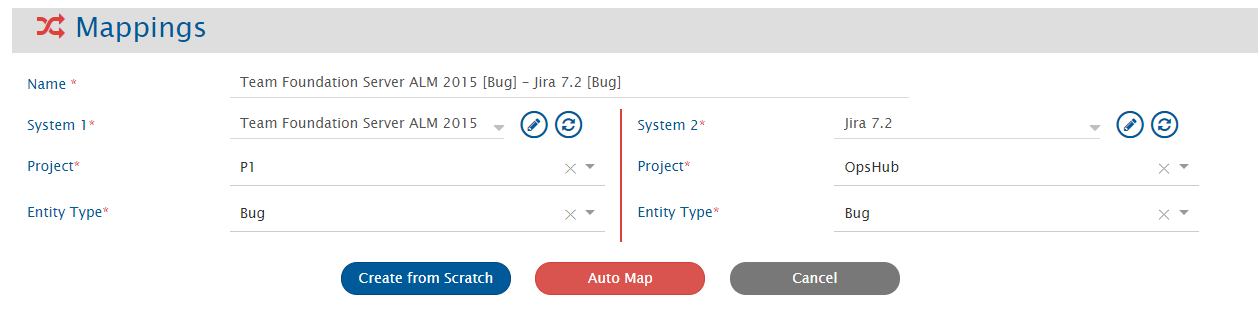
Refer the screenshot given below for reference.

space.vars.OIM to convert Shared Steps to single level steps. *Given below is a sample advanced mapping from TFS to Jira to synchronize Steps field \[having "Shared Steps"] of Test Case entity to Zephyr Teststep field of Test entity along with formatting:*\*
```xml
```
### Test Point Advance Mapping Configuration
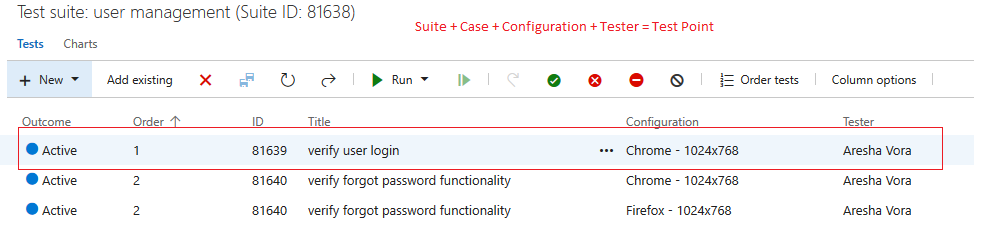
* **Test Point** is an association between Test Suite and Test Case with configuration and tester. This association is synchronized by configuring the **Test-Case linkage** with Test Suite integration.
* The **Advance Mapping** required for synchronizing configuration/tester with **Test-Case linkage** is given in the snippet below:
```xml
- Test-Case Linkage
- Tested By
- Test Suite Child
- Test Case
- Test Suite Parent
- Tests
- Test Case
- Test Suite
- Test Result
-
-
-
```
* To preserve **Test Case order**, the `OH Enable Rank` field must be configured in the Test Suite mapping.
### Lookup Fields Configuration
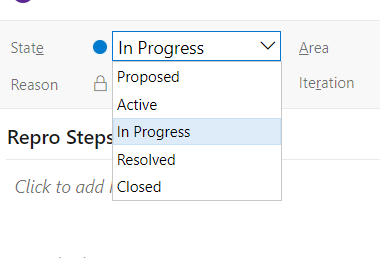
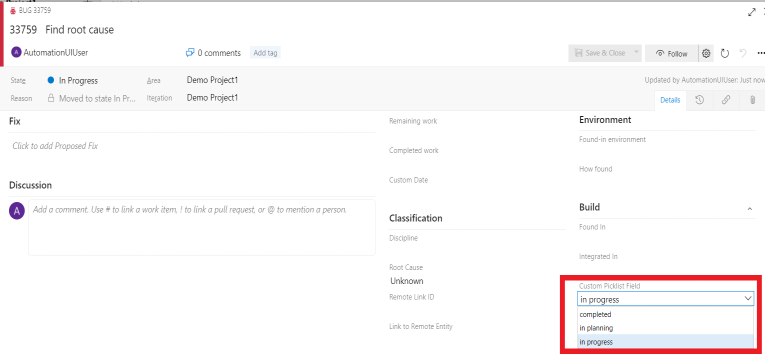
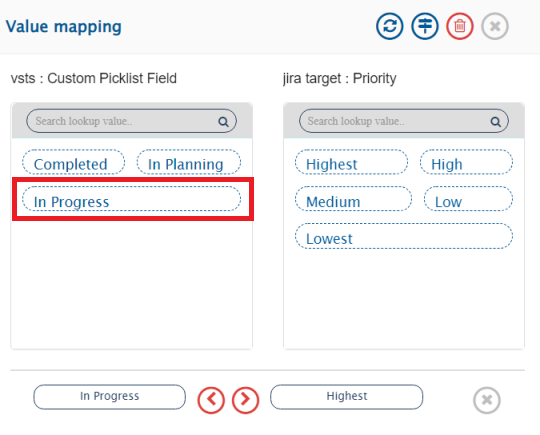
* In Azure DevOps, if any lookup field contains the value which is same as one of the values of "State" field \[case is not same], the lookup field value will not sync to the target. For example, if one of the states is "In Progress" and lookup field value is also "in progress", then the "In Progress" (instead of "in progress") will be present in the mapping of lookup field. Hence, the lookup field value "in progress" will not sync to the target.
> **Note**: For the above mentioned case, if the lookup field of Azure DevOps is mapped to the mandatory field of the target, the processing failure will be generated during the synchronization.
* The images below show that value list of State field and one of the lookup fields. In both the lists, the "In progress" option is common but alphabetical case is different.
* The images below depicts the sample mapping which will be generated, when the lookup field contains the "in progress" option. The "In Progress" value is visible in the mapping.
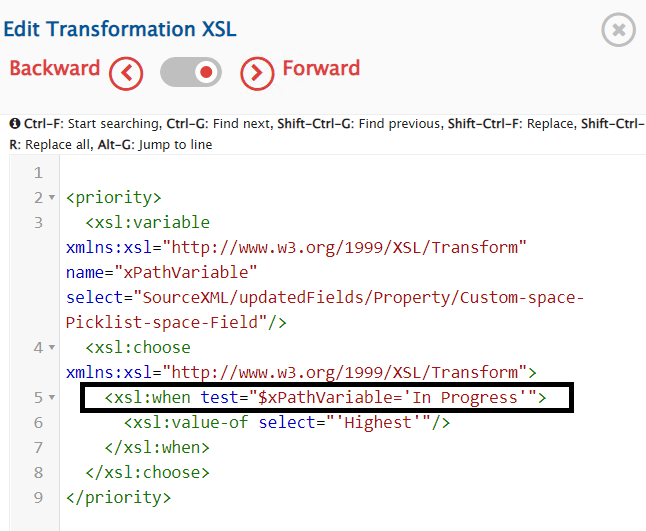
* Corrective actions to be taken to configure the advanced mapping and replace the current value in the mapping with the actual field value of the lookup field of Azure DevOps. For example, to sync the lookup field value "in progress" to the target, update the advance XSLT as given below:
```xml
```
### Relationship Configuration
#### Git Commit/Branch Link Configuration
* To synchronize **Git Commit/Branch** links of an entity to other systems, the Commit/Branch links need to be mapped in space.vars.OIM relationship mapping.
* When the **Git Commit/Branch** links are mapped in space.vars.OIM:
* While synchronizing a workitem, if any GIT artifact's project or repository is not found in the target system, this artifact will get skipped by `space.vars.OIM`.
* If any GIT artifact is missing in target repository, workitem's artifact link will be synced with the missing object. On syncing delta changes, those links will be re-establised with an artifact object if it is found in target repository.
* To sync delta changes from source repository to target repository, refer to this link for more details: .
* For syncing the link **Git Commit/Branch** with a workitem to target \[TFS/VSTS] systems, you must import source repository into target repository to bring all the Git commit and branch links into target repository.
* If Commit/Branch link has a different project name or a different repository name:
* Provide the respective project's name or repository's name using advance XSLT.
* For example, if source commit is found in project, 'project-xyz' and repository, 'repository-xyz', corresponding in target this commit is found in project, 'project-abc' and repository, 'repository-abc'. Therefore, to sync commit link of an entity, update the advance XSLT from this:
```xml
```
to this:
```xml
```
### Mapping for Entity mention field
* When Team Foundation Server ALM/Azure Devops service is configured as source system in the integration and its field/comment type is rich text (HTML), then the entity mention synchronization is supported.
* Click on [**Known Behaviors & Limitation**](#known-behaviors--limitations) to know about entity mention sync limitation for this system.
* Click on [Rank configuration](/upcoming-release/integrate/configure-integrations/mapping-configuration.md#configuration) to know more about entity mention mapping and synchronization behavior in general.
### Mapping for Soft Delete Configuration
* When Team Foundation Server is the target system, the Soft delete operation is performed by default in the synchronization of the [Source Delete event](/upcoming-release/integrate/advanced-sync-scenario/source-delete-synchronization.md).
* After the Soft Delete operation is performed by space.vars.OIM in Team Foundation Server, the entity will be deleted in the Team Foundation Server, and it can be found in the "Recycle bin" of the corresponding project, where it existed earlier.
* To only enable the logical delete operation in the target, "OH Soft Delete" field shall be mapped with the default value "No" in the [Delete Mode](/upcoming-release/integrate/configure-integrations/mapping-configuration.md#delete-mode) mapping.
> **Note**: The above behavior is supported only for Workitems. Additionally it is supported from Team Foundation Server 2017 and above.
### Kanban Board Field Configuration
* To sync the Kanban Board field, advanced mapping is required in space.vars.OIM.
* Below is the sample advanced mapping for syncing Kanban Board field between Azure DevOps to Azure DevOps systems.
```xml
```
### Build Pipeline Variables Advance Mapping Configuration
* To sync variables of pipeline, advance mapping is required in space.vars.OIM.
* Below is the sample advanced mapping for syncing Variables field:
```xml
```
#### Comments Field Advance Mapping Configuration for Build Pipeline Entity
* By default, the comments field is synchronised, as it is, for each revision in the pipeline entity.
* If there is a need to add actual revision time and user email with each revision comment, the following XSLT can be used:
```xml
```
### Variable Groups in Pipeline
* If you are **upgrading to** space.vars.OIM **version 7.214 or later**, the **existing advanced workflow will remain associated** with the Build Pipeline or Release Pipeline integrations after the upgrade.
* After the upgrade, **if there are no processing failures and the integrations are in a clean state**, you may **switch to the Default Integration Workflow**. To associate the Default Integration Workflow, refer to the [Workflow Association](/upcoming-release/integrate/configure-integrations/integration-configuration.md#workflow-association) section.
* For **fresh installations of version 7.214 or later, no advanced workflow configuration is required**.
* Reason: From version **7.214 onwards, Variable Groups are supported separate entities** and are handled as **reference fields in pipeline mappings**, eliminating the need for advanced workflow logic.
## Integration Configuration
In this step, set a time to synchronize data between Azure DevOps and the other system to be integrated. Also, define parameters and conditions, if any, for integration. Click [Integration Configuration](/upcoming-release/integrate/configure-integrations/integration-configuration.md) to learn the step-by-step process to configure integration between two systems.

space.vars.OIM lets you decide whether content should be written in HTML or Markdown when syncing to Azure DevOps. This configuration option in space.vars.OIM allows you to decide whether a rich text field should be written in HTML or Markdown syncing when Azure DevOps Service as a Target system.
* Steps to Configure
* To configure this rich text field format, please navigate to 'Override parameters for write operations(Destination)' in Entity level advance configurations.
* As shown in below image, please select either HTML or Markdown as the target format in field Rich Text Field Format.
> **Note**: If no format is selected, the content will be written in HTML by default.
* **Best Practices**
* Keep the format consistent: Once you choose HTML or Markdown, avoid changing it later. Switching formats after writing data can cause display/rendering or sync issues.
* Use HTML for complex formatting: As per the [Microsoft Guidelines](https://devblogs.microsoft.com/devops/markdown-support-arrives-for-work-items/#existing-work-items), If your content has more complex HTML formatting, its recommended to keeping it in HTML only. **Important**
* Remote Link and Id field Configuration: When using Azure DevOps Services as the source system, it's recommended not to change the format of the field used for remote links. By default, space.vars.OIM uses HTML format to write the remote link.
### Meta Entities
space.vars.OIM supports migration of meta-entities including **Users, Groups, Teams, Areas, Iterations & Security Permissions** for Team Foundation Server and Azure DevOps.
Supported versions of Team Foundation Server are listed in the [Systems Supported List](/upcoming-release/systems-supported.md).
#### Users
* **Pre-requisite:** Same set of users must exist in both source and target systems and domain names must match for successful migration.
* **Behavior:** Users are not created in the target system but rather linked to their equivalents. This enables space.vars.OIM to use source user equivalents during other migrations (e.g., assign work-items, impersonation).
* **Known Issues:** If a user exists in the source but not in the target, the migration user (i.e., the integration user) will be assigned to all related changes.
#### Groups
* **Pre-requisite:** Source and target should either use the same Active Directory or have AD groups with identical names.\
AD groups in the source must exist as members in at least one native group in the target.
Example target lookup query: `GroupName=@Name@&Requestor=@Requestor@`
* **Behavior:**
* Default Collection/Project group(s) is not duplicated on the target side. They will be auto-detected, and their hierarchy and permission will be updated as per source. 'Members' and 'Member of' relationships will be set as source.
* For Collection Level Group synchronization, the integration user must be a '''Project Collection Administrator''' to sync 'Members' and 'Member of' relationships. Otherwise, synchronization may fail due to insufficient permissions.
* **Active Directory Groups:**
* Active directory group(s) will not be duplicated or created on the target side due to unavailability of the APIs.
* They will be auto-detected, and their hierarchy and permission will be updated as per source via visitor.claims.unsigned.product.
* If groups are missing in the target:
* **Same AD:** Add AD groups to a native group in the target.
* **Different AD:** Create groups with matching names in the target AD and assign them as needed.
#### Teams
* **Behavior:** Collection/Project teams are not duplicated. Hierarchy and permissions are updated based on the source system.
**Areas & Iterations**
* **Behavior:** Default project-level nodes are not duplicated. Existing nodes are updated. Hierarchical Area and Iteration nodes are created to match the source.
### Security Permissions
* **Pre-requisite:** The migration user must have permissions to read security namespaces and user/group permissions in the source.
* **Behavior:** Permissions are migrated for:
* Collection level (Users & Groups)
* Project level (Users, Groups & Teams)
* Area & Iteration nodes
* Version Control paths
* Build definitions
If a security namespace is missing in the target, related permissions are ignored.
* **Known Issues:**
* Permissions with value `Not Set` in source overwrite target values.
* To retain existing values in target, remove the `Permissions` field from mapping configuration.
* The following collection-level permissions are not supported:
* Delete team project (unless at user/group level)
* Delete team project collection
### Widgets
Widgets can refer to various items like Queries, Teams, Projects. To resolve the correct references in the target:
* A **JSON input** is required that defines:
* Referenced item types per widget
* Their location within the API response
If not provided, space.vars.OIM uses a default JSON.
#### JSON Structure Overview
The JSON input consists of the following sections:
* **generic**: Defines a set of default reference rules for widgets that do not have specific configurations in the JSON input. Each object in this section contains: **referenceTypes** (array of strings): Specifies the types of referenced items (e.g., "Query", "Team"). Other than the entities synced by space.vars.OIM, it can have following values - Release (for Release Pipelines), Project, Repository (for Git Repos). **jsonPath** (string): A valid JSON Path expression to locate values in the API response. Either **jsonPath** or **regex** must be provided. **regex** (string): A regular expression to search for referenced IDs within the API response. When combined with **jsonPath**, the search is confined to values found at the specified path.
* **widgetSpecific**: Defines widget-specific reference rules for certain widget types. Each object in this section contains: **widgetType** (string): Specifies the widget type, corresponding to the contributionId key in the widget API response. **referenceInformation** (array of objects): A list of reference rules specific to this widget type. Each object in this list contains:
* **referenceTypes** (array of strings): Same as described above.
* **regex** (string): Same as described above.
* **jsonPath** (string): Same as described above.
> **Note** :Using jsonPath is preferred for accurate transformation of referenced IDs.
A sample snippet of JSON is given below:
```json
{
"generic": [
{
"referenceTypes": [
"Team",
"Query",
"Project"
],
"regex": "[0-9a-fA-F]{8}\\-[0-9a-fA-F]{4}\\-[0-9a-fA-F]{4}\\-[0-9a-fA-F]{4}\\-[0-9a-fA-F]{12}"
}
],
"widgetSpecific": [
{
"widgetType": "ms.vss-dashboards-web.Microsoft.VisualStudioOnline.Dashboards.QueryScalarWidget",
"referenceInformation": [
{
"referenceTypes": [
"Query"
],
"jsonPath": "$.queryId"
}
]
}
]
}
```
### Release Pipeline
* space.vars.OIM supports Release Pipeline bidirectional synchronization along with all the dependent Azure DevOps artifacts such as agents, pools, service connections, variable groups, and tasks, ensuring that the complete release execution context is synced accurately.
* To understand the pre-requisites for enabling Release Pipeline synchronization, refer to the section: [Release Pipeline Pre-Requisites](#release-pipeline-entity)
* For detailed steps on configuring the Release Pipeline integration, refer to the section: [Release Pipeline configuration](/upcoming-release/knowledge-resource-index/integration-combination-examples/azure-devops-server-and-azure-devops-services-releasepipeline-integration.md)
## Known Behaviors & Limitations
### Common
* For the user type of fields synchronization, make sure all the users have signed in the organization at least once or are assigned to any work-item.
* Reason: ADO\TFS API Limitations.
* The above behavior has been confirmed with Microsoft. Please refer to the thread for more information:
* For Team Foundation Server as the target system, if the attachment file name contains **Windows invalid file name characters** (`<`, `>`, `:`, `"`, `/`, `\`, `|`, `?`, `*`), then the invalid Windows characters will be replaced by an underscore (`_`).
* Reason: ADO\TFS API Limitations.
* To avoid this replacement, it is recommended to follow file naming conventions as mentioned in [Microsoft File Naming Conventions](https://docs.microsoft.com/en-us/windows/win32/fileio/naming-a-file#naming-conventions).
* For the rich text type of field (HTML) or comments:
* Entity mention synchronization is not supported for entity type(s) Test Suite, and Test Plan.
* Entity mention synchronization is not supported for the Team Foundation Server ALM with version < 2015.
* Default entity mention synchronization option is **Sync source id**. So, migration will migrate source mentioned entity as source id in target.
- Refer ["**Mention Sync Option**"](/upcoming-release/integrate/configure-integrations/mapping-configuration.md#mention-configuration) for more details.
* Following fields are read-only, and can be synced from Azure DevOps to other systems.
* Area Id, Attached File Count, Authorized As, Authorized Date, Board Lane, External Link Count, Hyperlink Count, ID, Iteration Id, Node Name, Related Link Count,Rev, Revised Date, Team Project, Work Item Type, Board Column, Board Column Done
* If a pull request is mentioned in any rich text field or comment of work items or test entities, it may lead to processing failures. In such cases, update the mention settings to use the **Source entity id**.
## Specific Authentication Mode
### Service Principal - Client Secret & Service Principal - Client Certificate
* When these authentication modes are selected, the supported entity types are: Work Items, Build, Pipeline, Areas, Iterations, Test Entities (Test Plan, Test Suite, Test Run, Test Result), Shared Parameter, Git Commit Information.
* Reason: At present, only these entities use REST APIs. Other entities make use of both REST APIs and the Object Model.
* > **Note**: Entities not yet supported with Service Principal authentication: Pull Request, Query, Dashboard, Widget, User, Group, and Team.
* The User Mention functionality can be used to mention User, but it does not work for Service Principal.
* Reason: Azure DevOps does not allow to mention **Service Principal** on UI.
* > **Note**: When Azure DevOps is configured as the target system, it is recommended that the default user is mapped instead of the Service Principal for **User Mention**. If the Service Principal is mapped, it will not result in failure. However, an email will be sent by Azure DevOps, saying "**ServicePrincipalName** cannot be mentioned. The identity is not configured to receive notifications.
### Work Item Entities (Bug, User Story, Task, etc)
1. Inline images that are added using the Microsoft's "Test & Feedback" tool and identity images (user profile images) will not be synchronized.
2. When TFS\ADO is a source end point, any change performed in link/relationship among entities, will be synchronized to target with next Update on those entities.
* Reason: ADO\TFS API Limitations.
3. If link/relationship's comment is updated in TFS/ADO, then this comment update will not be synchronized to the target system.
* In above mentioned case, the processing failure will be observed in the visitor.claims.unsigned.product.
4. Links of 'Build', 'Integrated in Release', 'Pull Request', 'Tag' (Repository Tag), 'Versioned Item', 'Wiki page', 'GitHub Commit', 'GitHub pull request' and 'GitHub Issue' are not supported.
5. Synchronization of Kanban Board field is supported for ADO/TFS version 2019 and above.
6. Comment Author details in case of 3-way integration with Team Foundation Server as middle system \[System 1 -> Team Foundation Server -> System 2]
* This limitation is only applicable only in case integrations have more than 2 systems involved. For example, if we have 1 integration from System 1 to Team Foundation Server and then Team Foundation Server to System 2.
* In this case, if Impersonation is configured for Team Foundation Server \[and in system configuration username given is IntegrationUser] and Changed By field is mapped in System 1 -> Team Foundation Server integration, then if user1 adds a comment in System 1 and if that gets synchronized to Team Foundation Server with user1 \[Assumption: user1 is present in System 1 and TFS], but the Team Foundation Server to System 2 will still have Comment author as IntegrationUser (Not user1).
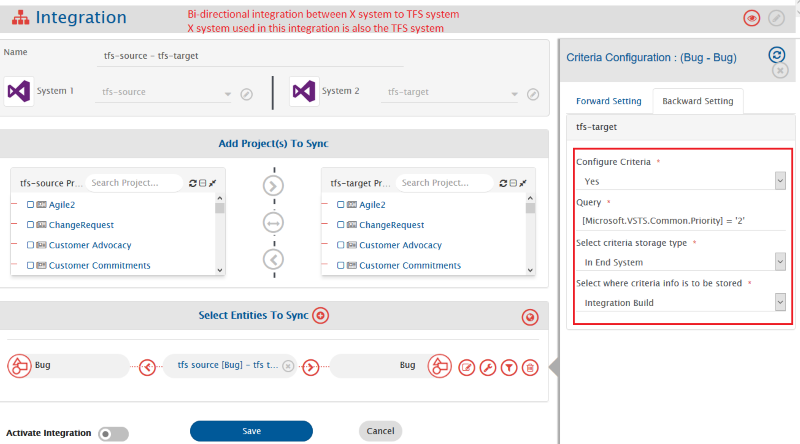
7. Entity created by an integration user won't get polled if that particular entity does not meet the criteria.
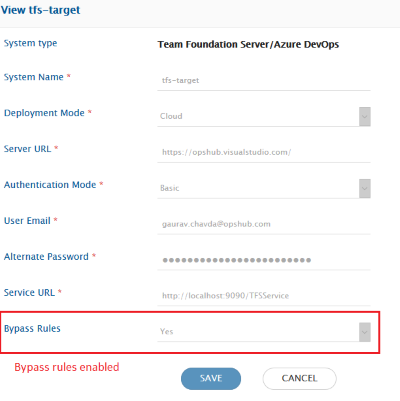
* This limitation is applicable when bi-directional integration is configured and the criteria is configured with an end system storage settings. Further, only if the bypass rule is enabled for the system Azure DevOps.
* OIM polls the entity created by an integration user even though the entity does not meet the criteria. But due to certain API limitations this won't be possible for the system with above configuration.
* Example: Suppose bi-directional integration is being configured between X system and TFS system. Further, criteria with end system storage is configured for the integration between **TFS Bug to X System Bug**, and the bypass rule is enabled for the TFS system used with integration between **X System Bug to TFS Bug**. Those entities which are created by OIM into TFS system via integration **X System Bug to TFS Bug** won't get polled by integration of **TFS Bug to X System Bug**, given those entities are not meeting the criteria configured for the integration **TFS Bug to X System Bug**. Refer the below screenshots for more clarity on the configuration along with the workaround.
* **Workaround:** Edit the mapping of the **X System Bug to TFS Bug** to map the field used for an end system storage criteria setting on integration **TFS Bug to X System Bug** to -NONE- with value as 'True'.
8. For Team Foundation Server with version equal to or above 2017, the Remote URL will be different from the remote URLs of the older versions of Team Foundation Server. Also, for Azure DevOps, the Remote URLs will be different.
### Test Entities (Test Case, Test Plan, Test Suite, Test Result, Test Run)
## Common
* Impersonation is not supported.
**Entity Specific**
Following are the limitations and behaviors specific to the individual entities in addition to the common:
### Test Case
* Test Parameters having only numeric characters in their name are not supported.
* If Test Case step field like Action or Expected Result contains only image and no text, then Azure DevOps does not render the inline image on user interface. However, the inline image can be seen from history.
* If Test Case step field contains a hyperlink, then Azure DevOps does not allow to click on the link from user interface.
* When updating only test case steps, parameters, and parameter values - Updating only these fields won't be synced to target. To overcome this limitation, it is always recommended to use overwrite option for all these fields while configuring field mapping.
### Test Plan
* REST API–based synchronization is not supported for on-premises instances of Azure DevOps Server prior to version 2020.
* Links of 'Remote Work', 'Release pipeline', 'Build', 'GitHub', 'Git' and 'Wiki' with Test Plan are not supported. Test Run settings, Outcome settings, MTM settings and MTM environments are not supported in Test Plan.
* For TFS version below 2013-Update 3, Test Plan is not supported as a separate entity. Test Plan with few fields will synchronize with Test Suite synchronization. Also, Test Plan with duplicate name will not get synchronized.
* Test Plan as a separate entity is supported from OIM version 7.46. For fresh project synchronization, it is recommended to synchronize Test Plan separately, followed by Test Suite, Test Run and Test Result. After migrating to OIM version >= 7.46 from older version, if you want to synchronize Test Plan separately in running integrations, please refer to [post migration guideline for Test Plan entity support](https://docs.myopshub.com/oim/index.php/Post-Migration_Checklist#Test_Plan_Entity_Support_for_TFS.2FAzure_DevOps).
### Test Suite
* REST API–based synchronization is not supported for on-premises instances of Azure DevOps Server prior to version 2020.
* Test Suite will migrate current state for on-premise instance with version equal and below version 2013 (Update 3) .
* Synchronization of Test Case chart and Test Result chart created within test suite is not supported.
* Query-Based Suite or Requirement-Based Suite.
* Once a Query-Based Suite or Requirement-Based Suite synced to target system, then after any new linkage of Test-Case with test suite added due to modification in test case. Hence newly added Test-Case linkage of Test Suite will not sync to the target system and any Test Run with corresponding test point will resulted into processing failure. In such case do following click [here](/upcoming-release/connectors/azure-devops.md#troubleshoot) for troubleshoot.
* Any update in Test Suite Configuration will only migrate when test suite is updated.
* Any update in Test Suite Configuration will only synchronize when test suite is updated.
* Ordering in Test Cases which are added to Test Suite is supported only for version 2019 onwards for on-premise deployments (i.e. Team Foundation Server) and all cloud deployments (i.e. Azure DevOps). In addition to that, ordering is only possible when the user has selected authentication type as Personal Access Token in the system configuration. Refer section [Create Personal Access Token](/upcoming-release/connectors/azure-devops.md#create-personal-access-token).
* If source endpoint is Team Foundation Server with version lower than 2017 or target endpoint is not an Azure DevOps, all types of Test Suite (Static/Query based/Requirement) will be migrated as Static Suite.
* If source endpoint is Azure DevOps or on-premise deployment (i.e Team Foundation Server) with version 2017 onwards and target endpoint is Azure DevOps, then the Static suite is migrated as Static Test Suite. The Requirement-based test suite is migrated as Requirement-based test suite and Query-based test suite is migrated as Query-based test suite.
* If source endpoint is Azure DevOps or on-premise deployment (i.e Team Foundation Server) with version 2017 onwards and target endpoint is Azure DevOps, then the Static suite is synchronized as Static Test Suite. The Requirement-based test suite is synchronized as Requirement-based test suite and Query-based test suite is synchronized as Query-based test suite.
* The user of source and target endpoint requires desired access level Basic + Test Plans in end system to synchronize query-based and requirement-based suite. Refer [Access Level](https://docs.microsoft.com/en-us/azure/devops/organizations/security/access-levels?view=azure-devops) to know more about this access level or subscription for the sync user. Otherwise, Test Suite synchronization will be resulted in to job error/sync failure as "You are not authorized to access this API. Please contact your project administrator".
* Synchronization Behavior of **Query Text** field of Query based Test Suite:
* The Query based test suite has a field **Query Text** that represents the actual criteria that has been given in the Query Suite entity. The **Query Text** follows a specific format for which you can refer to [WIQL syntax](https://docs.microsoft.com/en-us/azure/devops/boards/queries/wiql-syntax?view=azure-devops).
* Refer to the section [Synchronization Behavior of fields with WIQL format](https://github.com/OpsHubProduct/OpsHub-Documentation/tree/DevSpace/docs/.gitbook/..connectors/team-foundation-server.md#synchronization-behavior-of-fields-with-wiql-format) to know general synchronization behavior applicable to this type of field. Following are the behavior specific to Query Text field of Test Suite entity:
* It is recommended to have both source and target endpoints having identical templates (fields, lookups, iteration, areas, etc.) to synchronize the Query Text field of the Query-based suite. Any differences in the template could lead to a mismatch in Test Case association and cause the Test Suite sync failure. It may require the end-user to manually correct the Query Text field of Test Suite in the source or target end system to retry the failure.
* **User values mentioned in Query Text**
* Query Text Field with a user type of field clause will be restricted to transform the user(s) not the Group or Team present as part of clause value.
* The user will be transformed to corresponding target end system user as per user mapping of migration.
* The user will be transformed to corresponding target end system user as per user mentions mapping of field **Query Text** .
* **Id values mentioned in Query Text**
* In the **Query Text** field, an id clause can refer to a particular or set of a work item of type Test Case.
* The synchronized test case will have a different id in target system than the source entity. Henceforth it is required to transform the id clause as per the target end system to avoid mismatch in the association of Test Case(s) with Test Suite between the source system and target system. By default, the Query Text field with ID field clause will not be changed as per target entity id. Perform following configuration(s) in order to transform ID as per the target end system.
* Create a custom field with any name but type as Integer for the Test Case entity in the target system.
* Configure the Remote Id field for Test Case integration using above created custom field prior to synchronize Test Case(s).
* Configure the following advance mapping for field Query Text to replace ID field with created custom field. Later in this documentation the sample advance mapping to replace ID field with custom field named "Source Workitem ID" is given.
* If the Type of the above created custom field is "String" then
* The synchronization of Query Text field with ID clause is restricted to synchronize certain operators which are compatible with String type of field. For example, >, <, =, <=, >=, <>, In, Not In etc. The operator(s) which are only compatible with the Integer type of field and not compatible with the String type of field will cause the sync failure for Test Suite. Such incompatible operators are \[=Field], \[>Filed], \[>=Field], \[<=Field], \[<>Field], etc. The custom field used to replace ID field is of?String?type requires compatible operator and value.
* It is requires to use the advance workflow of **Default Integration Workflow For TFS to TFS Test Suit.xml** to synchronize the Query Text with ID clause when target end system has custom field "Source Workitem ID" is of String type.
* **Sample Advance Mapping to replace ID field to custom id field name Source Workitem ID**
```xml
```
* **Transform the field clause of Query Text field having different source and target field value(s)**
* Scenario: Different lookups of field in source and target end system for test case entity.
* Example, Suppose valid lookups of priority field of source system are 1,2,3,4. whereas priority lookups of target system are 1,2,3. As per the test case mapping the missing look up 4 in target system is mapped to 3.
* **Sample Query Text of test suite entity of source system** Following is the sample mapping which will transform the Priority field clause of query text field of Test Suite entity as per the given Test Case mapping. After transformation using the below sample mapping, the field clause of **\[Priority] = 4** will be transformed as **\[Priority] = 3**.
```sql
select [System.Id], [System.Title], [System.AssignedTo], [System.AreaPath]
from WorkItems
where [System.TeamProject] = @project
and [System.WorkItemType] in group 'Test Case Category'
and [Microsoft.VSTS.Common.Priority] = 4
and [System.Id] >= 1
and [System.State] = 'Closed'
and [System.Reason] = 'Duplicate'
order by [System.Id]
```
* **Expected Query Text to be synchronized in target system**
```sql
select [System.Id], [System.Title], [System.AssignedTo], [System.AreaPath]
from WorkItems
where [System.TeamProject] = @project
and [System.WorkItemType] in group 'Test Case Category'
and [Microsoft.VSTS.Common.Priority] = 3
and [System.Id] >= 1
and [System.State] = 'Closed'
and [System.Reason] = 'Duplicate'
order by [System.Id]
```
* **Sample Advance mapping for query text for above transformation**
* Following is the sample mapping which will transformed Priority field clause of query text field of test suite entity as per the given test case mapping.After transformation using below sample mapping the field clause of \[Priority] = 4 will be transformed as \[Priority] = 3.
```xml
```
* **About utility method `transformWIQLClauseAsPerMapping`** This method requires the following inputs as mentioned in the following sequence:
* **Query Text:** Source value of Query Text field which field clause is required to transform as per the target system.
* **Clause Field Name:** Name of the field which clause needs to match against the following RegEx input.
* **Clause Match RegExSet:** Comma-separated RegEx to match the possible value part of the given field clause to extract the value from the source query and replace it as per the test case mapping input.
* **Mapping Name:** Name of valid test case mapping to transform given field clause. This mapping is expected to have mapping for the field name given as part of the second input parameter.
* **Enclosed Value With Quote:** Boolean parameter indicating whether to have the transformed value within single quotes or not. If invoked as `true()`, the value will be enclosed in single quotes in the resulting query text. If `false()`, then the transformed value will not be enclosed.
* **Source System Id:** System id of the source end system.
* **Target System Id:** System id of the target end system.
### **Test Result and Test Run**
* REST API–based synchronization is not supported for on-premises instances of Azure DevOps Server prior to version 2020.
* Test Run and Test Result will migrate current state. Any changes in the target system after synchronization may show inconsistency in data in both end points.
* The **Duration** of a **Test Run** is automatically calculated by ADO/TFS based on the `Run.DateStarted` and `Run.DateCompleted` fields. To make sure the correct Run.DateCompleted value is synchronized for the Test Run, you need to reconcile the Run.DateCompleted field after all Test Results have been synchronized. This ensures that the Test Run duration is calculated correctly.
* Following Test Result and Test Run will not synchronize (these Run and Result are logged in visitor.claims.unsigned.product logs).
* Run and Result created with Test Suite not existing in the source.
* Run and Result created with Test Case not associated with the Test Suite while synchronization was performed.
* Any Run and Result created with Test Case/Configuration, associated with Test Suite after synchronization.
* Run and Result existing in Plan (e) Automated Run and Result are not supported.
* Below are only for Test Result:
* Synchronization of video format attachment of Result Steps and Result is not supported.
* Synchronization of Parameter Values for Step Results is not happening.
* Reason: ADO/TFS API limitations. \*'Duration' field will get synchronized only when the value of 'Status' field is 'completed'.
### Meta Entities (User, Group and Team, Area, Iteration)
* Impersonation is not supported.
* Synchronization of Meta Entities for Team Foundation Server 2010 or lower is not supported.
* visitor.claims.unsigned.product will not sync the following two permissions at collection level for Group and Users due to lack of API:
* Delete team project
* Delete team project collection However, the first permissions for a group or a user will be set at the project level.
* **Groups with reserved names**: Synchronization of the groups with reserved name is only possible if they are present in the target system. If such groups are not present in the target system, processing failures will be observed in space.vars.OIM.
* Reason: Groups cannot be created with reserved names, i.e., Group name 'Endpoint Creators' is reserved by the end system. While trying to create this group, a failure error message will be generated, 'Cannot complete the operation because the group name 'Endpoint Creators' is reserved by the system.'
* You need to manually delete this failure and start the synchronization again.
* **Groups with reserved scopes**: When Team Foundation Server is configured as source system, groups with a reserved scope, such as **Team Foundation**, can be synchronized only if the required group with same scope already exists in the target system. If it does not exist, processing failures will be observed in space.vars.OIM.
* Reason: Due to an API limitation, the end system does not allow to create groups with reserved scope. For example, if Team Foundation Service Accounts is not available in the target system, the synchronization may fail with the error: "Cannot find this active directory group: 'Team Foundation Service Accounts' in target. Add this group in target system."
* You need to manually add this group in target system to resolve the failure.
* If integration user is not a member of Project Collection Administrators group, collection level permissions will not be synchronized.
* Following are the limitations of visitor.claims.unsigned.product, if you are syncing Area or Iteration:
* Target Lookup Query is supported for only one field i.e. Path and the query must be Path=@Path@ for Team Foundation Server to Team Foundation Server integration.
* Recovery functionality is effective only when Manual Conflict Detection is put off for field Path. It could be set to 'disable conflict detection' or enabled with either 'Source Wins' or 'Target Wins'.
* Restart Team Foundation Server and OpsHubTFSService.
### Dashboard/Query/Widgets Entities
**Common**
* Impersonation is not supported.
* These entities do not have Attachments, Comments, and Inline images, hence these details are not supported.
* These entities do not have historical data, hence historical data synchronization is not supported.
- Criteria based synchronization and target lookup is not supported for Dashboard and Query entity. Refer to [Criteria Configuration in integration](/upcoming-release/integrate/configure-integrations/integration-configuration.md#criteria-configuration) and [Search in Target Before Sync](/upcoming-release/integrate/configure-integrations/integration-configuration.md#search-in-target-before-sync) to know more on these features.
- Criteria based synchronization is not supported for Query entity. Target lookup is only supported for 'Folder' field, please refer to [Target lookup query format](/upcoming-release/connectors/azure-devops.md#supported-target-lookup-query-for-query-entity) for its target lookup query format.
**Entity Specific** Following are the limitations and behaviors specific to the individual entities in addition to the common:
**Dashboard Entity**
* Dashboard can be marked as **Favorite**. Synchronization of this **Favorite** attribute is not supported.
* Reason: ADO/TFS API unavailability
- Dashboard can be created with **Dashboard Type** as **Project Dashboard** or a **Team Dashboard**.
* For Team Dashboard, **Owned by team** will be applicable and for **Project Dashboard**, **Owner** field will be applicable.
* When Azure DevOps is source:
* Dashboard type details will be available in **Dashboard Type** field (read-only field)
* In case of Project Dashboard, owner details will be available in **Owner** field and **Owned by team** field will contain no value.
* In case of Team Dashboard, owner details will be available in **Owned by team** field and **Owner** field will contain no value.
* When Azure DevOps is target:
* If **Owner** field contains a value, then the dashboard will be created with type **Project Dashboard**.
* If **Owned by team** field contains a value, then the dashboard will be created with type **Team Dashboard**.
* If both fields contain value, then you will get a processing error [OH-TFS/AzureDevOps-1119](/upcoming-release/help-center-index/troubleshooting-index/errors-index/tfs-error-solutions/oh-tfs-azure-devops-1119.md).
**Query Entity**
* The Queries can contain Fields, Lookup Values, Users, Ids etc. Hence for Query synchronization, please make sure the source and target projects have the same template \[Same fields, lookup values, Users etc ..].
* Synchronization of **Personal Queries** of user is not supported. Only the queries within **Shared Queries** folder & its sub-folders to which integration user has access to will be synchronized.
* A query can be marked as **Favorite**. Synchronization of this **Favorite** attribute is not supported. **Reason:** ADO/TFS API unavailability.
* TFS Query Charts synchronization is not supported. **Reason:** ADO/TFS API unavailability.
* Synchronization Behavior of **WIQL** field:
* The Query entity has a field WIQL that represents the actual criteria that are given in the Query. The WIQL follows a specific format for which you can refer to [WIQL syntax](https://docs.microsoft.com/en-us/azure/devops/boards/queries/wiql-syntax?view=azure-devops).
* Refer to section [Synchronization Behavior of fields with WIQL format](/upcoming-release/connectors/azure-devops.md#synchronization-behavior-of-fields-with-wiql-format) to know general sync behavior applicable to this type of field. Following are the behavior specific to the WIQL field of the Query entity. **User values mentioned in WIQL**
* Azure DevOps End point Format - User Display Name . **Example:** demouser1
* Format being used for processing/synchronization - User Display Name . **Example:** demouser1 \[No change is done here and hence it's expected that User Display Name is same in Source and Target End Point and based on that the user values will be synchronized/visible in the target end point] In case the user with same display name is not available in target end point then the source user display name will be synchronized as text in the WIQL field in the target end system. **For example -** Consider a WIQL: `select [System.ID], [System.WorkItemType] from WorkItems where [System.State] = 'Active' and [System.AssignedTo] in ('demouser1 ', 'demouser2 ')` This will be synchronized as: `select [System.ID], [System.WorkItemType] from WorkItems where [System.State] = 'Active' and [System.AssignedTo] in ('demouser1 ', demouser2)` if no user with user name **demouser2** exists in target end system.
**Id values mentioned in WIQL**
* In WIQL, an id of a work item can be referred in the field value.
* Azure DevOps End point Format - `[ID] [=, <, >, <=, >=, <>, in] [Source entity id].` **Example:** `[ID] = [12345]`
* Format being used for processing/synchronization - `[ID] = [12345]` \[No change is done here and hence the source work item id will be synchronized/visible in the target end point]
* In case, you want the Source workitem id to be replaced with its corresponding target id \[Which is synchronized by visitor.claims.unsigned.product], please use a customized workflow - **Default Integration Workflow - TFS to TFS - Query.xml** \*\*For example \*\* Consider a WIQL: `select [System.ID], [System.WorkItemType] from WorkItems where [System.ID] = 1234 and [System.AssignedTo]` This will be synchronized as: `select [System.ID], [System.WorkItemType] from WorkItems where [System.ID] = 6789 and [System.AssignedTo]` Here, "1234" is the source workitem id and "6789" is the corresponding target work item id.
* Azure DevOps is configured as target:
* **Folder synchronization**
* In Azure DevOps, **Query** entities can be organized in different folders.
* In visitor.claims.unsigned.product, the field **Folder** corresponds to the folders present in the end system.
* While Query synchronization, if the Query's folder is not available in target, then visitor.claims.unsigned.product will first create the folder and then the query will be synchronized to that folder.
### Widget Entity
* **Remote Entity Link** is not supported for Widget entity because in Azure DevOps itself there is no independent URL to access a widget. Refer to [Tracking Link of Entities Across Systems](/upcoming-release/integrate/configure-integrations/integration-configuration.md#tracking-id-and-link-of-entities-across-systems) for more information on this feature.
* When Azure DevOps is configured as target:
* In Azure DevOps, a widget can be only created within a dashboard. Hence, configuring a relationship of type **Dashboard** is mandatory so that widget gets created within that dashboard.
* A failure [OH-Connector-0059](/upcoming-release/help-center-index/troubleshooting-index/errors-index/common-error-solutions/oh-connector-0059.md) will be generated in case a dashboard is not synchronized and its widget is getting synchronized. In such cases, dashboard must be synchronized first and then widget creation failure should be retried.
* **Configuration field behavior**
* There can be variety of widgets and each widget can have its own configuration. Widget configuration can be synchronized using **Configuration** field in visitor.claims.unsigned.product.
* **Widgets re-positioning behavior**
* A Dashboard has pre-defined number of tiles where widgets can be added or re-positioned.
* As long as the source and target dashboard have same widgets positioning i.e same position and size, the synchronization will work as per expectation. If the widget positioning differs, synchronization will fail with "widget collision" exception.
**Synchronization behavior when source widgets are re-positioned**
| **Target Widgets operation** | **Synchronization Behavior** |
| --------------------------------------------------------------------------------------------- | -------------------------------------------------------------------------------------------- |
| Target widgets are not re-positioned | Source changes will be synchronized to target |
| Target widgets are re-positioned and any target change is not conflicting with source changes | Source changes will be synchronized to target |
| Target widgets are re-positioned and any target change is conflicting with source changes | Re-positioning will fail with widget collision exception |
| When target has some new widgets added at non-conflicting positions with source changes | Sources changed will be synchronized to target and the target added widgets will be retained |
| When target has some new widgets added at conflicting positions with source changes | Re-positioning will fail with widget collision exception |
* **Handling widget collisions:**
* When widgets are re-positioned in source, the dashboard in target needs to be re-positioned as well using following configuration:
* The **Widget** link must be configured in Dashboard mapping.
* The dashboard must be re-synchronized through visitor.claims.unsigned.product.
* In case of widget collision failure, the user will have to move the existing widget in target to another position, and then retry the processing failure of Dashboard integration in visitor.claims.unsigned.product to synchronize the widget re-positioning.
> **Note** Any update on fields - **Position Row, Position Column, Size Row Span and Size Column Span** will be ignored during widget update synchronization.
* **Query Charts used as Dashboard Widgets:**
* When a chart created using a query is directly added to dashboard without any additional configuration, then the widget will be synchronized without any query link.
* **Reason:** The API for widget does not provide the required query link information in the above use case.
* **Solution:** The issue can be resolved by saving these type of widgets on source side without any changes. This will unlink the widget from the chart and link to the original query, providing the correct query link information.
* For accurate ID transformation using [Transformation JSON](/upcoming-release/connectors/azure-devops.md#json-structure-overview), these items must have corresponding target items with the same name - Release, Project, Team, Repository. If not present, those configurations will be synchronized with empty values.
* For widgets with team configurations where the selected teams belong to projects different from the one being synchronized, values for these cross-project teams will be synchronized only in version 2018 and above. **Reason:** API to fetch teams across-project teams is available from version 2018.
* From the widgets provided by Azure DevOps out-of-the-box, following widgets synchronization have some limitations:
* The Cumulative Flow Diagram widget will be synchronized with empty values in Backlog, Swimlane, and Column fields.
* The following widgets are not supported by default:
* Requirements Quality
* Test Results Trend
* Test Results Trend (Advanced)
* Deployment Status
> **Note** Since the JSON path for some referenced IDs is not fixed in the above widgets, it is recommended to use regex-based search as given in [Transformation JSON](/upcoming-release/connectors/azure-devops.md#json-structure-overview) section for more accurate results.
### Pull Request
* The Pull Request will get synchronized based on the current state (Non-revision based).
* Pull Request will have source and target branch. Details of the source and target branches can be synchronized to the target using following fields - Branch Name, Url, ObjectId, Creator for source and target branch respectively.
* Criteria configuration with [Storage type 'In End System'](/upcoming-release/integrate/configure-integrations/integration-configuration/criteria-information-storage.md) is not supported.
* Comments operations like add/update will synchronize to the target with the change in any other field of the Pull Request.
* In Pull Request comments are of two types : 1) system 2) text, by default both the type of comments will synchronize to the target. But we do have an option to select any specific type from the comments mapping.
* The first default comment, i.e., **`` created the pull request** won't sync to the target because they are not available through AzureDevOps/TFS APIs.
* For Reviewers, Pull Request will have two fields **Required Reviewers** and **Optional Reviewers**. In AzureDevOps both the fields are visible but in TFS On-Premise only one field is visible i.e., **Reviewers**. To synchronize **Reviewers** field of TFS On-Premise map the field **Optional Reviewers** with the required target system field.
#### Git Repositories Selection
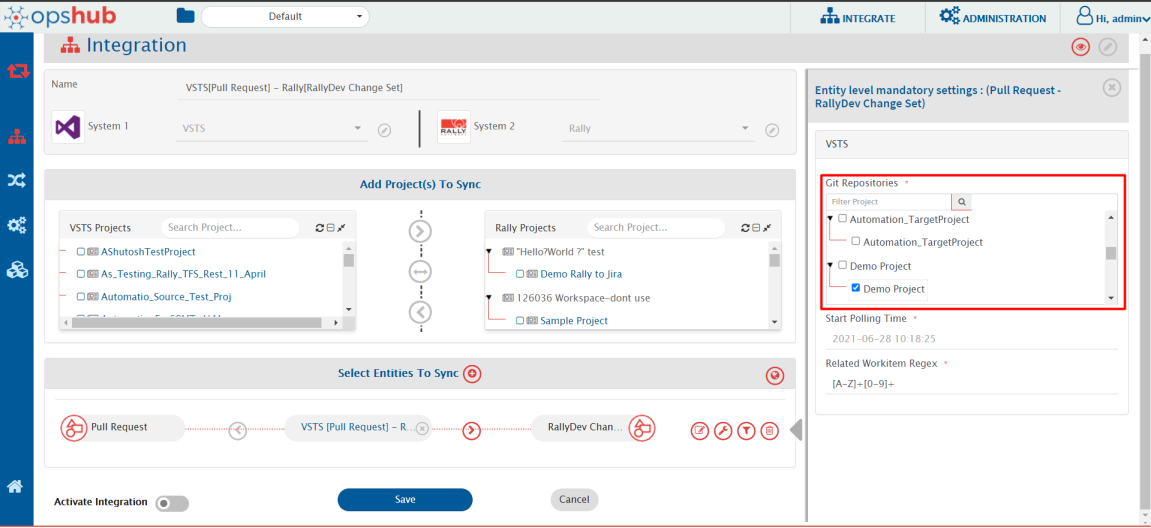
To synchronize Pull Request, you need to select the repositories of the respective projects selected for the synchronization as shown in the screenshot:
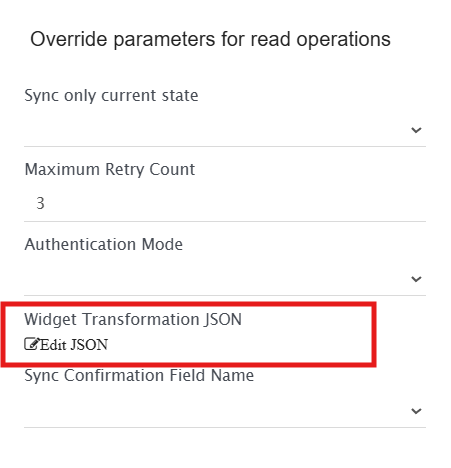
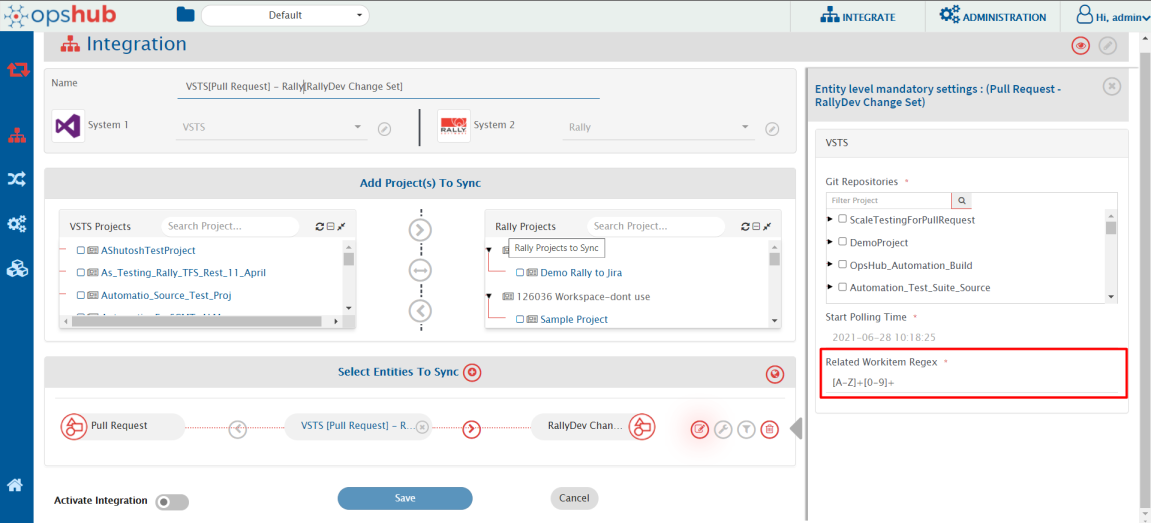
#### Configuring Related Workitem Regex
User can provide the target entity Ids in the Pull Request fields like Title/Description against which the entity will sync to the target. To extract the target entity Ids **Regex** is required in the input **Related Workitem Regex** while configuring integration (as shown in the screenshot below). By default, "-1" will be passed if there is no match in the Title/Description.
**For example**, for Pull Request, if its title is "PR against TEST-123" and the target related work item id on which you want to synchronize Pull Request is TEST-123, then Regex for your input will be:
```
[A-Za-z]+-\d+
```
### Build Pipeline Entity
* Attachments, Comments, and Inline images' synchronization is not supported.
* Reason: Build Pipeline does not have Attachments, Comments, and Inline images.
* End System Criteria Storage is not supported.
* Reason: Build Pipeline does not have any custom fields.
* Secure Files and Azure Git Repositories with the same names in the source system must be present in the target system to avoid any sync failures.
* Impersonation is not supported.
* For on-premise deployment, there is a Retention tab in the Build Pipeline entity \[not available in cloud deployment]. This Retention tab synchronization is not supported.
* Process parameters are not supported.
* During the Build Pipeline entity synchronization, the processing failure may come while syncing the Service Connection for the below mentioned use case. For more details around the next steps, refer to [this](/upcoming-release/help-center-index/faqs/tfs-faqs/pipelineserviceconnectionfailure.md) section.
* Use case: Service Connection 1 was associated with some steps of any job in the Pipeline entity. The user changed the Service Connection from Service Connection 1 to Service Connection 2 and deleted the Service Connection 1 from the end system.
### Release Pipeline Entity
**Pre-requisite:**
Before starting synchronization, please make sure the following items already exist in the target environment. These are required to in target due to Azure DevOps API Restrictions/limitations.
> **Note**: Once the required data exists in the target environment, the synchronization automatically links/refers to the above components during Release Pipeline synchronization, ensuring no references are lost.
* **Azure Artifacts:** The feed and package must pre-exist in the target project.
* The feed and package name can be the same as the source or a transformed name that OpsHub can use to look up and reference in target project during pipeline synchronization — for example, abc-package or Synced\_abc-package.
* For TFS versions earlier than 2019, along with pre-existing data, their linkage must be done manually after Release Pipeline sync, as Azure Artifacts APIs are only supported from TFS 2019 onward.
* **Deployment Group:** If a release stage includes a Deployment Group Job, the same deployment group must pre-exist in the target project.
* The group name can be the same as the source or a transformed name that OpsHub can use to look up and reference in target project during pipeline synchronization — for example, Prod-Deploy or Prod-Deploy-New.
* **Secure Files:** Secure files must pre-exist in the target system.
* The file name can be the same as the source or a transformed name that OpsHub can use to look up and reference in target project during pipeline synchronization — for example, BuildKey or Synced\_BuildKey
* **Azure Git Repositories** with matching names pre-existing in the target project
> **Note:** If any of the above resources do not exist in the target project, the sync operation will fail because the Release Pipeline depends on these resources for successful execution.
* Release Pipeline may contain reference of Query, Agent Pools, Service Connection, Task Group, Build Pipeline so these dependent entities must be synced before Release Pipeline to avoid the sync failure. visitor.claims.unsigned.product support all these dependent artifacts sync along with Release Pipeline.
* For TFS versions earlier than 2020, due to API unavailability, the Agent Pools must pre-exist and be linked manually after Release Pipeline sync.
**Known Behaviour and Limitations:**
* Release Pipeline will be synced TFS version 2018 or above, as APIs are available from that version only.
* Release Pipeline does not have Attachments, Comments, and Inline images, hence Attachments, Comments, and Inline images won't be synchronization.
* End System Criteria Storage is not supported.
* Reason: Release Pipeline does not have any custom fields.
* Impersonation is not supported.
* Reason: ADO/TFS API limitation.
* Synchronization of security permissions for individual Release Pipelines is not supported.
* Cross-Project Team/Group Synchronization Behavior for Stage **Owners** and **Approvers**:
* In Release Pipeline, stage owners and approvers can belong to:
* A team/group from the same project
* An organization-level team/group
* A team/group from another project (cross-project)
| Source Team/Group | Target Synchronization Behavior |
| ------------------------------------------------------------------------------------------------------------------------ | ------------------------------------------------------------------------------------------------- |
| Same project team/group | Synchronized with the corresponding team/group in the target project. |
| Organization-level team/group | Synchronized at the target organization level. |
| Cross-project team/group with matching project and team/group available in target organization | Synchronized with the corresponding cross-project team/group in the target organization. |
| Cross-project team/group where the project exists but the corresponding team/group is unavailable in target organization | Synchronization fails with error as teams/groups are not present. |
| Cross-project team/group where the project is unavailable in target organization | Synchronized with the corresponding team/group in the current target project (fallback behavior). |
### Dependent Artifacts of Pipeline
**Common**
* Impersonation is not supported due to TFS/ADO API limitation.
* These artifacts do not have history, attachment, comments and inline image, as they will not be synced.
**Entity Specific:** Following are the limitations and behaviors specific to the individual entities in addition to the common:
**Agent Pool Entity**
**Known Behaviour and Limitations:**
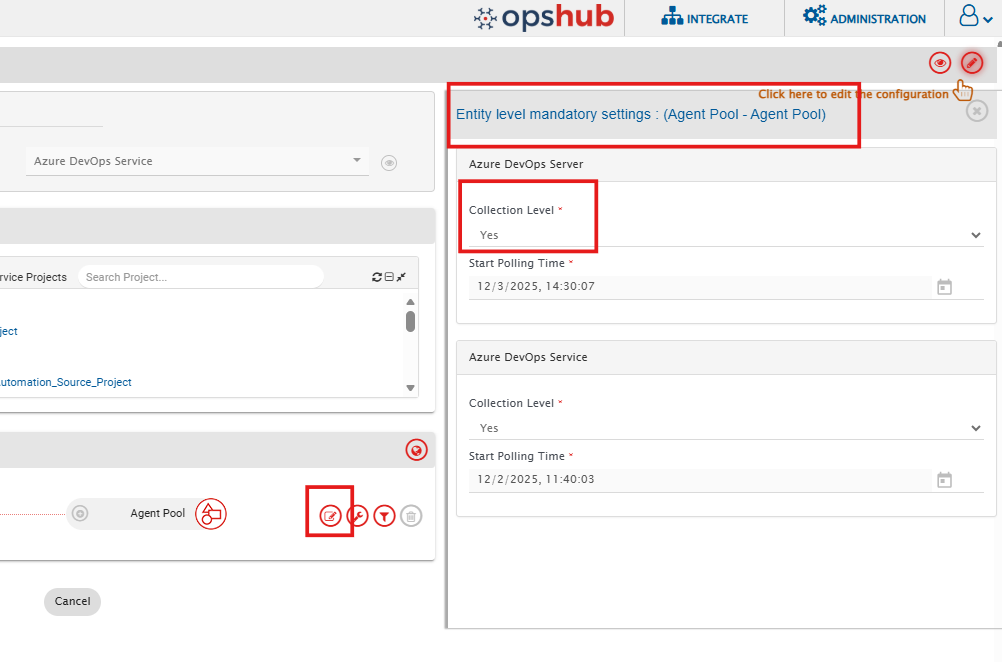
* By default, visitor.claims.unsigned.product synchronizes project-level Agent Pools \[the collection level pools which are associated with projects].
* To synchronize collection-level Agent Pools as well, set the “Collection Level” option to Yes, at the integration of Agent Pool as shown in the below image:
space.vars.OIM will not do any transformation and the details will be available as stated in the "Team Foundation Server/Azure DevOps End point Format" only. In such case, if any transformation is needed, you can do it with the help of advance mapping as per the expected format.
* **What happens when the source field is not present in target system** During synchronization, failures will occur for the entities to which the missing target field is referred. To resolve these failures, any one of the following configurations can be done:
* Create the missing field with the same datatype in any unused template in the target system. For adding the field, refer to \[ Add custom field].
* Replace the missing field names with the matching existing field name of the same datatype using advanced XSLT.
```xml
```
> **Note**: The behavior is the same for the missing field values in the target. **For example:** If WIQL refers to area path 'Area1' in the source which is not present in the target, then advance mapping can be done to transform the source area path to the corresponding target area path.
**User values mentioned in WIQL**
* Team Foundation Server/Azure DevOps End point Format - User Display Name . **Example:** demouser1
* Format being used for processing/synchronization - User Display Name . **Example:** demouser1 \[No change is done here and hence it's expected that User Display Name is same in Source and Target End Point and based on that the user values will be synchronized in the target end point]
* In case the user with same display name is not available in target end point then the source user display name will be synchronized as text in the WIQL field in the target end system.\
**For example -** Consider a WIQL : `select [System.ID], [System.WorkItemType] from WorkItems where [System.State] = 'Active' and [System.AssignedTo] in ('demouser1 ', 'demouser2 ')` This will be synchronized as : `select [System.ID], [System.WorkItemType] from WorkItems where [System.State] = 'Active' and [System.AssignedTo] in ('demouser1 ', demouser2)`, if no user with user name **demouser2** exists in target end system.
**Id values mentioned in WIQL** In WIQL, an id of a work item can be referred in the field value.
* Team Foundation Server/Azure DevOps End point Format - `[ID] [=, <, >, <=, >=, <>, in] [Source entity id]`. **Example:** `[ID] = [12345]`
* Format being used for processing/synchronization - `[ID] [=, <, >, <=, >=, <>, in] [Source entity id]`. **Example:** `[ID] = [12345]` \[No change is done here and hence the source work item id will be synchronized/visible in the target end point]
- In case, you want the Source workitem id to be replaced with its corresponding target id \[Which is synchronized by space.vars.OIM], please use a customized workflow - **Default Integration Workflow - TFS to TFS - Query.xml**.
**For example -** Consider a WIQL : `select [System.ID], [System.WorkItemType] from WorkItems where [System.ID] = 1234 and [System.AssignedTo]` This will be synchronized as : `select [System.ID], [System.WorkItemType] from WorkItems where [System.ID] = 6789 and [System.AssignedTo]` Here, "1234" is the source workitem id and "6789" is the corresponding target work item id.
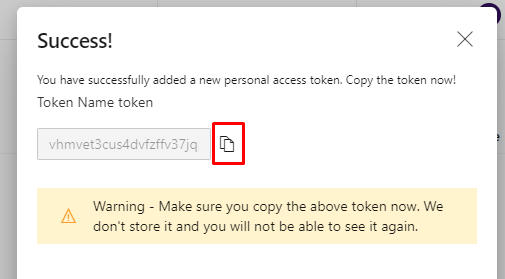
### Create Personal Access Token
* Log in with the integration user in AzureDevOps server.
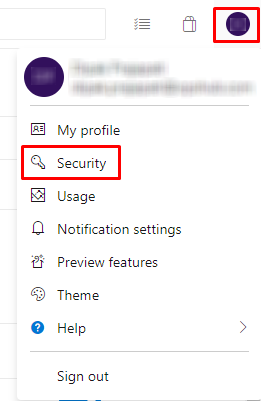
* Click on your user name at the top-right corner and select **Security** option.
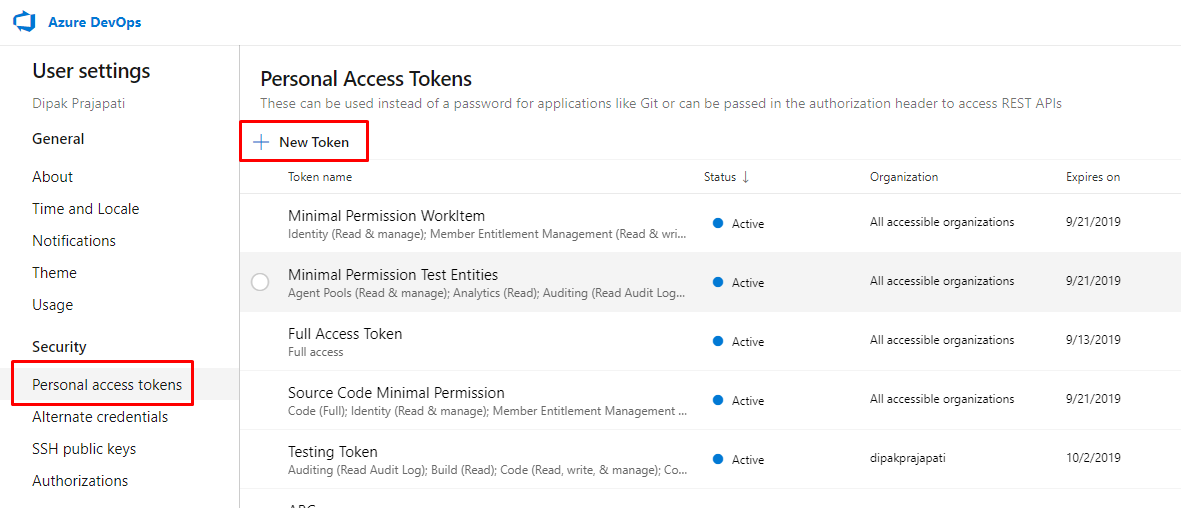
* Select **Personal Access Tokens** and click on **New Token** option.
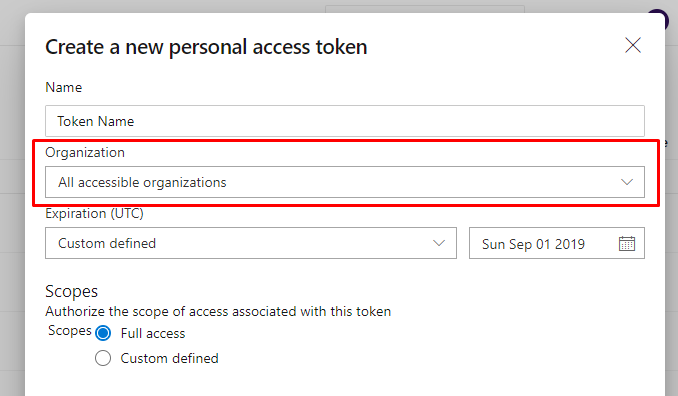
* Provide the name for the token and select **All accessible organizations** option for the Organization. Then choose the scope for the Personal Access Token, and click on the **create** button.
* Copy the token value.
### Proxy settings for the Service
1. Click [Proxy Setting](/upcoming-release/manage/administrator/proxy-setting.md) to see step by step details about how to configure proxy in space.vars.OIM. After configuring the proxy in space.vars.OIM please follow given steps.
2. Open file explorer and navigate to the service installation folder (Ex: `\Other_Resources\Resources\OpsHubTFSService`) and open file named **OpsHubTFSService.exe.config** in any text editor. Un-comment the following code from **OpsHubTFSService.exe.config** file:
```xml
```
3. Open run in machine (You can open it by pressing **Windows + R** button).
4. Type `services.msc` and click OK.
5. Find service name **OpsHubTFSService** and click on Restart.
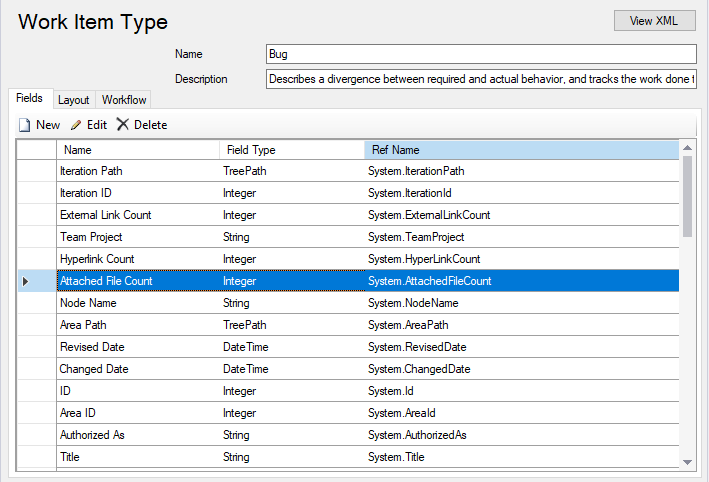
### Find Reference name of field
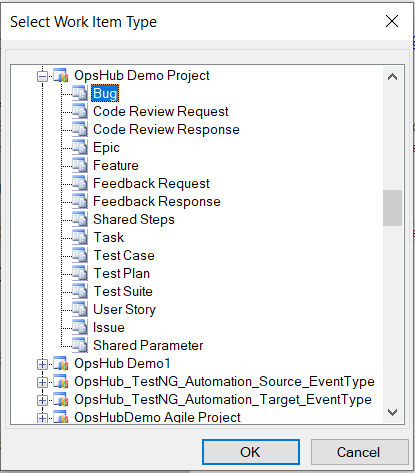
1. Log in Team Foundation Server with a user having administrative rights.
2. Select the **'Open WIT from Server'** menu item under the Tools > Process Editor > Work Item Types menu. Note : Please make sure Microsoft Visual Studio has been installed with extension **'Process Template Editor'** to see above options.

space.vars.OIM installation.
2. On space.vars.OIM installation machine, navigate to: `\Other_Resources\Resources` and copy and extract QtpMtmTestInstall.zip to machine where QTP MTM Test Extension has to be installed (i.e. MTM Test Agent, MTM Test Controller, etc.).
3. For installation of QTP MTM Test Extension for MTM 2010 launch `Install QTP MTM Test Extension - MTM 2010.bat`.
> **Note**: Launch as Administrator
4. For installation of QTP MTM Test Extension for MTM 2012 launch `Install QTP MTM Test Extension - MTM 2012.bat`.
> **Note**: Launch as Administrator
### Test Storage File Configuration
1. Copy default.qtpmtm Test Storage file `QtpMtmTestInstall > QtpMtmTestExtension` directory into your Team Foundation Server source project.
2. Open default.qtpmtm Test Storage file in Notepad.
3. Provide the QTP Test Case Storage directory windows share path in the `default.qtpmtm` file in the first line. All the QTP Test available in the given directory will be discoverable by the QTP MTM Test Extension.
4. Save the default.qtpmtm file and check into the Team Foundation ServerProject.
#### Azure DevOps Web Hook Support
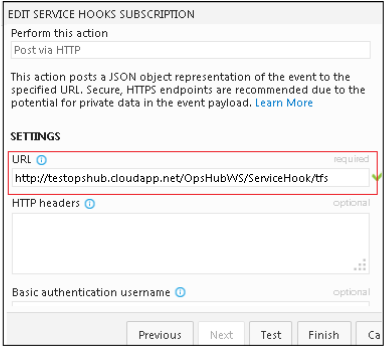
Web Hooks provides functionality to trigger synchronization process on create/update of any workitem on Azure DevOps. This enables real-time synchronization of any changes made on Azure DevOps to any target system. For more details on Azure DevOps Web Hooks, please refer the following document link for configuring web hook:
space.vars.OIM supports the following workitem events:
* Work item created
* Work item updated
* Comments added to a work item
> **Note**: OpsHub supports web hook for Azure DevOps instance only.
While configuring web hook on Azure DevOps, provide URL in this pattern: `http://[Opshub_Path]/OpsHubWS/ServiceHook/tfs` for sending Web Hook request to valid OpsHub instance. Provide the URL of OpsHub which is accessible from Visual Studio Team Services instance. Refer following figure for URL configuration of Web Hook for OpsHub Service.
### Bypass Rule with User Impersonation
* If an integration is configured to Azure DevOps from any other system with 'Bypass Rule' option enabled, space.vars.OIM will consider the audit revision's author as the user on the basis of which impersonation is to be performed.
* Link impersonation will be supported between Azure DevOps systems. When two entities are linked then on Azure DevOps side, only one entity will contain actual linked added by user while on another entity link will be added by default integration user.
* Bypass rules also allow Azure DevOps system to write any data ( valid or invalid ) data into server. space.vars.OIM can create data on past dates as well by enabling this feature.
* In case of Current State Synchronization/ Reconciliation:
* Fields and Attachments:
* They will be impersonated with the **last changed by user** of source entity.
* Comments:
* They will be impersonated with the comment user of source entity
### Bypass Rule with Time Impersonation
* If an integration is configured to Azure DevOps from any other system with 'Bypass Rule' option enabled, space.vars.OIM will consider the audit revision's timestamp as the timestamp on the basis of which impersonation is to be performed.
* In case of Current State Synchronization/ Reconciliation:
* Fields, Comments and Attachments will be impersonated with the **last changed time** of source entity.
### State Transitions known behavior
* For Team Foundation Server system, state transitions is performed implicitly by OIM using API, given no customization has been done for dependent fields of state transitions. If a user-defined field is configured as a dependent field for the state transition, then it would require configuring the state transitions using mapping XML.\*
How to configure transitions XML using mapping? Refer this: \[Transition Section (../integrate/mapping-configuration.md#attachments-comments-relationships-and-workflow-transition).
* Following is the example of a transition script for the Team Foundation Server:\*
Particular field "customblock" is required in the end system when state is changed from 'Active' to 'Block', otherwise its hidden. Other dependent field(s) are system defined, for example 'Reasons' field. As the user-defined field configure for transition field, we must configure transitions in the mapping as shown below:
```xml
transitionName 1
State
State
Proposed
true
transitionName 2
State
State
Proposed
Active
Reason
Approved
Approved
transitionName 3
State
State
Active
Block
Reason
Fixed
Fixed
customblock
```
## Troubleshoot
### **Test Point does not exist failure**
* For detailed understanding of Test Point, please refer to [Test Point Advance Mapping Configuration](#test-point-advance-mapping-configuration) section.
* Some possible scenarios that may cause this failure:
1. **Test point is yet not synchronized in target system**
* To resolve this issue do following. Let first TestCase then TestSuite sync with **Test-Case linkage** configuration prior to Test Run sync or failure retry. For synchronizing configuration/tester with **Test-Case linkage** advance mapping is required. For advance mapping, please refer [Test Point Advance Mapping Configuration](#test-point-advance-mapping-configuration) section.
2. **TestPoint is deleted from Target System**
* TestPoint can be deleted with either of following ways:
* TestCase Linkage will remove from TestSuite. In such case all TestPoint corresponds to that TestCase will deleted. For example, If we remove TestCase 81639 this will remove the first TestPoint shown in above screenshot. Whereas if we remove TestCase 81640 then it will remove both the TestPoints belong to TestCase 81640 i.e. 2nd and 3rd both TestPoints will removed.
* Remove/change the configuration of particular TestPoint. For example, change the configuration for first TestPoint to Firefox instead Chrome, then it will create new TestPoint and remove old TestPoint.
* Deleting the TestCase will remove all TestPoints corresponds to that TestCase.
* Deleting the TestSuite itself will remove all TestPoints corresponds to that TestSuite.
* In such cases the failure remains for Test Run until the required TestPoint not added back to TestSuite in target system.
3. **TestCase can be added in Query-Based Suite or Requirement-Based suite after TestSuite synced in target system, or Test-Case Linkage configured after synchronization.**
* Perform following steps to resolve failure due to this scenario:
* Update the TestSuite of source end system for which failure is generated.
* Execute the TestSuite Integration.
* Once updates of TestSuite synced to target end system the retry then Test-Run failure.
---
# Agent Instructions
This documentation is published with GitBook. GitBook is the documentation platform designed so that both humans and AI agents can read, navigate, and reason over technical content effectively. Learn more at gitbook.com.
## Querying This Documentation
If you need additional information that is not directly available in this page, you can query the documentation by asking a question.
Perform an HTTP GET request on the following URL with the `ask` and `goal` query parameters:
```
GET https://docs.opshub.com/upcoming-release/connectors/azure-devops.md?ask=&goal=
```
`ask` is the immediate question: it should be specific, self-contained, and written in natural language.
`goal` is what the user is ultimately trying to achieve, the reason they need the answer. Sharing it helps GitBook give you a better, more relevant answer. A goal is most helpful when it describes the outcome the user wants rather than restating the question. For example, with `ask=how do I create an API token`, a goal like `automate deployments from our CI pipeline` lets GitBook tailor the answer to that use case.
The response will contain a direct answer to the question and relevant excerpts and sources from the documentation.
Use this mechanism when the answer is not explicitly present in the current page, you need clarification or additional context, or you want to retrieve related documentation sections.