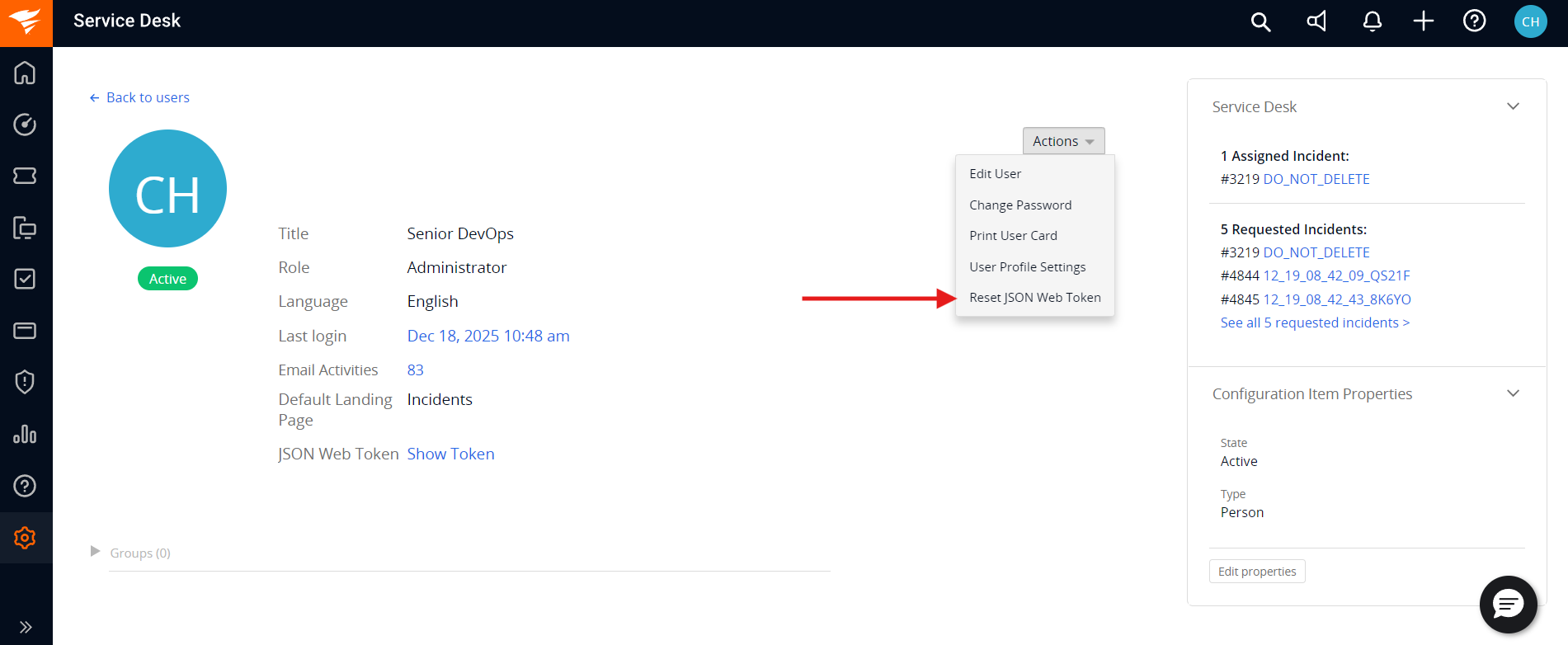
space.vars.OIM. This user should not perform any other action from SolarWinds Service Desk's user interface. This user is referred to as an 'Integration User' in the documentation.
* For this integration user to perform operations in SolarWinds Service Desk, various permissions are required, as outlined in the [Required Permissions](#required-permissions) section.
### Required Permissions
The following permissions should be granted to the integration user:
| **Permission Name** | **Permission Category** | **Requirements** |
| ------------------- | ----------------------------- | -------------------------------------------------------------------------------------------------------------------------------------------- |
| **Read** | Read access for entity types | Read permission must be granted for the specific entity types that need to be synchronized (Incidents and Changes). |
| **Read** | Read access for Users | Required to read user-related details such as user name, user email for the user fields like reporter, assignee etc. during synchronization. |
| **Manage** | Write access for entity types | Allows the connector to create, update, and delete records for supported entity types by space.vars.OIM. |
| **Manage** | Write access for Users | Required to read user-related details such as user name, user email for the user fields like reporter, assignee etc. during synchronization. |
| **Setup** | Setup (with All option) | Required to the user who is generating API token of Integration User for space.vars.OIM. |
### SolarWinds Service Desk Edition Guidelines
* To ensure smooth integration without delays, it is recommended to use the **Advanced** or **Premier** edition of SolarWinds Service Desk.
* **Reason**: The API rate limit depends on your subscription plan:
* **Advanced Plan**: 1,000 API calls user/minute.
* **Premier Plan**: 1,500 API calls user/minute.
* For optimal performance, set the item sync schedule to **15 minutes or more** at space.vars.OIM.
* **Reason**: Shorter sync intervals may cause sync delays due to API rate limiting, especially when synchronizing a large number of entities.
## System Configuration
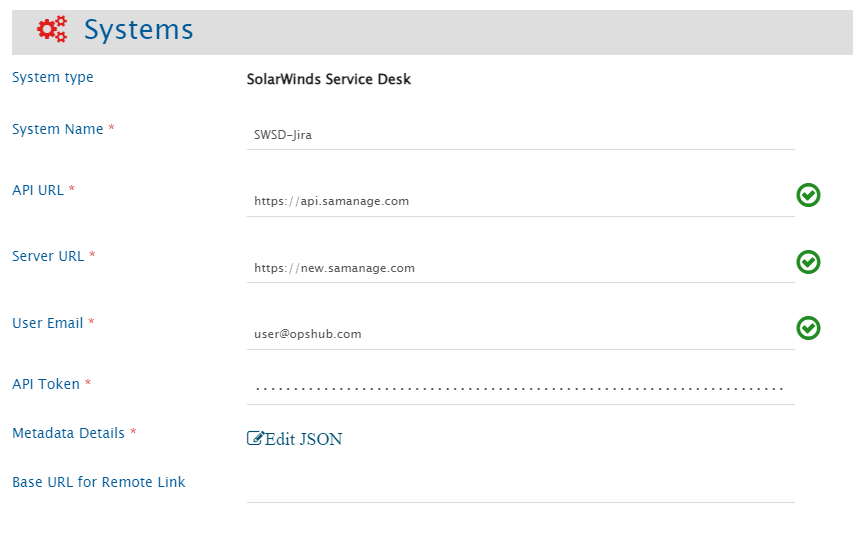
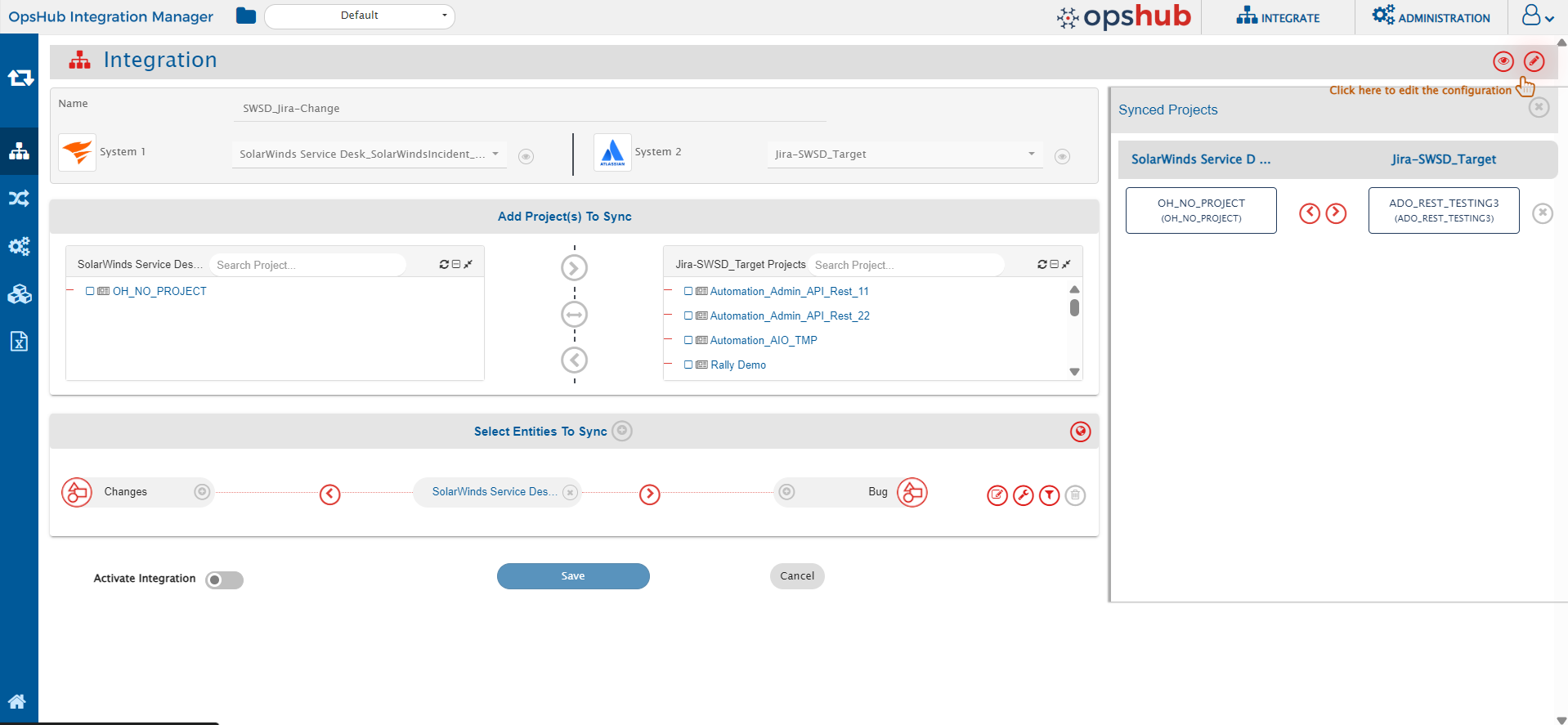
Before you continue with the integration, you must first configure the SolarWinds Service Desk system in space.vars.OIM.
Refer to [System Configuration](/upcoming-release/integrate/configure-integrations/system-configuration.md) for steps on how to configure the system. Refer to the screenshot below:
Provide the REST API Endpoint for accessing your SolarWinds Service Desk cloud instance. The API Base URL is region-specific and mandatory for connecting to the SolarWinds Service Desk environment. You must enter the URL that corresponds to your organization's region:
- US Region:
- EU Region:
- Asia-Pacific/Japan Region:
Using an incorrect endpoint will result in authentication and connection errors. Refer to SolarWinds ITSM API Documentation for more details.
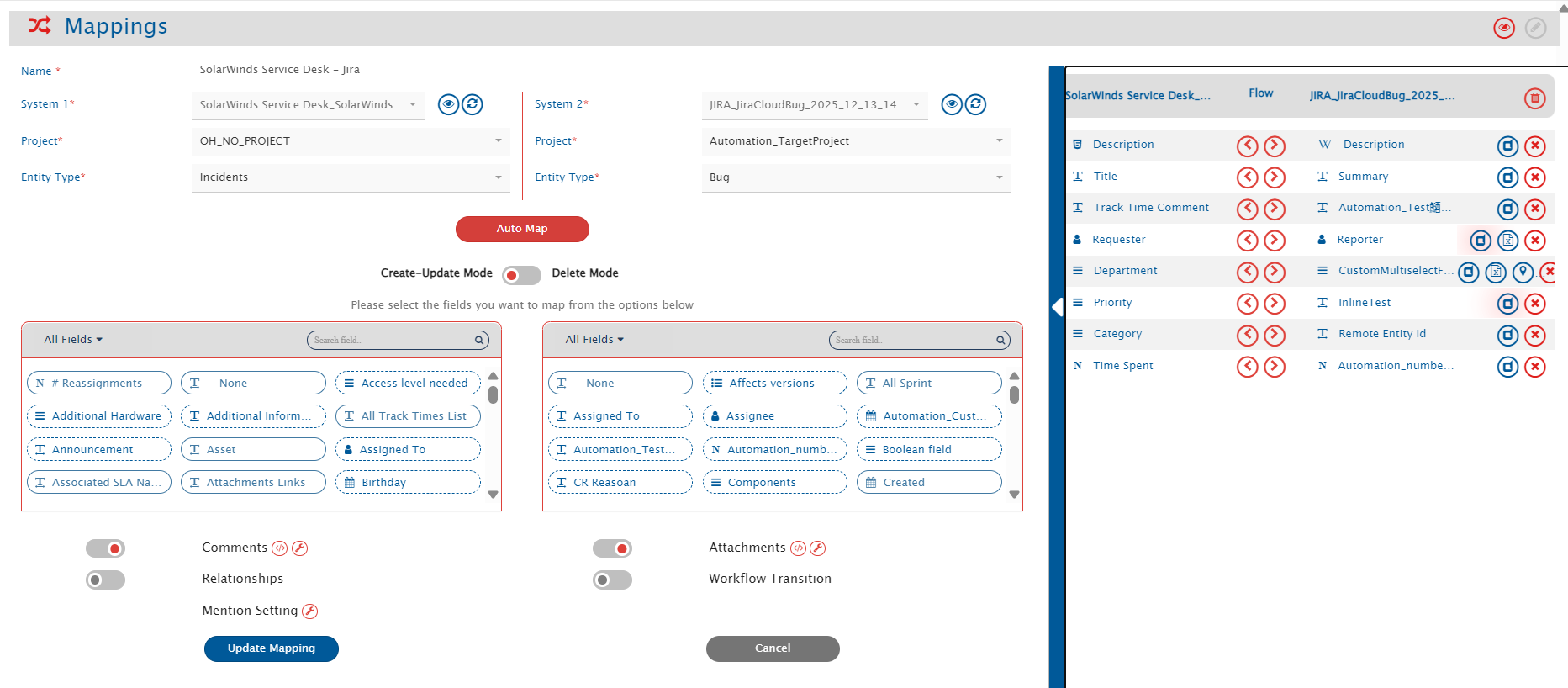
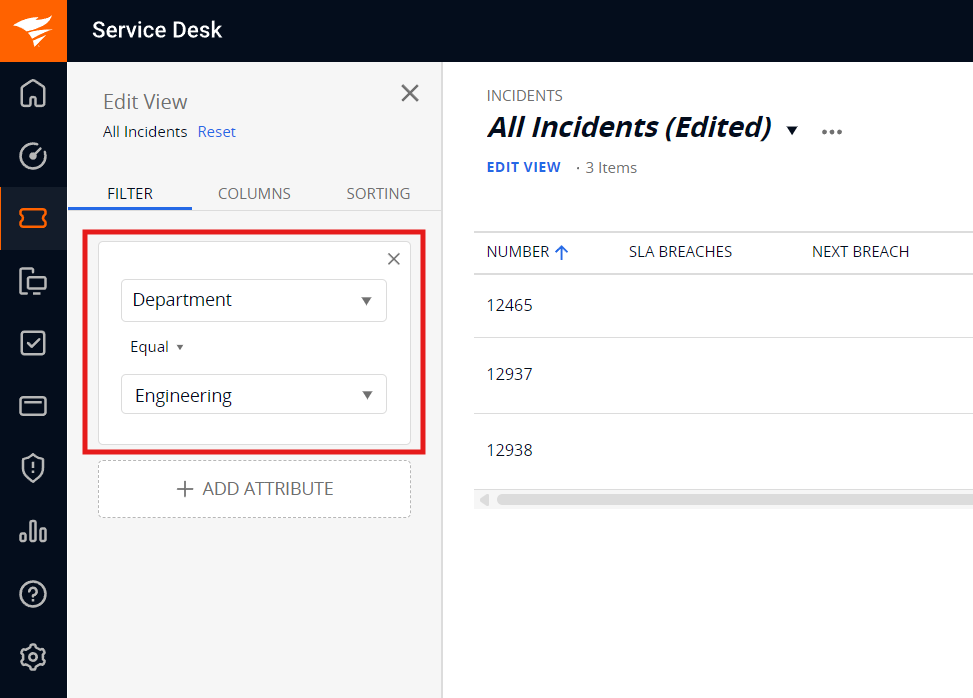
space.vars.OIM's Native query format.Refer to [OpsHub Query Format](/upcoming-release/integrate/configure-integrations/integration-configuration/opshub-query-format.md) for step-by-step instructions. While adding the criteria, user needs to add the internal names of the fields on which the criteria have to be applied.
#### Sample criteria:
| Field name | Field internal name | Criteria description | Criteria snippet |
| ----------- | ------------------- | ------------------------------------------------- | ---------------------------------------------------------------- |
| Description | description | Sync items where text description equals “sample” | \[{"condition":"EQUALS","field":"description","value":"sample"}] |
| Priority | priority | Sync items where Priority is Critical | \[{"condition":"EQUALS","field":"priority","value":"1"}] |
* For lookup-type fields, always use the internal field values.
* Display values will not work in Criteria. Refer to [Get Internal Name and ID For Fields](#get-internal-name-and-id-for-fields) section for details.
### Target Lookup Configuration
* Provide Query in Target Search Query field such that it is possible to search the entity in the SolarWinds Service Desk as the target system. In the target search query field, the user can provide a placeholder for the source system's field value in the '@'.
* To learn in detail about how to configure Target LookUp, refer to **Search in Target Before Sync** section on [Integration Configuration](/upcoming-release/integrate/configure-integrations/integration-configuration.md) page.
* Overall, Target LookUp Query is similar to [Criteria configuration](#criteria-configuration), except that the value part contains a field name with '@' instead of static value.
* For lookup-type fields, always use the internal field values.
* Display values will not work in Target Lookup. Refer to [Get Internal Name and ID For Fields](#get-internal-name-and-id-for-fields) section for details
**Target LookUp query samples:**
| **Field Type** | **Target LookUp usecase** | **Snippet** |
| -------------- | -------------------------------------------------------------------------------- | --------------------------------------------------------------------------- |
| `Description` | Target LookUp on the entity having the source entity's id in 'description' field | `[{"condition":"EQUALS","field":"description","value":"@oh_internal_id@"}]` |
## Known Behaviors and Limitations
#### Common known and limitations
* User will not be able to put Criteria and Target Lookup on fields such as State, date-type fields, and custom fields due to API limitations.
* In Criteria and Target Lookup configurations, only the following operators are supported: Equals & Not Equals.
* Range filters such as Less Than, Less Than or Equal To, Greater Than, and Greater Than or Equal To are not available due to API limitations.
* For some lookup and multi-lookup fields, the SolarWinds Service Desk API does not return lookup values. In such cases, the required field metadata must be defined using a JSON configuration during system creation. Refer to the [Metadata JSON Format](#metadata-json-format) section for details.
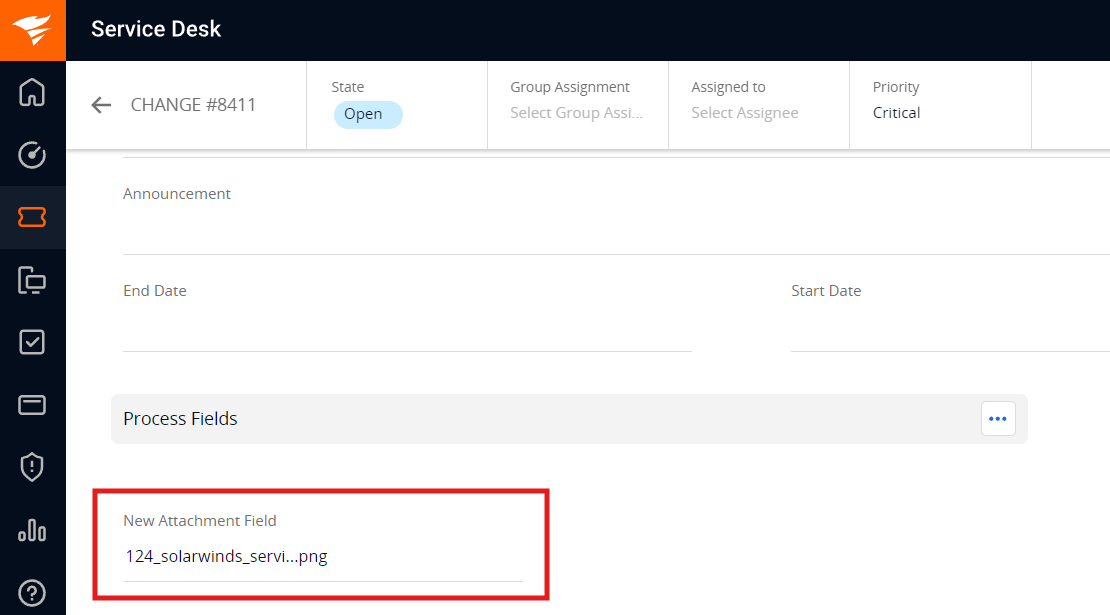
* Attachments added to attachment-type fields will not be synchronized due to API limitations.
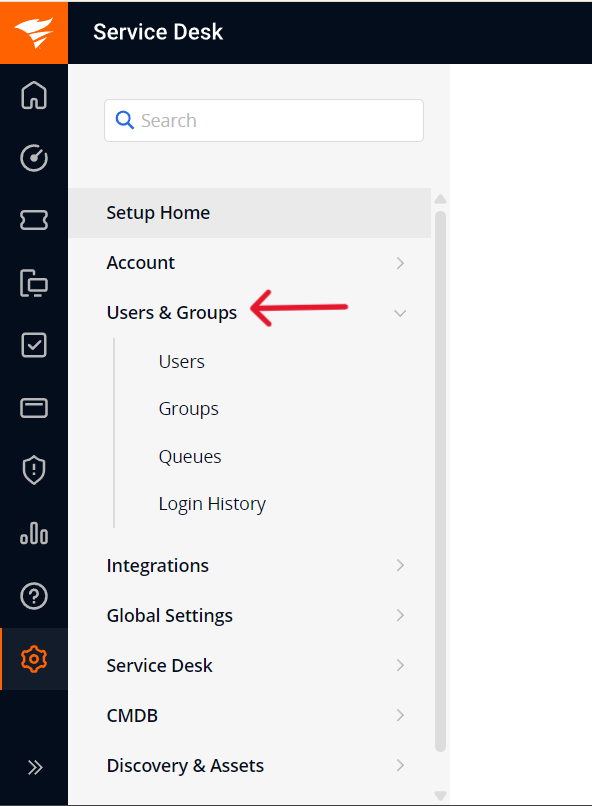
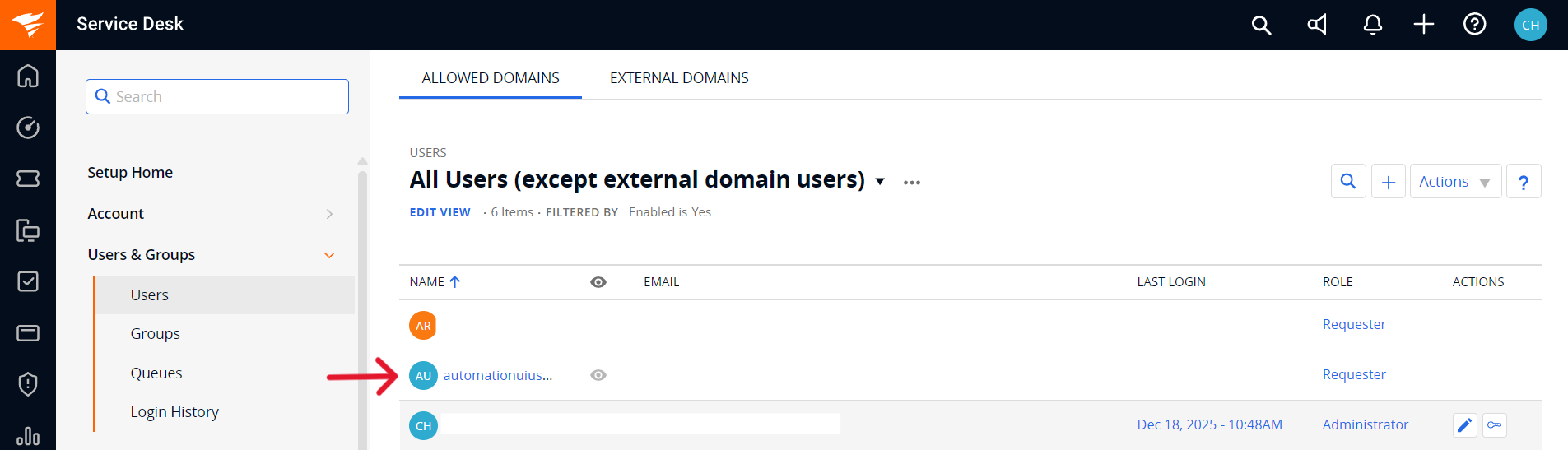

space.vars.OIM, user must provide a JSON structure for system fields. For Lookup-type fields, as their values cannot be retrieved via API therefore this fields must be manually defined here, to ensure proper integration.To get the internal field names and the internal ids for the lookup fields refer [Get Internal Name and ID For Fields](#get-internal-name-and-id-for-fields) section. The Sample JSON structure provided as below:
```json
{
"entities": [
{
"internalName": "incidents",
"displayName": "Incidents",
"fields": {
"system": [
{
"internalName": "state",
"displayName": "State",
"dataType": "lookup",
"mandatory": false,
"lookUpValues": {
"New": "New",
"Resolved": "Resolved",
"Closed": "Closed",
"On_Hold": "On_Hold"
},
"historyEnabled": true
},
{
"internalName": "priority",
"displayName": "Priority",
"dataType": "lookup",
"mandatory": true,
"lookUpValues": {
"Critical": "Critical",
"High": "High",
"Medium": "Medium",
"Low": "Low"
},
"historyEnabled": true
}
]
}
},
{
"internalName": "changes",
"displayName": "Changes",
"fields": {
"system": [
{
"internalName": "state",
"displayName": "State",
"dataType": "lookup",
"mandatory": false,
"lookUpValues": {
"Open": "Open",
"On_Hold": "On_Hold",
"Approved": "Approved",
"Declined": "Declined",
"Waiting_for_Approval": "Waiting_for_Approval",
"In_Progress": "In_Progress"
},
"historyEnabled": true
},
{
"internalName": "priority",
"displayName": "Priority",
"dataType": "lookup",
"mandatory": true,
"lookUpValues": {
"Critical": "Critical",
"High": "High",
"Medium": "Medium",
"Low": "Low"
},
"historyEnabled": true
},
{
"internalName": "change_type",
"displayName": "Type",
"dataType": "lookup",
"mandatory": true,
"lookUpValues": {
"227996": "None",
"227997": "Standard",
"227998": "Normal",
"227999": "Emergency"
},
"historyEnabled": true
}
]
}
}
]
}
```
This JSON structure defines the available values for system fields of SolarWinds Service Desk instance. Ensure the correct internal names and IDs are used for the fields.
***
---
# Agent Instructions
This documentation is published with GitBook. GitBook is the documentation platform designed so that both humans and AI agents can read, navigate, and reason over technical content effectively. Learn more at gitbook.com.
## Querying This Documentation
If you need additional information that is not directly available in this page, you can query the documentation by asking a question.
Perform an HTTP GET request on the following URL with the `ask` and `goal` query parameters:
```
GET https://docs.opshub.com/upcoming-release/connectors/solarwinds-service-desk.md?ask=