space.vars.OIM is deployed, follow the steps given below:
* Download the required database driver on which new database connection is to be created. Refer to the [Download Database Connector jar](/upcoming-release/getting-started/prerequisites.md#download-database-connector-jar) section to get the link of database connector jar.
* Stop the space.vars.OIM.
* Copy the downloaded driver into `Opshub installation directory]\OpsHubServer\lib` folder.
* Start space.vars.OIM.
### Fields requirement
* **Primary-key**: There must be a primary key field or a field which doesn't allow duplicate or null values.
* **Updated Time**: There should be a datetime or timestamp column storing last updated time of the record. It is mandatory to have this column when using database system at source side of integration. However, this column is optional when using database system at target side of integration.
* **Created Time**: It is required when bi-directional sync needs to be performed using the database system. There should be a datetime or timestamp column storing the time of creation of the record. However, this column is optional in all the scenarios other than the bi-directional sync scenario.
* **Created/Updated By (Optional)**: A column to store the username of the person who created or last updated the record.
* **OH\_Last\_Update (Optional)**: A text column to store required information for the recovery.
> **Note**: The columns storing "created/updated by" and "OH\_Last\_Update" are required by space.vars.OIM to ensure smooth data synchronization, especially if something goes wrong during the sync process.\
> Without these columns, during the synchronization, all record field values are compared with the existing values, which is inefficient.
## System Configuration
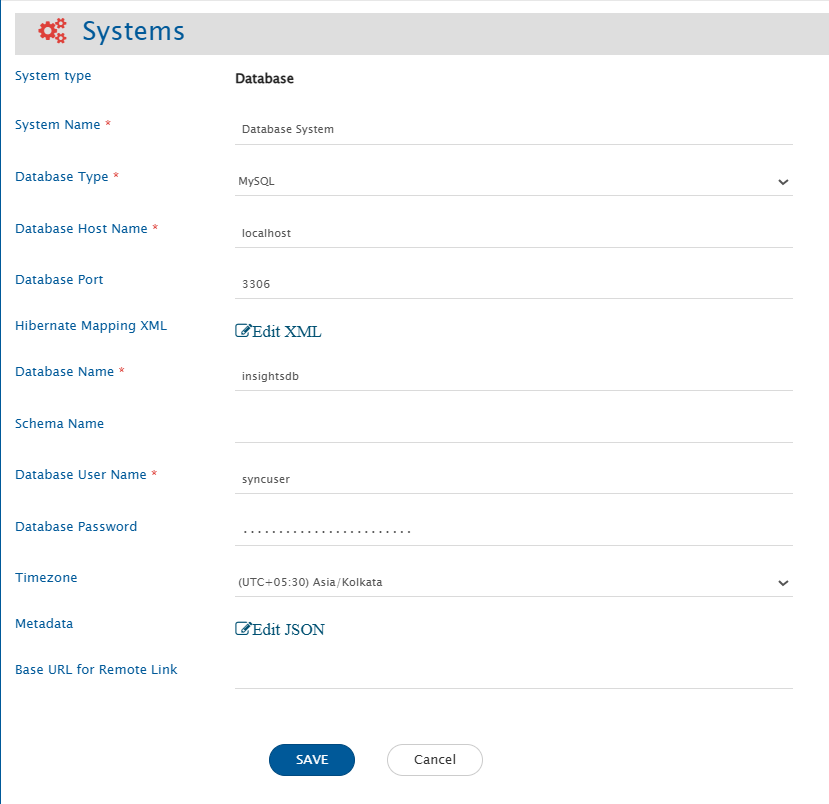
* Before you start the integration configuration, you must first configure database system.
* Click [System Configuration](/upcoming-release/integrate/configure-integrations/system-configuration.md) to learn the step-by-step process to configure a system.
Here is the screenshot:
space.vars.OIM supports history via OH\_History field using history-tracking table (OH\_History). Refer to [OH\_History Table](#oh_history-table) for configuration steps.
* This table can store **field-wise revision history** for the entity.
* For each field change in each revision, a new record would be stored capturing:
* which field changed
* the old and new values
* the revision number
* who changed it
* when it was changed
* space.vars.OIM supports virtual field storage in additional table (OH\_Additional\_Fields). Refer to [OH\_Additional\_Fields Table](#oh_additional_fields-table) for configuration steps.
* This table stores **user-defined or dynamically added fields** that are not part of the main table.
* Each additional field is stored as a separate row with:
* workitem\_id
* workitem\_type
* field\_id (field name)
* field\_data\_type
* field\_value
* This allows systems to add extra fields without modifying the core table structure.
### Understanding Metadata JSON Input
* You can provide metadata for complex data types, such as links, comments, and attachments associated with a record, in JSON format here.
An example input for the metadata JSON:
```json
"link": {
"tableName": "LINKS",
"linkIdColumn": "LINK_ID",
"entityIdColumn": "ENTITY_ID",
"entityTypeColumn": "ENTITY_TYPE",
"linkedRecordIdColumn": "LINKED_ENTITY_ID",
"linkedEntityTypeColumn": "LINKED_ENTITY_TYPE",
"linkTypeColumn": "LINK_TYPE",
"linkCreatedTimeColumn": "LINK_ADDED_TIME",
"linkCreatedByColumn": "LINK_ADDED_BY",
"supportedLinkTypes": {"Parent": "Child", "Related": "Related"}
},
"comment": {
"tableName": "COMMENTS",
"commentIdColumn": "COMMENT_ID",
"entityIdColumn": "RECORD_ID",
"entityTypeColumn": "TABLE_NAME",
"commentTitleColumn": "TITLE",
"commentBodyColumn ": "CONTENT",
"commentAuthorColumn": "AUTHOR",
"commentTypeColumn": "COMMENT_TYPE",
"commentAddedTimeColumn": "COMMENTS_ADDED_TIME"
},
"attachment": {
"tableName": "ATTACHMENTS",
"attachmentIdColumn": "ATTACHMENT_ID",
"entityIdColumn": "RECORD_ID",
"entityTypeColumn": "TABLE_NAME",
"fileNameColumn": "FILE_NAME",
"fileContentLengthColumn":"FILE_LENGTH",
"fileTypeColumn ": "FILE_TYPE",
"fileURIColumn ": "FILE_URI",
"attachmentAddedByColumn ": "ATTACHMENT_ADDED_BY",
"attachmentAddedTimeColumn": "ATTACHMENT_ADDED_TIME",
"attachmentFolderPath ": "D:/OpsHub/attachments"
}
```
* To store the links, comments and attachments information of data records, a separate table will be used in the same database/schema. Provide the table name and field details for this table.
**Links/Relationships**
| **Field Name** | **Expected Input Value** |
| ------------------------ | ------------------------------------------------------------------------------------------------------------------------------------------------------------------------------------------------------------------------------------------------------------------------------------------------------------------------------------------------------------------------------------------------------------------------------------------------------------------------------------------------------------------------------ |
| `tableName` | Name of the table storing link information among different data records |
| `linkIdColumn` | Column name storing unique ID of the link record |
| `entityIdColumn` | Column name storing entity Id (primary ID value of the record) having link information |
| `entityTypeColumn` | Column name storing table name of the record mentioned in entityIdColumn |
| `linkedRecordIdColumn` | Column name storing linked entity Id (primary ID value of the linked record) |
| `linkedEntityTypeColumn` | Column name storing linked table name of the record mentioned in linkedRecordIdColumn |
| `linkTypeColumn` | Column name storing link type |
| `linkCreatedTimeColumn` | Column name storing link added time |
| `linkCreatedByColumn` | Column name storing username storing the link information |
| `supportedLinkTypes` | Provide metadata for link types along with their corresponding reverse link types in a JSON sub-block. Each link type and its reverse counterpart will be supported for linking.
For example, if the JSON contains "Parent": "Child", then both Parent and Child will be valid link types, with Parent being the reverse of Child and vice versa.
If a link type has no reverse, use an empty string ("") as its reverse link type.
space.vars.OIM supports storing audits using OH\_History field using history-tracking tabl. Refer to [OH\_History Table Mapping Configuration](#mapping-configuration-1).
* space.vars.OIM supports storing extra fields without modifying the table structure. Refer to [Additional field configuration](#json-configuration) for configuration steps.
* These configured fields will be available for mapping once configured.
### Inline File Support
* Prerequisite: Configure the attachment table and ensure attachment configuration is enabled.
* Inline files are supported for both read and write operations. It is supported for fields with data type `html` or `wiki`. Refer to [Field JSON Configuration](#json-configuration) to understand how to configure field's data type.
* space.vars.OIM stores image references in following URI template `file:/{attachmentIdColumn value}` where `{attachmentIdColumn value}` is the id of the record in the attachment table. Examples:
```html
order\_date >= '2024-08-15 12:00:00'
Here datetime format needs to be same as the format of the field
space.vars.OIM is installed.\
For example, on Windows, characters such as `\ / : * ? " < > |` are not allowed in file names.
* Only write operations are supported for `OH_History` field and extra fields (stored in `OH_Additional_Fields`); they cannot be used in criteria or target lookup.
* User mentions and entity mentions are not supported by the Database Connector.
## Appendix
### OH\_History Table
* The **OH\_History** table stores field-level revision history for any work item.
#### Table configuration
**Required Columns**
| Column | Data Type | Description |
| -------------------- | ----------------------- | ----------------------------------------------------------------------------------------------------- |
| `workitem_change_id` | `VARCHAR` | Deterministic unique ID generated using (`workitem_id`, `workitem_type`, `revision_id`, `field_name`) |
| `workitem_id` | `VARCHAR` | space.vars.OIM overwrites this based on entity being processed |
| `workitem_type` | `VARCHAR` | space.vars.OIM overwrites this with entity type |
| `revision_id` | `VARCHAR` | Logical revision number |
| `field_name` | `VARCHAR` | Name of field changed |
| `old_value` | `TEXT` | Previous value |
| `new_value` | `TEXT` | Updated value |
| `change_description` | `TEXT` | Description of revision change |
| `changed_by` | `VARCHAR` | Display name of user who made the change |
| `changed_at` | `VARCHAR` or `DATETIME` | Timestamp of change |
**Note:**
* Users may add more columns; use that column as tags in `space.vars.OIM expects data in the following format:
```xml
space.vars.OIM automatically sets `workitem_id` and `workitem_type`.
**Sample mapping**
* The following mapping can be used to, get data from source using utility method `utils:getEntityRevisions` and use it for preparing history.
```xml
space.vars.OIM |
| `workitem_id` | `VARCHAR` | Entity identifier |
| `workitem_type` | `VARCHAR` | Entity type |
| `field_id` | `VARCHAR` | Internal name of the field |
| `field_data_type` | `VARCHAR` | Data type provided in JSON |
| `field_value` | `TEXT` | Actual stored value |
* Users may choose any table or column names in their database, but they must not modify the `class:entity-name` and `property:name` in the provided HBM XML.
* The `table` and `column` attributes may be adjusted to match the actual database schema created by user.
**HBM XML**
```xml
space.vars.OIM overwrites the field metadata.
* When it does not match:
* A new field is created, and values are stored in `OH_Additional_Fields`.
* Users may configure the following parameters for each field.
| JSON Path | Required | Default Value | Description |
| ------------------------------------------- | ----------- | -------------- | ----------------------------------------------------------------------------------------------------------------------------------------------------------------- |
| `additionalMeta.fields.system.internalName` | Yes | — | Unique identifier of the field; determines overwrite vs. new-field creation. |
| `additionalMeta.fields.system.displayName` | No | `internalName` | Display name shown to user. |
| `additionalMeta.fields.system.multiselect` | No | false | Whether multiple values are allowed. |
| `additionalMeta.fields.system.mandatory` | No | false | Whether field must be configured. |
| `additionalMeta.fields.system.readOnly` | No | false | Whether the field is editable. |
| `additionalMeta.fields.system.dateFormat` | Conditional | null | Required only when `dataType` is `date` or `date_string`. |
| `additionalMeta.fields.system.dataType` | No | `text` | Data type of the field. Supported values: `text`, `numeric`, `boolean`, `date`, `date_string`, `html`, `wiki`, `link`, `test-step`, `test-run-iteration`, `user`. |
**Example**
```json
{
"additionalMeta": [
{
"fields": {
"system": [
{
"internalName": "name",
"displayName": "Work Item Title",
"dataType": "text",
"mandatory": true
},
{
"internalName": "custom_priority",
"displayName": "Priority (Custom)",
"dataType": "numeric",
"mandatory": false
}
]
},
"internalName": "workitem"
}
],
"link": {...},
"comment": {...},
"attachment": {...}
}
```
* Above JSON Example understanding
* Overwriting an existing mapped field
* When `additionalMeta.fields.system.internalName: "name"` matches a column defined in HBM XML.
* space.vars.OIM overwrites metadata:
* `displayName` → "Work Item Title"
* `dataType` → `text`
* `mandatory` → true
* All other parameters remain unchanged.
* Adding a new field
* When `additionalMeta.fields.system.internalName: "custom_priority"` does not match any column in HBM XML.
* space.vars.OIM treats it as a new field, storing its values in the `OH_Additional_Fields` table.
---
# Agent Instructions
This documentation is published with GitBook. GitBook is the documentation platform designed so that both humans and AI agents can read, navigate, and reason over technical content effectively. Learn more at gitbook.com.
## Querying This Documentation
If you need additional information that is not directly available in this page, you can query the documentation by asking a question.
Perform an HTTP GET request on the following URL with the `ask` and `goal` query parameters:
```
GET https://docs.opshub.com/upcoming-release/connectors/database-integration.md?ask=