> For the complete documentation index, see [llms.txt](https://docs.opshub.com/llms.txt). Markdown versions of documentation pages are available by appending `.md` to page URLs; this page is available as [Markdown](https://docs.opshub.com/connectors/aha.md).
# Aha
## Prerequisites
### User privileges
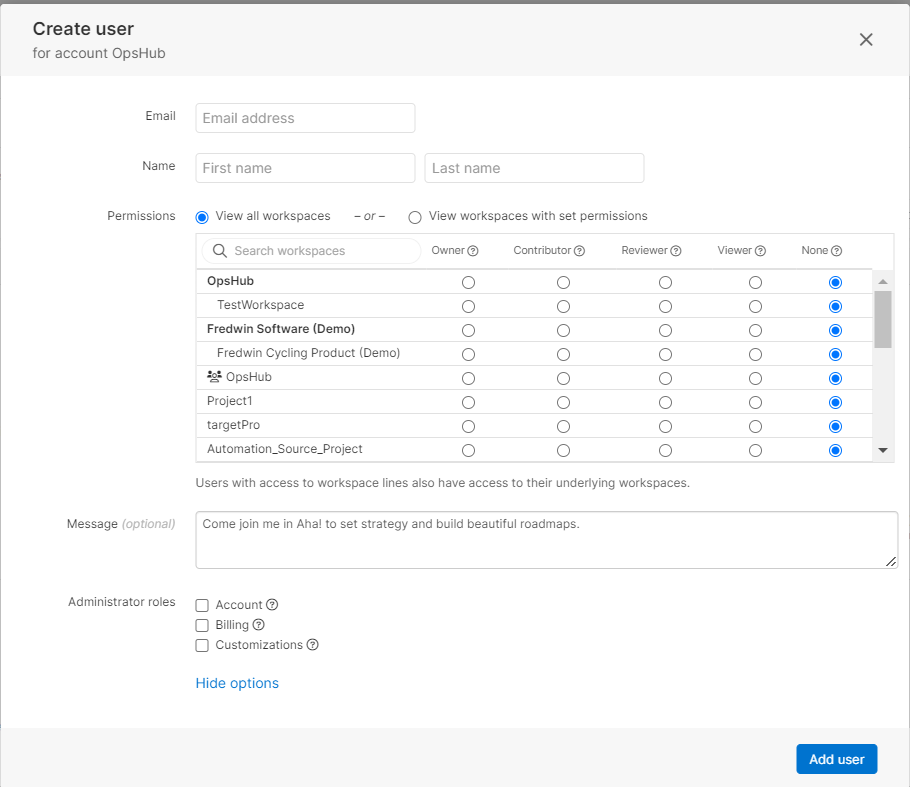
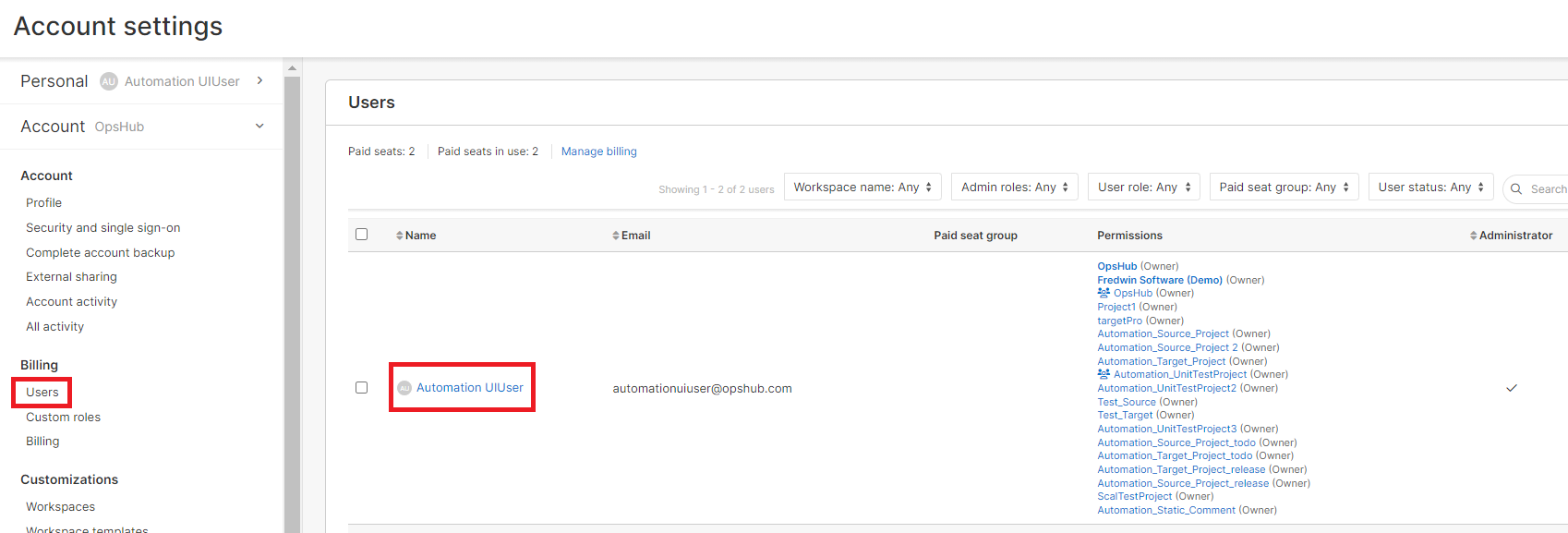
* Create one user in Aha! that is dedicated for space.vars.OIM. This user shouldn't perform any other action from Aha!'s user interface. This user is referred as 'Integration User' in the document.
* Please refer to [Add User](#add-user) section to create a user in Aha!.
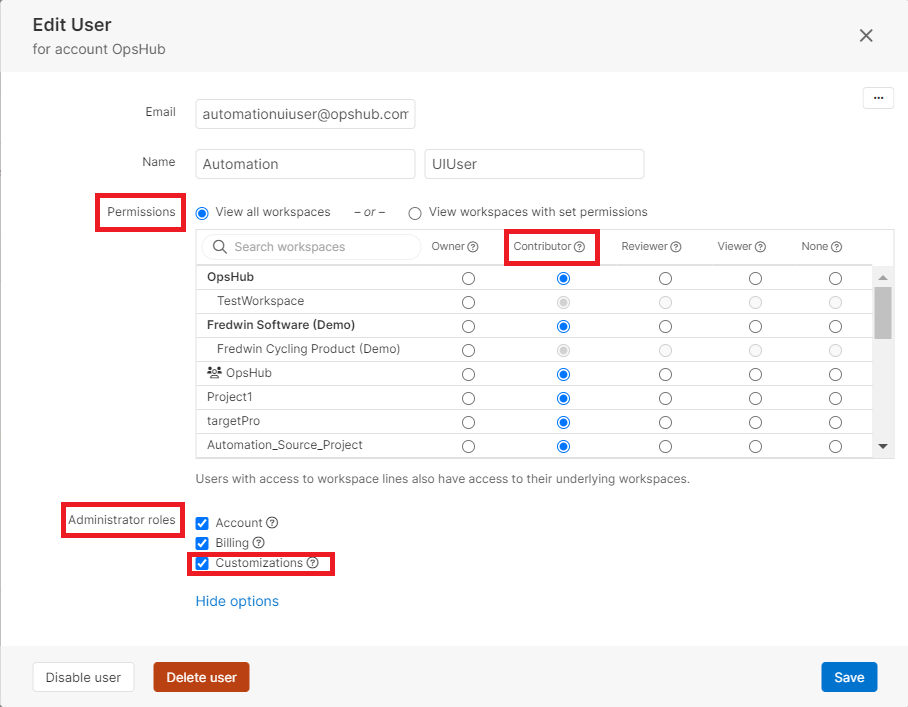
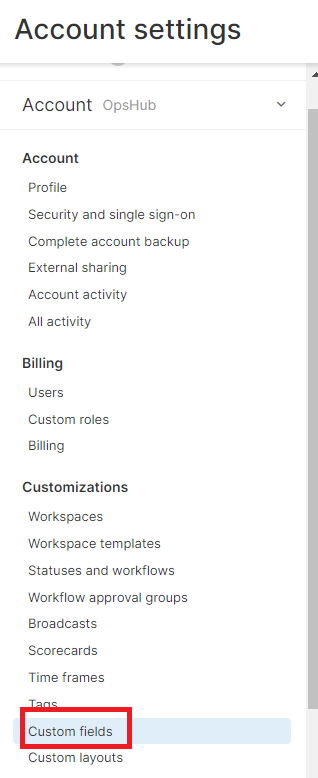
* To synchronize entities to and from any systems to Aha!, Integration User must have **Contributor** permission at project level and **Customizations** role \[which needs be selected from project's Administrator roles]. Refer to [Grant permissions to Aha! user](#grant-permissions-to-aha-user) section for step-wise details on how to grant permissions to a Aha! user.
### API Rate Limiting
* Due to Aha! rate limit issues, for more details, refer to the [API Rate Limitation in Aha!](#api-rate-limitation-in-aha) section, it is recommended to use the Fetch Mapped Data Only feature (available as an space.vars.OIM add-on) to optimize the API calls. Contact your sales or support representative to enable it.
## System Configuration
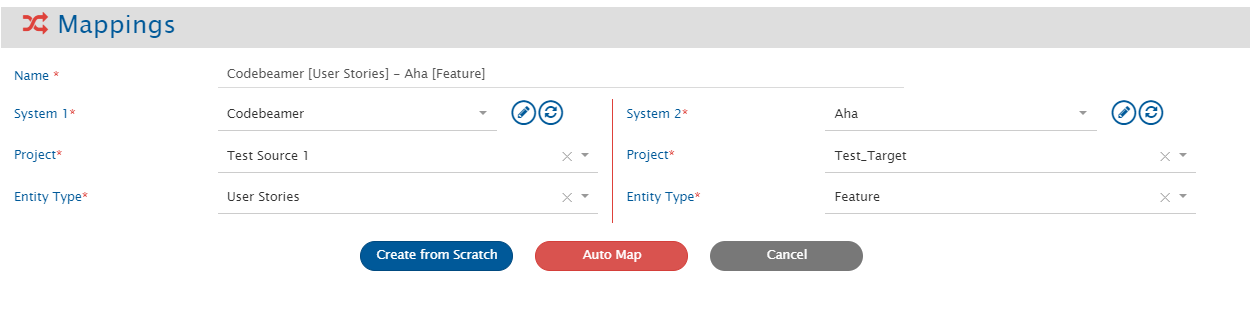
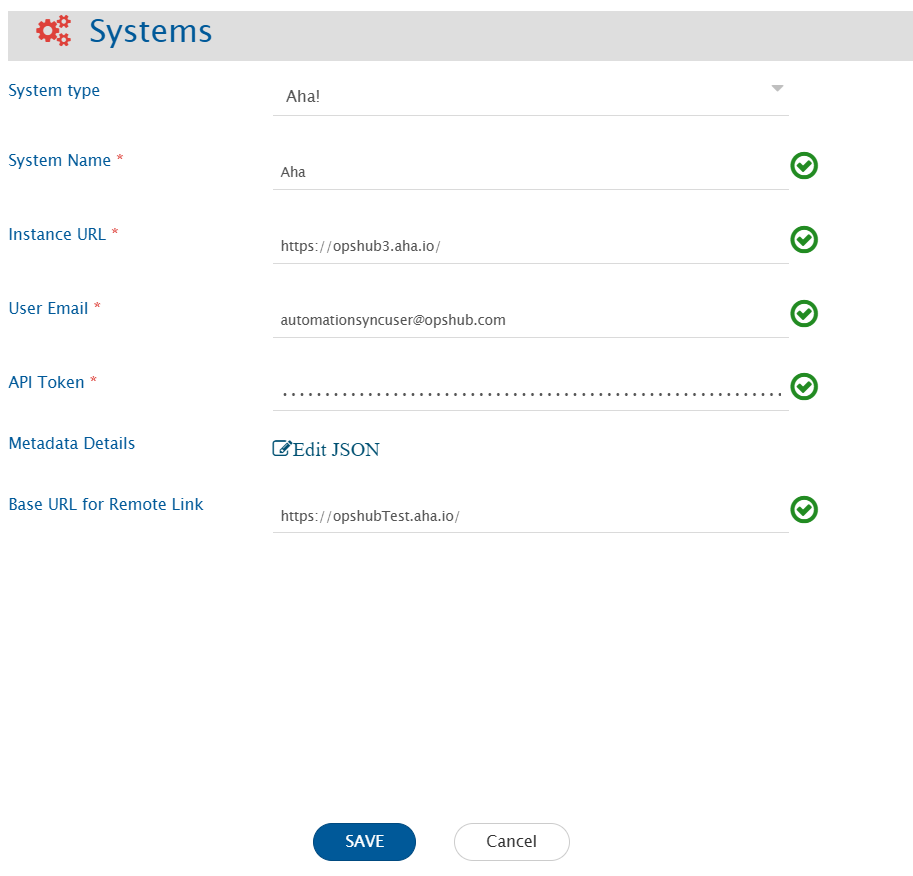
* As you kickstart with the integration, you must first configure Aha! system in space.vars.OIM.
* Click [System Configuration](/integrate/configure-integrations/system-configuration.md) to learn the step-by-step process to configure a system.
Refer to the following screenshot for reference:
space.vars.OIM, for the sync of Parking lots, the Release entity needs to be seleted at mapping level {as Parking lots are considered as Release by space.vars.OIM }.
### Comments Configuration
* Aha! as source system:
* If comments are mapped in Mapping Configuration, then all the comments will be synchronized to target system. Additionally, the attachments & inline images from the comment will sync to the target system based on its attachment behaviour. For example, if the target conatins the comment with attachment functionality, then attachment will sync to attachment section and the reference to that attachment will be added inside the comment.
* Aha! as target system:
* If comments are mapped in Mapping Configuration, then comments will be synced to Aha! system. Here, the inline images and attachments will be synced to Aha! description field and reference to those attachements will be added in the comment.
### Attachments Configuration
* Each Rich Text type field supports attchements in Aha!.
* Aha! as source system:
* Attachments from all rich text and attachment type fields will sync to the target system.
* Aha! as target system:
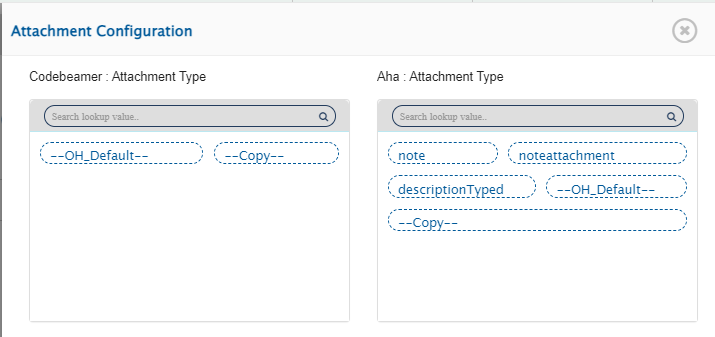
* Attachment mapping can be configured to decide the field of Aha! to which the attachment needs to be synced.
* If only attachment mapping toggle is enabled but the attachment type mapping is not configured, then attachment will sync to description field of Aha! as a part of default attachment behavior sync.
### Relationship Configuration
In Aha!, Record links and Reference fields will be supported as relationships.
#### Mandatory Links
* For Feature and Epic type of entities, the Release is a mandatory relationship linkage as feature and epic can only be created inside the release/parking lot.
* For Requirement type of entities, Feature is a mandatory relationship linkage as requirements can only be created inside the feature.
* For To-do type of entities, the Parent is a mandatory relationship linkage as we support the creation of a to-do entity inside the other entity only. Here, the parent entity can be any other entity.
### Reference Fields
* Reference fields are the fields that refer to some other Aha! entity we support.
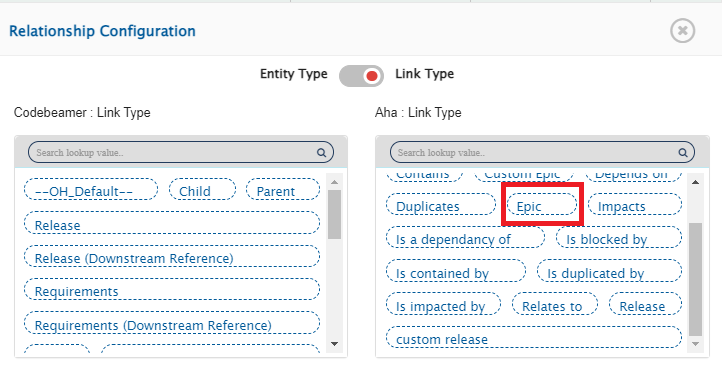
* Reference fields \[System/Custom fields] will be synchronized through relationships. For references, the names of the Reference fields will be shown in link type mapping of the Relationship Configuration, as shown in the screenshot below:
## Integration Configuration
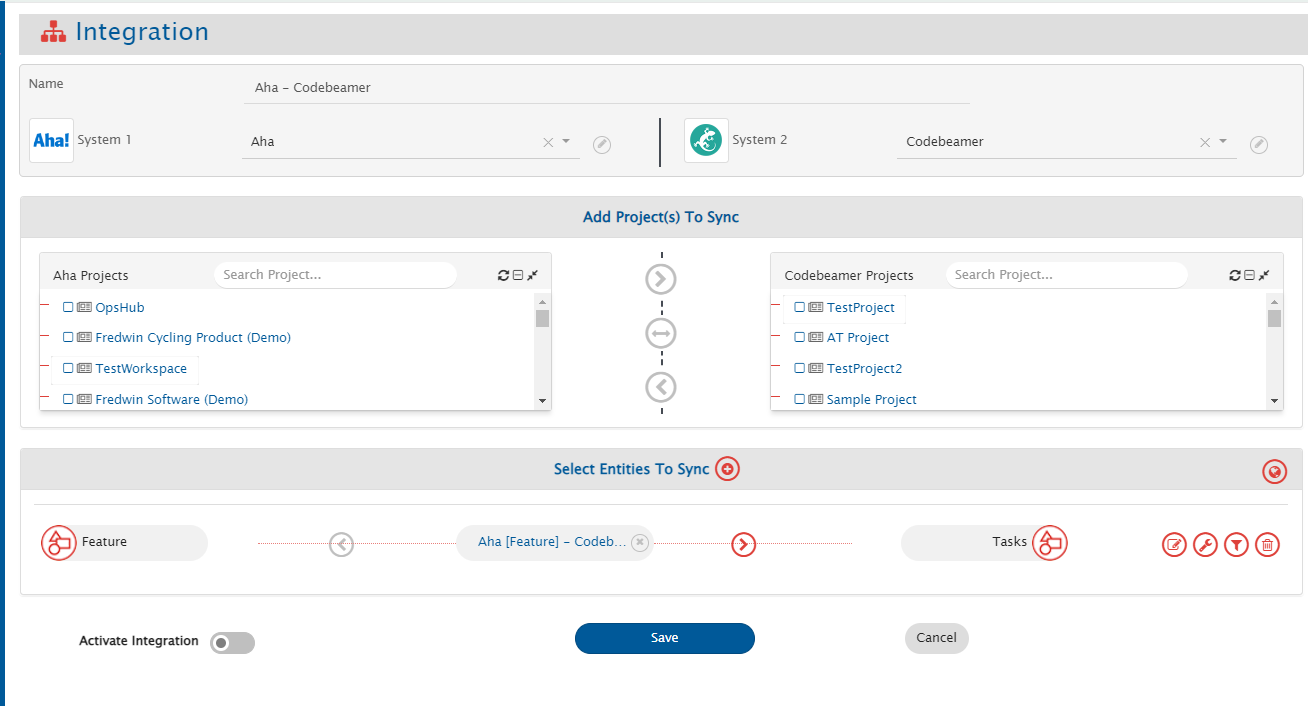
Set a time to synchronize data between Aha! and the other system to be integrated. Also, define parameters and conditions (if any) for integration. Refer to [Integration Configuration](/integrate/configure-integrations/integration-configuration.md) to learn the step-by-step process to configure the integration between two systems. Refer to the screenshot given below:
In Aha!, the entity type selection in integration configuration depends on the project selection. For more details, please refer to [Project Selection](#project-selection) section.
### Criteria Configuration
If the user wants to specify conditions for synchronizing an entity from Aha! as source system to the other system, the criteria must be configured. Navigate to Criteria Configuration section on [Integration Configuration](/integrate/configure-integrations/integration-configuration.md) page to learn in detail about Criteria Configuration. Set the **Query** as per Aha! encoded query format. Criteria is only applicable to given four fields. Given below are the sample snippets of how the Aha! queries can be used as criteria query in space.vars.OIM:
**Criteria samples:**
| **Field Type** | **Criteria Description** | **Criteria snippet** |
| ------------------------ | --------------------------------------------------------------------- | ----------------------------------------------------------------------------------------------------------------------------------------------------------------------------------------------------------------- |
| `q` | Synchronize all entities named as 'test feature' | q=test%20feature |
| `updated_since` | Synchronize all entities updated after 10 March 2021 | updated\_since=2021-03-10T00%3A00%3A00.000Z
Format: yyyy-MM-dd'T'HH🇲🇲ss.SSS'Z'
|
| `tag` | Synchronize all entities associated with the tag 'need review' | tag=need%20review |
| `assigned_to_user` | Synchronize all entities assigned to user 'ABC' | Filter can be applied on User ID or User email.
For an example, assigned\_to\_user=7163902316942030700 /assigned\_to\_user=email%40opshub.com
Here, 7163902316942030700 is the id of the user 'ABC'.
|
| `updated_since` + `name` | Synchronize entities named 'test r \&d' and updated after 10 Mar 2021 | updated \_since=2021-03-10T00%3A00%3A00.000Z \&q=test%20r%26d |
### Target LookUp Configuration
* Provide Query in Target Search Query field such that it is possible to search the entity in the Aha! as the target system. In the target search query field, the user can provide a placeholder for the source system's field value in the '@'
* Go to **Search in Target Before Sync** section on [Integration Configuration](/integrate/configure-integrations/integration-configuration.md) page to learn in detail about how to configure Target LookUp.
* Overall, Target LookUp Query is similar to [Criteria Configuration](#criteria-configuration), except that the value part contains a field name with '@' instead of static value.
**Target LookUp query samples:**
| **Field Type** | **Target lookup usecase** | **Snippet** |
| -------------- | --------------------------------------------------------------- | -------------------------- |
| `q` | Target lookup on entity having source entity's id in name field | q='@source \_system \_id@' |
## Known Behaviour
* From Aha! UI, issue type can be changed for entity. Currently, such conversions will create a new entity in the target and the previous one will be orphaned.
* From Aha! UI, the entity can be deleted. However, for Aha! as the source system, the deleted entity will not sync by space.vars.OIM. The corresponding target entity will remain orphan in target system on Aha! entity deletion. Also, Aha! entity deletion is not supported by space.vars.OIM, when Aha! is the target system.
* To update the "Progress" field through synchronization, the progress source must be set to "manual" (from Aha! UI or field mapping of space.vars.OIM) due to Aha! API behavior.
* Goals and Initiative System fields will be available as lookup fields in the field mapping, even though they are not available in Aha! Develop UI.
* **The above fields are available in Aha! Develop UI when the Aha! Develop instance is combined with Aha! Roadmap.**
* **Note** The above fields will be deprecated in future releases and replaced with link-based support.
* Hierarchy sync is not supported. Hence, the synchronization of ranking the requirements and to-dos will not be supported.
* Attachment and inline image synchronization is not supported for fields of type Table and other complex type of fields.
* User mention for portal users will be synchronized as text(user value coming from source).
* Entity mention is not supported for the following entities in the given scenarios:
* **When Aha! is configured as the target system,** Entity mention is not supported for Goals, Notes, and To-Do entities.
* **When Aha! is configured as the source system,** Entity mention through source URL configuration is not supported for the Goals entity.
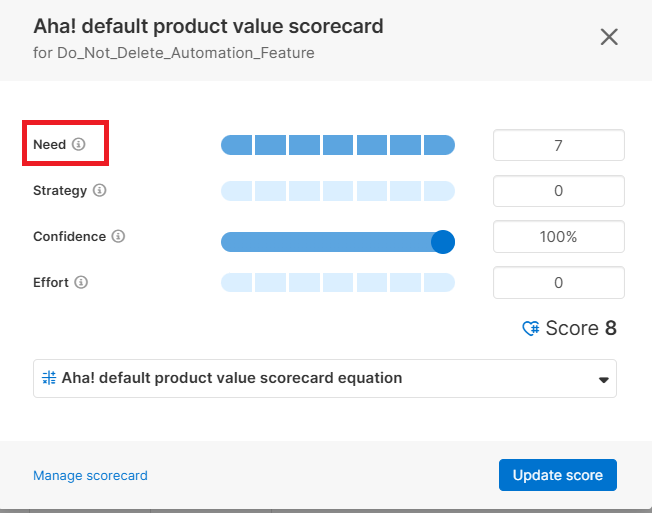
* **Scorecard parameter values require additional configuration in OIM to sync.**
* Refer to [Configuring Scorecard Parameter For Synchronization](#configuring-scorecard-parameter-for-synchronization)
* Reason: Aha APIs do not provide scorecard parameter details.
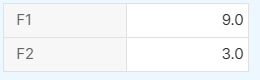
* **Advanced XSLT configuration is required** to synchronize complex fields (such as table and worksheet types).
* Refer to [Configure Advance XSLT For Complex Fields](#configure-advance-xslt-for-complex-fields) section.
* **Only read-only synchronization is supported** for the following fields
* Scorecard fields
* Table fields
* Worksheet field
* Votes and Submission portal field for **Idea** entity
#### User type field sync
* **History synchronization is not supported** for **System user** and **Custom user** fields due to Aha! API limitations. These fields support **Current state** synchronization only.
* To synchronize the history of a user-type field, map the corresponding **Read-only text field** available in the mapping for every user-type field having the following naming convention:
```
.Name
```
The `.Name` field stores the history of the corresponding user field as the user's **display name**.
Examples:
| **User-type field** | **Read-only text field** |
| ------------------- | ------------------------ |
| Owner | Owner.Name |
| Custom User | Cusotm User.Name |
| Created By | Created By.Name |
If history synchronization is required for a User-type field, map the corresponding `.Name` field along with User-type field.
| **Requirement** | **Field to map** |
| ----------------------------- | ---------------------------------- |
| Current state synchronization | `Assigned to` |
| History state synchronization | `Assigned to` & `Assigned to.Name` |
For History state synchronization, map both the User-type field and its corresponding `.Name` field. The User-type field is used to synchronize the current user value, while the corresponding `.Name` field provides the user's display name for history sync.

### Project Selection
* For Aha! system, users can organize their data at different types of workspaces, i.e., Project, Products or Teams. Different entities can reside in different workspaces, for e.g., the Feature can belong to the Product while Activity can belong to the Project.
### API Rate Limitation in Aha!
* Aha! has limitation on API access per minute for a single user. Due to this, space.vars.OIM can access Aha! API within a limit. When the limit exceeds, the Aha! API stops responding for certain amount of time, and no API calls can be done by space.vars.OIM during that time until Aha! resets the limit for that user.
* **Up to 300 requests per minute and 20 requests per second are allowed in Aha!.**
* To address this issue, wait time (given by Aha! API) will be considered for entity synchronization. Thus, there might be some delay in synchronization in case of API rate limit issue.
* **Note:** To avoid hitting rate limits, do not set the integration schedule to run every minute. Instead, adjust the cache timeout in space.vars.OIM(for example, 24 hours) and the integration schedule interval (for example, 15 minutes in production) to ensure smooth operation without exceeding rate limit
* **Recommendation:** To reduce the number of API calls, consider using the Fetch Mapped Data Only feature, which is available as an additional license add-on. To enable this feature, please contact your sales or support representative.
## Known Limitations
* Limitations due to the lack of Aha! API:
* Audit/History Sync
* **History is synced for the last 12 months only from current date.**
* Reason: Aha APIs provide history data limited to the past 12 months.
* Reference: [Aha Audits API](https://www.aha.io/api/resources/audits)
* **Some fields support only current value sync (history is not available).**
* Due to Aha's historical behavior(UI and API limitations): Scorecard parameters, Watchers, Custom brief type field, Actual vote count, Admin message, Proxy voters and Submission portal details
* Due to Aha's API limitations: Custom tables, Idea categories, Votes, Key results, Tags, Rich text fields, goals/initiatives and Estimate-related fields.
* During history synchronization, changes in user fields may be synced as the wrong user in target, if multiple users share the same display name in Aha!.
* Example:
* User 1 in Aha!: Display Name = X, Email = .
* User 2 in Aha!: Display Name = X, Email = .
* If an update is made to “X” like X -> X in Aha!, the system may sync it to the wrong user in the target system.
* Reason: The Aha! end system does not distinguish between users with identical display names through the UI/API.
* **A 5-minute delay is applied to history based sync**
* Reason: Aha consolidates audit records within a 5-minute interval. To avoid discrepancies or inconsistencies in history sync, this delay is introduced.
* **Additional delay depends on polling/scheduling interval:**
* Total delay = 5 minutes (processing) + configured polling interval.
* Example: If polling is set to 5 minutes, creations/updates may reflect after approximately 10 minutes.
* **Current-State-Based Synchronization with Revision History**
* If the integration is running on current state-based synchronization and you are syncing history of source to target system's field or comment, then the field updates may be delayed if changes are made within last 5 minutes.
* Reason: This happens because Aha merges audit records within 5-minute intervals done on the same field.
* Example Timeline:
* Time T1: field1 value changed from **A** to **B**
* Time T2: field2 value changed from **1** to **2**
* Time T3: field1 value changed from **B** to **C**
* Time T4: field1 value changed from **C** to **D**
* Aha end system audits will be as follows:
* Time T1: field1 value changed from **A** to **D**
* Time T2: field2 value changed from **1** to **2**
* OIM current sync execution starts at time T5.
* The updates made on the field2 will be synchronized in next synchronization cycle because of Aha's audits behavior.
* Metadata is not available for the system fields. So, we are providing static metadata in the system itself. Here, the user can change the display name of the entity. User can provide the entity name using the JSON input, and if any user doesn't provide any JSON input, an inbuild entity display name will be considered.
* In Aha! Develop instance, for **Epic & Feature** type of entities, **Workspace** field is not available for synchronization.
* In Aha! Develop instance, for **Requirement** type of entity, **Initial estimate, Detailed estimate & Actual effort** fields will not be synced.
* State transition is not supported as API doesn't give the information about state transitions.
* For synchronizing updates of **Proxy votes** and **Submission portal details** fields for Idea entities, an additional field update is required. This is because changes to these fields do not update the entity's last modified time.
* **Custom Key Result** field is treated as a **text** field due to API unavailability.
* Attachment field: If Aha! is the target system and the attachment mapping is configured to use field-type attachments, at least one attachment should be present in the corresponding field.
* Soft delete is not supported for the To-Do entity, as the Aha does not provide a way to recover/restore entity.
* **Hierarchical relationship limitation for Goal, Initiative and Release entity:**
* The **"Contains goals"** relationship for **Goal** entities is not available through the Aha! API and therefore cannot be synchronized.
* The **"Child initiatives"** relationship for **Initiative** entities is not available through the Aha! API and therefore cannot be synchronized.
* The **"Sub-releases"** relationship for **Release** entities is not available through the Aha! API and therefore cannot be synchronized.
* For the below-mentioned entities, it is recommended to configure the following links with the setting: **Fail if not found**
* **Goal** – **"Belongs to goal"**
* **Initiative** – **"Belongs to initiative"**
* **Reason**: Due to Aha! API limitations, the corresponding reverse link operations are not supported.
* For Aha! as the target system, the fields below will not unset via space.vars.OIM due to Aha!'s API limitation: **Effort, Value, Duration Source, Progress Source, Status, Type, Complete by date (internal), Round date to, Complete by date (external), Presented, and Description.**
* **To-dos** present at user level will not synced by space.vars.OIM. **To-dos** present in other entities can only be synchronized.
### Troubleshooting Guide
If you are getting an **Internal Server Error** with **Status Code: 500**, then you should retry the failures. There is a limitation of the Aha! API that if we perform updates on entities from same project at the same time, deadlocks occur in their database. It can cause the above-mentioned error.
## Appendix
### Add User
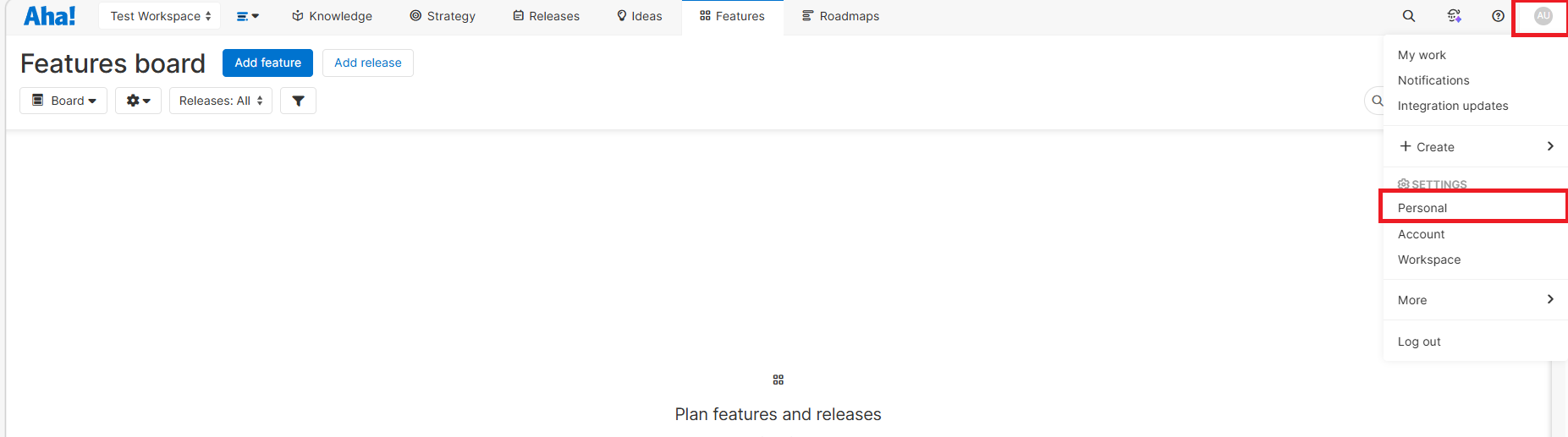
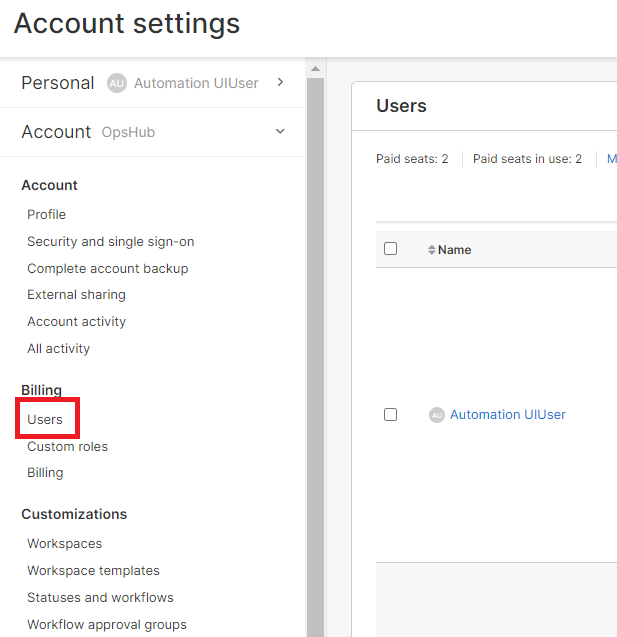
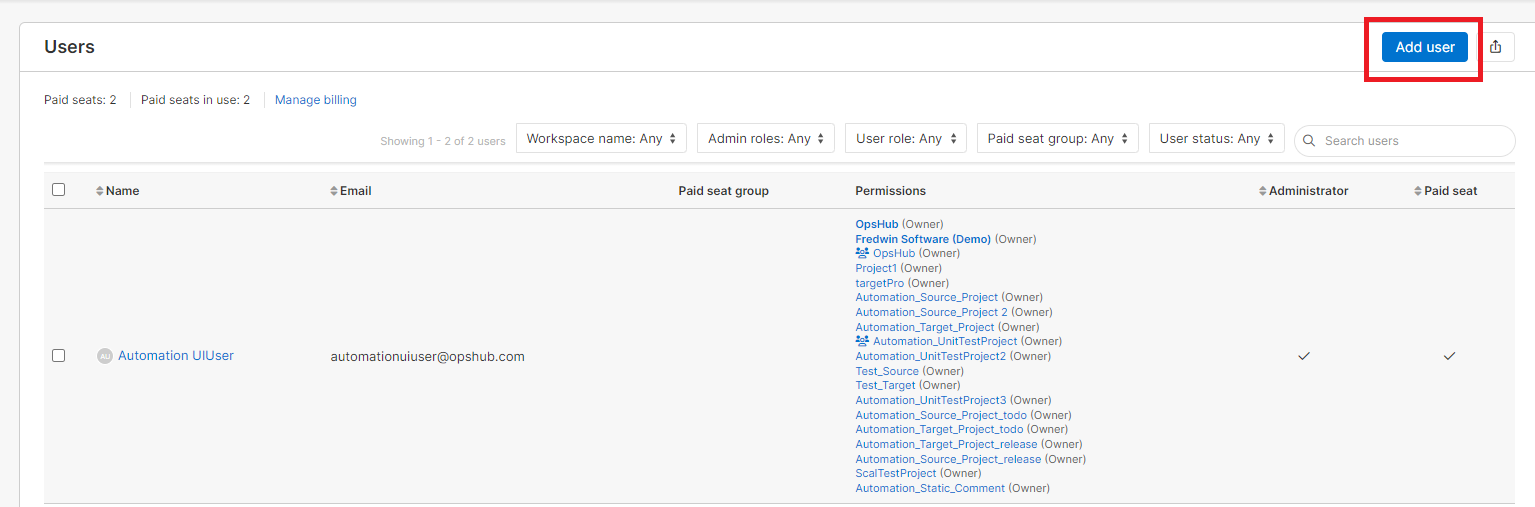
1. Login to Aha! using the user with privileges to create a new user.
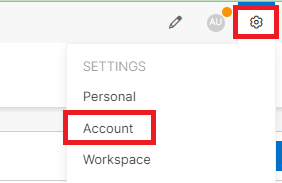
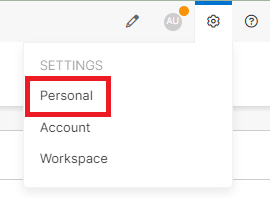
2. Navigate to Settings given at the top right corner and go to Account section.


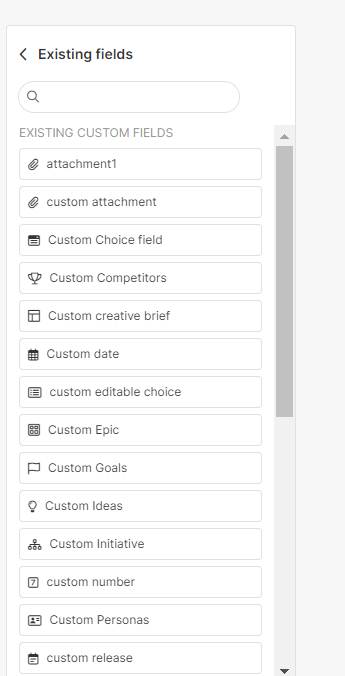
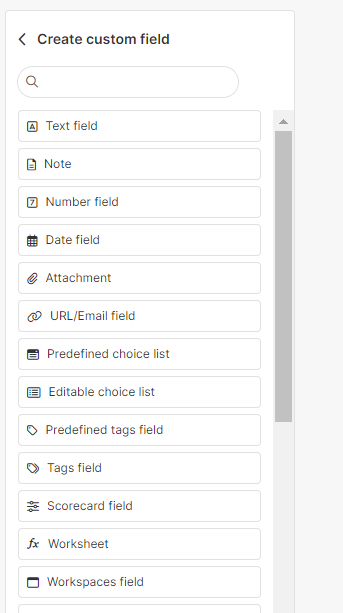
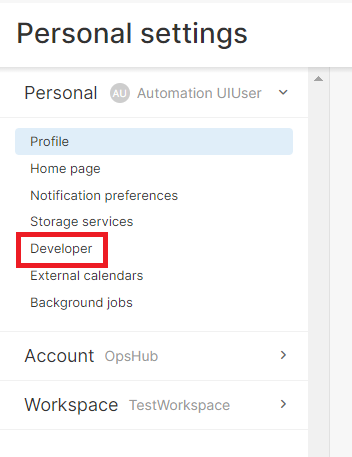
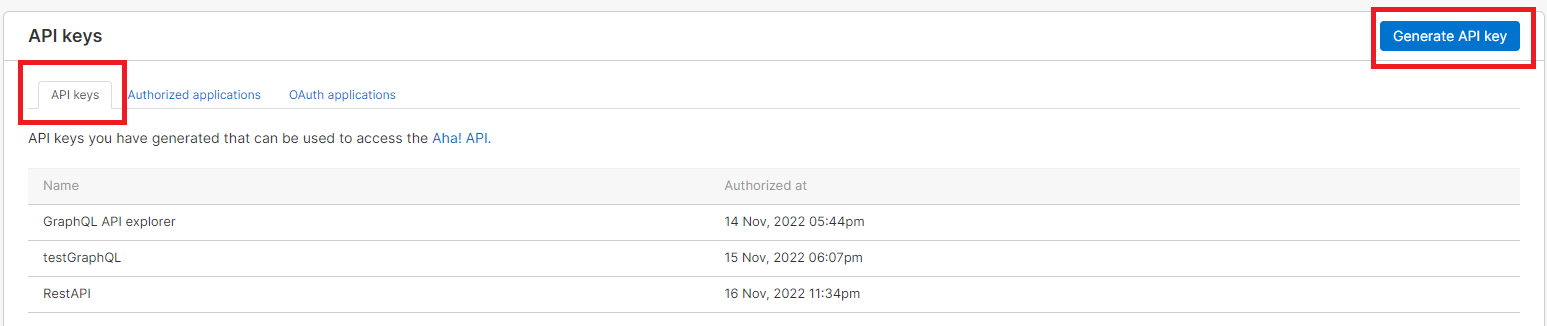
space.vars.OIM mapping configuration screen.
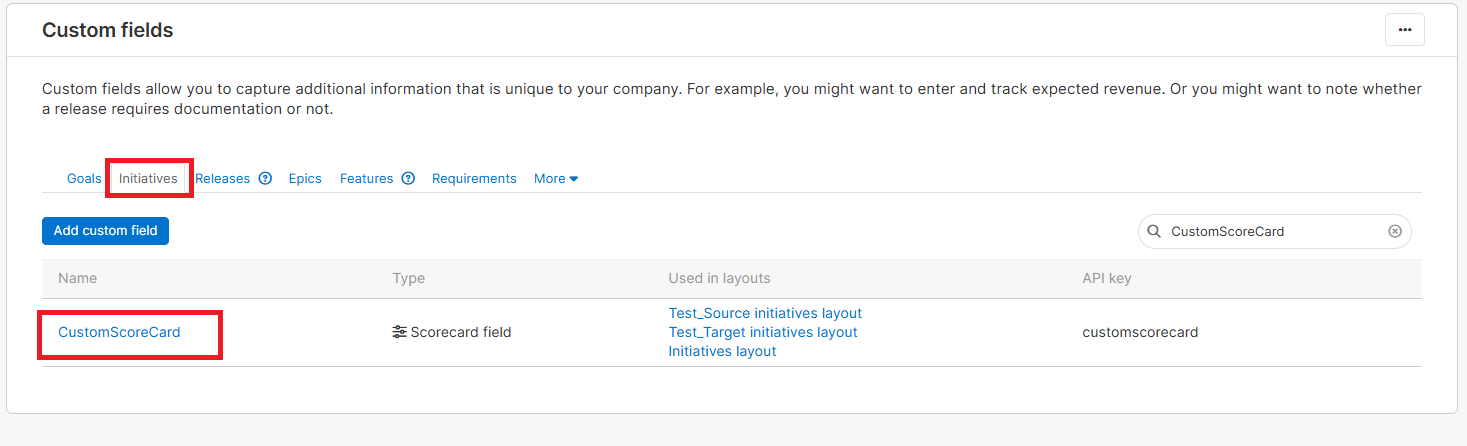
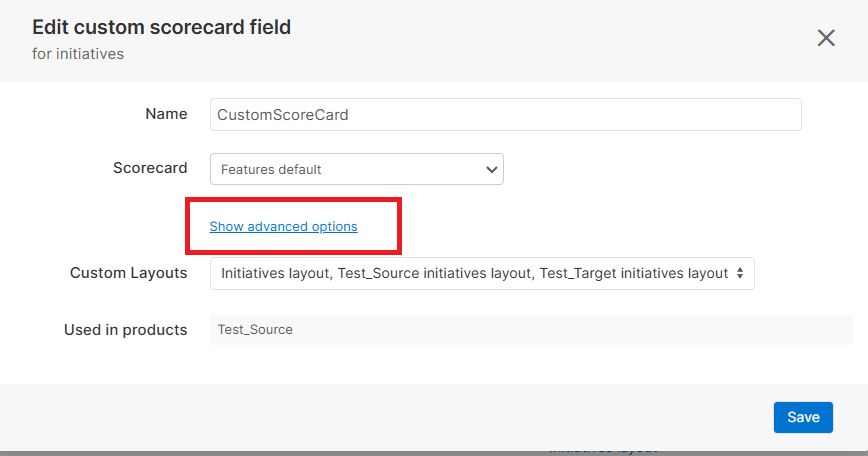
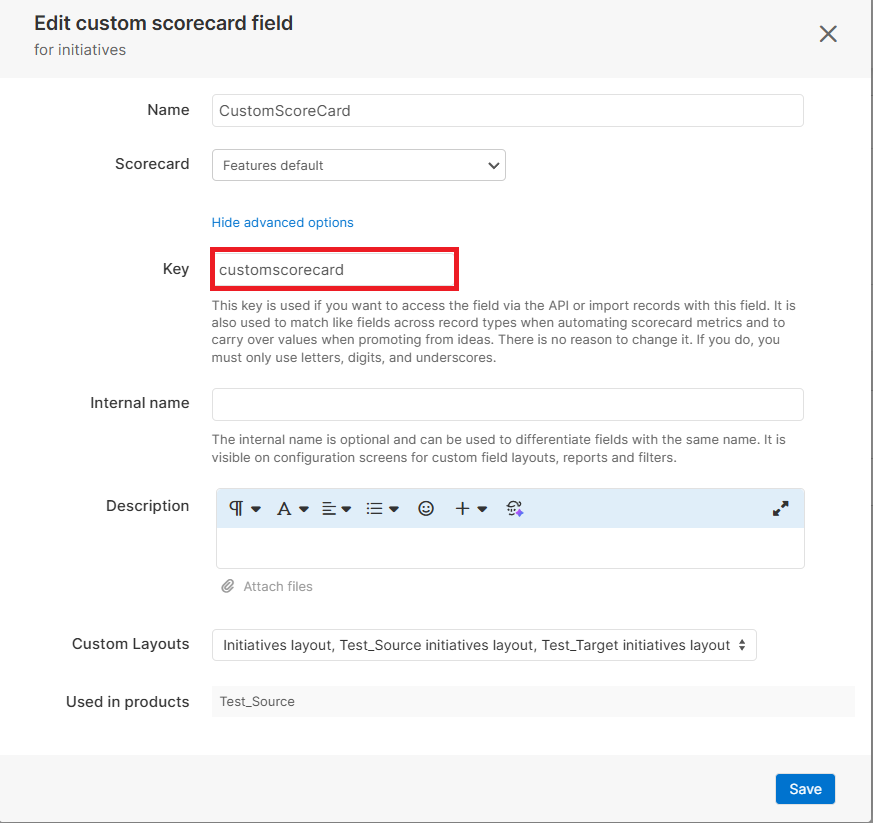
4. The last three parameters in the JSON configuration remain consistent across all scorecard parameters.
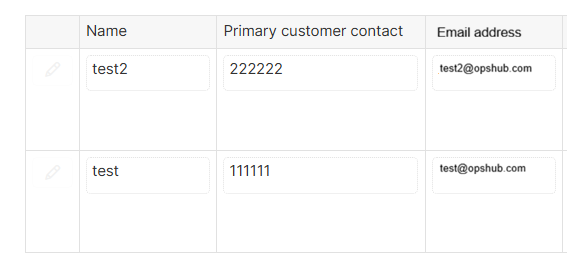
5. The \ specified in the internalName field corresponds to the name displayed in the UI for the respective scorecard. Refer to screenshot below for illustration.