> For the complete documentation index, see [llms.txt](https://docs.opshub.com/llms.txt). Markdown versions of documentation pages are available by appending `.md` to page URLs; this page is available as [Markdown](https://docs.opshub.com/connectors/servicenow-quick-connect.md).
# ServiceNow Quick Connect
## Prerequisites
### User Privileges
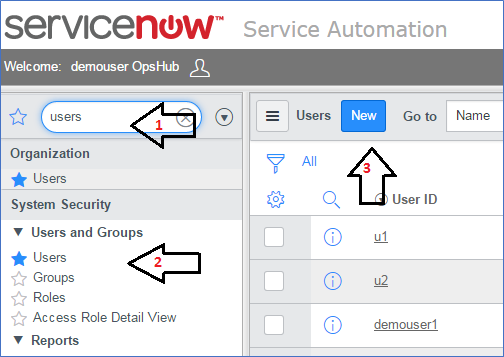
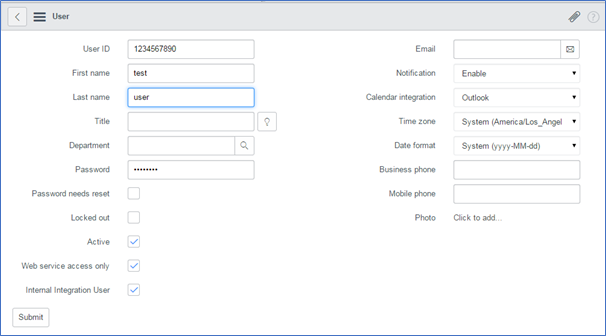
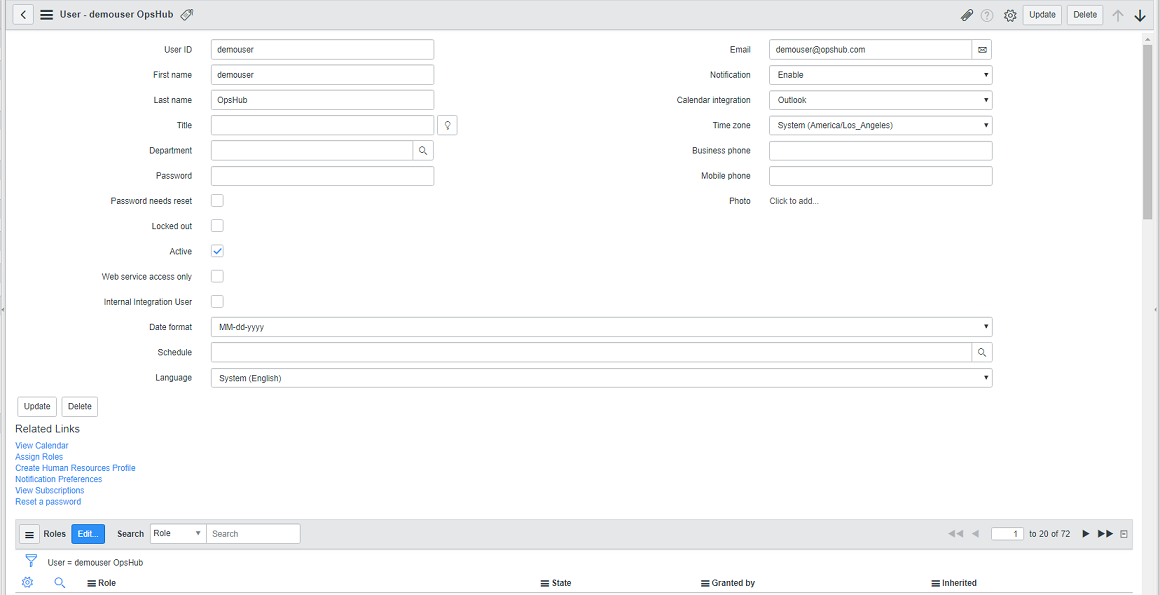
* Create one administrator user of ServiceNow Quick Connect system (please refer to [Add User](#add-user) section for creating a new user), dedicated to space.vars.OIM. User should not be used to do any operations from ServiceNow Quick Connect User-Interface.
> **Note**: In case your ServiceNow Quick Connect is configured with SSO, you will have to create a normal service user account in ServiceNow Quick Connect and use that user in integration.
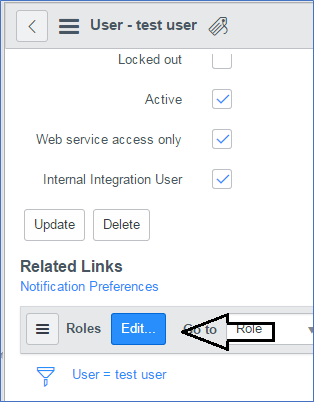
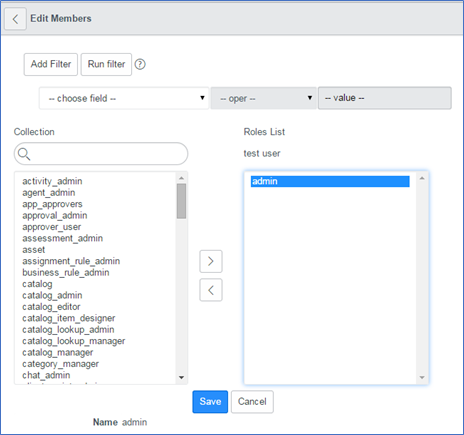
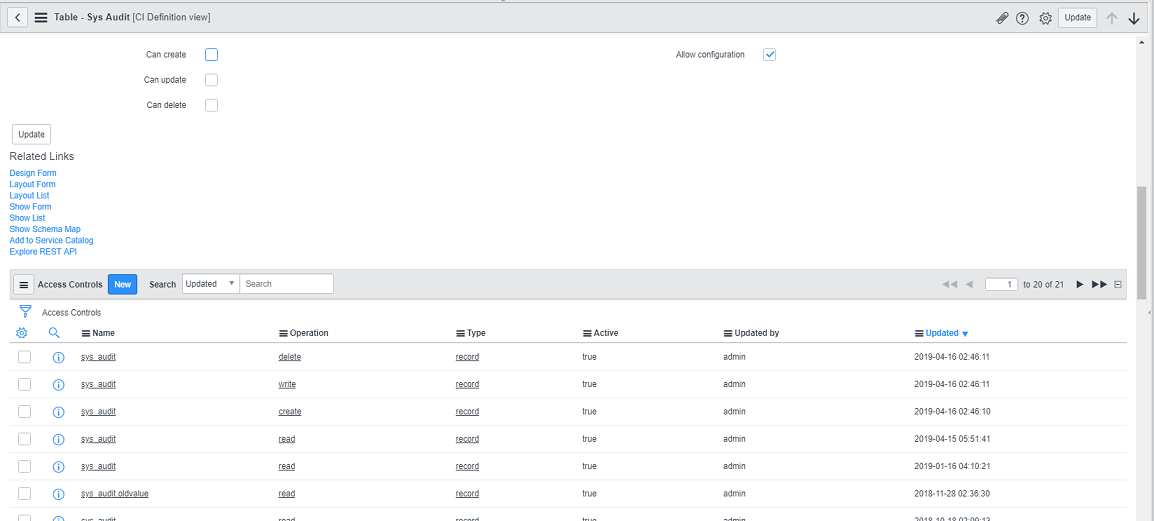
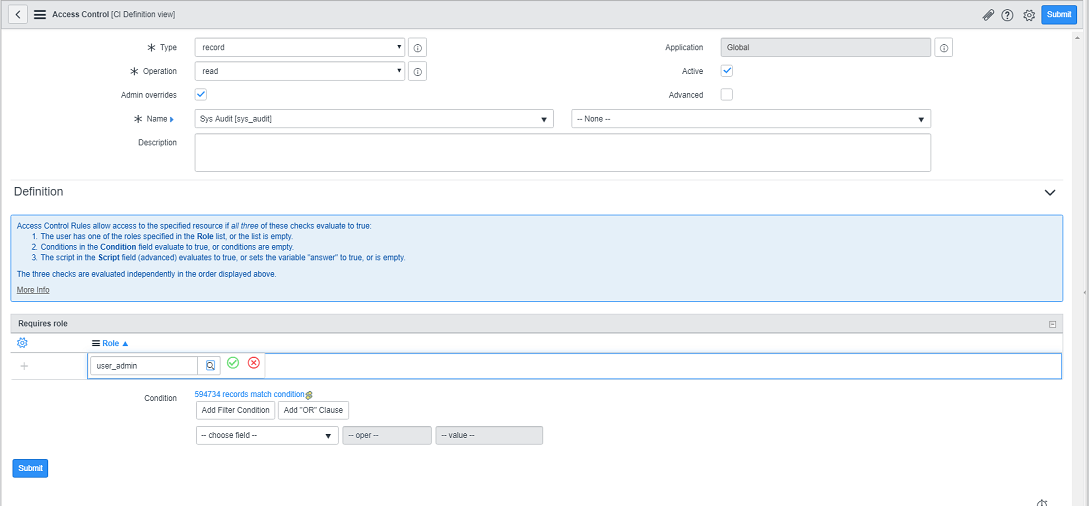
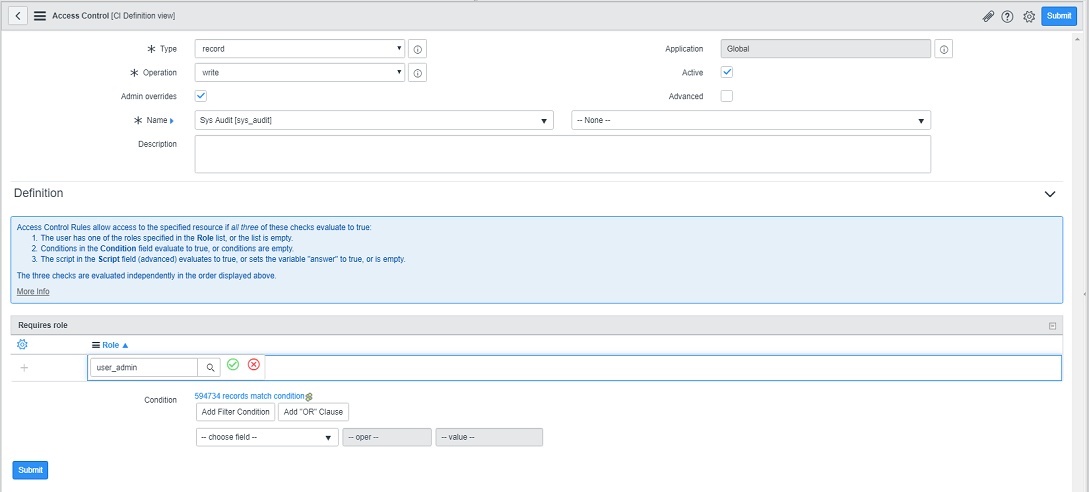
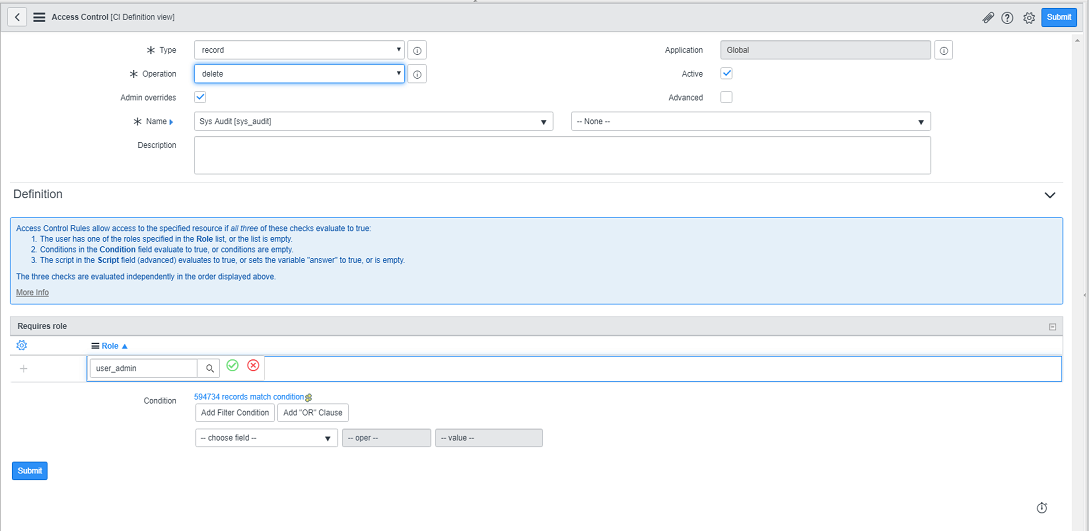
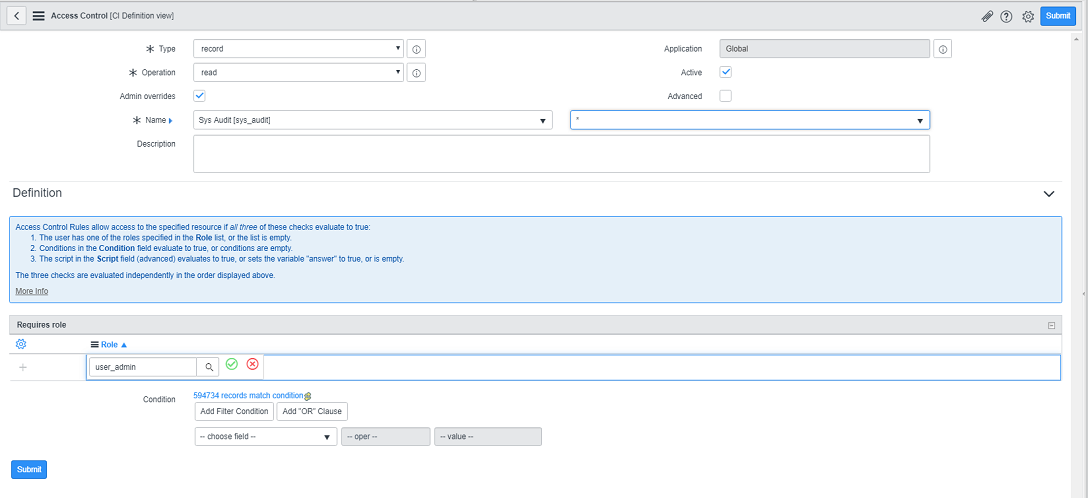
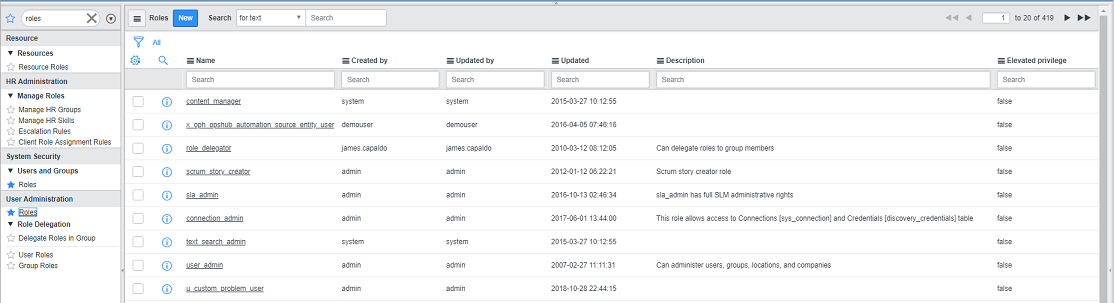
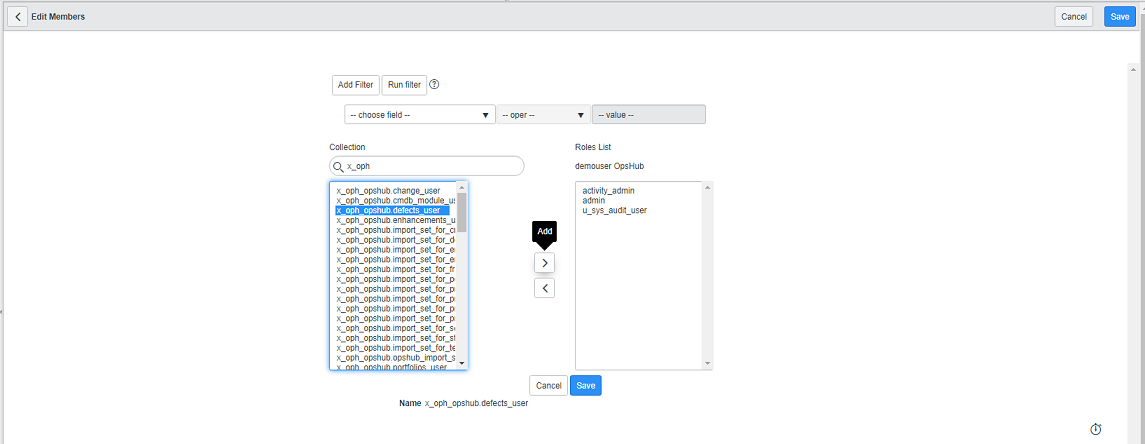
* In case if administrator user is not available, dedicated user should have access to tables mentioned below. Please note that Read, Write, Delete, etc mentioned in brackets beside table names, are the access permissions required on respective table. Refer to [Add user access for table](#add-user-access-for-table) for providing required permissions to the user.
* sys \_attachment (Read, Write, Delete)
* sys \_audit (Read, Read. \*)
* sys \_db \_object (Read, Read. \*)
* sys \_dictionary (Read, Read. \*)
* sys \_choice (Read, Read. \*)
* ecc \_queue (Write)
* sys \_attachment \_doc (Read)
* sys \_user (Read)
* sys \_journal \_field (Read,Write,Delete)
* sys \_glide \_object (Read)
* task (Read, Read. \*)
* User should have Read and Write access to all the entity table that needs to be synchronized. Eg., for incident to be synchronized, the user will need Read and Write access to the incident entity table.
> **Note**: In above permissions, Read. \* means there an ACL with \* selected in columns with Read permission is required. Please refer to [Add user access for table](#add-user-access-for-table) for providing Read. \* permission on a table.
* In case you want to use fields of type 'Reference' (e.g. Assignment group, Category, etc), some extra permissions need to be provided. Please refer to [Syncing reference fields](#syncing-fields) section for providing the required permissions.
* Please note, in addition to **Read.** \* ACL on a table (wherever applicable in the above list); to get access to all the fields, you must ensure that each field of the table meets the following conditions:
* Field should be marked 'Active' (Active column of the field should be set to 'True').
* If read ACL is applied on the field, you will get access to the field only when you meet all the below-mentioned criteria associated with the ACL:
* The condition associated with ACL must evaluate to 'true'.
* The script associated with ACL must evaluate to 'true' or return an answer variable with the value of 'true'.
* You must have one of the roles in the required roles list associated with ACL. If the list is empty, this condition evaluates to 'true'.
### Syncing Fields
* Reference fields are the fields that refer to some other ServiceNow Quick Connect entity, i.e., fields whose values are the records of some other entity. E.g., Assignment Group field in Incident entity refers to Group entity.
* To sync such reference fields, the integration user must have 'read' permission for the columns sys \_id and name or number (whichever is available) of the table/entity that is being referred by the field. The **Allow access to this table via web services** check-box should be checked for allowing the access via REST API to the table being referred by the field.
> **Note**: The user must not change the field types of out of the box system fields.
### Turning on Auditing (History) for a Table
ServiceNow Quick Connect tracks incident, change, and problem history in the sys \_audit table. Enabling auditing tracks the creation and update of audited records. Audit must be enabled on the entity table (for example, not to its import set table but to the actual entity table like incident, problem, etc). To enable audit for a table, please refer to [Turn on auditing (history) for a table](#turn-on-auditing-history-for-a-table).
### Enable space.vars.OIM for ServiceNow Quick Connect Instance
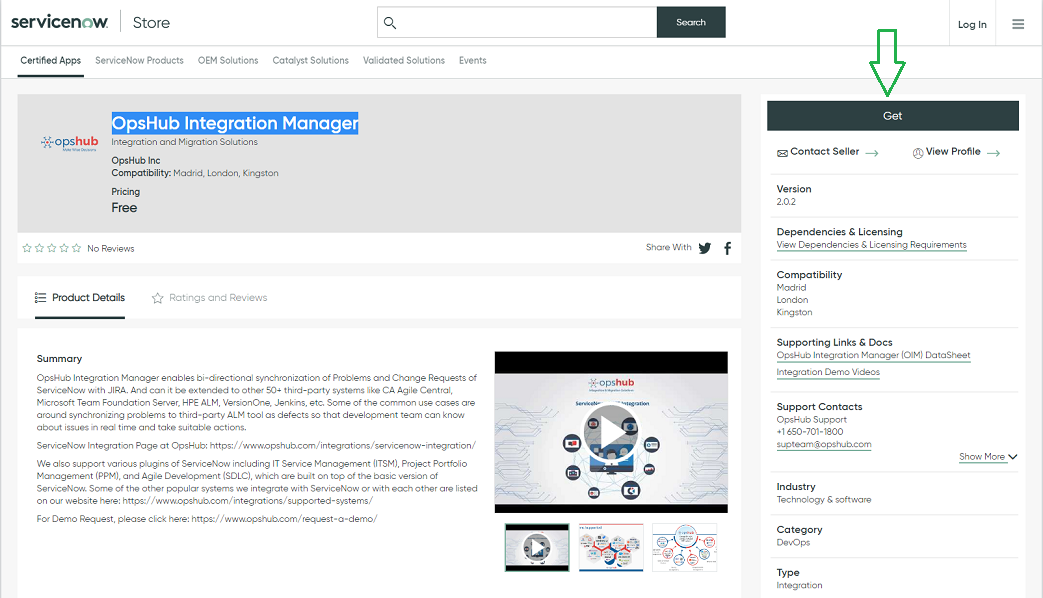
* space.vars.OIM must be enabled for the ServiceNow Express instance. You can get this app from ServiceNow appStore: [https://store.servicenow.com/sn \_appstore \_store.do#!/store/application/8e6f0b610f8ce6001f6fc3ace1050ebb](https://store.servicenow.com/sn_appstore_store.do#!/store/application/8e6f0b610f8ce6001f6fc3ace1050ebb)
* On the space.vars.OIM App page, click on **Get** and provide your ServiceNow Quick Connect HI Credentials.
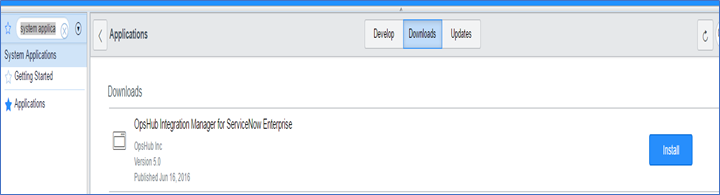
* You will see space.vars.OIM for ServiceNow Quick Connect in Downloads tab by navigating **System Applications -> Applications** in your ServiceNow Quick Connect instance \[The example below shows space.vars.OIM for ServiceNow Quick Connect Enterprise]. Click on Install for space.vars.OIM for ServiceNow Quick Connect applications.
* On successful installation, space.vars.OIM for ServiceNow Quick Connect application will be available.
### Configure Attachment or HTML//Rich type field
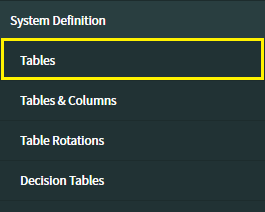
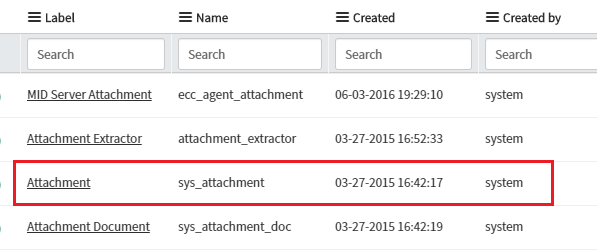
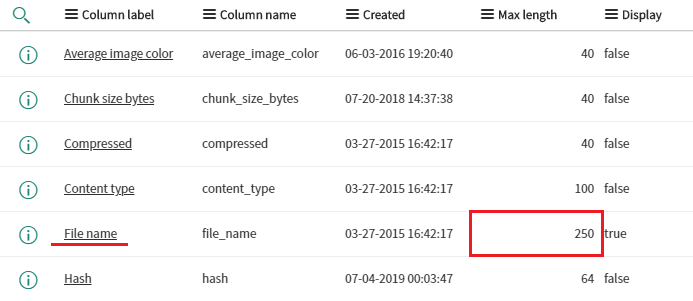
If attachments or HTML//Rich type supported fields are mapped, then keep the attachment filename's length to the maximum characters possible in ServiceNow Quick Connect. For configuring the attachment filename (maximum characters), refer to [How to change attachment table configuration](#how-to-change-attachment-table-configuration).
## System Configuration
Before you continue with the integration, you must first configure ServiceNow Quick Connect system. Click [System Configuration](/integrate/configure-integrations/system-configuration.md) to learn the step-by-step process to configure a system. Refer to the screenshot given below:
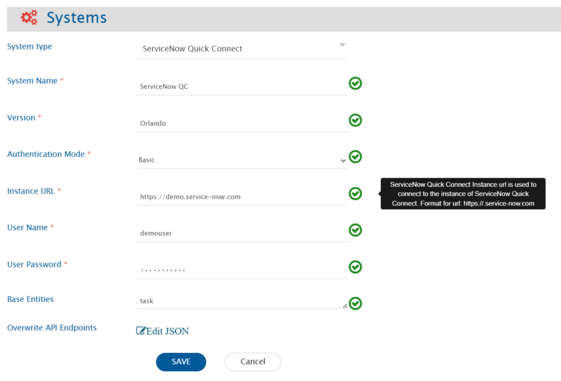
Two types of authentications are supported - 'Basic' or 'OAuth':
- For configuring a system using Basic Authentication, user needs to provide a username and password.
- For configuring a system using OAuth, user needs to provide username, password, client id and client secret.
|
| **User Name** | For all authentication modes | Provide the username. |
| **User Password** | For all authentication modes | Provide the user password. |
| **Client ID** | Only when 'OAuth' authentication is selected | Provide the Client ID. |
| **Client Secret** | Only when 'OAuth' authentication is selected. | Provide the Client Secret. |
| **Base Entities** | Always | A ',' separated list of internal names of tables are expected in this field. All the tables extending the tables in this list will be available as entity types for synchronization. |
| **Overwrite API Endpoints** | Always | Default value is empty. Provide JSON to overwrite default API endpoints. Refer to [Overwrite API Endpoints using JSON](#overwrite-api-endpoints-using-json) section for more details. |
## Mapping Configuration
Map the fields between ServiceNow Quick Connect and the other system to be integrated to ensure that the data between both the systems synchronize correctly. Click [Mapping Configuration](/integrate/configure-integrations/mapping-configuration.md) to learn the step-by-step process to configure mapping between the systems.
### Mapping Reference fields
* All the fields of type reference i.e. the fields that refer to some other ServiceNow Quick Connect entity will be treated as look-ups in space.vars.OIM.
* For such reference fields, you can define value mapping using either name or number.
* A maximum of 1000 lookup values will be loaded for a reference field. If you are not able to find your value in the look-up values loaded, you can map values using advanced mapping.
* Look-up values will be loaded if the entity referred to by a field has either a name or a number column.
* If neither a name nor a number is present, the look-up value will be displayed as ` (sys_id)`.
* If lookups cannot be loaded due to any reason, you can still do advance mapping to map the fields.
* If lookups cannot be loaded due to any reason, you can still do advanced mapping to map the fields.
* If you want to do a direct mapping, i.e., if values in ServiceNow Quick Connect and other systems are same, then you need to use utility. Currently, OIMCoreUtility getEntityFieldValue is being used, which will give the display name corresponding to the internal id of the look-up value.
**Known limitation**:
* Multi-select type of fields that do not have reference to any other type of field (e.g., string type multi-select field) are not supported as the target fields in mapping.
### Affected CIs Field Configuration for the Change Request Entity Type
* The Affected CIs field in ServiceNow is a virtual field used to read and associate Configuration Items (CIs) with Change Request (CR).
**Known Behavior**:
* When ServiceNow is the source endpoint, any CI associated with a Change Request will be synchronized to the target system during the next update of that Change Request. **Reason**: When user associate CI with the Change Request **last updated** time will not be modified, so user need to update system or custom field of Change Request to reflect the changes.
### Catalog variables field configuration
* Catalog variables are available as fields under the Requested Item entity and can be extended to other entities through the [Overwrite API Endpoints using JSON](#overwrite-api-endpoints-using-json) configuration.
* > **Note**:This configuration is required as the end system API does not provide information about the entity types where catalog variables are supported.
* All variable types are supported, except Lookup Select Box, Lookup Multiple Choice, and Masked.
* Refer to the [Known Limitations](#known-limitations) section for details on the known behavior of catalog variables.
## Integration Configuration
In this step, set a time to synchronize data between ServiceNow Quick Connect and the other system to be integrated. Also, define parameters and conditions, if any, for integration. Click [Integration Configuration](/integrate/configure-integrations/integration-configuration.md) to learn the step-by-step process to configure integration between two systems.
### Integration Recommendations & Assumptions
For Issue Relationship configuration for a given entity type (e.g. incident), only those entity types (e.g. problem) will be shown to which any reference type of field exists in the given type (e.g. incident).
*For example*, if you are generating mapping for **Incident** entity type then **Problem** will be available under the section system entity types in Issue Relationship because in **Incident**, there is a field of reference type which refers to **Problem**. But if you are generating mapping for **Problem** then **Incident** won't be available under the section system entity types in Issue Relationship, because in **Problem**, there is no field of reference type that refers to 'Incident'. \&#xNAN;*From UI related incidents. list will be visible for a given **Problem**, but that's not considered as field.*
### Target LookUp Configuration
Provide query in 'Target Search Query' such that it is possible to search the entity in the ServiceNow Quick Connect as destination system. General query Syntax: `[Target_System_Field_Referance_Name] operators( =, !=, starts with, contains, etc...) @Source_System_Field_name@`.
**Sample queries:**
* Target lookup query based on Description field `Description=@description@`
* Target lookup query based on State field `State!=@status@`
* Target lookup query based on Number field `Number=@RemoteID@`
### Criteria Configuration
**Query**
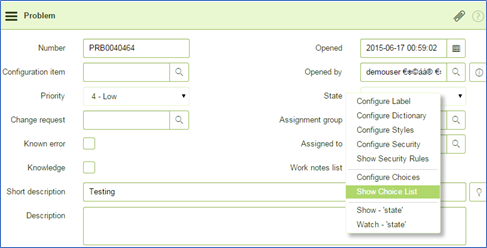
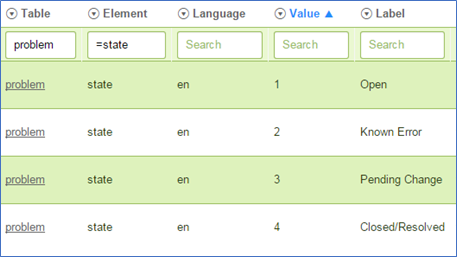
* **Criteria to get entities whose state is Open** Example: `state=1`
* How to get value 1 for the state Open?\_

",
"apiDetails": {
"GET_ALL_CATALOG_VARIABLES": {
"apiUrl": "",
"methodType": "GET",
"queryParams": {
"sysparm_fields": "sys_id,sys_name,cat_item.name,type,reference,list_table",
"sysparm_display_value": "true"
}
},
"GET_VARIABLE_CHOICES": {
"apiUrl": "",
"methodType": "GET"
},
"GET_REQUESTED_ITEM_VARIABLES": {
"apiUrl": "",
"methodType": "GET",
"queryParams": {
"sysparm_fields": "sc_item_option.value,sc_item_option.item_option_new,sc_item_option.item_option_new.name,sc_item_option.item_option_new.sys_id,sc_item_option.sys_id,sc_item_option.item_option_new.type",
"sysparm_display_value": "true"
}
},
"UPDATE_CATALOG_VARIABLE": {
"apiUrl": "",
"methodType": "PATCH"
}
}
}
}
```
#### Sample JSON with default values
```json
{
"ENTITY_META": {
"default": {
"apiUrl": "/api/now/v1/table",
"methodType": "GET"
}
},
"FIELDS_META": {
"default": {
"apiUrl": "/api/now/v1/table",
"methodType": "GET"
}
},
"USER_META": {
"default": {
"apiUrl": "/api/now/v1/table",
"methodType": "GET"
}
},
"READ_ENTITY_DETAILS": {
"default": {
"apiUrl": "/api/now/v1/table",
"methodType": "GET"
}
},
"READ_ENTITY_AUDITS": {
"default": {
"apiUrl": "/api/now/v1/table",
"methodType": "GET"
}
},
"READ_COMMENTS": {
"default": {
"apiUrl": "/api/now/v1/table",
"methodType": "GET"
}
},
"READ_ATTACHMENTS": {
"default": {
"apiUrl": "/api/now/attachment",
"methodType": "GET"
}
},
"CREATE_ENTITY": {
"default": {
"apiUrl": "/api/now/v1/table",
"methodType": "POST"
}
},
"UPDATE_ENTITY": {
"default": {
"apiUrl": "/api/now/v1/table",
"methodType": "PUT"
},
"entityWise": [
{
"entityType": "task",
"apiCalls": [
{
"apiUrl": "api/now/v1/table/task/{sys_id}",
"methodType": "PATCH",
"executionOrder": 1,
"pathParams": {
"sys_id": "$sys_id"
}
}
]
}
]
},
"ADD_COMMENT": {
"default": {
"apiUrl": "/api/now/v1/table",
"methodType": "PUT"
}
},
"CATALOG_VARIABLE_CONFIG": {
"catalogVariableApiEnabled": true,
"supportedEntityTypes": [
{
"entityType": "sc_task",
"requestedItemField": "request_item"
}
],
"variableTypeMappings": {
"Select Box": "PickList",
"Single Line Text": "Singular Line Text"
},
"supportedCatalogItemIds": ["7d87d30c93940710f461f38d1dba1062","56edf2a5933f36d070e5f9027cba108d"],
"apiDetails": {
"GET_ALL_CATALOG_VARIABLES": {
"apiUrl": "/api/now/v1/table/item_option_new",
"methodType": "GET",
"queryParams": {
"sysparm_fields": "sys_id,sys_name,cat_item.name,type,reference,list_table",
"sysparm_display_value": "true"
}
},
"GET_VARIABLE_CHOICES": {
"apiUrl": "/api/now/v1/table/question_choice",
"methodType": "GET"
},
"GET_REQUESTED_ITEM_VARIABLES": {
"apiUrl": "/api/now/v1/table/sc_item_option_mtom",
"methodType": "GET",
"queryParams": {
"sysparm_fields": "sc_item_option.value,sc_item_option.item_option_new,sc_item_option.item_option_new.name,sc_item_option.item_option_new.sys_id,sc_item_option.sys_id,sc_item_option.item_option_new.type",
"sysparm_display_value": "true"
}
},
"UPDATE_CATALOG_VARIABLE": {
"apiUrl": "/api/now/v1/table/sc_item_option",
"methodType": "PATCH"
}
}
}
}
```
**Configure Path Parameters in the API URL**
Use Path Parameters when your API URL contains a variable value that changes for each record.
Example: `api/now/v1/task/{id}`
Here, `{id}` is a path parameter and will be replaced with the actual record ID during execution.
> **How to Configure**
>
> * Add a `pathParams` section inside the corresponding `apiCalls` entry.
> * Define a key for each placeholder used in the `apiUrl` (without curly braces `{}`).
> * Map the key to a source field by prefixing the field name with `$`.
> **What happens?** If the task's `sys_id` value is `12345`, the URL `api/now/v1/task/{sys_id}` will automatically become `api/now/v1/task/12345` before the API call is executed.
**Example**: To update a ServiceNow task using the task's `sys_id`:
```json
{
"entityType": "task",
"apiCalls": [
{
"apiUrl": "api/now/v1/task/{sys_id}",
"methodType": "PATCH",
"executionOrder": 1,
"pathParams": {
"sys_id": "$sys_id"
}
}
]
}
```
> **Note**: If details for an operation are not provided in the JSON, then default API endpoints with namespace `now` are used.
> **Note**: Catalog Variables Configuration\
> \
> catalogVariableApiEnabled\
> Indicates whether Catalog Variable API support is enabled.\
> If set to `false`, catalog variables will not be available OpsHub integration mapping and will not be synchronized.\
> \
> How to get the internal name of the entity\
> The internal name corresponds to the ServiceNow table name (for example, sc\_task, sc\_req\_item). You can find this in ServiceNow by navigating to the form view of the record. Refer to the screenshot below to locate the table name in the UI.
>
>  >
> How to get requestedItemField\
> Execute the Read Entity Details API for the entity (for example, sc\_task) and identify the field that contains the reference to the Requested Item. This field should be used as the requestedItemField. Example: From the API response below, the field request\_item contains the reference to the Requested Item, and hence should be used as the requestedItemField. > How to get requestedItemField\
> Execute the Read Entity Details API for the entity (for example, sc\_task) and identify the field that contains the reference to the Requested Item. This field should be used as the requestedItemField.\
> \
> Example: From the API response below, the field `request_item` contains the reference to the Requested Item, and hence should be used as the requestedItemField.\
>
> How to get requestedItemField\
> Execute the Read Entity Details API for the entity (for example, sc\_task) and identify the field that contains the reference to the Requested Item. This field should be used as the requestedItemField. Example: From the API response below, the field request\_item contains the reference to the Requested Item, and hence should be used as the requestedItemField. > How to get requestedItemField\
> Execute the Read Entity Details API for the entity (for example, sc\_task) and identify the field that contains the reference to the Requested Item. This field should be used as the requestedItemField.\
> \
> Example: From the API response below, the field `request_item` contains the reference to the Requested Item, and hence should be used as the requestedItemField.\
>
> ```
> {
> "result": {
> "parent": {
> "link": "https://ven01172.service-now.com/api/now/table/task/214c342493500b10f461f38d1dba1078",
> "value": "214c342493500b10f461f38d1dba1078"
> },
> "number": "TASK0010163",
> "sys_updated_by": "demouser",
> "sys_created_on": "2026-04-13 17:08:20",
> "sys_domain": {
> "link": "https://ven01172.service-now.com/api/now/table/sys_user_group/global",
> "value": "global"
> },
> "request": {
> "link": "https://ven01172.service-now.com/api/now/table/sc_req_item/654c342493500b10f461f38d1dba1077",
> "value": "654c342493500b10f461f38d1dba1077"
> },
> "request_item": {
> "link": "https://ven01172.service-now.com/api/now/table/sc_req_item/214c342493500b10f461f38d1dba1078",
> "value": "214c342493500b10f461f38d1dba1078"
> }
> }
> }
> ```
>
> \
> In order to load catalog variables for selected Catalog Items, users can provide a list of Catalog Item IDs under `supportedCatalogItemIds`.\
> \
> How to get Catalog Item ID\
> The Catalog Item ID (`sys_id`) can be obtained from the URL of the Catalog Item record. When you open the record in ServiceNow, the `sys_id` is present as a parameter in the URL. Refer to the screenshot below to locate it in the UI.
>
>  #### Configure Additional Metadata for Specific Use Cases
This will help you to provide additional metadata in your API configurations whenever your API structure or field names differ from the default expectations.
**1. Configure Date Format**
If your API uses a custom **date-time format** then the default one, you can specify it directly in the JSON configuration:
* Go to the relevant API section (**Create**, **Update**).
* Under `additionalMeta`, add the required date-time format using the key `dateFormat`.
**2. Configure Entity's Internal ID Field for Create API**
If the entity creation response provides the **entity ID** in a field other than `sys_id`:
* In the **Create API** details, go to `additionalMeta`.
* Set the key `entityInternalIdFieldNameInResponse` to the correct field name, in which actual ID is coming.
**3. Configure Entity's Internal ID Field for Update API**
If your **Update API** request body expects an **entity ID** field that is not default `sys_id`:
* In the **Update API** details, go to `additionalMeta`.
* Set the key `entityInternalIdFieldNameInRequest` to the required field name, in which actual ID will be going.
**4. Pass Entity ID in Request Body**
If the **entity’s ID** must be included inside the **request body** (not as a URL path or query parameter):
* Set `passIdInBody: true` in the respective API configuration.
* Do this for each API where the ID needs to be part of the payload, for an example for Transition APIs as mentioned below.
**5. Configure Transition APIs**
If your workflows use **custom transition APIs**:
* Define them under the `transitionDetails` section.
* Map each transition API to its corresponding **internal transition value**.
> 1. **Add the `transitionDetails` section**\
> Define a JSON array named `transitionDetails` inside your configuration.
> 2. **Specify the transition field name**\
> Use the key `fieldName` to define which field the transitions will be tracked for (e.g., `"fieldName": "state"`).
> 3. **Define the transition mappings**
>
> * Under `transitionApis`, map each **internal transition value** (for example, `-4`, `0`, `3`, `4`) to its respective API details.
>
> > **Understand internal transition values**
> >
> > * The **internal transition value** is the actual value of a particular transition used internally by the system.
> > * For example: If the transition’s **display name** is `Review`, but its **internal value** is `5`, then the mapping should use `5` as the key in `transitionApis`.
> > * This API can be used to get all available values for transitions and internal value : `https://.service-now.com/api/now/v1/table/sys_choice?sysparm_query=name=^element=^inactive=false&sysparm_fields=value,label`
> * Each mapping should include:
> * `apiUrl`: The endpoint for the transition API.
> * `methodType`: The HTTP method to be used (e.g., `PUT`, `PATCH`).
> * `passIdInBody`: Set to `true` if the entity ID must be included in the request body.
* Follow the pattern shown in the example JSON for consistent configuration. Below is the sample JSON, you can customize as per your use case and environment.
```json
{
"CREATE_ENTITY": {
"default": {
"apiUrl": null,
"methodType": null
},
"entityWise": [
{
"apiCalls": [
{
"apiUrl": "api/oim/change/create",
"executionOrder": 1,
"methodType": "POST",
"queryParams": {}
}
],
"entityType": "change_request",
"additionalMeta": {
"dateFormat": "MM/dd/yyyy hh:mm:ss a",
"entityInternalIdFieldNameInResponse": "change_request_sys_id"
}
}
]
},
"UPDATE_ENTITY": {
"default": {
"apiUrl": null,
"methodType": null
},
"entityWise": [
{
"apiCalls": [
{
"apiUrl": "api/oim/change/update",
"passIdInBody": true,
"executionOrder": 1,
"methodType": "PUT",
"queryParams": {}
}
],
"entityType": "change_request",
"additionalMeta": {
"dateFormat": "MM/dd/yyyy hh:mm:ss a",
"entityInternalIdFieldNameInRequest": "change_id"
},
"transitionDetails": [
{
"fieldName": "state",
"transitionApis": {
"-4": {
"apiUrl": "/api/oim/change/approval",
"methodType": "PUT",
"passIdInBody": true
},
"0": {
"apiUrl": "/api/oim/change/review",
"methodType": "PATCH",
"passIdInBody": true
},
"3": {
"apiUrl": "/api/oim/change/close",
"methodType": "PATCH",
"passIdInBody": true
},
"4": {
"apiUrl": "/api/oim/change/cancel",
"methodType": "PATCH",
"passIdInBody": true
}
}
}
]
}
]
}
}
```
---
# Agent Instructions
This documentation is published with GitBook. GitBook is the documentation platform designed so that both humans and AI agents can read, navigate, and reason over technical content effectively. Learn more at gitbook.com.
## Querying This Documentation
If you need additional information that is not directly available in this page, you can query the documentation dynamically by asking a question.
Perform an HTTP GET request on the current page URL with the `ask` query parameter, and the optional `goal` query parameter:
```
GET https://docs.opshub.com/connectors/servicenow-quick-connect.md?ask=&goal=
```
`ask` is the immediate question: it should be specific, self-contained, and written in natural language.
`goal` is optional and describes the broader end goal you are ultimately trying to accomplish on behalf of the user. GitBook uses it to tailor the answer towards what is most useful for that goal.
The response will contain a direct answer to the question and relevant excerpts and sources from the documentation.
Use this mechanism when the answer is not explicitly present in the current page, you need clarification or additional context, or you want to retrieve related documentation sections.
#### Configure Additional Metadata for Specific Use Cases
This will help you to provide additional metadata in your API configurations whenever your API structure or field names differ from the default expectations.
**1. Configure Date Format**
If your API uses a custom **date-time format** then the default one, you can specify it directly in the JSON configuration:
* Go to the relevant API section (**Create**, **Update**).
* Under `additionalMeta`, add the required date-time format using the key `dateFormat`.
**2. Configure Entity's Internal ID Field for Create API**
If the entity creation response provides the **entity ID** in a field other than `sys_id`:
* In the **Create API** details, go to `additionalMeta`.
* Set the key `entityInternalIdFieldNameInResponse` to the correct field name, in which actual ID is coming.
**3. Configure Entity's Internal ID Field for Update API**
If your **Update API** request body expects an **entity ID** field that is not default `sys_id`:
* In the **Update API** details, go to `additionalMeta`.
* Set the key `entityInternalIdFieldNameInRequest` to the required field name, in which actual ID will be going.
**4. Pass Entity ID in Request Body**
If the **entity’s ID** must be included inside the **request body** (not as a URL path or query parameter):
* Set `passIdInBody: true` in the respective API configuration.
* Do this for each API where the ID needs to be part of the payload, for an example for Transition APIs as mentioned below.
**5. Configure Transition APIs**
If your workflows use **custom transition APIs**:
* Define them under the `transitionDetails` section.
* Map each transition API to its corresponding **internal transition value**.
> 1. **Add the `transitionDetails` section**\
> Define a JSON array named `transitionDetails` inside your configuration.
> 2. **Specify the transition field name**\
> Use the key `fieldName` to define which field the transitions will be tracked for (e.g., `"fieldName": "state"`).
> 3. **Define the transition mappings**
>
> * Under `transitionApis`, map each **internal transition value** (for example, `-4`, `0`, `3`, `4`) to its respective API details.
>
> > **Understand internal transition values**
> >
> > * The **internal transition value** is the actual value of a particular transition used internally by the system.
> > * For example: If the transition’s **display name** is `Review`, but its **internal value** is `5`, then the mapping should use `5` as the key in `transitionApis`.
> > * This API can be used to get all available values for transitions and internal value : `https://.service-now.com/api/now/v1/table/sys_choice?sysparm_query=name=^element=^inactive=false&sysparm_fields=value,label`
> * Each mapping should include:
> * `apiUrl`: The endpoint for the transition API.
> * `methodType`: The HTTP method to be used (e.g., `PUT`, `PATCH`).
> * `passIdInBody`: Set to `true` if the entity ID must be included in the request body.
* Follow the pattern shown in the example JSON for consistent configuration. Below is the sample JSON, you can customize as per your use case and environment.
```json
{
"CREATE_ENTITY": {
"default": {
"apiUrl": null,
"methodType": null
},
"entityWise": [
{
"apiCalls": [
{
"apiUrl": "api/oim/change/create",
"executionOrder": 1,
"methodType": "POST",
"queryParams": {}
}
],
"entityType": "change_request",
"additionalMeta": {
"dateFormat": "MM/dd/yyyy hh:mm:ss a",
"entityInternalIdFieldNameInResponse": "change_request_sys_id"
}
}
]
},
"UPDATE_ENTITY": {
"default": {
"apiUrl": null,
"methodType": null
},
"entityWise": [
{
"apiCalls": [
{
"apiUrl": "api/oim/change/update",
"passIdInBody": true,
"executionOrder": 1,
"methodType": "PUT",
"queryParams": {}
}
],
"entityType": "change_request",
"additionalMeta": {
"dateFormat": "MM/dd/yyyy hh:mm:ss a",
"entityInternalIdFieldNameInRequest": "change_id"
},
"transitionDetails": [
{
"fieldName": "state",
"transitionApis": {
"-4": {
"apiUrl": "/api/oim/change/approval",
"methodType": "PUT",
"passIdInBody": true
},
"0": {
"apiUrl": "/api/oim/change/review",
"methodType": "PATCH",
"passIdInBody": true
},
"3": {
"apiUrl": "/api/oim/change/close",
"methodType": "PATCH",
"passIdInBody": true
},
"4": {
"apiUrl": "/api/oim/change/cancel",
"methodType": "PATCH",
"passIdInBody": true
}
}
}
]
}
]
}
}
```
---
# Agent Instructions
This documentation is published with GitBook. GitBook is the documentation platform designed so that both humans and AI agents can read, navigate, and reason over technical content effectively. Learn more at gitbook.com.
## Querying This Documentation
If you need additional information that is not directly available in this page, you can query the documentation dynamically by asking a question.
Perform an HTTP GET request on the current page URL with the `ask` query parameter, and the optional `goal` query parameter:
```
GET https://docs.opshub.com/connectors/servicenow-quick-connect.md?ask=&goal=
```
`ask` is the immediate question: it should be specific, self-contained, and written in natural language.
`goal` is optional and describes the broader end goal you are ultimately trying to accomplish on behalf of the user. GitBook uses it to tailor the answer towards what is most useful for that goal.
The response will contain a direct answer to the question and relevant excerpts and sources from the documentation.
Use this mechanism when the answer is not explicitly present in the current page, you need clarification or additional context, or you want to retrieve related documentation sections.