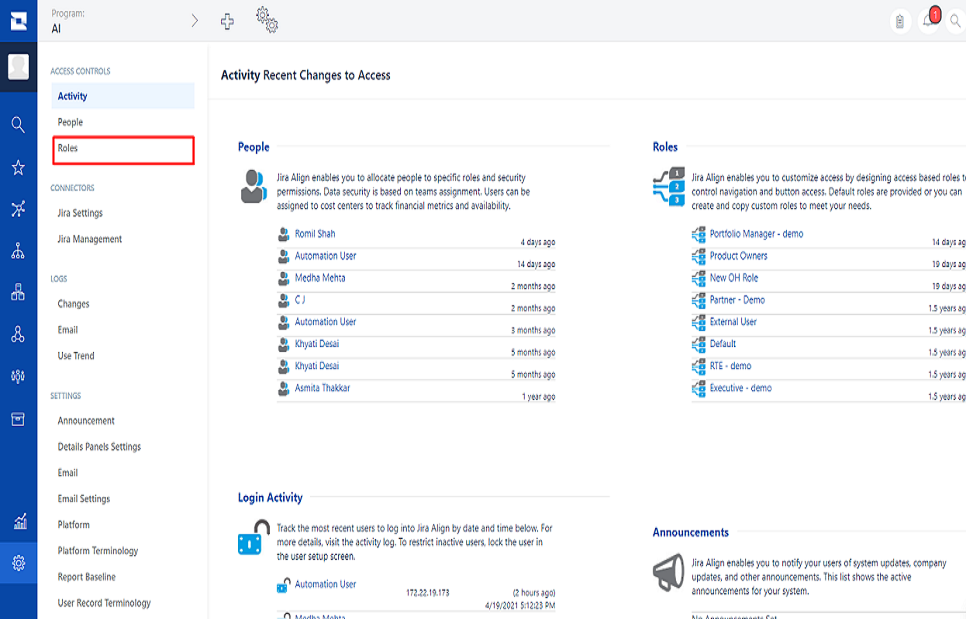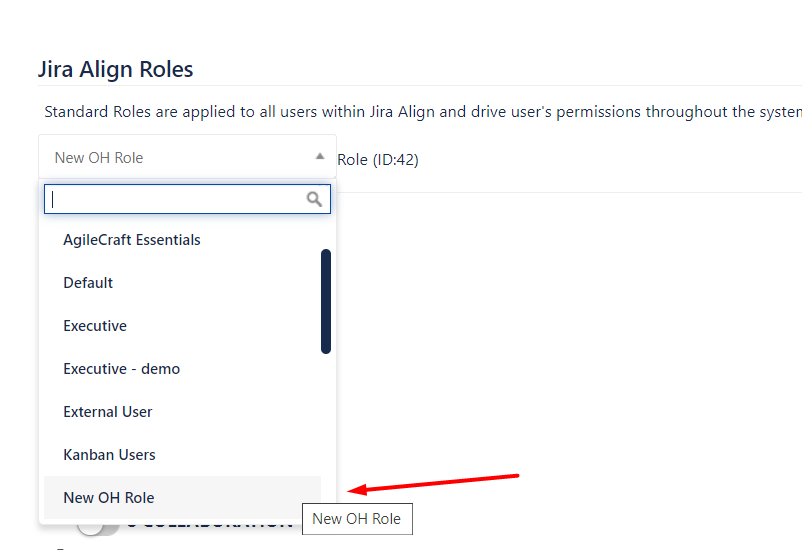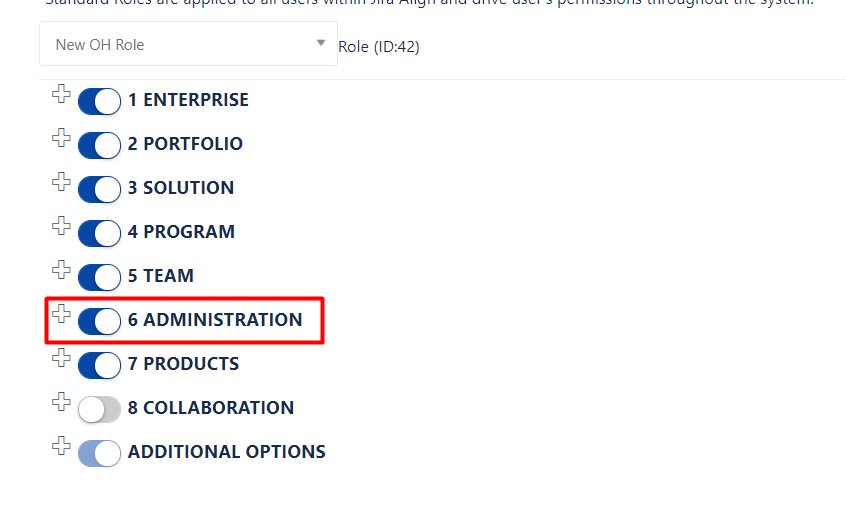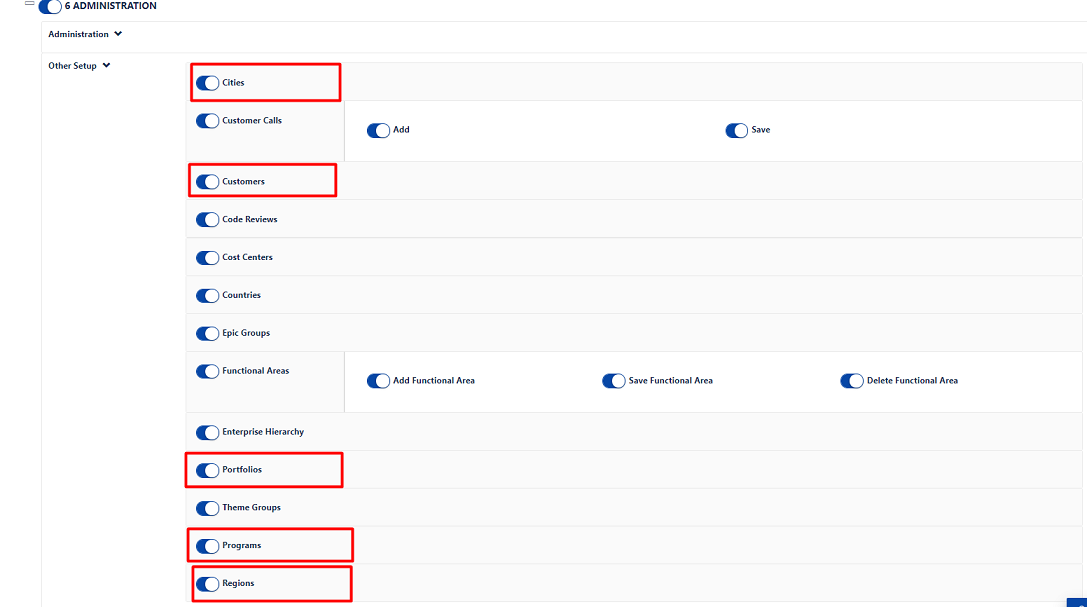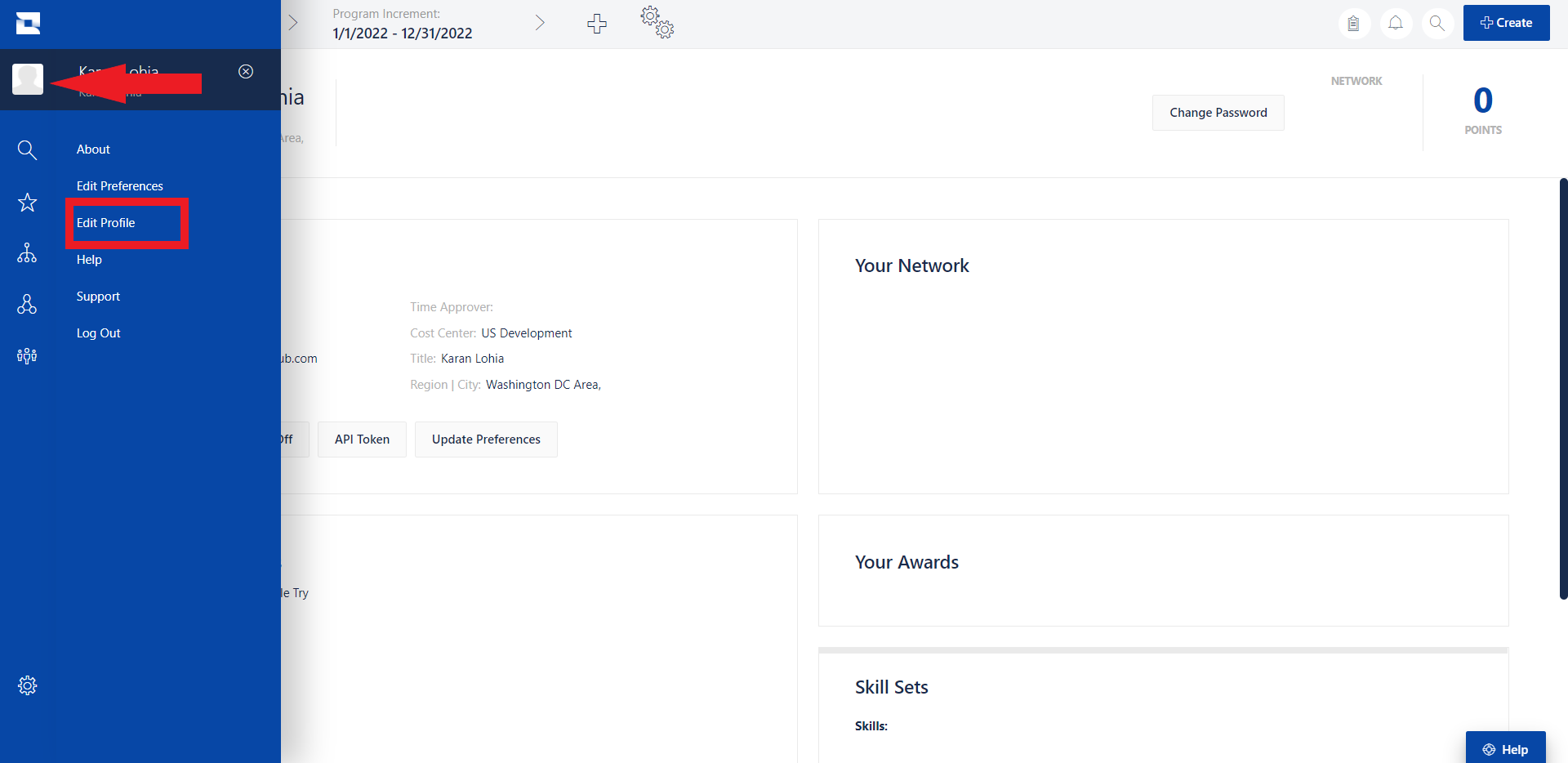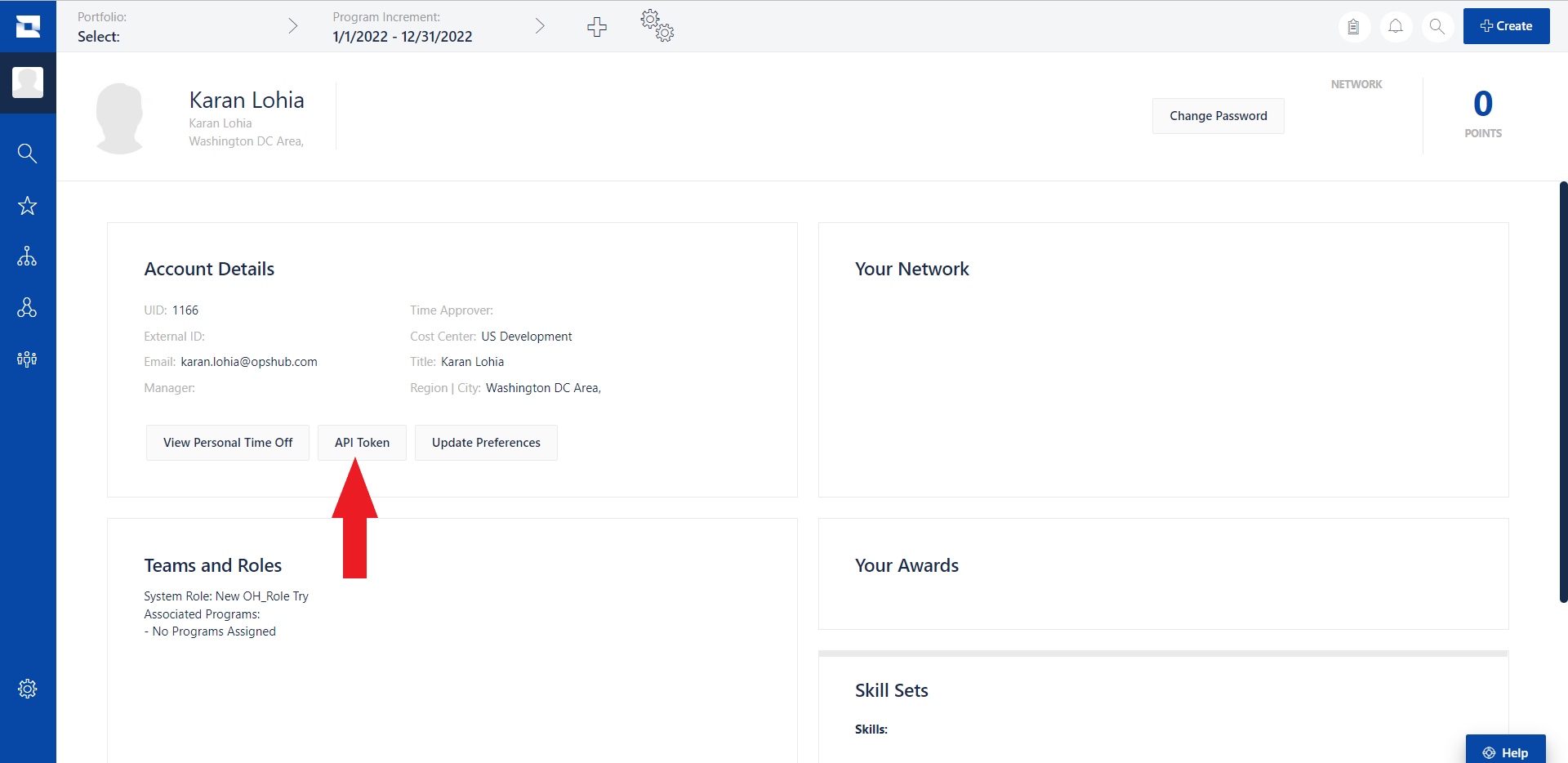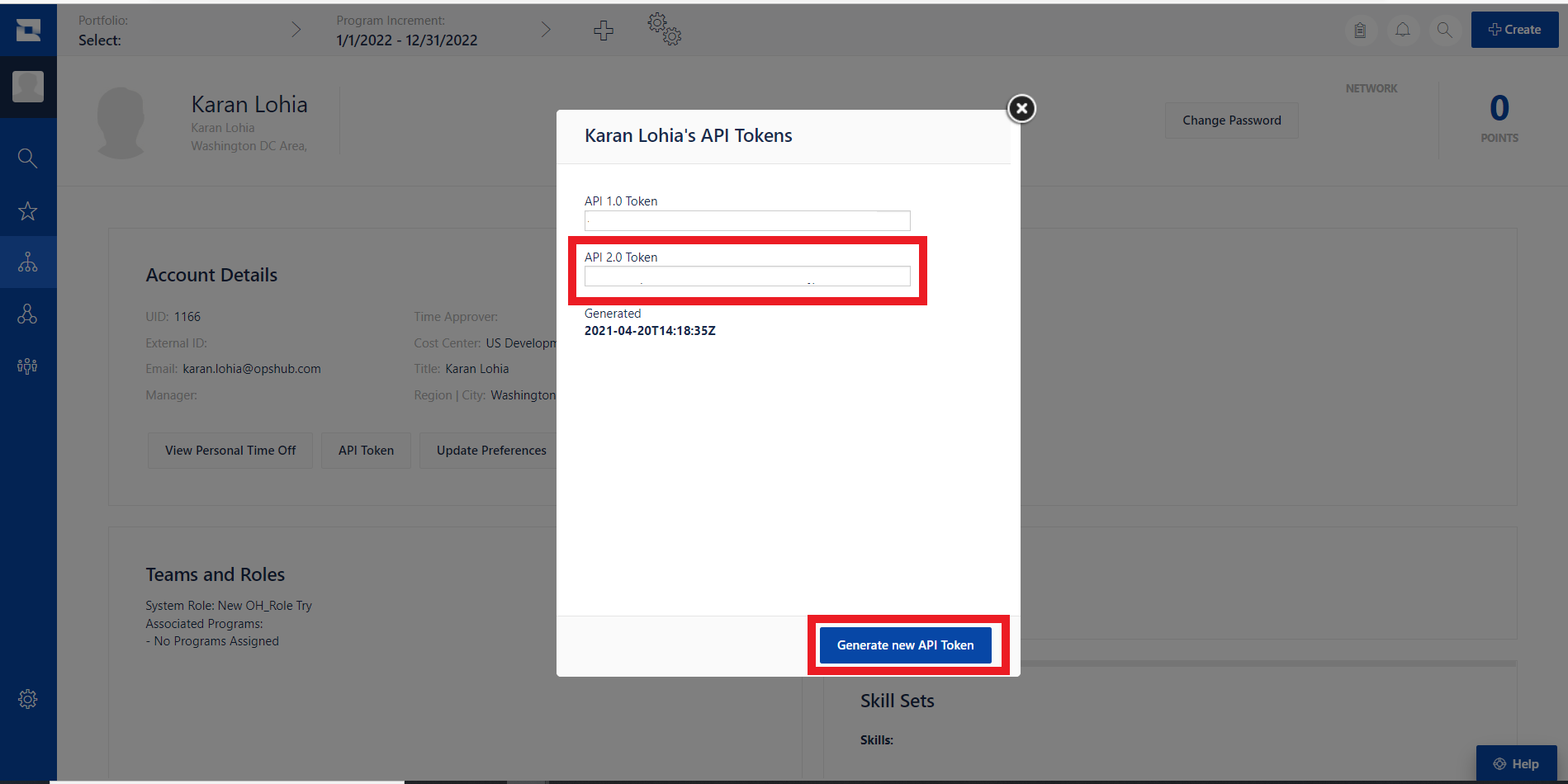
space.vars.OIM. This user shouldn't perform any other action from Jira Align's user interface. This user is now referred as 'Integration User' in the document further.
* The Integration User should be assigned a role that has sufficient permissions to interact with the Jira Align APIs. Below are the details for permissions required for the role assigned to integration user.
* When Jira Align is the source endpoint:
> **Note**: In Jira Align, all the entity types are distributed among different levels called: administration, portfolio, solution, team, program, product. Hence, for different entities, permissions have to be given at different levels, and these levels are called 'Sections'.
* The following table mentions the permissions required for an Integration User to synchronize the entities:
**Access needed for Entity Types**
| **Entity Type** | **Section** | **Permission to give in Additional Options** |
| ----------------------- | ------------------- | ---------------------------------------------- |
| **Portfolio** | Administration | Add Agile Objects, Manage Agile Objects(Admin) |
| **Program** | Administration | Add Agile Objects, Manage Agile Objects(Admin) |
| **Region** | Administration | Add Agile Objects, Manage Agile Objects(Admin) |
| **City** | Administration | Add Agile Objects, Manage Agile Objects(Admin) |
| **Customer** | Administration | Add Agile Objects, Manage Agile Objects(Admin) |
| **Ideation** | Enterprise, Product | Add Agile Objects, Manage Agile Objects(Admin) |
| **Theme** | Portfolio | Add Agile Objects, Manage Agile Objects(Admin) |
| **Initiative** | Portfolio | Add Agile Objects, Manage Agile Objects(Admin) |
| **Portfolio Objective** | Portfolio, Solution | Add Agile Objects, Manage Agile Objects(Admin) |
| **Capability** | Solution | Add Agile Objects, Manage Agile Objects(Admin) |
| **Value Stream** | Solution | Add Agile Objects, Manage Agile Objects(Admin) |
| **Epic** | Program, Product | Add Agile Objects, Manage Agile Objects(Admin) |
| **Program Objective** | Program | Add Agile Objects, Manage Agile Objects(Admin) |
| **Program Increment** | Program | Add Agile Objects, Manage Agile Objects(Admin) |
| **Story** | Team | Add Agile Objects, Manage Agile Objects(Admin) |
| **Defect** | Team | Add Agile Objects, Manage Agile Objects(Admin) |
| **Team Objective** | Team | Add Agile Objects, Manage Agile Objects(Admin) |
| **Task** | Team | Add Agile Objects, Manage Agile Objects(Admin) |
| **Sprint** | Team | Add Agile Objects, Manage Agile Objects(Admin) |
* In the Appendix section, refer to [Grant permissions to Jira Align user](#grant-permissions-to-jira-align-user) for step-wise details on how to grant permissions to a Jira Align user.
* To learn how to add a user in Jira Align, refer to [Add User](#add-user) section.
### Entity Details
| **Entity Type** | **Project Type** | **projectFieldInternalName** | **Read Support** | **Write Support** | **Reading Mechanism** |
| --------------------- | ---------------- | ---------------------------- | ---------------- | ----------------- | --------------------- |
| **Portfolio** | ENTERPRISE | - | true | true | NON\_TIMESTAMP |
| **Program** | PORTFOLIO | portfolioId | true | true | HISTORY |
| **Region** | ENTERPRISE | - | true | true | NON\_TIMESTAMP |
| **City** | ENTERPRISE | - | true | true | NON\_TIMESTAMP |
| **Customer** | ENTERPRISE | - | true | true | NON\_TIMESTAMP |
| **Ideation** | ENTERPRISE | - | true | true | HISTORY |
| **Theme** | ENTERPRISE | - | true | true | HISTORY |
| **Initiative** | PROGRAM | primaryProgramId | true | true | HISTORY |
| **Objectives** | PROGRAM | programId | true | true | HISTORY |
| **Capability** | PROGRAM | primaryProgramId | true | true | HISTORY |
| **Value Stream** | ENTERPRISE | - | true | true | NON\_TIMESTAMP |
| **Epic** | PROGRAM | primaryProgramId | true | true | HISTORY |
| **Program Increment** | PORTFOLIO | portfolioId | true | true | HISTORY |
| **Story** | PROGRAM | programId | true | true | HISTORY |
| **Defect** | PROGRAM | programId | true | true | HISTORY |
| **Task** | PROGRAM | - | true | true | HISTORY |
| **Sprint** | PROGRAM | programId | true | true | NON\_TIMESTAMP |
> **Note**: For entity type as objectives, please provide "tier" as 1 for team objective, 2 for program objective, 4 for portfolio objective.
## System Configuration
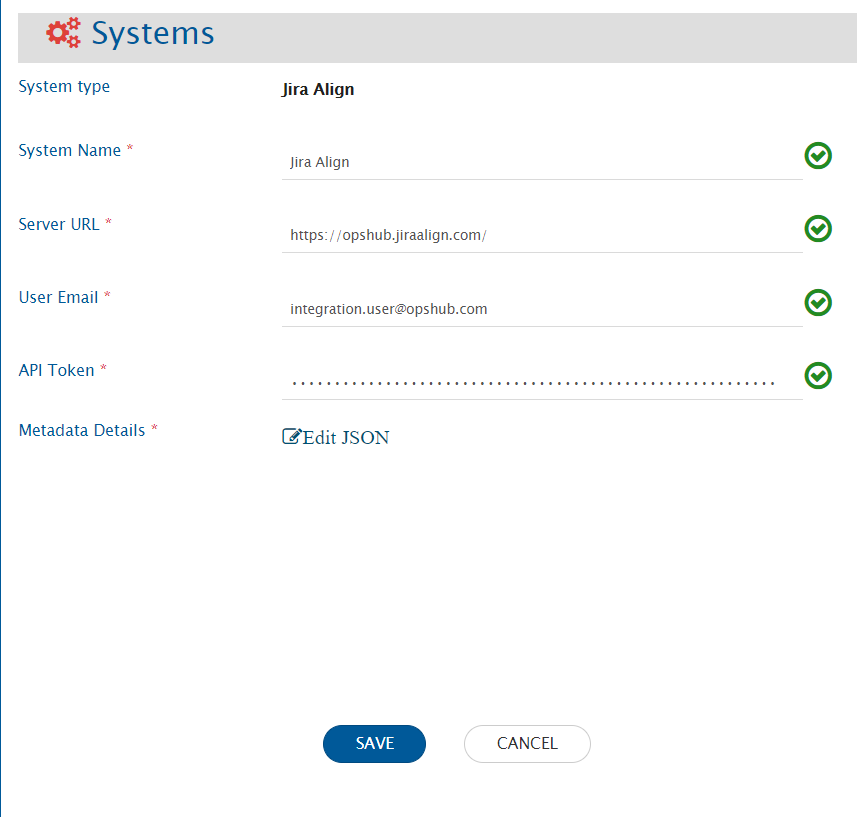
Before the user starts with the integration configuration, first configure Jira Align system.
Click [System Configuration](/integrate/configure-integrations/system-configuration.md) to learn the step-by-step process to configure a system.
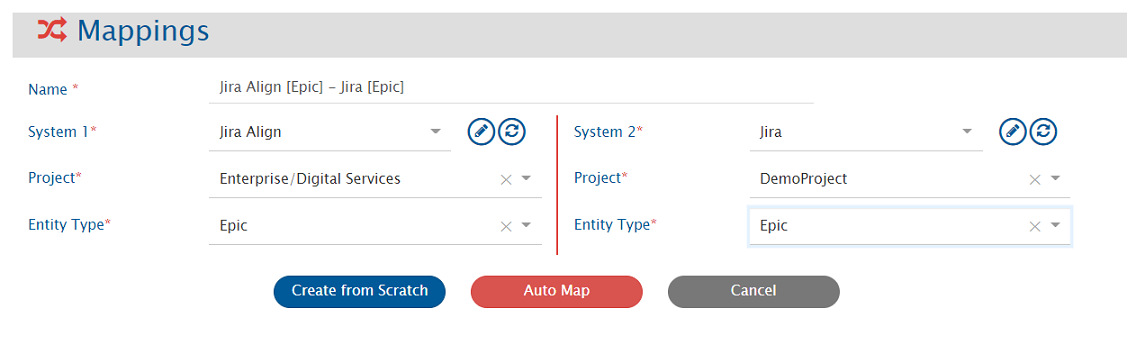
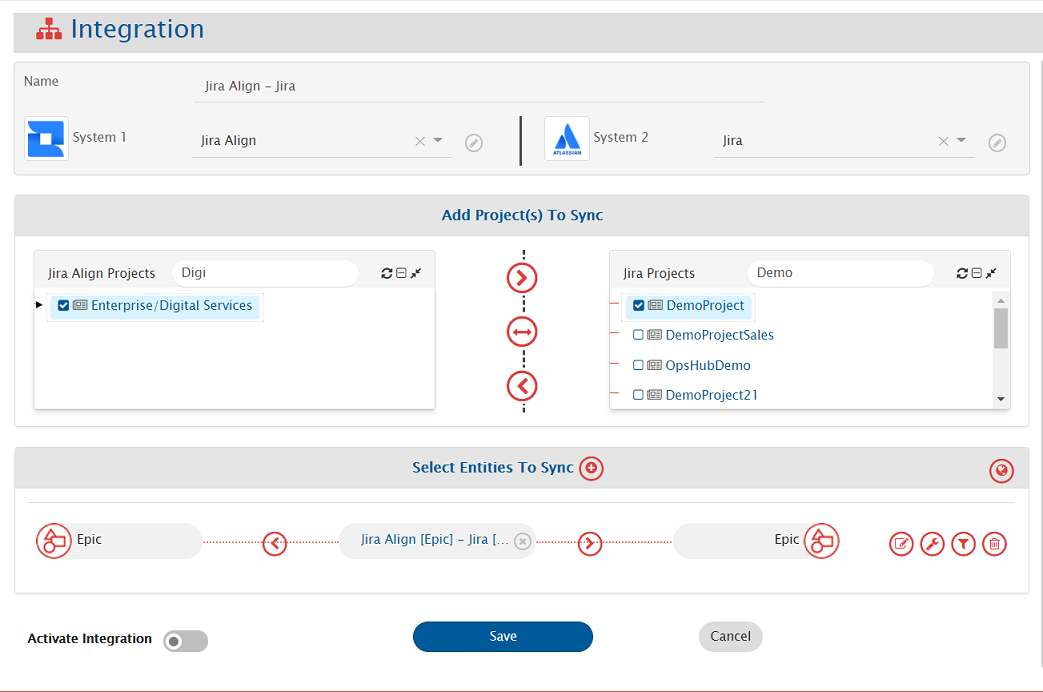
Refer the screenshot given below:
space.vars.OIM:
**Criteria Samples**
| **Field Type** | **Criteria Description** | **Criteria Snippet** |
| -------------- | ---------------------------------------------------------------------------------------------- | ----------------------------------------------------------------------------------------------------------------------------------------------------------------------------------- |
| Lookup | Synchronize all entities which have high priority | priority eq 2
Here, priority 2 belongs to the value 'high'.
createdDate ge 2021-03-10T00:00:00Z
Format of date in Jira Align is: yyyy-MM-dd'T'HH🇲🇲ss'Z'
createdBy eq 1159
Here, 1159 is the uid of the user 'ABC' which can be obtained from 'People' table on Jira Align UI.
createdBy eq 1159 and priority eq 1.
Here, priority 1 belongs to the value 'critical'.
priority eq 1 or priority eq 2.
Here, priority 1 belongs to the value 'critical' and priority 2 belongs to value 'high'.
space.vars.OIM:
**Target Lookup Query Samples**
| **Field Type** | **Target Lookup Use Case** | **Snippet** |
| -------------- | ---------------------------------------------------- | ------------------------------------- |
| Text | Match entity having source ID in `description` field | `description eq '@source_system_id@'` |
For more details on how to configure criteria in Jira Align, refer: [Jira Align Query Documentation](https://help.jiraalign.com/hc/en-us/articles/360048085774-10X-API-2-0-GET-Usage-and-Filters) for more details. The queries used in filter section in plain text can be used as criteria query.
## Known Behaviour
### Project Selection
* For Jira Align system, user can organize their data at different levels, i.e., Enterprise, Portfolio or Program \[as defined below]. Different entities can reside on different levels, for e.g., the Epic can belong to Program while Objective can belong to Portfolio. For more details on Project entity, please refer to [Entity Details](#entity-details) section.
* **Enterprise**
* **Portoflio**
* **Program**
And this hierarchy is inclusive of Parent. For example, Epic can be organized at Program level, and the user can create an integration with Program/Portfolio/Enterprise setting for their integration. While Objective can belong to Portfolio level, and user can create an integration with Portfolio/Enterprise setting for their integration.
> **Note**: The information related to the mandatory single field value field is to be given in the JSON input in the section, **entities->systemSpecific->projectEntityType**
## Known Limitations
* Limitations due to the lack of API:
* Synchronization of comments and attachments is not supported.
* If in the Jira Align more than one user having same full Name then we return the first value that matches the fullName.
* **Reason: Jira Align API does not give any identification for two different users having same full name.**
* For user type field synchronization advance mapping would be needed in the below mentioned usecase.
* **If the first name or last name of the user is changed.**
* Fields available in the following sections are not supported:
* Value
* Finance
* Responsibility Matrix
* Skill set
* Design
* Members
* Program, Products and Regions(Section): Regional Allotment(field), Program Allotment(field)
* When Jira Align is target endpoint:
* Synchronization of Ideation's Category field:
* The category field should be marked as mandatory in the fields JSON metadata input and in the field mapping.
* In the field configuration, the **sync when** should be configured to create only.
* When Jira Align is source endpoint:
* Conflict detection is not supported for 'State' field in the 'Epic' entity type.
* When Jira Align is source endpoint, below entities will be synchronized without history. They will be synchronized with the entity state/details available at the time of synchronization.
* Product, Value Stream, Release Vehicle, Snapshot, Region, Portfolio, Theme, Program, Program Increment, Team, Sprint
* In case of One to Many links from Epic to Capability and Capability to Feature, configure link from child to parent, that is from Capability to Epic and enable **fail if not found** criteria.
* **Reason**: API limitation from Jira Align.\*\*
* When a link is added from Epic to Feature or vice versa, an additional update is needed as the last updated time of the entity does not change by adding link.
## Appendix
### Add user
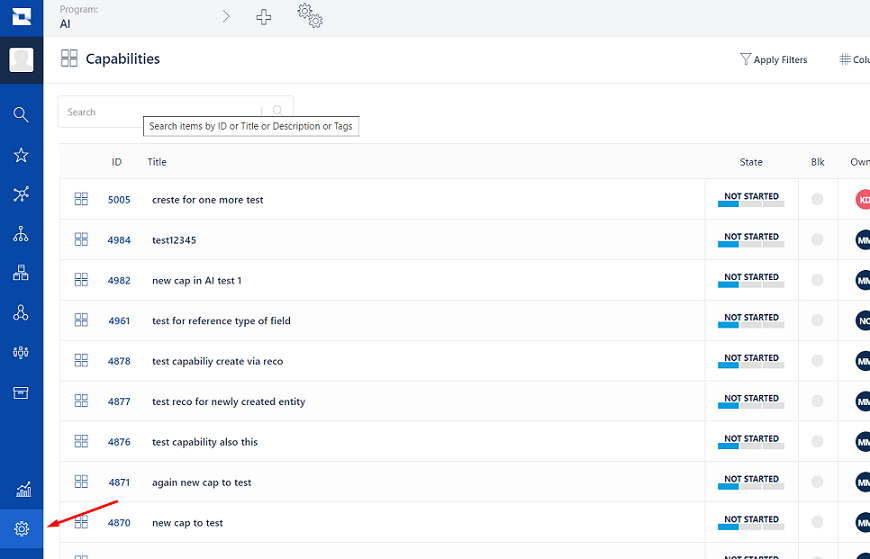
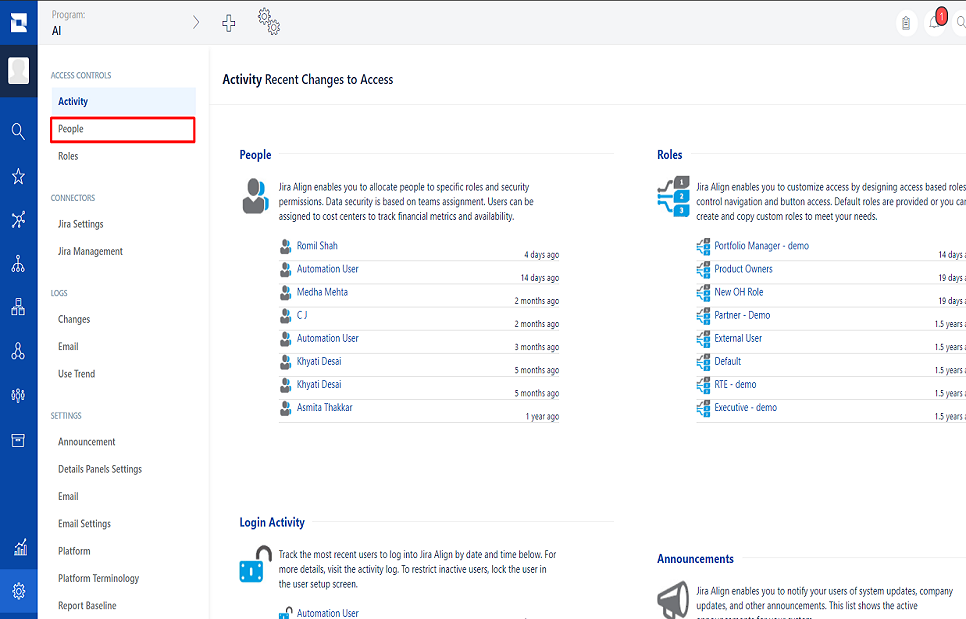
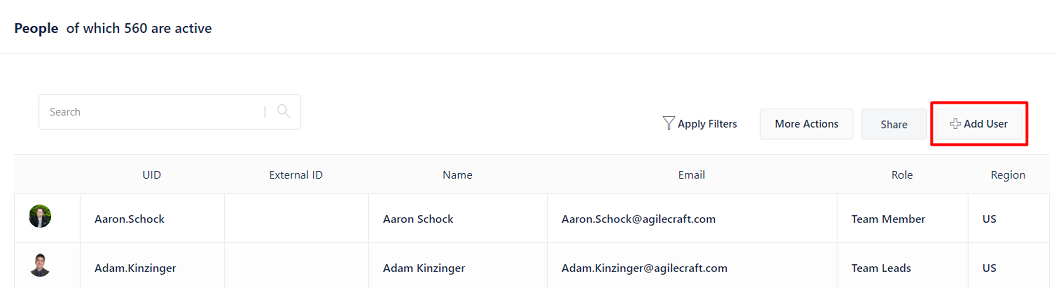
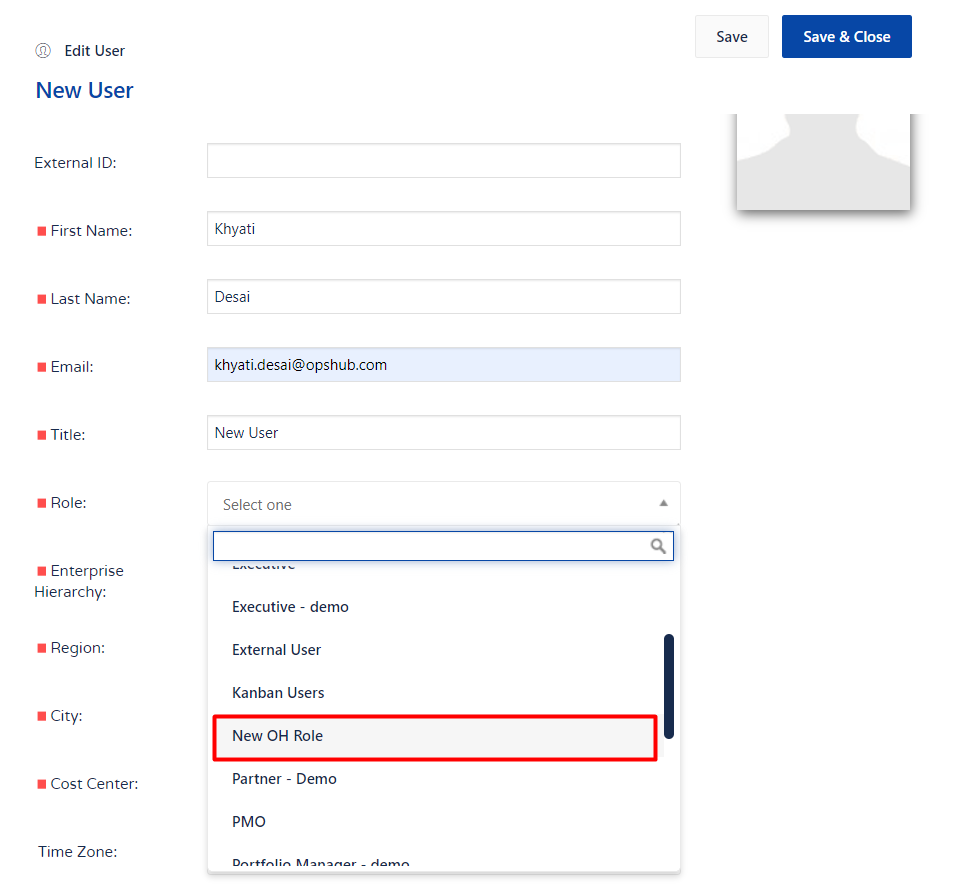
1. Login to Jira Align using the user with privileges to create a new user.