>.write`: Required to write data to the entity.
* This includes all necessary permissions to update or create the specified entity types.\
For example, `crm.objects.deals.write`.
#### For Managing Attachments
* `crm.objects.notes.read`
* `crm.objects.notes.write`
* `files`
> **Note** : These scopes are needed to read/write Notes and Files, allowing you to sync attachments between HubSpot and another system. Attachments are handled in HubSpot via Notes and Files.
## System Configuration
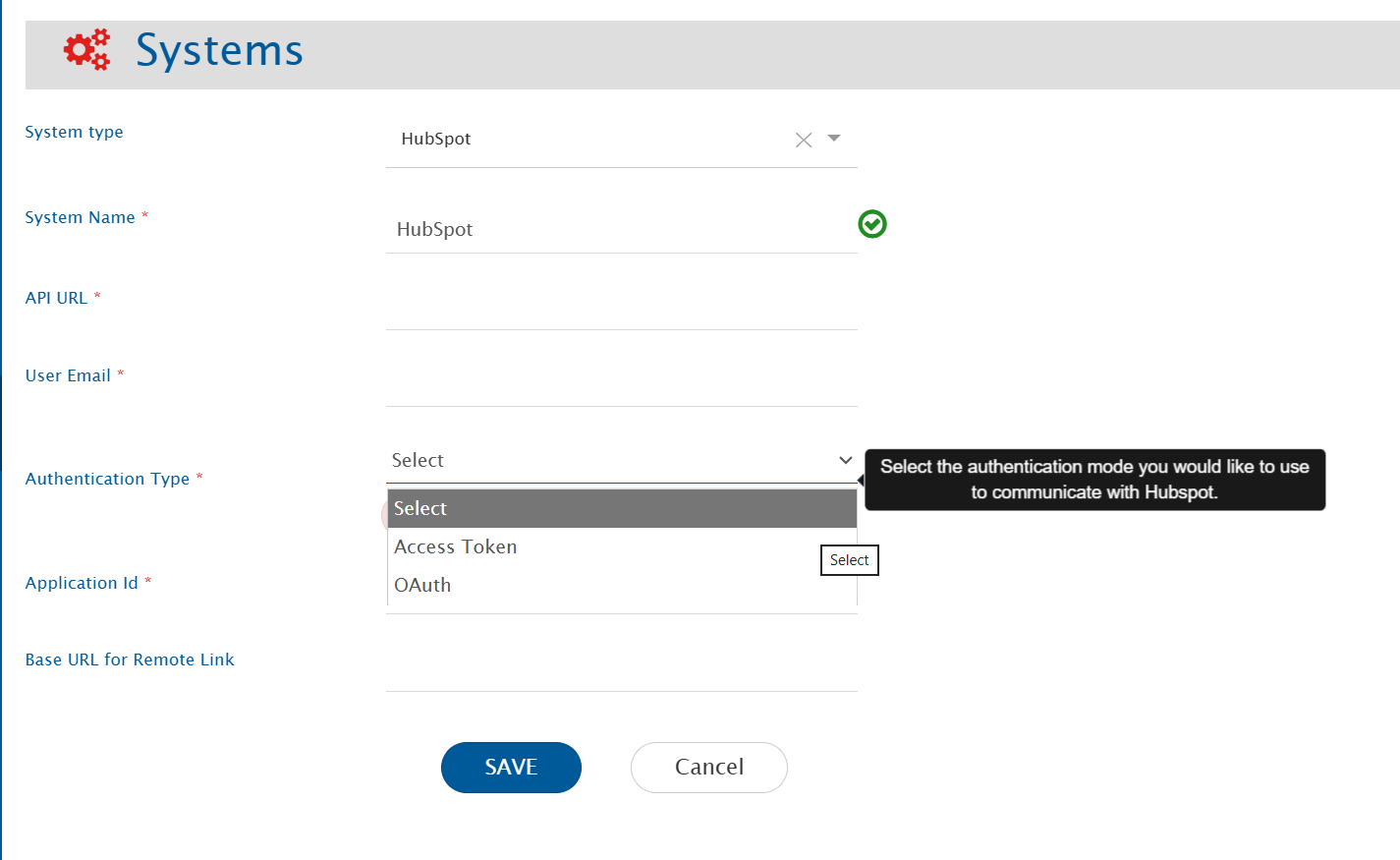
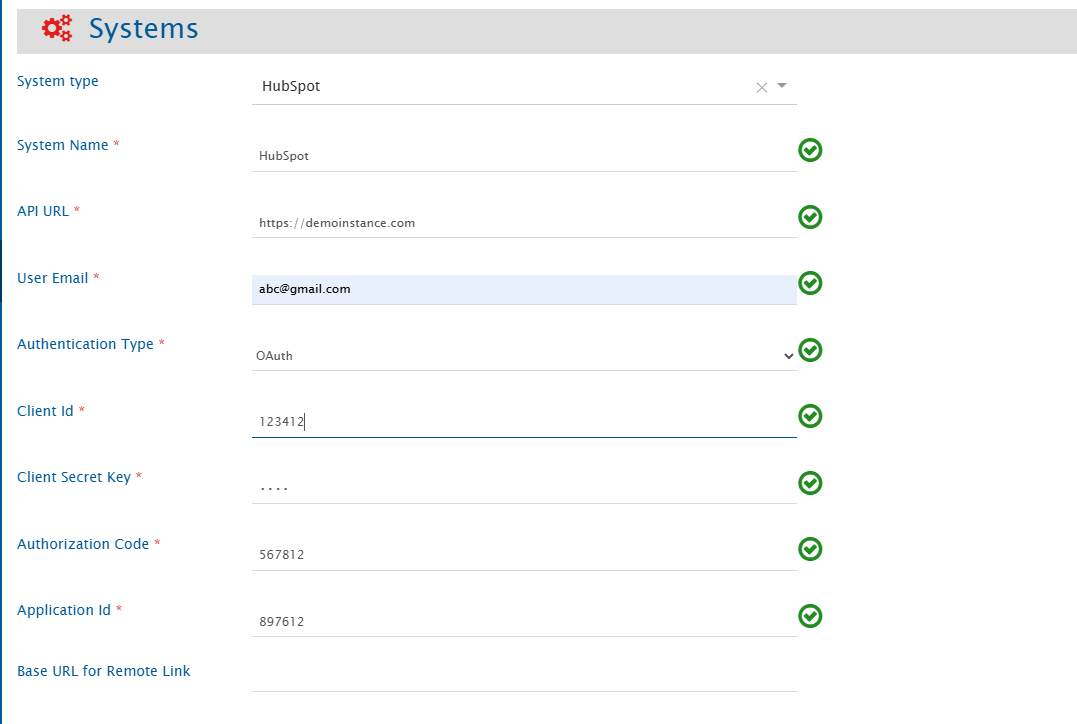
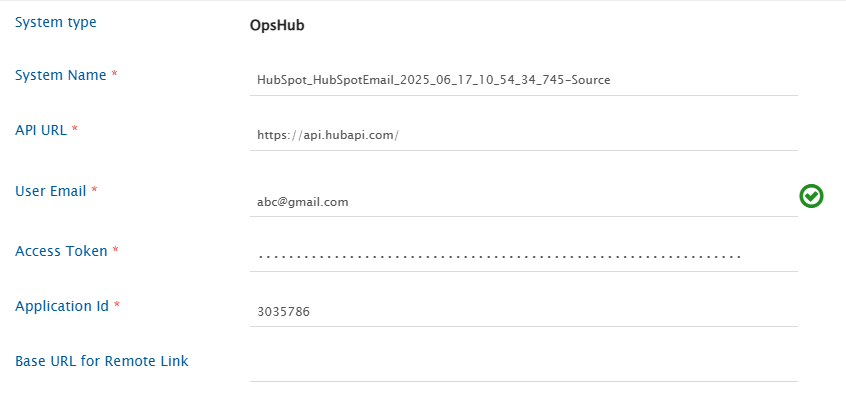
* As you kickstart the integration, the user must first configure HubSpot system in space.vars.OIM. Click [System Configuration](/integrate/configure-integrations/system-configuration.md) to learn step-by-step process to configure a system. Refer to the following screenshot:
* If Authentication Type is Oauth Token,following will be the form:
**HubSpot System form details**
| **Field Name** | **When is the field visible** | **Description** |
| ---------------------------- | ----------------------------------- | -------------------------------------------------------------------------------------------------------------------------------------------------------------------------------------------------------------------------------------------------------------------------------------------------------------------------------------------------------------------------------- |
| **System Name** | Always | Provide a name to the HubSpot system. |
| **API Url** | Always | Provide server URL of the HubSpot instance. This URL will be used for communicating with HubSpot system API. The example format of the URL would be: `https://api.hubapi.com`. |
| **User Email** | Always | Provide the user email of a dedicated user who will be used for communicating with HubSpot API. This user should have the required privileges to use the HubSpot API. For more details on the required privileges, refer to [User privileges](#user-privileges) section. |
| **Authentication Type** | Always | Select the authentication type you would like to use for communicating with HubSpot API. |
| **Access Token** | Authentication type is Access Token | Provide the HubSpot private app access token for the specified user. This token must have sufficient permissions to enable communication with the HubSpot API. |
| **Client ID** | Authentication type is OAuth 2.0 | Provide the HubSpot public app's Client ID. This token must have sufficient permissions to enable communication with the HubSpot API. Refer to [OAuth 2.0 Authorization Token Generation in HubSpot](#oauth-2.0-authorization-token-generation-in-hubspot) section to know how to get the Client ID. |
| **Client Secret** | Authentication type is OAuth 2.0 | Provide the HubSpot public app's Client Secret to connect with the HubSpot API. Refer to [OAuth 2.0 Authorization Token Generation in HubSpot](#oauth-2.0-authorization-token-generation-in-hubspot) section to know how to get the Client Secret. |
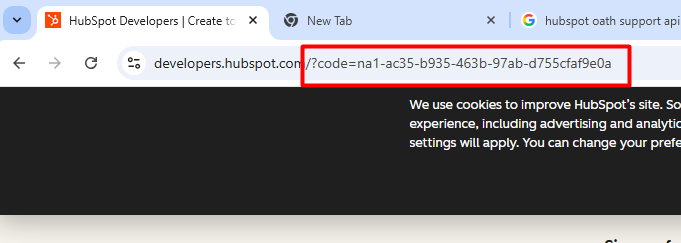
| **Authorization Code** | Authentication type is OAuth 2.0 | Provide the HubSpot public app's Authorization Code to connect with the HubSpot API. Refer to [OAuth 2.0 Authorization Token Generation in HubSpot](#oauth-2.0-authorization-token-generation-in-hubspot) section to know how to get the Authorization Code. If the scopes or permissions of the app are changed at any point, you must regenerate the Authorization Code again. |
| **Application Id** | Always | Provide the Application ID set up for the specified dedicated user to connect with the HubSpot API. Refer to [Prerequisites](#prerequisites) section to know how to get the Application Id. |
| **Base URL for Remote Link** | Always | Provide a different instance URL of the HubSpot instance. This URL will be used for generating the Remote Link.
Note: If "Base URL for Remote Link" is empty, it will use Instance/Server URL to generate Remote Link if configured on Integration.
|
```
|
```
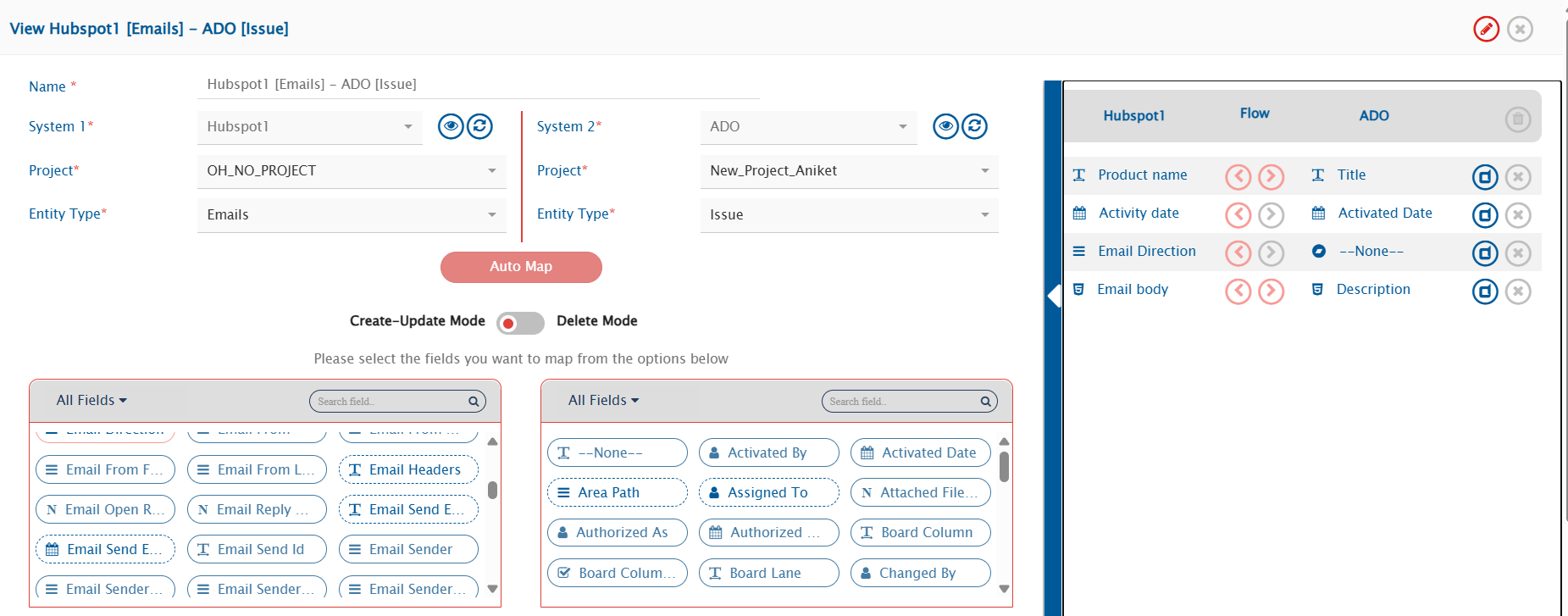
## Mapping Configuration
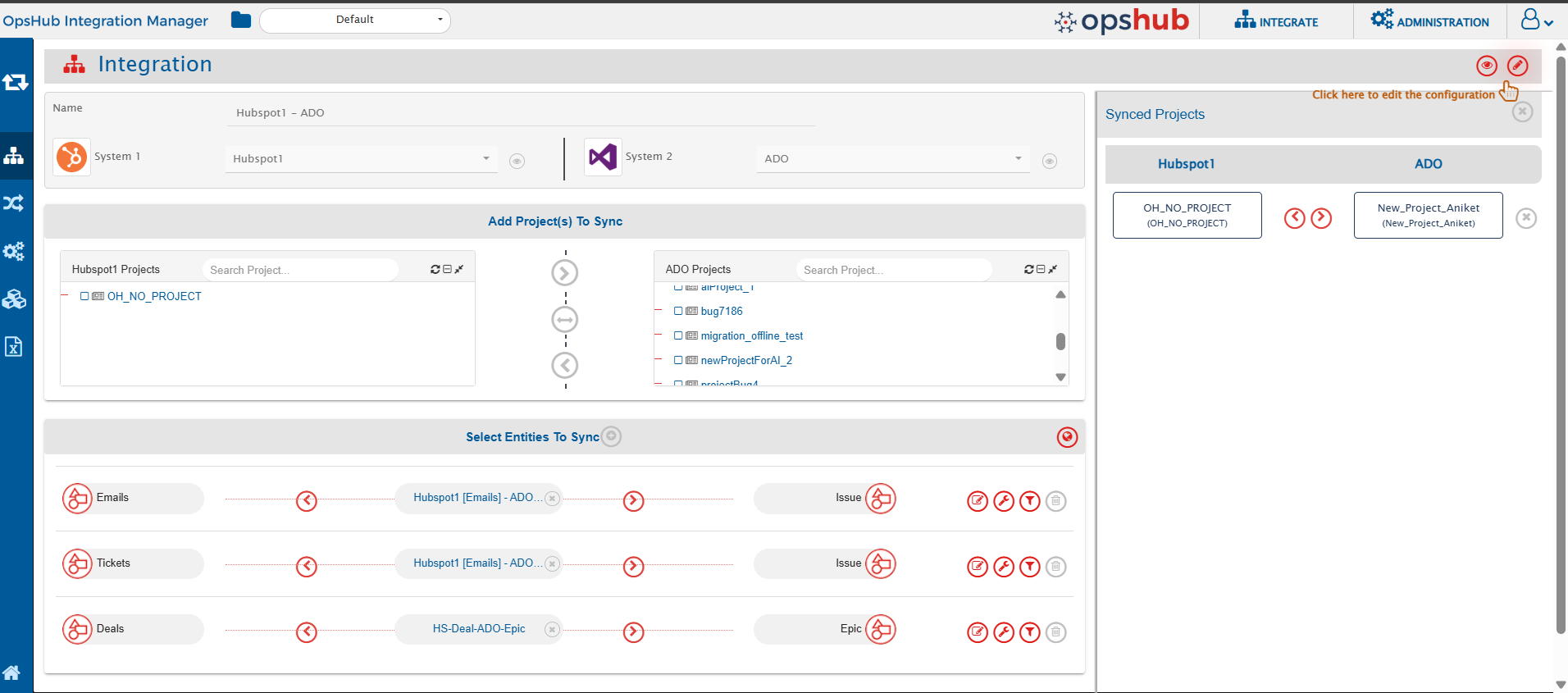
Map the fields between HubSpot and the other system to be integrated to ensure that the data between both the systems synchronize correctly. Refer to the following screenshot:
Click [Mapping Configuration](/integrate/configure-integrations/mapping-configuration.md) to learn the step-by-step process to configure mapping between the systems.
### Comments and Attachments Configuration
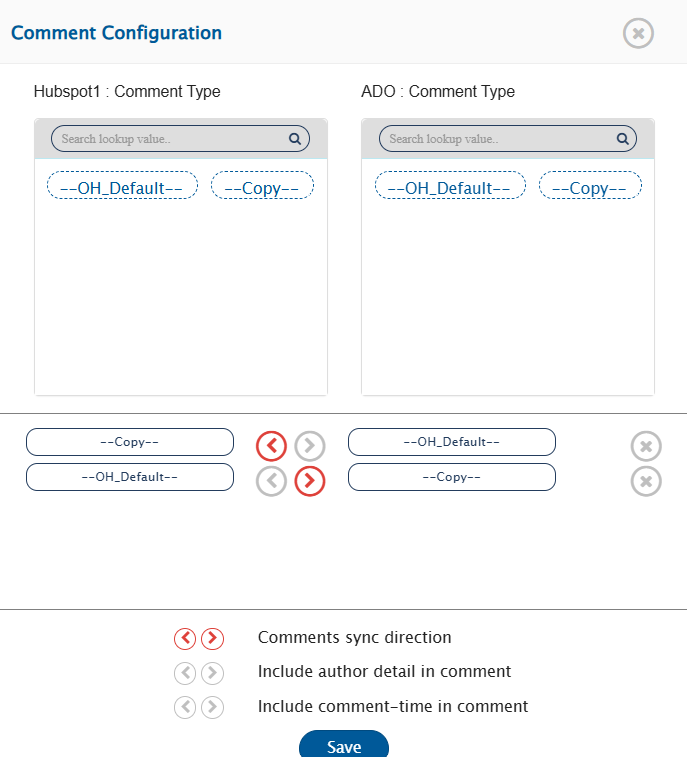
* In HubSpot, the Note is supported as both entity and comment. If user has configured comments synchronization between HubSpot and other end system, then each Note added in the HubSpot's common entities like Deal, Tickets, Contacts etc. will create a new comment to the end system and vice versa.
* If the user has configured Note to sync as an entity and not as a comment then it will sync according to other end system's configured entity.
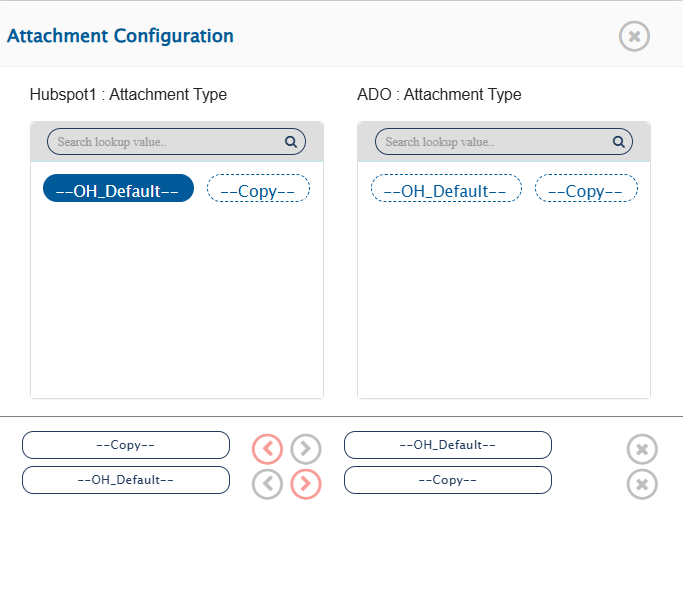
* In HubSpot, whenever an attachment is added to one of the common entities mentioned above, a separate **Note** is created and associated with that entity. This Note contains the added attachment. So, if the user has configured Notes to be synced as an entity, these Notes created for attachments will also be synced to the end system.
* Apart from this, if HubSpot is configured as the target system, each attachment added from the source system will create a new Note associated with the synced entity, containing the attachment.
* Refer to the screenshot below:
### Mandatory Links
* When entities like Notes, Emails and Meetings are created in HubSpot they must be associated with the HubSpot's common entities like Deals, Tickets, Contacts, Companies, etc. Otherwise, these entities are not individually visible on the HubSpot's interface. Therefore, to sync these type of entities, any of the common HubSpot entities mentioned is required as a mandatory relationship linkage.
## Integration Configuration
Set a time to synchronize data between HubSpot and the other system to be integrated. Also, define parameters and conditions (if any) for integration. Refer to [Integration Configuration](/integrate/configure-integrations/integration-configuration.md) to learn the step-by-step process to configure the integration between two systems.
### Criteria Configuration
If the user wants to specify conditions for synchronizing an entity from HubSpot as source system to the other system, the criteria must be configured. Navigate to Criteria Configuration section on [Integration Configuration](/integrate/configure-integrations/integration-configuration.md) page to learn in detail about Criteria Configuration.
Set the **Query** as per space.vars.OIM's Native query format. While adding the criteria, user needs to add the internal names of the fields on which the criteria have to be applied. Given below are the sample snippets of how the HubSpot queries can be used as criteria query in space.vars.OIM:
**Criteria samples:**
| **Field Type** | **Criteria Description** | **Criteria snippet** |
| -------------- | ------------------------------------------------------------------------------------ | ------------------------------------------------------------------------------------------------------------------------ |
| `dealstage` | Synchronize all deal type of entities having deal's stage as "Appointment Scheduled" | `[{"condition":"EQUALS","field":"dealstage","value":"appointmentscheduled"}]` |
| `createdate` | Synchronize all deal type of entities created after June 15,2025 | `[{"condition":"GREATER_THAN","field":"createdate","value":"2025-06-15T03:00:29.864Z"}]` *(timestamp in HubSpot format)* |
| `dealname` | Synchronize all deal type of entities with deal name, "new" | `[{"condition":"EQUALS","field":"dealname","value":"new"}]` |
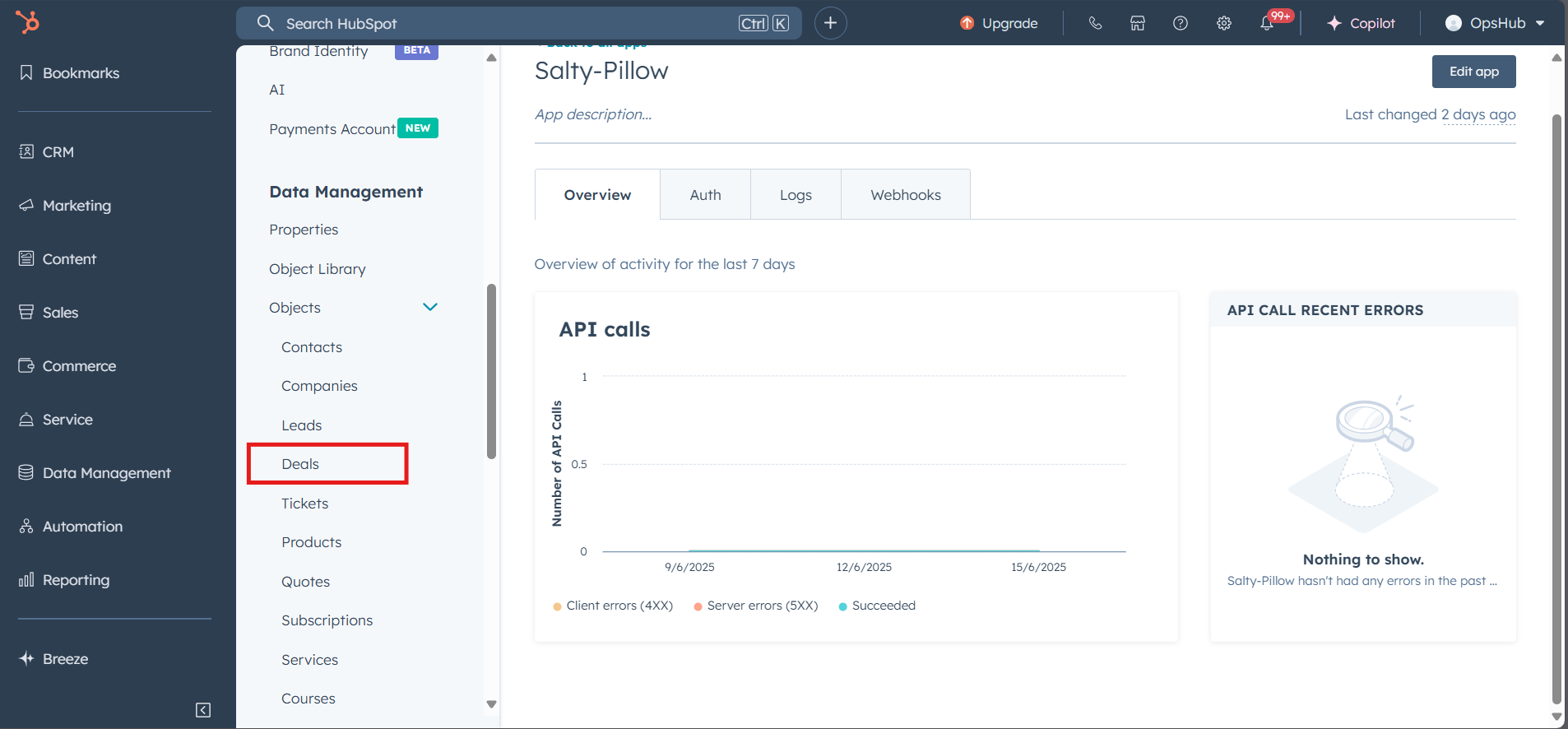
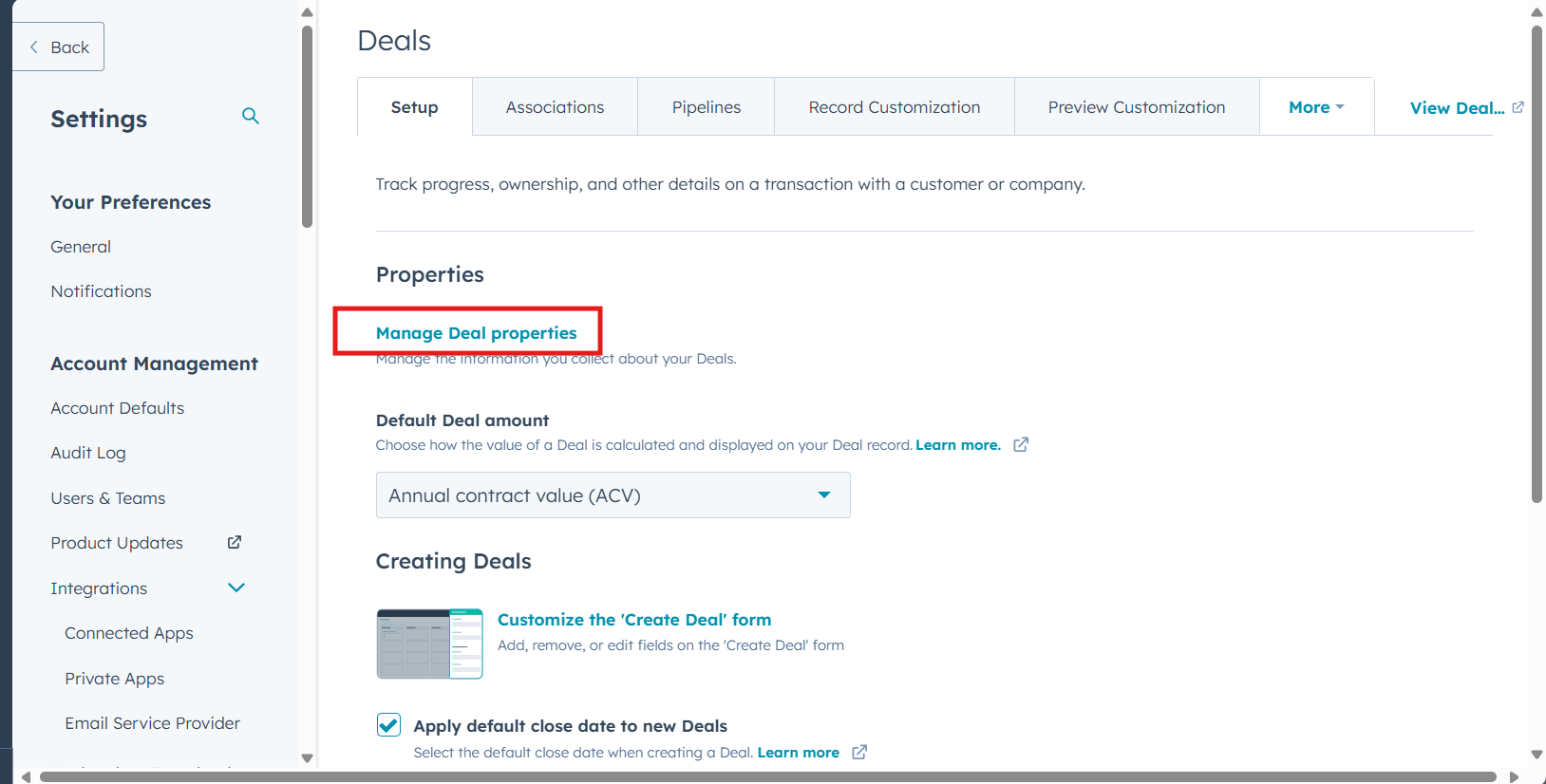
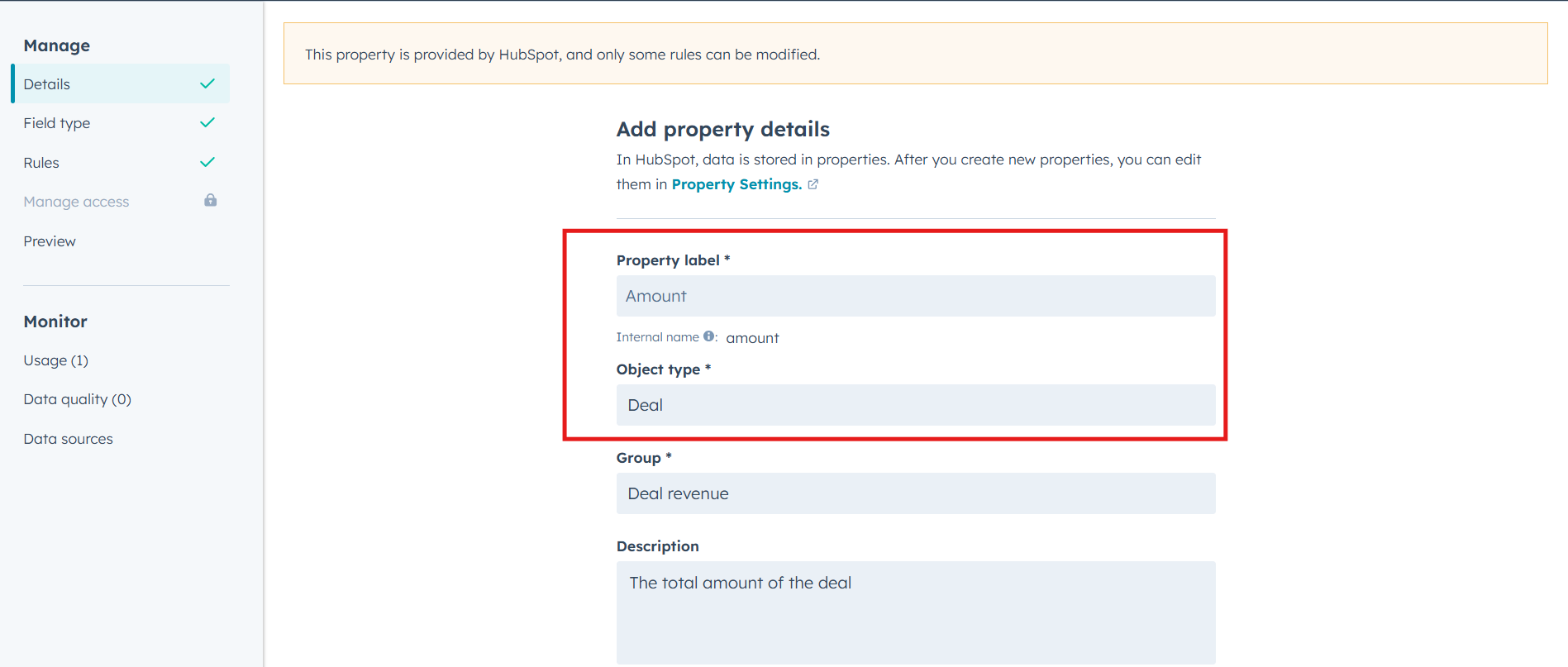
* To get the internal field name for the HubSpot's entities, refer to the [Appendix](#appendix) section.
* When the user wants to sync all Deal entities with the dealname set to 'new', the corresponding HubSpot Search API request to apply this criteria is shown below.
```
{
"filterGroups": [
{
"filters": [
{
"propertyName": "dealname",
"operator": "EQ",
"value": "new",
"values": null
}
]
}
]
}
```
* Now for this search request, the user needs the OIM Criteria query to filter the records. Hence, its corresponding OIM criteria query will be:
```
[{"condition":"EQUALS","field":"dealname","value":"new"}]
```
### Target LookUp Configuration
* Provide Query in Target Search Query field such that it is possible to search the entity in the HubSpot as the target system. In the target search query field, the user can provide a placeholder for the source system's field value in the '@'.
* To learn in detail about how to configure Target LookUp, refer to **Search in Target Before Sync** section on [Integration Configuration](/integrate/configure-integrations/integration-configuration.md) page.
* Overall, Target LookUp Query is similar to [Criteria configuration](#criteria-configuration), except that the value part contains a field name with '@' instead of static value.
**Target LookUp query samples:**
| **Field Type** | **Target LookUp usecase** | **Snippet** |
| -------------- | -------------------------------------------------------------------------------- | --------------------------------------------------------------------------- |
| `Description` | Target LookUp on the entity having the source entity's id in 'description' field | `[{"condition":"EQUALS","field":"description","value":"@oh_internal_id@"}]` |
## Known Behaviour
* In HubSpot, user mention is only supported in the entities of type Notes, Emails, Calls, Meetings, Tasks.
* Grouping of criteria like - (condition1 and condition2) or (condition1 and condition3) is not supported in criteria as well as Target LookUp.
* Hierarchy sync is not supported in HubSpot.
* While applying criteria configuration, note that HubSpot's Search API accepts only 5 filters. Since space.vars.OIM applies two of these filters internally, users can add a maximum of 3 additional filters to define the criteria.
* While using a query for criteria or target lookup, if a text-type field is used, the query will not execute if the field value is null.\
For example: `[{"condition":"EQUALS","field":"dealname","value":null}]` – this query will not be executed as HubSpot API expects a value in text fields.
* For Comment synchronization:
* In the current HubSpot integration setup, **Notes** from HubSpot are synced as **Comments** on the corresponding end system entity and vice versa.
* When a Note — let's say, Note-A is added to an entity like Deal-1, the same Note-A can also be associated with other entities such as Deal-2. If the sync time of Deal-2 is later than the creation time of Note-A, then Note-A might be skipped during the sync for Deal-2.
**Example**
| Action | Result |
| -------------------------------------------------- | ------------------------------------------------------------------------------------------- |
| Note A created and associated to Deal 1 | Synced as a Comment |
| Note A later associated to Deal 2 (unchanged Note) | Might **NOT** sync to Deal 2 if Note's Last Modified Time is before the current sync window |
| Note A later associated to Ticket-1 | Synced as Comment, if Ticket-1 integration sync time is behind Note A creation time |
* To ensure that Notes are reliably synced when associated with new entities, the user must update the Note (e.g., by adding a space, punctuation mark, or any minor change) before associating it with another entity. This updates the Last Modified Time, ensuring the Note falls within the polling window and is picked up for synchronization.
## Troubleshooting Guide
* If during synchronization you get any `"VALIDATION_ERROR"` failure, it means the data coming from the other system's entity is not proper, or fields mapped in the configuration have a missing mandatory field, causing HubSpot's validation to fail.\
For example, a field has been provided with an invalid value (e.g., `'email'` field has plain text instead of valid email).
* This error occurs because some fields in HubSpot are mandatory during entity creation, but their metadata doesn't indicate so.\
To fix:
* Use the internal name of the field from the error.
* Check if failure is due to a missing mandatory field or invalid data.
* Refer to [Get Internal Field Names for HubSpot Entities ](#get-internal-field-names-for-hubspot-entities)for internal-to-display name mapping.
## Appendix
### Add User to HubSpot private/public app
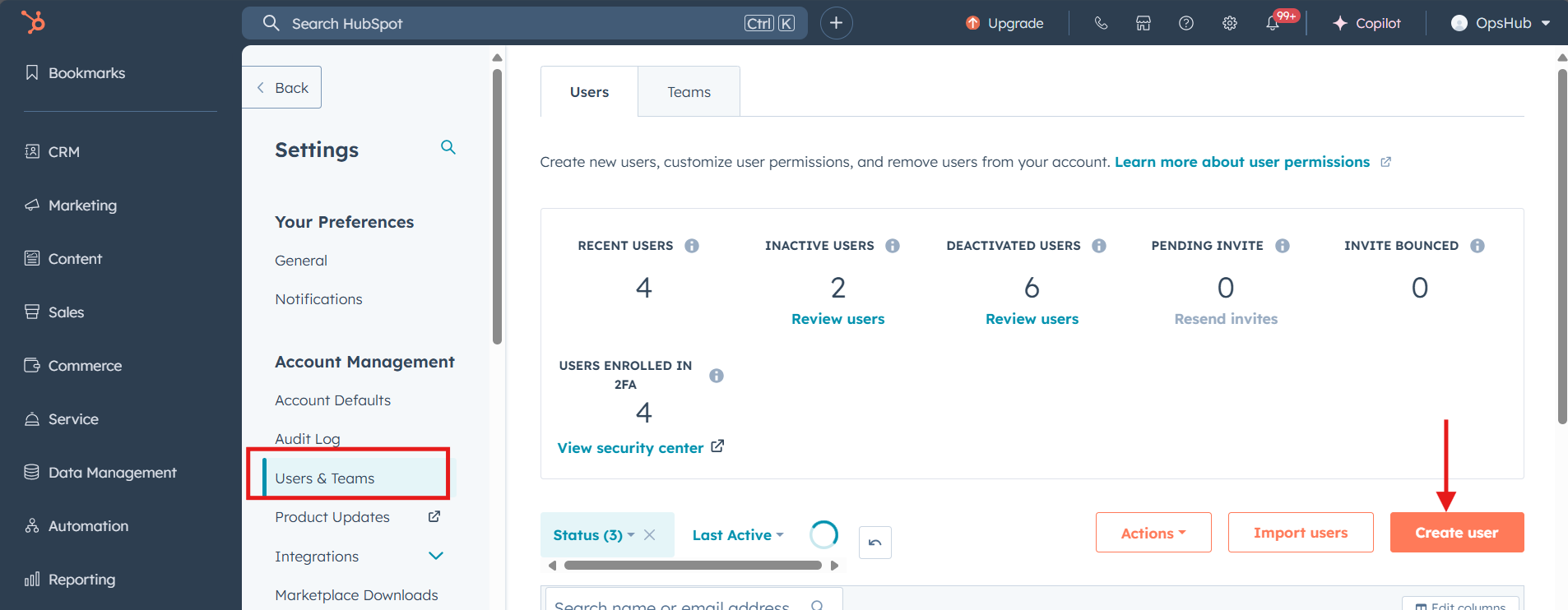
1. Log in to HubSpot using a user account with **Super Admin** or **User & Team management** permissions.
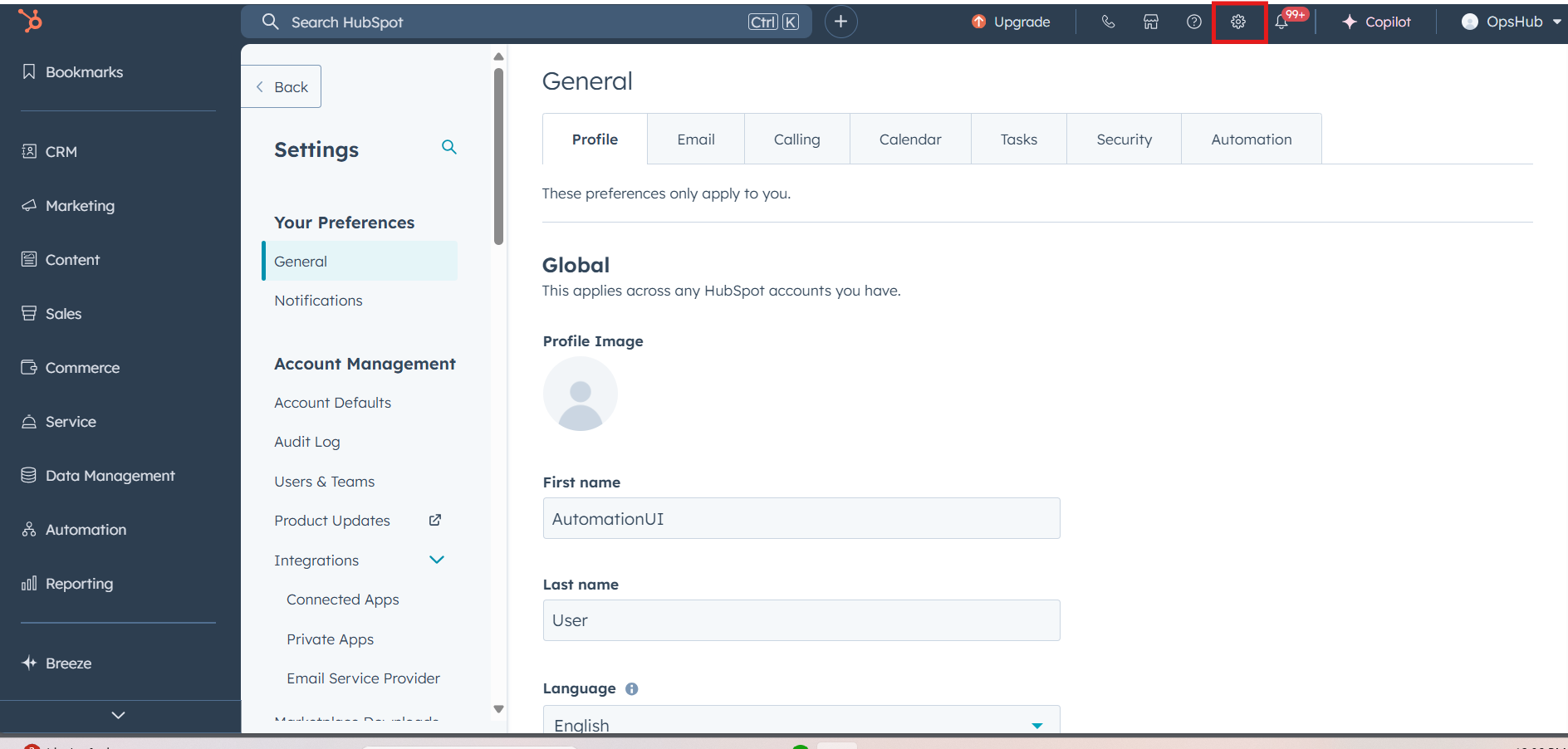
2. Click on the **Settings** icon at the top right corner.
3. In the left sidebar, navigate to **Users & Teams**.
4. Click on the **Create User** button at the top right.
5. Enter the **email address** of the user to invite.
6. Click **Next**, review the invite, and click **Send**.
> **Note** :
* The user will receive an invitation email to join HubSpot.
* You can later modify the user’s permissions via **Users & Teams**.
* See [User Privileges](#user-privileges) for required permissions for different actions.
### Create Private App in HubSpot
1. Log in to your HubSpot Account with Admin privileges using the same user that you want to use as Integration User.
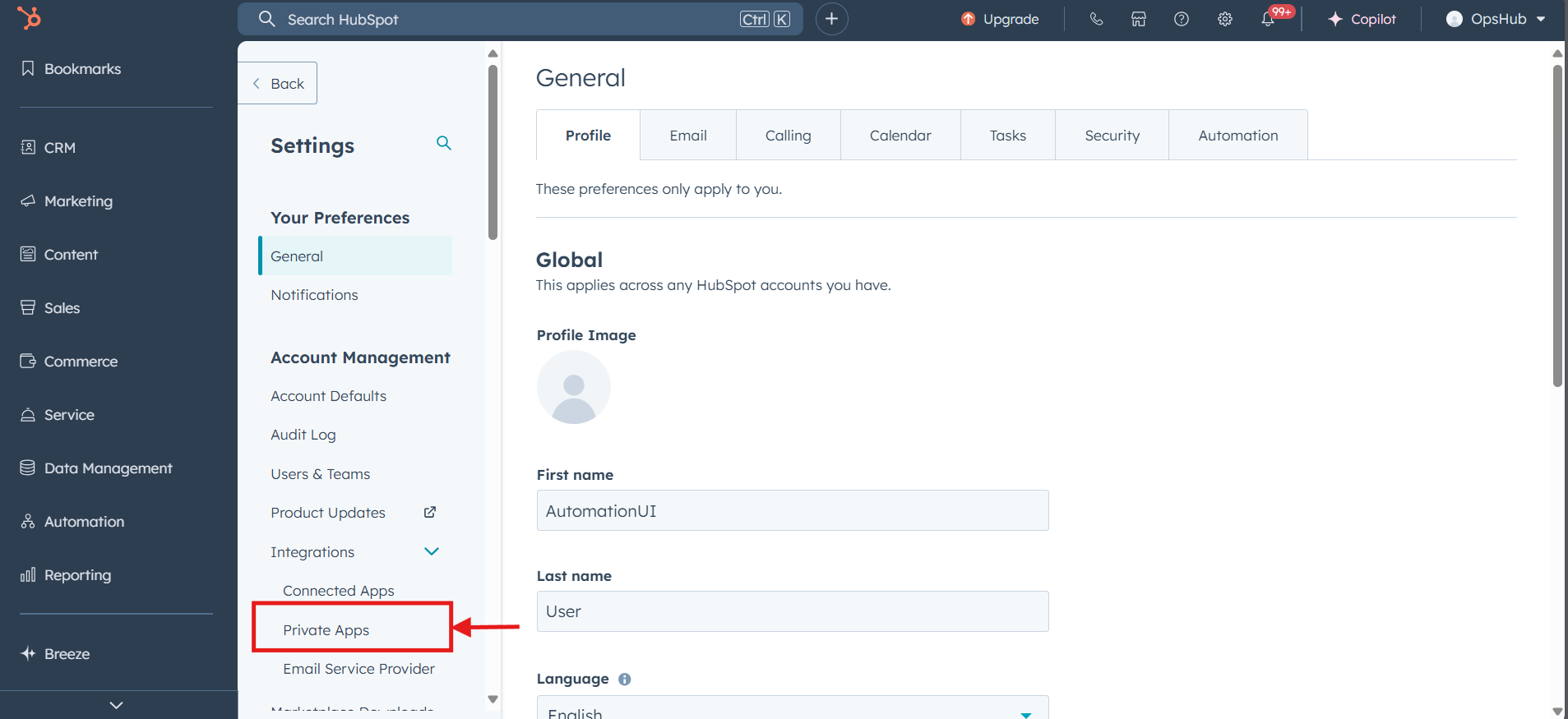
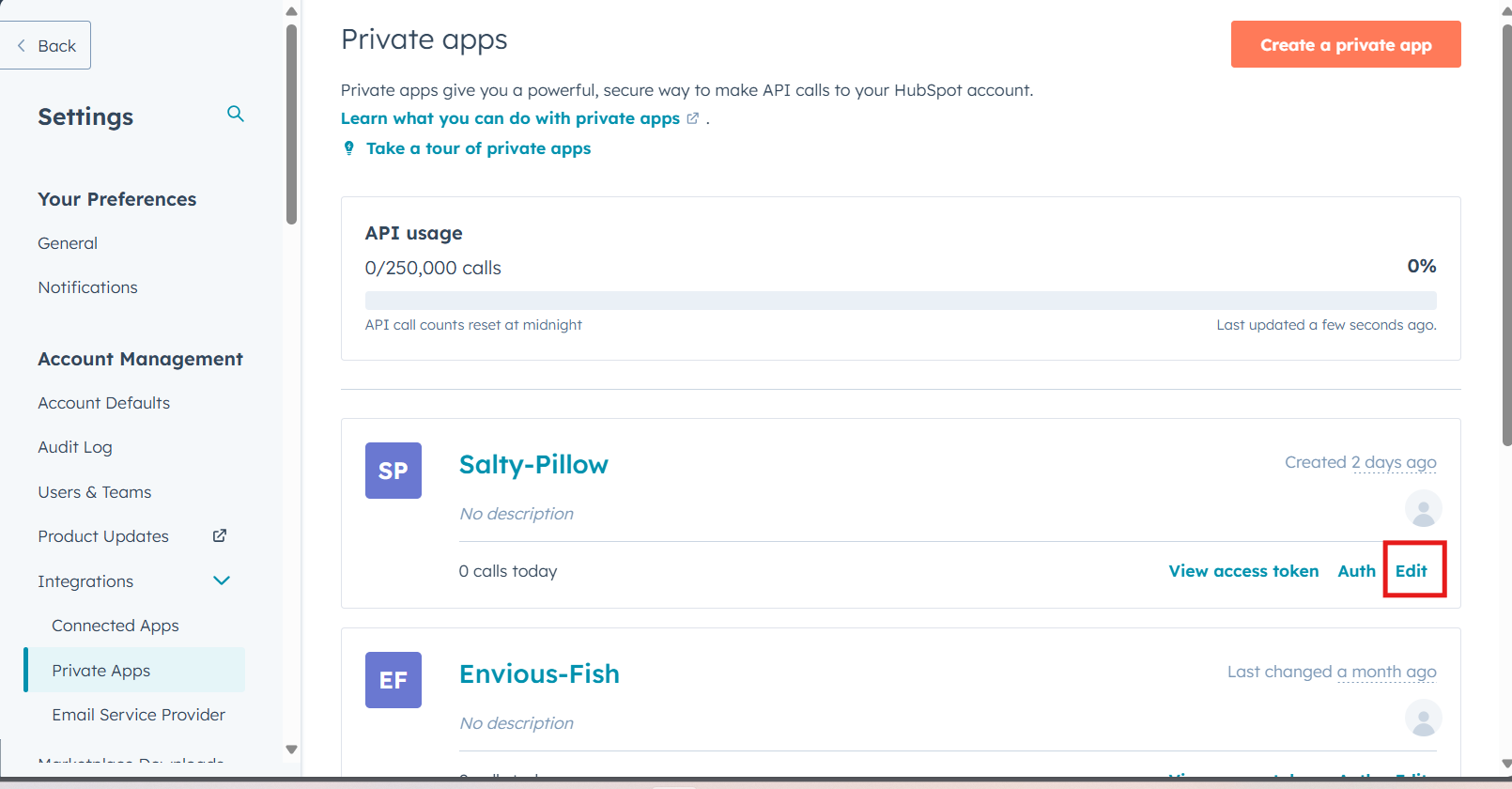
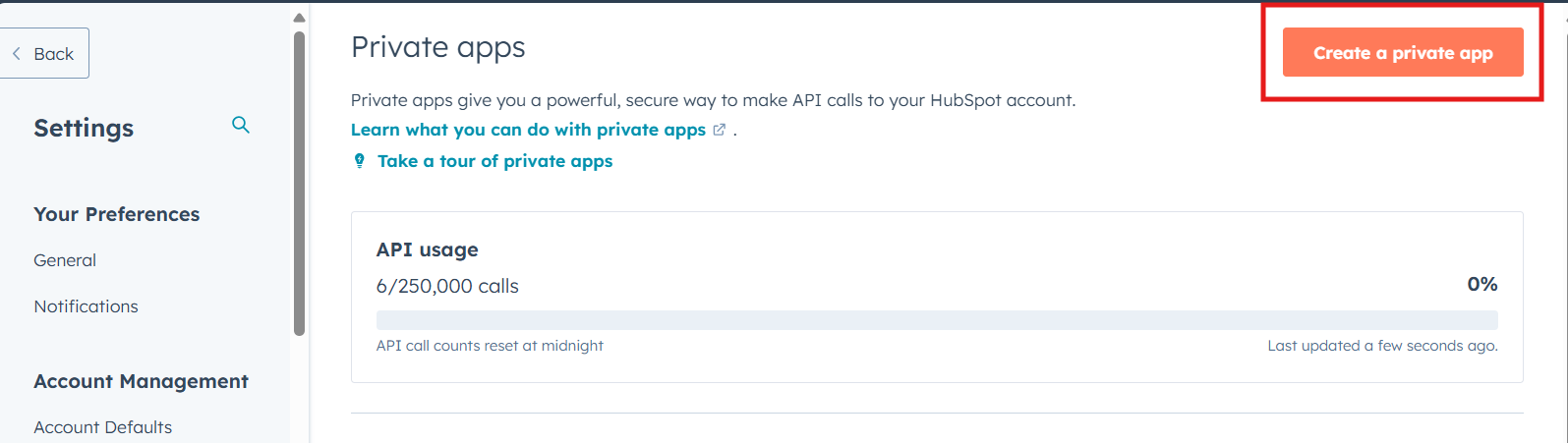
2. Navigate to **Settings → Integrations → Private Apps**.
3. Click **Create a Private App**.
4. Provide the App's Name (e.g., "space.vars.OIM Integration").
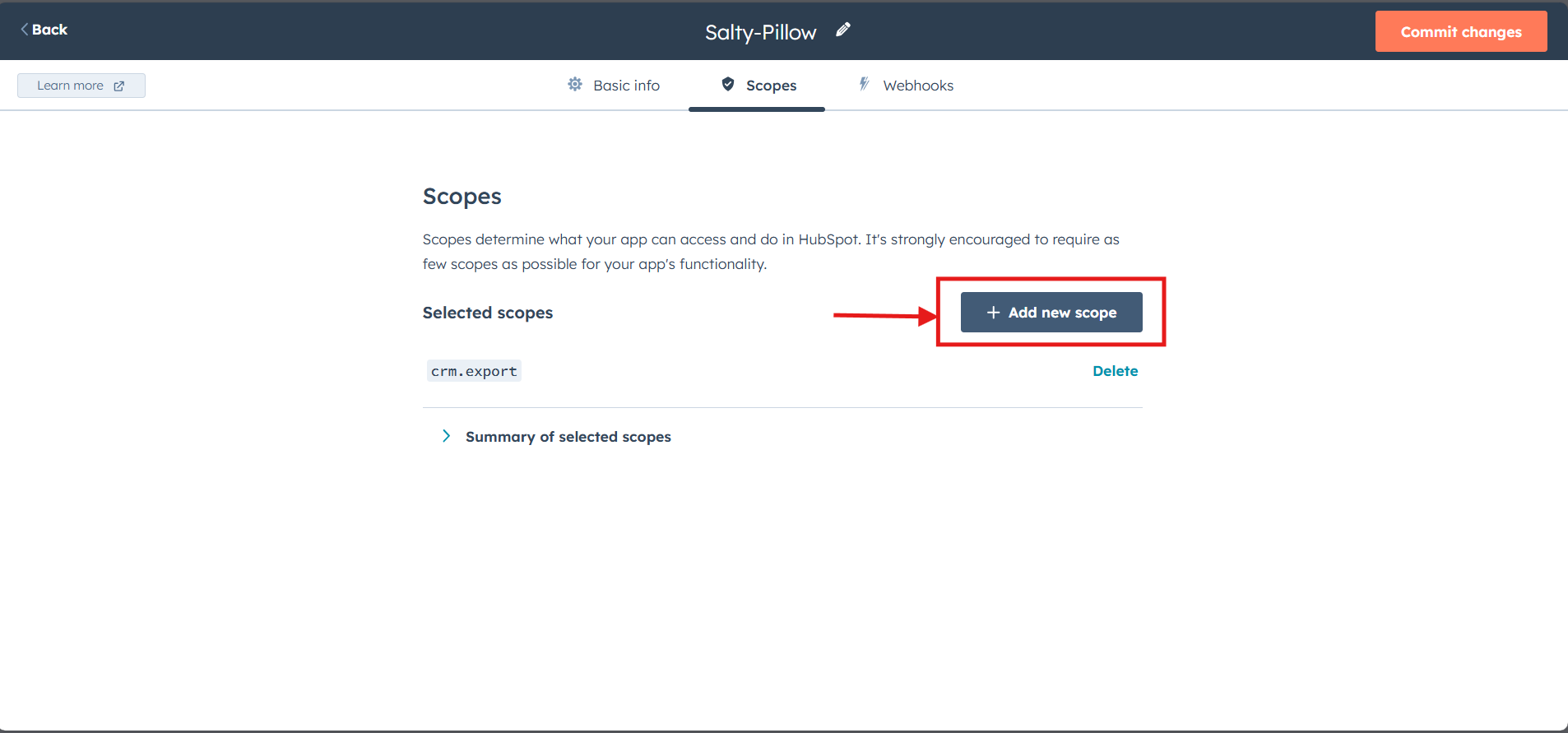
5. Under **Scopes**, provide required scopes mentioned in \[User privileges]]\(#user-privileges).
6. Click **Create App**.
7. Copy the Access Token (Auth Token).
* To know more details about this private app, refer to [HubSpot Private App Documentation](https://developers.hubspot.com/docs/guides/apps/private-apps/overview)
* This token will be used in the **API Token** field during system configuration in space.vars.OIM.
* Refer to [Steps to Get the Application ID for HubSpot ](#steps-to-get-the-application-id-for-hubspot)for details.
***
### Create Public App in HubSpot
1. Log in to your HubSpot Account with Super Admin privileges using the same user that you want to use as Integration User.
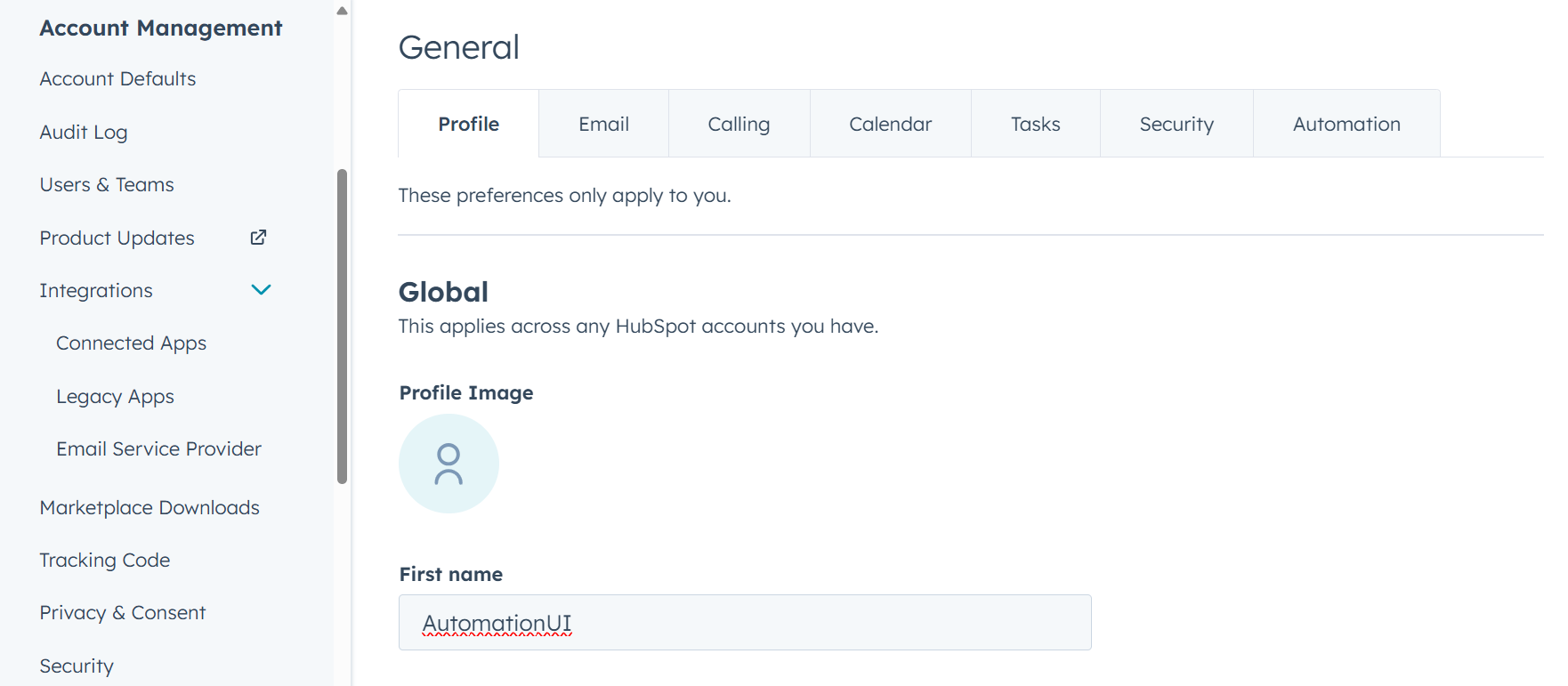
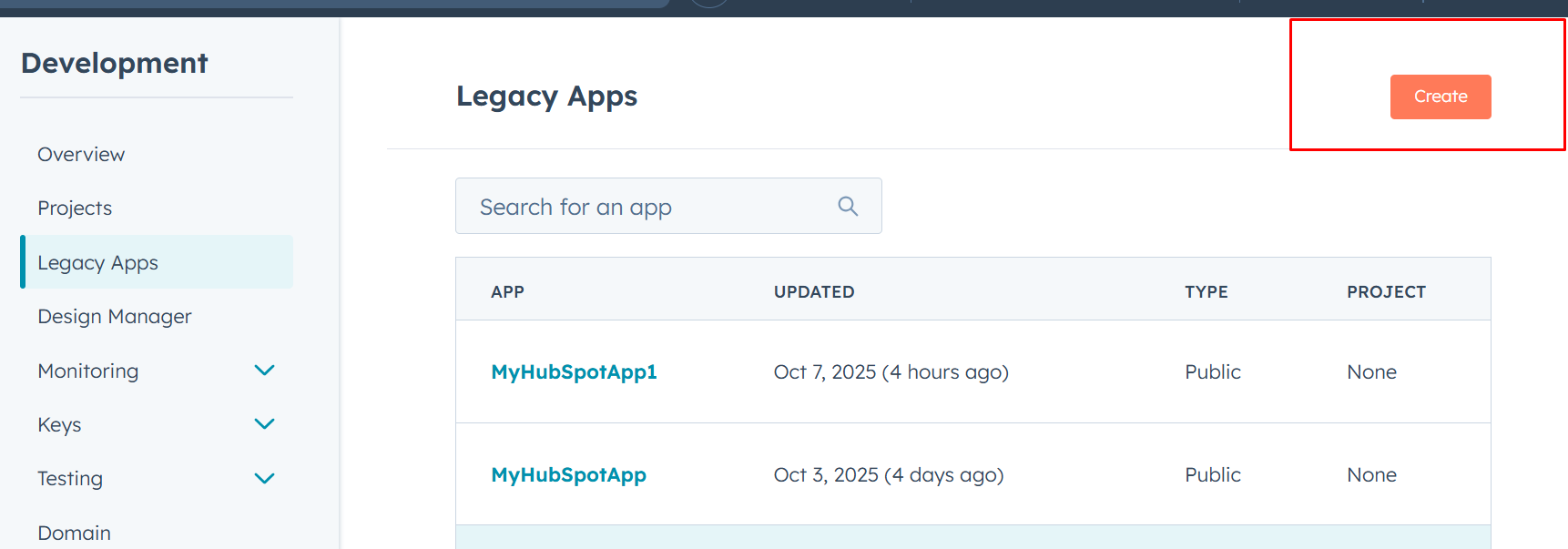
2. Navigate to **Settings → Integrations → Legacy Apps**.
3. Click **Create a Public App**.
4. Provide the App's Name (e.g., "space.vars.OIM Integration").
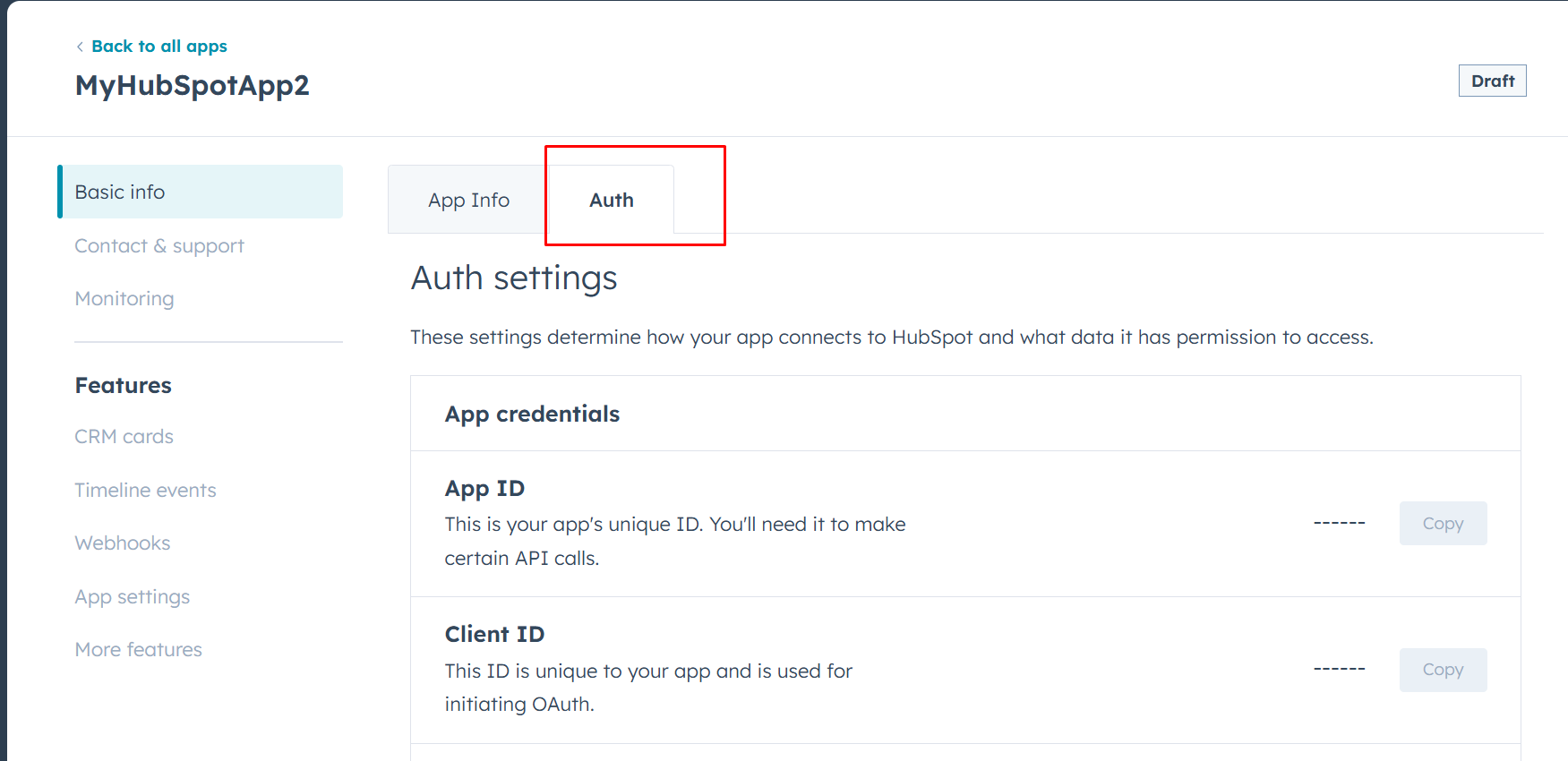
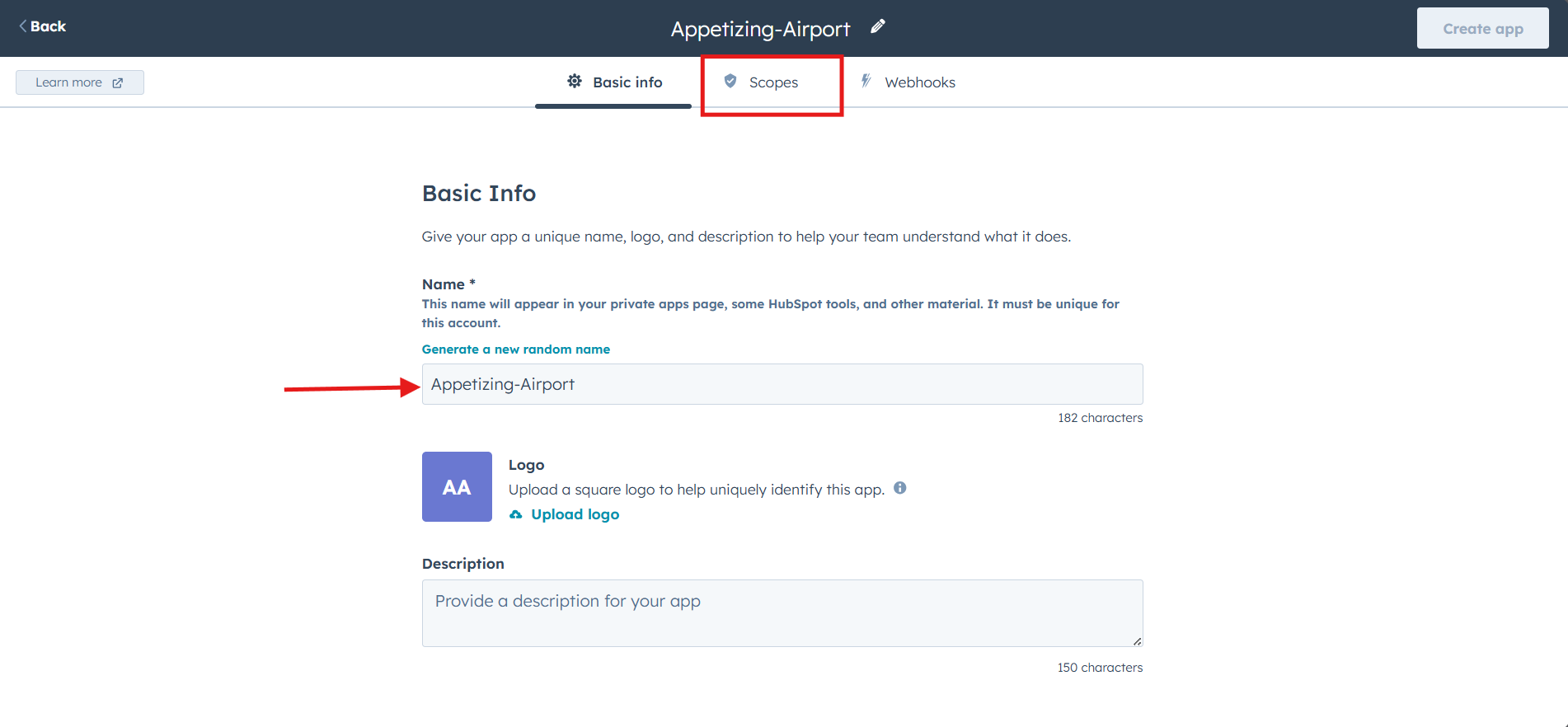
space.vars.OIM.
***
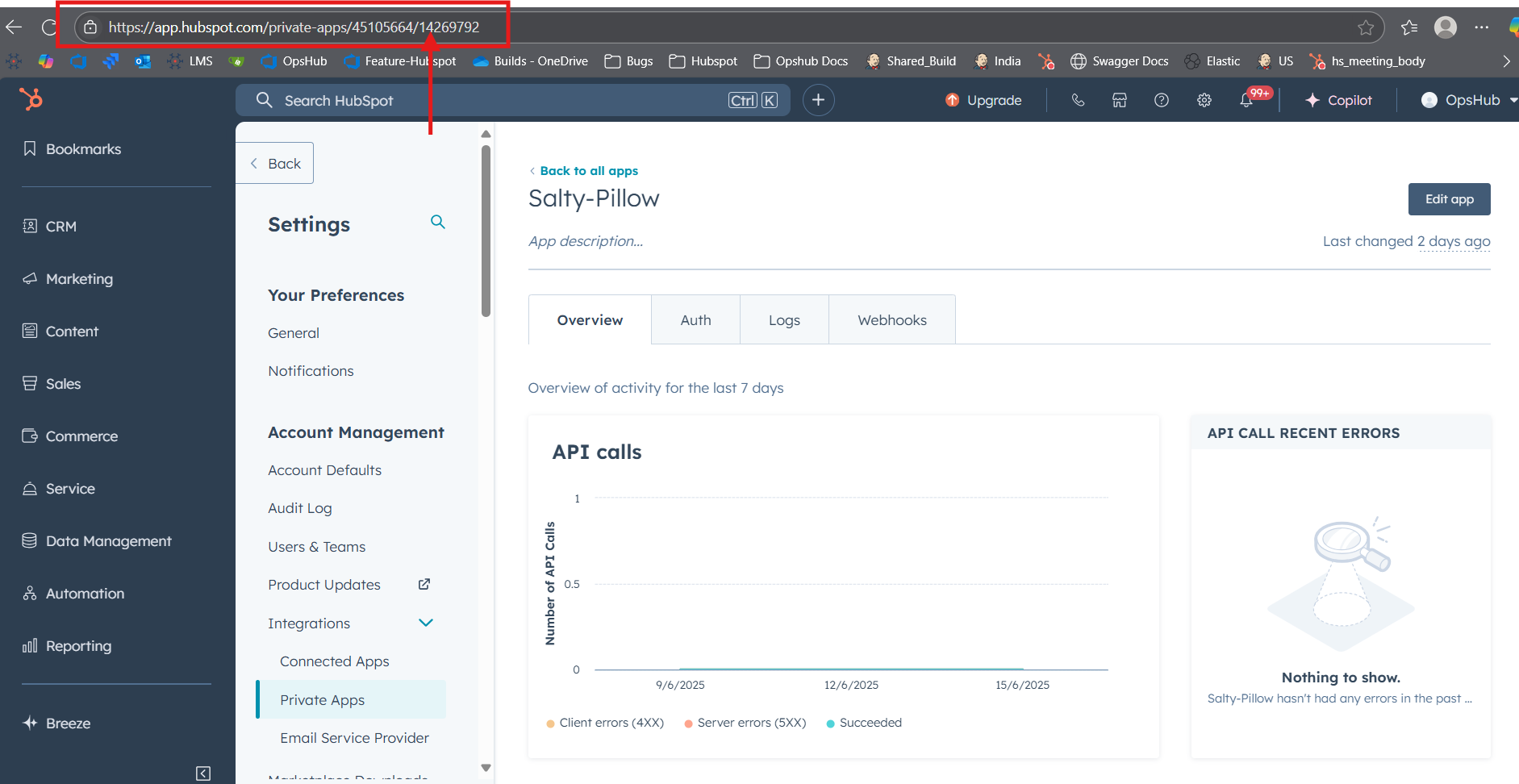
### Steps to Get the Application ID for HubSpot
1. Once the Private App is created, navigate to that app.
2. In the URL of the created app, the last part of the URL represents the required Application ID.
3. Example URL: → Here, 2851633 is the Application ID