space.vars.OIM requires one custom field to be defined on the entity that is being synchronized to ETM. This must be set up under **Custom Attribute** tab on **Manage Project Properties** page to track the integration status of each item. Name & data type of the field to be configured:
| Custom Field Name | Type |
| ----------------- | ----------- |
| oh\_last\_update | Text(small) |
> **Note**: To configure this custom field, refer to [Custom Field Configuration](#custom-field-configuration) section.
### Fine-tuning Pagination
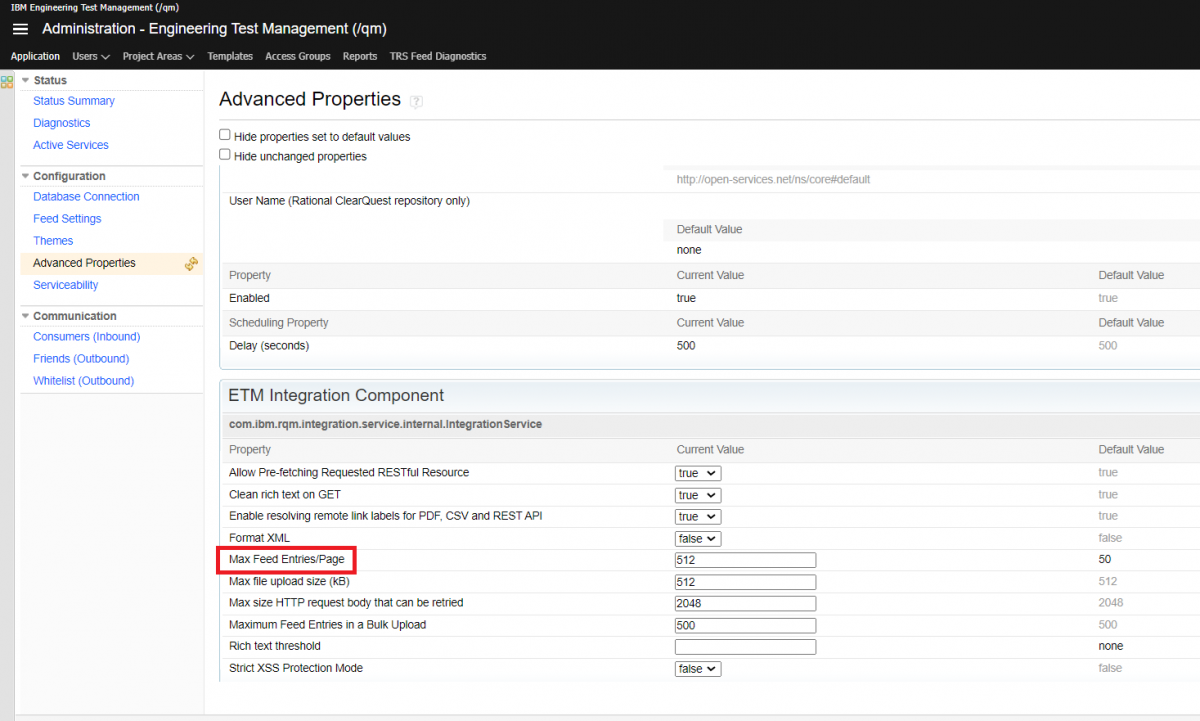
* In ETM, maximum entries that can be configured per page in the admin panel is between 1-512.
* It is recommended to set the page size to 512 (maximum capacity per page) for performance optimization.
* Refer to [Page-size Configuration](#page-size-configuration) section to update the page size.
## System Configuration
Before configuring the integration, you must first configure ETM. Refer to [System Configuration](/integrate/configure-integrations/system-configuration.md) page to learn the step-by-step process to configure a system.
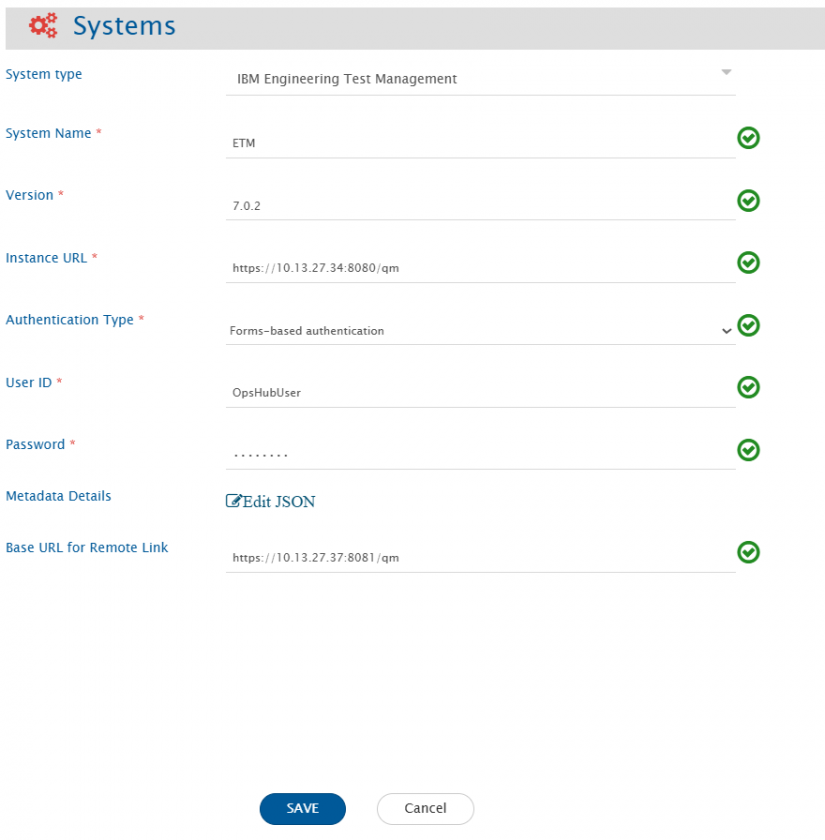
Refer to the following screenshot below with **Authentication Type** as Form-based authentication:
Provide different Instance URL of the ETM instance. This URL is used for generating the Remote Link. For example, if the Instance URL is
> Note: If "Base URL for Remote Link" is empty, It will use Instance/Server URL to generate Remote Link if configured on Integration.
space.vars.OIM to synchronize **Comment** & **Assisted Data Entry** (added to 'Manual Steps' & 'Step Result Details' fields).
* Here is the sample advanced mapping required to append to the existing XSLT after `` tag between ETM (source) to ETM (target) systems.
To synchronize **Comment**:
```xml
[OH_KY_DO_NOT_EDIT:keyword:<ID>]`
* Example: \[OH\_KY\_DO\_NOT\_EDIT:keyword:38]
* Placed at the **end of the step description**.
* Used to track keyword-to-step mapping.
**Guidelines**
* You **can edit** the step content, but:
* **Do not delete or change** the identifier.
* Add custom content **before** the identifier if needed.
* Modifying or removing the identifier may **break reverse sync** or lead to **loss of traceability**.
### Mapping for Soft Delete Configuration
* When ETM is the target system, the Soft delete operation is performed by default in the synchronization of the Source Delete event
* After the Soft Delete operation is performed by space.vars.OIM in ETM, the entity will be deleted in ETM. The deleted entity goes to the "Trash".
* To only enable the logical delete operation in the target, "OH Soft Delete" field shall be mapped with the default value "No" in the [Delete Mode](/integrate/configure-integrations/mapping-configuration.md#delete-mode) mapping.
### Cross-System Linkage with Other IBM Systems
* For more information on configuring cross-system linkages, refer to the following document: [**Cross System Linkages for IBM System**](/help-center-index/faqs/general-faqs/how-to-configure-cross-system-linkage-in-ibm-systems.md)
## Integration Configuration
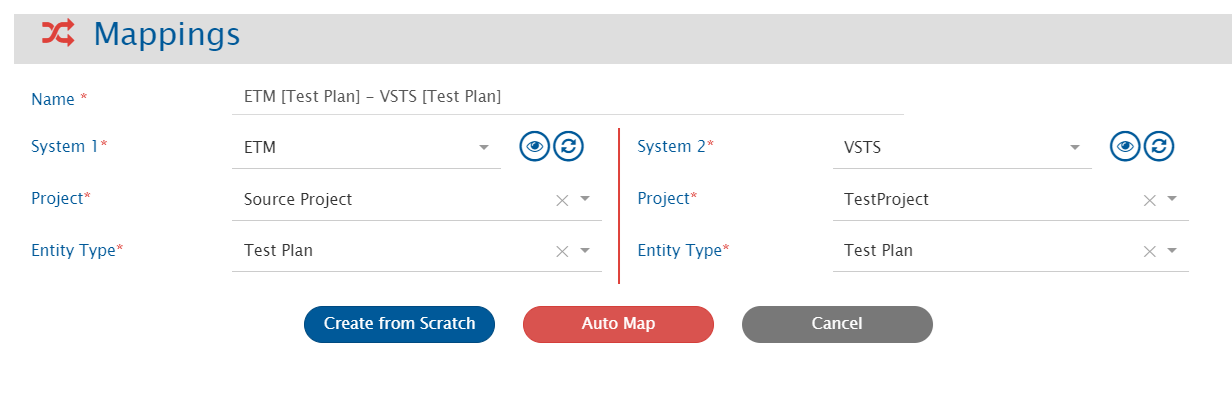
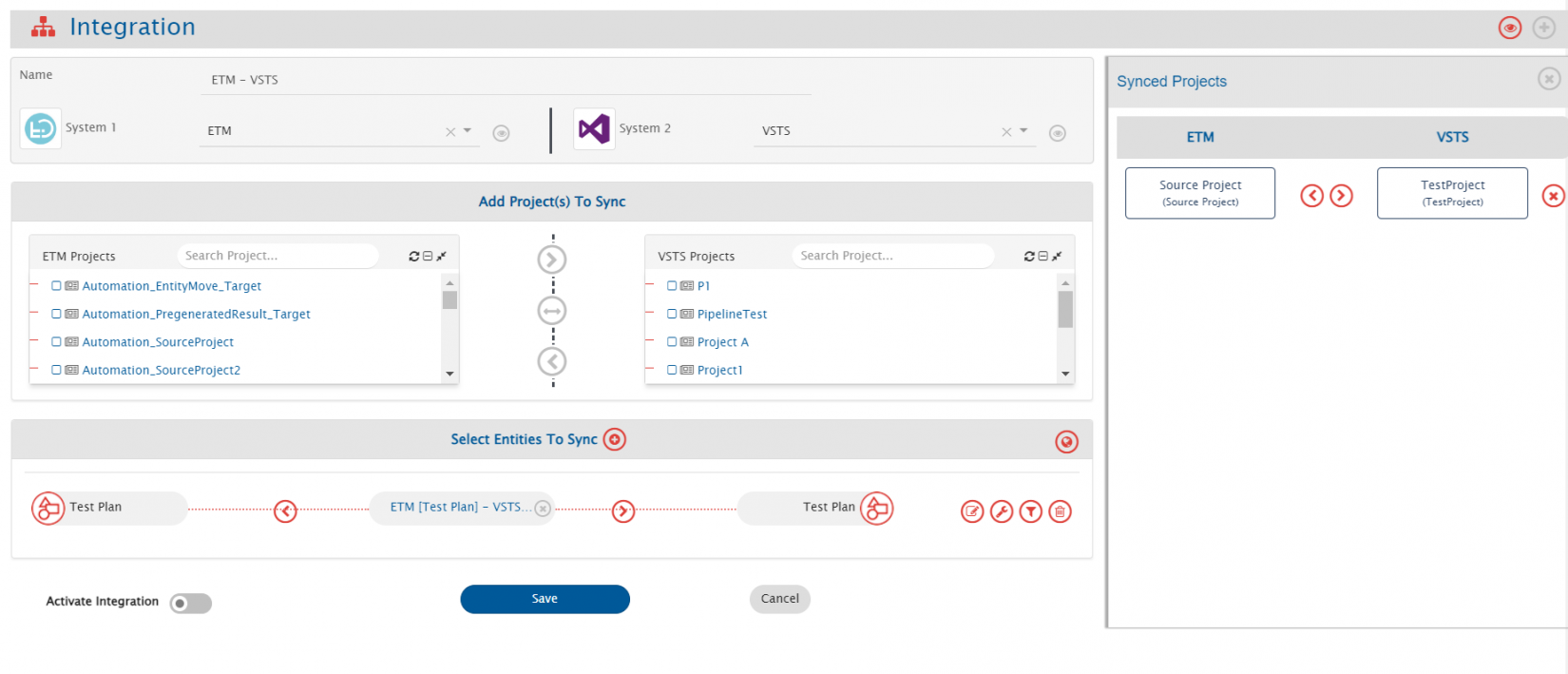
Select projects & entities to be synchronized between ETM and the other system to be integrated. Also, define parameters and conditions, if any, for integration. Refer to Integration Configuration page to learn the step-by-step process to configure integration between two systems.
space.vars.OIM does not support them as well.
* If **Parent Test Plans** link is added to **Test Case** artifact, it will be synchronized to target system with next update.\
**Reason:** After adding this link, instead of **Test Case**, **Test Plan** is being updated on ETM interface.
* If **Parent Test Cases** link is added to **Test Script** artifact, it will be synchronized to target system with next update.\
**Reason:** After adding this link, instead of **Test Script**, **Test Case** is being updated on ETM interface.
### OAuth Access Token Timeout
* On ETM admin panel, you can specify the timeout seconds for the OAuth Access Token.
* The number of seconds provided here specifies that token will stay valid (till the number of seconds specified) while not being used. It is recommended to set this value based on usage. In case of token regeneration, refer to [OAuth Configuration](#oauth-configuration) section.
### Behavior of 'Link' type field
* Custom link type of field can be added in **Metadata Details**. For JSON format, refer to [Metadata Configuration](#metadata-configuration) section.
* After adding this field at system configuration level, 2 subfields will be visible at mapping configuration level to synchronize label & value of link separately.
* Example:
* Link type of custom field with name: CustomLink
* 2 subfields created from CustomLink:
1. CustomLink.label (datatype - Text)
2. CustomLink.value (datatype - Link)
### Custom lookup values for Priority
* In each project, Priority field can have different custom lookup values.
* All the custom lookup values along with default values are needed to be provided in **Metadata Details** while system configuration. Refer [Metadata JSON to provide system & custom fields](#system-custom-configuration) section for required JSON format to provide custom lookup values for **Priority** field.
* If custom lookup values are not provided, then Priority field will have these default lookup values for each project:
* Unassigned
* Low
* Medium
* High
* If there are multiple projects configured at integration level & each project has custom lookup values, then custom & default's combined lookup values should be provided in Metadata Details.
* To identify the associated custom priority lookup value, set the custom priority value in the test plan. Read the test plan using the RQM Reportable REST API, (space.vars.OIM.
* **Locked** field is supported as Read-only.
* Following fields are not supported:
| Artifact | Not supported fields |
| -------------------------- | ---------------------------------------------------------------------------------------------------------------------------------------------------------------------------------------------------------------------------------------------------------------------------------------------------------------------------------------- |
| Test Plan | Development Plan Links, Test Environment, Test Suite Execution Records, Test Suite Results, Test Suite, Test Team, Risk Assessment, Test Schedule, Resources, Normative and Informative Documents, Formal Review, Quality Objectives, Exit Criteria, Entry Criteria, Application Security, Associated Electronic Signatures, Subscribers |
| Test Case | Development Items, Architecture Element Links, Risk Assessment, Execution Variables, Normative and Informative Documents, Formal Review, Associated Electronic Signatures, Subscribers |
| Test Script | Test Data, Formal Review, Quality Task, Associated Electronic Signatures, Subscribers |
| Test Case Execution Record | Blocking Defects, Deployment plan, Test Environment, Iteration, rolled-up result, Subscribers |
| Test Case Result | Defect, Test Environment, Build, Test Data, Iteration, Custom properties, Weight Distribution, Formal Review, Execution Variables, Associated Electronic Signatures |
## Appendix
### Permission Configuration
#### Repository Permissions Configuration
* Log in to Admin panel (`space.vars.OIM's dedicated user.
* Provide required **Repository Permissions**. Click **Save**.
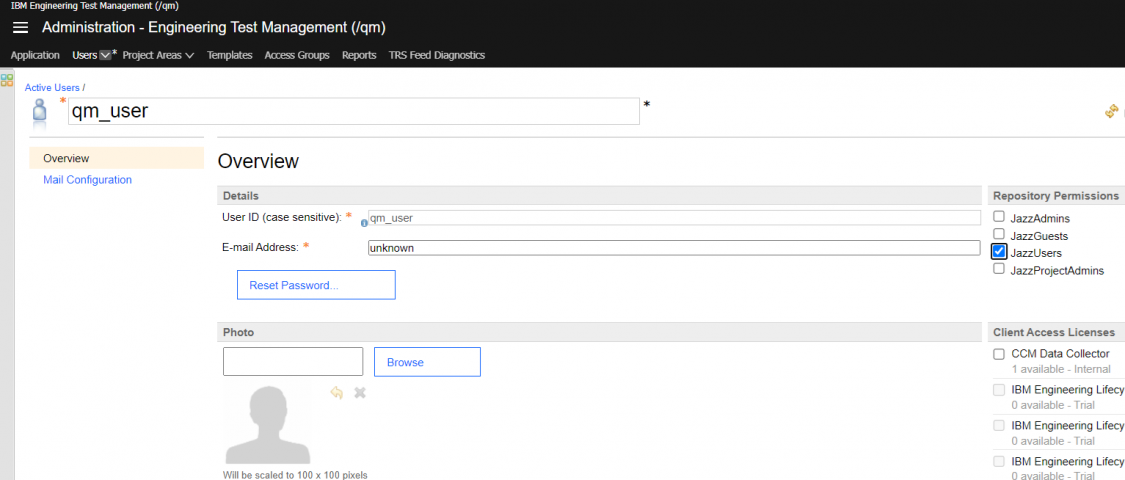
space.vars.OIM's dedicated user.
* Provide required **Client Access Licenses**. Click **Save**.
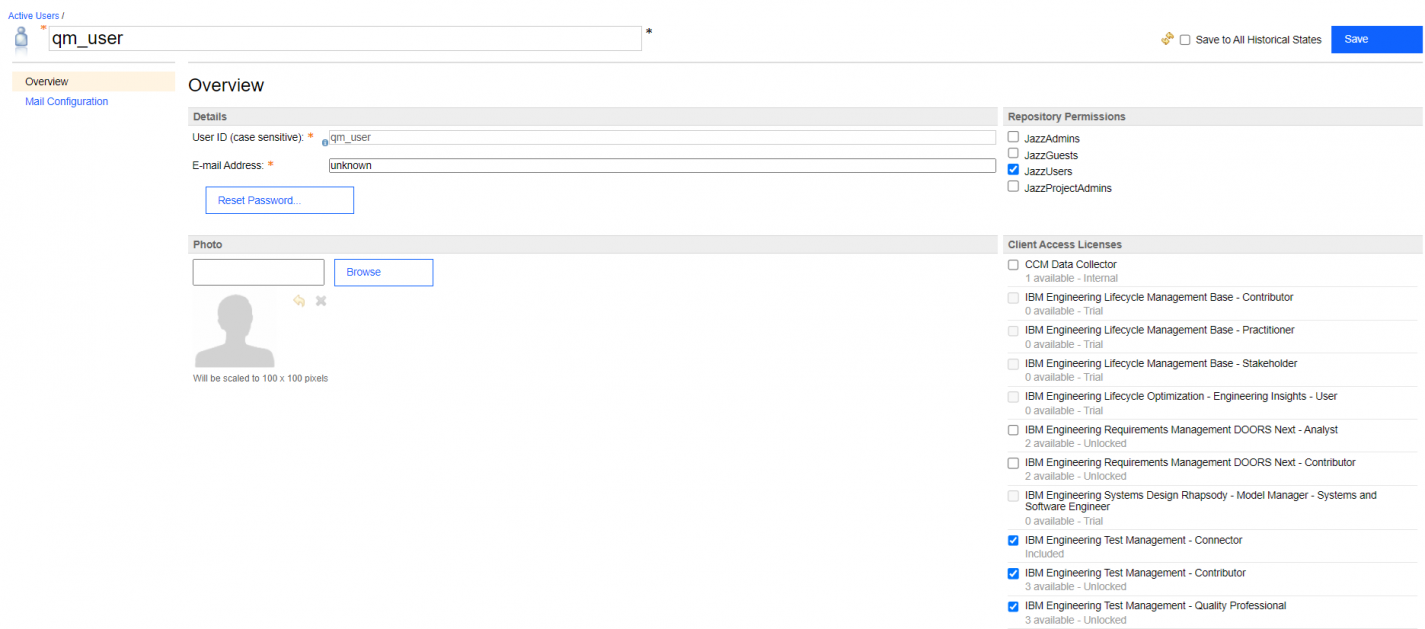
space.vars.OIM's dedicated user. Click **Save**.
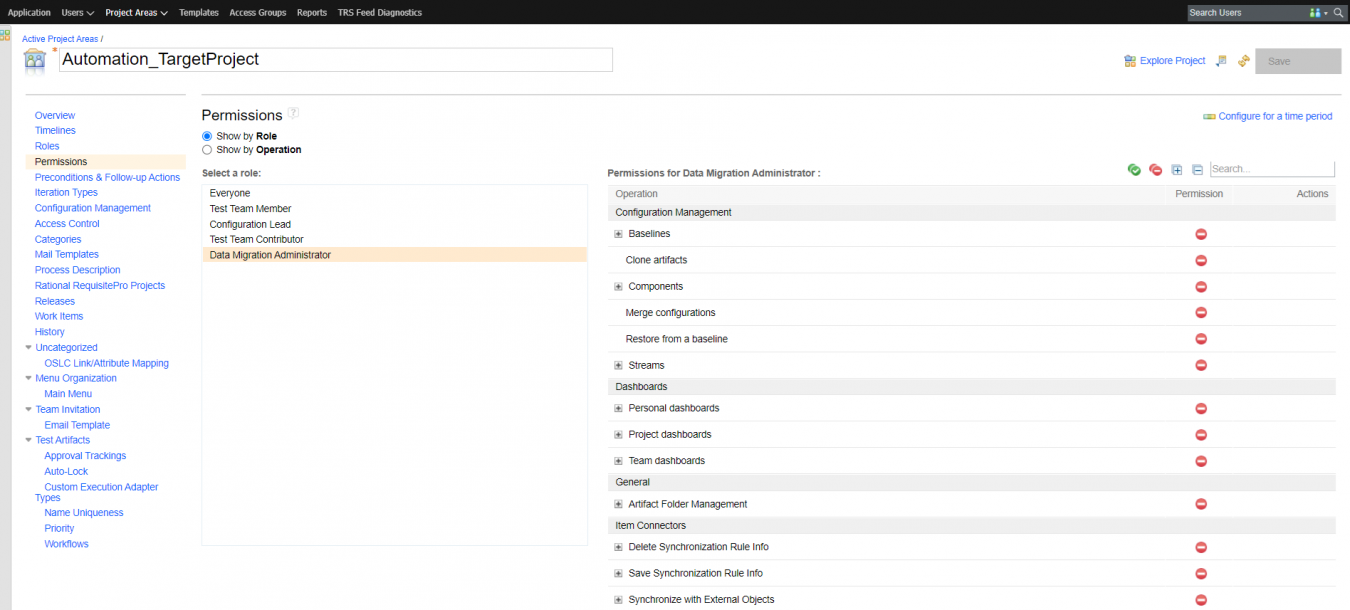
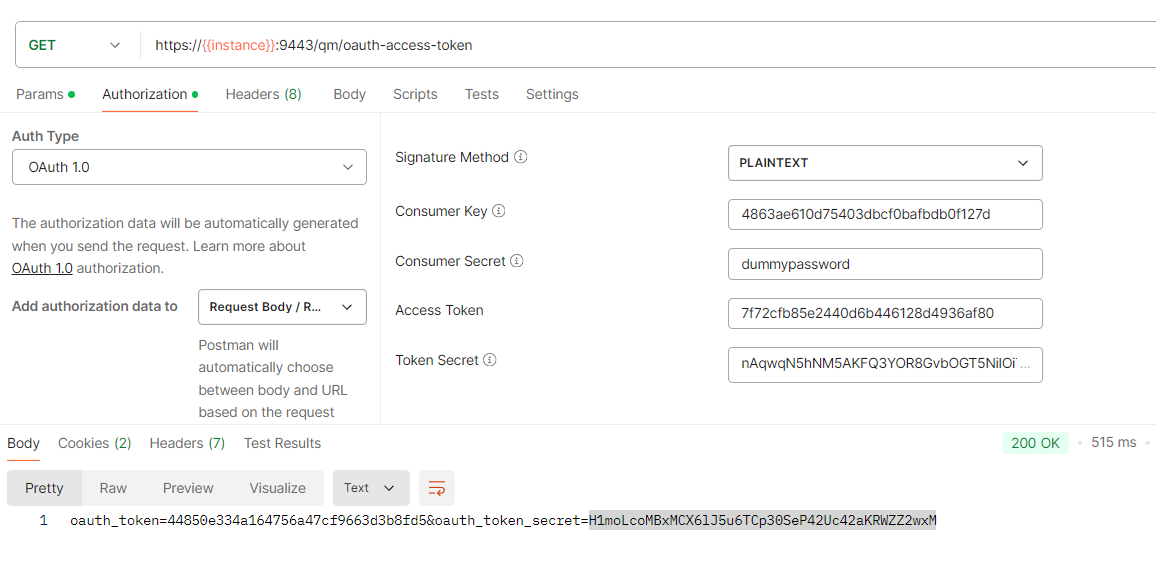
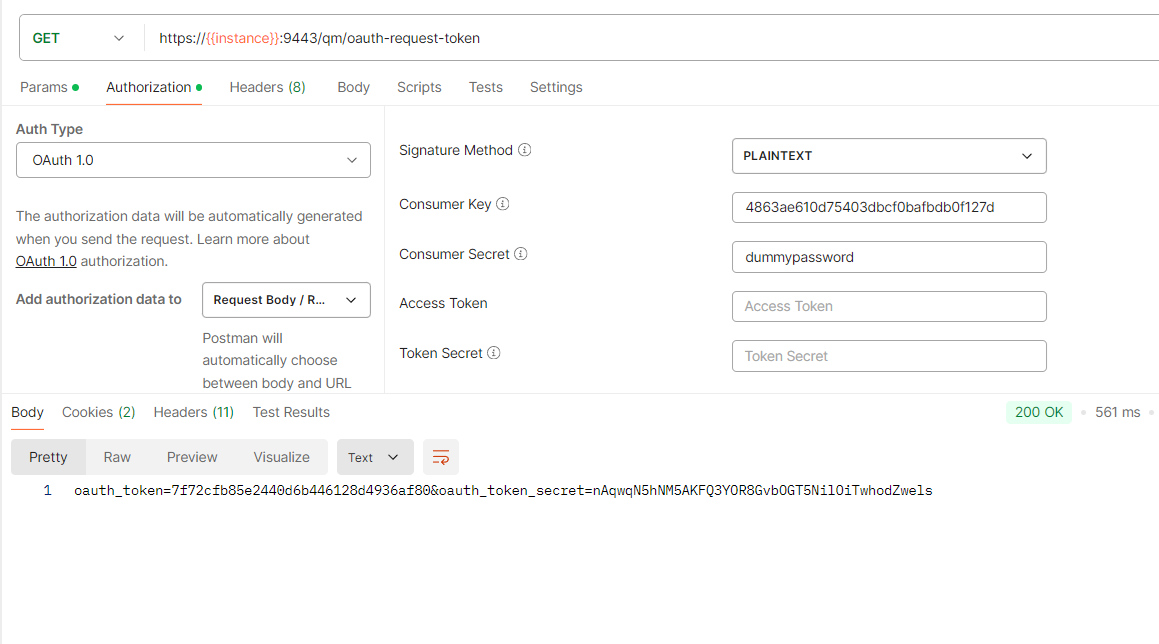
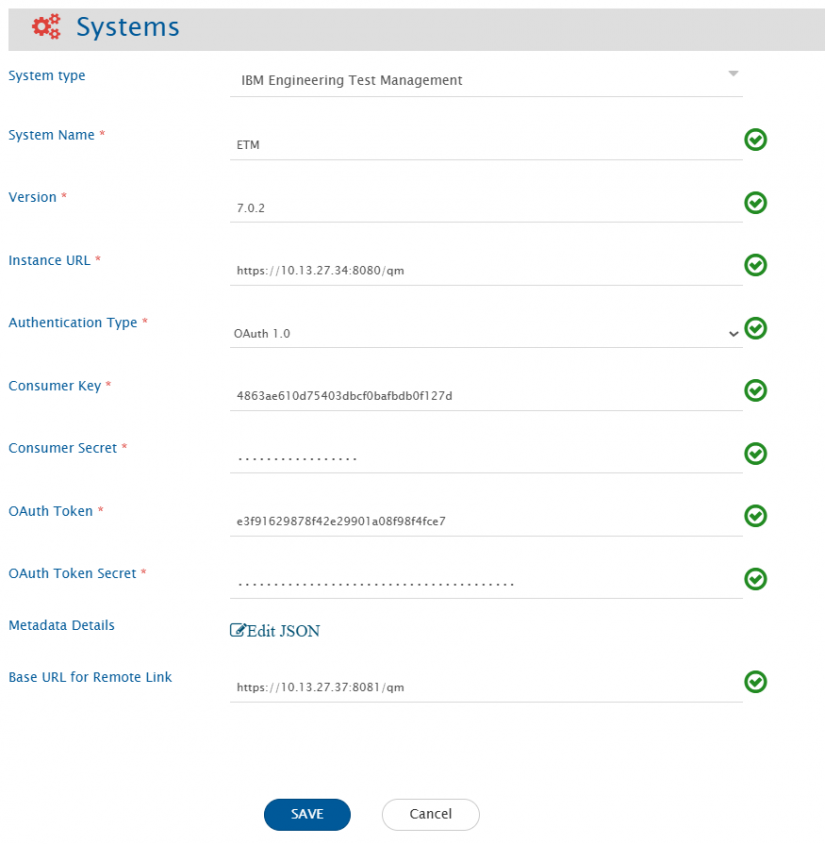
space.vars.OIM, select **OAuth 1.0** as Authentication Type. Also, provide these 4 inputs:
* Consumer Key & Consumer Secret (generated in [Generate Customer Key & Consumer Secret](#consumer-key-secret))
* OAuth Token & OAuth Token Secret (generated in [Get the OAuth Access Token](#oauth-token-secret))
### Custom Field Configuration
* Log in to ETM.
* Select project for which custom field needs to be configured.
* Go to **Administration** > **Manage Project Properties** > **Custom Attributes** > select entity.
* Provide **Attribute Name** & **Type**. Click **Save**.
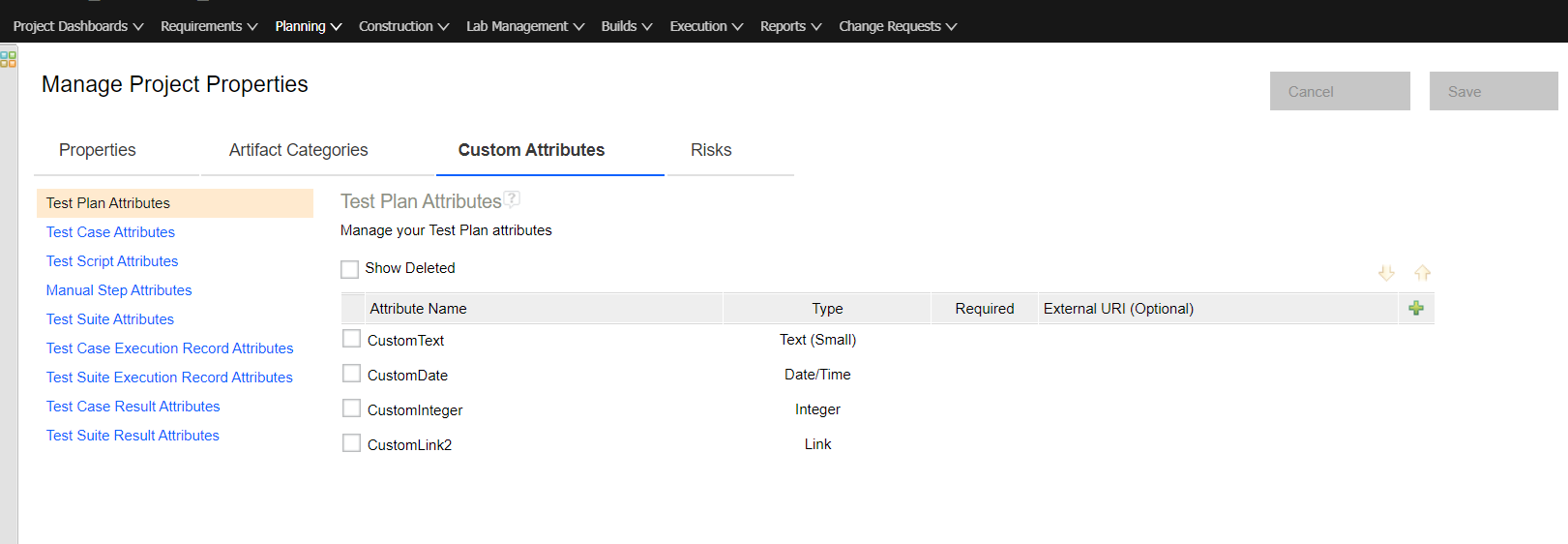
space.vars.OIM, provide that in the custom field details of **Metadata Details** at system configuration level.
* System fields are provided by default. If they need to be overwritten, provide the details in **Metadata Details** at the system configuration level. Refer to [Metadata JSON to provide system & custom fields](#system-custom-configuration) section for a sample JSON.
* This details are required in specific JSON format. Below is the format of metadata:
```json
{
"projects": [
{
"internalName": "project_internal_name",
"entities": [
{
"internalName": "entity_internal_name",
"fields": {
"custom": [
{
"internalName": "custom_field_name",
"displayName": "custom_field_name",
"dataType": "custom_field_datatype"
}
]
}
}
]
}
]
}
```
* Refer to [Identify internal name of projects](#identify-internal-name-of-projects)section to get the internal names of each project
#### Metadata JSON to provide custom fields with different datatypes
```json
{
"projects": [
{
"internalName": "ETM+Project+1",
"entities": [
{
"internalName": "testplan",
"fields": {
"custom": [
{
"internalName": "CustomText",
"displayName": "CustomText",
"dataType": "text",
"mandatory": true
},
{
"internalName": "CustomLink",
"displayName": "CustomLink",
"dataType": "link"
}
]
}
},
{
"internalName": "testcase",
"fields": {
"custom": [
{
"internalName": "CustomInteger",
"displayName": "CustomInteger",
"dataType": "numeric"
}
]
}
},
{
"internalName": "testscript",
"fields": {
"custom": [
{
"internalName": "CustomDate",
"displayName": "CustomDate",
"dataType": "date_string",
"dateFormat": "yyyy-MM-dd'T'HH:mm:ss.SSS'Z'"
}
]
}
}
]
},
{
"internalName": "ETM+Project+2",
"entities": [
{
"internalName": "executionworkitem",
"fields": {
"custom": [
{
"internalName": "CustomLink",
"displayName": "CustomLink",
"dataType": "link"
}
]
}
},
{
"internalName": "executionresult",
"fields": {
"custom": [
{
"internalName": "CustomInteger",
"displayName": "CustomInteger",
"dataType": "numeric"
}
]
}
}
]
}
]
}
```
#### Metadata JSON to provide custom Artifact Categories
```json
{
"projects": [
{
"internalName": "ETM+Project+1",
"entities": [
{
"internalName": "testplan",
"fields": {
"custom": [
{
"internalName": "Custom Category",
"displayName": "Custom Category",
"dataType": "text",
"multiselect": true,
"systemSpecific": {
"isCategory": "true"
}
}
]
}
}
]
}
]
}
```
#### Metadata JSON to provide system & custom fields
```json
{
"projects": [
{
"internalName": "ETM+Project+1",
"entities": [
{
"internalName": "testplan",
"fields": {
"system": [
{
"internalName": "priority",
"displayName": "Priority",
"dataType": "lookup",
"lookUpValues": {
"literal.priority.101": "Unassigned",
"literal.priority.110": "Low",
"literal.priority.120": "Medium",
"literal.priority.130": "High",
"literal.priority.115": "custom lookup 1",
"literal.priority.118": "custom lookup 2"
},
"systemSpecific": {
"namespace": "ns2"
}
}
],
"custom": [
{
"internalName": "Custom Category",
"displayName": "Custom Category",
"dataType": "text",
"multiselect": true,
"systemSpecific": {
"isCategory": "true"
}
}
]
}
}
]
}
]
}
```
### Identify internal name of projects
* Prepare the following request and open it in the browser.
* List project URL: https\://{instance}:{port}/qm/service/com.ibm.rqm.integration.service.IIntegrationService/projects
* From the response, get the internal value of each project from `feed > entry > content > project > alias`.
---
# Agent Instructions
This documentation is published with GitBook. GitBook is the documentation platform designed so that both humans and AI agents can read, navigate, and reason over technical content effectively. Learn more at gitbook.com.
## Querying This Documentation
If you need additional information that is not directly available in this page, you can query the documentation dynamically by asking a question.
Perform an HTTP GET request on the current page URL with the `ask` query parameter, and the optional `goal` query parameter:
```
GET https://docs.opshub.com/connectors/etm.md?ask=