> For the complete documentation index, see [llms.txt](https://docs.opshub.com/llms.txt). Markdown versions of documentation pages are available by appending `.md` to page URLs; this page is available as [Markdown](https://docs.opshub.com/connectors/bugzilla.md).
# Bugzilla
## Pre-Requisites
### User Privileges
#### For Basic authentication
* Create one user of Bugzilla system, dedicated to space.vars.OIM. User should not be used to do any operations from System's User-Interface.
* User must have all privileges to call web-service and read, write permissions on the entity.
* User must be a member of the 'editbug' and the 'canconfirm' groups. At the time of create user or edit user action in Bugzilla, one can select these groups. For details on how to create user with privileges or edit user privileges, please refer to Appendix section [How to add or edit user with privileges](#how-to-add-or-edit-user-with-privileges).
#### For Anonymous authentication
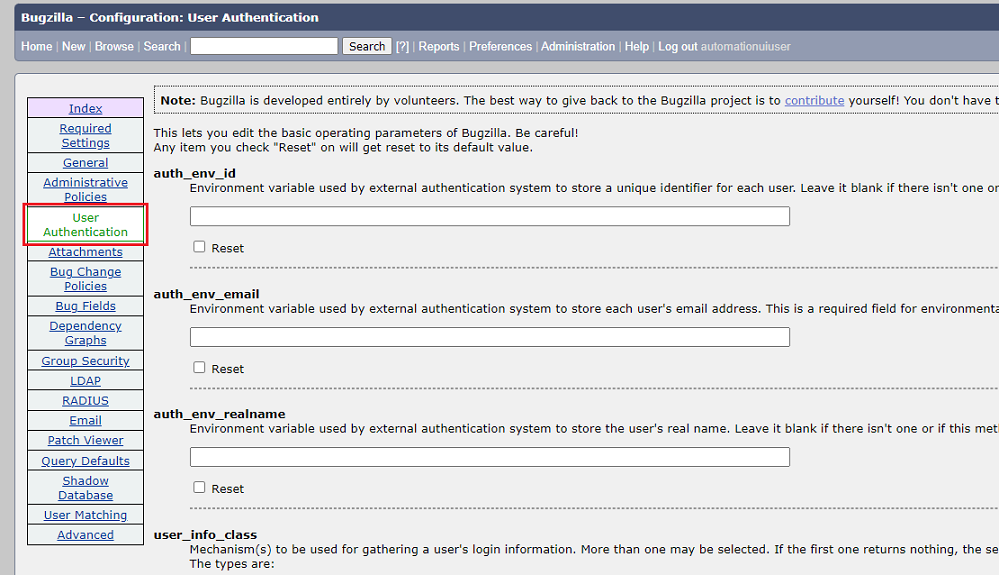
* Disable the **requirelogin** option from Administration → Parameters → User Authentication. For details on how to enable Anonymous login, please refer to Appendix section [How to enable Anonymous login](#how-to-enable-anonymous-login).
### Bugzilla Database Requirement
* If version of Bugzilla you are using is 5.0.2 or above, then space.vars.OIM does not need Database Connection. Version 5.0.2 and above versions are supported using the Native Rest API.
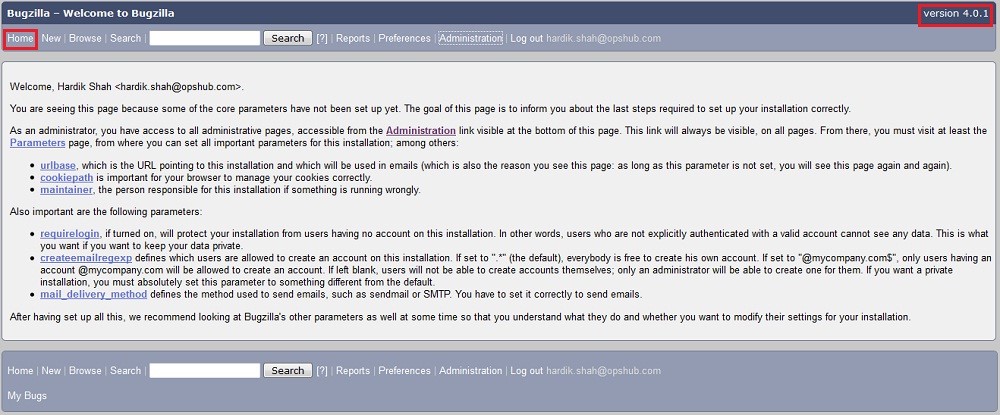
* To check which Bugzilla version you are using, click [Find Version](#find-version).
* If Bugzilla version is lower than 5.0.2, then Database connection is mandatory.
Bugzilla database should be installed either on MySQL or Oracle for integration. Following database configuration parameters will be required for creating integration configuration for Bugzilla:
* Bugzilla database host name
* Bugzilla database port
* Bugzilla database name
* Bugzilla database username (with read privileges)
* Bugzilla database password for the above user
### Bugzilla Rest Enabled
For Bugzilla versions below 5.0, the REST API Version 1.3 should be enabled. For more information on how to enable Bugzilla REST, please refer this link: section.
> **Note** : Do not use ',' in field value for multi-select and drop-down options.
## System Configuration
Before you continue to the integration, you must first configure Bugzilla. Click [System Configuration](/integrate/configure-integrations/system-configuration.md) to learn the step-by-step process to configure a system. Refer the screenshot given below for reference.
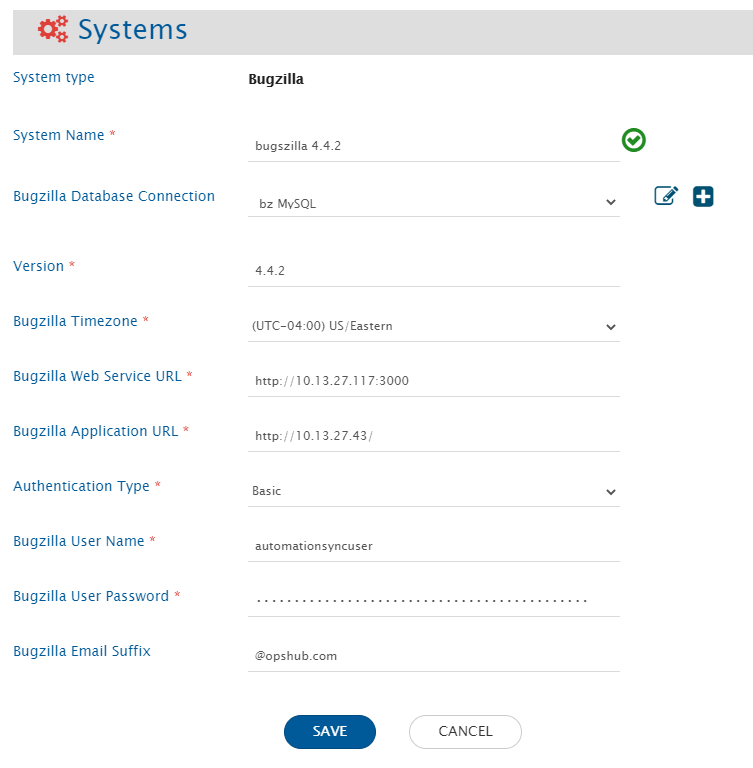
space.vars.OIM. Click [Import SSL Certificates](/getting-started/installation/ssl-certificate-configuration.md) to learn how to import SSL certificate.
## Mapping Configuration
Map the fields between Bugzilla and the other system to be integrated to ensure that the data between both the systems synchronizes correctly. Click [Mapping Configuration](/integrate/configure-integrations/mapping-configuration.md) to learn the step-by-step process to configure mapping between the systems. Read more about [Mapping Checkpoints](#mapping-checkpoints-for-bugzilla-as-the-target-system) and [How to know field name](#how-to-know-field-name-used-in-mapping) in the Appendix Section.
## Integration Configuration
Set a time to synchronize data between Bugzilla and the other system to be integrated. Also, define parameters and conditions, if any, for integration. Click [Integration Configuration](/integrate/configure-integrations/integration-configuration.md) to learn the step-by-step process to configure integration between two systems.
### Criteria Configuration
**Query:** Query on Bugzilla System is valid query string accepted by Bugzilla REST API. Example: `status=RESOLVED&priority=High`
> > **Note** : If field value itself contain '&', then it should be replaced with `@OH_AND@` to make correct query. Example: If product field has value 'R \&D' then the query will be `product=R@OH_AND@D&priority=High`.\_
> > **Note** : Bugzilla uses fields' internal name for query. For example in `status=RESOLVED&priority=High` query, status is the internal name of field 'Status'. Refer to [Custom Field Internal Name\_](#custom-field-internal-name) section to know the internal name of Bugzilla Custom Fields.
> > **Note** : Criteria is not supported for versions **5.0 or greater**.
## Known Behaviors and Limitations
* When **Anonymous** is used as authentication type:
* Bugzilla can only be used as source system.
* Functionalities like remote link, remote id and end system criteria are not supported.
* Following fields are not supported with **Anonymous** authentication type:
* Orig. Est.
* Current Est.
* Hours Worked
* Hours Left
* %Complete
* Gain
* Deadline
* Synchronization of 'OH Updated By' \[It's a 'Read Only' field to indicate the user who performed the last update in the system] is not supported.
* The below mentioned fields are supported as 'Text' type fields in the synchronization:
* Orig.Est, Hours Worked, Hours Left, %Complete
* Synchronization of 'Comment Link' \[i.e., mentioned as 'Comment 1' in the below image] is not supported.
* Only the comments added by user will be synchronized and not the system generated comments.
* Only the comment added by user while adding attachment will be synchronized and not the system generated comment.
* space.vars.OIM supports synchronization of Comments, within which if you have provided the Comment mentions, Bug mentions or Hyperlink, then those details will be synchronized as 'plain text' to the target.
* When BugZilla is the **source** system:
* For Bugzilla version **greater than 5.0**: Synchronization will always be 'History' based \[except for Attachments].
* For Bugzilla version **less than 5.0**: 'History' based synchronization and [Sync\_Only\_Current\_State](/integrate/configure-integrations/integration-configuration.md#sync-only-current-state) option are supported.
* For 'Attachment' synchronization:
* space.vars.OIM supports synchronization of Attachment. Bugzilla allows adding the Attachment details like File, Description, Obsoletes, Comments... out of which only File will be synchronized with the Attachment synchronization. Comments added within the Attachment details will be synchronized, if you have enabled the Comment synchronization.
* If the Attachment filename contains '', the characters after '' will only be considered as filename. \&#xNAN;*Example: If you have uploaded an attachment with the name, `Testing Validation.txt` on a Bugzilla Bug, then it will sync to the target as `Validation.txt`.*
* For the 'Large Text Boxes' type of field, if the field content contains more than 255 characters, the user might see extra space in the content after approximately 255 characters post synchronization. \&#xNAN;\_Reason: Bugzilla History API gives details with such extra space.
* 'Tags' field is supported only for Bugzilla version less than 5.
* 'Tags' field doesn't support history and only the current state of it will be synchronized.
* Any update in 'Tags' field will only be synchronized when any other update is done for the entity.
* 'Tags' field is supported as read-only field.
* When BugZilla is the **target** system:
* For 'Free Text' Data Type of fields \[e.g : Summary], Bugzilla only accepts 255 characters. Hence, you will observe a processing failure with error message:
```
OH-Bugzilla-0301: Error from Bugzilla server... code : 104 Message : The text you entered in the Summary field is too long (256 characters, above the maximum length allowed of 255 characters)
```
In this case, you can write an Advanced mapping to truncate the characters to 255 only.
* Bugzilla allows you to set the value for 'Description' field only with Bug creation. Hence, we recommend to set 'create' for [Sync When configuration](/integrate/configure-integrations/mapping-configuration.md#sync-when) of mapping for Description Field.
* The below mentioned functionalities are not supported by Bugzilla itself. Hence, space.vars.OIM does not synchronize them:
* User Mentions, Inline Images, HTML formatting for Fields/Comments
## Appendix
### How to add or edit user with privileges
For adding the existing user as a group of 'editbug' and 'canconfirm', follow the steps given below:
**Bugzilla User Privilege Step 1**
**Bugzilla User Privilege Step 2**
**Bugzilla User Privilege Step 3**
* Log in into Bugzilla with the administrator user.
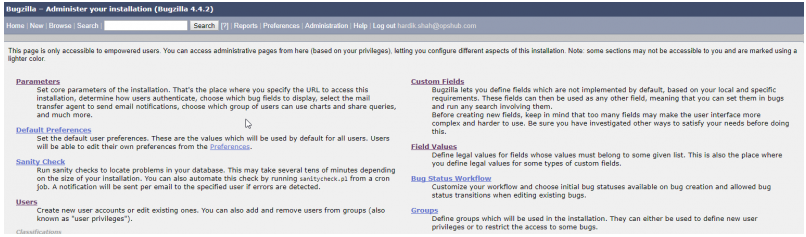
* Navigate to **Administration** link on the top of the page. (Bugzilla User Privilege Step 1)
* Click **Users** link on the left side of the page. (Bugzilla User Privilege Step 1)
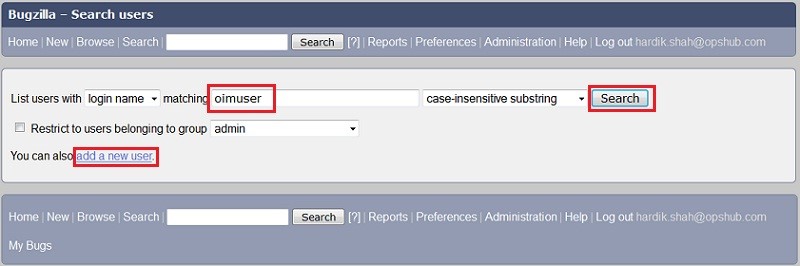
* Search for the user for which you want to edit the groups by typing the username in the 'matching' field. (Bugzilla User Privilege Step 2)
* In the search results found, click the username link under **Edit User…** column.
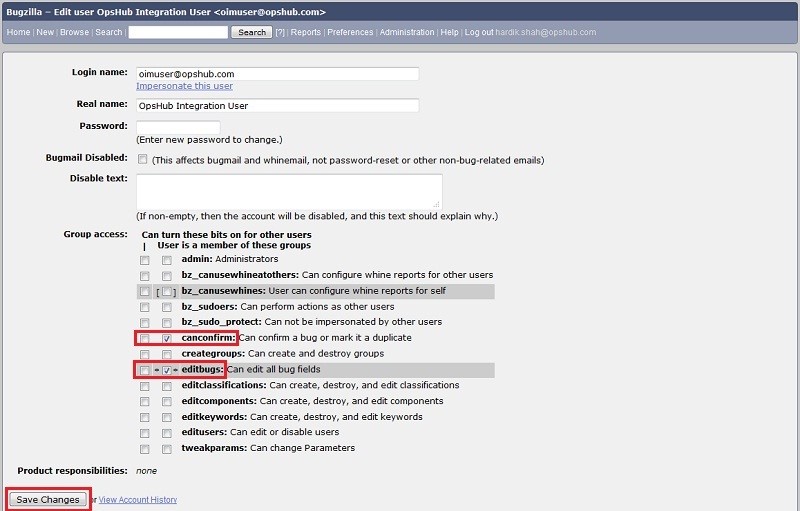
* Tick mark the check boxes against the 'canconfirm' and 'editbugs' fields. (Bugzilla User Privilege Step 3)
> **Note** :If a particular user needs to given privileges of these group, then tick mark both the checkboxes else just tick the second column checkbox for both the fields.
* Now, go to the bottom of the page & click the **Save Changes** button. The changes will reflect now. (Bugzilla User Privilege Step 3).
For creating a new user as a group of 'editbug' and 'canconfirm', follow the steps given below:
* Log in into Bugzilla with the administrator user.
* Navigate to **Administration** link on the top of the page. (User Privilege Step 1)
* Click **Users** link on the left side of the page. (Bugzilla User Privilege Step 1)
* Click **Add a New User** link. (Bugzilla User Privilege Step 2).
* Provide the Login name, real name and password for the particular user.
* Click the **Add** button.
* In Group access, tick mark the check boxes against the 'canconfirm' and 'editbugs' fields. (Bugzilla User Privilege Step 3)
> **Note** :If a particular user needs to given privileges of these group, then tick mark both the checkboxes else just tick the second column checkbox for both the fields.
* Now, go to the bottom of the page & click the **Save Changes** button. The changes will reflect now. (Bugzilla User Privilege Step 3).
### How to enable Anonymous login
**For enabling Anonymous login, follow the steps given below:**
* Log in into Bugzilla with the administrator user;
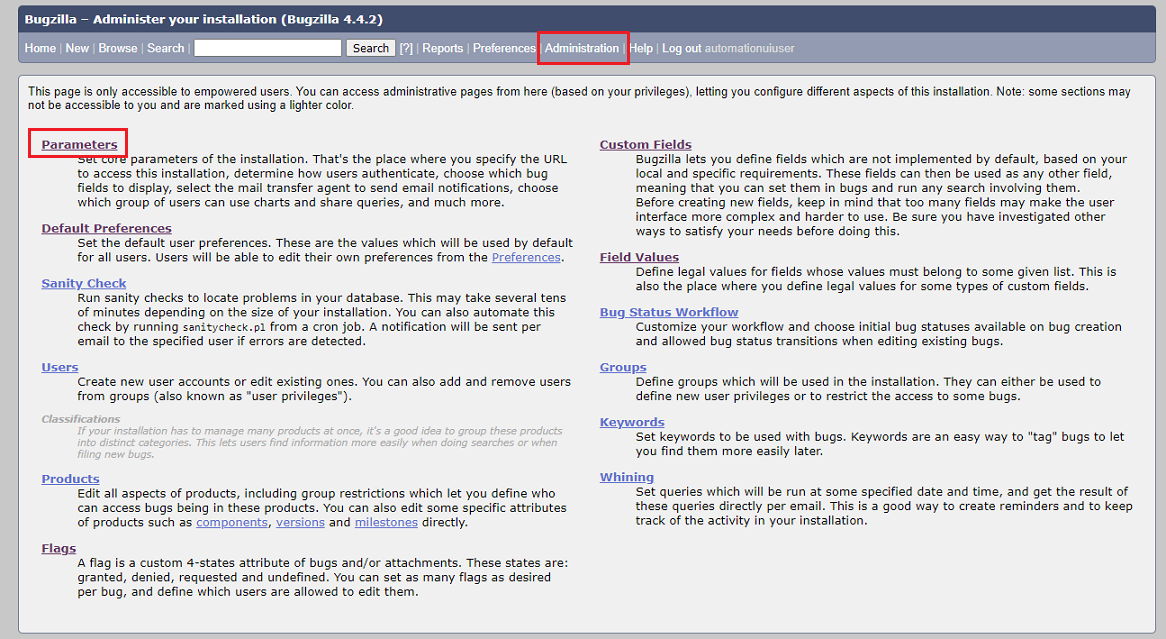
* Click on **Administration** option on the top of the page as shown in the screenshot.
* Click on **Parameters** on the Administration page as shown in the screenshot below:
* Click on **User Authentication** on the left pane as shown in the screenshot below:
* Scroll down to **requirelogin** option and select **off** as shown in the screenshot below:
* Scroll down to the bottom on the page and click on the **Save Changes** button.
### Custom Fields
Refer the steps given below to add custom field:
* Log in into Bugzilla with the administrator user.
* Navigate to **Administration** link on the top of the page.
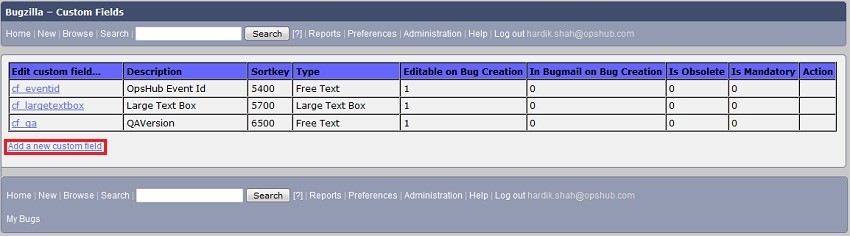
* From the page displayed, click on **Custom Field** link on the top right of the page.
* It will show list of custom fields if any configured with a link to **Add a new custom field** at the end.
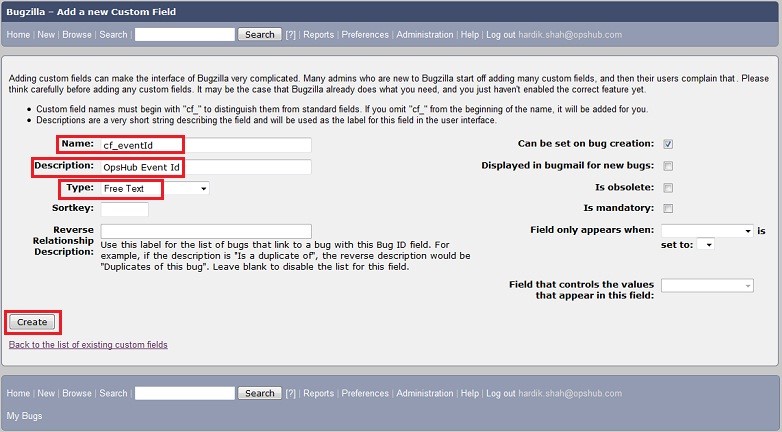
* To create new Custom field, click on link **Add a new custom field.** Above window will get open. Please provide Name and description for custom field.
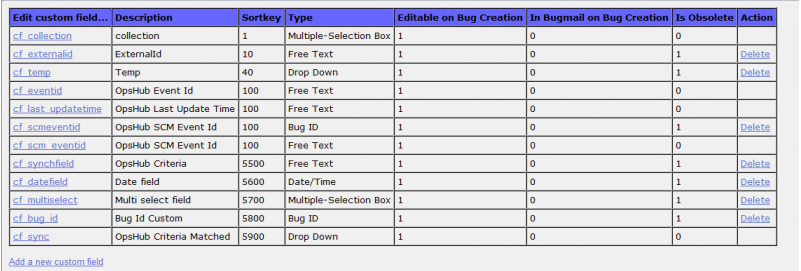
* Select Type as shown in Custom Field Configuration.
* After setting the parameters, click on the Create button for creating the custom field. Like this create all the custom fields mentioned in Custom Field Configuration.
### How to know field name used in Mapping
In Bugzilla, the API works on internal name and not the display name, so to know the internal name for system filed refer [https://wiki.mozilla.org/Bugzilla:REST \_API:Objects#Bug](https://wiki.mozilla.org/Bugzilla:REST_API:Objects#Bug). For custom field, the internal name will be displayed in Administration section. Following are the steps to know the custom field's internal name.
* Navigate to the Administration section with admin privileges.
* Then, click on Custom Fields section, which will show all the custom fields configured.
### Find Version
* Login into Bugzilla Web.
* Click on Home tab, the Bugzilla Version will be visible on top right corner.
### Custom Field Internal Name
* Log in into Bugzilla with the administrator user.
* Navigate to **Administration** link on the top of the page.
* From the page displayed, click the **Custom Field** link on the top right of the page.
* It will show the list of custom fields if any of them is configured with a link to **Add a new custom field** at the end. **Edit Custom Field** shows custom fields' internal Name.
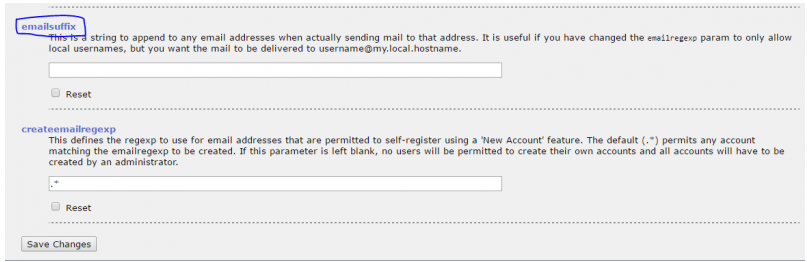
### Find Email Suffix
* Log in into Bugzilla with the administrator user credentials.
* Navigate to the **Administration** link on the top of the page.
* Navigate to the **Parameters** link on the top right of the page and click the link.
* From the left panel, select **User Authentication**.
* It will show **emailsuffix configuration parameter** as shown in image below.
### Mapping checkpoints for Bugzilla as the target system
Following fields will be hardcoded into mappings where Bugzilla is the target system as these fields are mandatory for Bugzilla:
* Product
* Component
* Version
* op\_sys
* Platform
Put the correct values as per your Bugzilla instance.
---
# Agent Instructions
This documentation is published with GitBook. GitBook is the documentation platform designed so that both humans and AI agents can read, navigate, and reason over technical content effectively. Learn more at gitbook.com.
## Querying This Documentation
If you need additional information that is not directly available in this page, you can query the documentation dynamically by asking a question.
Perform an HTTP GET request on the current page URL with the `ask` query parameter, and the optional `goal` query parameter:
```
GET https://docs.opshub.com/connectors/bugzilla.md?ask=&goal=
```
`ask` is the immediate question: it should be specific, self-contained, and written in natural language.
`goal` is optional and describes the broader end goal you are ultimately trying to accomplish on behalf of the user. GitBook uses it to tailor the answer towards what is most useful for that goal.
The response will contain a direct answer to the question and relevant excerpts and sources from the documentation.
Use this mechanism when the answer is not explicitly present in the current page, you need clarification or additional context, or you want to retrieve related documentation sections.