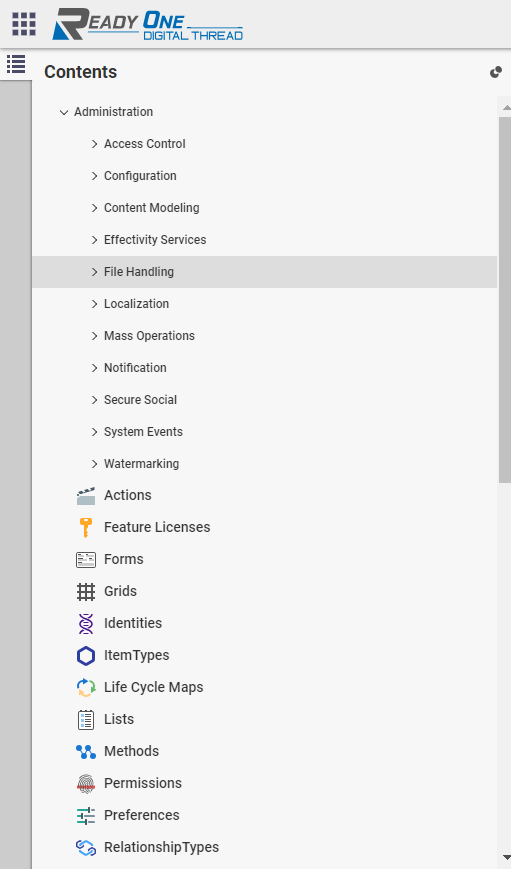
space.vars.OIM. The user shouldn't perform any other action from ReadyOne user interface. Refer to [Add User in ReadyOne](#add-users) section to learn how to add a new user in ReadyOne.
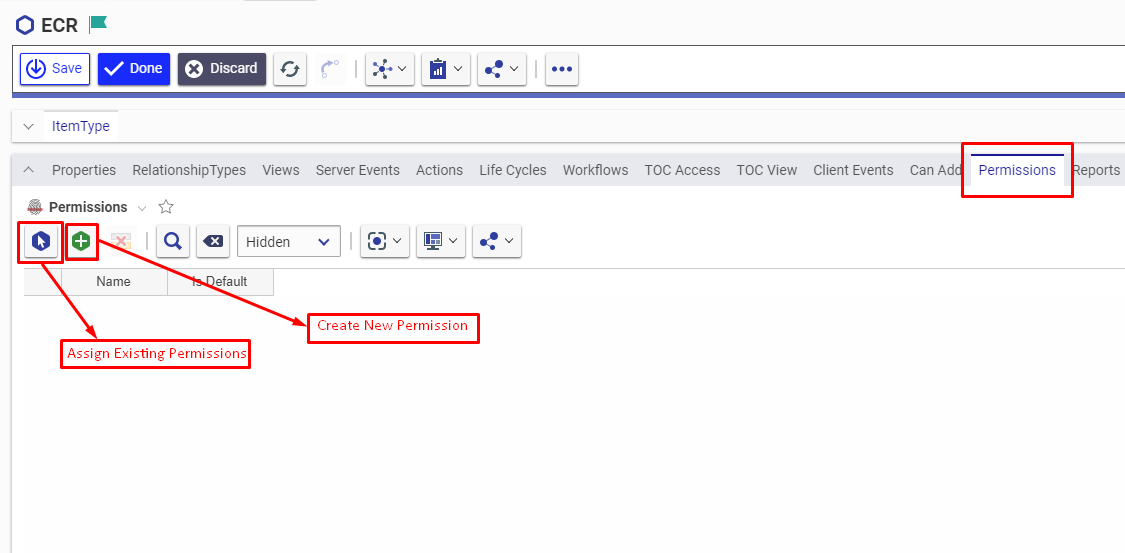
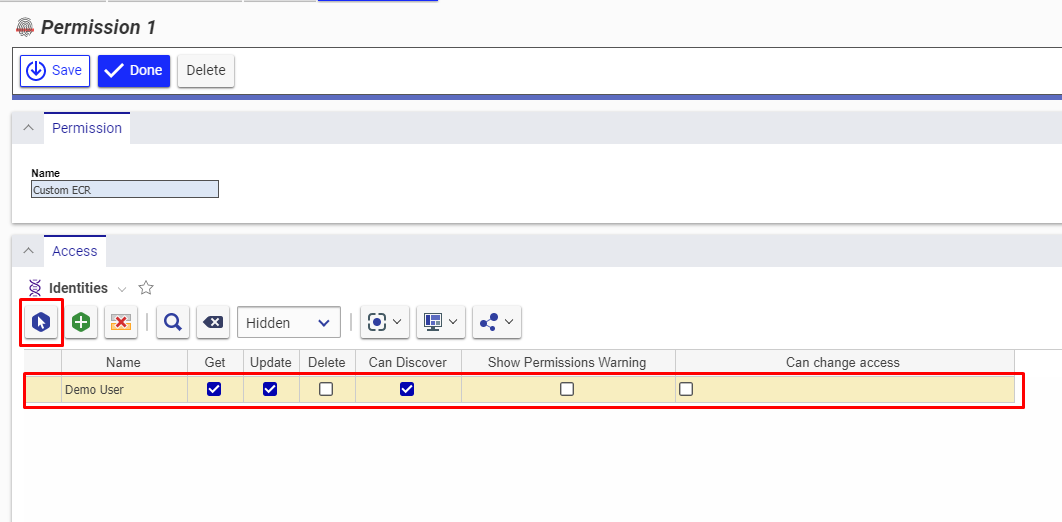
* The user identity of the user dedicated for space.vars.OIM must have the following permissions for the 'item type' to be integrated:
| **Permission Types** | **Justification** | **Needed When** | **How To** |
| --------------------------- | ------------------------------------------------------------------------------------------------------------------------------------------------------------------------------------------------------------ | ------------------------------------------------------------------------------------------------------------------------------------------------------------ | ------------------------------------------------------------------------------------------------------------------------------------------------------------------------------------------------------------ |
| Get | To get values of each field for particular item of 'item type' to be integrated | ReadyOne is source system,target system or both. | To learn how to provide user with the Get permission, refer to [Give Necessary Permissions to User for Itemtype](#give-necessary-permissions-to-user-for-itemtype) |
| Can Discover | To get the list of items present for a given itemtype. | ReadyOne is source system,target system or both. | To learn how to provide user with the Can Discover permission, refer to [Give Necessary Permissions to User for Itemtype](#give-necessary-permissions-to-user-for-itemtype) |
| Update | To update an item. | ReadyOne is target system. Also, when ReadyOne is source system and Update Permission is required for Remote Id or Remote Link configuration in Integration. | To learn how to provide user with the Update permission, refer to [Give Necessary Permissions to User for Itemtype](#give-necessary-permissions-to-user-for-itemtype) |
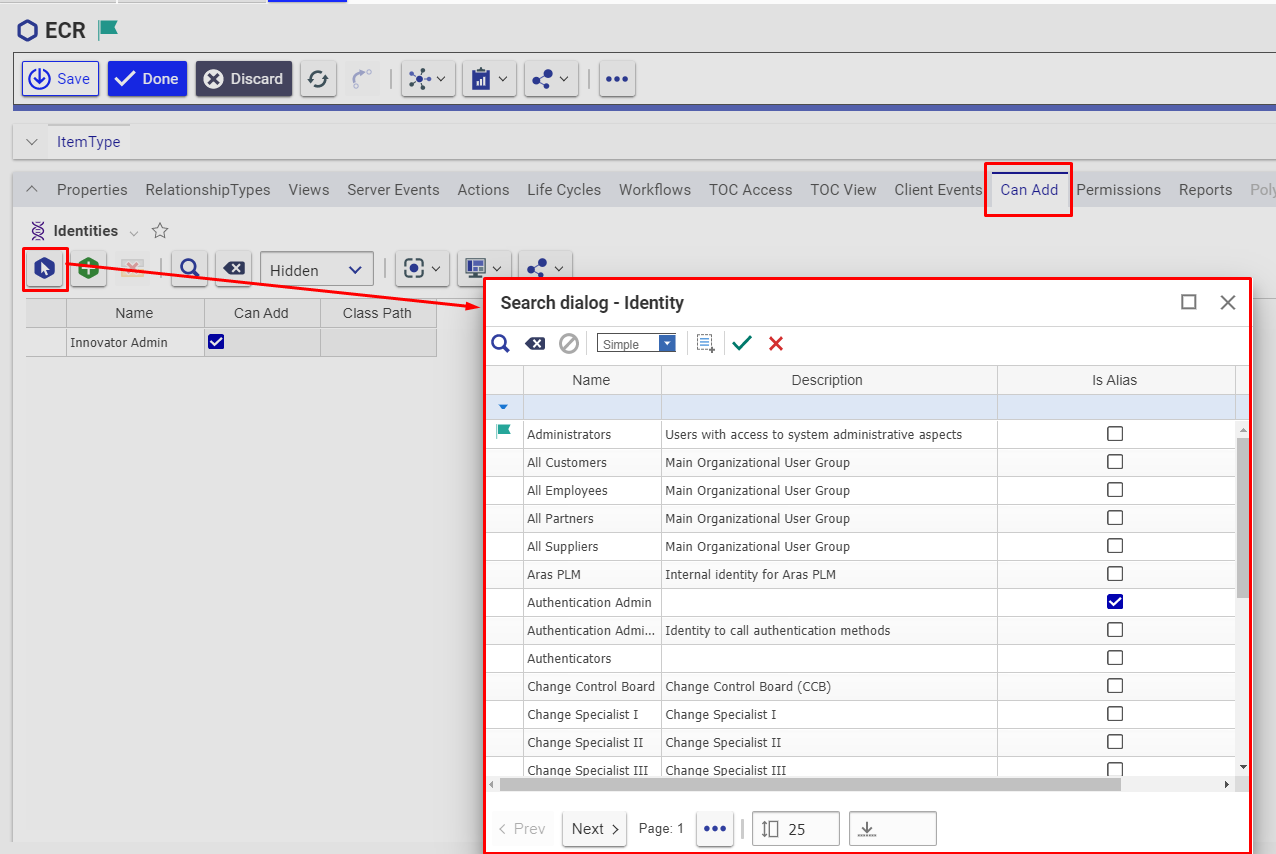
| Can Add | To create an item: The user is allowed to create record from the ReadyOne System (through the UI and API both) only when the user's identity is allowed in the "Can Add" tab | ReadyOne is target system. | To learn how to assign "Can Add" permission to user's identity on particular itemtype, refer to [Allow Can Add permission to User](#assign-identity-in-can-add-tab-of-item-type) |
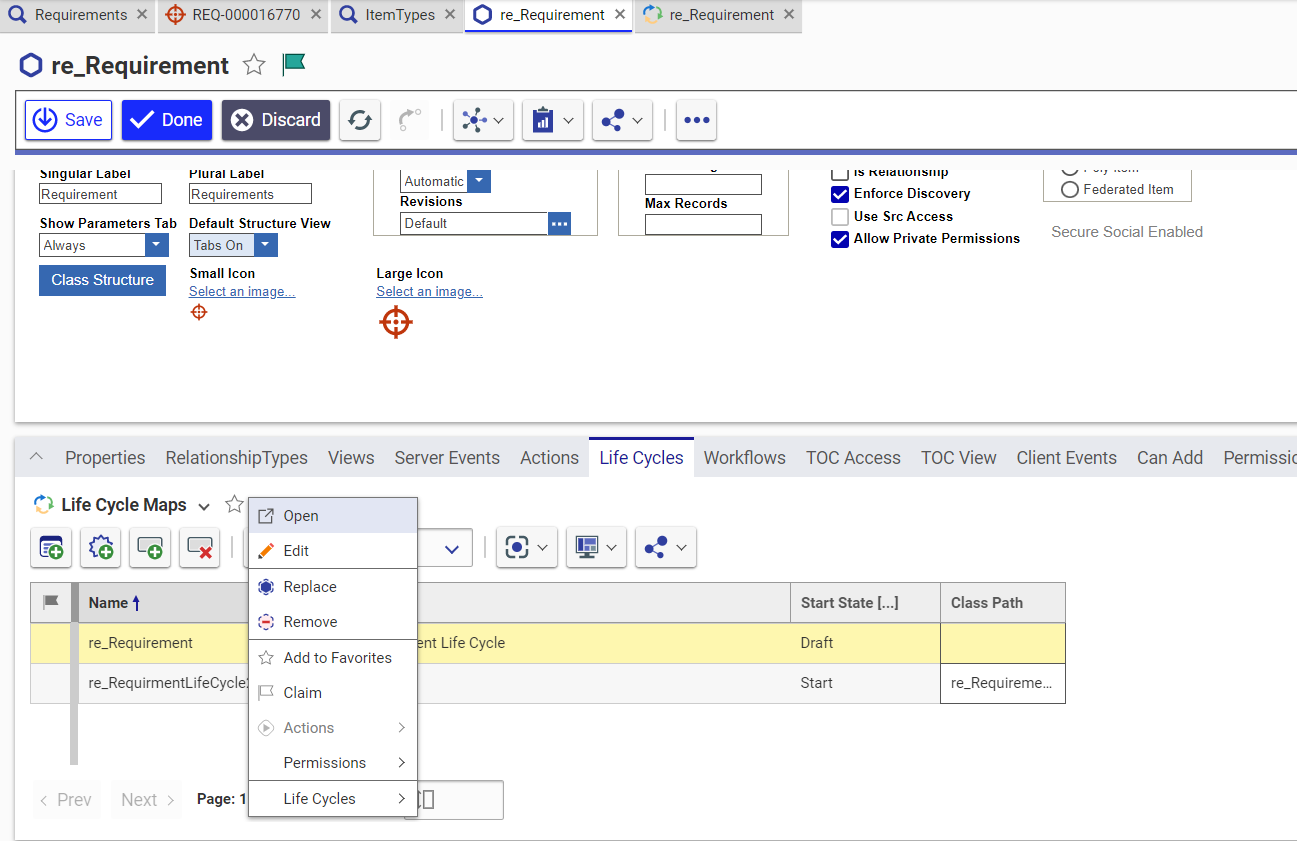
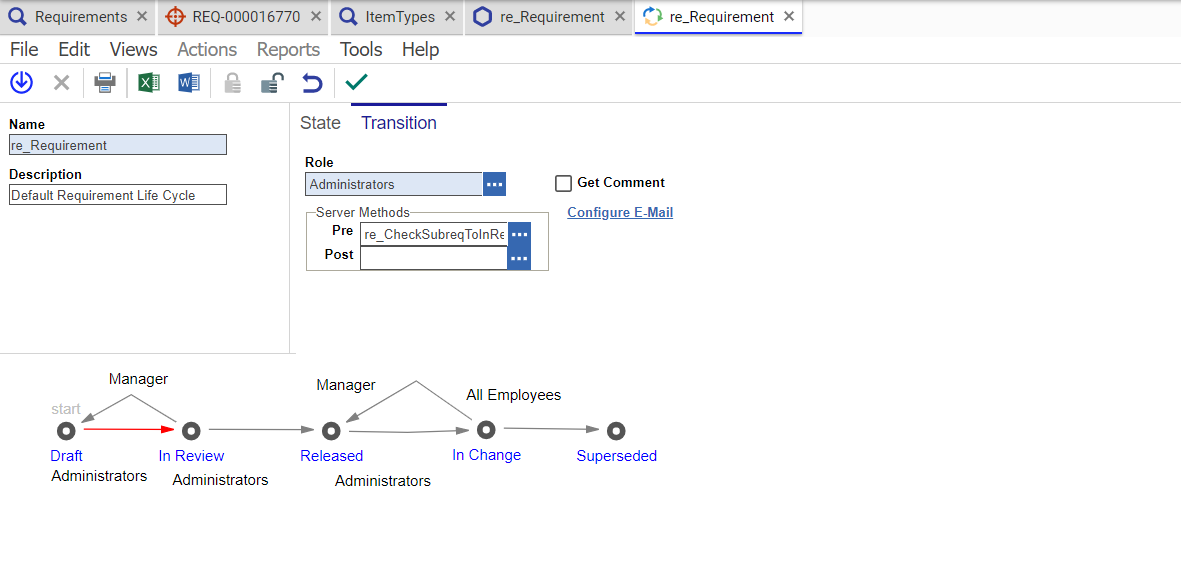
| Life Cycle State Transition | To update the state during transition, the role in Life Cycle transition needs to be set as **Administrators** for the Integration User \[configured in the space.vars.OIM]. | When ReadyOne is the target system. | To learn how to provide user with the Lifecycle State Transition permission, refer to [Assign Life Cycle Transition Permission for Item Type](#assign-life-cycle-state-transition-permissions-for-item-type) |
### Versionable Item Type
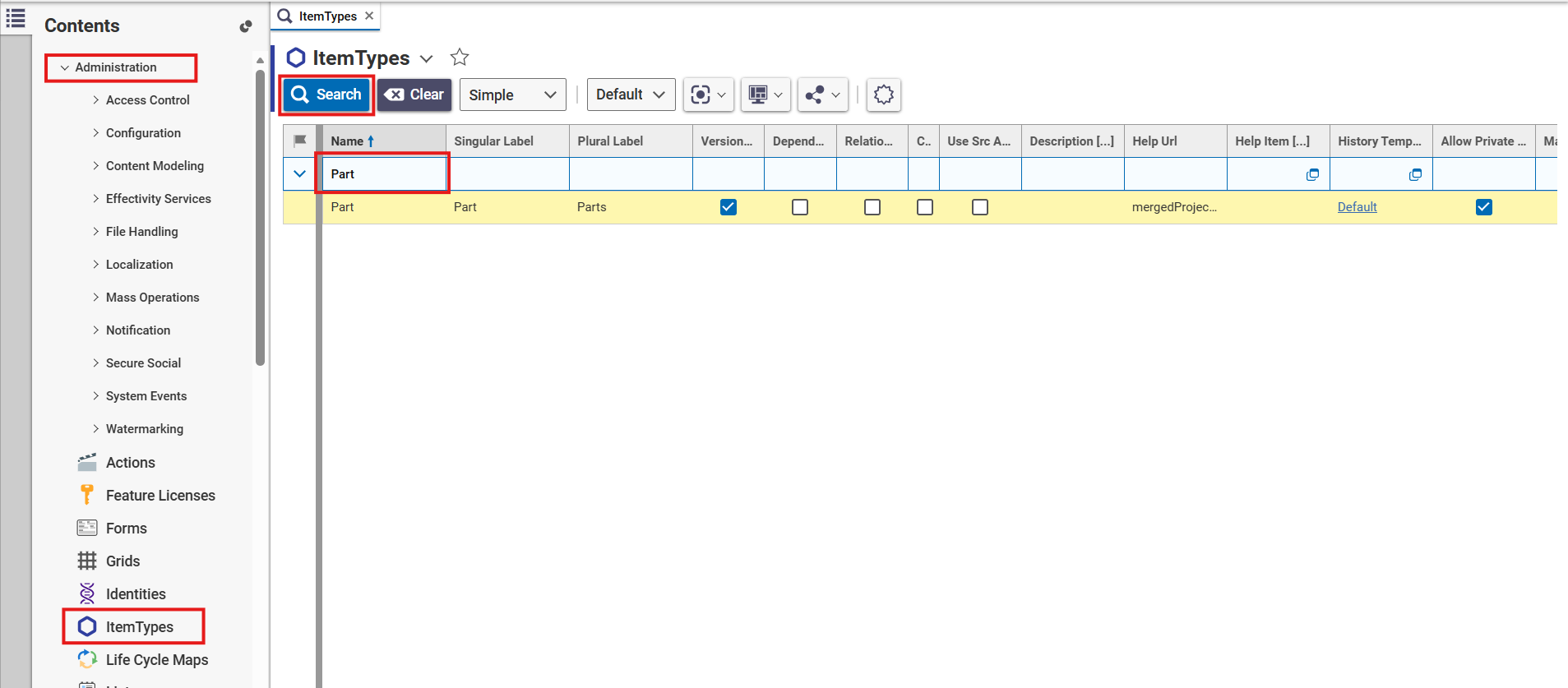
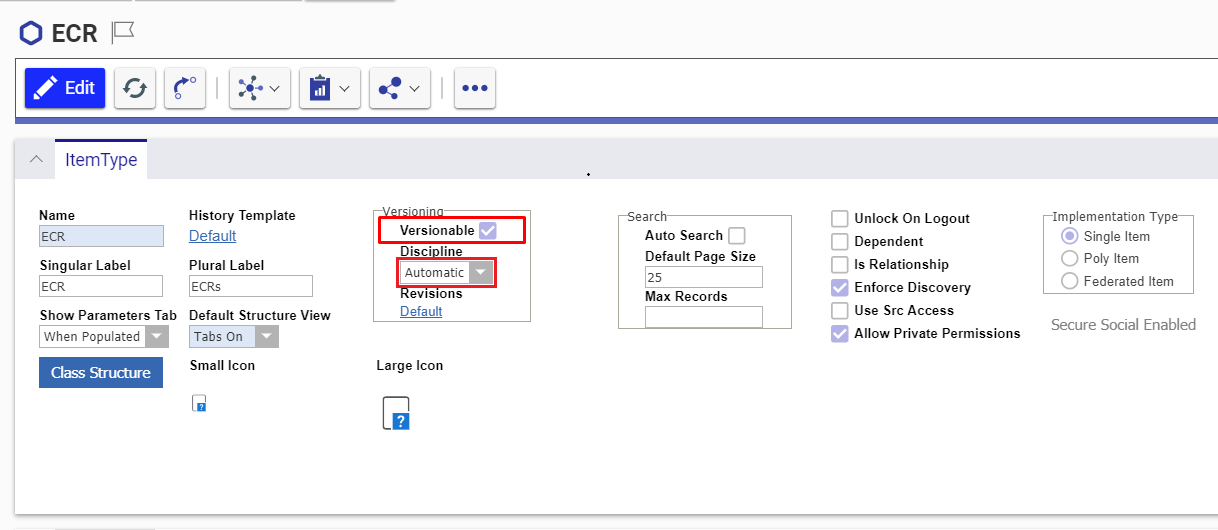
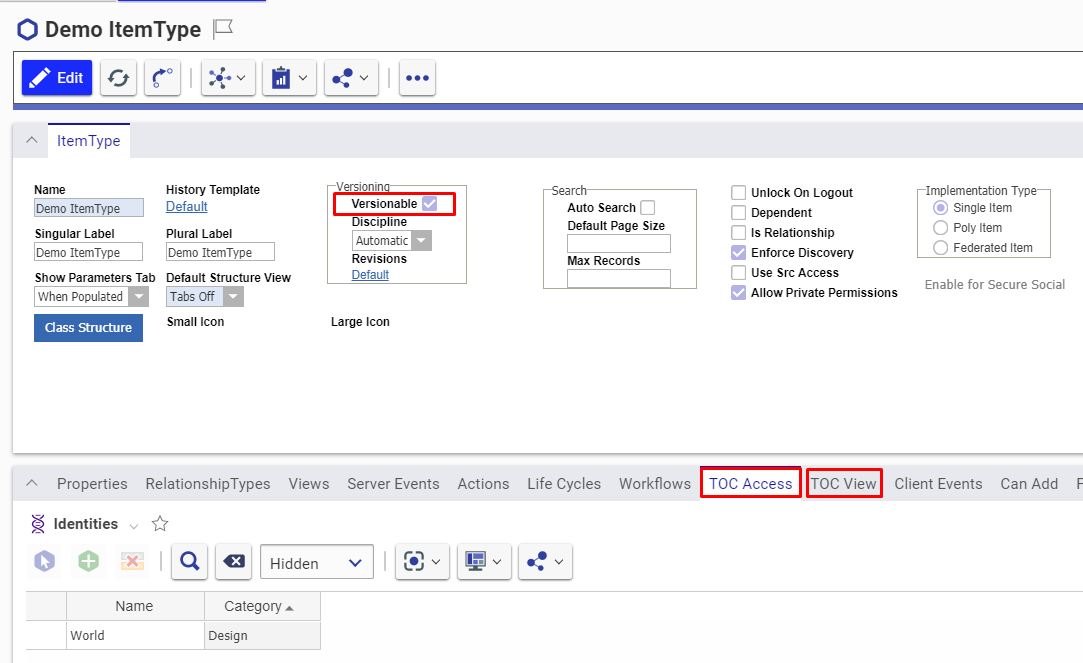
* For any Item Type in ReadyOne, the versions/history for the item gets generated only when the item is versionable. Hence for space.vars.OIM to synchronize the items with their revisions, they need to be versionable.
* In case they are not versionable, space.vars.OIM will synchronize the item as per the current state of that item, available at the time of synchronization. Follow [Make Item Type Versionable](#make-item-type-versionable) in the Appendix section to learn how to make item types versionable.
## System Configuration
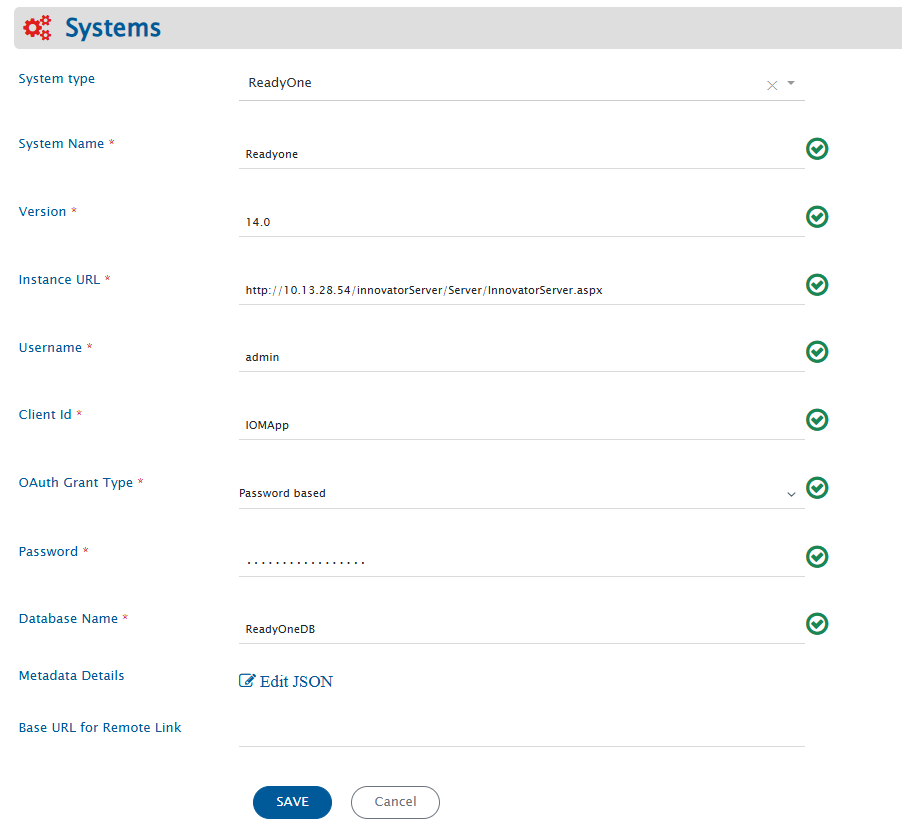
Before the user continues with the integration, he/she must first configure ReadyOne System. Refer to [System Configuration](/integrate/configure-integrations/system-configuration.md) to learn step-by-step process to configure a system. See the screenshot given below for reference:
space.vars.OIM. Please ensure that user has the necessary permissions. Refer to [User privileges](#user-privileges) |
| **Client Id** | Provide the Client ID configured for the ReadyOne instance. Refer to [Get Client Id](#get-client-id) to learn how to get the Client ID. |
| **OAuth Grant Type** | Specify the OAuth grant type to be used for authentication. Supported grant types are Password based and Refresh token based. |
| **Password** | If the OAuth Grant Type is set to `Password based`, enter the password of the integration user account associated with the ReadyOne instance. Use the actual password value and not an MD5 hash or any other encrypted/hashed version of the password. |
| **Refresh Token** | If OAuth Grant Type is set to `Refresh token based`, provide the refresh token generated from ReadyOne. The refresh token needs to be renewed and updated in the **System configuration form** whenever the existing token expires to ensure uninterrupted synchronization. Refer to [Retrieve Refresh Token](#retrieve-refresh-token) to learn how to generate a new refresh token. |
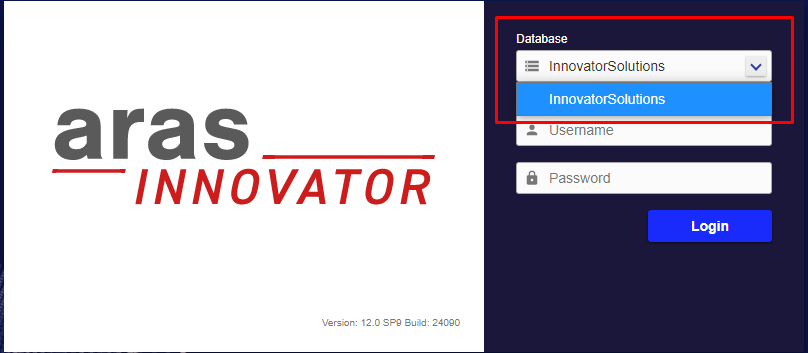
| **Database Name** | Provide ReadyOne Database name to which the connection needs to be done. Refer to [Get Database Name](#get-database-name) to learn how to get Database name |
| **Base URL for Remote Link** | Provide different Instance URL of the ReadyOne Instance. This URL is used for generating the Remote Link.
If empty, the Server URL will be used.
space.vars.OIM. Check [Import SSL Certificates](/getting-started/installation/ssl-certificate-configuration.md) to learn how to import SSL certificate.
#### Understanding JSON Input
* The entity metadata details can be provided at the time of system configuration in the field 'Metadata details' \[in the form of JSON] in the below-mentioned use case:
* Use Case:
* This configuration is required when:
* An item type is used as a reference field in field mapping for synchronization, and
* The referenced entity’s display name is configured using a field other than the default **name** field.
* Configuration Requirement:
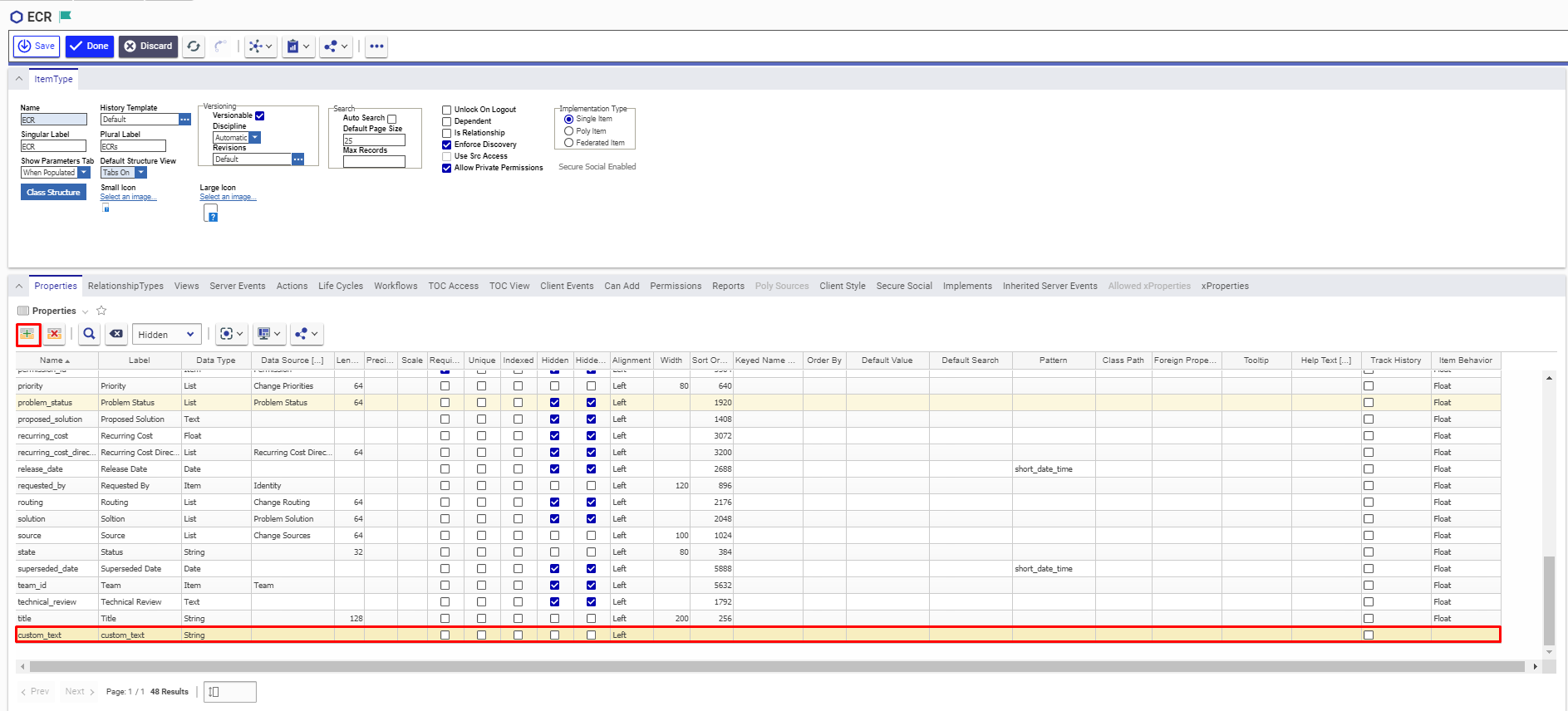
* In Aras, the primary display field of an entity can be customized. Refer to [Create custom property](#create-custom-property) section for getting the internal-name of the primary display field.
* If the display field differs from the default name, it must be specified in the JSON under: **PrimaryNameField**
* If not configured, the integration will assume **name** as the default display field.
* Reason:
* The primary display field is not exposed through the API, so the integration cannot automatically determine which field is used for display.
* Example:
* A Requirement item type contains a reference field (e.g., PartReference) pointing to Part.
* This field is included in synchronization.
* By default:
* Part uses name as its display field → this value is used in sync.
* If the display field is customized:
* The correct field must be defined in PrimaryNameField.
* This ensures accurate synchronization of the reference value.
> **Note**: The value for PrimaryNameField must be the internal field name. Separate configurations can be defined for different item types.
```json
{
"Part": {
"PrimaryNameField": "name"
},
"Product": {
"PrimaryNameField": "title"
}
}
```
## Mapping Configuration
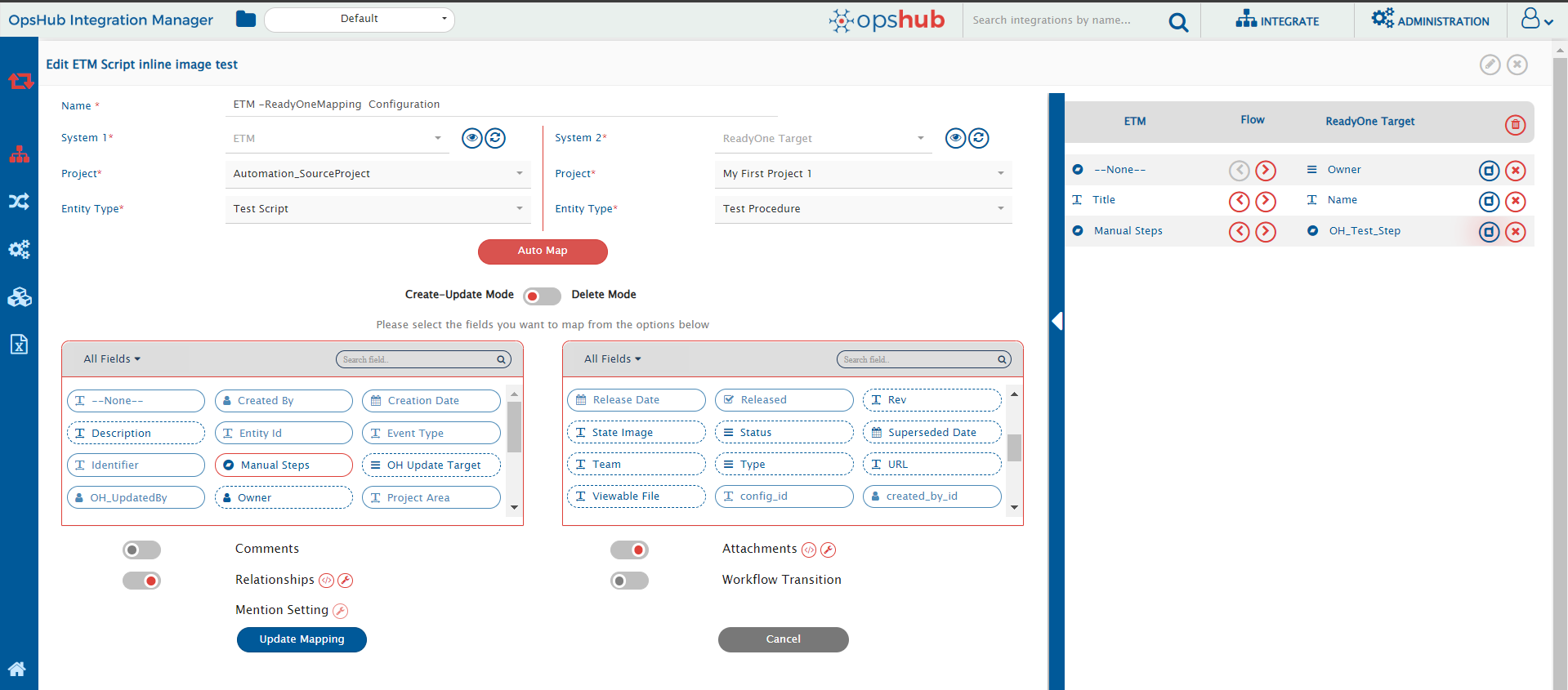
Map the fields between ReadyOne and the other system to be integrated to ensure that the data between both the systems synchronize correctly.\
Check [Mapping Configuration](/integrate/configure-integrations/mapping-configuration.md) to learn the step-by-step process to configure mapping between the systems.
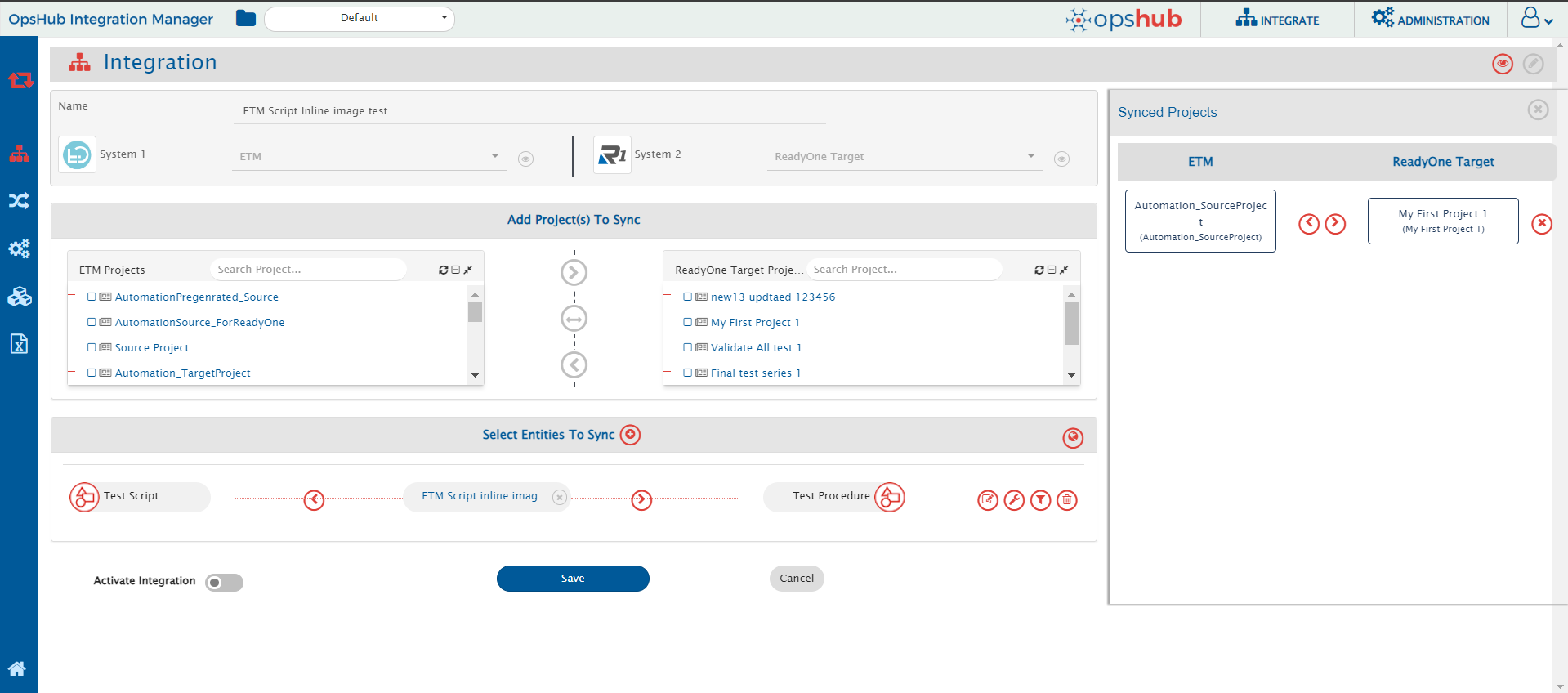
space.vars.OIM` will use the entity's **Internal Id** as **Remote Id**.\
→ To show the Display Id as Remote Id, add the **Item Number** field in ReadyOne. Refer to [Add Item Number Field](#set-item-number-for-custom-entity) for more details.
* In ReadyOne, the *project concept* is only supported for the `Requirement` Item Type (`req_Requirement`).
**Reference Field Lookup Behavior**
* For reference fields, if the referenced entity uses a field other than the standard name field, configure the correct field in Metadata details (JSON) using PrimaryNameField.
## Known Limitations
* Only English alphabets (A–Z, a–z), numeric digits (0–9), and special characters (e.g., `:`, `<`, `?`, `>`, `]`, `[`, `!`, `@`) are supported in Criteria Configuration.
* **Attachment** as a field is not supported.
* `"No Related"` Relationship Type is not supported.
* If the attachment filename contains **Windows special characters** (`/`, `\`, `"`, `:`, `*`, `?`, `<`, `>`), then the file will not be added in ReadyOne (processing failure occurs).\
→ This is a ReadyOne limitation.\
→ See \[\[OH-Aras-1502|Synchronise file with Windows special characters]] for how to handle such attachments.
* For reference fields, only the first 1,000 lookup values are displayed in the OIM mapping screen. To map additional lookup values, use the **Excel Sheet** option for value mapping.
### Limitations to be Resolved in Upcoming Releases of `space.vars.OIM`
* To synchronize **File as Attachment** to an ItemType, there must be a **unique relationship type** between ItemType and File.
* **Comments with attachments** are not supported.
* Synchronization of **Inline image** in a **Formatted text field** is:
* ✅ **Supported** for **External Files of Image type**
* ❌ **Not supported** for **ReadyOne's Internal Images**
## Appendix
### Add Users
1. Login to ReadyOne with **Administrator Privileges** (default: `root/admin`).
2. Navigate to `Administration → Users → Create New User`.\
Refer to [Check Administration Tab](#check-administration-tab) for UI location.
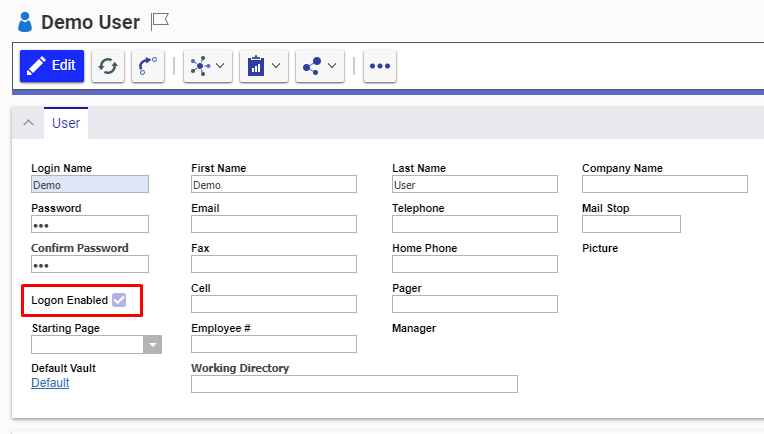
3. Fill mandatory fields like Login Name, Password, First Name, etc.
4. Check **Logon Enabled**.