space.vars.OIM. This user should not do any operations from the Rally's interface.
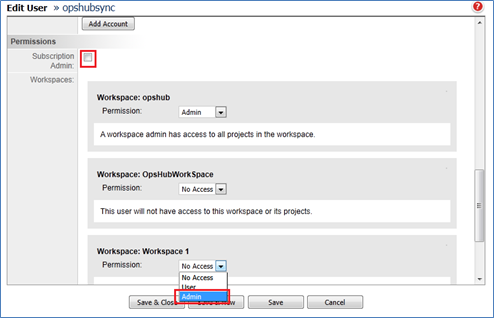
* This dedicated user must be at least **Project Admin** for each project for which the data needs to be synchronized. But if Rally is the target endpoint and the user wants to synchronize Attachments, then this dedicated user must be **Workspace Admin** for the workspace where these projects belong.
> **Note**: For details on how to assign privileges to a user, refer to the section [Adding permission to user](#adding-permission-to-user).
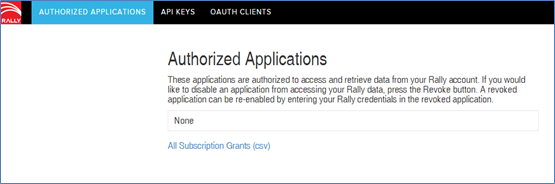
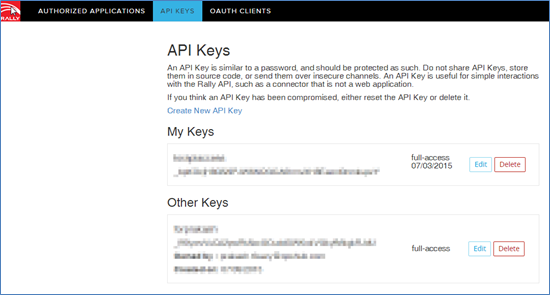
* If the user wants to use the 'API Key' Authentication mode to authenticate this user in space.vars.OIM, then the API Key should have the following permissions on the particular workspace or project:
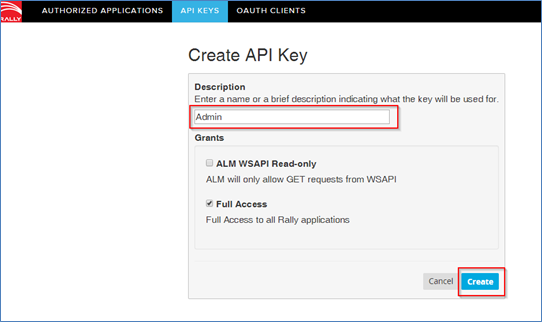
* If Rally is the source system, then 'Read only' grant is required for the API key. If the user wants to write back the Remote Link/ID to Rally, then 'Full Access' grant is required.
* If Rally is the target system, then 'Full Access' grant is required for the API key.
> **Note**: Please refer to the section [How to generate Rally API key](#how-to-generate-rally-api-key).
### Workitem prerequisite
Workitems in the Rally project to be integrated should not contain the following substrings in any field:
"], " , " changed from \[" , " added \[" , "removed \[" , "RANK moved up," , "RANK moved down,"
### Test Case Result prerequisite
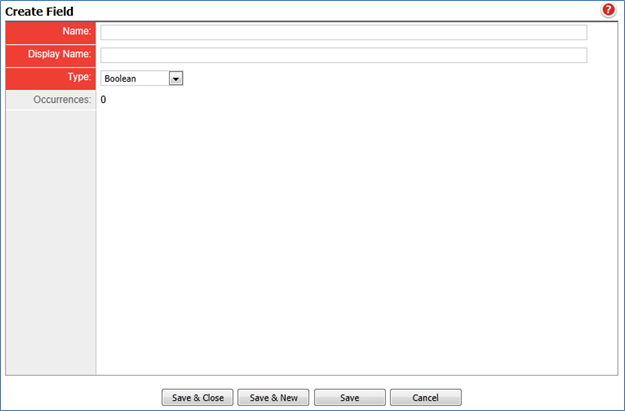
Integration requires the user-defined field given below to be configured in the Rally project if Test Case Result is the target entity. This field is required by integration to track the status of entities in synchronization.
| **Property Name** | **Type** |
| ----------------- | -------- |
| OHLastUpdate | String |
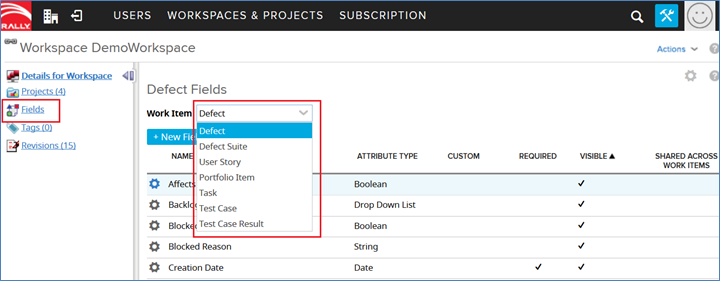
For more details on adding custom fields, refer to the section [Custom Fields](#create-custom-field).
## System Configuration
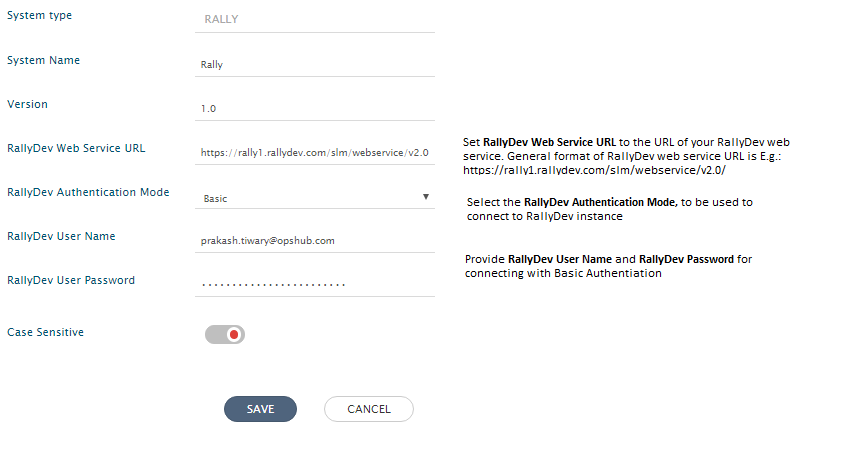
Before you continue to the integration, you must first configure Rally onto space.vars.OIM.
Click [System Configuration](/integrate/configure-integrations/system-configuration.md) to learn the step-by-step process to configure a system.
Refer to the following screenshot for reference:
space.vars.OIM. Click [Import SSL Certificates](/getting-started/installation/ssl-certificate-configuration.md) to learn how to import SSL certificate.
## Mapping Configuration
Map the fields between Rally and the other system to be integrated to ensure that the data between both the systems synchronizes correctly.
Click [Mapping Configuration](/integrate/configure-integrations/mapping-configuration.md) to learn the step-by-step process to configure mapping between the systems.
### Mapping Web Link type custom fields
Suppose there is a field called **OpsHubWebLink** of type Web Link in Rally, then under Fields metadata, it will display two values for one field as below:
* OpsHubWebLink.LinkName
* OpsHubWebLink.ID
> **Note**: Under OpsHubWebLink.LinkName, provide the label for the field to display. **Note**: Under OpsHubWebLink.ID, provide the replacement string.
When Rally is the source system, the value for the same will be in above format. Display string will come under OpsHubWebLink.LinkName and replacement ID under OpsHubWebLink.ID.
### Test Case Result mapping
For Test Case Result, it is mandatory to specify the test case under which the result needs to be added. Mapping provides two ways to do that:
* Search by name and add:
* You need to provide the name of test case under the mapping field 'Test Case'. Integration will look for the test case with the given name and will add test case result under that ::test case. If multiple test cases are found with the same name, then first name from the list will be picked.
* Search by OpsHub event id:
* To link a test case by event id, map the field 'Test Case.OpsHubEventId' with the eventid of the test case you want to synchronize.
### Map Changes field for Change Set
Changes field is collection of changes. Change is an entity that contains Action, Base, Extension, PathAndFilename (Required), Uri.
The user needs to do advanced mapping for field changes. Advanced mapping uses [XSLT](/integrate/configure-integrations/mapping-configuration.md#view-edit-xslt-configurations-options) to fetch required data from SourceXML and perform required operations on it.
#### XSLT for fetching data from SourceXML
* Fetch Commit ID from SourceXML
```
space.vars.OIM in Rally, the entity will be deleted in the Rally, and it can be found in the "Recycle bin" of the corresponding project, where it existed earlier.
* To only enable the logical delete operation in the target, "Recycled" field shall be mapped with the default value "No" in the [Delete Mode](/integrate/configure-integrations/mapping-configuration.md#delete-mode)
### Mapping for Entity mention field
* When Rally is configured as source system in the integration and its field/comment type is rich text (HTML), then the embedded entity link references will be translated as per mention sync option.
* Rally do not have different tag format for the entity mention tag, rather rally support the insertion of entity link in rich text field.
* space.vars.OIM will translate and synchronize those entity link references which are matching text `/#/?detail=/{entityType}/{entityId}&fdp=true` as per mention sync option configured in mapping.
* Description: "Sample text https\://{rally-server-url}/#/?detail=/defect/722340630099 \&fdp=true
* Click on [**Mention Sync Setting**](/integrate/configure-integrations/mapping-configuration.md#mention-setting) to know more about entity mention mapping and synchronization behavior in general.
### Relationship Configuration
* For **User Story** entity, either User Story or Feature can be linked as a Parent in Rally:
* For synchronizing **User Story** entity to/from Parent field, **Parent** link type needs to be mapped in space.vars.OIM.
* For synchronizing **Feature** entity to/from Parent field, **PortfolioItem** link type needs to be mapped in space.vars.OIM.
## Integration Configuration
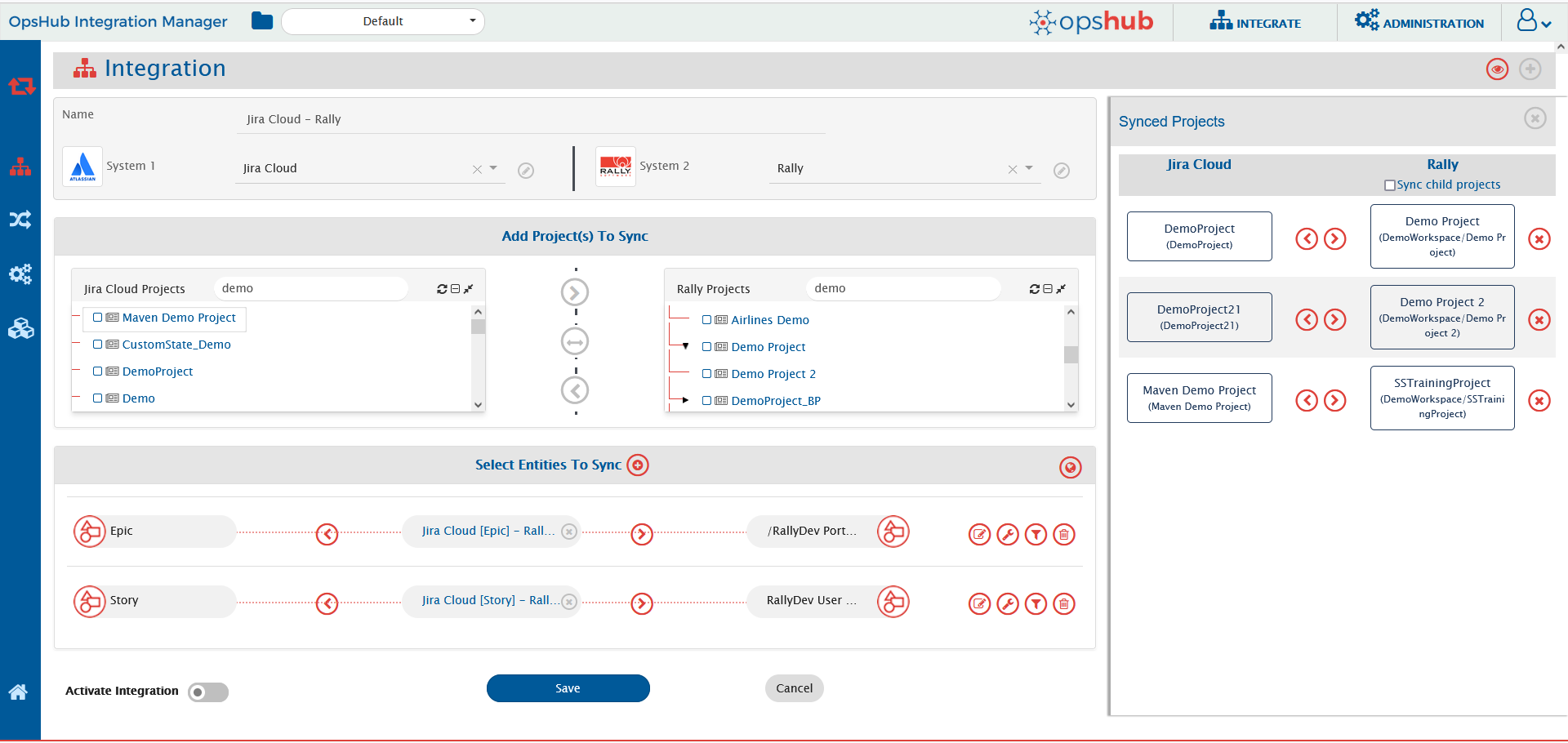
Set a time to synchronize data between Rally and the other system to be integrated. Also, define parameters and conditions, if any, for integration.
Click [Integration Configuration](/integrate/configure-integrations/integration-configuration.md) to learn the step-by-step process to configure integration between two systems.
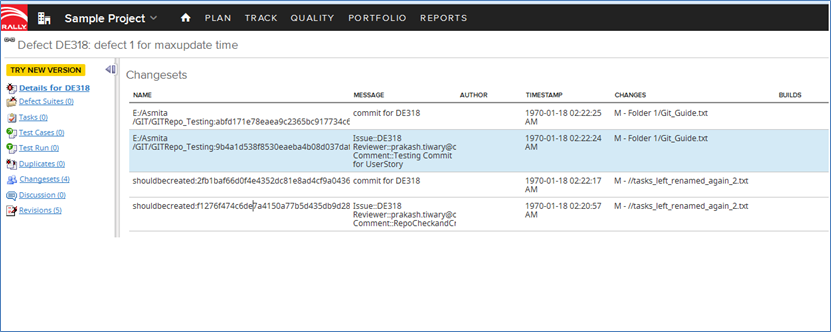
space.vars.OIM supports synchronization of commit information from Source Control Management (SCM system) to Rally Change Set. These Change Set can also be linked to artifacts (for example, User Story, Defect, etc.) by integration.
For viewing Change Sets from Rally UI, build and change set configuration should be enabled. For enabling this, you can refer to [Enable Build and ChangeSet](https://techdocs.broadcom.com/content/broadcom/techdocs/us/en/ca-enterprise-software/agile-development-and-management/rally-platform-ca-agile-central/rally/using-top/check-status/view-build-status.html/#concept.dita_80d8f1075ec66fb17a4878cb3c466c4b77bb9b62_BuildandSCMTraceability-enable).
Creating Change Set is not possible from the Rally UI; therefore space.vars.OIM does not support polling of Change Set, only creating Change Set is supported with Rally as the target system.
space.vars.OIM will not remove the task link from the User Story and Defect entities. In this case, space.vars.OIM will log a warning in the sync logs to indicate that the Remove Link operation is not supported. **Reason:** Rally does not allow removing the task links from the User Story and Defect entities.
### Accommodate Subscription, Workspace, or User (configured in Rally system/ Integration override user of space.vars.OIM) updates in Rally
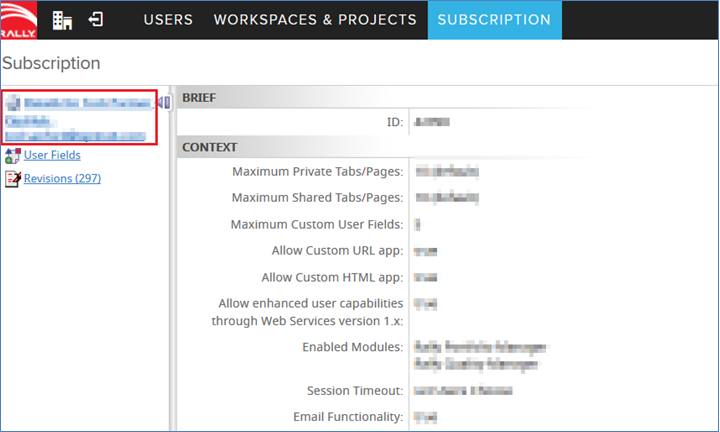
* In case the Rally subscription, or workspace, or user (configured in the Rally system/integration override user in space.vars.OIM) is updated. To reflect these changes in space.vars.OIM, the configured Rally system \[in which changes have been made] in space.vars.OIM needs to be edited.
* **Reason:** OIM cached the above type of data for optimized performance. To accommodate the above Rally updates \[for example, any new Workspace addition/Subscription name changed/user attributes' change], this data needs to be refreshed via editing the Rally system in space.vars.OIM.
* **Note:** If multiple systems are configured against the same Rally instance, any one of the systems can be updated in this scenario.
## Limitations
* When Rally is the target system in integration and the **Rally Project** field is mapped then there shouldn't be any update on any other field along with the update on the **Rally Project**, otherwise the revision where only project field is updated will be skipped.
* The custom date value from Rally can vary for time zone other than MDT as Rally does not support other time zones currently.
* Watchers Field synchronization is only supported when 'Authentication mode' of integration user is the 'API Token'.
* Watchers field synchronization is not supported for the Test Case Result entity.
* Criteria query is not supported for the "Watchers" field. In case configured with the "Watchers" field then query execution will result in the error such as "Could not parse: Could not find attribute 'Watchers'".
* For Rally as the source system, below are the limitations for 'Watchers' field synchronization due to the end system behavior which is 'No Revisions' are being generated for any updates of Watchers on Rally.
* Any updates performed for Watchers, will not get synchronized to the target system unless there is another update performed to the same entity, which generates a Revision for Rally.
* Watchers field will get synchronized with current value(s) only which are present at the time of synchronization, as no revisions available for the Watchers on the entity.
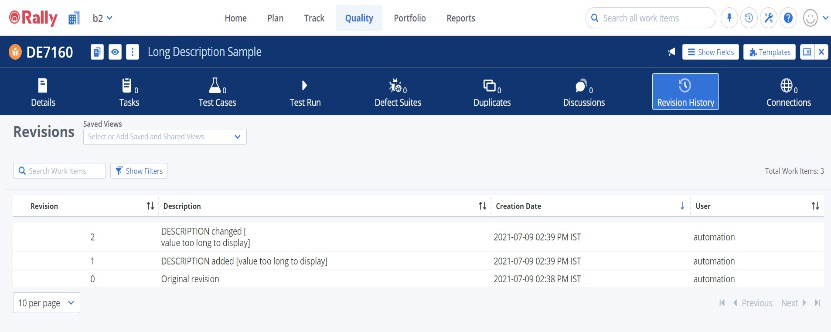
* For Rally as the source system, the HTML fields (like Description) containing more than 1985 characters are considered long descriptions. While synchronizing long description, the following issues may occur:
* Conflict will not be detected correctly.
* Intermediary revisions may not sync correctly. It may show that the value synced is "value too long to display" instead of actual value. However, the latest state of such fields will sync correctly. This issue is faced because revision history retrieved from the end system provides value as "value too long to display" instead of actual data (as shown in the example given below):
space.vars.OIM doesn't support synchronization of **Closed** projects and hence only **Open** projects will be visible in the list of available projects for configuration. This implies that any entity which is a part of or is linked to a project that is in the 'closed' state will not be picked for synchronization. To overcome this limitation, reopen the project and it will be available for configuration.
* **Milestone** entity of Rally is an exception for the above-mentioned case. Since the scope for the Milestone is Workspace rather than the project, it will be synchronized even if it is associated with only a closed project. **However**, the associated projects field will only have a list of open projects, as Rally API doesn't provide any information regarding closed projects.
* For Rally as the target system, if the source system has the rich text type of Wiki, then font color, background color, font family & font size will not be synced to the rich text (HTML type) fields (such as Description).
* **Reason:** Rally API limitation for the rich text field.
* To sync the above type of formatting, the below advanced mapping needs to be configured in the space.vars.OIM:
```xml
space.vars.OIM, the workspace of the projects to be integrated in the integration configuration must be same as the workspace of the project used in the mapping configuration.
* **Reason:** Portfolio Items are defined at the workspace level in Rally.
### Milestone synchronization
* When Rally is configured as one of the systems and Milestone is configured in the integration, do not club any other entity in the same Milestone entity integration.
* **Reason:** Milestone is a workspace level entity and other entities are project level entities which requires project to be selected at the integration level. For the Milestone entity, workspace needs to be selected at the integration level.
* When Rally is configured as one of the systems and Milestone is configured in the integration, do not enable the child project sync in the integration.
* **Reason:** Milestone is a workspace level entity and Rally does not have the child workspace concept.
## Appendix
### Adding permission to user
For giving privileges to a user, follow the steps given below:
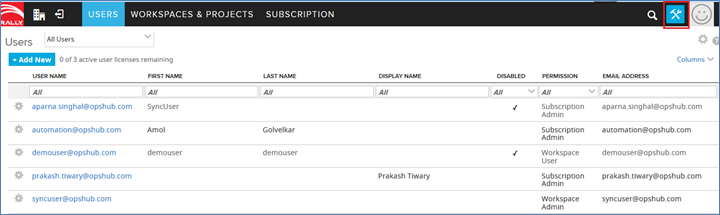
* Log into Rally instance with **Administrator** privileges.
* Navigate to **Setup** link on top right of Rally web interface.
Rally Custom Fields
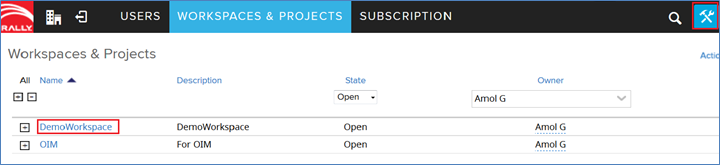
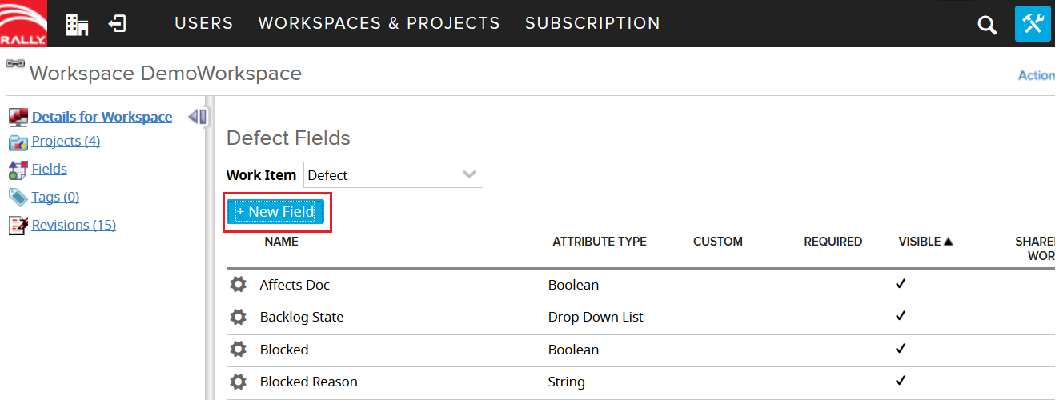
* Click the **Workspaces & Projects** tab. * Click the **Workspace** from the **Workspaces & Projects** list in which you want to create custom fields.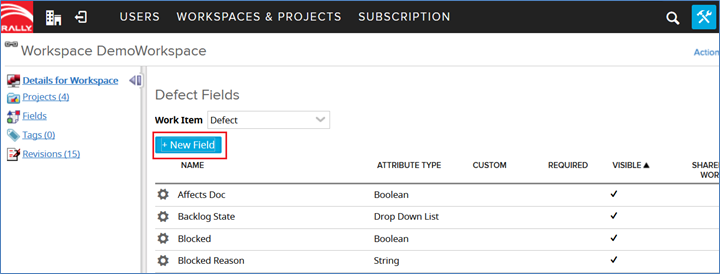

space.vars.OIM server.
* Create a new **environment variable** under **system variables** with:
* **Variable name:** `OH_Rally_PortfolioItem_DateFormat`
* **Variable value:** the date format of the date value for which polling is failing. For example, if the date value is `Wed May 20 07:24:46 MDT 2015` then the variable will have: `EEE MMM dd HH:mm:ss z yyyy` as the variable value.
> If there are multiple date formats that are not handled by integration, then provide them inside the same environment variable separated by `;` (semi-colon), for example: `EEE MMM dd HH:mm:ss z yyyy;yyyy-MM-dd HH:mm:ss.SSS`
* Save the environment variable and start the space.vars.OIM server.
* Now, start the integration that was stuck due to date parsing failure.
---
# Agent Instructions
This documentation is published with GitBook. GitBook is the documentation platform designed so that both humans and AI agents can read, navigate, and reason over technical content effectively. Learn more at gitbook.com.
## Querying This Documentation
If you need additional information that is not directly available in this page, you can query the documentation dynamically by asking a question.
Perform an HTTP GET request on the current page URL with the `ask` query parameter, and the optional `goal` query parameter:
```
GET https://docs.opshub.com/connectors/rally.md?ask=